Category: IP Cameras

IP or Network Cameras

  • Review – Reolink Duo Floodlight PoE 4K Dual-Lens IP Camera

    Review – Reolink Duo Floodlight PoE 4K Dual-Lens IP Camera

    I have always wanted a 4K Power over Ethernet (PoE) security camera with built-in LED floodlights. It’s possible to install separate smart floodlights for my existing cameras, but you just can’t beat the convenience of a single package that works on Power over Ethernet (PoE). No extra power supply or wiring needed!

    Reolink sent me the Duo Floodlight PoE to review and I have been putting it through its paces. There are 2 versions of this security camera – this PoE model we are reviewing today and a Wi-Fi model. Apart from having 4K resolution, 2 bright floodlight LEDs, it also has dual lenses with 180º field of view and smart detection that can turn on the floodlights whenever a person, animal or vehicle is detected. It can also work fully locally with any ONVIF-compliant NVR, Home Assistant or Frigate NVR. No cloud reliance & no subscription!

    Sounds too good to be true? Well, we are going to look at the features of this camera, setting up with the Reolink app, Home Assistant, Frigate NVR, floodlight and motion detection performance, video & audio quality and how well it works with our VueVille DIY Home CCTV system and our DIY Smart Home Automation System! Let’s get started!

    [wpsm_titlebox title=”Contents” style=”main”][contents h2 h3][/wpsm_titlebox]

    A quick note: As an Amazon Associate I earn from qualifying purchases. This post contains affiliate link(s). An affiliate link means I may earn advertising or referral fees if you make a purchase through my link, at no extra cost to you.

    Video Review

    If you’d prefer this post in video format, here’s an in-depth video review:

    How to use this camera and my setup

    There are several ways to use the Reolink Duo Floodlight camera:

    • It can work as a fully standalone security camera. If you use its built-in microSD card you can also enjoy the built-in NVR feature accessible through the Reolink mobile app or desktop app.
    • Since the camera supports ONVIF and RTSP, you can also use the camera with any ONVIF compliant NVR or PC or NAS-based NVRs (like Frigate NVR) but not all features may be supported.
    • Of course you can always connect it to Reolink’s own NVR models and all the camera’s special features such as floodlight control will be available too.
    • If you prefer, you can always set the camera to save clips to an FTP server, but the built-in NVR feature will not be available in the Reolink mobile and desktop apps.
    • The camera will also work with Home Assistant using the Reolink Integration.

    Personally I have the Duo Floodlight connected to Home Assistant and to Frigate NVR which does AI object detection. I also have the Duo Floodlight configured to upload smart motion detection clips to an FTP server on my local network. More on that in the Frigate and FTP sections below.

    What’s in the box

    The box contents list of the Reolink Duo Floodlight:

    • Reolink Duo Flodlight 4K IP camera
    • Floodlights
    • Mounting plate
    • Mounting hole template
    • Installation and operation guide with photos
    • 1 metre Ethernet cable
    • Screws, rawl plugs
    • Surveillance sign
    • UK and EU regulatory compliance certificates

    Specifications

    [table id=89 responsive=scroll /]

    Design & Features

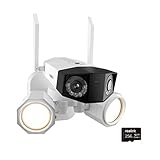
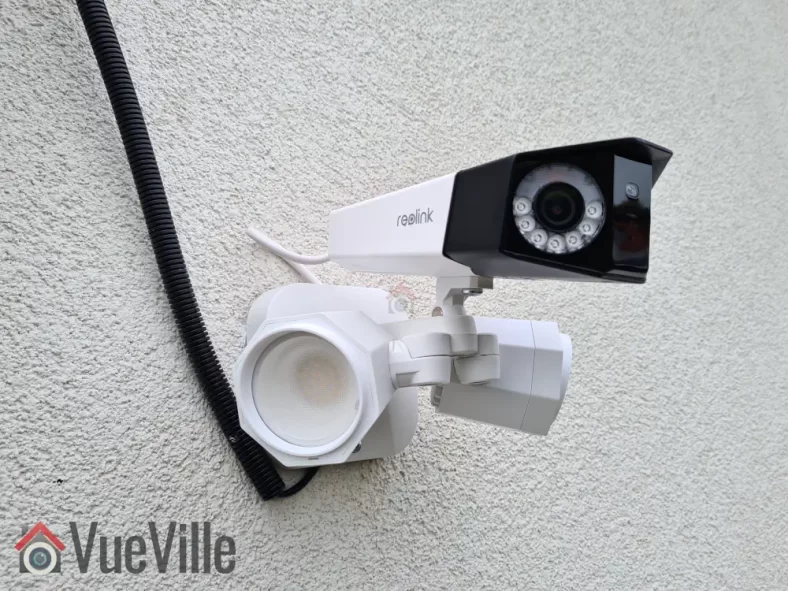
    The Reolink Duo Floodlight looks exactly like what you would imagine if you have seen the regular Duo camera before. Basically it’s the Duo dual-lens camera that is attached to the floodlight accessory that is also available for purchase.

    Indeed, it has been possible to buy the regular Duo camera and the Floodlight separately and link them to with each other through the Reolink app. However the floodlight was not controllable through 3rd party interfaces like the Home Assistant integration or any other smart home system. So the Duo Floodlight addresses a very relevant use case where you can trigger the floodlight by any other sensor or device in your smart home, or any other Reolink camera, not just the Duo camera it is attached to.

    In the box, the camera and the floodlight come packaged separately. Everything that you need to mount & install the camera on a masonry wall is included in the box, there’s even an Ethernet cable!

    Let’s take a closer look at the camera now. The body is the same as the regular Reolink Duo camera with a dual-tone black and white metallic casing. The camera has a smart image stitching feature whereby it automatically seamlessly stitches the streams from each lens to produce a single 4K stream with 180-degree field of view.

    Unlike the previous generation Duo, this camera will not let you access each lens’ 2K stream individually. So whatever you plan to do with the video stream, make sure your hardware can handle a very wide resolution of 4608 x 1728. I use the Duo Floodlight with Frigate NVR and as long as you don’t place the camera too high up which distorts the camera view, Frigate object detection works very well even at this ultra-wide resolution (more on that in the Frigate section below).

    For night vision, each of the 2K lens have 7 IR LEDs around it (850nm type). The 14 IR LEDs together give a black and white night vision range of 30 metres (98 feet).

    The day/night light sensor for the auto IR cut filter is placed between the two lenses. This lets the camera automatically switch between day-time colour vision and night-time IR. The microphone is placed just below the day/night sensor.

    On the top of the camera, there is only a mounting point in case you want to place the camera below the floodlights for some reason (the recommendation from the manual is to place the camera over the floodlights instead).

    On the underside of the camera, we see a removable cover for the microSD card slot and the reset button, the mounting point for attaching the camera to the floodlights and the down-firing speaker. Together with the mic, the speaker lets you have a 2-way conversation with anybody near the camera.

    The microSD slot takes cards of up to 256 GB in capacity, which is pretty standard these days. If you don’t have an NVR or don’t need one, the camera has built-in NVR feature using the microSD card slot. Since the Reolink Duo Floodlight supports only H.265, make sure your browser can handle this format for playing back video clips etc.

    So how do we connect the camera to the floodlight? That’s where the adapter fixed permanently to the camera comes in. It has a DC power port, LAN port and a two prong LED connector port.

    Let’s take a look at the floodlight now. The 40 LEDs together provide 1800 lumens of illumination with a colour temperature of 4200K which is cold white. The LEDs consume 15W of power by themselves. That’s why the camera and floodlights together are rated at 24W power consumption. So you can see why this camera needs a PoE switch that offers the 802.3 at standard (and not just 803.3af PoE). 802.3at provides up to 25W of power whereas 802.3af can do only 15W.

    Each of the floodlights are individually adjustable so that you can point them anywhere you want. The camera can also be adjusted up, down, left and right using the included Allen key. You can also adjust the tilt angle of the camera.

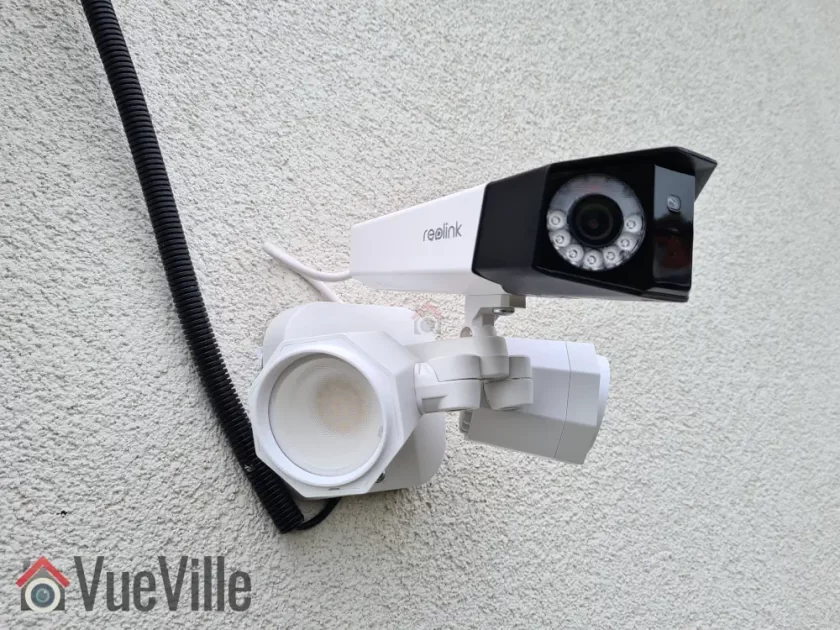
    When assembled together and plugged into the LED port, this is what the end product looks like:

    Camera Mounting

    The recommended height for installing security cameras is between 8 – 10 feet. If you have ever tried installing a large camera at that height while on a ladder, you know its difficult. Thankfully Reolink has thought this through properly and mounting the camera can be done in stages.

    1. Screw the camera and the floodlight together as shown earlier
    2. Connect the cable from the LED to the camera adapter
    3. Mark the screw holes using the provided drill template
    4. Drill and install the mounting bracket. My house is a North European new build, it has a thin façade with 25 centimetres of insulation block behind it. So I have to use special anchors & screws that are not included with the camera.
    5. Hook the safety clip
    6. Connect the Ethernet cable from your PoE switch, and the DC cable (if not using PoE)
    7. Place the camera on the bracket
    8. Screw in the final screw and you’re done!

    Make sure your switch can provide enough power for the camera to work, that’s up to 24 Watts at night when the floodlights are on. I use a Lanberg 802.3at PoE switch which can provide up to 30W per port. That’s plenty of power for the camera.

    Reolink Duo Floodlight PoE Setup

    By default when you plug it into your network, it will accept an IP address provided by your DHCP server. As the Reolink Duo Floodlight is capable of fully local standalone operation, an Internet connection is not required for either camera setup or operation (except push notifications).

    So you are not forced to follow a software installation process but several methods are available for adjusting the camera and for using the advanced features such as AI motion detection, floodlight control, clip playback etc.

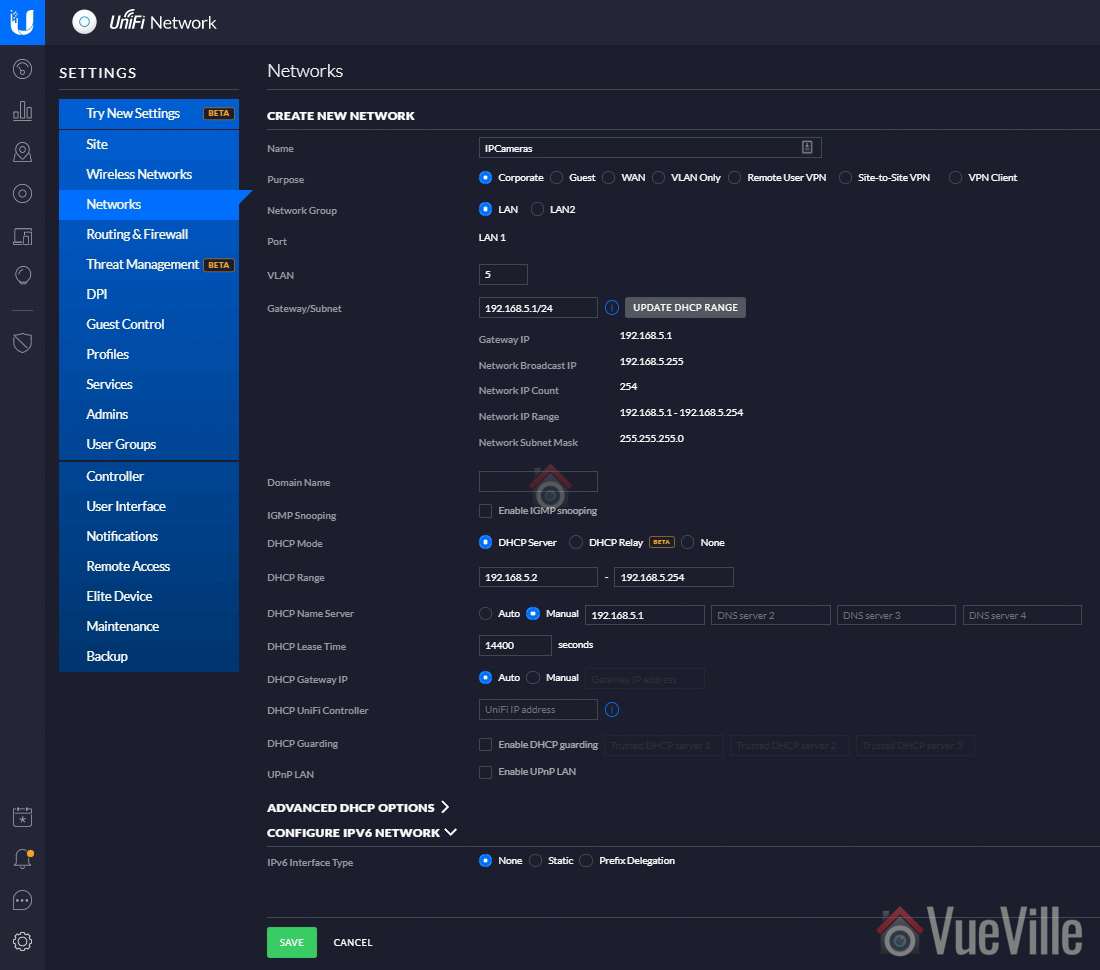
    I connected the Reolink Duo Floodlight PoE to my VLAN dedicated to security cameras. This VLAN allows me to block Internet access to security cameras, and optionally allow Internet access on a per-device basis if necessary for say push notifications.

    Setup using the Reolink Web Admin Page

    This is my preferred method of managing the camera settings. Since the camera admin page uses HTML5, you can use any modern web browser such as Safari, Chrome, Firefox or Brave.

    With the Reolink Duo Floodlight, I had to adjust the image stitching settings slightly to get the images from the two lenses to line up perfectly. This is found under the image stitching setting on the live view landing page. I also set the privacy mask feature to mask off some houses in the background.

    However, the web admin page wouldn’t allow me to live-view the main 4K stream in my browser complaining that the system was not powerful enough. This is definitely not true, its a pretty powerful gaming PC with a Ryzen 12 core CPU, tons of RAM, NVMe drive, and an NVIDIA 1660 Super video card.

    There is a button to control the floodlights but it didn’t work. Neither did the audio alarm button work. You also cannot access the 2-way talk feature from here.

    Setup using the Reolink Desktop App

    The Reolink Desktop app is ideal for live-viewing the main stream (4K resolution), and for using the built-in NVR feature of the camera.

    The live-view feature is especially useful if you use only Reolink cameras and would like a multi-camera view – the software can display up to 36 cameras simultaneously.

    Also there is a very nice toolbar at the bottom of the app that enables 2-way talk, controls the floodlight, sound the siren, take snapshots, or record clips.

    However there are some oddities – I couldn’t find the image stitching settings in the Reolink desktop app, which was available in the web admin page.

    If you are using the camera for motion detection, it is worth adjusting the smart detection sensitivity and setting up the features such as minimum object size and motion masks.

    Both the desktop and mobile apps allow you to set these up. Reolink calls motion masks No-Detection Zones. So you don’t need to rely on privacy masks if you don’t want the camera to detect motion in one area. This is very useful for areas like the footpath or road in front of your driveway, because you are not interested in the people or cars on the road, just the ones that enter your driveway. All of these adjustments will help reduce false alerts massively.

    The floodlight behaviour can be controlled in detail – I like to leave it at the default Night Smart Mode setting where it turns on only at night when it detects a person. You can record audio on your clips if you like. As usual, the recording behaviour and schedule can be customized. And you can scare people away by automatically sounding the siren along with the floodlights turning on.

    Setup using the Reolink Mobile App

    The Reolink mobile app is needed if you want Reolink’s push notifications to work. You will also need to turn on the UID (P2P) feature and give the camera internet access.

    Personally I do not use the Reolink mobile app in my setup because I use the excellent Frigate NVR lovelace card which works beautifully in my HA dashboard and Home Assistant mobile app for actionable notifications. However for the purpose of testing the app for this review, I enabled the camera’s UID feature and gave it Internet access.

    The mobile app is pretty good and very easy to use. It never crashed over the many months I have been using it on my Samsung S20.

    There’s also a new beta feature in the mobile app called MotionMark which will draw a bounding box around the object that has triggered the motion alert. Very useful for troubleshooting false alerts etc.

    Setup Reolink Duo Floodlight PoE in Home Assistant

    Personally I use the Reolink integration to control all aspects of the camera, after using the web admin page for adjusting things such as image stitching, stream settings such as fps, privacy masks etc.

    Since this was the first Reolink camera I was installing that was supported by the official Reolink Integration, I had to add the camera as part of the installation process of that integration in Home Assistant:

    1. Ensure your firewall allows your Reolink camera to reach the Home Assistant server
    2. Ensure the user you create in the camera interface for the integration to use is an administrator account
    3. Enable the http port option under the camera’s network settings (its off by default)
    4. Install the Reolink integration from Settings>Devices>Integrations
    5. Enter an admin username, password and the IP address of the Reolink Duo Floodlight PoE
    6. Wait a couple of minutes until you get the message saying the camera configuration has been successful.

    Head on over to the device page from Settings>Devices>Integrations and treat yourself to this amazing integration that gives local access to the whole camera. All the important settings and sensors are available so that you can control them manually or programmatically through Home Assistant!

    You will need to enable the main stream entity manually if you need it. Regarding performance, I didn’t notice any delays while controlling the camera through this integration. Any camera switch or setting you change through any other method will be reflected in the integration as well. Just make sure the http and https ports are enabled in the camera config.

    Setup Reolink Duo Floodlight PoE in Frigate NVR

    I have Frigate NVR set up on a NUC11 mini-pc and an M.2 Coral Edge TPU, and I use the H.265 streams for detection and recording whenever possible. Here are the host system specs in case you are interested:

    • Intel NUC11TNKi5 with Iris XE integrated graphics
    • 32 GB RAM
    • 2 TB Samsung 970 Evo NVMe SSD
    • Coral Edge TPU (M.2)
    • Frigate 0.12 configuration: Coral as detector, preset-vaapi for hardware acceleration (hwaccel argument)
    • Detection streams: Main streams resized to 1080p (I don’t use sub streams because they are generally not detailed enough to detect small animals like cats)

    The Frigate docs do recommend using a Reolink specific configuration but I thought I would try it with just the standard setup above. I was very pleased to see that everything worked well out of the box.

    For the detection stream, I set Frigate to resize the main stream to half of 4K resolution. I am using the main stream for detection because I found that the sub stream resolution is not high enough for accurate detection of small objects like cats. Not surprising because the camera has 4K resolution over 180 degree field of view, instead of say 110 degrees like a single lens camera.

    Because my system is powerful enough to handle on the fly resizing, I am not forced to use the sub stream for detection. I also enabled the constant FPS option in the Reolink settings and set the i-frame interval (Interframe Space as Reolink calls it) to once every frame.

    Here’s the configuration I use for ffmpeg in Frigate:

    ffmpeg:
      global_args: -hide_banner -loglevel warning -threads 2
      hwaccel_args: preset-vaapi
      input_args: preset-rtsp-generic
      output_args:
        detect: -threads 2 -f rawvideo -pix_fmt yuv420p
        record: preset-record-generic-audio-copy

    And here’s the configuration for the camera in Frigate:

    cameras:
      backyard_duo:
        enabled: True
        ffmpeg:
          inputs:
            - path: rtsp://username:password@192.168.X.X:554/Preview_01_main
              roles:
                - detect
            - path: rtsp://username:password@192.168.X.X:554/Preview_01_main
              roles:
                - record
        detect:
          width: 2304
          height: 864
          stationary:
            interval: 0
            threshold: 100
    
        best_image_timeout: 60
          
        record:
          enabled: True
          expire_interval: 0
          retain:
            days: 30
            mode: motion

    Setup Reolink Duo Floodlight PoE to upload clips to an FTP server

    I have the Duo Floodlight configured to upload smart motion detection clips to my FTP server on my local network (not the Internet). Here’s how I have it configured using the mobile app (you can use the web admin page or desktop app also):

    FTP Settings – click to enlarge

    Don’t forget to specify the remote directory – in my case it is ‘upload’. This is because the default directory I have set for the camera’s FTP account is ‘/home/backyard_duo/ftp’ and I want the camera to place clips inside a folder called ‘upload’.

    Secure FTP is supported by the camera.

    Performance Testing

    With a camera that has so many different features, it is a challenge to address every single use case. So I have decided to focus on those things that most people buying the Reolink Duo Floodlight PoE will care about.

    • During the daytime it should be able to quickly and accurately detect a person/animal/vehicle who is entering my property, send me push notifications, record a video clip to the SD card/FTP server/NVR.
    • During the night time, it should also turn on the floodlights whenever a person/animal/vehicle is detected.
    • Use the siren feature to scare away intruders/animals.
    • Use the 2-way talk feature to talk to the person/shout at the intruder when I am not at home.
    • It should not fail to detect people during the day or night!
    • No false alerts (even at the highest sensitivity for smart motion detection)
    • Advanced features: Home Assistant integration hat works well & Frigate NVR compatibility for accurate object detection without any fuss

    Test Setup

    I increased the sensitivity of the person detection to maximum so that we are fully testing how powerful the smart detection algorithms are.

    For the daytime tests, I set the siren to sound so that we can see the precise moment at which the person is detected. Similarly for the night-time tests, the floodlights turning on indicate the precise moment of person detection occurring.

    The test scene:

    • 15 metres from the camera to the fence straight ahead
    • 30 metres from the camera to the fence on the left of the camera
    • 20 metres from the camera to the fence on the right of the camera

    Smart Motion Detection, Floodlights & Video Quality

    Our test scenarios comprised of a person walking across my 500 metre sq. backyard:

    1. Entry from right (20 metres from the camera) and walking across the camera to the left,
    2. Entry from left (30 metres from the camera) and walking across the camera to the right, and
    3. Approaching the camera head on from the centre of the scene.

    We conducted the above tests during the day and the night with no other camera’s IR or illumination present.

    In the first 2 test scenarios during the daytime, the camera detected the person within 2 seconds of entering the scene. This was evident from the siren turning on & the push notification being sent. So we can confidently say that the camera can detect persons at a distance of 30 metres when the person is walking across the scene. In the final scenario of the person approaching the camera head-on, the person was detected at a distance of 10 metres (33 feet).

    We then carried out the same tests at night-time. This is the real test of any camera’s motion detection as it has to rely purely on its Infra-Red LED for night vision. The moment of person detection was observed by noting when the floodlights turned on. Once again the person was detected within 2 seconds of entering the scene. So very similar to the daytime test results. In the final scenario of the person approaching the camera head-on, detection occurred at a slightly lesser distance of 7 metres (23 feet).

    I tested the Reolink Floodlight Duo PoE extensively over a month and had only a single instance of an adult person being mis-categorized as a pet instead of person. The camera didn’t create any false positives nor did it fail to detect a person.

    So in summary, the daytime smart detection is excellent and night-time smart detection is pretty good. The video quality is excellent during the daytime as one would expect from a 4K camera. Night-time video quality is more than acceptable especially with colour night vision thanks to the floodlights. Adding external IR illuminators will further improve motion detection.

    Audio Quality (2-way talk)

    We tested the Reolink Duo Floodlight PoE’s 2-way talk feature through the Reolink mobile app, both over Wi-Fi and 4G mobile data. I stood around 6 feet away from the camera and my wife was at the other end on the Reolink mobile app. Pressing the ‘tap to talk’ button on the app enables the feature.

    My wife could hear me clearly and my voice was also clearly recorded on the motion detected clip that the camera recorded to my FTP server. My voice came through at a good volume at her end. Her voice was audible on the the camera’s down-firing loudspeaker but it was not as loud as I expected.

    There was only a slight lag similar to other cameras we have tested but it was not an issue at all for carrying on a conversation.

    So the 2-way talk feature is acceptable for talking to someone at the door, but I would have liked the speaker to be a bit louder.

    Mobile notifications with Reolink mobile app

    As you can see in the video review, mobile notifications were reliable and instantaneous locally over Wi-fi and remotely over 4G mobile networks. Tapping on the notification took me straight to the live-stream and I was able to immediately start watching the live stream with the person still on screen. So an excellent result here.

    The only thing I miss here is rich actionable notifications such as the one Frigate sends me through Home Assistant.

    In Home Assistant

    As we saw earlier the Reolink integration creates binary switches and sensors for almost everything that you can think of. To test how responsive the camera is through the Reolink integration, I compared the delay in turning on the Floodlight from HA vs. the Reolink desktop and mobile apps. In all 3 cases, performance was identical – the floodlight turns on within 1 second of the button being tapped in both HA and the Reolink app.

    The common issue people have faced in the past with some cameras in HA is the RTSP stream in Home Assistant not being real-time, and lagging behind by several seconds. Of course there are several alternatives such as using WebRTC but I wanted to see if this is still an issue.

    The Reolink integration creates an entity for each stream from the camera. By default only the sub stream (896 x 512 resolution) called camera.duo_floodlight_poe_sub is active. I personally dont want anything other than the sub stream on my dashboards because the extra resolution of the main stream is lost on the mobile or tablet devices I use. But for the sake of testing, I enabled the main stream also and embedded both of them into an HA dashboard as a picture card with the live option enabled:

    • The sub-stream view was an actual video and the lag vs. the Reolink RTSP stream on the web admin page was 1 second
    • The main-stream view was a still image that updated every 10 seconds (not live!), and the lag vs. the Reolink Desktop app 4K stream was 2 seconds

    In Frigate NVR

    Frigate is my NVR for AI object detection, and with the settings mentioned earlier in the setup section, I have very reliable person detection in the defined zones. I’d say its comparable to that of the Duo Floodlight PoE’s own smart motion detection system.

    One common issue that people experienced in the past with Reolink cameras is glitching and tearing while using the RTSP streams. But with the i-frame interval and constant fps settings, I experience no such anomalies. The 4K mainstream and 0.5MP sub streams were smooth and Frigate had no complaints either. Finally the Frigate Lovelace card shows the camera sub-stream with a lag of only 1 second.

    The VueVille Verdict

    So what’s the verdict? Overall I am very happy with the Duo Floodlight and how well it integrates with my smart home using Home Assistant and Frigate NVR. If you want a high quality 180 degree panoramic 4K camera with smart floodlights, the Duo Floodlight PoE is a great choice.

    So what do you think about the Duo Floodlight PoE? Which camera would you like me to review next? Leave your comment below!

    Where to Buy

    REOLINK Duo Floodlight PoE, 4K Dual-Lens Security Camera, Outdoor PoE IP Camera with 180° Ultra-Wide Angle, 1800 Lumen Floodlight, Human/Vehicle/Pet Detection, Two Way Talk, Waterproof
    ×
    Product prices and availability are accurate as of the date/time indicated and are subject to change. Any price and availability information displayed on https://www.amazon.com/ at the time of purchase will apply to the purchase of this product.

    Duo Floodlight PoE

    Check Amazon Price*

    View on Reolink.com

    REOLINK Floodlight Camera with 256GB microSD Card Bundle, Duo Floodlight WiFi, 8MP Dual-Lens Camera for Outdoor Security, 5GHz/2.4GHz WiFi, Human/Vehicle/Pet Detection, Local Storage
    ×
    Product prices and availability are accurate as of the date/time indicated and are subject to change. Any price and availability information displayed on https://www.amazon.com/ at the time of purchase will apply to the purchase of this product.

    Duo Floodlight Wi-Fi

    Check Amazon Price*

    REOLINK 4K PoE Security Camera System, Home Outdoor IP Camera in 180 Degree Viewing Angle, Human/Vehicle/Pet Detection, Color Night Vision, Two Way Talk, Up to 512GB microSD Card, Duo 2 PoE
    ×
    Product prices and availability are accurate as of the date/time indicated and are subject to change. Any price and availability information displayed on https://www.amazon.com/ at the time of purchase will apply to the purchase of this product.

    Duo 2 PoE

    Check Amazon Price*

    REOLINK Duo WiFi - 2K 4MP Outdoor WiFi Cameras for Home Security, Ultra-Wide Angle Security Camera, Color Night Vision, Person/Vehicle Detection, 2.4/5 GHz WiFi, Two-Way Audio, IP66 Waterproof
    ×
    Product prices and availability are accurate as of the date/time indicated and are subject to change. Any price and availability information displayed on https://www.amazon.com/ at the time of purchase will apply to the purchase of this product.

    Duo 2 Wi-Fi Battery Solar

    Check Amazon Price*

    (* = affiliate link / image source: Amazon Associates Program)
  • Battery Camera Review: Reolink TrackMix Wi-Fi PTZ with Solar Panel

    Battery Camera Review: Reolink TrackMix Wi-Fi PTZ with Solar Panel

    Hands-on-Review Reolink TrackMix WireFree PTZ WiFi Camera - Reolink Solar Panel 2 - VueVille

    A few months ago, I reviewed my first 8 Megapixel IP camera from Reolink, the RLC-824A. Reolink has continued to put out very unique cameras and I have one such device for review today: the fully wire-free PTZ called Reolink Trackmix Wi-Fi (Battery) with dual-lens auto-tracking.

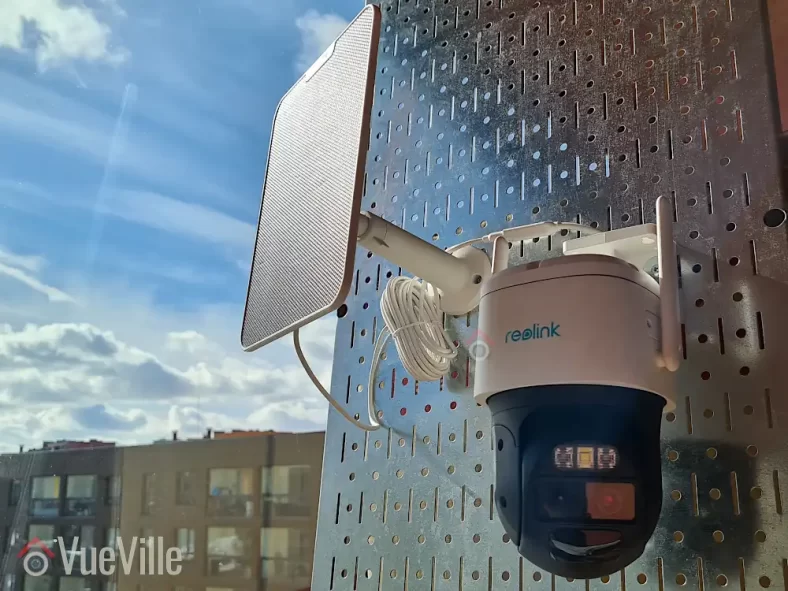
    Reolink kindly provided a review sample of this Trackmix which has a built-in battery and the Reolink Solar Panel 2, which together make this camera 100% wire-free and self-powered! As always, we are going to look at the features, setting up the camera, battery performance, motion detection performance, video & audio quality and how it works with our VueVille DIY Home CCTV system and our DIY Smart Home Automation System!

    NOTE: Reolink also has a version of the Trackmix Wi-Fi that is mains powered (instead of a battery), it has a 4K sensor and RTSP support.

    [wpsm_titlebox title=”Contents” style=”main”][contents h2 h3][/wpsm_titlebox]

    A quick note: As an Amazon Associate I earn from qualifying purchases. This post contains affiliate link(s). An affiliate link means I may earn advertising or referral fees if you make a purchase through my link, at no extra cost to you.

    Video Review

    If you’d prefer this post in video format, here’s an in-depth video review:

    How to use this camera

    The TrackMix Wi-Fi can work as a standalone security camera using its built-in microSD card, or you can connect it to a Reolink NVR. Please note that older NVRs may not support the dual-view feature.

    Like most battery powered cameras, the TrackMix WiFi does not support RTSP or ONVIF and so cannot be added to Home Assistant or similar home automation software.

    It does however support Alexa and Google Home, neither of which I use in our fully-local self-hosted smart home.

    What’s in the box

    Box contents list of the Reolink Trackmix:

    • Reolink TrackMix Wire-free IP camera
    • USB 2.0 to USB-C cable
    • Screws, rawl plugs
    • Installation and operation guide with photos
    • Mounting hole template
    • Surveillance sign
    • UK and EU regulatory compliance certificates
    Box Contents - Review - Reolink TrackMix WireFree PTZ WiFi Camera - Solar Panel - VueVille

    Box contents list of the Reolink Solar Panel:

    • Reolink Solar Panel 2
    • USB-C male-to-female conversion cable
    • Mounting arm
    • Metal backing plate
    • Screws, rawl plugs
    • Installation and operation guide with photos
    • Mounting hole template
    • Mounting strap for tree or pole
    • UK and EU regulatory compliance certificates
    Box Contents 2 - Review - Reolink TrackMix WireFree PTZ WiFi Camera - Reolink Solar Panel 2 - VueVille

    Specifications

    [table id=85 responsive=scroll /]

    [table id=86 responsive=scroll /]

    Design & Features

    The TrackMix comes in the traditional form factor of a Wi-Fi PTZ camera. No surprises there. But Reolink has opted for a mix of metal and plastic for its construction. This is a departure from other cameras we have reviewed in the past which were fully metallic. However the camera doesn’t seem to be negatively affected by this.

    I was a big fan of the RLC-423 PTZ that Reolink brought out a long time ago. While that was a single-lens model, the TrackMix has a dual-lens setup. That’s the USP of this particular PTZ camera together with auto-tracking.

    The Dual-View lens gives it the ability to produce 2 different video streams simultaneously: a panoramic view from its wide-angle lens, and a separate auto-tracking zoomed-in view from the close-up lens. This clever setup overcomes the biggest flaw of traditional PTZ cameras – when a single-lens PTZ is auto-tracking by zooming into a target object, it is blind to everything else going on in the scene. This can lead to a costly mistake if valuable evidence of a crime is going on outside the zoomed-in camera’s view!

    The front of the camera also houses the 2 EXIR LEDs, the floodlight LED, day-light sensor, microphone and the PIR sensor for true motion detection. Uniquely, the TrackMix has not only Infrared LEDs for night vision, but also a bright LED floodlight for colour night vision. I found the LED to be bright enough for identifying faces up to a fair distance but of course for a larger yard or area you would need additional lighting. The Reolink Floodlight is a great option here as it can turn on when any linked Reolink camera detects motion.

    I was quite intrigued to find the PIR sensor here and how it integrates together with the smart motion detection. So I have included a section later on how it all works together. The PIR sensor doesn’t have a claimed range but I would expect the standard 5 metres that similar cameras claim.

    The rear of the camera has the speaker for 2-way audio, the same speaker is used for the siren deterrent feature.

    We find the microSD card slot at the bottom of the camera. It can take cards up to 256 GB which is more than sufficient.

    But what about the reset button? Where is that hidden? Reolink always finds a smart place to put it.

    Move one of the antennas down on one side and you will find an unnamed panel held with screws. Remove those screws and you find not only the reset button but an ON-OFF switch as well. Now that’s a great addition!

    Finally the single USB-C cable comes out through the top of the housing and through the wall mount. This cable can be used to charge the built-in battery either from AC power or the Reolink Solar Panel 2.

    Installation & Setup

    Charging the battery: Following the user manual, I plugged the camera into my mobile phone charger using the camera’s USB-C cable. After a short while, the indicator light on the cable turned green and we were ready for the rest of the setup process.

    Hardware setup

    Installing the camera and solar panel physically on to my test rig took just under 10 minutes, all the required rawl plugs and screws are provided. I also added a microSD card.

    I plugged in the TrackMix camera’s USB-C cable (female end) into the Solar Panel’s USB-C cable (male end). Finally I turned on the camera using the aforementioned power switch.

    With previous camera reviews, I had to spend quite a bit of time planning out how to power the camera and running a PoE Ethernet cable to it. But the Reolink Solar Panel made all of that redundant, and the camera being Wi-Fi meant that there were zero cables to route, install or bury!

    I couldn’t find a web admin interface at the camera’s IP address, so decided to follow the default setup method which is the Reolink mobile app.

    Mobile App Setup

    Reolink cameras are usually a breeze to set up because of a few reasons:

    1. Reolink sets the cameras to use DHCP by default.
    2. Reolink cameras do not require an Internet connection for initial setup.

    These two facts make it super easy to add the camera to my network’s dedicated VLAN for CCTV cameras. This dedicated VLAN also doesn’t have internet access – I use firewall rules to achieve this.

    I did notice one odd thing about the Reolink TrackMix though – the setup process could be completed only if my phone running the Reolink app was also in the same VLAN as the TrackMix. I have never encountered this behaviour with Reolink cameras before, but have seen it with my Mi Smart Air Purifier and Mi Smart Humidifier.

    Since the TrackMix Wi-Fi camera does not have an Ethernet port, the only way you can set it up is using the mobile app and the voice guidance of the camera.

    When I turned on the TrackMix, the voice guided setup started by asking me to install the mobile app and scan the QR code on the top of the camera.

    Step 1: I opened the Reolink Mobile app and tapped the + button at the top right to add a new camera

    Step 2: I then scanned the QR code on the top of the camera, which allowed the mobile app to read the UID of the camera (printed on the top of the camera).

    Adding the TrackMix to the Reolink app

    Step 3: The app then asked for the Wi-Fi network details which I entered, and it generated a large QR code. It did ask for location access, I selected ‘approximate location’ and I allowed it only this once. I selected the 5 GHz network for the maximum wireless speed. If your camera is far away from the access point, you may need to choose 2.4 GHz instead.

    Step 4: The camera prompted me to let it scan the QR code from the mobile screen, and then beeped as it connected successfully to the Wi-Fi network.

    Step 5: The mobile app then prompted me to set up a device password for the default admin account, name the camera, and finally loaded the dual livestream view from the Trackmix.

    Step 6: I formatted the microSD card which had some data on it from a previous Reolink camera.

    So overall it was a painless process, but I did not appreciate the fact that it would only work if the mobile was in the same VLAN network as the camera.

    Features

    I will focus on the Reolink mobile app and the TrackMix’s unique features in this section: the Dual View lens, LED floodlights, Siren, Solar panel, battery life, PIR motion detection, smart person/vehicle/pet detection, and the auto-tracking of targets.

    Out of the box, these are the default settings on the Trackmix Wi-Fi camera:

    • Smart Detection: ON with sensitivity of all 3 types (Person, Vehicle, Pet) set to 60.
    • PIR Motion Sensor: ON with sensitivity set to 80.
    • Camera Recording (to microSD card): ON, with post-motion recording of 8 seconds
    • Clip overwrite: ON
    • Push notifications: OFF
    • Email Alerts: ON
    • Siren: OFF
    • Audio recording: ON
    • Infrared Lights: Auto
    • LED Spotlight: Auto (spotlight turns on when alarm event is detected giving colour night vision)
    • Auto-tracking: OFF
    • Status LED (blue): ON

    Please watch the video review for a full tour of the Reolink mobile app and the various settings available.

    Viewing the Dual lens simultaneously

    While live-viewing through the mobile app, you are presented with both views simultaneously on the screen. The same layout is used while reviewing recorded clips as well.

    So opening up the Reolink mobile app shows the cameras connected to it, including the TrackMix. Sadly the preview doesn’t update automatically, you need to tap it and open it to see the live stream.

    Dual lens live-stream

    Since this is a PTZ, lets look at that first. Panning is easy and responsive. You can adjust the zoom level of the close-up lens, and the speed of the panning.

    I like to keep the camera zoomed in to the doorway by default, and the monitor point setting lets me do that. You can also set up preset areas of the scene that you can quickly jump to. But I think there’s a bug in that the camera doesn’t store the zoom level when you create a preset point, it seems to just store the X & Y coordinates. So you will have to zoom manually each time.

    You can also view the dual lens streams using the Reolink Desktop app, more on that in the performance testing section later.

    LED floodlights & Siren

    Bright and powerful LED Floodlight

    Uniquely, the TrackMix has not only Infrared LEDs for night vision, but also a bright LED floodlight for colour night vision. I found the LED to be bright enough for identifying faces up to a fair distance but of course for a larger yard or area you would need additional lighting. The Reolink Floodlight is a great option here as it can turn on when any linked Reolink camera detects motion.

    The built-in siren is also a great feature for scaring away intruders when motion is detected, or on demand through the mobile app. Its just loud enough to scare away intruders but not deafening.

    2-Way Audio

    Suppose you check in on your PTZ and see an unsavoury character loitering about. Just hit the Siren button to scare them away. What if you want to give them a few choice words too? Just hit the Talk button and then tap to talk. Now you have 2-way audio to your camera from anywhere in the world. I found that the audio quality was good enough to have a conversation if you need to!

    Reolink Solar Panel 2

    The Reolink Solar Panel 2 is the latest revised version that improves on the original significantly. It has a maximum output power of 5.8 W and is weatherproof with an IP65 rating.

    Smart motion detection

    The burning question on my mind was how exactly the TrackMix uses both the physical PIR motion sensor and the traditional software-based smart motion detection. By default, both methods are turned ON in the camera settings.

    I could not find any explanation of how these features work together in the user manual or on Reolink’s website. But from my testing detailed a bit later, I gathered that the two features work well together even in totally dark situations.

    In the app, there are 3 settings which when combined are very helpful for reducing false alerts.

    • You can set the detection zones for each type separately – person, pet, vehicle and others.
    • You can also adjust the sensitivity of each detection type.
    • Finally, and most importantly you can define the minimum and maximum object sizes that will trigger an alert for each smart detection type.

    By default Auto tracking is OFF, I would keep it ON actually and its nice that you can set it to track just persons and vehicles but not pets for example. You can further finetune the tracking logic if needed and even set a schedule when tracking should be ON (say only when you are at work and in the night – so that it doesn’t keep tracking your kids playing in the yard).

    You can schedule SD card recording and adjust the post-motion record duration. The camera does support pre-motion recording but curiously doesn’t let us adjust it. From looking at the clips it seems to be around 8 seconds as well.

    Auto-tracking

    This is a very useful feature in a PTZ camera and at this price point definitely an expected one. The camera lens is able to perform Dual-Tracking as Reolink calls it. This means that in the panoramic view, the camera aims to keep the detected object in its sights. In the zoomed-in view, the camera zooms into the targeted object and aims to follow it closely.

    Performance Testing Results

    Technical settings:

    For testing the camera, I turned ON physical auto-tracking (the default is digital tracking only). PIR and smart detection were ON by default. So in short, all the motion detection features of the camera were turned on.

    The quality settings were left at their default 4MP @ 15 fps with 3Mbps bitrate.

    Video quality & Motion detection

    Daytime test

    In my daytime video test at a distance of 5 metres (the maximum possible in the balcony of my temporary rental), the PIR of the camera picked up on the motion instantaneously and started tracking the test subject. The wide-angle lens captured the entire scene whereas the telephoto lens zoomed in to keep the subject dead center of the view. The image was sharp and detailed as expected, and audio was also of good quality.

    Night-time test

    As dusk fell, I repeated the test. As soon as the PIR sensor detected motion, the camera switched from the Infrared LEDs to the spotlight LEDs thus adding colour to the scene. Even in the darkness, the camera had no trouble tracking the test subject throughout the entire test duration. It did a great job preserving detail that would be useful for facial recognition, and the image was not washed out at all. There was also no ghosting or tearing. Well done TrackMix!

    Push Notifications

    I always put my security cameras in their own dedicated VLAN which doesn’t have Internet access. This means the camera’s push notifications will not work – this depends on Reolink’s P2P servers. This is not an issue for me because I use Home Assistant for actionable notifications (previously HomeSeer).

    But for the purposes of this review, I gave the camera Internet access and push notifications started working. As always notifications arrived promptly and reliable. The only strange thing I noticed is that tapping a notification takes you to the live view stream and not the recorded clip. This makes sense if you tap the notification while the alarm event is still underway, but doesn’t help if you are catching up on your notifications and would like to be taken straight to the clip of the alarm event. Maybe Reolink could use some conditional logic here to achieve this?

    Reviewing recorded clips

    Lets look at the playback feature where the camera uses its built-in NVR ability. Clicking on the playback button takes you quickly to the timeline where each motion detection clip is shown along with the type of motion detected. This is a great feature and helps to quickly scan for just the types you are interested in, such as persons or vehicles.

    Playback in the Reolink mobile app

    You can also drag the timeline selector to a specific point and just see the clips recorded at that time. Both the wide angle lens and telephoto zoom lens clips are played simultaneously so you can see the entire scene at all times. I observed no delays whatsoever during playback – and that’s partly also due to the great Wi-Fi I have using Unifi gear.

    Battery Life

    Battery life has been excellent all through the 3 months I have been using the camera, which included late winter and spring. The lowest I ever saw the battery at was 98% and that too after a few cloudy days with hardly any sunlight. Otherwise the Reolink Solar Panel 2 always kept the battery topped up at a superb 100%.

    One comment I have is that with the camera cut off from the Internet (as the VLAN the camera is in has no Internet access), the detailed battery monitoring page of the mobile app always failed to load. Of course I could always see the battery charge level % in the home screen of the app. But restoring Internet access made the detailed battery section work again. I found this quite strange, but didn’t affect the operation of the camera in any way.

    Reolink Desktop App

    Reolink Desktop Client

    I was able to add the TrackMix WiFi to the Reolink Desktop app but only if the camera had Internet access. The client could not even detect the camera without the camera having Internet access. This was not very encouraging. So I cut off the Internet access and returned to the mobile app which still works without Internet access.

    Compatibility with Home Assistant

    Unsurprisingly the Wi-Fi version of the TrackMix under review here today is not supported in the Home Assistant Reolink integration. Battery powered cameras are generally not supported anyway, and the TrackMix also doesn’t provide an RTSP stream. However the mains-powered WiFi and PoE versions are supported by the Reolink integration.

    Considering how strong the battery life is and the fact that the Solar Panel 2 can easily keep the TrackMix Wi-Fi permanently powered, I would hope the TrackMix Wi-Fi battery version would also be supported in the future.

    Reolink Solar Panel 2

    The Reolink Solar Panel 2 is the latest revised version that improves on the original significantly. It has a maximum output power of 5.8 W and is weatherproof with an IP65 rating. As we saw earlier, it keeps the battery topped up comfortably at 98-100% and that’s not even in a location where the camera gets all the sunlight available to it. Very impressive.

    The first version of the solar panel only an output power of 3W.

    Frequently Asked Questions (FAQ)

    Can I adjust the zoom level of the zoomed-in lens view?

    Yes, through the PTZ section of the mobile app. Tap the Zoom button to adjust the zoom level.

    Verdict

    The Reolink TrackMix is a very good Wi-Fi PTZ with auto-tracking and smart motion detection. The dual lens feature is the biggest differentiator here. Together with the superb Reolink Solar Panel 2, the TrackMix is a great 100% wire-free choice for areas where you can’t run mains power or Ethernet to.

    But since this is a battery powered Wi-Fi camera, the obvious downside is the lack of ONVIF, RTSP or an http API which means there’s no integration with Home Assistant. It does support Google Home and Alexa voice assistants though.

    If you absolutely need RTSP streams or Home Assistant integration, go for either the mains-powered WI-Fi version or PoE version of the Reolik TrackMix.

    So what do you think about the TrackMix? Leave a comment below!

    Where to Buy

    REOLINK 4K Wired WiFi Outdoor Security Camera, 8MP Dual Lens, 360 PTZ Camera, Auto Tracking, 2.4/5GHz Wi-Fi Smart Person/Vehicle/Animal Detection, 6X Hybrid Zoom, Color Night Vision, TrackMix WiFi
    ×
    Product prices and availability are accurate as of the date/time indicated and are subject to change. Any price and availability information displayed on https://www.amazon.com/ at the time of purchase will apply to the purchase of this product.

    TrackMix Wi-Fi 4K (Mains-powered)

    Check Amazon Price*

    REOLINK Security Cameras Wireless Outdoor, Pan Tilt, Auto Tracking, 6X Hybrid Zoom, Solar Powered with 2K Color Night Vision, 2.4/5GHz WiFi, Local Storage, Home Hub Compatible, Trackmix+Solar Panel
    ×
    Product prices and availability are accurate as of the date/time indicated and are subject to change. Any price and availability information displayed on https://www.amazon.com/ at the time of purchase will apply to the purchase of this product.

    TrackMix Wi-Fi (Battery) + Solar Panel 2

    Check Amazon Price*

    REOLINK PTZ Security Camera System 4K, IP PoE 360 Camera with Dual-Lens, Auto 6X Hybrid Zoomed Tracking, 355 Pan & 90 Tilt, Outdoor Surveillance, AI Detection, TrackMix PoE
    ×
    Product prices and availability are accurate as of the date/time indicated and are subject to change. Any price and availability information displayed on https://www.amazon.com/ at the time of purchase will apply to the purchase of this product.

    TrackMix PoE

    Check Amazon Price*

    REOLINK Dual Lens Cellular Security Camera, 4G LTE Auto Tracking No WiFi Solar Powered Outdoor Camera, 6X Hybrid Zoom, 4K Color Night Vision, Motion Alert, Playback, TrackMix LTE + Solar Panel
    ×
    Product prices and availability are accurate as of the date/time indicated and are subject to change. Any price and availability information displayed on https://www.amazon.com/ at the time of purchase will apply to the purchase of this product.

    TrackMix LTE + Solar Panel 2

    Check Amazon Price*

    (* = affiliate link / image source: Amazon Associates Program)

  • Review: Reolink RLC-824A 8MP PoE IP Camera

    Review: Reolink RLC-824A 8MP PoE IP Camera

    Review - Reolink RLC-824A - VueVille


    IP cameras for DIY home security these days are pretty impressive devices. Like the [easyazon_link identifier=”B099ZPF3B2″ locale=”US” tag=”vueville.com-eaz-20″]Reolink RLC-824A[/easyazon_link] that I am reviewing today: it has 8 Megapixel (4K) resolution, smart motion detection for persons, vehicles and pets, colour night vision using LED spotlights & 2-way audio. I have been looking forward to review the new breed of Reolink 8MP cameras and this is a great model to start off with.

    Current Reolink spotlight cameras like this RLC-824A do not have Infrared LEDs, so this camera is ideally suited for well-lit areas with sufficient ambient light or you will have to leave the LEDs turned on all night (this is the default setting).

    Reolink kindly provided us with a retail sample RLC-824A for this hands-on review. As always, we are going to look at the features, setting up the camera, motion detection performance, video quality and how well it works with the VueVille DIY Home CCTV system and our DIY Smart Home Automation System!

    [wpsm_titlebox title=”Contents” style=”main”][contents h2 h3][/wpsm_titlebox]

    [text-blocks id=”earning-disclaimer”]

    Video Review

    Here’s a quick video review, and the detailed written review continues below:

    How to use this camera

    Most of our readers who are interested in this camera will either want to add it to an existing DIY IP Camera system like ours, or add it to a Reolink NVR with spare channels. The RLC-824A supports the industry-standard ONVIF and RTSP protocols, so it should work with any system that supports these standards.

    What’s in the box

    The RLC-824A is a turret style camera and so doesn’t need a massive box package. The retail box looks very upscale and sets itself apart from first sight. The camera’s main features are highlighted, as are the mobile app and the 2-year limited warranty.

    The RLC-824A comes very well-protected in its packaging with the right amount of padding to protect it during shipping.

    Review - Reolink RLC-824A - Box Contents - VueVille

    Box contents:

    • RLC-824A Zoom IP camera
    • Screws, rawl plugs
    • Waterproof sleeve/lid for Ethernet cable
    • 1 metre network cable
    • Installation guide with photos
    • Mounting hole template
    • Surveillance sign
    • UK and EU regulatory compliance certificates

    Specifications

    [table id=80 responsive=”scroll” /]

    Design & Features

    The RLC-824A is a turret-style camera with a metal body construction. It feels like a camera that is far more expensive than it is, as I have noted before this is a common trait of Reolink cameras.

    Review - Reolink RLC-824A - Side view - VueVille

    The base of the camera that attached to the mounting plant is called the mount in the manual. This mount is connected to the camera body but is free to rotate at all times. So you can adjust the horizontal positioning of the camera even after the camera is installed on the mounting plate. Nice touch.

    Review - Reolink RLC-824A - Bottom view - VueVille

    The lens ‘eye-ball’ is housed in the metal body and can be moved in any direction to point it exactly where you want. There’s a decent freedom of movement available. The back of the lens eye-ball houses the microSD card slot, secured by two screws. The slot can be accessed at any time before or after camera installation. I inserted a 16GB Sandisk Ultra microSD card, you can use up to a 256GB card.

    Review - Reolink RLC-824A - SD Card - VueVille
    SD card slot with card inserted and slot protective cover removed

    The speaker is also placed on one side of the eye-ball, but in such a way that it faces the inside of the mount. This is perfect as its then protected from the elements. We also find the microphone placed just below the lens.

    Review - Reolink RLC-824A - Back view - VueVille
    2-way audio with onboard speaker and microphone

    The fixed lens on the RLC-824A has a fixed focal length of 4 mm, and does not have any physical zoom capability. The 1/2.5″ 8 Megapixel Progressive Scan CMOS sensor can produce a 4K resolution of 3840 x 2160 pixels.

    There are no IR LEDs on-board, rather this camera has 4 spotlight LEDs that turn on at night to give you colour night vision. I would have preferred both infrared and spotlight LEDs, so that I have the best of both worlds – IR LEDs for clear black and white footage and the spotlight only for when, say motion is detected. That way I wouldn’t need to have ambient lights or the camera’s own spotlight turned on all night to get useable footage in the dark. I hope Reolink looks into this mode of operation for their spotlight cameras in the future.

    The day/night sensor for the auto switch between day and night mode is placed right below the lens.

    All the cabling comes out of the base and can go conveniently into a junction box or through the wall. As usual with Reolink cameras, the cabling consists of a pigtail with the following connectors:

    • RJ-45 ethernet port
    • 12V 1A power input jack
    • A reset push button
    Review - Reolink RLC-824A - Cable pigtail - VueVille

    As usual, the reset button of the RLC-824A is not on the main body of the camera. Apart from eliminating an ingress point, this means nobody can reset the camera unless they get to the hidden reset button which is probably inside the wall or your roof soffit! This is much better than many other cameras such as Hikvision’s which have the reset button externally on the camera body itself.

    A sticker with the QR code for the mobile app setup and login details is pasted on the camera housing. I recommend removing these stickers before installing the camera outdoors for security purposes. Otherwise anyone will be able to load up the camera web admin page, and if you haven’t changed the default admin and password shown next to it, you are in big trouble!

    Installation & Setup

    Turret cameras can be a trifle more difficult to install than bullet cameras, but Reolink makes the installation process very easy.

    First I removed the mounting plate from the top of the camera by turning it anticlockwise. I then used the included mounting plate hole template to mark off the holes for 4 screws.

    I then used the included screws to fix the RLC-824A to my usual test location. Then came the important bit – I used the marked points to align the camera with the mounting plate and turned it clockwise to lock in place.

    The last thing to do was to fine-tune the camera’s surveillance angle. I adjusted the lens eye-ball & unlike many other turret cameras I could the camera body rotation also. This is a great feature and not a very obvious one.

    Hardware setup

    The RLC-824A supports Power over Ethernet (PoE) which is always my recommended method to power IP cameras. Using just a single Ethernet cable, you can send both data and power to the camera. You just need a PoE switch or a PoE injector [easyazon_link identifier=”B001PS9E5I” locale=”US” tag=”vueville.com-eaz-20″]like this TP-link model[/easyazon_link].

    The camera is 802.3af PoE certified, so both my [easyazon_link identifier=”B00BP0SSAS” locale=”US” tag=”vueville.com-eaz-20″]TP-Link PoE switch[/easyazon_link] and [easyazon_link identifier=”B01DKXT4CI” locale=”US” tag=”vueville.com-eaz-20″]Unifi Switch 8[/easyazon_link] are up to the task of powering the camera over PoE.

    If you want to use the included waterproofing connector, you will have to remove the RJ-45 plug on the Ethernet cable and re-crimp it once it has been passed through the waterproofing connector. My install location is sheltered from the elements, so I didn’t bother with this.

    Software setup

    Most manufacturers ship their cameras with static IPs by default – for example Hikvision and Dahua. In most cases the camera will not have the same network settings (like sub-domain) as your network.

    This means that you cannot access the camera unless you change the camera network settings to that of your network. You are expected to do this using the manufacturer’s camera finder tool, like SADP in the case of Hikvision.

    While this static IP method has a lot of security benefits, most home users would find it much easier if the camera manufacturer used DHCP as default. This way, the camera would automatically be configured to use your network settings and be ready to use.

    As with all the Reolink cameras I have tested, this is exactly the case with the RLC-824A:  Reolink has DHCP enabled by default. So adding this camera to your network setup should be a breeze.

    One of the most important things I look for in a camera is the ability to work in a fully local mode, without requiring Internet access at all. Of course, this extends to initial setup as well. Ideally, the camera should not require an Internet connection to get it up and running.

    In my home network, the VLAN that I place cameras in is blocked off from the Internet and even the rest of the network. I do not want to temporarily allow internet access to the camera evn for setup, because that might be just enough time for a camera to phone home to its servers in China or wherever and leak my data. Of course, a reputed company like Reolink would never do anything like that, but for security sake I apply the same firewall rules to all cameras in my home.

    As I will be detailing below, all Reolink cameras I have tested so far are capable of 100% local operation and the RLC-824A is no exception. It didn’t complain about no Internet or that it could not create new outgoing connections from the VLAN to then rest of the network or the Internet. Awesome!

    There are quite a few ways to setup the RLC-824A:

    1. Use the Reolink mobile app
    2. Use the Reolink desktop client software
    3. Use the built-in web-based admin page

    The Reolink setup guide for this camera suggests the first two methods – Access the camera by smartphone OR access the camera by computer.

    The smartphone method is great for simple network setups but will use the P2P mode of setup. However I would like to add the camera to my dedicated VLAN for CCTV which is fully local – it is isolated from the rest of the network and from the Internet. So I will detail the 2nd method of using the Reolink desktop client software.

    Step 1: I downloaded the Reolink desktop client from the URL as the manual suggested: https://reolink.com/software-and-manual/

    Step 2: Installed the Reolink Desktop Client and ran it. Windows Defender identified it as a new app and asked me if I want to allow it Internet and LAN access. I allowed it to proceed.

    Step 3: I connected the RLC-824A to my VLAN network through the TP-Link PoE switch. Quick reminder that the TP-Link PoE switch is connected to a port on my Unifi managed switch that is isolated to just the CCTV VLAN.

    Step 4: The Reolink app cannot detect cameras on subnets other than the one it is in. So I found the IP address of the camera manually from my Unifi router. As I mentioned earlier, the camera has DHCP enabled by default but I like to assign my cameras static IP addresses. The main reason is that its easier to set up and access the camera form other devices without having to check each time what the IP address is.

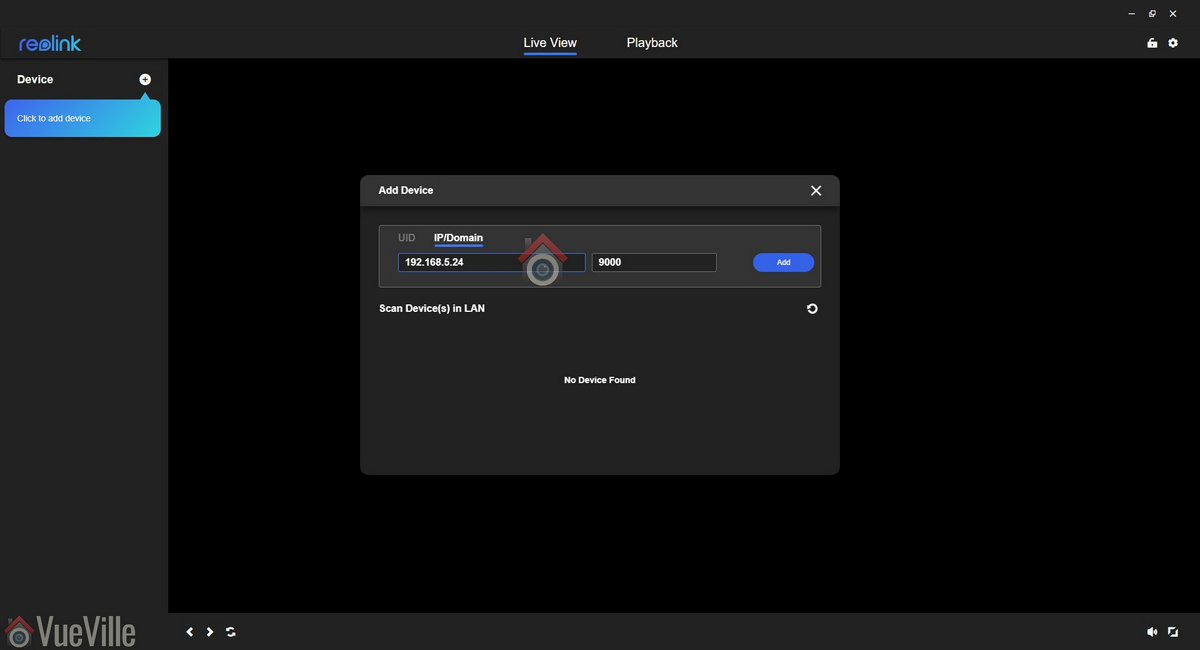
    Step 5: Armed with the IP address, I went back to the Reolink app and clicked on ‘Add device’. I entered the IP address, kept the default 9000 port and hit ‘Add’.

    Review - Reolink RLC-824A - Desktop App - Add Camera 1 - VueVille

    I was asked to enter a new password for the default admin account, a name for the camera (shown on the OSD, can be hidden), and immediately the camera live view stream appeared on screen.

    Review - Reolink RLC-824A - Desktop App - Add Camera 2 - VueVille

    Step 6: Clicking the gear icon next to the camera name brings up the camera settings. Of course, you can simply pop the IP address into any browser to directly access the web-based admin page and adjust camera settings as well.

    You should change the password of the camera as soon as you can, especially worth noting as the camera doesn’t require you to nor remind you to do it.

    Using the camera

    Live-viewing the camera stream

    Typically I use the tinyCam Monitor Pro app on my Android phones to view all the cameras in one place.

    Live-viewing is also possible via the Reolink desktop app or the built-in web-based admin page of the camera. Let’s explore the web admin page of the camera, as this is a very convenient way to both live-view and tweak camera settings. In case you are wondering, the camera settings section of both interfaces are identical.

    So entering the camera’s IP address into any modern browser will take you to the nice HTML5 interface that Reolink now uses instead of the older Flash based interface.

    At the login screen, you can choose the video stream quality you want to see, ‘Channel 1’ is called Clear and is actually the 8 Megapixel stream (unless you have changed the default camera encoding settings). The other options are Balanced (medium quality) and Fluent (sub-stream).

    Review - Reolink RLC-824A - Web Admin - Live View - VueVille

    Reolink calls the landing page the Preview page, but I like to call it the Live View page. On the left hand side you have the live view stream, and at the bottom clicking the play button lets you select between the video quality by switching between the Clear, Balanced and Fluent streams.

    Quick camera configuration

    On the right hand side of the live-view screen, there are 2 panels – Basic settings and Advanced settings. The basic and advanced settings sections are like a quick access area that duplicates the settings on the actual configuration page (accessed by clicking on the gear button at the top right).

    The Basic Settings section includes OSD settings, video stream encoding and image settings. Remember you can also change all of these settings in the configuration pages. So The OSD page is pretty standard and lets you choose whether and where to show the OSD information such as day, date and time.

    The Image section lets you adjust the usual image settings such as brightness, contrast, saturation, sharpness and also mirroring and image rotation.

    I didn’t see an option to change the i-frame interval. This is a bit strange as it is a setting that I would have expected to find. Why is it important? The i-frame setting specifies how often the entire frame is captured and not just what has changed from the previous i-frame. So being able to control it is important for getting the right balance between network bandwidth utilisation and a high quality non-blurry video.

    Detailed camera configuration

    The full camera settings configuration page is accessed by clicking the gear icon at the top right of the Live View page. This lets you access video resolution, network, motion detection, email and push notifications, user control, and system maintenance settings.

    Under the camera section, there are a few tabs of interest – stream, detection alarm, and audio-light.

    Review - Reolink RLC-824A - Web Admin - Stream Settings - VueVille
    Click to enlarge

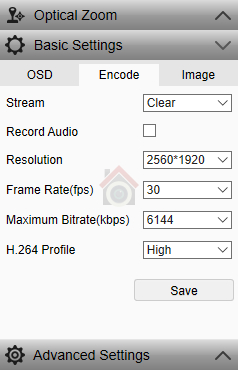
    The stream section is dedicated to resolution settings. The default for the main stream is 3840*2160 and for the sub-stream it is 640*360. The default bitrate is 6144 Kbps and 256 Kbps respectively. These are more than fine for home security purposes. You can go up to 8Mbps for the main stream if you prefer.

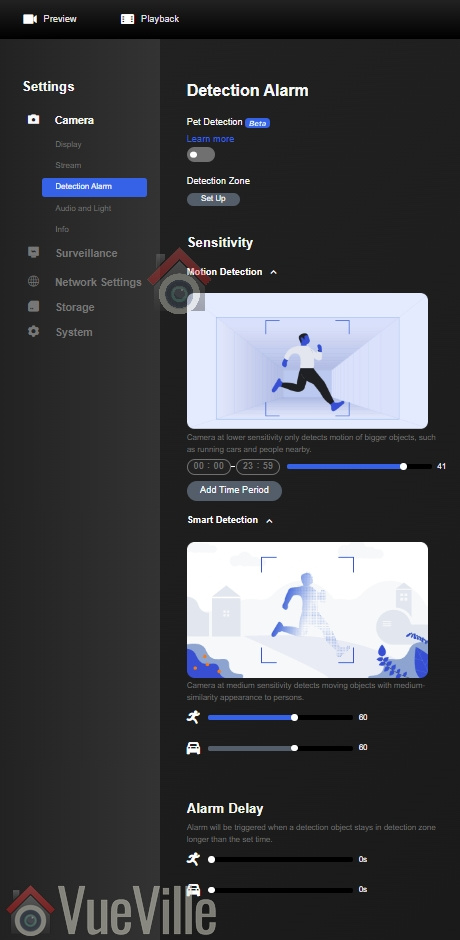
    Moving on to motion detection, we find the new smart motion detection settings under the section “Detection alarm”. These include person, vehicle and even a pet feature which is in beta currently. Simple detection and smart detection of Person and vehicle detection are always ON – you cannot disable the detection of these events. What you can control is the sensitivity of detection, and the camera actions when these events are detected. So you can control the camera recording (SD card, FTP, or NAS), and the alerts that are fired (such as email or push).

    Review - Reolink RLC-824A - Web Admin - Detection Alarm Settings - VueVille
    Click to enlarge

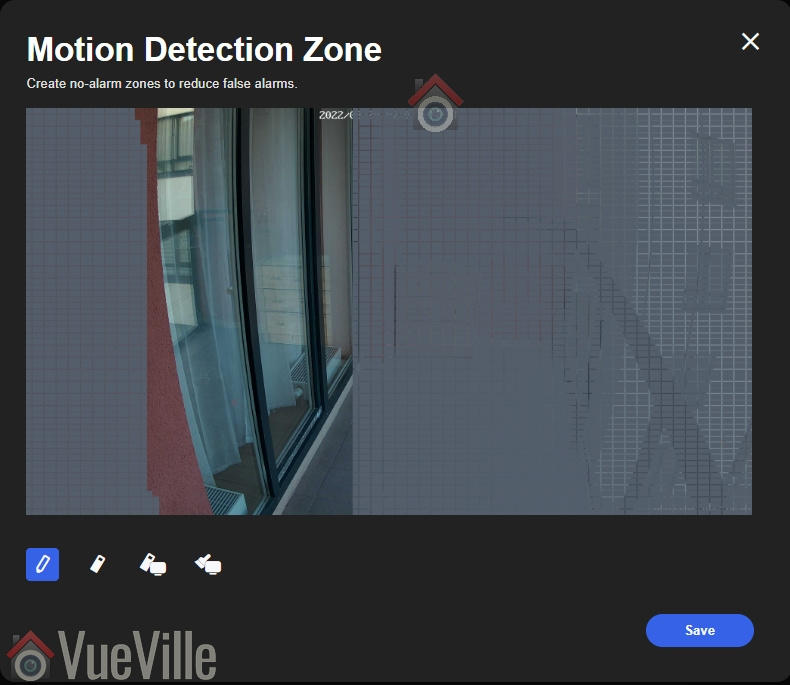
    The screen also lets you set up the motion detection zone and sensitivity of person, vehicle and pet detection separately.

    Review - Reolink RLC-824A - Web Admin - Motion Detection Zone Settings - VueVille

    Another new feature I really like is the ‘Alarm delay’ – which is really more like the ‘intrusion detection’ of Hikivision or ‘Dwell period’ of other brands. You can set the number of seconds an object has to be present in the motion detection zone to trigger the alarm. This can help eliminate false alerts from things like insects flying across your screen at night.

    You can adjust the motion sensitivity for the time of the day. For example, you can have a higher sensitivity during the daytime and a lower sensitivity at night to avoid false alerts.

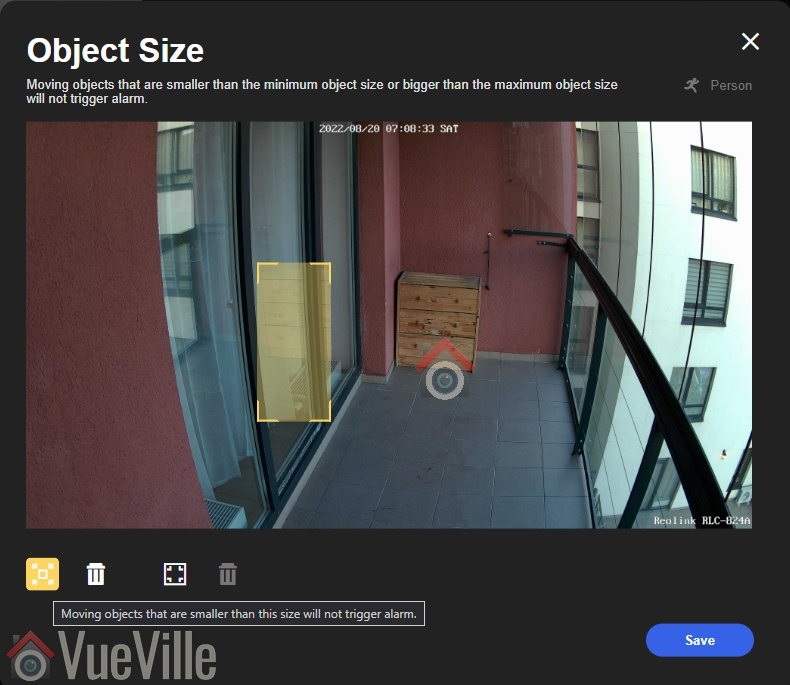
    Finally you can specify the minimum size of an object or vehicle that an object needs to meet to be classified as one of these.

    Review - Reolink RLC-824A - Web Admin - Motion Detection Object Size Settings - VueVille

    If you are using the mobile app, you also get this helpful tip on setting the minimum and maximum object sizes:

    Review - Reolink RLC-824A - Mobile App Object Detection Settings - VueVille
    Click to enlarge

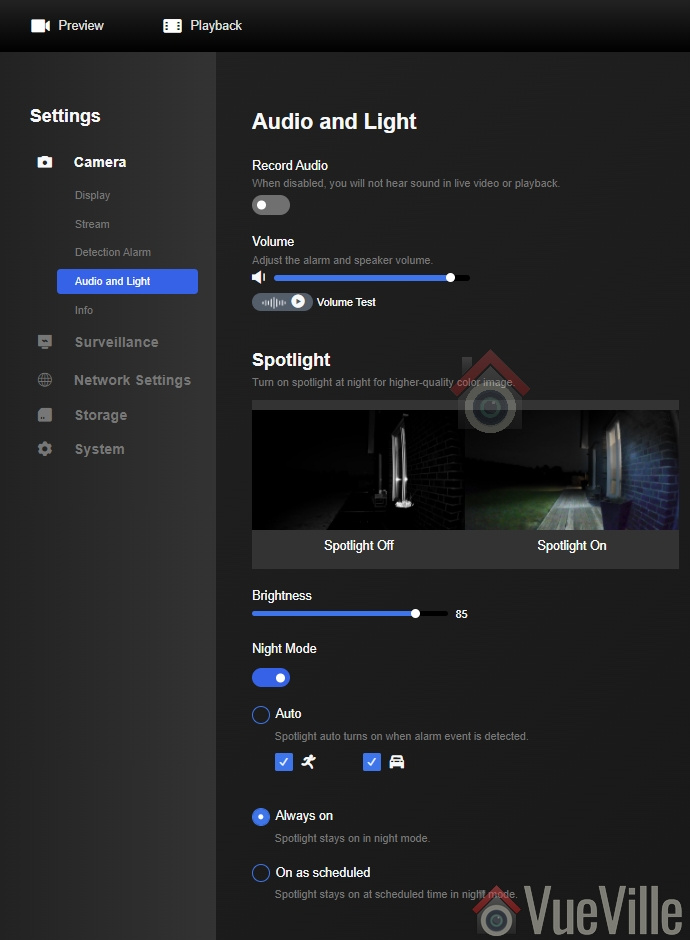
    Moving on to the Audio-light section, you can control the behaviour of the spotlight. The default mode of operation is for the spotlight LEDs to stay on all night. This is because the camera doesn’t have IR LEDs for getting clear videos in total darkness. But I believe such cameras are best used in areas where there is already plenty of ambient light.

    Review - Reolink RLC-824A - Web Admin - Audio Light Settings - VueVille
    Click to enlarge

    So I recommend using the Auto setting instead, where the spotlight only turns on when the smart detection feature detects a person or vehicle.

    So that’s the camera tab. The Surveillance tab contains the settings for recording motion detection clips, setting the recording schedule, FTP, email, and push notification settings. You can also set the siren to sound when motion is detected.

    Review - Reolink RLC-824A - Web Admin - Record Settings - VueVille
    Click to enlarge
    Review - Reolink RLC-824A - Web Admin - Push Notification Settings - VueVille
    Click to enlarge

    For the push notification feature to work, you need to separately turn it on in the Reolink mobile app. Also note that you will need to provide the camera access to the Internet for push notifications to work.

    The network tab is worth checking out as some security related settings are found here. I was very happy to see uPNP off by default, but UID was on. I’d recommend keeping this off too.

    Review - Reolink RLC-824A - Web Admin - Network Settings - VueVille
    Network settings – Click to enlarge

    While you are here, click on Port settings to enable the RTSP and ONVIF ports. For some reason, RTSP and ONVIF are disabled by default. It took me a few minutes to figure this out when my tinyCAM Monitor Pro app couldn’t find the RTSP port of the RLC-824A!

    Review - Reolink RLC-824A - Web Admin - Port Settings - VueVille
    Enable RTSP port – Click to enlarge

    Also if you want to use this camera with your NAS or any 3rd party NVR, enable HTTP at port 80. But please ensure your camera is properly firewalled from the Internet if you do this!

    Playback tab

    Clicking on the ‘Playback’ link at the top left of any page takes you to the built-in NVR feature. So the camera can record motion detection clips to the on-board SD card, and even 24/7 a network/NAS drive.

    However you cannot view clips on the web-based admin page at full 8MP resolution, so I recommend using the Reolink Desktop Client instead.

    Video Quality and Motion detection

    The camera was installed in a balcony with minimal ambient light at night. I tested the RLC-824A at its default settings of 8MP resolution, 25fps and 6144Kbps bitrate.

    Technical settings:
    Primary Stream: 8MP (3840*2160), 6144 Kbps bitrate @ 25 fps.
    Secondary stream: 640×360, 256 Kbps bitrate @ 6 fps.
    LED spotlight: Turn on for Person detection only
    Record action: Person detection only, write to SD card, pre-record and post-record activated
    Siren: Off
    Push notifications: Send for Person detection only

    As described earlier, I had already marked the motion zone for person detection around the doorway of the test scene.

    Reolink mobile app

    The Reolink mobile app is one of the best apps I have seen from any IP camera maker. Its miles ahead of Hikvision’s extremely poor efforts and runs circles around other brands’ apps.

    I was able to easily add the RLC-824A to the Reolink app on my phone using its IP address, activate the LED spotlights & siren, 2-way talk, and use the built-in NVR feature to access the recorded clips on the on-board SD card. The only thing I didn’t like about the app is that push notificaitons use the Reolink P2P server and so I had to allow the camera to access the Internet. This is not a scenario I find myslef in personally because I use Home Assistant and its unofficial Reolink integration to get 100% local push notifications.

    Review - Reolink RLC-824A - Mobile App Live View - VueVille
    Click to enlarge
    Review - Reolink RLC-824A - Mobile App Camera Settings - VueVille
    Click to enlarge

    The RLC-824A works great with my favourite mobile CCTV app, tinyCAM monitor Pro. I set the model to RLC-410 camera as most of the newer models are not present in the dropdown list.

    More on push notifications below in my day & night testing.

    Video quality & Motion detection

    The RLC-824A CMOS sensor at 1/2.5″ is larger than the usual 1/3″ sensors I have seen in previous Reolink models. This makes sense as the camera does not have IR LEDs for night vision, and has to rely on ambient light or the spotlight LEDs for illumination.

    Check out the video review below for actual 4K full resolution test footage at day and night:

    In my daytime testing I found the daytime video to be similar to my 8MP Hikvision. Crisp and sharp video with very good detail and no noise at all.

    In my testing, the camera fired off a ‘person detected’ push notification as soon as the test subject entered this defined motion zone. The pre-record and post-record feature made sure that the critical moments before and after motion detection was captured.

    Review - Reolink RLC-824A - Mobile App Push Notifications - VueVille
    Click to enlarge

    As dusk fell, the only ambient light available was from the indoor lights of the home. I wanted to test the limits of the camera, so I set the the LED spotlight to turn on only when motion from a person was detected. This is the most challenging scenario for a camera with no IR LEDs or IR cut filter onboard. So how did it fare? There was a lot of noise as expected and detail was low in the darker areas. But there was enough ambient light at the motion detection zone. So the camera was able to quickly detect the test subject, turn on the LED spotlight, send push notification to the Reolink mobile app, and record the clip to the SD card.

    In conclusion, you really do need a well-lit area for this camera to work well, or you will have to turn on the spotlight LEDs at night. This camera cannot work in total darkness.

    Reviewing recorded clips

    While you can use the mobile app or the web admin panel for reviewing recorded clips, the Reolink Desktop app is in my opinion the best place to view your recorded clips.

    Review - Reolink RLC-824A - Desktop App - Playback - VueVille
    Click to enlarge

    It works very well, can be used to live-view, adjust camera settings, playback recorded clips and export them. The typical feature of different colour timeline markers for different events is very useful. But there are also some handy features such as searching the timeline for specific smart detection alerts such as person, vehicle or pets.

    Review - Reolink RLC-824A - Desktop App - Export clip - 1 - VueVille
    Selecting recorded clips to export – Click to enlarge
    Review - Reolink RLC-824A - Desktop App - Export clip - 2 - VueVille
    Downloading clip to PC – Click to enlarge

    Compatibility with QNAP QVR Pro

    I also tested the RLC-824A with the QNAP QVR Pro NVR software. Adding the camera to QVR Pro was super smooth because QNAP officially supports all the latest Reolink camera models.

    Review - Reolink RLC-824A - QVR Pro - Adding Camera - VueVille
    Click to enlarge

    I created a motion detection trigger and event to test the reliability of the trigger and the pre-record and post-record features. The event trigger for QVR Pro is the same as the ones the camera generates internally for its own alarm events.

    Review - Reolink RLC-824A - QVR Pro - Adding Event Rule - VueVille
    Click to enlarge

    Motion detection recording by QVR Pro was reliable – the NAS NVR received the triggers correctly and promptly form the RLC-824A. You can also set up event recording of the main stream at the same time as 24/7 continuous recording of either the main or sub stream. This is great for getting those pretty pink markers on the timeline that you can jump to quickly.

    Compatibility with Home Assistant

    I am in the process of moving my home automation system to Home Assistant, and there is a great community integration for Reolink cameras. So you can set up custom actions for person detection or vehicle detection triggers received from the camera.

    Verdict

    For an 8MP 4K camera with bright LED spotlights, the RLC-824A is excellent value for money. Image quality is great as expected. The standout feature is smart detection of persons, vehicles and pets along with colour night vision. The smart detection methods are a great addition and help in creating actionable alerts in Home Assistant. You can define motion detection zones with variable sensitivity. This goes a long way in eliminating false motion alerts. As you saw earlier in the night time testing, the LEDs can turn on automatically when a person is detected.

    The built-in speaker and mic give you 2-way audio and a built-in siren. If you prefer standalone operation, the microSD card slot enables the built-in NVR mode. For those who need a 24/7 recording turret camera, the ONVIF and RTSP support makes the camera very easy to integrate with compatible NVRs or a DIY NAS NVR. BlueIris users note the lack of fixed frame rate or an iframe setting – this makes it tricky to get the camera to work as desired in BlueIris. This does not affect the clips recorded to the onboard SD card. Still I expect Reolink will address this in a future firmware revision just as they have for many other 800 series cameras in their product lineup.

    The camera does not require the Internet to function and is perfect for a 100% local-only self-hosted smart home like our VueVille home. To round it off, a great mobile app with quick & reliable push notifications.

    On the other hand, you don’t get Infrared LEDs for true night vision. You can only use the camera in a well-lit area with enough ambient light OR have the spotlight LEDs turn automatically at night & switch off at dawn. The spotlight LEDs are very bright even at the default 85% brightness so this is acceptable. However, I would have really liked the option of using IR LEDs in total darkness areas and have the spotlight LEDs & turn on only when motion is detected. This is available in Hikvision ColorVu cameras but at a much higher price.
    A minor quibble is the lack of audio and alarm connections for home automation integration, but these are becoming increasingly hard to find these days. Push notifications require the Internet but Home Assistant or Blue Iris can be used to overcome this limitation.

    So in summary the RLC-824A is a fine choice for an 8MP IP camera with LED spotlights with 2-way audio and siren. It continues in the tradition of high-quality well-made DIY security cameras that can be used in a 100% local self-hosted smart home.

    [review]

    Where to buy

    [easyazon_link identifier=”B099ZPF3B2″ locale=”US” tag=”vueville.com-eaz-20″]Check Price on your local Amazon site[/easyazon_link]

  • How-to: Group Wired PoE Security Cameras in a VLAN using Unifi

    How-to: Group Wired PoE Security Cameras in a VLAN using Unifi

    In my tutorial on how to block IP cameras from accessing the Internet, I used the example of wireless security cameras.

    But what if you have wired IP cameras and want to achieve the same result – block PoE IP cameras from accessing the Internet? Fear not, all you need to have is any one of the following:

    • [easyazon_link identifier=”B086967C9X” locale=”US” tag=”vueville.com-eaz-20″]Unifi Dream Machine Pro (UDM Pro)[/easyazon_link] which is an all-in-one device that combines a managed switch and hardware firewall, OR
    • a Unifi managed switch and separate firewall, such as the [easyazon_link identifier=”B01MU3WUX1″ locale=”US” tag=”vueville.com-eaz-20″]Unifi Switch 8[/easyazon_link] & [easyazon_link identifier=”B00LV8YZLK” locale=”US” tag=”vueville.com-eaz-20″]Unifi USG firewall[/easyazon_link] combo.

    Assuming you have already created a VLAN as described in Step 1 of this tutorial, here are the steps to group or assign wired Ethernet devices into a VLAN:

    [wpsm_titlebox title=”Contents” style=”main”][contents h2][/wpsm_titlebox]

    Step 1: Create a switch port profile

    1. Log into your Unifi Controller dashboard and click on the settings button (gear icon)
    2. From the settings menu, select ‘Profiles’, and then select the ‘Switch Ports’ tab
       
      How to Group Wired PoE Security Cameras in a VLAN using Unifi Step 1 001 - VueVille
    3. Click ‘Add New Port Profile’
    4. Type in a profile name, I like to use the same name as the VLAN  created ‘IPCameras’.
       
      How to Group Wired PoE Security Cameras in a VLAN using Unifi Step 1 002 - VueVille
    5. Select the VLAN under the Tagged Networks section.
    6. Click Save

    Step 2: Plug in your Ethernet device

    Into a port of your Unifi managed switch, and note the port number. Let’s assume it is a PoE device, so let’s pick port 6.

    Step 3: Assign Unifi switch port to the new switch port profile

    1. From your Unifi Controller dashboard and click on the Devices button from the left menu
    2. Click on your Unifi Switch, this should open a slide-out menu on the right
       
      How to Group Wired PoE Security Cameras in a VLAN using Unifi Step 3 001 - VueVille
       
      How to Group Wired PoE Security Cameras in a VLAN using Unifi Step 3 002 - VueVille
    3. Click on the Ports section
       
      How to Group Wired PoE Security Cameras in a VLAN using Unifi Step 3 003 - VueVille
    4. Click on the edit button (pencil icon) next to port 6
       
      How to Group Wired PoE Security Cameras in a VLAN using Unifi Step 3 004 - VueVille
    5. Click the dropdown called ‘Switch Port Profile’
       
      How to Group Wired PoE Security Cameras in a VLAN using Unifi Step 3 005 - VueVille
    6. Select the switch port profile you created earlier and click the apply button.
       
      How to Group Wired PoE Security Cameras in a VLAN using Unifi Step 3 006 - VueVille

    The switch will now provision the port and after a few minutes, you are in business!

    How to group multiple ports into the same VLAN

    Simple – just apply the port profile you created in Step 1 above to each port that you want to be in the same VLAN.

    Conclusion

    Liked this tutorial? Let me know in the comments below what else you would like me to cover.

  • Review: Reolink RLC-511 5MP PoE Bullet IP Camera

    Review: Reolink RLC-511 5MP PoE Bullet IP Camera

    Review - Reolink RLC-511 - Installed - VueVille

    It’s been quite a while since we’ve had a Reolink IP camera review here at VueVille. We already reviewed the 5MP Reolink RLC-422 dome, and today we have the bullet camera version named the RLC-511 also with optical zoom. The cameras seem to have similar sensors and share other features too.

    Reolink provided us with a retail sample for this hands-on review. We are going to look at setting up the camera, video quality and how well it works with the VueVille DIY Home CCTV system and our DIY Smart Home Automation System!

    Here’s a video review and if you prefer to read, just scroll down!

    [text-blocks id=”earning-disclaimer”]

    [wpsm_titlebox title=”Contents” style=”main”][contents h2][/wpsm_titlebox]

    What’s in the box

    The RLC-511 comes in a very professional-looking retail box. The camera’s main features are highlighted, as are the mobile app and the 2-year limited warranty.

    Every Reolink camera I have reviewed has come very well-protected and the RLC-511 is no exception.

    Review - Reolink RLC-511 - Box Contents - VueVille

    Box contents:

    • RLC-511 Zoom IP camera
    • Screws, rawl plugs and an Allen key
    • Waterproof sleeve for Ethernet cable
    • 1 metre blue network cable
    • Software CD
    • Installation guide with photos
    • Mounting hole template
    • Surveillance sign

    Specifications

    [table id=68 responsive=”scroll” /]

    Design

    The RLC-511 is a bullet-style camera and has a boxy-look reminiscent of far more expensive Hikvision bullets. Compared to the [easyazon_link identifier=”B08F568BH1″ locale=”US” tag=”vueville.com-eaz-20″]RLC-510A[/easyazon_link], this camera is a lot bigger than you might expect. That’s because its got a 4x optical zoom.

    The RLC-511 has a metallic body. The fit and finish is very good and as with other Reolink cameras I have reviewed, it feels like a camera that is far more expensive than it is.

    Review - Reolink RLC-511 - Side - VueVille

    The back of the camera houses the microSD card slot, secured by two screws. The way it is located means that there’s no access to the slot after installation. And that’s exactly how you want it in a security camera – a burglar shouldn’t be able to steal the microSD card easily.

    Review - Reolink RLC-511 - Back - VueVille

    The motorized vari-focal lens on the RLC-511 goes from a focal length of 2.7 – 12 mm with auto-focus. The 1/2.7″ 5 Megapixel Progressive Scan CMOS sensor is par for the course, this is not a camera that specializes in low light performance (for that check out the [easyazon_link identifier=”B07B16DFMB” locale=”US” tag=”vueville.com-eaz-20″]Hikvision Darkfighter[/easyazon_link] series)!

    There are 24 IR LEDs arranged in a ring shape around the lens. None of them are obscured or blocked in any way. A plastic shroud protects the lens from rain or snow.

    Review - Reolink RLC-511 - Front - VueVille

    The day/night sensor for the auto IR cut filter is placed right below the lens.

    Review - Reolink RLC-511 - Under - VueVille

    All the cabling comes out of the base and can go conveniently into a junction box or through the wall. As usual with Reolink cameras, the cabling consists of a pigtail with the following connectors:

    • RJ-45 ethernet port
    • 12V power input jack
    • A reset push button

    Review - Reolink RLC-511 - Cables - VueVille

    Just like the Reolink RLC-423 PTZ, the reset button of the RLC-511 is not on the main body of the camera. Apart from eliminating an ingress point, it means nobody can reset the camera unless they get to the hidden reset button which is probably inside the wall or the soffit! This is much better than many other cameras such as Hikvision’s which have the reset button externally on the camera body itself.

    Review - Reolink RLC-511 - Top - VueVille

    On the bottom, there is a sticker with the QR code for the mobile app setup and login details. I recommend removing this sticker before installing the camera outdoors for security purposes. Otherwise anyone will be able to load up the camera admin page, and if you haven’t changed the default admin and password shown next to it, you are in big trouble!

    You can also spot the microphone hole on the underside.

    Installation

    Bullet cameras are the easiest type of IP cameras to install, and Reolink makes their installation process also super easy.

    Review - Reolink RLC-511 - Installation - VueVille

    First I used the included Allen key to loosen the steel arm of the camera base. I did this by turning it in the direction of the unlock symbol engraved into the base.

    This is required to access the three screw holes of the base one by one as you screw them in.

    I then used the included screws to fix the RLC-511 to my usual test location, a wooden soffit.

    After pointing the camera in the general direction of the scene, I tightened the steel arm again in the direction of the lock symbol.

    Hardware setup

    The RLC-511 supports Power over Ethernet (PoE) which is my recommended way of powering IP cameras. Using just a single Ethernet cable, you can send both data and power to the camera using either a PoE switch or a PoE injector.

    Since this is a bullet camera with motorized varifocal lens, you cannot adjust it manually.

    A typical fixed lens camera needs around 7W power, but the motorised lens of the RLC-511 means that it needs a little more power, up to a maximum of 10W. This is still within the 802.3af spec, so both my [easyazon_link identifier=”B01BW0AD1W” locale=”US” tag=”vueville.com-eaz-20″]TP-Link PoE switch[/easyazon_link] and [easyazon_link identifier=”B01DKXT4CI” locale=”US” tag=”vueville.com-eaz-20″]Unifi Switch 8[/easyazon_link] are up to the task of powering the camera over PoE.

    If you want to use the included waterproofing connector, you will have to remove the RJ-45 plug on the Ethernet cable and re-crimp it once it has been passed through the waterproofing connector. My install location is sheltered from the elements, so I didn’t bother with this.

    Software setup

    Most manufacturers ship their cameras with static IPs by default – for example Hikvision and Dahua. In most cases the camera will not have the same network settings (like sub-domain) as your network.

    This means that you cannot access the camera unless you change the camera network settings to that of your network. You are expected to do this using the manufacturer’s camera finder tool, like SADP in the case of Hikvision.

    While this static IP method has a lot of security benefits, most home users would find it much easier if the camera manufacturer used DHCP as default. This way, the camera would automatically be configured to use your network settings and be ready to use.

    As with all the Reolink cameras I have tested, this is exactly the case with the RLC-511:  Reolink has DHCP enabled by default.

    There are quite a ways to start using the RLC-511:

    1. Use the Reolink mobile app
    2. Use the Reolink desktop client software
    3. Use any camera monitoring software such as BlueIris
    4. Use a mobile security camera app such as tinyCam Monitor Pro

    The Reolink setup guide for this camera suggests the first two methods – Access the camera by smartphone and access the camera by computer.

    I have tried option 1 with another Reolink before so I went with option 2 this time – setup through a computer. These are the steps I followed:

    Step 1: I downloaded the Reolink Desktop Client app from the URL as the manual suggested: https://reolink.com/software-and-manual/

    Step 2: Installed Reolink Desktop Client and installed it. Windows Defender identified it as a new app and asked me if I want to allow it Internet and LAN access. I allowed it to proceed.

    Step 3: The app automatically identified the camera and logged in successfully, and presented me with the Live View screen.

    Step 4: As I mentioned earlier, the camera has DHCP enabled by default but I like to assign my cameras static IP addresses. The main reason is that its easier to set up and access the camera form other devices without having to check each time what the IP address is.

    Clicking on the setup gear icon and clicking through to Network > General allowed me to change it. This caused the Reolink app to add another camera to the list, with my new static IP address. It also then started complaining that it could not find the original camera with DHCP IP address. This was a bit tiresome so I disabled the ‘Add Camera Automatically’ option under app settings. No reboot was needed which is great.

    Step 5: I then tried to access the camera from the new static IP address through Chrome. I logged in with the default login details. However since the camera admin site uses Flash and Chrome disables it by default, I just had to click on the “Get Adobe Flash player” button in the live view section and enable it in Chrome.

    Step 6: I then changed the password for the admin account. I also created a new user and tried to delete the admin account for safety but like most IP cameras, the RLC-511 doesn’t support this feature.

    Once you have the IP address, you can simply pop that into Chrome or Firefox to directly access the camera settings. You could also use the desktop client app to change camera settings if you don’t want to use the web-based admin panel.

    You should change the password of the camera as soon as you can, especially worth noting as the camera doesn’t require you to nor remind you to do it.

    Software features

    I have a number of ways of accessing my camera live feeds – typically I use the tinyCam Monitor Pro app on my Android phones. But when I want to tweak camera settings, I use the built-in web admin page of the camera.

    So entering the camera’s IP address into any browser that supports the Adobe Flash player will let you login to the camera. An HTML5 interface would have been better but Flash is far better than the NPAPI plugin that Hikvision still insists on using. Use Internet Explorer or the new Microsoft Edge, Chrome doesn’t support Flash anymore.

    You can choose the video stream quality you want to see at the login screen, ‘Channel 1’ is called Clear and is actually the 5 Megapixel stream (unless you have changed the camera settings). The other options are Balanced (medium quality) and Fluent (sub-stream). These can also be selected once you are logged in.

    Click on the ‘Get Adobe Flash player’ button, and click ‘Allow Once’ when the browser says the content is blocked. The live view should now begin.

    Review - Reolink RLC-511 - Web Admin 001 - VueVille

    Reolink calls the landing page the Preview page, but I like to call it the Live View page. On the left hand side you have the live view stream, and at the bottom clicking the play button lets you select between the video quality by switching between the Clear, Balanced and Fluent streams.

    On the right hand side, there are three sections – Optical Zoom, Basic settings and Advanced settings. The basic and advanced settings sections are like a quick access area that duplicates the settings on the actual configuration page – accessed by clicking on the gear button at the top right.

    The Optical Zoom section adjusts to the abilities of the camera. You can change the zoom and adjust the focus manually (see the zoom test in our video review).

    Review - Reolink RLC-511 - Web Admin 009 - VueVille

    The Basic Settings section includes OSD settings, video stream encoding and image settings. Remember you can also change all of these settings in the configuration pages. So The OSD page is pretty standard and lets you choose whether and where to show the OSD information such as day, date and time.

    Review - Reolink RLC-511 - Web Admin 002 - VueVille

    The Basic Settings is where you can set the video resolution, bitrate and frames per second of each of the Primary “Clear” stream (5MP default @30fps and 6Mbps) and the Fluent stream (640×480 default @7fps). Interestingly, the ‘Balanced’ stream is missing in the stream selection drop-down.

    The Image section lets you adjust the usual image settings such as brightness, contrast, saturation, sharpness and also mirroring and image rotation.

    Review - Reolink RLC-511 - Web Admin 003 - VueVille

    The advanced settings tab is where you will find the rest of the video settings and the ones I was most interested in – exposure, backlight and noise reduction. Setting the Exposure to ‘Low Noise’ lets you control just the range of gain, ‘Anti-smearing’ lets you control only the range of shutter speeds and manual lets you select both the gain and shutter speed ranges. The range selection method is novel – it means the camera will automatically choose the optimum settings from the range you specify.

    A new addition is the LED Light option, which wasn’t available on the RLC-422 or the RLC-423.

    I didn’t see an option to change the i-frame interval. This is a bit strange as it is a setting that I would have expected to find. Why is it important? The i-frame setting specifies how often the entire frame is captured and not just what has changed from the previous i-frame. So being able to control it is important for getting the right balance between network bandwidth utilisation and a high quality non-blurry video.

    Now the full camera settings configuration page is accessed by clicking the gear icon at the top right of the Live View page. This lets you access video resolution, network, motion detection, email and push notifications, user control, and system maintenance settings.

    Under the recording section, there are 2 tabs – encode and advanced.

    Review - Reolink RLC-511 - Web Admin 004 - VueVille

    Review - Reolink RLC-511 - Web Admin 005 - VueVille

    While the camera support motion detection alerts, these are of the basic variety. There is no advanced motion detection such as line crossing, or intrusion detection on offer here. One of the best ways to reduce false alerts is by using these advanced motion detection methods, so bear this in mind if you are planning to use this camera not for 24/7 recording but motion triggered recording. I would use it only for 24/7 recording or to capture images and videos based on commands from my DIY home automation system.

    You can adjust the motion sensitivity for the time of the day. For example, you can have a higher sensitivity during the daytime and a lower sensitivity at night to avoid false alerts. On the detection tab, you can draw motion detection regions.

    Review - Reolink RLC-511 - Web Admin 008 - VueVille

    The network settings section groups together port configuration, DDNS, FTP, and motion detection notifications.

    Review - Reolink RLC-511 - Web Admin 006 - VueVille

    Review - Reolink RLC-511 - Web Admin 007 - VueVille

    There is a built-in NVR feature, so the camera can record motion detection clips to the on-board SD card, and even 24/7 a network/NAS drive.

    Performance

    I tested the RLC-511 at its default settings of 5MP resolution, 30fps and 6Mbps bitrate.

    To optimise recording storage, I suggest setting the main stream to 5MP resolution @ 10fps, and increase the sub-stream bitrate:

    Primary Stream: 5MP (2560×1920), constant 6144 Kbps @ 10 fps.
    Secondary stream: 640×360, 512 Kbps @ 6 fps.

    Optical Zoom Function

    The optical zoom function is the standout feature of the RLC-511. I found the zoom speed to be very similar to the [easyazon_link identifier=”B09DPSB9BL” locale=”US” tag=”vueville.com-eaz-20″]Reolink RLC-422 dome[/easyazon_link] (review) and the [easyazon_link identifier=”B095H2BBWZ” locale=”US” tag=”vueville.com-eaz-20″]Reolink RLC-423[/easyazon_link] PTZ (review). The autofocus is a bit sluggish just like the RLC-423 but at such an affordable price, I shouldn’t complain.

    Video quality

    The RLC-511 is a 5MP camera with a 1/3″ sensor, just like the RLC-422 dome. Daytime performance should be good, but the small sensor is not suited for ultra low light situations.

    In my testing I found the daytime video to be similar to the RLC-422 dome. Crisp and much sharper than my 4MP Hikvision DS-2CD2542FWS-IWS as well as the 4MP Reolink RLC-423 PTZ. However it couldn’t compare with the 8MP Hikvision camera.

    If the camera has one weakness, it is the speed of the autofocus. While the accuracy of the autofocus is pretty good, it does take a few seconds to re-focus after zooming in or out.

    The real test of an IP camera is when the sun’s gone down and the lights are off. In my opinion, the night-time video quality is great with just a slight hint of noise. The RLC-511 uses 24 conventional IR LEDs arranged in a ring around the lens. While these are powerful, the ring arrangement does cause a noticeable flash-lighting effect when you are pointing the camera at a nearby wall or floor.

    Mobile app

    The Reolink mobile app is one of the best original manufacturer apps I have seen. Hands down it beats Hikvision’s rather poor efforts and runs circles around other brands’ apps.

    I was able to quickly add the RLC-511 to the Reolink app on my phone, adjust the zoom level, and use the built-in NVR feature to access the recorded clips on the on-board SD card.

    The RLC-511 works great with my favourite mobile CCTV app, tinyCAM monitor Pro.

    Compatibility with QNAP QVR Pro

    Adding the RLC-511 to QVR Pro was a breeze. It works well because QNAP officially supports this and other Reolink models. I created a motion detection trigger and event to test the reliability of the trigger and the pre-record and post-record features.

    For this I also logged into the camera admin page and set up the motion detection zone – you can’t do this from the QVR Pro interface.

    Motion detection was reliable and worked as expected. The QVR Pro client even allows you to control the optical zoom of the RLC-511.

    You can also set up event recording of the main stream at the same time as 24/7 continuous recording of either the main or sub stream. This is great for getting those pretty pink markers on the timeline that you can jump to quickly.

    Review - Reolink RLC-511 - QVR Pro Motion Detection - VueVille

    Verdict

    The RLC-511 is the best budget 5MP camera on the market with optical zoom. It has great video quality in the day and night, and is also capable of stand-alone operation with the microSD card slot and built-in NVR feature.

    While the 5MP resolution is very good for a budget IP camera, other brands such as Amcrest are moving to 8MP cameras which have 4K resolution. I am looking forward to an 8MP version of the RLC-511.

    What’s missing with all the Reolink cameras are advanced motion detection methods, and audio & alarm connections. The slow zoom and auto-focus is also a bit frustrating.

    For those who need a 24/7 recording bullet camera with optical zoom, the ONVIF and RTSP support makes the camera very easy to integrate with compatible NVRs or a DIY NAS NVR. BlueIris users, note the lack of an iframe setting – this makes it tricky to get the camera to work as desired in BlueIris.

    [review]

    Where to buy

    [easyazon_link identifier=”B08QV8T3D9″ locale=”US” tag=”vueville.com-eaz-20″]Check Price on your local Amazon site[/easyazon_link]

  • Hikvision vs. Reolink – The Most Popular IP Cameras Compared

    Hikvision vs. Reolink – The Most Popular IP Cameras Compared

    I started my DIY CCTV system with Hikvision cameras many years ago, but over time I’ve added quite a few Reolink IP cameras to my DIY CCTV system.

    Hikvision has been probably the most popular non-retail brand whereas Reolink is a very popular budget-friendly yet brand. They are pretty much at opposite ends of the spectrum.

    While enthusiasts might balk at budget brands like Reolink and Amcrest, I am a big fan of only spending as much money as needed on this hobby. You don’t need the most powerful IP camera everywhere in your home. So there’s a place and application for all types of IP cameras.

    Having owned and used many cameras from both brands extensively, here’s my detailed take at Hikvision vs Reolink IP cameras and which one may be right for you.

    [wpsm_titlebox title=”Contents” style=”main”][contents h2 h3][/wpsm_titlebox]

    A quick note: This article may contain affiliate links. If you click on one of these links and then purchase something, we may receive a fee. This does not cost you anything extra. Also note that Hikvision and Dahua do not consider certain platforms including Amazon as an authorized seller platform. So if you need warranty support please purchase from authorized resellers of Hikvision and Dahua products in your country.

    Hikvision vs. Reolink – the Stories behind the Brands

    Hikvision vs Reolink - Most Popular IP Cameras Compared - VueVille

    Hikvision

    Unlike Reolink, Hikvision is not a retail brand. They are an OEM and primarily cater to professional installers. They are not really interested in retailing to the general public. But their affordable DIY IP cameras with powerful motion detection features and great build quality attracted DIY-ers like crazy. That’s also the reason I bought my first IP camera, the Hikvision DS-2CD2032-I back in 2015.

    A couple of years ago, they launched their retail brand EZVIZ. Confusingly, EZVIZ used to be the name of their cloud app as well. Anyway the EZVIZ models are dumbed down versions of the Hikvision cameras and are not worth spending any money on. What about HiLook? Same story. That’s why I am focusing on the main Hikvision brand.

    The biggest concern I have with Hikvision is not so much about their cameras, but who owns the company. The Chinese government owns at least a partial stake in Hikvision. This creates a few ethical and moral quandaries that I won’t go into here – you know what I’m talking about.

    If you live in the USA, there’s one more reason to avoid Hikvision cameras – the US government has recently banned the sale and import of new Hikvision products into the USA unless certain conditions are met. They are still being sold by their authorized retail seller BH Photo though. Of course, you can always get them from AliExpress as most of us have always done.

    From a technical standpoint, you should treat any security camera the same way – with maximum suspicion that they may be ‘dialing home’ to their manufacturer’s own servers and leaking your data. So lock them down using Virtual LANs (VLAN) and strict firewall rules like I have in my DIY home security camera system.

    Reolink

    Reolink is the brand name of IP cameras manufactured by Reolink Innovation Limited (earlier known as Shenzhen Baichuan Security Technology Co., Ltd.). A few years ago, they launched the Reolink brand and seriously upped their marketing game. This push paid off handsomely with Reolink pulling off an upset in the budget IP camera market.

    Apart from solid build quality, super affordable pricing, and totally offline operation, what I really like about Reolink is the quality of their apps and PC software.

    8MP 4K IP Camera Duel – Hikvision DS-2CD2085G1-I vs. Reolink RLC-810A

    In 2025, everybody’s selling 8MP IP cameras. 4K resolution is the buzzword and 8MP is what you need to get 4K video. So lets pitch an 8MP camera from each brand against each other.

    Until 2021 Reolink didn’t have an 8MP model that was ONVIF compatible. But now almost all Reolink models support ONVIF and RTSP. So lets pick a camera from Reolink’s current lineup that represents the most common form factor of IP camera, a bullet camera with a fixed lens. Specifically the RLC-810A. The 8 in the model number represents its 8 Megapixel sensor.

    Hikvision constantly refreshes their model lineup. The Hikvision model that’s widely available online and that is comparable to the RLC-810A in price is the DS-2CD2085G1-I (sourced from AliExpress).

    Hardware features – Hikvision vs. Reolink

    The size of the sensor has a huge bearing on the low light ability of a camera, whether it be a camcorder or a security camera. The larger the sensor, the greater its ability to gather light and so do well in low light conditions. So a larger sensor is the key to great low light performance.

    But as you cram in more and more pixels into the same size sensor, they get smaller and smaller, which adds noise. Noise is the bane of low light video and reduces the detail that you can get out of your video.

    The Hikvision model has the term ‘Darkfighter’ in its marketing material and that’s a hint at its strong low light performance. This is really due to the 1/2″ sized CMOS sensor whereas the Reolink has a 1/2.5″ CMOS sensor. Don’t get me wrong, the RLC-810A is a fine low light performer but the Hikvision definitely has the edge here.

    Both cameras support Power over Ethernet (PoE). Both also have on-board storage in the form of a microSD card slot that can take cards of up to 128 GB capacity.

    The cameras bodies are both made from metal but differing levels of ingress protection (IP67 for Hikvision and IP66 for Reolink). I am happy to see Hikvision have embraced IP67, they have always gone for IP66 for their outdoor IP cameras.

    Neither have vandal protection (IK10), more expensive Hikvision bullets do have it these days.

    The Reolink does have a built-in microphone, but Hikvision doesn’t.

    Winner: Hikvision

    Software features – Hikvision vs. Reolink

    The three most important software features that I look for are ONVIF support, the built-in NVR feature, and the advanced motion detection features that help reduce false alerts. Why because if an IP camera has ONVIF and RTSP features, you can use it as a standalone IP camera or easily integrate it into a Pro-DIY type DIY NVR system like mine.

    While Hikvision has always supported ONVIF and RTSP on all their IP cameras, Reolink supports it on most of their models (the battery powered ones and B model cameras don’t).

    ONVIF ensures that your camera will work with standards-compliant gear from other manufacturers. This is why you can add a Hikvision or Reolink camera to your ONVIF-compatible NVR or DIY NAS NVR and integrate it into my smart home automation system.

    RTSP allows even non-ONVIF equipment (such as software) to access the security camera’s video stream. Examples are video players like the popular VLC player or [easyazon_link identifier=”B004VD3YIM” locale=”US” tag=”vueville.com-eaz-20″]tinyCAM Monitor Pro[/easyazon_link] on Android.

    The Hikvision has true 120dB Wide Dynamic Range (WDR) to help improve video quality in high glare situations. The Reolink has only digital WDR. This can make a difference if your scene has bright and dark areas, like a lamp that casts long shadows.

    Hikvision cameras now support H.265+ which is a very efficient codec for encoding video streams. Reolink has moved on from H.264 and now supports H.265 but there’s still no H.265+ support. The difference you will see is in the file size at the same bitrate. You can benefit from H.265+ by increasing the Hikvision’s bitrate to the max 16Mbps and still enjoy bandwidth and storage requirements comparable to the Reolink at its max 8Mbps bitrate.

    Motion Detection ability

    The Reolink doesn’t have the wide array of advanced motion detection alerts that Hikvision has, such as line crossing, intrusion detection etc. which are all great for reducing false motion detection alerts.

    On the other hand Reolink does have person, vehicle and even pet detection (beta for now). These are equally effective at reducing false alerts.

    The Hikvision camera I have selected doesn’t have the AcuSense feature which reduces false alarms by ignoring birds, animals, lights and movement of trees.

    Depending on what your specific needs are, you may find either camera suitable.

    Hikvision gets the slight edge here if you are not interested in smart detection like vehicle/pet, and need the advanced methods such as line crossing/intrusion detection. Remember it can still do face detection as well.

    Reolink gets the edge if you only care about person/vehicle/pet detection.

    As part of a DIY NAS NVR system that uses Blue Iris or Home Assistant, both Hikvision and Reolink may fit the bill. Hey maybe get the best of both worlds and get 1 of each covering the same scene!

    Winner: Tie!

    Mobile app

    There’s no contest here, the Reolink mobile app is miles ahead of the IVMS suite of Hikvision mobile apps.

    Winner: Reolink

    Warranty – Hikvision vs. Reolink

    Hikvision products come with a limited 3-Year Warranty at B&H Photo. Please note that warranty will be honoured only if you buy from an authorised retailer like B&H Photo. If you buy from AliExpress or other such marketplaces, you may not get an official warranty.

    If you live in the parts of the US or other countries where Hikvision products are banned, getting a warranty is not an option though.

    Reolink has upped their warranty to 2 years recently & of course this is available everywhere Reolink cameras are officially sold.

    Detailed Comparison Table

    Here’s a summary of the full review in a nice and easy table:

    [table id=64 responsive=”scroll” /]

    Verdict – Hikvision vs. Reolink

    In summary, the Hikvision has better low light capability, WDR capability and advanced motion detection methods. Reolink has smart motion detection methods, a microphone for audio recording, and a much better mobile app (if that matters to you) but their biggest advantage is the super attractive price points.

    So I will have to call this a tie – which brand and camera is better for you will depend on your specific needs. You can’t go wrong with either.

    Also check out my recommendations on our best outdoor IP cameras list for more interesting cameras reviewed from a DIY perspective.

    Where to buy

    • Hikvision DS-2CD2085G1-I at BH Photo (authorized retailer).
    • Reolink RLC-810A at [easyazon_link identifier=”B07K74GWX5″ locale=”US” tag=”vueville.com-eaz-20″]local Amazon website.[/easyazon_link]

    Related Comparisons

  • How to Block IP Cameras from Accessing the Internet

    How to Block IP Cameras from Accessing the Internet

    How to Block IP Cameras from the Internet - VueVille

    [wpsm_titlebox title=”Contents” style=”main”][contents h2][/wpsm_titlebox]

    One of the most common questions I have been getting about our DIY Home Security system is this: How to setup a VLAN and firewall rules to block IP cameras from accessing the Internet?

    Wondering why you would want to do that? Here are a few good reasons:

    • Most security cameras like to phone home to their manufacturer’s servers. There’s no need to, it’s not good for your privacy or your network’s security.
    • Most security cameras have poor security and can be easily hacked, and none of us want someone spying on our indoor security cameras!
    • Moreover, security cameras are at risk of being hacked to join botnets, which then attack other devices on your network or the Internet.

    For the longest time, I was put off by my perception that firewalls and VLANs are too complex for me. Looking at most networking gear, I would be right.

    The beauty of the Ubiquiti Unifi system I now use is that you don’t need to be a networking wizard to secure your security cameras and your home network. Using the excellent Unifi Controller GUI, I was able to block my security cameras from the Internet without getting a university degree in networking.

    So in this tutorial, I am going to show you how to:

    1. Create a Virtual LAN (VLAN) for your wireless security cameras
    2. Create a dedicated Wi-Fi network for your wireless security cameras and assign this network to the VLAN
    3. Create 3 firewall rules to prevent the cameras accessing the Internet (but allow other devices on your network to access them locally or just for pulling the RTSP video streams)

    NOTE 1: I use the example of wireless cameras in this how-to guide, see this guide for grouping wired cameras in a VLAN and blocking them from accessing the Internet.

    NOTE 2: This tutorial is for those who only access their IP cameras via the local IP (such as 192.168.X.X). So for remote access, you would VPN into your home network and then access your cameras using their local IP address. If you require your cameras to be exposed to the Internet using P2P or DDNS, this tutorial is not for you! Most camera apps that have a plug ‘n play setup option use remote P2P servers! Blocking internet access to these cameras will cause them to fail.

    Okay, so if you are accessing your IP cameras through the local IP address (from home or remotely via a VPN such as OpenVPN), let’s continue!

    What you will need

    You will need the [easyazon_link identifier=”B086967C9X” locale=”US” tag=”vueville.com-eaz-20″]Unifi UDM Pro[/easyazon_link] which is a very versatile networking device along with at least one other Unifi Wi-Fi Access Point (WAP) such as the [easyazon_link identifier=”B08QG92M83″ locale=”US” tag=”vueville.com-eaz-20″]Unifi AP 6 Lite[/easyazon_link].

    Preparation: Planning your home network

    To make sense of this topic, we need a basic understanding of how network connections and firewalls work. I am assuming your security camera has an RTSP video stream and that’s what we are trying to view.

    The relevant networking terminology is:

    • WAN (Wide Area Network) refers to the Internet.
    • LAN is your local home network.

    For simplicity, let’s assume your mobile phone is connected to your general Unifi Wi-Fi network. In the Unifi world, your phone is therefore in the LAN group. By default, devices in the LAN group can access any part of the local network and the Internet.

    When you use your mobile phone IP camera app (like tinyCAM Monitor Pro) to view the stream of your wireless IP camera, the phone sends an RTSP connection request to your IP camera. The camera accepts it and sends the stream back out to your phone.

    Now, the idea here is to segment your home network into different groups, based on what type of access control you want to impose on those devices. In networking parlance, you would create a Virtual LAN or VLAN to group these devices together.

    When you create a VLAN in the Unifi Controller software and assign a device to it, the router will tag each data packet of that device with a VLAN ID.

    How do VLANs work in practice? How do I assign a device to a VLAN?

    For wired devices, you can assign each port of a managed switch to a specific VLAN. Then all devices connected to that network will be in the same VLAN. That’s what happens with a Unifi Switch. So if you connect your wired PoE IP cameras to a port that’s assigned to VLAN 25, all those IP cameras are now in VLAN 25.

    For wireless devices, you create separate Wi-Fi networks for different groups of devices and then assign a VLAN ID to each Wi-Fi SSID you create. So you would create a Wi-Fi network called ‘IP Cameras’, assign that Wi-FI SSID to VLAN 35, and connect all your wireless cameras to that network. All those wireless cameras are now in VLAN 35.

    Then you can create firewall rules for each VLAN to control data flow in very granular detail (if you choose to!).

    In summary, segmenting your home network into different VLANs allows you to precisely control how and where data is allowed to go.

    Further reading: Unifi Guide to VLANs

    What are some good ways to group devices?

    For example, you may want your media boxes to reach the Internet to access Netflix, Amazon Prime, Hulu etc. But you may not want them to access the rest of your network. Why? Because your cable provider’s cheap no-name box probably has weak security and may be the easiest way for hackers to get inside your home network. So that’s one VLAN for your media boxes.

    If you are using wired PoE cameras outside your home, anybody can access your entire home network through that network cable! So you should put wired cameras also into their own VLAN and isolate it from the rest of your network.

    Its also a very good idea to make all your security cameras fully local by blocking them from the Internet. Many of them phone home regularly and are also easy targets for botnets and the like.

    I have created separate VLANs for my PoE cameras and Wi-Fi cameras. I also have separate VLANs for my home automation system and the default VLAN Unifi created for the guest Wi-Fi network. Please note that I have an older Unifi setup that involves a USG and switch combo, which you can simply replace with a single [easyazon_link identifier=”B086967C9X” locale=”US” tag=”vueville.com-eaz-20″]Unifi UDM Pro[/easyazon_link] device!

    How we built our DIY home security camera CCTV system - 2022 Network Map - VueVille
    Our DIY Smart Home Network Map in 2022

    What’s in scope of this tutorial

    To keep this tutorial easy to follow and understand, I am not going to show how to replicate my entire network setup. That would be a 10,000 word post at least and this tutorial is already long enough as it is!

    You will learn the core ideas here and then you can create more VLANs and more firewall rules to suit your specific needs. Just ask me in the comments section if you have any questions.

    If you want your camera to send ONVIF motion detection notifications to your NVR, you need to create additional firewall rules to allow outgoing connections from the camera’s ONVIF port (usually port 80, some Reolink cameras use port 8000). Consult your IP camera manual to see which ports are used for these features.

    Step 1. Create a VLAN for your security cameras

    For simplicity, I will take the example of creating a VLAN and Wi-Fi SSID for wireless cameras.

    In the Unifi world, a VLAN is the same as a ‘network’. So you have to create a ‘network’ with a VLAN ID of your choice.

    • Log into your Unifi controller and navigate to Settings > Networks. I am using the classic settings view.
    • Click on ‘ + Create New Network’How to Block IP Cameras from Accessing the Internet - Step 1 - Create a VLAN_001 - VueVille
    • Enter a name, I chose ‘IPCameras’How to Block IP Cameras from Accessing the Internet - Step 1 - Create a VLAN_002 - VueVille
    • Leave all the settings at defaults except the following
      • VLAN: Select a number, I used 5 as per my home network plan. For convenience, it’s a good idea to keep the VLAN ID same as the subnet you choose in the next step.
      • Gateway/Subnet: My main network is 192.168.1.X, so I chose a subnet of 192.168.5.X for this VLAN. So enter your desired subnet followed by ‘/24’. So I entered: 192.168.5.1/24
      • DHCP Range: 192.168.5.2 – 192.168.5.254 (replace 5 with your selected subnet number)
      • DHCP Name Server: Choose manual and enter 192.168.5.1 (replace 5 with your selected subnet number)
      • DHCP lease time: 14400 sec
    • Hit Save

    Step 2. Create a dedicated Wi-Fi network for your security cameras

    Next let’s create a Wi-Fi SSID for your wireless cameras to connect to, and assign this SSID to the ‘network’ created earlier.

    • Navigate to Settings > Wireless Networks. I am using the classic settings view.
    • Click ‘+ Create New Wireless Network’How to Block IP Cameras from Accessing the Internet - Step 2 - Create a Wi-Fi network_001 - VueVille
    • Under the ‘Create New Wireless Network’ section
      • Enter the SSID name you want, I chose ‘WirelessIPCameras’
      • Choose WPA Personal security and enter a security key (password for this Wi-Fi network)
      • Don’t apply guest policiesHow to Block IP Cameras from Accessing the Internet - Step 2 - Create a Wi-Fi network_002 - VueVille
    • Expand the ‘Advanced Options’ section to reveal it
      • Select VLAN and enter the VLAN ID you have chosen. I entered 5.
      • Hide SSID – select this for better privacy
      • If you have created a user group, you can assign one here. Useful for bandwidth rate limiting etc but not relevant in our case.
      • Combine Name/SSID: Select this. If your camera supports the 5 GHz band, it will be used instead of the slower 2GHz band. Most security cameras do not.
      • Leave all other settings at defaultHow to Block IP Cameras from Accessing the Internet - Step 2 - Create a Wi-Fi network_003 - VueVille
    • Hit Save

    Wait a few minutes for the Unifi controller to provision the new wireless network.

    Note: If you are looking to use only wired cameras, the concept remains the same but in this step 2 you will tag specific Unifi switch ports with the VLAN ID from step 1. Here’s a tutorial on grouping wired PoE cameras into a VLAN.

    Step 3: Create 3 Firewall rules to block camera access to the Internet

    We will create 3 firewall rules for our security camera VLAN and those rules will apply to all the cameras in this VLAN.

    The logic behind our firewall rules

    We will be editing the WAN OUT (connections going out to the Internet), and LAN OUT (connections going from inside a VLAN to the rest of your local network or Internet). We will use the default rules for LAN IN (connections coming into a VLAN from the rest of your local network or the Internet):

    • We do not want our cameras to accept connections from the Internet. We want to allow only connections from the local network. You can achieve both of this through a single firewall rule, but we don’t need to create it manually. The Unifi USG firewall by default ‘drops’ or ignores all unsolicited incoming connections from the Internet. Any good firewall will do this by default. You can find this default rule under then WAN IN section of the firewall rules.
    • We also do not want the cameras to initiate connections to the Internet (WAN). In other words, we do not want them to ‘phone home’ to the manufacturer’s servers. So we will define a WAN OUT rule blocking all outgoing connections initiated by this VLAN. That’s Rule 1.
    • To further tighten up things, even when a connection request is received by this VLAN from anywhere else in the local network, I want the firewall to allow the cameras only outgoing RTSP connections. That’s another LAN OUT rule and rule no.2 for today.
    • We also don’t want the cameras to initiate any other connection to the rest of the local network (LAN). So we will define a LAN OUT rule blocking all outgoing connections initiated by this VLAN. That’s Rule 3.

    Whom this tutorial/approach is not for

    Do you want to use your camera manufacturer’s P2P-based mobile app (Dahua P2P, Reolink P2P etc.)? Then this tutorial will not help you – blocking Internet access for the cameras will kill the P2P feature also.

    This tutorial is only for those who only want to use the RTSP video stream of their cameras (use all 3 rules below) OR want to use a mobile app set up using a local IP address (use only rule 1 below).

    Creating the rules

    Right, let’s do it.

    • Navigate to Settings > Routing & Firewall. I am using the classic settings view.
    • Select the Firewall tab and then Rules IPv4How to Block IP Cameras from Accessing the Internet - Step 3 - Create Firewall Rules_001 - VueVille
    • Rule 1 – Block access to the Internet (WAN)
      • Select the WAN OUT tab, and click ‘+ Create New Rule’How to Block IP Cameras from Accessing the Internet - Step 3 - Create Firewall Rules_Rule1_WANOUT_002 - VueVille
      • Name this rule ‘Block IPCameras going out’How to Block IP Cameras from Accessing the Internet - Step 3 - Create Firewall Rules_Rule1_WANOUT_003 - VueVille
      • Under Advanced, enable logging and select all the states
      • Under Source, select Network and pick the VLAN network you created earlier (IPCameras in the step 1 above). Ensure IPv4 subnet is selected in the dropdown next to it.
      • Leave everything else at defaults
      • Hit Save
    • Create a port group for rule 2
      • Navigate to Firewall > Groups
      • Click on ‘+Create New Group’How to Block IP Cameras from Accessing the Internet - Step 3 - Create Firewall Rules_Rule3_CreatePortGroup_005 - VueVille
      • Name it ‘RTSP’ and enter port as 554 (or whichever port your camera uses for RTSP)How to Block IP Cameras from Accessing the Internet - Step 3 - Create Firewall Rules_Rule3_CreatePortGroup_006 - VueVille
      • Hit Save
    • Rule 2 – Allow only RTSP outgoing connections in response to incoming requests from the LAN
      • Select the LAN OUT tab, and click ‘+ Create New Rule’
      • Name this rule ‘Allow only RTSP port 554 out established’How to Block IP Cameras from Accessing the Internet - Step 3 - Create Firewall Rules_Rule3_LANOUT_007 - VueVille
      • Select state ‘Established’
      • Select Source type ‘Address/Port Group’
      • Under port group, select the RTSP port group you created earlier
      • Leave everything else at defaults
      • Hit Save
    • Rule 3 – Block access to the rest of your home network (LAN)
      • Select the LAN OUT tab, and click ‘+ Create New Rule’
      • Name this rule ‘Drop all outgoing’How to Block IP Cameras from Accessing the Internet - Step 3 - Create Firewall Rules_Rule2_LANOUT_004 - VueVille
      • Under Advanced, select all the states
      • Under Source, select Network and pick the VLAN network you created earlier (IPCameras in the step 1 above). Ensure IPv4 subnet is selected in the dropdown next to it.
      • Leave everything else at defaults
      • Hit Save

    The order of these rules is very important – after creating the rules above, make sure that under the ‘LAN OUT’ section rule 2 is on the top of the list and rule 3 should be after it. Because that’s the order in which the firewall will process the rules.

    Now let’s test the rules to see whether they are working as intended. Temporarily connect a laptop or mobile phone to the Wi-Fi SSID you created. You should not be able to reach the Internet or access any other local network resource such as the Unifi controller dashboard. If all is well, disconnect from the Wi-Fi network.

    Now simply connect your wireless cameras to the Wi-Fi SSID. Re-connect your mobile phone or laptop to your regular Wi-Fi network. Now try to access the RTSP stream of your cameras – you should get a video stream.

    Congratulations! You have now secured your security cameras and your network is a whole lot safer.

  • Reolink vs. Arlo – The Most Popular Security Cameras Compared

    Reolink vs. Arlo – The Most Popular Security Cameras Compared

    Thinking of getting a battery-powered security camera and stuck between Reolink and Arlo? I know, its a tough choice because each brand has so many different models and it can be difficult to figure out what you need exactly.

    Let’s take a close look at the top cameras from each brand and compare them on the important requirements of a good security camera:

    • How is the night vision?
    • Can it work if there is no Internet connection?
    • Can it work properly without a monthly fee?
    • Does it have local storage? Or does everything have to go on the cloud?
    • Does it integrate with other smart home tech (Alexa etc.)?
    [wpsm_titlebox title=”Contents” style=”main”][contents h2][/wpsm_titlebox]

    Reolink vs Arlo - VueVille

    Reolink vs. Arlo – the Stories behind the Brands

    Reolink

    Reolink is one of our favourite IP security camera brands. We have been using their cameras for a few years now and have a good deal of experience with them.

    Reolink is a popular brand that is only a few years old. But they are not exactly new to the surveillance camera industry. The brand Reolink is owned by Reolink Innovation Limited (earlier known as Shenzhen Baichuan Security Technology Co., Ltd.) who are a manufacturer of security cameras and other surveillance equipment. What’s the source? I simply emailed them and asked. Simple as that.

    So Reolink is not a rebranded Hikvision or Dahua as some people have claimed online. Therefore they are not subject to the Federal government ban imposed through the National Defense Authorization Act (NDAA). This is a huge positive for Reolink.

    Arlo

    Netgear kicked-off the battery powered security camera craze when they launched the Arlo range. Small, cute, battery operated cameras that were weather-proof. A winning combination. Many clones have spawned since, but Arlo remains very popular.

    Does Reolink have anything that can challenge the might of Arlo? Let’s find out.

    Reolink Argus 2 vs. Arlo Pro 3

    Reolink has upgraded the original Argus which we reviewed with the new and improved Argus 2.

    [wpsm_column size=”one-half”]
    [easyazon_image align=”center” height=”500″ identifier=”B07W3MCDNH” locale=”US” src=”https://m.media-amazon.com/images/I/41l3ox4tSGL.jpg” tag=”vueville.com-eaz-20″ width=”500″]
    [/wpsm_column][wpsm_column size=”one-half” position=”last”]
    [easyazon_image align=”center” height=”348″ identifier=”B07YDYP6JH” locale=”US” src=”https://m.media-amazon.com/images/I/31BFfweIZ5L.jpg” tag=”vueville.com-eaz-20″ width=”500″]
    [/wpsm_column]

    Meanwhile Netgear has the latest Arlo Pro 3 on offer. This is the model that’s closest to the Argus 2.

    Hardware features

    The Reolink Argus 2 is a 1080p camera (FullHD) whereas the Arlo Pro 3 has a 4MP sensor with a maximum video resolution of 2560×1440. That’s twice as many pixels as the Reolink. Arlo put the extra pixels to good use with a cool feature – cropping the video to 1080p while automatically tracking and zooming moving objects.

    So the Arlo Pro 3 can work like a PTZ within its field of view, by zooming in on moving objects like a car or a person.

    The Arlo also has a wide 160° field of view, whereas the Argus 2 can do 130°.

    However it is important to note that while the Argus 2 is a standalone camera, the Arlo Pro 3 is useless without buying the smart hub also. Thankfully the Arlo Pro 3 cameras can connect to the older Arlo Base Station models VMB4000 and VMB4500. It is also compatible with existing outdoor security mounts. But it isn’t backward compatible with previous generation Arlo batteries or charging cables.

    The Arlo battery is rated for 4-6 months of battery life. The Argus 2 uses a 5200mAh battery which is also rated for 4-6 months battery life. Both use rechargeable batteries.

    Arlo Pro 3 has an integrated spotlight which no doubt contributes to its colour night vision abilities. Argus 2 also has colour night vision but relies on its Sony Starlight sensor to achieve this.

    Software features

    The Argus 2 is a standalone camera whereas the Arlo requires the Arlo Smart Hub to function. Furthermore, the Arlo is primarily a cloud-camera, whereas the cloud is optional for Reolink cameras. The Arlo 3 is designed by default to stream video to the Smart Hub and then from there to the cloud. These are the biggest differences between the two brands.

    With Reolink, local storage is simple: Add an inexpensive microSD card to the Argus and you have local storage. No need to have an Internet connection at all.

    Arlo has a very confusing cloud plan structure. With the older Arlo’s you got free local storage: just add a USB storage device to the Arlo Smart Hub.

    But with the new Arlo3, Arlo Ultra, and Arlo Doorbell products, Netgear has taken away all of the above. You get just live video streaming to the mobile app and notifications.

    Does the Arlo Pro 3 have free cloud storage?

    No, the 7-day free cloud storage has been taken away. Now you have to pay for an Arlo Smart plan if you want cloud storage.

    Does the Arlo Pro 3 have local storage?

    Yes, and you don’t need an Arlo Smart monthly plan for this. But to view the recorded clips, you have to unplug the USB drive from the Smart Hub and then plug it into a computer. This inconvenience seems to be deliberately designed so that you will just give up and pay for a cloud plan.

    Motion Detection ability

    Both the Argus 2 and Arlo Pro 3 use a PIR motion sensor for motion detection. This is more accurate than software based motion detection.

    However, the Arlo Smart cloud plan strikes again. The Arlo Pro 3 requires you to pay if you want to mark motion detection zones or ‘activity zones’. This is a basic feature and shame on Netgear for doing this. Of course the Reolink doesn’t make you pay for this.

    Cloud-reliant cameras have one advantage – they can use the cloud for things like Person, Vehicle, & Animal Detection. It can even do package detection. But you have to pay for any of these features. The Argus 2 has optional cloud storage (Reolink Cloud) but it doesn’t have these advanced motion detection methods.

    One are where the Argus 2 disappoints is the lack of pre-recording. Without this feature, your motion triggered clips may be missing the few seconds before motion was triggered. Arlo does has this feature in AC power mode.

    Smart Home Connectivity

    The Arlo Pro 3 is compatible with IFTTT, Alexa, Google Assistant, Apple. The Argus 2 can interface with Alexa and Google Assistant.

    Warranty

    Reolink offers a 2 year limited warranty. Netgear offers only a 1 year limited warranty on Arlo products.

    Verdict

    The Arlo Pro 3 has the edge in video quality and it has some features like smart motion detection which the Argus 2 doesn’t have. However you have to pay for a monthly Arlo Smart plan to use a lot of these features. Netgear has designed the Arlo Pro 3 to work best with a paid cloud plan. So you are really looking at paying a monthly fee if you want the Arlo.

    If you don’t mind this and are also okay with your data being on the cloud, the Arlo might work for you.

    But VueVille is a privacy and wallet-conscious blog – we pick the Reolink Argus 2 because it is not crippled without the cloud or an Internet connection. Local storage is also free to use. This coupled with the 2 year warranty puts it miles ahead of the Arlo. And we haven’t even talked about price yet.

    Also check out the other recommendations on our best outdoor IP cameras list.

    Where to buy

    • [easyazon_link identifier=”B07W3MCDNH” locale=”US” tag=”vueville.com-eaz-20″]Reolink Argus 2 at your local Amazon website[/easyazon_link]
    • [easyazon_link identifier=”B07YDYP6JH” locale=”US” tag=”vueville.com-eaz-20″]Netgear Arlo Pro 3 at local Amazon website[/easyazon_link]

    Summary comparison table

    Here’s a summary of the full review in a nice and easy table:

    [table id=63 responsive=”scroll” /]