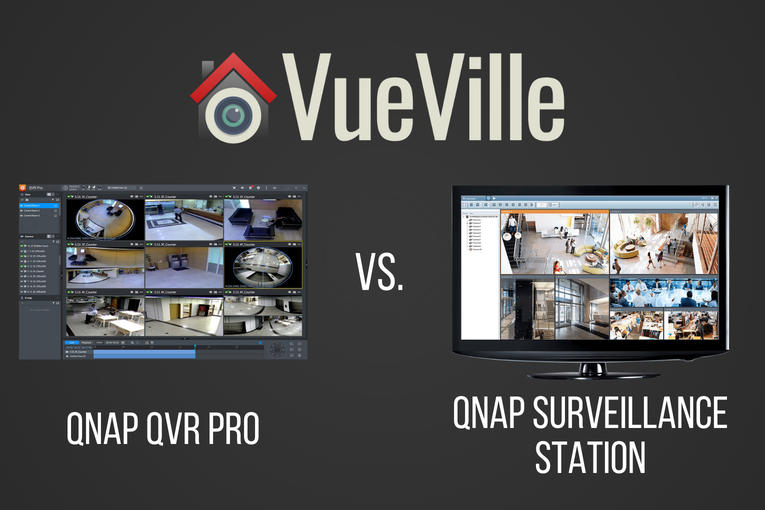
QNAP recently released QVR Pro, a new surveillance app for their beefier NAS models. So if your NAS makes the cut, you now have a choice between the default Surveillance Station app and the new QVR Pro app.
But is it worth switching? Let’s find out in this head-to-head between the time-tested and functional Surveillance Station vs. the polished all grown-up QVR Pro.
QNAP QVR Pro vs. QNAP Surveillance Station – Comparison Table
[table id=51 responsive=scroll /]
QNAP QVR Pro vs QNAP Surveillance Station – Features
What will probably draw most people into trying QVR Pro is the generous 8 IP camera licences that come with the software. Yes, you get 8 channels irrespective of how many Surveillance Station IP camera licences your NAS originally came with.
QNAP has beefed up the motion detection feature in QVR Pro. With Surveillance Station, the NAS depended on the IP cameras to send a motion detection trigger. It did not have any motion detection ability of its own. But with QVR Pro, the NAS can perform motion detection on up to 2 channels and at a max resolution of 1080p. This is great if you have older IP cameras with poor motion detection features.
The other major reason to try QVR Pro is the improved mobile app, QVR Pro Client. The Surveillance Station mobile app Vmobile is quite functional but nothing to write home about.
I always felt that the maximum playback speed in Surveillance Station could be faster. My wish has come true – QVR Pro can playback videos in synchronized mode up to 10 times faster than Surveillance Station.
There are some other interesting features such as fail-over recording, the ability to record events and continuous recording to different disks, and NAS pooling. If you have more than one NAS device capable of running QVR Pro, NAS pooling may be of interest. You can essentially run up to 8 IP cameras on each NAS and then view all these cameras in one single app, the QVR Pro Client on desktop, or mobile.
QNAP QVR Pro vs QNAP Surveillance Station – Performance
QNAP has designed QVR Pro to use the on-board GPU of Intel processors to perform hardware video decoding. QNAP claims that this will result in 10x faster playback and 5x faster video exporting.
Can all QNAP NAS models run QVR Pro?
All QNAP NAS models with at least 4GB of RAM will be able to run QVR Pro. Both Intel x86 and ARM-based processors are supported.
Is QVR Pro free to use?
Yes but with the limitation of 8 IP camera channels, and a maximum of 14 days video backup.
What is QVR Pro Gold?
If you want to use more than 8 IP camera channels, QVR Gold is the premium paid version of QVR Pro. You also get the following features:
unlimited recording playback via QVR Pro Client
camera channel scalability
enhanced QVR Center central management over QVR Pro servers
domain privilege management for Windows Active Directory and LDAP
QVR Pro Gold also adds 8 extra camera channels, and the ability to activate additional QVR Pro Camera Channel Extension Licenses (1/4/8 channels).
Can my existing Surveillance Station IP camera licences be used in QVR Pro?
No. QVR Pro has its own IP camera licences which are different from the Surveillance Station ones that come bundled with QNAP NAS servers.
What are the downsides of QVR Pro?
QVR Pro is free to use but lets you play back only the last 14 days of recorded video.
How do I install QNAP QVR Pro?
Navigate to the QTS App Center on your QNAP NAS and you will find QVR Pro among the list of apps available for download.
Which QNAP NAS models are best for QVR Pro?
Any QNAP NAS model with more than 4GB RAM from our recommended NAS models will run QVR Pro like a champ.
Imagine having to open different apps to live-view your many different cameras from different brands. What a pain, right? Thankfully there is a better way!
We started our home security journey with a single outdoor security camera. Soon, we were hooked and started buying more IP cameras to cover all 4 sides of our home.
Before long, we had 4 IP cameras from Hikvision, Reolink and Amcrest. Opening and logging into each camera’s app to live-view each camera got old, fast.
Want to watch 2 cameras on one screen? Or more? Thankfully, it’s not difficult to view all your security cameras in one screen. And there are several ways of doing it, so let’s dig in!
A quick note: As an Amazon Associate I earn from qualifying purchases. This post contains affiliate link(s). An affiliate link means I may earn advertising or referral fees if you make a purchase through my link, at no extra cost to you.
Important Prerequisite – Remote access
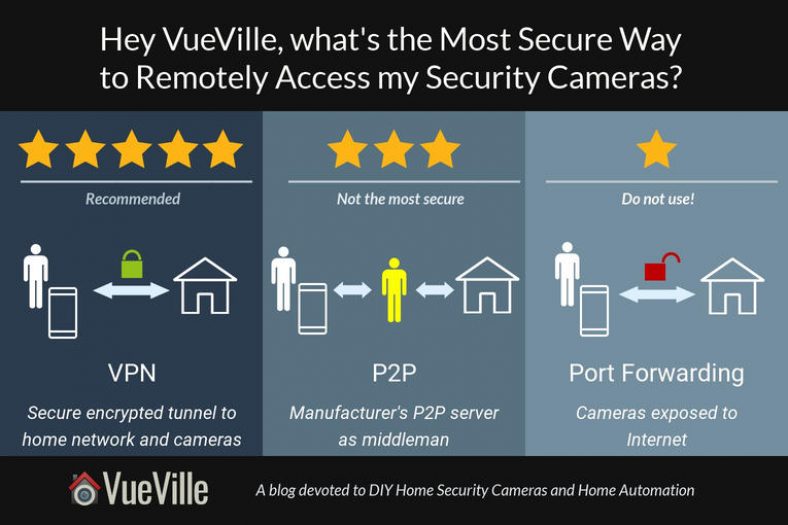
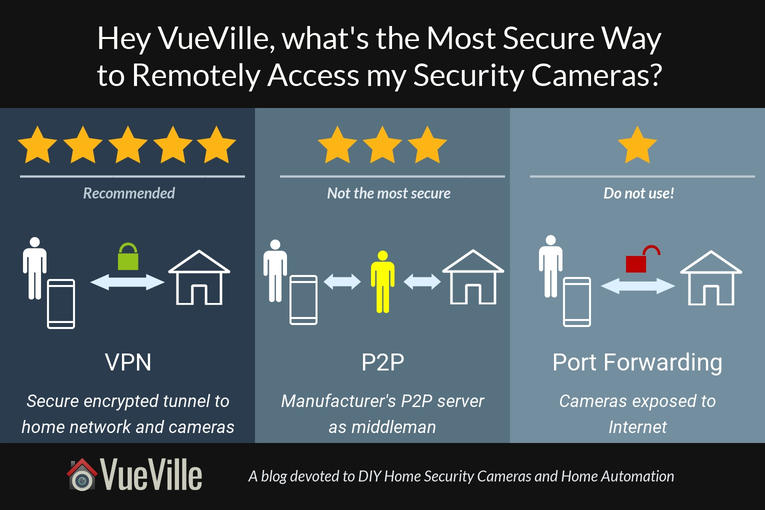
Please note that you will need remote access to your home network – I recommend setting up your own secure VPN tunnel using WireGuard. There are issues with the other 2 options: the port forwarding method is dangerous and there are privacy concerns with using a 3rd party P2P feature that comes built-in with most cameras and NVRs. I have written a blog article that can help you understand the various options you have to set up remote access. The rest of this article assumes you have set up remote access using one of these remote access methods.
How to view all your security cameras in one place
There are several different ways of accomplishing this:
Use a 3rd party mobile app or desktop app
Get a Network Video Recorder (NVR)
Get a NAS to use as an NVR
Use Frigate and Home Assistant
Which of the 3 methods you should choose depends on your needs, your budget and how involved you want to get with your home security camera hobby.
Use a 3rd party mobile app or desktop app
This is the easiest method and something you can even do for free. There are 3rd party apps such as tinyCAM Monitor (Free & paid versions) for smartphones and Milestone XProtect Essential (Free version) that will let you add all your IP cameras and view them in one single screen.
On smartphones and tablets
For Android, we recommend the excellent tinyCAM Monitor app. This app has a wealth of features, including motion detection recording, thus turning your mobile device into a full-blown DVR.
Here are the main features of the tinyCAM Monitor Pro version:
2-way audio (selective models)
Motion detection (both in-app and on-camera), face detection
Video recording (local storage, time-lapse, FTP/FTPS, Amazon Drive, Dropbox, Google Drive, Microsoft OneDrive, ownCloud)
Background/DVR mode (background recording and background motion detection)
Internal web server for remote recordings playback and live view
Android Wear app
Google Cast (Chromecast)
TV support (Android TV, Amazon Fire TV)
Widgets
Floating windows
Tasker automation plugin
Here’s what tinyCAM Monitor Pro looks like on my Samsung Galaxy A5:
If you have Apple mobile devices, you could try the well-reviewed IP Cam Viewer Pro app.
On desktop
There is a good choice of free IP camera management and DVR software that will let you live-view a limited number of IP cameras, do basic motion detection, and recording. The most popular free versions are:
If you are willing to pay for premium features such as a higher number of IP camera channels or advanced motion detection to reduce false alerts, these are the best options:
If you haven’t bought a single IP camera yet or need additional IP cameras, then the EasyDIY approach is to get a complete security camera system that comes with everything you need in one package (see our picks).
But if you have more than 1 IP camera, i.e. you are already heavily invested and do not want to buy a whole kit, just buy an NVR.
NVR that works with most ONVIF-compliant cameras:
Reolink: You can use their own cameras or 3-rd party cameras. You can also use Home Assistant with a Reolink NVR to fully integrate it into
ProDIY – Get a NAS to use as an NVR
If you want to interface your home security camera system with your home automation system like we have, increase data reliability by using disk mirroring, go for the DIY NAS NVR option.
NAS servers from Synology & QNAP also have Surveillance Station mobile apps so that you can view the same simultaneous live-view and recordings on your mobile device.
Here’s a screenshot from my QNAP TS-253A running Surveillance Station:
Our DIY Home Security System – QNAP QVR Client for Surveillance Station
So what are the pros and cons of this method?
We have written an extensive review of the best DIY NAS NVRs – this is a great place to start your research.
Use Frigate NVR and Home Assistant – My Favourite Setup
While this is probably more difficult to set up than the other options, its also the most rewarding. I personally went this route and now have AI person & object detection running 100% locally on my Home Assistant server.
I use a very cheap power-sipping Coral AI USB dongle from Google to handle the AI motion detection part. And I mean it when I say power-sipping, it consumes just 2-3 Watts! This also means your Home Assistant server doesn’t need to have a powerful CPU or GPU to perform AI motion detection.
As you can see, there are quite a few ways to get all your security cameras together in one place – each has its pros and cons but what’s life without some variety? Let us know which method you have chosen and why in the comments below!
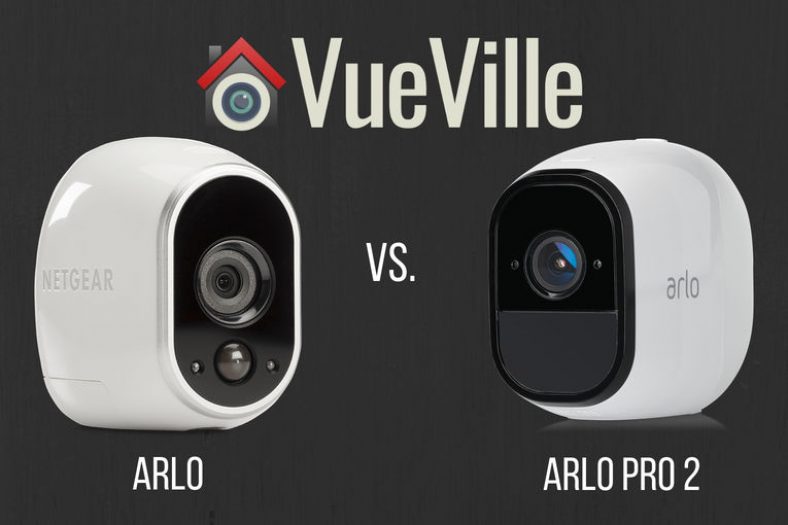
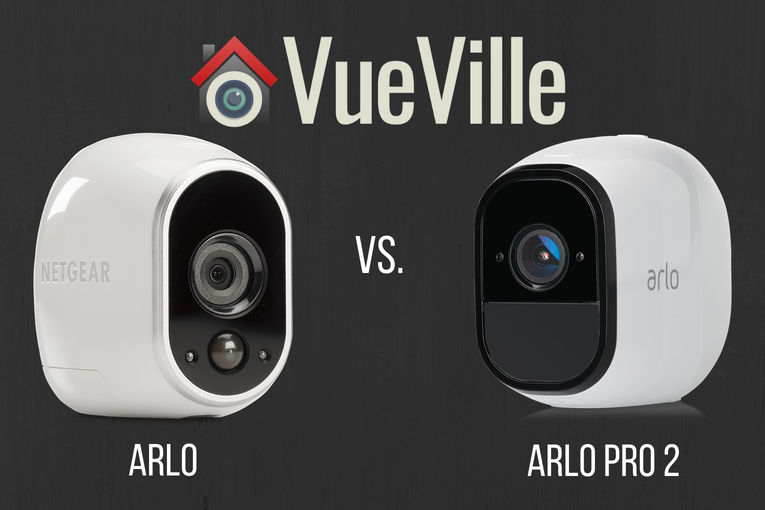
This is perhaps the single biggest difference between the entry-level Arlo and the range-topping Arlo Pro 2. The baby Arlo has only a 720p max video resolution, but the Arlo Pro 2 does Full HD.
Full HD or 1080p is the minimum resolution you should go for. This is because 720p just doesn’t give you enough detail, especially at night time. So the Arlo Pro 2 has the edge here.
Audio Quality
The Arlo doesn’t have audio support at all. But the Arlo Pro 2 has both a mic and speaker, so it has 2-way audio capability.
But note that the 2-way audio on offer here is only half-duplex, not full-duplex. So you cannot have a natural conversation. Rather you are limited to a walkie-talkie style of taking turns talking and listening.
If you are wondering which cameras do support full-duplex audio, even most wired cameras do not have this feature. But there is one wire-free camera that does have full duplex audio – the Reolink Argus.
Motion Detection
There are a few different ways cameras do motion detection:
PIR based: Passive Infrared is the most reliable method of motion detection and the only one that the baby Arlo model supports. Its also easier on the camera’s processor.PIR motion detection works by detecting the warmer parts of a scene such as a moving person or animal. So clouds, shadows or moving vehicles will not trigger the motion detection.
While this is typically a more accurate motion detection method, you cannot define zones to restrict motion detection to. So any motion in the whole scene will trigger an alert.
Both the Arlo and the Arlo Pro 2 support PIR motion detection.
Software based motion detection: While this can lead to false alerts if not properly configured, you do gain the ability to specify motion detection zones. Only the Arlo Pro 2 supports this method.In fact, the Arlo Pro 2 has a smart system. On battery power it uses only PIR based motion detection. But if plugged into AC power, it will use zone-based motion detection.
httpv://www.youtube.com/watch?v=h-7mkPxQ8EQ
Alert Notifications
Since the Arlo Pro 2 has audio capabilities, you can get not just motion but sound triggered alerts also. These alerts can be in the form of emails or push notifications to the mobile app.
The Arlo can do only motion detection alerts.
Weatherproofing
Both the Arlo Pro 2 and the Arlo Pro have an IP65 rating for weatherproofing. So you can use these cameras outdoors with confidence.
Battery life
This is another major difference between the Arlo Pro 2 and the Arlo. The Arlo Pro 2 has a rechargeable battery whereas the Arlo Pro runs on four non-rechargeable CR123A batteries.
Rechargeable batteries are more convenient but do they last longer than the CR123s of the Arlo?
Let’s compare the energy capacities of the two cameras. The Arlo Pro 2’s rechargeable battery has 2440 mAh capacity whereas the Arlo’s four CR123A batteries will give it 6000 mAh (1500 mAh per battery). That is a huge difference in total energy capacity, so definitely something to keep in mind.
Smart Home Compatibility
The Arlos range of cameras are cloud reliant and have little in the way of local processing capabilities. Amazon Alexa, IFTTT and Stringify are supported, but these are all Internet-reliant platforms.
If you want battery powered cameras with local data processing, well we can but hope. At least we have battery powered cameras with local data storage like the Reolink Argus.
Arlo vs. Arlo Pro 2 – The VueVille Verdict
If you need 24/7 recording and are able to keep the camera plugged in, go for the Arlo Pro 2.
Another reason to get the Arlo Pro 2 is for its audio support.
If you don’t need the above features, the Arlo HD will do the job.
So you have bought security cameras to watch your home while you are away. You followed the manufacturer’s instructions to set up the camera. Voila, you are now able to view your cameras from anywhere in the world. Job done.
Or is it?
Most security camera manufacturers now use Peer-to-Peer (P2P) technology to make it very easy to set up their cameras. Of course, the beauty of this method is that you don’t even realise you are using P2P technology. But then you also may not be aware of the extent to which you are trusting the strength of the camera manufacturer’s network security.
Let’s take a step back and look at the 3 different ways you can view your home security cameras remotely:
Port Forwarding
P2P
VPN connection
[wpsm_toplist]
Port forwarding
This is the oldest and most common way of remotely connecting to devices on your home network. This is how it works – an external port is opened on your router and forwarded to the device in question, like a security camera. So these ports are always open on your network and your router is listening to incoming connections.
In other words, it is like leaving the doors of your house not just unlocked, but wide open. Not the best strategy for security.
Whenever the router detects an incoming connection on these opened ports, it routes the request straight to the security camera specified by the port forwarding rule active for that port.
Since manually configuring port forwarding can be difficult for most home security camera users, manufacturers started using Universal Plug-n-Play (uPNP) to automatically do it for them. And this is where things start getting dicey.
Poorly or maliciously written software running on dodgy no-name security cameras often open unnecessary ports on your router. If malicious, these open ports are a backdoor for 3rd parties or the government to monitor your camera. Unscrupulous camera makers may also program their cameras to make active connections to their own servers to keep tabs on how you are using your camera. This is called ‘dialing home’.
Even if they only open ports and do not download anything to your network, unnecessarily open ports are great targets for hackers and botnet attacks. Just see what’s been going on recently:
So in summary, do not forward ports from your security cameras to the Internet. It is simply not safe enough.
P2P
This is now the default way for most security cameras to let users remotely access them and live-stream video footage. It usually involves using the mobile app to scan a QR code on the camera and then everything is set up automatically.
P2P is like closing the doors of your house and locking them, but with a guard who has the key and can let themselves or anybody else in at any time. You trust your guard not to do that though.
So how does P2P work? P2P stands for peer-to-peer. There are two devices or peers that need to connect to each other – your security camera at home, and your remote mobile device. This may happen either directly using P2P and port forwarding OR using just P2P and a third-party server that negotiates the connection.
If uPNP is enabled on your security cameras, watch out. The camera may still use port forwarding in combination with P2P. But disable uPNP and then the security camera is forced to rely on a method called NAT Traversal. Here’s how it all works in simple English:
Your security camera makes an outgoing connection to the manufacturer’s P2P server and informs the server what your home network’s public IP address on the Internet is. This way, the P2P server knows exactly where your security camera can be found. If your router supports NAT (Network Address Translation), no port forwarding or special permissions are required. Most NAT routers allow all outgoing connections by default. So that’s the security camera side sorted.
What about your mobile device which may be on a 3G or 4G wireless network? When you first set up the mobile app on your mobile device, you may have scanned the camera’s QR code. So the app knows the unique id of your camera and remembers this. So now the app connects to the manufacturer’s P2P server and does two things:
It tells the P2P server your mobile device’s IP address, i.e. where the mobile app can be found, and
It fetches your camera’s address from the P2P server using its unique id
Now the mobile app knows everything it needs to connect to the security camera directly. No port forwarding occurs anywhere.
Now we are talking. This is the most secure way to remotely connect to your security cameras and therefore my chosen method. There’s no middleman in this method, you connect directly to your home network.
Using a VPN connection to connect to your home is like having just one door into your house, locking it when you leave and only you have the key. Nobody else. Makes sense doesn’t it?
So how does this method work? For every VPN connection, you need a server and a client. So to dial into your home network, a device on your network has to act as the server. This device needs to be online 24/7. It also needs to be very secure because it will be exposed to the Internet.
While I have used my DIY NAS NVR as the VPN server also in the past, this approach is no longer recommended due to security risks. Instead I recommend using a dedicated device on your network such as a Raspberry Pi4 or OrangePi Zero running PiVPN (my choice) to serve as the VPN server.
So a small low-power Pi will act as your VPN server, and you have to forward just one UDP port from your router to your Pi. Yes you can’t avoid some port forwarding but its better to use it for a VPN and expose your PiVPN server to the Internet instead of your NAS or security cameras.
The next choice you need to make is the VPN protocol to use. This one is easy – just use Wireguard. Most other the other common VPN protocols have been compromised either by hackers or governments. If you have a low-power device like the PiZero, Wireguard is ideal because it performs well on such low-power devices. But if you are using a Pi4 or better, you could choose OpenVPN also.
When you set up the Wireguard server on your Pi, you will get a client configuration file that you need to load on your OpenVPN client apps. We have written a step-by-step tutorial on setting this up (currently outdated but will be updated soon).
So you have set up your Wireguard server, but you need to know how to connect to it when you are away from home. You could use the public IP address of your router, but most ISPs use dynamic IP addresses which change every few days. You could pay for a static IP address to overcome this issue. But there’s a cheaper way – Dynamic DNS or DDNS. With DDNS, you can connect to your home network using a custom web address like mynetwork.ddns.net instead of the constantly changing dynamic IP address. How does DDNS work? A device on your network has to periodically update a third party DDNS server with your home network’s public IP address. The DDNS service will associate your selected web address with your home network’s public address.
Your router may be able to perform the function of keeping your DDNS service updated with your home public IP address. My Unifi USG router has this feature.
So you find yourself far away from home. Just fire up the Wireguard client app on your laptop or mobile, connect to your PiVPN server and that’s it. You are now virtually at home. All your apps including IP camera apps will think that you are at home and just work. You can also access other devices on your home network.
Conclusion
I personally use the Wireguard method to connect to my home network when I am out and about – I recommend this method as it is the most secure.
Its not easy to decide which security camera to buy, is it? So many specs to understand and compare, so many brands to choose from, and so many watch outs. So its wise to take a little time to do your research. This is, after all, something that concerns your family’s safety and well-being.
If you are brand new to security cameras or have been out of the game for a few years, there’s a lot to catch up on. But the key is to keep things simple – the core purpose of a security camera has not changed. You need to find something that is affordable, works reliably 24/7, and is well-made.
So what are the biggest mistakes commonly made when buying DIY home security cameras?
[wpsm_toplist]
Buying the cheapest security camera
The temptation to cheap out and buy the cheapest security camera is very strong, what with the hundreds of generic no-name Chinese brands around.
Don’t do this – not only do these cameras generally have a poor feature set but most of them also have poor security. They may compromise your home network by opening ports on your router (port forwarding), connecting to unknown servers on the Internet(dialing home), or serving as a backdoor for hackers or foreign governments.
Another equally common mistake is to base purchase decisions off your favourite online retailer’s best-sellers list. The cheap cameras mentioned above make up the bulk of these lists. Unsurprisingly people think they can save a buck by skimping, but you really get what you pay for.
Solution: A far better way is to assess your needs, decide what features you want, and buy from a trusted brand. Check out our IP camera guide here.
Picking a cloud-reliant security camera
The latest trend is to strip a camera’s features right down to the bone, and sell it as a cloud camera. We can’t think of anything worse than this.
These cameras are the very antithesis of security. The worst of the lot will simply not work unless there is an active connection to the manufacturer’s cloud servers. This is because they do not have local storage at all (for example, the Nest Cam Outdoor camera).
So if an intruder has disabled your Internet or if the manufacturer’s servers are down, it cannot record the motion triggered clip anywhere. Absolutely useless.
Ever so slightly better are the cameras that have a local recording backup but won’t let you access them – it is merely a temporary holding place in case the cloud server connection is lost (Netgear Arlo Security Camera System with Base Station).
Solution: Refuse to buy a security camera that becomes an expensive paperweight without an Internet connection.
Picking a security camera with no local storage
Continuing in the same vein as cloud-reliance, cameras without local storage are totally useless if the cloud server is unreachable!
Most DIY security cameras from the serious brands such as Hikvision, Dahua, Bosch, Sony, Canon, Axis, Vivotek, Amcrest and Reolink have on-board SD card slots. These are great for stand-alone use or as a backup location for motion recorded clips.
Solution: Even if you believe your Internet connection and your cloud camera provider’s servers are infallible, get a camera with an SD card storage as a backup.
Deciding to pay a monthly fee for cloud-recording
Consumer behaviour has changed significantly with the advent of easy credit. People have fallen for the ‘pay a lower price upfront and then a little more every month’ instead of a one-off purchase price. This may sometimes make sense for leasing cars, but very rarely does for a security camera.
A particularly egregious example is selling security cameras that are cloud-reliant, have no local storage, and do not have ONVIF or RTSP support. So you can’t connect them to a standards-compliant 3rd party NVR.
They then force you to purchase a monthly cloud recording plan so that your neutered camera can actually do what it was supposed to. Oh and don’t forget the regular price increases.
Solution: Say no to cameras that try to flog you a monthly payment. They are simply not needed and are a total rip-off. What you buy should be 100% yours, not for the manufacturer to cripple and hold you hostage as and when they feel like it.
Picking only Wi-Fi cameras vs. wired cameras
This is a big one – a surprisingly large number of people do not realise that Wi-Fi is not 100% reliable. Yes it has come a long way since the early 2000s when your laptop would struggle to maintain a Wi-Fi connection. But it is still nowhere near the reliability required for something as critical as protecting your family.
Its easy to think why Wi-Fi is great if you are just thinking of browsing the net. But use it for real-time data transfer 24/7 at some distance from the router and it won’t be so reliable.
The right way of doing it is to use wired cameras by default unless you have a location that you cannot run cables to and you use a wireless camera with on-board storage.
Now, this may be the far end of your garden or some other similarly inaccessible location. Even so, if the location is a critical entry/exit point, it should be covered by a wired camera as well just in case you can’t access it remotely due to Wi-Fi failure.
Solution: Use a mix of wired and wireless cameras, and wireless cameras should have on-board storage for the eventual Wi-Fi connection failure.
Buying a low resolution security camera
We recommend only security cameras with 1080p or 2 Megapixel resolution. Any lower and you are not going to get enough detail to identify faces.
For this reason, 720p cameras have virtually disappeared from most security camera’s lineups. So imagine my surprise when we recently found a 720p camera in the best-sellers list.
Solution: Go for at least 1080p (2 MP) resolution, 3 MP is even better.
Choosing a camera with poor night vision
Almost every IP camera these days has night vision, but the brightness and range of the InfraRed LEDs varies wildly. There are two types of IR LED systems:
the very common but inferior ring-type LED arrangement which is made of a few dozen small IR LEDs arranged in a ring around the camera lens
the superior EXIR LEDs which are fewer in number but brighter and do not have a flashlight effect
Also make sure the camera has a true IR cut filter to avoid false colour during daytime. Automatic day/night switching is a standard feature, but in more expensive cameras you can control the switching behaviour.
Not installing enough security cameras to cover your property
A common mistake is to put up cameras only in areas around the house you want to watch. Instead, think about every entry/exit point into your property and cover those areas.
Also consider covering the perimeter so that you can spot intruders scaling perimeter walls or fences.
Not using an NVR
So you have realised that you need more than one security camera. But now how do you view the feeds from all the cameras in one place?
How can you record the footage from the cameras 24/7, and keep a 14 day history for example? You need an NVR.
Choosing the wrong type of camera for the installation location
There are a wide range of IP camera form factors – bullets, domes, mini-domes, turrets, PTZs, indoor cube cameras and so on. Each one is designed for a specific use case.
For example you should use a dome with a vandal-protection rating like IK10 in an area with high traffic and where the risk of vandalism is high.
Bullets are a bit cheaper but are prone to being knocked off target by a projectile, so are better for locations where they are well out of reach.
There are also motorized cameras, these can be a Pan-Tilt-Zoom (PTZ), a Pan-Tilt camera or one with just motorized zoom.
Outdoor cameras with motorized zoom are great for narrow alleys or sides of the property. Pan-tilts are usually found on indoor IP cameras. A PTZ is great for doing automatic tours of the scene, especially one where there is a large area to cover.
Of course you should also have some non-zoomed in IP cameras covering the same scene so that the PTZ doesn’t miss anything while touring.
Choosing a camera with narrow viewing angle
The viewing angle of a camera depends on the focal length of its lens. The widest angle cameras have a 2.8mm lens which equates to a viewing angle of around 90-110 degrees.
But some cameras have even wider viewing angles but this might introduce distortion to the recorded video. Of course you could choose a camera with a motorized lens to retain flexibility.
Positioning the camera too high
An incredibly common error is to place your security camera on the 2nd floor of the house, and then either pointed down over the driveway or just watching the whole neighbourhood.
Remember, the main purpose of the camera is to record clearly the faces of people approaching the camera or entering the scene. For this to work, the camera has to be slightly above the average person’s head height.
Not optimising installation location for motion detection
Sticking with the theme of security camera installation, the bane of a security camera enthusiast’s life are false motion detection alerts. You want to get these alerts only where there is a real movement in places that you do not expect at times you do not expect.
This is where a smart definition of motion detection rules come in. By carefully assessing the entry and exit points, the direction in which intruders can move, the way the shadows from clouds fall etc., you can virtually eliminate false motion detection alerts.
Not having a plan for your home security
We strongly recommend thinking about the following points before buying anything:
How many cameras will you need?
Do you need motion detection alerts?
Do you need 24/7 recording?
How will you view the camera recordings?
Do you want to view all your security cameras live feeds simultaneously on a single screen?
Do you want to playback all your security cameras simultaneously on a single screen?
Do you want push notifications, or will email alerts do?
Do you want to set up a smart home? Say, for viewing your cameras on any device around the house if motion is detected outside? Sounds good right?
So once you have decided what you want, then start thinking of which security camera to buy. Check out our smart home strategy guide to guide you.
Conclusion
Security cameras are simply great, but it takes a little bit of work to learn about them. The benefit is that you can avoid the common mistakes we talked about and get the best bang for your buck!
More resources
Here are some starting points for your security camera research:
When I was choosing the hard drives for my DIY NAS NVR system, I did a ton of research. I wanted to record all my IP cameras 24/7, so reliability and performance were very important to me.
In this article, I will share all my findings so that you have all the information you need to make the right choice.
A quick note: As an Amazon Associate I earn from qualifying purchases. This post contains affiliate link(s). An affiliate link means I may earn advertising or referral fees if you make a purchase through my link, at no extra cost to you.
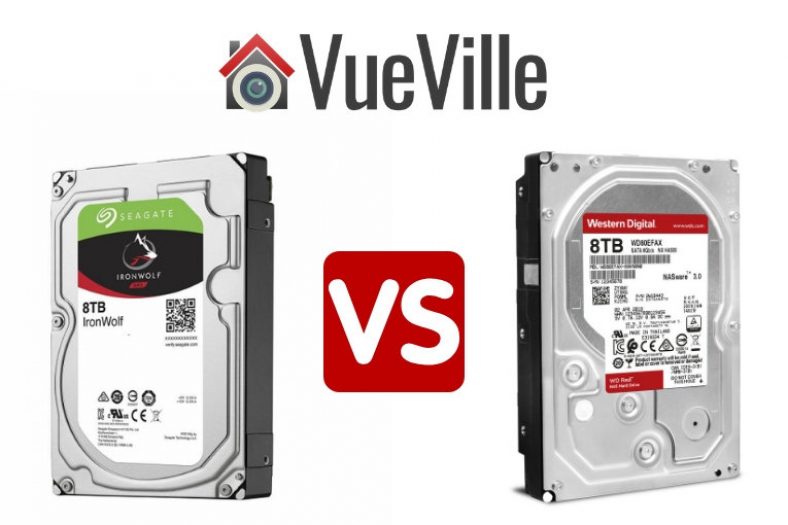
Seagate IronWolf vs. WD RED Plus – Comparison Table
[table id=78 responsive=scroll /]
Seagate IronWolf vs. WD RED Plus
Since the inferior SMR-based WD Red drives have been officially discontinued and replaced by the newer CMR-based WD Red Plus drives, we will compare the Ironwolf vs the WD Red Plus drives.
Performance
Comparing real-life benchmarks & independent testing by other publications such as Toms Hardware have shown that the WD Red Plus drives are much faster than both the Ironwolf & older WD Red drives.
Reliability
While we may not have specific reliability data for the IronWolf and RED drives, one cloud storage provider regularly publishes drive failure data for all the drives it uses – Backblaze.
Please note that the Seagate hard drives they use are the Exos variety, not Ironwolf. Still, it gives us some sense of how reliable the Seagate brand is.
Looking at the latest Backblaze data, in general the WD drives appear to have less reliability than Seagate. But at lower capacities, Seagate seems to be much worse. So a real mixed bag. Although do note the sample size is much larger in Seagate’s case for most drive sizes, generally the higher the sample size, the more accurate the data becomes.
WD Red Plus drives’ lack of a vibration sensor is surprising given that the IronWolf has it on all its drive models. Also worth noting is that the WD RED’s Nonrecoverable Read Errors Rate of 1 in 10^14 is worse than that of the IronWolf’s 1 in 10^15.
So let’s call it a tie when it comes to reliability.
Noise levels
The IronWolf runs at higher RPMs compared to the WD RED, so its no surprise that the IronWolf is also louder on average than the WD RED drives.
I have been using the original CMR-based WD Red drives in my QNAP TS-253A and can confirm that these drives are super quiet. I have my NAS in my living room, inside the TV unit and can barely hear the drives when they are active.
Why you should not buy the discontinued WD Red drives – the CMR vs. SMR controversy
The biggest issue with the now discontinued WD Red drives is their SMR recording technology. CMR is widely recognised as the superior technology whereas SMR is a newer slightly inferior tech that especially suffers from poor random write speed.
Let’s start with Western Digital. A few years ago all WD drives used to be CMR. This was also how WD described their drives in their marketing material. These are the drives that are still spinning in my QNAP NAS.
But in early 2020, several users started complaining about unusually lengthy RAID building times or outright failures on adding their brand new WD RED drives to an existing RAID array (also called re-silvering).
When pressed, WD admitted that they had switched some of their drive models from CMR to SMR without notice. WD even settled a class action suit related to this matter and promised better communication. As part of the settlement, WD admitted that the SMR based RED drives are not suitable for NAS and RAID usage.
The whole controversy had one positive effect – WD is required to disclose the recording technology used in their drives for 4 years whereas Seagate is doing so in their marketing material and datasheets.
So where does that leave us today? Unfortunately, the WD Red drives are now all SMR. But thankfully, they have been discontinued, but some stores are still selling off old inventory, so buyer beware!
If you want CMR, you need to step up to the [easyazon_link identifier=”B08VH8C3WZ” locale=”US” tag=”vueville.com-eaz-hdd-20″]WD Red Plus model range[/easyazon_link]. While some users may be able to make do with the SMR-based WD RED drives, I suggest you give them a miss.
The VueVille Verdict
Drive technology – Tie because both Seagate IronWolf & the WD Red Plus drives use CMR recording technology instead of the inferior SMR. Performance – WD Red Plus has the edge. Reliability – Tie. Noise – WD Red wins.
Overall, the WD Red wins.
So which one did I choose?
I wanted to run a RAID 1 setup so that all my data would be backed up on 2 disk drives – for this reason I was not after absolute speed and the WD RED drives were available at a better price point. Also note that this was before WD started selling SMR drives without disclosing the change from CMR. So I am very happy with my old CMR-based WD REDs.
Soon it will be time to replace my NAS drives, and I will go with either the WD Red Plus or the WD Red Pro drives.
Visible outdoor security cameras are a great deterrent against would-be burglars. That’s why I have got prominently positioned cameras around my home. But there are two very valid objections to doing this.
“Won’t burglars just smash the cameras?” and “Won’t burglars just hide their faces?”
Its true, security cameras are not the be all and end all of home security and you need a well-planned strategy to protect your home. But placing hidden outdoor security cameras in unexpected places may lead to catching the act of the burglar destroying the visible cameras. You may even catch the burglar unmasking themselves because they do not see a camera around.
Or you could go the other way and just use hidden cameras only – that way you reduce the risk of the burglar masking themselves in the first place.
Check out this video caught by a hidden outdoor security camera: httpv://www.youtube.com/watch?v=4sy2OCWYePg [wpsm_divider top=”20px” bottom=”20px” style=”clear”] [wpsm_toplist]
What are the different types of Hidden Outdoor Security Cameras?
Depending on how they are powered and how they are connected, we can group them into the following categories:
Wirefree hidden outdoor security camera
These are totally wireless battery-powered cameras. They usually cannot be connected to mains power, but may have solar panel accessories. Ideal for locations where you can’t get power, Internet connectivity or both. Wi-Fi and/or 4G LTE connectivity.
Wireless hidden outdoor security camera with WiFi
AC powered, WiFi connectivity
Wireless PoE hidden outdoor security camera with WiFi
AC powered, WiFi and Power over Ethernet (PoE) connectivity
[text-blocks id=”5527″ slug=”earning-disclaimer”]
Best Wire-free Hidden Outdoor Security Camera
Panasonic Homehawk Home Monitoring Kit
[easyazon_image align=”center” height=”500″ identifier=”B078J2MH5X” locale=”US” src=”https://images-na.ssl-images-amazon.com/images/I/41aZWRQPG6L.jpg” tag=”vueville.com-eaz-20″ width=”500″] Panasonic has also joined the wire-free security camera wagon with its latest Homehawk DIY home monitoring range. The product consists of a base station (just like Arlo) but with a microSD card slot, a wireless battery powered front door camera unit and a wireless battery powered peripheral camera. Both cameras are IP65 rated weatherproof and run on rechargeable Panasonic batteries.
There are many positives to talk about here. This is a high quality product from a reputable brand. There is no cloud or Internet reliance here. All footage is stored locally on the microSD card. This means your data is truly yours. I am very happy to see Panasonic take this route instead of crippling their cameras unless you pay through the nose for a paid cloud subscription. Colour night vision is a recent innovation and is something I really recommend going for.
Full specs:
720P HD camera (172 degrees diagonal field of view)
Local storage and local processing
Day/night sensor
2-way intercom with built-in microphone, speaker.
Livestream video feed to mobile app
Smart motion detection with zones
Android, iPhone and tablet apps available
IP65 weatherproof
[easyazon_link identifier=”B078J2MH5X” locale=”US” tag=”vueville.com-eaz-20″]View on Amazon[/easyazon_link]
We reviewed the Reolink Argus last year and really liked it. It was the only non-cloud reliant wirefree camera at the time. The fact that it was a well-built full-HD camera only made the deal even better! The Reolink Argus 2 improves on the original Argus by adding a rechargeable battery and solar panel charging options.
Full specs:
1080P Full HD camera (120 degrees diagonal field of view)
Local microSD storage and local processing
Day/night sensor
2-way intercom with built-in microphone, speaker.
Livestream video feed to mobile app
PIR motion detection
Android, iPhone and tablet apps available
802.11b/g/n Wi-Fi
IP65 weatherproof
[wpsm_column size=”one-half”]
[easyazon_link identifier=”B0786XGM8M” locale=”US” tag=”vueville.com-eaz-bnvr17-20″]Check Price on Amazon[/easyazon_link]
The Kuna camera is the original big-daddy of the outdoor camera and light combination. This hidden camera looks like any other outdoor lamp and works just like one too. But look very closely and you just might see a hidden camera lurking within! This smart light with hidden camera can be fully controlled from your smartphone too.
However there are a few downsides. One key omission is night vision as there are no Infrared LEDs. Like most mainstream security cameras, this hidden camera is a closed system and is reliant on the cloud. The free plan lers you look back only 2 hours of video and allows only 3 video downloads per month. It also does not let you access its live video stream from any app other than the official Kuna app. You cannot use Blue Iris on other ONVIF recorders with this camera because there is no RTSP stream. There is no API either, so home automation control is limited to Alexa support.
Full specs:
720P HD camera (116 degree diagonal field of view)
Day/night sensor
2-way intercom with built-in microphone, speaker.
Loud alarm siren
PIR motion sensor
Livestream video feed to mobile app
Smart motion event detection
3 colour status LED (can be switched off)
Comes with a 16 watt LED bulb (colour temperature is 3000K)
Android, iPhone and tablet apps available
Weatherproof
[easyazon_link identifier=”B010FWU62E” locale=”US” tag=”vueville.com-eaz-20″]View on Amazon[/easyazon_link]
The Phylink covert camera is a small wonder. It is an IP camera that packs 720p HD resolution, WiFi, Power over Ethernet(PoE), and a microSD card slot. The camera sensor is separated from the rest of the camera which allows you to easily position the sensor unit in the desired position.
Full specs: – 720P HD video, H.264, MPEG4, MJPEG configurable streams – Windows and Mac compatible, Free software for PC – Free Apps for iOS and Android, view and hear remotely from anywhere – Quick setup within minutes, no complicated settings needed – Micro SD DVR supports cards up to 128GB (SD Card not included) – Motion record/alerts via Push Notifications/Email/FTP – Fully compatible connectivity, works over Wi-Fi, Ethernet, or Power over Ethernet (PoE).
[easyazon_link identifier=”B00N8DOAWA” locale=”US” tag=”vueville.com-eaz-20″]View on Amazon[/easyazon_link]
Titathink TT520PW 720P HD Wireless Micro Hidden PoE Pinhole Camera
The Titathink is a more polished version of the Phylink and has an external antenna. A generous 20ft long cable links the camera image sensor to the main unit.
Main specs: – Image Sensor Dimensions Φ 0.74 x 1 in – Main Unit Dimensions(W x D x H mm) 3.7 x 2.87 x 0.94 in – Cable lengths: 28ft From sensor to main unit. – High-Resolution 720P HD video streaming, H.264, MPEG4, MJPEG configurable stream. – 3-D Digital Noise Reduction (3-D DNR), Get exceptional image quality and video with less noise. – Works over Wi-Fi b/g/n, LAN or POE. WPS for easy wireless setup. – One Audio Line-in port for sound monitoring. – General I/O ports to connect external alarm devices. – Multi-zone Motion Detection, Email, Ftp, Push alarms to your phone. – MicroSD card slot up to 128GB, playback via our app or software. – ONVIF compliant, works with NVR, NAS or PC with surveillance software. – Free app for iOS & Android smartphones/tablets.
[easyazon_link identifier=”B01N11BR7Z” locale=”US” tag=”vueville.com-eaz-20″]View on Amazon[/easyazon_link]
Conclusion
Using a smart combination of the wired, wireless and wire-free outdoor hidden security cameras listed above, you have a far better chance of outsmarting a burglar. Why not share with us how you are using hidden cameras in your home?
Got a Hikvision camera because you have heard of its legendary motion detection features? Looking for a quick and easy guide to set it up? You are in the right place – here’s the VueVille tutorial on Hikvision motion detection setup.
In this tutorial, I assume you are using your Hikvision camera in standalone mode (using a microSD card) or with a NAS as the NVR.
If you are using a dedicated NVR from Hikvision, the setup should be done on the NVR, not from the camera’s web interface. The steps are very similar to this tutorial.
If you are using [easyazon_link identifier=”B00CE1F3NM” locale=”US” tag=”vueville.com-eaz-20″]BlueIris[/easyazon_link] or similar NVR software running on a PC, you can either follow the below steps on each Hikvision camera OR make BlueIris do motion detection. The cameras can send the basic ONVIF motion detection event to any ONVIF-compliant NVR.
Hikvision has separated motion detection recording into two halves – 1) events, and 2) actions triggered by those events. You activate and configure the events first, and then setup the actions the camera should take including recording.
Hikvision motion detection is very powerful and extremely customizable. That’s why they are great cameras for reducing false alerts due to shadows, clouds, insects, bugs, flies etc.
To cater to both beginners and advanced users, Hikvision have categorized motion detection as follows in most of their IP camera models:
Basic Event
Motion Detection
Normal Mode
Expert Mode
Smart Event (or advanced events)
Intrusion Detection
Line Crossing Detection
The above events become active only when you tick the ‘Enable’ checkbox at the top of each event’s page and configure them by setting at least the sensitivity.
The basic event is what most people have in mind when they think of motion detection. Here the camera uses software methods to compare video frames and thus detect motion. The smart or advanced events also compare frames but check whether certain virtual boundaries like a line, tripwire or area has been breached in addition to various conditions like direction of motion and dwell time.
Hikvision cameras that are equipped with a PIR motion sensor have true motion detection abilities and will fall under the basic event category.
In this tutorial we will look at setting up a basic motion detection event.
Hikvision Motion Detection – Basic Event
Login to your camera admin page and navigate to Configuration > Event > Basic Event. I will be using my DS-2CD2542FWD-IWS for this tutorial, but depending on your firmware and camera model the menus may be slightly different.
Enable Dynamic Analysis for Motion
If you want the recorded video to show the areas that triggered the motion detection event, tick this checkbox. I do not use this feature as it is fairly pointless.
STEP 1: Area Settings Tab
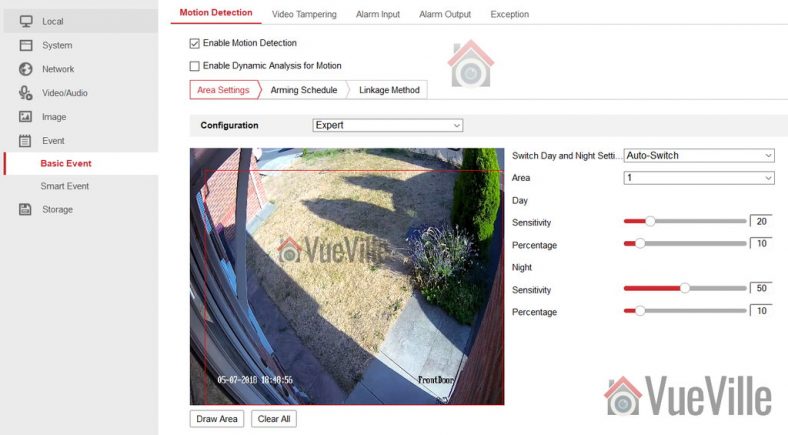
Within the basic event under the ‘Area Settings’ tab, you have a normal mode and expert mode. In both normal mode and expert modes, you can draw an ‘area’ or motion detection zone that the camera should monitor.
In normal mode the only other setting you can adjust is a simple sensitivity percentage slider. This controls the threshold of differences between subsequent video frames which triggers a motion detection event and subsequent alert.
In expert mode, you are able to control sensitivity settings separately for daytime and night-time. You can also draw more than one area – my camera supports up to 8 distinct areas. Furthermore, you can either let the camera automatically switch between day and night according to light levels or create a schedule for daytime and night time. You can also define how large an object has to be for it to trigger a motion detection event. These are all great features and if you do not want to use the advanced methods (line crossing & intrusion detection) I strongly recommend using the expert mode of basic motion detection.
If you are using a 3rd party NVR or a NAS NVR such as QNAP or Synology, the only motion detection method you can use will be the basic events. I use a QNAP TS-253A NAS and the QNAP Surveillance Station app to integrate my security cameras with HomeSeer3. So I am forced to use the basic motion detection events only. You can see my settings above which minimize the number of false alerts massively.
Don’t forget to press the Save button before moving to the next step.
Hikvision Motion Detection Sensitivity
In my experience, you need a lower sensitivity percentage setting during the day time. I suggest 20% as a starting point. For night-time, increase the sensitivity so that movement in the shadows is not missed. I suggest 50% as a starting point for the night setting.
Hikvision Motion Detection Percentage
As I mentioned earlier, what Hikvision calls the ‘percentage’ setting actually means ‘how big should the object be to trigger the motion detection event’. It is calculated as the area covered by the object in the video frame divided by the total area of the video frame. This is why it is expressed as a % from 0 to 100, and also why Hikvision rather calls this setting ‘percentage’.
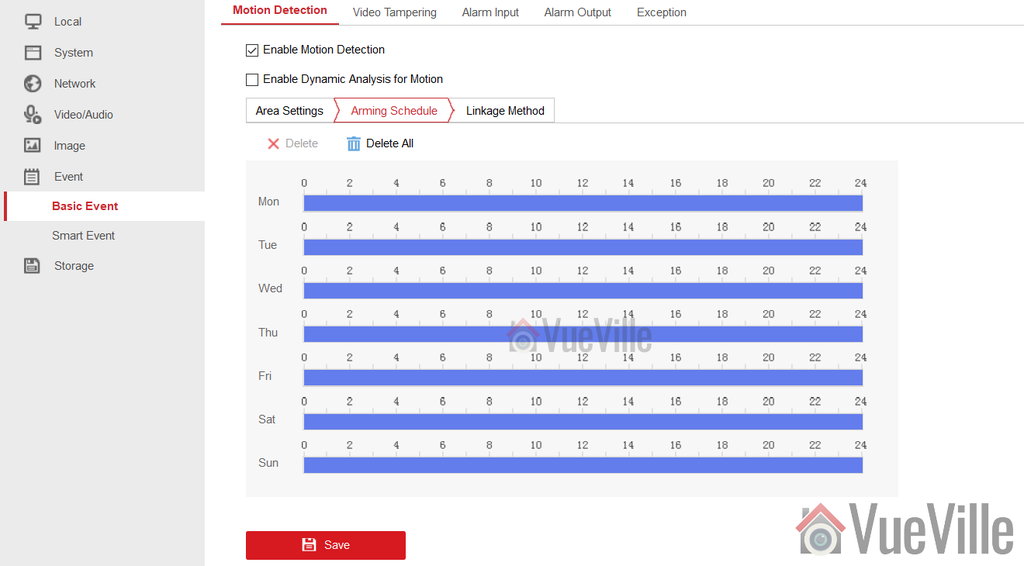
STEP 2: Arming Schedule
When you save the settings in step 1, the arming schedule should be automatically created for you. You can set it to be ‘armed’ during particular times of the day or night if you wish.
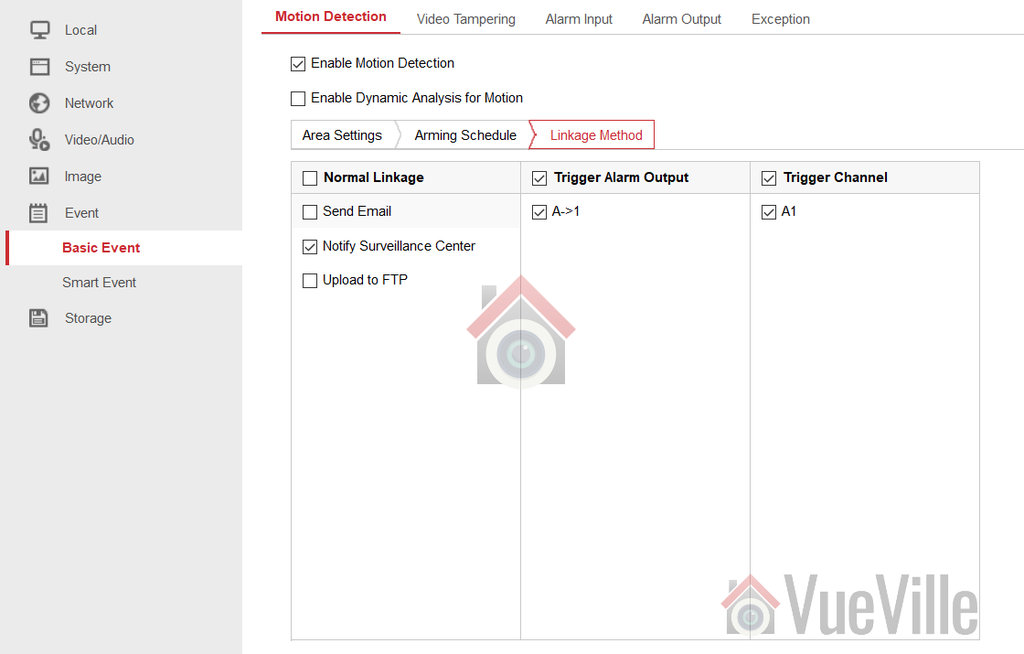
STEP 3: Linkage Method
This is where you can activate email alerts, and other actions such as uploading to FTP or triggering an external alarm if you have connected one to the camera. Hit Save when you are done and the basic motion detection event is now active.
Smart Motion Detection Events
You can have both basic and smart motion detection events active at the same time. My post on how to reduce false alerts using these advanced smart methods such as line crossing will show you how to set this up.


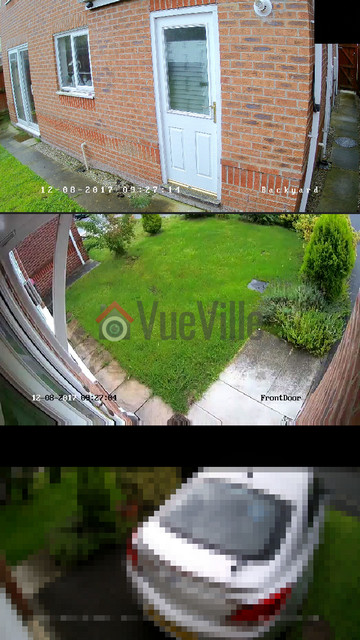


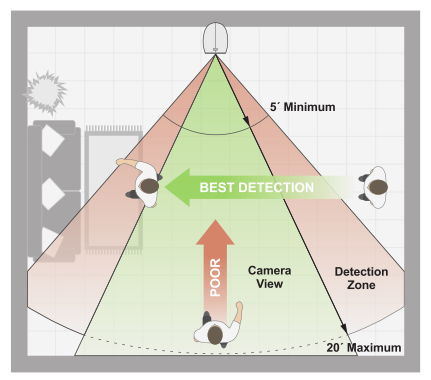 PIR motion detection works by detecting the warmer parts of a scene such as a moving person or animal. So clouds, shadows or moving vehicles will not trigger the motion detection.