Category: CCTV

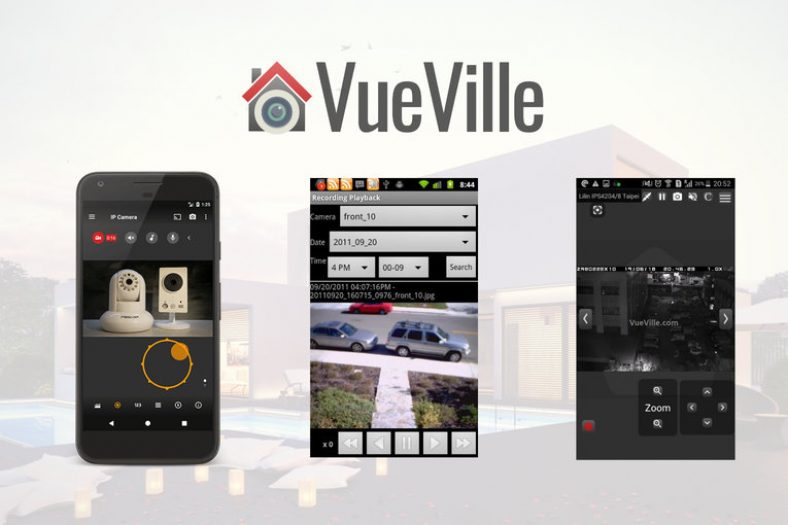
  • The 3 Best IP Camera Apps for Android Devices

    The 3 Best IP Camera Apps for Android Devices

    If you have a mish-mash of IP cameras from different brands in your DIY Home Security Camera System like me, an IP camera viewer app can be quite handy.

    Of course, there are a few different ways to monitor all your cameras in a single place.

    But a single app on your Android smartphone or tabloid is arguably the most convenient. The only requirement is that all your IP cameras should ideally support the ONVIF industry standard, or at least provide an RTSP/MJPEG stream. ONVIF allows you to mix and match cameras from different manufacturers.

    [wpsm_titlebox title=”Contents” style=”main”][contents h2 h3][/wpsm_titlebox]

    A quick note: As an Amazon Associate I earn from qualifying purchases. This post contains affiliate link(s). An affiliate link means I may earn advertising or referral fees if you make a purchase through my link, at no extra cost to you.


    The Best IP Camera Apps for Android

    1. tinyCAM Monitor

    tinyCAM Monitor Pro - VueVille

    • 2-way audio on selected models
    • Motion detection (both in-app and on-camera), face detection
    • Video recording (local storage, time-lapse, FTP/FTPS, Amazon Drive, Dropbox, Google Drive, Microsoft OneDrive, ownCloud)
    • Background/DVR mode (background recording and motion detection)
    • Internal web server for remote recordings playback and live view
    • Android Wear app & Google Cast (Chromecast) support
    • TV support (Android TV, Amazon Fire TV) Home screen and lock screen widgets
    • Floating windows
    • Tasker automation plugin support

    This app really stands out for a variety of reasons. It has a beautiful interface that’s been thoughtfully designed. But its not form over function. The plethora of features is simply mind-blowing. This app is simply one of the best I have used on Android.

    It is also very responsive and has been super stable over the past 4 years that I have been using it on a wide range of Android devices.

    Apart from supporting ONVIF, the camera can automatically detect and set up over 10,000 different camera models. FOr example, the automatic scan detected my Reolink C1 Pro IP camera which didn’t happen with the other 2 apps I tested.

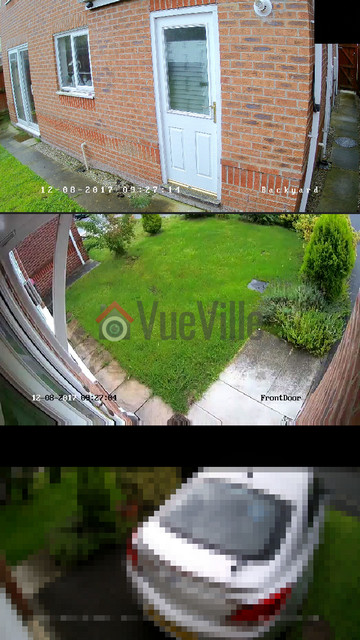
    For matrix or multi-camera view, you can pick any of the 17 different layouts. Most of them also auto-rotate when you rotate your device to portrait (vertical) or landscape (horizontal) mode. This is how the portrait 3-camera view looks like on my Samsung Galaxy A5:
    How to access your DIY security cameras remotely using a NAS VPN server - tinyCAM Monitor Pro - VueVille

    There is an ad-supported free version with limited features and a paid pro version. We recommend choosing the pro app because of all the additional features at a super low price of less than $5.

    On my Galaxy A5, the app automatically picked the hardware acceleration option for my Reolink C1 Pro. It can comfortably do 10 fps for 4 cameras simultaneously on the sub-stream.

    I use the app as my baby monitor app and the advanced audio features such as audio amplification are a great touch.

    Smart Home Checklist

    • Cloud reliant: No
    • Smart home compatibility: ONVIF, RTSP, Tasker and Web server built-in
    • Subscription fees: None, one-time purchase

    2. IP Cam Viewer Pro

    IP Camera Viewer Pro - VueVille

    • 1600+ devices supported including NVRs and DVRs
    • RTSP, ONVIF, MMSH supported
    • MPEG4/H265/H264/MJPEG codec support
    • Controls PTZ (Pan/Tilt/Zoom) cameras
    • Camera grouping, auto sequence
    • Automatic camera detection
    • Home screen and lock screen widgets
    • 2-way audio and background audio support for many devices
    • In-app motion detection
    • Record mode for 24/7 recording of all cameras
    • Embedded web server for remote control of app, Tasker integration, or use as a transcoder/proxy
    • Chromecast and Android Wear support

    While this app is certainly functional, the interface is a letdown compared to our app of choice, tinyCAM. The feeling I got was of using an app from the early years of Android. There’s no material design here. Large blocky buttons and huge fonts dominate. The designer seems to have taken a very workmanlike approach to designing the UI. But the app undeniably does do what it claims to do.

    Apart from supporting ONVIF, the camera can automatically detect and set up over 1726 different cameras. The automatic scan however could not detect my Reolink C1 Pro IP camera.

    There is an ad-supported free version with limited features and a paid pro version.

    Smart Home Checklist

    • Cloud reliant: No
    • Smart home compatibility: ONVIF, RTSP, Tasker and Web server built-in
    • Subscription fees: None, one-time purchase

    3. ONVIF IP Camera Monitor (Onvifer)

    ONVIF IP Camera Monitor (Onvifer)-  VueVille

    • Supports ONVIF, RTSP/MJPEG/H.264
    • Records MP4 clips
    • Can auto-discover all ONVIF devices instantly
    • Supports PTZ cameras
    • Has snapshot preview widgets on Android home screen
    • Supports viewing multiple cameras simultaneously

    While this app is nowhere as popular as tinyCAM, its a decent effort. The user interface is not as polished as tinyCAM but still quite good. Its not as rich in feature either, but it does all the basics well.

    There is an ad-supported free version with limited features and a paid pro version.

    Smart Home Checklist

    • Cloud reliant: No
    • Smart home compatibility: ONVIF, RTSP
    • Subscription fees: None, one-time purchase

    Comparison Table

    [table id=56 responsive=scroll /]


    What are the pros and cons of using an IP camera viewer app?

    While there are quite a few ways to view all your cameras in one place, the smartphone camera viewer app is a popular option.

    Here are the pros and cons of using a security camera viewer app:


    What to look for in an IP Camera app

    Automatically detect ONVIF compliant cameras
    Some apps can automatically scan your network and detect supported IP cameras. You just need to type in the username and password. This feature can save you a lot of time and the hassle of typing in IP addresses and port numbers. This will work only for ONVIF compliant cameras by the way.

    RTSP and P2P camera support
    The industry standard for streaming CCTV video is the Real Time Streaming Protocol (RTSP) protocol. The beauty of RTSP is that as  long as an IP camera can provide an RTSP stream and your viewing software supports RTSP, all you need is the RTSP stream URL and login details. The viewing software doesn’t have to support the camera itself, making it possible for you to use a wide variety of IP cameras with a single viewer software or app. Exactly what we want!

    These days, some IP camera manufacturers enable P2P support in their cameras. This means each camera has a Unique Identifier (UID) code. You need only this single code to add the camera to your camera viewing app. What’s more, it will work outside your home network without any additional configuration. No IP address, port forwarding etc. to bother with. But P2P uses a third-party service, so your security and privacy is lower than when using your own secure VPN tunnel.

    Preset settings for popular IP cameras
    While ONVIF support is sufficient to view your camera in your camera viewer app, you may want to take advantage of some additional features of your camera that doesn’t work over ONVIF. A good example is the PTZ controls of your ONVIF-compatible PTZ camera such as the Reolink RLC-423. Another example is detecting alerts sent by PIR sensors on your indoor IP camera.

    So what’s the solution? Some IP camera apps come with additional presets for the most popular IP cameras. That means you can use most of the features your camera’s native app has. Win-win!

    Motion detection and 24/7 recording
    If some of your IP cameras do not have motion detection or are not great at it, you can have the viewer app perform it instead. Some apps can both perform their own motion detection or use the motion detection triggers from the camera itself.

    Some apps can also do 24/7 recording to an SD card or to a network device like a NAS. Recording to a separate network device is recommended because SD card will wear out rapidly under continuous recording conditions.

    Switch camera stream
    For most smartphones and tablets, decoding multiple 1080p or higher streams is too resource intensive. What usually happens is dropped frames, or blank screens.

    Thankfully, any good IP camera will have both a high quality stream and a lower quality mobile-optimized stream. a good viewer app will let you switch between the high quality and low quality streams.

    What’s more the best apps will automatically choose the mobile-optimized stream if you are on a 3G/4G mobile network. This will also keep your data usage low.

    2-way audio
    If your IP camera supports 2-way audio and has both a speaker and a microphone, you can use the viewer app to chat with someone at the other end. Of course your camera needs to support full-duplex audio to have a natural 2-way conversation. On the other hand, if your camera is most cameras and has only half-duplex audio, your conversations are going to be of the walkie-talkie variety sadly.

    Background audio and recording support
    If you are using your IP cameras as baby monitor or DVR/NVR, the last thing you want is to keep you mobile phone screen on or even worse, the viewer app active on screen at all times. So the answer is background audio support – which keeps the app recording and sound from your cameras playing, even if you are looking at other apps or even lock/switch off the phone screen.

    Chromecast and Android Wear support
    Got a wearable device? Then Android Wear support is super cool. Chromecast support lets you turn your TV into a giant CCTV monitor! Such fun!

    API and/or Web server for remote control
    Integrating home security camera systems with home automation is the holy grail for DIY enthusiasts like me. What really helps is getting the viewer app to do certain actions when triggered by the home automation system or vice versa.

    An API or HTTP web server running on the Android device enables such functionality.

    Reliability
    It goes without saying, you want a stable reliable app that will keep going day in and day out. This is especially important if you will rely on it for baby monitoring, 24/7 recording etc.

    Cost
    While there are dozens of free IP camera viewer apps, most of them are riddled with ads and other nasties you don’t want on your computer. So this is one area where you definitely get what you pay for.


    Conclusion

    With most free IP camera apps being low quality, and the super affordable prices of paid apps, it is a no-brainer to choose a paid IP camera app. Our choice is the excellent tinyCam Monitor Pro app and we trust you will be happy with it too.
  • How to: Fix Hikvision Live View not working in your favourite browser

    How to: Fix Hikvision Live View not working in your favourite browser

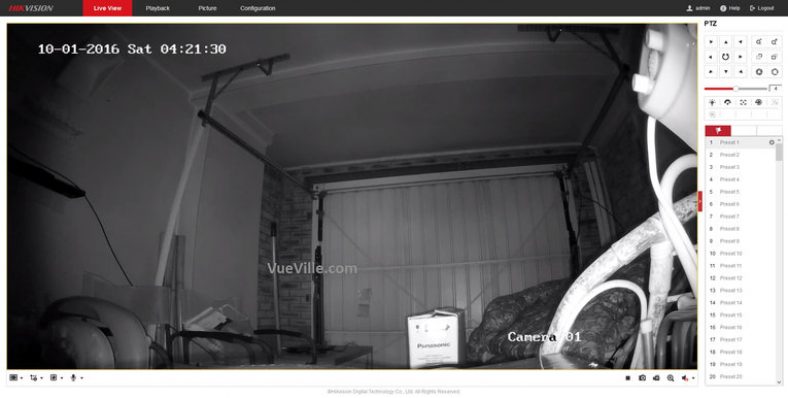
    If you have a Hikvision IP camera or NVR and have tried to login to the admin page using Firefox, Chrome, or Microsoft Edge, you are probably familiar with this error message:

    “Please click here to download and install the plugin-in”

    Hikvision Live View Error - Please install web plugin - VueVille

    So you close your browser, install the plugin, restart your browser and….nothing. You get the same message again and again.

    There are two simple solutions to this problem:

    1. Install the IE-Tab extension
    2. Use the Pale Moon browser instead

    Install the IE-Tab extension

    If you want to make your IP camera live-view or configuration page work with Chrome or Firefox, your best bet is the IE Tab extension for Chrome.

    The IE Tab Chrome extension lets you run legacy web apps such as Hikvision and other brands’ web admin and live-view pages. With over 4 million users currently, this is by far the best option.

    How does it work? Once upon a time, Chrome used to be able to display these legacy web apps. It did this by supporting a technology called NPAPI (the Netscape Plugin API). But Chrome removed NPAPI support last year, and IE Tab restores this feature to Chrome.

    If you use Firefox, check out the ‘Open in IE’ extension.

    But what if your Hikvision or other IP camera still refuses to co-operate? Then try our next suggestion.

    Use the Pale Moon Browser

    The Pale Moon browser is a fork of Firefox/Mozilla that retains support for legacy plugins such as the one that Hikvision asks you to install. Getting the Hikvision web plugin to work on the older Internet Explorer browser is difficult and the current crop of browsers such as Firefox, Chrome, Opera and Microsoft Edge do not even support the plugin at all.

    Step 1: Install the Pale Moon Browser.

    Step 2: Enter the IP address of your Hikvision IP camera or NVR.

    Step 3: Enter your username and password and login.

    Step 4: Enjoy your live view!

    If you haven’t installed the plugin previously in some other browser, you will see the message asking you to download the plugin. Download it, close your browser, install the plugin and then open Pale Moon again. You should now be able to access the Live View of your Hikvision camera or NVR.

    How-to fix Hikvision IP Camera NVR live view not working - VueVille
  • Review: Reolink C2 Pro 5MP Wireless Indoor PTZ IP Camera

    Review: Reolink C2 Pro 5MP Wireless Indoor PTZ IP Camera

    While there are many pan-tilt indoor security cameras on the market, there has been a distinct lack of reliable yet affordable PTZ options. The Reolink C1 Pro is a great indoor pan-tilt camera, but it doesn’t have optical zoom. Reolink has now plugged that gap with their latest Reolink C2 Pro model which is a highly affordable indoor PTZ security camera.

    Reolink kindly provided a sample for our thorough hands-on review and just like the C1 Pro, I found it to be a very capable DIY security camera. With its easy rapid setup, SD card slot, NVR features, full duplex 2-way audio, and dual-band WiFi, its yet another option to consider for your DIY home security system, especially if you don’t want to be reliant on any cloud service.

    And a timely review this is too, personally. I have been using the Amcrest ProHD 1080p as my younger son’s baby monitor but it finally gave up the ghost. I was looking for a suitable replacement and had settled on the C1 Pro. So I will be comparing the C2 Pro to the C1 Pro also.

    [wpsm_titlebox title=”Contents” style=”main”][contents h2][/wpsm_titlebox]

    A quick note: As an Amazon Associate I earn from qualifying purchases. This post contains affiliate link(s). An affiliate link means I may earn advertising or referral fees if you make a purchase through my link, at no extra cost to you.

    Review - Reolink C2 Pro PTZ Indoor Security Camera

    Specifications

    [table id=55 responsive=scroll /]

    Unboxing

    The Reolink C2 Pro comes in an attractively packed box with a very good level of cushioning inside. The model name of the camera, and its main specs are clearly listed on a sticker on the outside of the box along with the default login details.

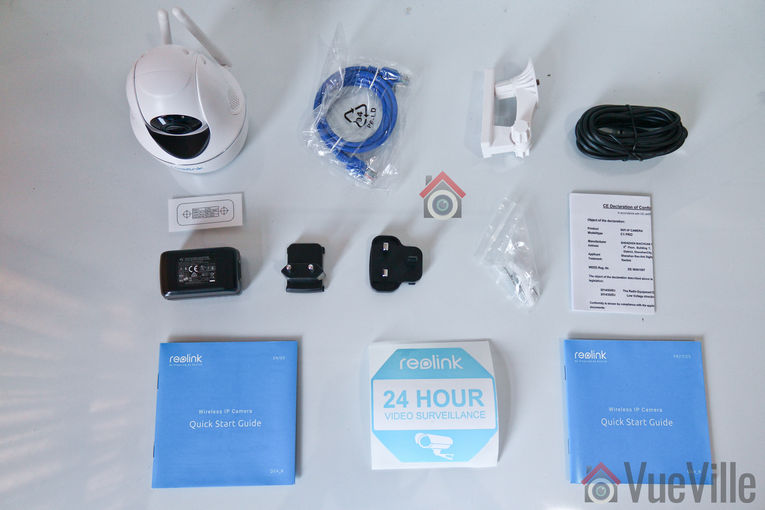
    What’s in the box

    Review - Reolink C2 Pro PTZ Indoor Security Camera - What's in the box - VueVille
    • Reolink C2 Pro PTZ Camera
    • DC 5V wall adaptor
    • Mini USB cable
    • Ethernet cable (1 metre long)
    • Wall mounting bracket
    • Quick Start guide
    • What’s next booklet
    • Drilling templates
    • CD-ROM with software and manuals
    • Reolink surveillance notification sticker
    • Screws and rawl plugs

    Design & Features

    The C2 Pro is the spitting image of its 4 Megapixel Pan-Tilt cousin, the C1 Pro. While the C1 Pro came only in black, the C2 Pro is available in only one colour too – white.

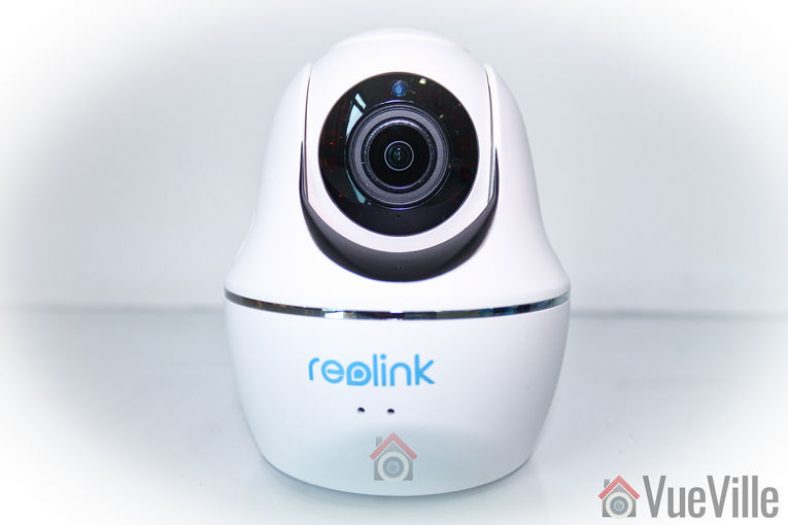
    Review - Reolink C2 Pro vs. C1 Pro - Front View - VueVille

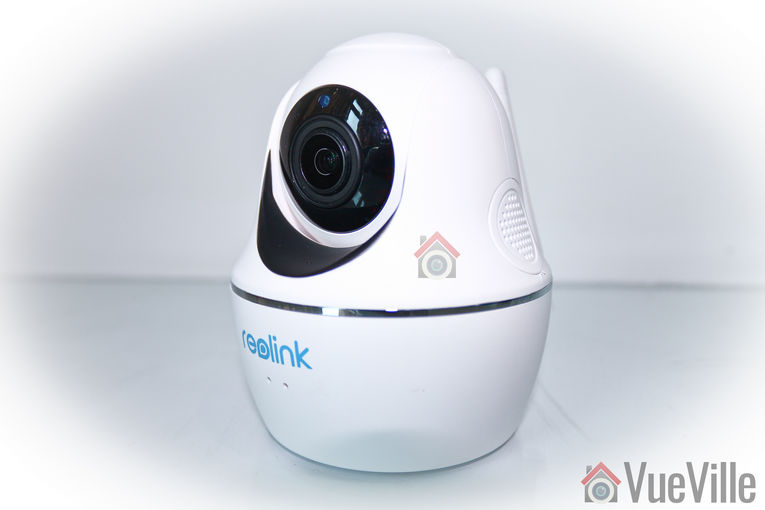
    Just like the C1 Pro, the C2 Pro can also be divided into three parts – the base, the body and the lens mounting which contains the lens itself. A chrome trim runs around the base, lending it a high-end look and feel.

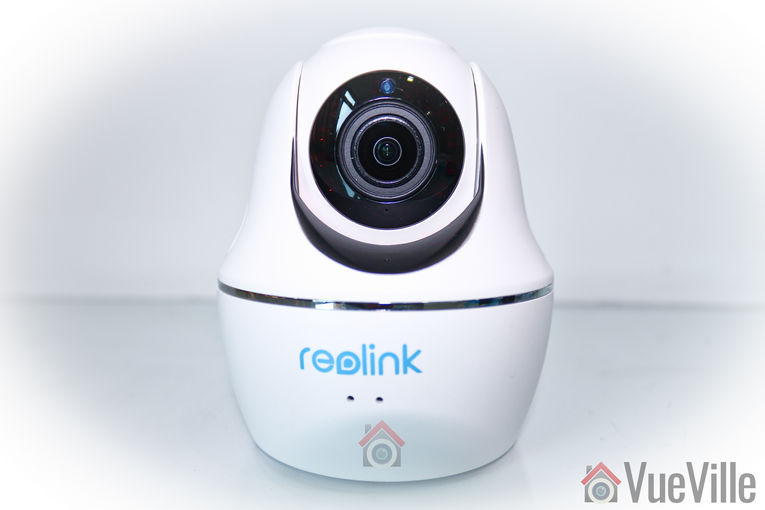
    Review - Reolink C2 Pro PTZ Indoor Security Camera - Front View - VueVille

    The base has blue indicator LEDs on the front (see above) and the connectivity ports on the back. You will find the 10/100 Mbps Ethernet port, a microSD card slot and a micro-USB port which serves as the power input. Yes the camera runs on 5V DC which means that you can easily plug it into a USB port to power it. How much amperage would you need? Power = Voltage x Current. Since the camera is rated for a maximum of 6W power usage and runs at 5V, the current requirement is 1.2A. If your USB port is rated for charging devices, its 1.5A rating is more than sufficient to power the camera.

    The dual-band Wi-Fi antennae are also fixed to the back of the base. Now 5 Ghz Wi-Fi is a great feature to have as most of the C2 Pro’s competitors are still sporting just 2.4 GHz Wi-Fi. The higher bandwidth capacity of the 5 Ghz band comes with a significant range disadvantage though. The antennae are adjustable and so you can orient it to get the strongest Wi-Fi signal.

    Review - Reolink C2 Pro PTZ Indoor Security Camera - Back View - VueVille

    You will also find a handy reset pin hole on the side of the base.

    Review - Reolink C2 Pro PTZ Indoor Security Camera - Side View - VueVille

    The body is the part that rotates around the vertical axis, and has a 355 degree freedom of motion, just like the C1 Pro. The body also contains the dual speakers, one on each side as you can see below. The built-in microphone can be found on the front of the body just under the lens mount.

    Review - Reolink C2 Pro PTZ Indoor Security Camera - Side View - VueVille

    The lens mounting piece is free to rotate about the horizontal plane with 105 degrees of movement. The daylight sensor is integrated into the ring-type Infrared LEDs concealed smartly around the lens. If you look carefully you can see the red tinge of the Infrared LEDs under the darkened glass surrounding the lens.

    All in all, the camera feels solid in construction and the matte finish of the white plastic makes it look more expensive than it really is.

    Installation & Setup

    The Reolink C2 Pro comes with a very good quick start guide which is a double-sided glossy booklet, just like the Reolink C1 Pro and the Reolink Argus I have reviewed. The general introduction section illustrates and labels the different parts of the camera such as the daylight sensor, the built-in mic, the speaker, the indicator LEDs and the various connections.

    There is also a helpful camera connection guide for those who are new to security cameras. Just like the C1 Pro, initial setup needs the C2 Pro to be connected to your router via an Ethernet cable. While this method is easier, the Argus had an even simpler setup process. Nope, there’s no voice guiding you through the setup process like the Argus either.

    Since the C2 Pro doesn’t support PoE, you have to use the included power adapter. The camera uses a standard USB power plug so you may be able to power it using alternative power sources too. The blue power LED will lit up when I turned on the power.

    So you have two options for setting up the camera:

    1. Setup using a phone or tablet – the smart device method as Reolink calls it, or
    2. Setup using a laptop

    I suspect most people would opt for the smart device setup, so that’s what I did.

    1. Install the Reolink mobile app. I had it already installed since I use the Reolink C2 Pro and the Argus.
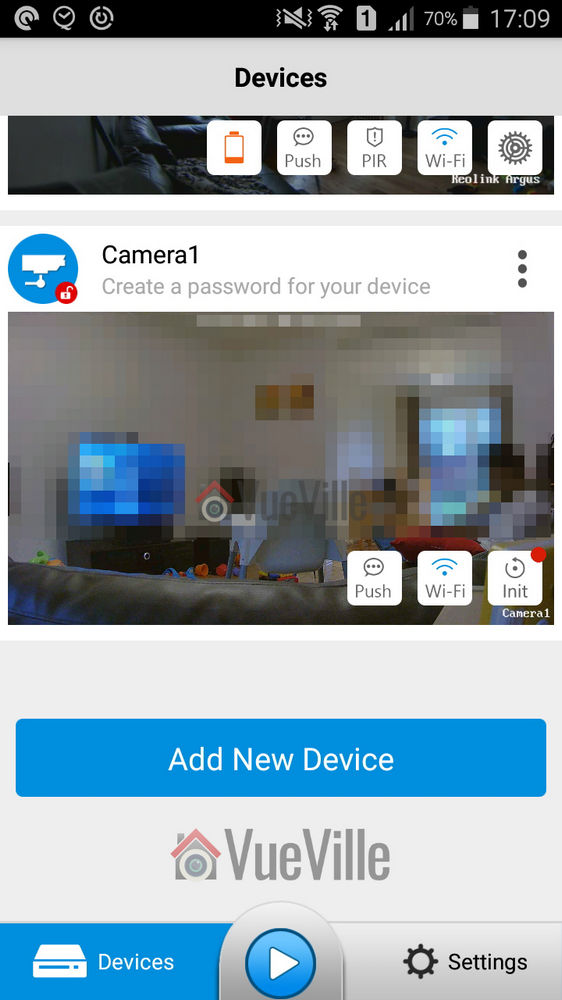
    2. When I opened the mobile app, it had already added the Reolink C2 Pro automatically. There was a red indicator next to the ‘Init’ button for the C2 Pro. So I turned to the quick start booklet and sure enough it said the camera would be automatically detected.
      Reolink App Initialization - Reolink C2 Pro Review Pan-Tilt Indoor Security Camera - VueVille
    3. Now its time to set up the Wi-Fi. I touched the Wi-Fi symbol for the C2 Pro, entered my Wi-Fi network details and then proceeded to perform the Wi-Fi test. The test was successful, so I backed out to the main devices page.
      Reolink App Wi-Fi - Reolink C2 Pro Review Pan-Tilt Indoor Security Camera - VueVille
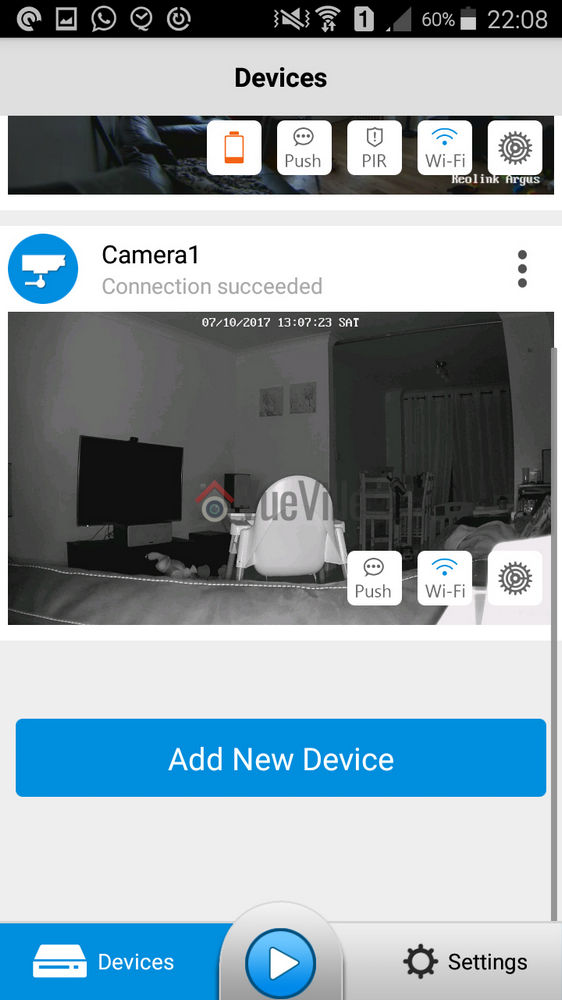
    4. Next I clicked on the warning message saying ‘Create a password for your device’, and saved a password. The app then opened the camera’s dedicated page with all the control options including the PTZ button and Live View. Backing out to the main devices page showed that the warning message now changed to ‘Connection succeeded’.
      Reolink App Wi-Fi Success - Reolink C2 Pro Review Pan-Tilt Indoor Security Camera - VueVille
    5. Now the setup was complete and the Init button changed into a settings gear button.
      Reolink App Init Complete - Reolink C2 Pro Review Pan-Tilt Indoor Security Camera - VueVille

    Configuring the C2 Pro

    The most convenient way of setting up the camera is using the Reolink mobile app. This is partly because you don’t need to know the camera’s IP address to access it. The mobile app does that for you.

    The C2 Pro also has its own built-in web server where you can access the advanced settings. But to do this you need to know the IP address of the camera.

    Since the initial setup requires the camera to be connected physically to your router via the Ethernet cable and DHCP is enabled by default to help newbies, the camera is accessible via that interface’s IP address. You can scan the network using any number of apps to find out the ethernet interface’s IP address.

    If you have set up the Wi-Fi as well, that interface will have a separate IP address. Just like the Amcrest ProHD IP camera, both interfaces are live at the same time and you can choose to access the camera through either one. This is a very nice feature.

    The Web Admin page

    When you first log in to the web admin page, it takes you straight to the Live View page, which Reolink calls the ‘Preview’ page. Here you can control the PTZ function of the camera, switch between different resolution (clear/fluent/balanced), and access some of the OSD settings. You can also mute the camera audio if required. The C2 Pro’s web admin page still uses Adobe Flash just like the C1 Pro, I was really hoping for a more modern HTML5 interface.

    The playback tab is for accessing the built-in NVR feature of the C2 Pro. What is the built-in NVR feature? Basically, pop in a microSD card and the camera can record continuous or motion detection triggered video clips or snapshots to the SD card. You can login any time from anywhere to review the footage through a timeline view.

    This means that if you need only a single camera or two in your home , you don’t need to buy a separate NVR just to record video footage. The camera can also push notifications to the Reolink app on your mobile phone, send email alerts with attached snapshots or video clips and even upload them to an FTP server.

    Moving on to the settings page, the various configuration options are neatly laid out in logical sections. You can set the video resolution and frame rates separately for the main stream (called clear stream) or the secondary stream (called the fluent stream). The secondary stream is used for the mobile app live view feature.

    Review - Reolink C2 Pro vs. C1 Pro - Settings Encode - VueVille

    The network section lets you switch between static and dynamic IP allocation (DHCP), and also adjust many other settings such as the various ports used, set up a dynamic DNS ping, email notification setup, FTP settings, and push notifications. I was happy to see that uPNP is disabled by default – this is a great security feature. When ONVIF is available you really do not need uPNP.

    Okay but how does the Reolink app manage to access the C2 Pro and receive push notifications even when you are outside your local network? Well its got to be that favourite protocol of every security camera manufacturer, P2P! Except, Reolink doesn’t call it that – you are looking for the UID setting. It is on by default which is fine for making the camera super easy to set up but for power users like me, I don’t need the C2 Pro to poke a hole through my network and connect to Reolink’s P2P servers. I have my super secure way of accessing my local network remotely through OpenVPN, so I immediately turned off the UID P2P feature.

    Web Admin Page - Reolink C2 Pro Review Pan-Tilt Indoor Security Camera - VueVille

    Adding a microSD card for motion detection recording

    I inserted a microSD card into the SD card slot. I had to push the card all the way into the slot before it click-locked. I then formatted the card through the web admin page. The camera then automatically rebooted and the microSD card was ready for use.

    Web admin page - Reolink C2 Pro Review Pan-Tilt Indoor Security Camera - VueVille

    A word of warning here, by default the camera automatically will then start recording 24/7 to the SD card. I would have been happier to see the default set at ‘None’ or ‘Motion’ instead of ‘Normal’.

    Mobile Push Notifications

    Push notifications can be set up based on the time of the day. Remember that push notifications will not work outside your local network if you switch off P2P though.

    Web Admin Page - Reolink C2 Pro Review Pan-Tilt Indoor Security Camera - VueVille

    Adding the Reolink to QNAP Surveillance Station

    The C2 Pro supports ONVIF, so I was easily able to add it to my QNAP TS-253A’s Surveillance Station app. I first created an additional user for the NAS using the web admin page of the C2 Pro.

    Performance

    The C2 Pro is a 5 Megapixel camera that can do 25 frames per second, so its no surprise I found things ticking along nicely throughout the review with no slowdowns, frame stutters or any performance issue really.

    Let’s look at the default settings the Reolink C2 Pro comes with from the factory:

    Main stream: 5MP @ 25fps and 4Mbps

    The default bitrate of 4Mbps is better than the C1 Pro’s default rate of 3Mbps.

    Since these are the defaults, I ran my day and night tests at these settings.

    In the System>Performance section of the web admin page, I could see that while idling the processor usage ranged between 30% and 35%. When motion was detected this went up to around 50%, so there was always sufficient headroom for the camera’s processor.

    Video quality

    Video captured was super crisp and detailed both during the day time and in total darkness, in line with my expectations for a 5 Megapixel IP camera.

    Here are the motion detection triggered videos recorded at the default 5 Megapixel resolution, at 25 fps and 4 Mbps bitrate:

    [wpsm_tabgroup]
    [wpsm_tab title=”Daytime Indoors video”][wpsm_video]https://www.youtube.com/watch?v=btRGTOk5Tys[/wpsm_video][/wpsm_tab]
    [wpsm_tab title=”Night-time Indoors video”][wpsm_video]https://www.youtube.com/watch?v=o8LxXz59hWk[/wpsm_video][/wpsm_tab]
    [/wpsm_tabgroup]

    There was no blurring of the video and there were no dropped frames.

    Motion detection

    The C2 Pro is able to do both pre-recording and post-recording. This means the camera is able to record not just what happens after motion was triggered but 5 seconds before the trigger as well. This is a great feature and something that I always look for in a security camera.

    The post-record feature lets you decide how many seconds the camera should record after the last motion trigger. The default is 15 seconds.

    Night vision

    The Infrared LEDs are reasonably powerful and can light up a decent sized room. There are no settings to control the brightness of the LEDs and there are no advanced features to dynamically control the infrared light output.

    Audio quality

    Just like most indoor security camera, the C2 Pro supports 2-way audio. Usually the implementation in most manufacturers’ native apps mutes the audio when you activate the microphone. In other words they have half-duplex audio, not full-duplex. Ideally to use the camera as an intercom, you need 2-way full duplex audio.

    Interestingly Reolink has not claimed full duplex audio, however the Reolink app doesn’t mute the incoming audio when you press the microphone button. You can continue to hear what the person at the other end is saying when you are speaking. So the C2 Pro actually supports full duplex audio.

    So how well does it work in practice? The audio quality is great and the dual speakers do a great job in reproducing audio. But there is a noticeable lag, however slight, in audio playback and this makes the full duplex capability less useful. We found ourselves using the Reolink C2 Pro more like a walkie-talkie just like the Amcrest ProHD.

    PTZ performance

    If you are planning to use the C2 Pro as a baby monitor with 2-way audio, you will be interested in how much noise it makes while panning and zooming.

    Now the C1 Pro hardly makes a sound and so made a great baby monitor. Unfortunately the C2 Pro is a tad louder during the startup dance and for all PTZ motions. Not as loud as my Amcrest but definitely louder than the C2 Pro.

    One other drawback I found is that the motion detection stays active even when you use the Pan-Tilt controls which means the camera records a motion detection clip each time you use the PTZ controls.

    Wireless performance

    I tested the camera over both Ethernet and Wi-Fi. But you know Ethernet is easy for any camera in 2019. What really matters is how good the Wi-Fi connection and performance is. The C2 Pro boasts of 2T2R MIMO antennae for improved wireless performance. So I moved the camera to the farthest point in my house to see how the Wi-Fi did. Over both 2.4GHz and 5 GHz, the C2 Pro was stable and performed just as if it was connected over Ethernet.

    Mobile app live view

    I first installed the Reolink Android app on my phone when I reviewed the RLC-423 PTZ. I then added the Reolink Argus, the Reolink C1 Pro and now the C2 Pro. I have been quite impressed with the fluid intelligent design of the mobile app, its definitely something that Hikvision for example can learn from. Where the iVMS app is clunky and often doesn’t work, the Reolink app simply delivers.

    Reolink Android App PTZ Controls - Reolink C2 Pro Review Pan-Tilt Indoor Security Camera - VueVille

    Live view on the app can be by camera or you can simultaneously view multiple Reolink cameras. There is a handy PTZ joystick button and the camera is quite responsive when you move the joystick around. Over a remote connection, there was a 0.5 second delay between moving the PTZ controls and the video changing.

    Mobile app push notifications

    So what should you be looking for when it comes to push notifications? The speed and reliability of the push notifications reaching you. You want the camera to send you push notifications immediately after it detects motion. Especially if you have configured email alerts, SD card recording at 5 Megapixel recording and push notifications, inferior cameras may struggle but not the C2 Pro.

    Inside my local network I got push notifications on my phone instantaneously and on remote networks there was a delay of just 1 second which is very impressive. The success rate of receiving the push notifications over multiple motion triggers was a solid 100%.

    Reviewing recorded footage

    So this is how you access the built-in NVR feature of the C2 Pro. Clips recorded on the microSD card can be accessed either via the web admin interface or the Reolink mobile app.

    Using the web browser interface

    You can choose a date to review and if motion triggered recording is enabled, all these clips will be shown on the timeline. You can roll the mouse wheel to zoom in and out of the timeline to select specific clips. Click anywhere on the timeline and it will jump to the next recorded clip and then keep playing one clip after the other sequentially.

    There is a handy download button which lets you download multiple clips to your computer. Overall great implementation and a very useful feature.

    Using the mobile app

    The Android mobile app also can access the built-in NVR feature of the C2 Pro. It works just like the web interface – you can choose the date to review and either let it play one motion triggered clip after the other or pick a specific point on the timeline.

    Verdict

    If you need the extra level of detail that 5 Megapixels provide, then the Reolink C2 Pro is the best affordable indoor PTZ you can buy today. But if super-quiet operation is more important, go for the C1 Pro instead.

    The Amcrest ProHD is available with PoE whereas the Reolink doesn’t have PoE. It would be nice to have the option of choosing between PoE and Wi-Fi.

    [review]

    Where to buy

    [easyazon_link identifier=”B07LH2RS77″ locale=”US” tag=”vueville.com-eaz-20″]Check Price on your local Amazon site[/easyazon_link]

    (* = affiliate link / image source: Amazon Associates Program)

    10% off on Reolink.com

    [wpsm_offerbox button_link=”https://shareasale.com/r.cfm?b=853739&u=1208657&m=65309&urllink=reolink%2Ecom%2Fproduct%2Fc2%2Dpro%2F&afftrack=” button_text=”Get Offer Now!” title=”Use code vureo10off” description=”Reolink C2 Pro, 5MP indoor PTZ security camera” thumb=”https://cdn.reolink.com/wp-content/assets/2018/11/c2-pro.png” logo_thumb=”https://cdn.reolink.com/wp-content/uploads/2017/02/reolink-logo.png?sv=1556192927″ ]

  • Seagate IronWolf vs. Barracuda – Hard Drives Compared

    Seagate IronWolf vs. Barracuda – Hard Drives Compared

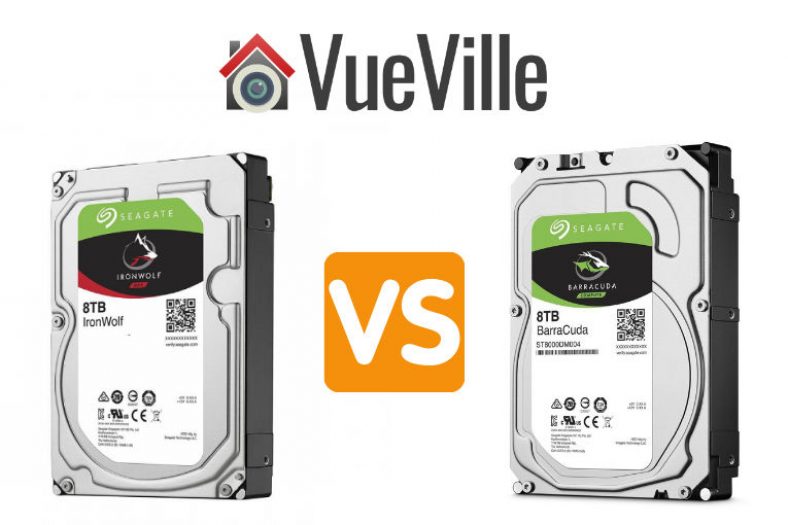
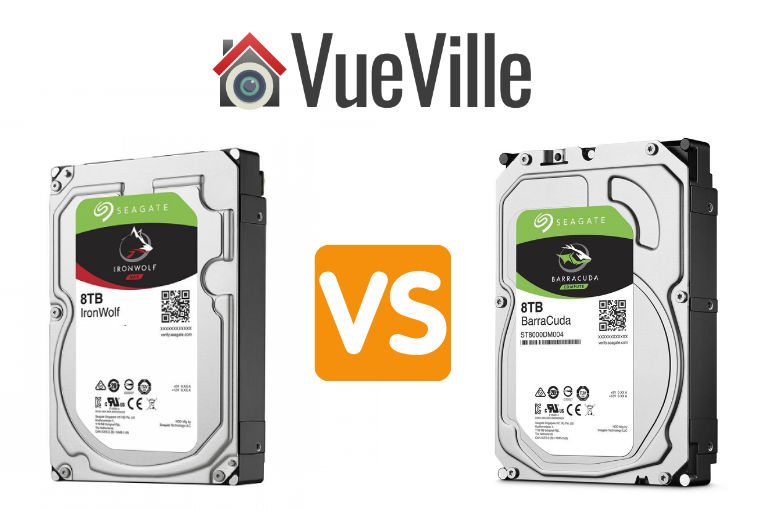
    One of the common hard drive comparison requests I get from my readers is for the Seagate IronWolf vs. the Seagate Barracuda.

    This is quite interesting because the IronWolf is a NAS-focused drive and the Barracuda is an internal hard drive for PCs. Both are available in 2.5″ and 3.5″ sizes and a wide range of capacities.

    Let’s take a closer look at how the Seagate IronWolf differs from the Barracuda.

    Seagate Ironwolf vs Barracuda Hard Drives Compared - VueVille

    A quick note: As an Amazon Associate I earn from qualifying purchases. This post contains affiliate link(s). An affiliate link means I may earn advertising or referral fees if you make a purchase through my link, at no extra cost to you.

    Seagate IronWolf NAS drive vs. Barracuda Internal Hard Drive – Comparison Table

    [table id=79 responsive=scroll /]

    (* = affiliate link / image source: Amazon Associates Program)

    Biggest difference

    The Barracuda uses the inferior SMR drive recording technology, whereas the IronWolf uses the much better CMR technology.

    Performance

    While comparing these drives, we should be mindful that these are very different drives, created for very different applications, and have different price points for the same capacity.

    Comparing real-life benchmarks of the Ironwolf 4TB vs. Barracuda 4TB, overall the IronWolf is much faster with an effective speed advantage of 30%.

    Reliability

    While we may not have specific reliability data for the Barracuda drives, one cloud storage provider regularly publishes drive failure data for all the drives it uses including the Ironwolf – Backblaze.

    Looking at the latest Backblaze data, we can see that Seagate’s reliability in general is a mixed bag. At lower capacities, they seem to be more reliable than other brands but at higher capacities they have higher failure rates.

    Source: BackBlaze

    Looking at the specs, the IronWolf has a much higher 27/7 operation workload of 180 TB/year vs the Barracuda’s 55 TB/year. Even if your data requirements are within the Barracuda’s rating, I wouldn’t recommend using it as a NAS drive. It uses SMR and that’s going to give you headaches when it comes to RAID rebuilding time.

    The Barracuda doesn’t have rotational vibration sensors, which the IronWolf does have. Also worth noting is the similar non-recoverable Read Errors Rate of both drives.

    Noise Levels

    Seagate doesn’t say how loud the Barracuda’s get but as they are desktop hard drives you would expect them to be louder than the IronWolf drives.

    VueVille Verdict

    If you are looking for hard drives to use in a NAS, my advice is to stick with the NAS-specific models such as IronWolf. These have a much higher workload cycle and have features such as rotational vibration sensors to prolong the drive’s life. They also have a higher quality warranty if things do go wrong.

    However if all you need is a desktop hard drive, the Seagate Barracuda will probably suffice. Just bear in mind that these drives are SMR. SMR technology renders these drives poor choices for heavy write applications. So if your application requires sustained write performance, go for CMR-based drives such as the IronWolf, IronWolf Pro, WD Red Plus or WD Red Pro.

    Where to Buy

    [easyazon_image align=”center” height=”160″ identifier=”B01LOOJBQY” locale=”US” src=”https://m.media-amazon.com/images/I/41rpJjBRX4L._SL160_.jpg” tag=”vueville.com-eaz-fbox-20″ width=”124″]
    Seagate IronWolf NAS Drive
    [easyazon_link identifier=”B01LOOJBQY” locale=”US” tag=”vueville.com-eaz-fbox-20″]Check Amazon Price*[/easyazon_link]
    [easyazon_image align=”center” height=”160″ identifier=”B0713R3Y6F” locale=”US” src=”https://m.media-amazon.com/images/I/41uV9lS1bKL._SL160_.jpg” tag=”vueville.com-eaz-fbox-20″ width=”128″]
    Seagate BarraCuda HDD
    [easyazon_link identifier=”B0713R3Y6F” locale=”US” tag=”vueville.com-eaz-fbox-20″]Check Amazon Price*[/easyazon_link]

    (* = affiliate link / image source: Amazon Associates Program)

  • Hikvision vs. Lorex – The Most Popular IP Cameras Compared

    Hikvision vs. Lorex – The Most Popular IP Cameras Compared

    Hikvision and Dahua are the two most common brands that DIY IP camera enthusiasts flock to. But for those who are more budget conscious, there are other brands such as Lorex, Swann, Amcrest, Reolink. These are also some of the IP camera brands that I get the most questions about.

    In this second post of the IP camera brand comparison series, I am going to do an in-depth comparison of Hikvision vs. Lorex. In case you missed the first post in this comparison series where I compared Hikvision vs. Dahua, do go and check that out too.

    Lorex has a complex history of shifting strategies when it comes to IP cameras. For the longest time, their IP cameras were intended to be used only with their own NVRs. In other words, you were not allowed to venture outside their ecosystem. This was totally against the ethos of openness and inter-operability that I champion here at VueVille. That’s why I never recommended them in our best outdoor and indoor IP camera roundups.

    Then in February 2018, Dahua acquired Lorex and soon afterwards Lorex cameras started supporting ONVIF and RTSP protocols. But recently they removed that support just as Dahua sold Lorex to Skywatch, a Taiwanese company.

    So we have a somewhat strange comparison on our hands – Hikvision with their IP cameras that are compatible with other brands, and Lorex with their proprietary IP cameras that work only with their own NVRs.

    [wpsm_titlebox title=”Contents” style=”main”][contents h2 h3][/wpsm_titlebox]

    A quick note: This article may contain affiliate links. If you click on one of these links and then purchase something, we may receive a fee. This does not cost you anything extra. Also note that Hikvision and Dahua do not consider certain platforms including Amazon as an authorized seller platform. So if you need warranty support please purchase from authorized resellers of Hikvision and Dahua products in your country.

    Hikvision vs Lorex - The Most Popular IP Cameras Compared - VueVille

    Hikvision vs. Lorex – the Stories behind the Brands

    Hikvision

    Unlike Lorex, Hikvision is not a retail brand. They are an OEM and primarily cater to professional installers. They are not really interested in retailing to the general public. But their affordable DIY IP cameras with powerful motion detection features and great build quality attracted DIY-ers like crazy. That’s also the reason I bought my first IP camera, the Hikvision DS-2CD2032-I back in 2015.

    A couple of years ago, they launched their retail brand EZVIZ. Confusingly, EZVIZ used to be the name of their cloud app as well. Anyway the EZVIZ models are dumbed down versions of the Hikvision cameras and are not worth spending any money on. What about HiLook? Same story. That’s why I am focusing on the main Hikvision brand.

    The biggest concern I have with Hikvision is not so much about their cameras, but who owns the company. The Chinese government owns at least a partial stake in Hikvision. This creates a few ethical and moral quandaries that I won’t go into here – you know what I’m talking about.

    If you live in the USA, there’s one more reason to avoid Hikvision cameras – the US government has recently banned the sale and import of new Hikvision products into the USA unless certain conditions are met. They are still being sold by their authorized retail seller BH Photo though. Of course, you can always get them from AliExpress as most of us have always done.

    From a technical standpoint, you should treat any security camera the same way – with maximum suspicion that they may be ‘dialing home’ to their manufacturer’s own servers and leaking your data. So lock them down using Virtual LANs (VLAN) and strict firewall rules like I have in my DIY home security camera system.

    Lorex

    Lorex was founded in 1993 and has head offices in Markham, Ontario, Canada and in Linthicum, Maryland, USA. They have product warehouses in Markham, Indiana and California.

    But first let’s start with the company FLIR, better known as the high-end camera manufacturer who revolutionized thermal imaging for the military and industrial markets. They acquired Lorex in 2012 for around $60 million seeking to lower the cost of thermal imaging and open it up to the retail market.

    So for the next 6 years they tried to penetrate the DIY and SMB markets. During this period, their main OEM supplier was Dahua. In February 2018, however, FLIR exited the DIY security camera space by selling Lorex to Dahua. Until November 2022, they operated as a subsidiary of Dahua. So effectively, Lorex was a Dahua brand between February 2018 and November 2022.

    As mentioned in my intro above, Dahua has now sold Lorex to Skytech, a Taiwanese cloud services company. The disappearance of ONVIF and RTSP support from recent Lorex models is probably a sign of things to come.

    8MP 4K IP Camera Duel – Hikvision DS-2CD2085G1-I vs. Lorex E892ABW

    Before we go any further, I need to point out that the biggest difference between Hikvision and Lorex is this: Hikvision cameras can work in standalone mode, or with Hikvision NVRs, or even any 3rd party NVR that is ONVIF compliant.

    On the other hand, Lorex cameras will work only with Lorex NVRs and that too select Lorex NVRs. Simply put, Lorex cameras work only within the Lorex eco-system.

    Hikvision cameras on the other hand which will work with any 3rd party ONVIF/RTSP compliant system. Okay now let’s get into the details.

    Hardware features

    The Hikvision camera I’ve selected has the term ‘Darkfighter’ in its marketing material and what gives it strong low light performance. This is really due to the 1/2″ sized CMOS sensor whereas the Lorex has a 1/2.8″ CMOS sensor. The Lorex is simply outclassed here by the much better Hikvision sensor.

    The size of the sensor has a huge bearing on the low light ability of a camera, whether it be a camcorder or a security camera. The larger the sensor, the greater its ability to gather light and so do well in low light conditions. But as you cram in more and more pixels into the same size sensor, they get smaller and smaller, which adds noise. Noise is the bane of low light video and reduces the detail that you can get out of your video.

    So while security camera manufacturers have pushed pixel count to 8MP and beyond, they have not always increased the sensor size proportionally. While the Hikvision has true 120dB Wide Dynamic Range (WDR) to help improve video quality, the Lorex doesn’t. This leaves the Lorex at somewhat of a disadvantage, even as it claims HDR support.

    When it comes to minimum illumination required, again we see divergence. Hikvision can do a minimum illumination of 0.01 lux and 0 lux with IR on. Lorex doesn’t provide this information. Both cameras have an automatic IR cut filter that will switch to black and white infrared vision when it gets dark. So far, that’s standard IP camera behaviour.

    However, Lorex claims a ‘colour night vision’ feature whereby you still get colour video under low light conditions. So this feature still requires external illumination. So I fail to see how this is something special – the Hikvision has a much larger sensor and probably even better low light colour vision ability! I see this so-called feature as a marketing gimmick and nothing more.

    What about the Lorex’s LED lights though? They look like LED spotlights that you can leave permanently on through the night, but actually they are only warning LEDs that are motion-activated or activated on-demand in the mobile app. If these lights were at least proper spotlights, then Lorex’s colour night vision claim would make more sense (Hikvision has such models).

    The Lorex has 2-way audio using an onboard microphone and speaker combo, with the speaker doubling up as a siren deterrent. This Hikvision model however has neither.

    Both cameras have on-board SD card for local storage of video clips and snapshots.

    Winner: Hikvision

    Software features

    The three most important software features that the Hikvision has are ONVIF support, the built-in NVR feature, and the advanced motion detection features that help reduce false alerts.

    Hikvision cameras support ONVIF & RTSP. Lorex however has recently removed all mentions of ONVIF support on their product pages (their datasheets never mentioned it anyway). Lorex has also confirmed in their website Q&A section that this camera doesn’t support ONVIF.

    Why is ONVIF support important? ONVIF support ensures that your camera will work with ONVIF-compliant equipment from 3rd party manufacturers. ONVIF ensures that your camera will work with standards-compliant equipment from 3rd party manufacturers. This is why you can add a Hikvision camera to your ONVIF-compatible NVR or DIY NAS NVR.

    RTSP allows even non-ONVIF equipment (such as software) to access the security camera’s video stream. Examples are video players like the popular VLC player, and Blue Iris PC NVR software.

    So this is a slam dunk for Hikvision.

    Both Hikvision and Lorex have on-board storage but only Hikvision cameras have the built-in NVR feature – because Hikvision cameras are designed for standalone operation (don’t need an NVR).

    The Hikvsion IP cameras can do basic motion detection, advanced motion detection, dace detection and can send email/push alerts – all without an NVR. This is local processing in action. The Lorex cameras cannot do any of this on its own. It is just an IP camera with no smart features unless its connected to an NVR.

    Motion Detection ability

    I classify motion detection ability into three categories:

    1. Basic motion detection – this is detecting just simple pixel changes, results in false alerts.
    2. Advanced motion detection – like line crossing, intrusion detection, which result in fewer false alerts.
    3. Smart detection – person / face / vehicle / pet detection, the best method for eliminating false alerts.

    Hikvision supports basic, advanced and 1 single smart motion detection method of face detection.

    The Lorex doesn’t have the wide array of advanced motion detection alerts that Hikvision has, such as line crossing, intrusion detection etc. which are all great for reducing false motion detection alerts But it does have person and vehicle detection. These are equally effective at reducing false alerts.

    But as mentioned earlier, the Hikvision is capable of standalone operation. It can record motion detection triggered clips, take snapshots, and send out email alerts and push notifications to the Hikvision app on mobile devices without an NVR or PC.

    The Lorex can do none of this by itself, you have to buy a compatible Lorex NVR.

    The Hikvision camera I have selected doesn’t have the AcuSense feature which reduces false alarms by ignoring birds, animals, lights and movement of trees.

    As part of a DIY NVR system that uses QNAP QVR Pro, Blue Iris or Home Assistant, only Hikvision fits the bill.

    Winner: Hikvision

    Warranty

    Hikvision products come with a 3-Year Warranty from authorized dealers only. Lorex has a 2 year warranty as standard, but can be extended to 3 years or 5 years for an extra fee.

    Detailed Comparison Table

    Here’s a summary in a nice and easy table:

    [table id=54 responsive=”scroll” /]

    Verdict – Hikvision vs. Lorex

    The Hikvision handily beats the Lorex thanks to its flexibility of operation modes in a DIY CCTV system – standalone, with a Hikvision NVR, or with any 3rd party NVR system. It also has advanced motion detection methods that Lorex doesn’t have.

    Also check out the other recommendations on our best outdoor IP cameras list.

    Where to buy

    • Hikvision DS-2CD2085G1-I at BH Photo (authorized retailer).
    • Lorex E892ABW at [easyazon_link identifier=”B086BXC2R4″ locale=”US” tag=”vueville.com-eaz-20″]Amazon[/easyazon_link]

    (* = affiliate link / image source: Amazon Associates Program)

    Related Comparisons

  • Best Outdoor Wireless Security Camera System with DVR

    Best Outdoor Wireless Security Camera System with DVR

    Best Outdoor Wireless Security Camera System with DVR - VueVille

    Does the thought of laying hundreds of feet of Ethernet cable up and down your attic, around the house and under the eaves fill you with dread?

    Outdoor security cameras paired with a video recorder are a great idea but is there a way to do it without the hassle of wires? In 2019 that’s a resounding yes, you can get a fully wireless security camera system without breaking the bank.

    But putting together a full wireless system may prove to be a daunting task for most folks. That’s why we have done the research to present you the best pre-configured outdoor wireless security camera systems with DVRs (or NVRs).

    Best Outdoor Wireless Security Camera System with DVR/NVR

    [wpsm_toplist]

    Best 4-channel Wireless Security Camera System with NVR

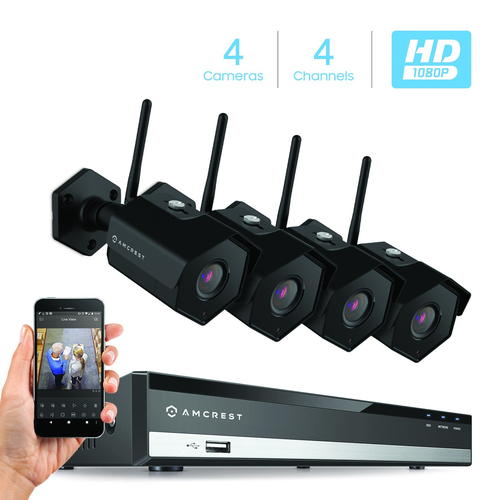
    Budget 4-ch Wireless NVR Kit: Amcrest 1080p 4-channel NVR Kit with 4 1080p Wi-Fi cameras (Amcrest NV2104-IP2M-852B4)

    [wpsm_divider top=”20px” bottom=”20px” style=”clear”]

    [wpsm_column size=”one-half”]
    Amcrest NV2104-IP2M-852B4 - Best Outdoor Wireless Security Camera System with DVR - VueVille[/wpsm_column][wpsm_column size=”one-half” position=”last”]
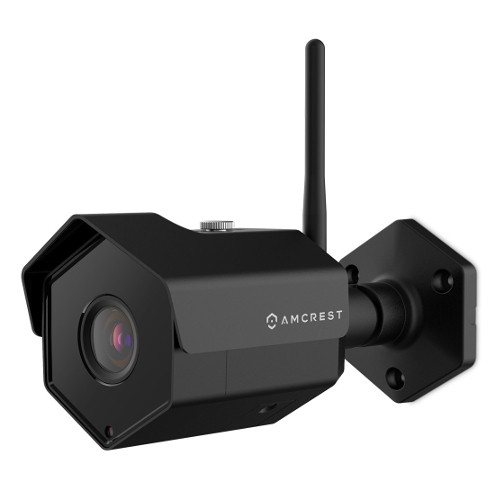
    Amcrest IP2M-852B4 Wi-Fi Security Camera - VueVille[/wpsm_column]

    [wpsm_divider top=”20px” bottom=”20px” style=”clear”]

    [wpsm_column size=”one-half”]
    [wpsm_titlebox title=”NVR Features (NV2104-HS)” style=”3″]

    • 4-channel recording @ 1080p supported
    • H.265 encoding & PoE-enabled
    • Max. 6TB hard drive supported
    • 80 Mbps total bandwidth
    • Motion detection with email alerts and push notification
    • Remote smartphone access
    • ONVIF & RTSP support allows you to connect 3rd party cameras

    [/wpsm_titlebox]
    [/wpsm_column]

    [wpsm_column size=”one-half” position=”last”]
    [wpsm_titlebox title=”Wireless IP Camera Features (IP2M-852B4)” style=”3″]

    • 3-axis black colour camera
    • 2MP CMOS image sensor (1080p)
    • Night vision with 30m IR range, true IR-cut filter
    • RJ45 PoE ports
    • IP 67 Weather-rated

    [/wpsm_titlebox]

    [easyazon_link identifier=”B077XPNBW3″ locale=”US” tag=”vueville.com-eaz-20″]Read Amazon user reviews[/easyazon_link]

    [/wpsm_column]
    Amcrest is a frequent guest on our recommended outdoor and indoor IP camera lists. This wireless NVR security camera kit is an entry-level model at a super budget-friendly price. Amcrest bundles their NVRs and cameras in a dizzying array of combinations, so you are sure to find a kit that matches your exact needs.

    The NV2104-HS NVR in this kit is a 4-channel model which can record all the channels simultaneously at up to 1080p. Motion detection is possible on all the channels and it can send motion triggered email alerts. An unfortunate trend in the industry recently is to try and lock down products to trap you in a manufacturer’s ecosystem. Happily, Amcrest is not one of those guys. Since the NVR supports the ONVIF standard, you can add any 3rd party camera from manufacturers like Hikvision, Dahua, Sony, Vivotek, and even Foscam (Amcrest’s nemesis whom they had a falling out with and the reason for the Amcrest brand being created). I hope Amcrest remains open to inter-operability which is a key feature for us DIY enthusiasts.

    The camera included in this kit is the IP2M-852B4 model, which can also be purchased separately. These are 1080p (2MP) IP cameras that can do night vision and have a very good IP67 weather rating. The 128° field of view is very good and one of the advantages of a 2 MP sensor. They are also ONVIF compliant, so can work with 3rd-party ONVIF compliant NVRs or a DIY NAS NVR system. Using the Amcrest smartphone app, you can login in to the NVR from anywhere at any time to see a live feed of all the cameras as well as recorded CCTV footage.

    [wpsm_column size=”one-half”]
    [wpsm_pros title=”PROS:”]

    • Good image quality with 1080p cameras
    • Wide 3rd party camera support through ONVIF standard
    • IR LEDs provide night vision capability
    • USB Backup feature for peace of mind
    • Very good value for money
    • 2-way audio (voice chat) possible

    [/wpsm_pros][/wpsm_column]

    [wpsm_column size=”one-half” position=”last”]
    [wpsm_cons title=”CONS:”]

    • No advanced motion detection methods such as line crossing, intrusion or dwell/linger/abandoned object detection
    • Free smartphone app could be better – it lacks basic features such as push notifications, paid version needed for this
    • No redundant storage due to single SATA interface, cannot write to network devices
    • No scheduled USB backup option
    • No alarm in/out connections
    • NVR doesn’t have built-in WiFi option

    [/wpsm_cons][/wpsm_column]

    Smart Home Checklist

    • Local storage available: Yes
    • Cloud reliant: No
    • Battery backup: No
    • Smart home compatibility: ONVIF, RTSP
    • Subscription fees: None

    [easyazon_link identifier=”B077XPNBW3″ locale=”US” tag=”vueville.com-eaz-20″]Check Price on Amazon[/easyazon_link]

    If you need only 4 wireless IP cameras but want the freedom to add more later, go with [easyazon_link identifier=”B076FKGPHD” locale=”US” tag=”vueville.com-eaz-20″]this Amcrest model[/easyazon_link] which supports 8 channels.

    Great Value 4-ch Wireless NVR Kit: EZVIZ (A Hikvision brand) 1080p 4-channel NVR Kit with 4x 1080p Wi-Fi cameras

    [wpsm_divider top=”20px” bottom=”20px” style=”clear”]

    [wpsm_column size=”one-half”]
    [easyazon_image align=”center” height=”500″ identifier=”B07FDTR1LM” locale=”US” src=”https://images-na.ssl-images-amazon.com/images/I/411X-U4nonL.jpg” tag=”vueville.com-eaz-20″ width=”500″][/wpsm_column][wpsm_column size=”one-half” position=”last”]
    [easyazon_image align=”center” height=”500″ identifier=”B07FDTR1LM” locale=”US” src=”https://images-na.ssl-images-amazon.com/images/I/41QgNTk0OhL.jpg” tag=”vueville.com-eaz-20″ width=”500″][/wpsm_column]

    [wpsm_divider top=”20px” bottom=”20px” style=”clear”]

    [wpsm_column size=”one-half”]
    [wpsm_titlebox title=”NVR Features (X5C)” style=”3″]

    • 4-channel recording @ 1080p supported
    • Built-in 2.4GHz Wi-Fi
    • Max. 6TB hard drive supported
    • One 10/100M adaptable Ethernet port
    • HDMI, VGA & USB ports
    • 30/50 Mbps wireless/wired bandwidth
    • Motion detection with email alerts and push notification
    • Remote smartphone access
    • ONVIF & RTSP support allows you to connect 3rd party cameras

    [/wpsm_titlebox]
    [/wpsm_column]

    [wpsm_column size=”one-half” position=”last”]
    [wpsm_titlebox title=”Wireless IP Camera Features (CTQ3W)” style=”3″]

    • 3-axis white colour Wi-Fi camera
    • 2MP CMOS image sensor (1080p)
    • Night vision with 30m IR range, true IR-cut filter
    • Built-in stroke light and alarm siren for deterrence
    • 2-way talk supported
    • IP 66 Weather-rated

    [/wpsm_titlebox]

    [easyazon_link identifier=”B07FDTR1LM” locale=”US” tag=”vueville.com-eaz-20″]Read Amazon user reviews[/easyazon_link]

    [/wpsm_column]
    Hikvision is a brand that most DIY fans are aware of. However they have never been keen on supporting retail customers. But it was still possible to buy their gear from the few authorised resellers Hikvision allowed (like B&H Photo). Recently, Hikvision launched their retail brand called EZVIZ. Old-timers may remember that once upon a time, Hikvision’s cloud P2P and DNS service was called EZVIZ.

    The X5C ezNVR in this particular 4 camera kit is a 4-channel model which can record and playback all the channels simultaneously at up to 1080p. Motion detection is possible on all the channels and it can also send motion triggered email alerts. Hikvision has retained ONVIF support in EZVIZ products and so you can add any ONVIF compliant wired or wireless IP camera to this NVR.

    One of the highlights of this kit is that the NVR has built-in 2.4GHz Wi-Fi. So the NVR can automatically connect and pair with the wireless cameras – no painful setup process for you to do! The claimed wireless range is up to 300 feet or 100 metres, but if you have solid concrete/steel in your walls, that range is going to be drastically reduced. Still, its great that the NVR has its own Wi-Fi network – your wireless cameras are on their own wireless network separate from that of your other wireless devices.

    The 4 cameras included in this kit are the C3W ezGuard models, which can are also available for purchase separately. These support IEEE802.11 b/g/n 2.4GHz Wi-Fi. They support 1080p (2MP) resolution using a 1/2.7″ CMOS sensor. The focal length of the lens is 2.8mm, and the resulting 103° field of view is good but falls short of the Amcrest 2MP IP cameras. It still qualifies as wide-angle though. The camera does not support H.265, only H.264 encoding is present. Night vision of up to 30 metres range is standard.

    Interestingly, you can add an SD card of up to 128GB. So even if the wireless connection to the NVR fails, the camera can still take motion detection images and clips. The other unique feature is the presence of a strobe light and siren which can be effective in scaring away intruders.

    Since you cannot use PoE for these cameras, the only way to power them is using the included 12V power adaptors. But note the cord length of just 10 feet (3 metres). The cameras are IP66 rated for weather protection.

    One of the common questions I get from readers is cloud backup – EZVIZ has a fature called ‘Cloud Play’ which is available in the US and UK. So you don’t have to worry about burglars stealing your NVR.

    The smartphone app unsurprisingly called EZVIZ lets you connect to the NVR remotely and view recorded CCTV footage.

    Since EZVIZ is a Hikvision brand, there is high quality documentation and user guides available on their web site.

    [wpsm_column size=”one-half”]
    [wpsm_pros title=”PROS:”]

    • Good image quality with 1080p cameras
    • Wide 3rd party camera support through ONVIF standard
    • IR LEDs provide night vision capability
    • USB Backup feature for peace of mind
    • Very good value for money
    • 2-way audio (voice chat) possible
    • NVR has built-in WiFi option
    • Cameras have strobe and siren features

    [/wpsm_pros][/wpsm_column]

    [wpsm_column size=”one-half” position=”last”]
    [wpsm_cons title=”CONS:”]

    • No advanced motion detection methods such as line crossing, intrusion or dwell/linger/abandoned object detection
    • No redundant storage due to single SATA interface, cannot write to network devices
    • No scheduled USB backup option
    • No alarm in/out connections

    [/wpsm_cons][/wpsm_column]

    Smart Home Checklist

    • Local storage available: Yes
    • Cloud reliant: No
    • Battery backup: No
    • Smart home compatibility: ONVIF, RTSP
    • Subscription fees: None

    [easyazon_link identifier=”B07FDTR1LM” locale=”US” tag=”vueville.com-eaz-20″]Check Price on Amazon[/easyazon_link]

    High-end 4-ch Wireless NVR Kit: Dahua 4-channel 5MP NVR Kit with 4x 3MP Wi-Fi cameras

    [wpsm_divider top=”20px” bottom=”20px” style=”clear”]

    [wpsm_column size=”one-half”]
    Dahua 5MP NVR 1U Wi-Fi - Best Outdoor Wireless Security Camera System with DVR - VueVille[/wpsm_column][wpsm_column size=”one-half” position=”last”]
    Dahua N41BD12-W - Best Outdoor Wireless Security Camera System with DVR - VueVille[/wpsm_column]

    [wpsm_divider top=”20px” bottom=”20px” style=”clear”]

    [wpsm_column size=”one-half”]
    [wpsm_titlebox title=”NVR Features (X5C)” style=”3″]

    • 4-channel recording @ 5MP supported
    • Total 80 Mbps bandwidth
    • Max. birate of 20 Mbps per channel
    • Built-in 2.4GHz and 5 GHz Wi-Fi
    • WD 1TB Purple 3.5″ Surveillance Hard Drive (WD10PURX)
    • Max. 6TB hard drive supported
    • One 10/100M adaptable Ethernet port
    • HDMI, VGA & USB ports
    • 30/50 Mbps wireless/wired bandwidth
    • Motion detection with email alerts and push notification
    • Remote smartphone access
    • ONVIF 2.4 & RTSP support allows you to connect 3rd party cameras

    [/wpsm_titlebox]
    [/wpsm_column]

    [wpsm_column size=”one-half” position=”last”]
    [wpsm_titlebox title=”Wireless IP Camera Features (CTQ3W)” style=”3″]

    • 3-axis white colour Wi-Fi camera
    • 1/3″ 4MP CMOS image sensor (2688 x 1520)
    • 2.8 mm fixed lens with 106° field of view
    • H.264/H.265/H.265+ encoding
    • Night vision with 30m IR range, true IR-cut filter
    • 2-way talk supported
    • 2.4 GHz, IEEE 802.11a/b/g/n/ac
    • IP 67 Weather-rated

    [/wpsm_titlebox]
    [/wpsm_column]
    Dahua is one of our favourite pro-DIY brands. This is mainly because they have ost of the features that Hikvision has, but typically at a lower price. This Wi-Fi kit is a proper starter kit and so misses out on some advanced features but has enough to keep us interested.

    The Dahua NVR has a standout feature that should really be standard on all Wi-Fi NVR kits – Automatic Network Replenishment Technology (ANR). I have already mentioned in detail the biggest issue I have with Wi-Fi IP cameras – what happens when the Wi-Fi inevitably drops out? With cheaper kits, you will lose the video that the camera tried to send but which never reached the NVR. But with Automatic Network Replenishment Technology, the cameras store the video on the on-board SD card and when connection to the NVR is re-established the NVR will copy over the missed video to the hard disk. Brilliant, if you ask me!

    [wpsm_column size=”one-half”]
    [wpsm_pros title=”PROS:”]

    • Great image quality with 4MP IP cameras
    • Wide 3rd party camera support through ONVIF standard
    • IR LEDs provide night vision capability
    • USB Backup feature for peace of mind
    • NVR has built-in WiFi option
    • Cameras support ONVIF and 802.11ac Wi-Fi
    • Automatic Network Replenishment Technology (ANR)
    • Very good value for money

    [/wpsm_pros][/wpsm_column]

    [wpsm_column size=”one-half” position=”last”]
    [wpsm_cons title=”CONS:”]

    • No redundant storage due to single SATA interface, cannot write to network devices
    • No scheduled USB backup option
    • No alarm in/out connections
    • No advanced motion detection methods such as line crossing, intrusion or dwell/linger/abandoned object detection

    [/wpsm_cons][/wpsm_column]

    Smart Home Checklist

    • Local storage available: Yes
    • Cloud reliant: No
    • Battery backup: No
    • Smart home compatibility: ONVIF, RTSP
    • Subscription fees: None

    View on BH Photo

    Best 8-channel Wireless Security Camera System with NVR

    8-ch Wireless NVR Kit: Amcrest 8MP 8-channel NVR Kit with 8x 4MP Wi-Fi cameras (Amcrest NV4108-HS-IP4M-1026B8)

    [wpsm_divider top=”20px” bottom=”20px” style=”clear”]

    [wpsm_column size=”one-half”]
    NV4108-HS-IP4M-1026B8 - Best Outdoor Wireless Security Camera System with DVR - VueVille
    [/wpsm_column]
    [wpsm_column size=”one-half” position=”last”]
    Amcrest IP4M-1026B Wi-Fi Security Camera - VueVille[/wpsm_column]

    [wpsm_divider top=”20px” bottom=”20px” style=”clear”]

    [wpsm_column size=”one-half”]
    [wpsm_titlebox title=”NVR (NV4108-HS) Features” style=”3″]

    • 8-channel recording @ 8MP supported
    • 4K, H.265 encoding & PoE-enabled
    • Max. 6TB hard drive supported
    • 80 Mbps total bandwidth
    • Motion detection with email alerts and push notification
    • Remote smartphone access
    • ONVIF & RTSP support allows you to connect 3rd party cameras

    [/wpsm_titlebox]
    [/wpsm_column]

    [wpsm_column size=”one-half” position=”last”]
    [wpsm_titlebox title=”Wireless Camera (IP4M-1026B)” style=”3″]

    • 3-axis black colour camera
    • 4MP CMOS image sensor
    • Night vision with 30m IR range, true IR-cut filter
    • RJ45 PoE ports
    • IP 67 Weather-rated

    [/wpsm_titlebox]

    [easyazon_link identifier=”B077XPNBW3″ locale=”US” tag=”vueville.com-eaz-20″]Read Amazon user reviews[/easyazon_link]

    [/wpsm_column]
    If you would like 8 channels and the option to upgrade your cameras to 4K 8MP resolution (3840×2160) later on, this wireless NVR security camera kit is the best option.

    The NV4108-HS NVR in this kit is an 8-channel model which can record all the channels simultaneously at up to 8MP (4K resolution). So if you don’t need 8MP today but 4MP is fine, you still have the freedom to upgrade your cameras later. Since Amcrest supports any ONVIF-compliant IP camera, you are not locked into Amcrest’s eco-system. Its important to note that no NVR sold in any wireless camera actually has Wi-Fi built-in. So your wireless IP camera will be connecting to your existing Wi-Fi router. My suggestion is to create a separate Wi-Fi network as I mentioned earlier.

    The IP4M-1026B cameras included are 4MP IP cameras. Just like the other Amcrest Wi-Fi cameras, these have a very good IP67 weather rating and night vision. The bump from 2MP to 4MP means that the field of view drops but is still superb at 118°. Yes, the cameras are also ONVIF compliant, so can work with any 3rd-party ONVIF compliant NVRs or a DIY NAS NVR system. Using the Amcrest smartphone app, you can login in to the NVR from anywhere at any time to see a live feed of all the cameras as well as recorded CCTV footage.

    [wpsm_column size=”one-half”]
    [wpsm_pros title=”PROS:”]

    • Great image quality with 4MP cameras
    • Wide 3rd party camera support through ONVIF standard
    • IR LEDs provide night vision capability
    • USB Backup feature for peace of mind
    • Very good value for money
    • 2-way audio (voice chat) possible

    [/wpsm_pros][/wpsm_column]

    [wpsm_column size=”one-half” position=”last”]
    [wpsm_cons title=”CONS:”]

    • No advanced motion detection methods such as line crossing, intrusion or dwell/linger/abandoned object detection
    • Free smartphone app could be better – it lacks basic features such as push notifications, paid version needed for this
    • No redundant storage due to single SATA interface, cannot write to network devices
    • No scheduled USB backup option
    • No alarm in/out connections
    • NVR doesn’t have built-in WiFi option

    [/wpsm_cons][/wpsm_column]

    Smart Home Checklist

    • Local storage available: Yes
    • Cloud reliant: No
    • Battery backup: No
    • Smart home compatibility: ONVIF, RTSP
    • Subscription fees: None

    [easyazon_link identifier=”B077XPNBW3″ locale=”US” tag=”vueville.com-eaz-20″]Check Price on Amazon[/easyazon_link]

    What is a Security Camera System

    A security camera system consists of several security cameras connected to a central recording device such as a Digital Video Recorder (DVR) or Network Video Recorder (NVR). In the 90s, analog cameras were common but these days digital IP cameras are the way to go.

    A security camera system is the easiest way to get started for most people – everything you need to set up your own DIY security cameras comes in one ready-to-use package.

    DVR vs. NVR – What’s the difference?

    Every NVR is a DVR, but not every DVR is an NVR! Confused? Let’s break this down a bit – there are a few different types of DVRs and NVRs around:

    • Digital Video Recorders for analog CCTV cameras
      Before digital IP cameras came on the scene, if you wanted digital CCTV recordings you could get them even though there were no 100% digital CCTV cameras around. This was because a digital video recorder could digitise the analog signals from the analog camera, encode it into a digital file and save it to hard disks. Hence the term ‘digital video recorder’ or DVR. These DVRs had one analog video input (usually coaxial or BNC) per channel. So an 8 channel DVR would have 8 separate video inputs. Remember these cameras need power too. That’s a lot of cables to wire up!
    • DVRs with Network Connectivity

      DVR Back Panel - Best Outdoor Wireless Security Camera System with DVR - VueVille
      A 16 channel DVR-NVR hybrid – note the 16 analog video inputs on the left. But there’s an Ethernet port too which allows this NVR to connect to wired or wireless IP cameras on the same network.

      So a bright engineer somewhere started thinking – what if we give a DVR network connectivity? Great idea actually – because this gives you all the benefits of accessing your CCTV footage remotely from a computer or mobile app. Some hybrid DVR-NVR systems like the first one above do support a limited number of wired or wireless IP cameras but they are aimed at those who want mainly analog cameras and a couple of wireless or wired IP cameras.

    • Network Video Recorders
      And then one fine day, along came digital network cameras (or IP cameras). All of a sudden there was no need for the DVR to digitise signals from an analog camera anymore. Everything’s digital already! Moreover IP cameras are network devices and so the DVR simply needs to become part of your home network to access the IP cameras.

      Or in other words, the IP cameras don’t even need to be physically connected to your DVR which now becomes a Network Video Recorder (NVR) that simply plugs into your home network. This is also why it is possible to have wireless IP cameras connecting to the NVR. By the way, IP cameras also have support way higher resolutions than analog cameras – I am talking 3 Megapixel plus.

      NVR Back Panel - Best Outdoor Wireless Security Camera System with DVR - VueVille
      A 16 channel pure NVR – note the absence of analog video inputs and the presence of a single network port. So this recorder supports only wired and wireless IP cameras!

      Some NVRs come with Power over Ethernet ports built into them – this is why some NVR back panels have many Ethernet ports – each one runs to a separate IP camera and can not just pull data from it but power it too.

    So in summary, if you go for a DVR-based system, you are going to (mostly) get analog wired cameras. If you opt for an NVR-based system, you will be using only IP cameras and you can go for wireless IP cameras.

    DVR based systems are still available to purchase and are slightly cheaper than NVR based systems, but I suggest you give them a miss anyway. The price difference between a DVR-based system and NVR-based system is not much, and going with an NVR-based system means you are future-proofing your investment.

    Wireless vs. Wired Security Camera Systems

    Firstly, its important to realise that most NVRs sold in wireless kits do not have built-in Wi-Fi. They expect you to connect each wireless camera to your own Wi-Fi network. The NVR then connects to your router and thus can access the wireless cameras.

    Now there are a few brands that do sell NVRs with built-in Wi-Fi. These NVRs create their own Wi-Fi network, to whcih the wireless cameras connect. So your CCTV system will be on its own wireless network. There is one chief advantage in this setup – the cameras can communicate with the NVR without sharing the bandwidth with the rest of your home network. However you will then be severely limited in the placement of your NVR. From a wireless point of view, the best place to install your NVR is where it can reach all your Wi-Fi cameras. Remember wireless signals are not great at passing through more than 1-2 walls before the speed and connection quality degrades. But the best wireless location for your NVR may not be where you want to hide your NVR, because remember you have to make your NVR hard to find for a burglar.

    That said, I have a strong opinion on wireless security cameras – they are not the best solution for most people. Wi-Fi is by its very nature inferior to a wired connection. Wi-Fi is prone to drops in connectivity and speed. Consumer Wi-Fi was simply not designed for carrying real-time video signals from multiple IP cameras without missing a single frame. For any critical security application such as CCTV, I strongly recommend wired PoE connections.

    However I acknowledge there may be situations where the only option is a fully wireless security system – if you are renting for example and are not allowed to run PoE Ethernet cables. For such use cases, as long as you have a reliable Wi-Fi network and keep the wireless IP cameras within range, you should be okay. Still, its not an ideal solution.For more information on wired systems, check out our comprehensive buying guide for Power over Ethernet (PoE) home security camera systems.

    How do I set up a reliable high-performance Wi-Fi network for my wireless security cameras

    Here are some tips on making your wireless security system work as reliably as it can:

    • Go for systems that can use your Wi-Fi network instead of just the NVR’s built-in network. Then use a mesh system like [easyazon_link identifier=”B01MAW2294″ locale=”US” tag=”vueville.com-eaz-20″]Google Wi-Fi[/easyazon_link].
    • If your cameras support edge recording, pop a good microSD card like the [easyazon_link identifier=”B073JYVKNX” locale=”US” tag=”vueville.com-eaz-20″]Sandisk Ultra[/easyazon_link] for those inevitable cases where the Wi-Fi drops out.

    Which are the best security camera system brands?

    Officially ONVIF-compliant brands:

    • Amcrest
    • EZVIZ
    • LaView
    • Hikvision
    • Dahua
    • Samsung Wisenet (Wi-Fi models now discontinued)

    Brands that officially do not support ONVIF:

    • Reolink
    • Lorex
    • Swann

    Conclusion

    I hope this buyer’s guide to wireless NVR kits has been of help. Let us know in the comments below which system you picked and how you find it!

  • Best 20 Megapixel CCTV Cameras

    Best 20 Megapixel CCTV Cameras

    Looking for the best 20 Megapixel CCTV cameras on the market? We have rounded up the best IP cameras on the market that offer both incredible daytime detail and outstanding night time performance with no compromises.

    The Best 20 Megapixel CCTV Cameras

    [toc]

    What to look for

    Here are the most important features to look for in a high-pixel count CCTV camera:

    • Indoor or Outdoor – Outdoor cameras should have at least an IP66 rating for weather protection
    • Wired connections – At 20 Megapixel resolution, you have to use a wired connection. PoE is fine but an SFP fibre-optic slot is even better due to its ability to cover long distances that fibre can cover.
    • Local storage or Cloud Storage – Local storage is more reliable vs. using only cloud storage in case of an Internet fault.
    • Smart home compatibility – Make sure the camera has ONVIF support for inter-operability

    Sony SNC-VM772R – The Outdoor Champion with Optical Zoom

    [easyazon_image align=”center” height=”500″ identifier=”B01350CKNQ” locale=”US” src=”https://m.media-amazon.com/images/I/31ScrSxxPkL.jpg” tag=”vueville.com-eaz-20″ width=”500″]

    httpv://www.youtube.com/watch?v=tuXuZ5K_b8Y
    [wpsm_divider top=”20px” bottom=”20px” style=”clear”]
    Sony’s IP cameras are legendary for their low light performance and the SNC-VM772R is no exception. This IP camera sports a large, highly sensitive 1.0-type back-illuminated Exmor R CMOS image sensor with 20 Megapixels and a minimum illumination level of 0.06 lux in full-colour. Although Sony bills it as a 4K camera that can do 3,840 x 2,160, you can go up to 5472 x 3648 resolution.

    Want a 20 Megapixel camera but with optical zoom? The SNC-VM772R has a motorized optical zoom lens with focal length from 8.8 mm to 25.7 mm. This is an effective 2.9x zoom. The f-stop varies from F1.8 at the wide end to F2.8 at the tele end. The viewing angle ranges from 70.7° to 27.5°.

    One feature frequently missing from high MP cameras is an on-board IR illuminator. Fear not, this Sony has 30x 850nm IR LEDs giving it a night vision range of 50m.

    I always prefer cameras with advanced motion detection ability. This Sony supports intrusion, passing, existing, disappearance, capacity, abandoned object, and removed object detection. So its on par with Dahua, Axis and Vivotek. Another interesting feature is a PTZ-like virtual tracking feature of up to 4 moving targets.

    Local storage of images and motion detection clips is supported with an SD card slot that takes up to 128GB cards. For cameras with such high pixel counts, the SD card is more suited as a failover video recording destination in case of network outage.

    What about connectivity? IEEE 802.3af PoE is present, as is microphone and line input. 2x alarm inputs and 2x alarm outputs are generous by IP camera standards. An HDMI port is a very unusual inclusion, but very welcome.

    [wpsm_divider top=”20px” bottom=”20px” style=”clear”][wpsm_column size=”one-half”]Features:

    • 20MP Exmor R CMOS image sensor
    • Optical zoom, 8.8 mm to 25.7 mm
    • Automatic IR cut filter
    • PoE support, 12V DC, or 24V AC
    • 2x alarm in/out ports
    • microSD card for Edge recording
    • IP66 and IK10 impact resistant housing
    • Works from -40 °C to +50 °C (-40 °F to +122 °F)
    • Dimensions – φ190 x 146.7 mm

    [/wpsm_column][wpsm_column size=”one-half” position=”last”]Verdict:

    • Local storage available: Yes
    • Cloud reliant: No
    • Battery backup: No
    • Smart home compatibility: ONVIF Profile S

    [/wpsm_column]

    [easyazon_link identifier=”B01350CKNQ” locale=”US” tag=”vueville.com-eaz-20″]View on Amazon[/easyazon_link]

    AXIS Q1659 – The Indoor Choice with DSLR features

    The Axis Q1659 is the perfect marriage of DSLR-level image quality from the Canon APS-C sensor and the surveillance prowess that Axis is famous for. The 22.4 x 15.0 mm CMOS sensor allows for a maximum resolution of 5472×3648 and a shutter speed down to 1/8000 seconds.

    Since the camera uses a Canon mount, you can use any Canon EF/EF-S lens with this camera.

    AXIS Q1659 - Best 20MP CCTV IP Cameras - VueVille

    Axis sells the camera with the following lenses:

    • AXIS Q1659 24 mm, f/2.8
    • AXIS Q1659 35 mm, f/2a
    • AXIS Q1659 50 mm, f/1.4a
    • AXIS Q1659 85 mm, f/1.2La
    • AXIS Q1659 100 mm, f/2.8L
    • AXIS Q1659 10–22 mm, f/3.5-4.5
    • AXIS Q1659 70–200 mm, f/2.8L
    • AXIS Q1659 55–250 mm f/4-5.6

    A major highlight is the Lightfinder technology which capture full-colour video in very low level light. Check out the video below to learn more:
    httpv://www.youtube.com/watch?v=77cN3LHdBQQ
    [wpsm_divider top=”20px” bottom=”20px” style=”clear”]

    The camera can be powered over conventional PoE. But on a high-end camera like this, it’s no surprise to find an SFP slot which allows you to connect the camera using a fibre optic cable. The main advantage is low latency and the ability to carry data over long distances. This gives you immense flexibility in camera installation. Axis also has a technilogy called ZipStream which lowers the bandwidth needed by up to 50%.

    The camera is not light on audio features – it support 2-way audio and has an external microphone input and audio line out. It can operate in freezing temperatures.

    [wpsm_divider top=”20px” bottom=”20px” style=”clear”][wpsm_column size=”one-half”]Features:

    • 20MP APS-C CMOS image sensor
    • Canon mount and EF/EF-S lenses
    • Automatic IR cut filter
    • PoE and SFP fibre-optic port
    • microSD/microSDHC/microSDXC card and NAS support
    • Works from 0 °C to 45 °C (32 °F to 122 °F)
    • Two-way talk with mic-input and line-out
    • Dimensions – Camera body: 176 x 102 x 75 mm (7 x 4 x 3 in)

    [/wpsm_column][wpsm_column size=”one-half” position=”last”]Verdict:

    • Local storage available: Yes
    • Cloud reliant: No
    • Battery backup: No
    • Smart home compatibility: Open API including VAPIX® and AXIS Camera Application Platform, AXIS Video Hosting System (AVHS), ONVIF Profile S and G

    [/wpsm_column]
    B073RC8R2B

    Arecont Vision AV20175DN-28 – The Surround Video star with WDR

    [easyazon_image align=”center” height=”500″ identifier=”B00ODB5FS4″ locale=”US” src=”https://m.media-amazon.com/images/I/41bUYJXw6lL.jpg” tag=”vueville.com-eaz-20″ width=”500″]

    Arecont Vision is a California-based company that specialises in video surveillance and machine vision tech. The AV20175DN-28 is a very unique multi-sensor camera that provides ‘surround’ video. The 4 independently controllable 5MP sensors have M12 lens mounts. Each mount can take a lens of 2.1mm, 2.8mm, 4mm, 6mm, 8mm, 12mm or 16mm focal length. The AV20175DN-28 model comes with 2.8mm lens and the AV20175DN-08 comes with 8 mm lens.

    The 360° track together with these 4 sensors means you get superb flexibility in defining the camera’s scene coverage, with up to 270° field of view. In case you are wondering the resolution this camera pushes out is an incredible 10240×1920 at 3.5 fps. At 5120×960, you can get 11 fps.

    The very high 20 Megapixel count allows for an intriguing feature – you can zoom into a recorded video and still maintain Full HD 1080p resolution. This virtually eliminates the need for PTZ cameras which anyway have the downside of missing out on details outside the zoomed in view.

    There is no audio support but there is alarm in/out support. The camera can be powered over PoE, via 12–48V DC or 24V AC. It is also IP66 outdoor rated with an IK-10 impact resistant housing. Did we say the camera is made in the USA?
    [wpsm_divider top=”20px” bottom=”20px” style=”clear”][wpsm_column size=”one-half”]Features:

    • 20MP total, 4x5MP CMOS image sensor
    • Multiple lens options from 2.1mm up to 16mm
    • Enhanced 100dB WDR
    • Automatic IR cut filter
    • PoE support, or 12–48V DC/24V AC
    • Alarm in/out ports
    • IP66 and IK-10 impact resistant housing
    • Works from -40°C (-40°F) to +50°C (122°F)
    • Dimensions – Ø 7.7″ (196mm) x 3.1″ H (78.5mm)

    [/wpsm_column][wpsm_column size=”one-half” position=”last”]Verdict:

    • Local storage available: No
    • Cloud reliant: No
    • Battery backup: No
    • Smart home compatibility: ONVIF Profile S

    [/wpsm_column]

    [easyazon_link identifier=”B00ODB5FS4″ locale=”US” tag=”vueville.com-eaz-20″]View on Amazon[/easyazon_link]

    Conclusion

    IP cameras with super high resolutions are great when you have a large area to cover, but need to be able to zoom in and make a positive ID. Be it day or night. With 20 Megapixels, you can have full 4K resolution even when zoomed in. So these cameras a great choice for DIY enthusiasts who want the best in CCTV technology.

    [text-blocks id=”5527″ slug=”earning-disclaimer”]

  • Best Budget IP Cameras – 2019 Recommendations

    Best Budget IP Cameras – 2019 Recommendations

    Best Budget IP Cameras - VueVille

    Looking for an affordable budget IP camera that won’t fall apart after a few months, doesn’t spy on your family and doesn’t cost a bomb in ‘subscription’ fees every month? Yes I have been there too.

    The market is awash with cheap generic Chinese IP cameras that are super cheap but are probably more trouble than they are worth.

    If you have just started researching and already feel like giving up, don’t worry we have got you covered. Your time is valuable, so we have separated the wheat from the chaff for you. Here’s our hand-picked list of the best budget IP cameras for 2019.

    Best Budget IP Cameras – 2019 Recommendations

    [wpsm_toplist]

    Best Budget Outdoor Bullet IP Camera: Reolink RLC-410 (PoE) & 410W (Wi-Fi)

    [wpsm_column size=”one-half”][easyazon_image align=”center” height=”500″ identifier=”B010LH48F4″ locale=”US” src=”https://images-na.ssl-images-amazon.com/images/I/416viZoNy7L.jpg” tag=”vueville.com-eaz-20″ width=”500″]
    [/wpsm_column]
    [wpsm_column size=”one-half” position=”last”][wpsm_titlebox title=”Features” style=”3″]

    • 4MP or 5MP models available, CMOS image sensor
    • 80° Viewing Angle
    • Infrared LEDs for night vision with 30m range
    • Power over Ethernet (PoE) on RLC-410
    • Dual band WiFi with 2T2R MIMO antenna (802.11ac 2.4 and 5.0 GHz) on RLC-410W
    • ONVIF and RTSP protocols supported
    • IP66 weatherproof rating

    [/wpsm_titlebox][/wpsm_column]
    Reolink is a solid mainstream brand that makes both budget and advanced IP cameras. The RLC-410 is a tried and tested model that is now in its third year. The RLC-410 and 410W variant are entry-level outdoor IP camera models. Unlike most cheap IP cameras which are made of plastic, these cameras have a full metal body. Both have on-board microphones and local storage by way of the on-board SD card slot. The only difference between them is that 410 is PoE-only and 410W is WiFi-only.

    The camera can be easily ceiling mounted and comes with elbow joints. There is a true IR cut removable filter (ICR) to ensure excellent night time videos and faithful colour reproduction during the day. Noise reduction and back-light compensation are also available. Wide Dynamic Range (WDR) which is a premium feature is predictably absent on these cameras.

    One of the features that budget IP cameras miss out on is our beloved built-in NVR feature. I am happy to report that both the RLC-410 and RLC-410W have the built-in NVR feature. This feature is great if you are just starting out and have a single camera or do not have a dedicated NVR. So you can set up the camera to do basic motion detection, and it will overwrite older videos automatically. But do note that Reolink cameras do not support advanced motion detection methods.

    However the camera doesn’t support continuous recording to the on-board SD card, which is fine because its not something I recommend anyway. You will just end up wearing out the SD card sooner. SD cards are best suited to intermittent motion detection clips being written, rather than continuous data recording. The cameras can instead record to a Reolink NVR or any 3rd party NVR or software that supports the ONVIF standard and RTSP protocol.

    [wpsm_column size=”one-half”][wpsm_pros title=”PROS:”]

    • 4MP or 5MP, very good image quality
    • On-board storage and built-in NVR features
    • Email notifications and push alerts
    • Great value for money
    • Works with any 3rd party ONVIF-compliant device such as Synology and QNAP NAS

    [/wpsm_pros]
    [/wpsm_column][wpsm_column size=”one-half” position=”last”][wpsm_cons title=”CONS:”]

    • No audio/alarm connections
    • Viewing angle of 80° is low
    • Ethernet connection needed for initial setup
    • No WDR
    • Lacks advanced motion detection methods
    • Can’t have both PoE and Wi-Fi

    [/wpsm_cons][/wpsm_column]

    Smart Home Checklist

    • Local storage available: Yes
    • Cloud reliant: No
    • Battery backup: No
    • Smart home compatibility: ONVIF, RTSP
    • Subscription fees: None

    [easyazon_link identifier=”B010LH48F4″ locale=”US” tag=”vueville.com-eaz-20″]Check price on Amazon[/easyazon_link]

    Best Budget Outdoor Dome IP Camera: Reolink RLC-422 (PoE) & 422W (Wi-Fi)

    [wpsm_column size=”one-half”][easyazon_image align=”center” height=”500″ identifier=”B076HLT53N” locale=”US” src=”https://images-na.ssl-images-amazon.com/images/I/41aJLUKg9rL.jpg” tag=”vueville.com-eaz-20″ width=”500″]
    [/wpsm_column]

    [wpsm_column size=”one-half” position=”last”][wpsm_titlebox title=”Features” style=”3″]

    • 5MP CMOS sensor
    • 33-98° Viewing Angle with 2.7-12mm Motorized Zoom
    • 30m IR night vision
    • SD card slot, Power over Ethernet (PoE)
    • Wi-Fi model available: RLC-422W
    • IP66 weatherproof rating

    [/wpsm_titlebox]
    [/wpsm_column]
    The RLC-422 has been continuously improved by Reolink and took the crown of best value dome IP camera in our annual IP camera rankings.

    Belying its budget-friendly pricing, the RLC-422 sports a 4x motorized vari-focal lens, which is really a premium feature. The camera also has a built-in NVR feature and together with the SD card slot, you can forego an NVR if you wish.

    The motion detection feature is a bit lacking as it supports only simple MD, but it does support zones and you can adjust the sensitivity in each zone. However advanced motion detection methods that would help cut down false alerts are not available. The Reolink mobile app is stable and lets you live view all your Reolink cameras simultaneously and access the built-in NVR feature of the timeline. The mobile app is a high quality affair and I use it daily as one of our baby monitor apps.

    The camera has a metal body and is IP66 weatherproof and IK10 vandal proof. In case you cannot conveniently wire the camera up at your installation location, you can get the Wi-Fi version – the RLC-422W which supports both 2.4 and 5 GHz bands. Unfortunately, Reolink does not make a model with both PoE and Wi-Fi features.
    [wpsm_column size=”one-half”][wpsm_pros title=”PROS:”]

    • 5MP sensor, good image quality
    • Easy to use with clear setup process
    • Great value

    [/wpsm_pros][/wpsm_column][wpsm_column size=”one-half” position=”last”][wpsm_cons title=”CONS:”]

    • No audio support at all
    • No WDR
    • Lacks advanced motion detection methods

    [/wpsm_cons][/wpsm_column]
    Smart Home Checklist

    • Local storage available: Yes
    • Cloud reliant: No
    • Battery backup: No
    • Smart home compatibility: ONVIF, RTSP
    • Subscription fees: None

    [easyazon_link identifier=”B076HLT53N” locale=”US” tag=”vueville.com-eaz-20″]Check price on Amazon[/easyazon_link]

    Best Budget Outdoor Turret IP Camera: Dahua IPC-HDW4431 (PoE)

    [wpsm_column size=”one-half”][easyazon_image align=”center” height=”500″ identifier=”B07BNP9T8M” locale=”US” src=”https://images-na.ssl-images-amazon.com/images/I/31X2YJIe-bL.jpg” tag=”vueville.com-ref-20″ width=”500″]
    [/wpsm_column]
    [wpsm_column size=”one-half” position=”last”][wpsm_titlebox title=”Features” style=”3″]

    • 4MP CMOS sensor with WDR
    • 104° Viewing Angle
    • 30m IR Range
    • True hardware WDR
    • Power over Ethernet (PoE)
    • IP67 weatherproof, IK10 vandal-proof rating
    • SD card slot on-board
    • Audio & alarm in/out on mini-dome model

    [/wpsm_titlebox]
    [/wpsm_column]
    The Dahua IPC-HDW4431 family comes is many different variants but all of them have the same core specifications of 4MP sensor, 104° field of view, PoE, SD card slot, great weatherproofing, H.265 encoding, and advanced motion detection. How do they differ? Only in their size and shape, IR range, and audio features:

    • Dahua IPC-HDBW4431E-AS: Mini-dome with audio and alarm in/out and 30 metres IR range
    • Dahua IPC-HDW4431EM-AS: Turret with onboard mic but no audio or alarm in/out and 30 metres IR range
    • Dahua IPC-HDBW4431F-AS: A smaller mini-dome with onboard mic but no audio or alarm in/out and 20 metres IR range
    • Dahua IPC-HDB4431C-AS: An even smaller mini-dome with onboard mic but no audio or alarm in/out and 20 metres IR range

    So depending on whether you need the audio and alarm in/out connections or prefer an on-board mic, and the available space you have, choose one of the models above. If you don’t want audio features at all, check out the IPC-HDW4431M model.
    [wpsm_column size=”one-half”][wpsm_pros title=”PROS:”]

    • Very good image quality
    • Good value for money
    • Advanced motion detection
    • Its quite rare to find a turret with local storage and a mic onboard

    [/wpsm_pros][/wpsm_column][wpsm_column size=”one-half” position=”last”][wpsm_cons title=”CONS:”]

    • No audio/alarm connections on the turrets
    • No full duplex 2-way audio support

    [/wpsm_cons][/wpsm_column]
    Smart Home Checklist

    • Local storage available: Yes
    • Cloud reliant: No
    • Battery backup: No
    • Smart home compatibility: ONVIF, RTSP
    • Subscription fees: None

    [easyazon_link identifier=”B01F9CP490″ locale=”US” tag=”vueville.com-ref-20″]Check price on Amazon[/easyazon_link]

    Best Budget Outdoor PTZ IP Camera: Reolink RLC-423 (PoE)

    [wpsm_column size=”one-half”][easyazon_image align=”center” height=”500″ identifier=”B016UCNP08″ locale=”US” src=”https://images-na.ssl-images-amazon.com/images/I/41pEQx9SW4L.jpg” tag=”vueville.com-eaz-20″ width=”500″]
    [/wpsm_column]

    [wpsm_column size=”one-half” position=”last”][wpsm_titlebox title=”Features” style=”3″]

    • 5MP CMOS sensor
    • 2.8-12mm motorized vari-focal lens
    • 33°-98° Viewing Angle
    • 60m IR Range
    • Power over Ethernet (PoE 802.3at)
    • IP66 weatherproof rating

    [/wpsm_titlebox]
    [/wpsm_column]

    The 4MP Reolink RLC-423 of 2017 has been upgraded to 5MP for 2019. When we first reviewed it, we were very impressed with the quality and features that Reolink managed to cram into this PTZ at a very affordable price.

    But this is a budget PTZ camera – it doesn’t have auto tracking or advanced motion detection, on-board storage/SD card, alarm connections or WiFi. But for the asking price, these are not deal-breakers at all.

    Check out our review of the 4MP RLC-423 PTZ here:

    [wpsm_top postid=4255]

    [wpsm_column size=”one-half”][wpsm_pros title=”PROS:”]

    • Very good image quality
    • Fast panning/slewing speed of up to 180°/second
    • Great value for money
    • 30 fps is available at 4MP resolution
    • There is an audio in socket

    [/wpsm_pros][/wpsm_column][wpsm_column size=”one-half” position=”last”][wpsm_cons title=”CONS:”]

    • No alarm connections
    • No SD card slot for local storage
    • No Wi-Fi option
    • Slow focus speed relative to PTZ speed
    • No advanced motion detection methods

    [/wpsm_cons][/wpsm_column]
    Smart Home Checklist

    • Local storage available: No
    • Cloud reliant: No
    • Battery backup: No
    • Smart home compatibility: ONVIF, RTSP
    • Subscription fees: None

    [easyazon_link identifier=”B016UCNP08″ locale=”US” tag=”vueville.com-eaz-20″]Check price on Amazon[/easyazon_link]

    Best Budget Indoor IP Camera: Amcrest ProHD IP3M-941B (Wi-Fi)

    [wpsm_column size=”one-half”]
    [easyazon_image align=”center” height=”500″ identifier=”B01M15WH9C” locale=”US” src=”https://images-na.ssl-images-amazon.com/images/I/71u%2B1vRRQBL._SL500_.jpg” tag=”vueville.com-eaz-20″ width=”500″]
    [/wpsm_column]
    [wpsm_column size=”one-half” position=”last”]
    [wpsm_titlebox title=”Features” style=”3″]

    • 3MP CMOS image sensor
    • 90° Viewing Angle, Pan-Tilt
    • 10m IR range
    • Built-in mic and speaker, half-duplex
    • Ethernet port, Wi-Fi
    • Audio and alarm in/out
    • SD card slot

    [/wpsm_titlebox]

    [easyazon_link identifier=”B01M15WH9C” locale=”US” tag=”vueville.com-eaz-20″]Read Amazon user reviews[/easyazon_link]

    [/wpsm_column]
    While Amcrest’s outdoor IP cameras are decent yet uninspiring, their indoor IP cameras such as the Amcrest ProHD 1080p Pan-Tilt WiFi Camera (IP2M-841B) are very reasonably-priced and well-made. Amcrest has this unique blend of high-quality hardware, reliable software, and great after-sales support.

    The IP2M-841B that I still use as one of our baby monitors has now been succeeded by the IP3M-941B. It has an Ethernet port, WiFi, built-in InfraRed LEDs for very good night vision, clear 2-way audio with mic and speaker, built-in SD card local storage, and on top of all this, very good low-light performance. One downside is that the pan-tilt motion is not super quiet.

    Amcrest has smartphone apps for both iOS and Android. 4 hours of free cloud storage comes free with every Amcrest camera, with more storage available on the purchase of a subscription. The camera does not need an Internet connection to be set up or for functioning normally.
    [wpsm_column size=”one-half”]
    [wpsm_pros title=”PROS:”]

    • Great image quality and 3MP resolution
    • 90 degree viewing angle, with Pan-Tilt
    • Very clear and loud two-way audio with mic and speaker built-in
    • WiFi and RJ-45 Ethernet port, so can use a PoE injector
    • IR LEDs provide night vision capability
    • Built-in NVR feature, support for SD card, NAS, NVR, FTP and Cloud storage locations
    • Home Automation compatible with ONVIF and RTSP support, works with any NVR also
    • Audio and alarm in/out connections
    • Very good value for money

    [/wpsm_pros][/wpsm_column]
    [wpsm_column size=”one-half” position=”last”]
    [wpsm_cons title=”CONS:”]

    • Audio is half-duplex only, you cannot hear and speak simultaneously
    • Smartphone apps could be better – free Amcrest apps lack basic features such as push notifications
    • Still no model with both PoE and Wi-Fi, unlike Hikvision

    [/wpsm_cons][/wpsm_column]
    Smart Home Checklist

    • Local storage available: No
    • Cloud reliant: No
    • Battery backup: No
    • Smart home compatibility: ONVIF, RTSP
    • Subscription fees: None

    [easyazon_link identifier=”B01M15WH9C” locale=”US” tag=”vueville.com-eaz-20″]Check Price on Amazon[/easyazon_link]

    Best Budget Indoor PTZ IP Camera: Amcrest IP2M-846E (PoE) & Amcrest IP2M-846 (Wi-Fi)

    [wpsm_column size=”one-half”]
    [easyazon_image align=”center” height=”500″ identifier=”B01MU0CU17″ locale=”US” src=”https://images-na.ssl-images-amazon.com/images/I/816VvKJcPIL._SL500_.jpg” tag=”vueville.com-eaz-20″ width=”500″]
    [/wpsm_column]
    [wpsm_column size=”one-half” position=”last”]
    [wpsm_titlebox title=”Features” style=”3″]

    • 2MP 1080p CMOS image sensor
    • 34.5°-116.5° Viewing Angle, Pan-Tilt-Zoom
    • 30m IR range
    • Ethernet port, PoE or Wi-Fi models
    • SD card slot
    • ONVIF and RTSP protocols supported

    [/wpsm_titlebox]
    [/wpsm_column]
    You can use outdoor PTZs indoors, but they have one major drawback: size. Indoor cameras should be discreet and unobtrusive, outdoor PTZs are anything but this. That’s why the Amcrest IP2M-846 is so brilliant – its a small indoor PTZ camera that you can tuck away in a corner of any room.

    Armed with a 2MP sensor, it has a motorized varifocal lens with 34.5°-116.5° viewing angle. Night vision is provided by EXIR LEDs that have a 30m range. It also has an SD card slot that works will with the built-in NVR feature.

    The Amcrest IP2M-846E is a PoE-only model and the Amcrest IP2M-846 is only Wi-Fi enabled.
    [wpsm_column size=”one-half”]
    [wpsm_pros title=”PROS:”]

    • Very good image and audio quality, PTZ
    • PoE or Wi-Fi available
    • Built-in NVR feature
    • Support for ONVIF & RTSP
    • On-board microSD storage, pre-record and post-record feature

    [/wpsm_pros][/wpsm_column]

    [wpsm_column size=”one-half” position=”last”]
    [wpsm_cons title=”CONS:”]

    • No audio or alarm connections
    • No PIR sensor
    • No model with both PoE and Wi-Fi

    [/wpsm_cons][/wpsm_column]

    Smart Home Checklist

    • Local storage available: No
    • Cloud reliant: No
    • Battery backup: No
    • Smart home compatibility: ONVIF, RTSP
    • Subscription fees: None

    [easyazon_link identifier=”B01MU0CU17″ locale=”US” tag=”vueville.com-eaz-20″]Check Price on Amazon[/easyazon_link]

    What to look for in a budget IP camera

    • Power source – Ethernet port preferable with PoE (Power over Ethernet) support, internal battery good for power backup purposes
    • Wireless – Most cheap IP cameras have only Wi-Fi support. The better IP cameras have an Ethernet port as well. Unless your Wi-Fi camera is very close to your router, you are bound to suffer from drop-outs and poor video/audio. In a bind, you can use Wi-Fi but for security critical purposes, do not use Wi-Fi. PoE make Ethernet an even better choice as you can run just one cable to the camera.
    • Continuous Video Recording instead of just automatic event triggered or manual recording. This requires a storage medium though, like an NVR which adds to the cost.
    • Software features – Built-in NVR feature, advanced motion detection methods to reduce false alerts, push notifications to smartphone apps
    • Local storage – A microSD card slot is great for recording motion detection clips in addition to continuous recording to an NVR or DIY NAS NVR.
    • Audio – Microphone built-in would be a nice to have, full-duplex capability is superb but hard to find in a budget IP camera
    • Advanced features:
      • API available for interfacing with home automation controllers such as the Vera Plus or Fibaro Home Centre
      • Full duplex 2-way audio support, built-in mic or audio and alarm connections
      • PIR sensor to reduce false alerts

    [text-blocks id=”4426″ slug=”earnings-disclaimer-incl-hivision-dahua”]