If you have read my DIY home security camera system story, you know that I have gone the FullDIY route and created a DIY NAS NVR system. So I have a single box, the QNAP TS-253A running my entire home security system with redundant RAID storage, an OpenVPN server for secure access from outside the home, email notifications, push notifications, and USB backups. And oh, it also serves as my home file server, DLNA server and mobile device backup destination. Did I say I get all of this in one box that costs less than $500? I love my NAS!
So you have bought your QNAP NAS and now would like to setup the NAS as an NVR. Here’s a step-by-step guide showing you how.
Click the Install button and when it is installed, click the open button
Login with your admin account
The next step is to choose a recording folder. I chose to create a new shared folder called ‘Recordings’. Click Apply.
After a minute, you should reach the Surveillance Station home page
Create a new account with full access in each of your cameras. We will give these login details to Surveillance Station in the next step. Make sure the accounts are of type Operator and not User if you are using Hikvision cameras. Here’s what this looks like in my Hikvision IP camera:Note: If you have trouble getting QNAP Surveillance Station to recognise your cameras, just use the admin account of your camera.
Adding a camera
Go to Camera Settings and click Camera Configuration
Now click on the Add button. I like to manually configure my cameras, but you can also have the NAS search for them automatically using uPNP or ONVIF. If you have disabled uPNP on your cameras, you will be able to use only the ONVIF or manual setup method.
Select the camera you want to add, enter the camera details and then click TEST. Make sure you use an account with admin privileges, otherwise you will get a question mark instead of the preview image. Click Next.
Enter the quality settings as desired. Click Next.
Enable Schedule recording if you wish to record 24/7. Click Next.
Review the settings you have chosen and click Next.
You should now see the success message.
Once you have added all your cameras, the camera configuration page will look like this:
Viewing your cameras
The first time you click on the Monitor button, you will get the following message:
Once you install the QMon plugin, you should be able to view all your cameras simultaneously
That’s it, now you have set up QNAP Surveillance Station to receive video streams from your IP cameras.
The Netgear Arlo is that once in a century product, that totally revolutionizes the industry by making taking something niche into the mainstream. As I noted in my recent Reolink Argus wire-free camera review, I was initially against battery-powered cameras. But my experience with the Argus blew me away. It forced me to take a fresh look at how a good wire-free camera can help fill out and complete a good DIY security camera system.
So in the spirit of discovery, I am looking at the Arlo family today. Starting with the [easyazon_link identifier=”B00QH0Q8J4″ locale=”US” tag=”vueville.com-eaz-20″]Arlo[/easyazon_link] and the [easyazon_link identifier=”B075P84FH9″ locale=”US” tag=”vueville.com-eaz-20″]Arlo Pro[/easyazon_link], I will take you through the different features, and talk about which camera is best for which situations.
The basic idea of the Arlo is this: small 100% wire-free battery-powered cameras that connect to a hub. The hub is then connected to your Wi-Fi network. The Netgear Arlo is lovingly called the Arlo HD by customers, even though Netgear prefers just Arlo. The Arlo Pro is a beefed up version of the Arlo HD and is sort of the big brother of the Arlo HD. Calling the Arlo, the lowest member of the Arlo family ‘HD’ makes sense because it has 720p resolution which is popularly known as HD resolution.
A quick note: As an Amazon Associate I earn from qualifying purchases. This post contains affiliate link(s). An affiliate link means I may earn advertising or referral fees if you make a purchase through my link, at no extra cost to you.
Arlo HD vs. Arlo Pro – Comparison Table
Here’s a quick comparison table between the Arlo Pro and the Arlo HD: [wpsm_comparison_table id=”14″ class=”hover-col1 “]
Now let’s look at the main features of these battery-powered cameras head-to-head.
Video Quality
Both the Arlo HD and the Arlo Pro have the same 720p sensor and therefore have similar image quality. 720p is on the lower side and if you need 1080p, you need to go up to the Arlo Q or the Arlo Q Plus which also sports Power over Ethernet.
Both cameras also feature auto-adaptive white/black balance and exposure adjustment.
Audio Quality
Well the Arlo HD doesn’t have a microphone, and so cannot compete with the Arlo Pro which does have one. Having a microphone is a major advantage because it lets you listen in on the camera from your mobile phone, and also can record incriminating conversations if needed!
The Arlo Pro is capable of 2-way audio because it has both a speaker and a microphone built-in. It can also send you audio alerts so it can alert you to unwanted visitors who may manage to avoid the camera but still get caught on audio.
Motion Detection
The Arlo, Arlo Pro and Arlo Go all have a real PIR sensor which is far better than software-based motion detection that most cameras use. This is because a PIR sensor detects motion using Infrared rays which reduces the number of false alerts that you will invariably get with non-PIR cameras. There is a weakness though, PIR sensors are weak at detecting motion that’s perpendicular to it, side-to-side motion is where it excels.
The image above illustrates this problem very well. The solution is to have more than one camera covering the same scene.
Weatherproofing
The Arlo and Arlo Pro now both have a very good IP65 rating and so should be absolutely fine braving the elements. This is a recent development though, as only the Pro had IP65 rating when I checked last year.
Battery-life
This is where the cameras start drifting apart. The Arlo HD uses four off-the-shelf CR123A batteries. This means the camera operation time depends on the mAh rating of the batteries you choose. You could use rechargeable batteries also, the batteries recommended by Netgear are the Tenergy rechargeable batteries.
The Arlo Pro makes use of a built-in rechargeable battery that you cannot replace yourself. It has a capacity of 2440 mAh and it needs this extra juice for the extra features such as the built-in speaker and microphone.
Which Arlo is better for the outdoors?
Since both the Arlo Pro and the Arlo are now rated IP65 for water and dust resistance, you can put either one outdoors. Although as always its preferable to put them under the eaves or in a sheltered area to minimise the risk of damage.
I’ll admit it – I have never been a fan of battery powered security cameras and have stayed away from them in the past. I am a set-it-and-forget-it type of person and that is probably why batteries have never appealed to me. Well all that changed when I started writing this Reolink Argus review.
To make things simple, lets talk about what wire-free cameras are not for:
they are not for 24/7 live-streaming or recording. Why? Because of batteries.
they are not for locations that are remote or cannot be accessed every 3 months or so. Why? Again because of batteries.
For any application that do not need the above, wire-free cameras can be considered.
For outdoor security cameras, generally power is not an issue because you can just run Ethernet cables anywhere and power up the cameras using Power-over-Ethernet (PoE). But where battery powered cameras come into their own are locations outside your home where you cant get cables to or for applications inside the home where there’s no power source nearby.
Lets take an example of a common application most people would consider the Argus for. When I heard of the Argus, the first thought that I had was ‘can it be a portable baby monitor’? You see, I have been using the Amcrest IP2M-841B as my baby monitor for over a year now. While its a great camera for this purpose, there is one little issue – when my baby moves around the house during the course of the day, I have to keep moving the baby monitor along with him. This is not great because I have to keep hopping the camera from one power socket to the next.
With a wire-free camera, I am no longer constrained by the location of power sockets! In fact this was the source of inspiration that led Reolink’s CEO Colin Liu to create this camera in the first place through their highly successful IndieGoGo campaign that raised over a million dollars. So is the Argus a good baby camera? Not a primary one as you will see soon, but good as a secondary one.
Wire-free cameras are also great for renters who are not allowed to make permanent changes to their properties. There are a few other possible applications too – ever wanted to put a camera inside your pets cage? Or inside the bird house at the bottom of the garden?
Well if only there was a wire-free weather resistant camera that could also solve the problem of false motion detection alerts – enter the Reolink Argus! Reolink have kindly provided a test unit and I put it through its paces.
What’s in the box
Reolink’s packaging is usually great and the Argus is no exception. The Argus box itself was encased in another shipping box providing an extra layer of safety.
The box has the main features of the camera printed on it.
So what’s inside the box?
Reolink Argus camera
4x CR123a batteries
Magnetic base
Magnetic base hole template
2x Pack of screws
Reset needle
Outdoor security mount
Outdoor security mount template
What’s next card
Quick start guide
Surveillance sticker
Everything that you need to get started with wire-free surveillance is included. 4 GP-branded CR123A batteries are included and this is a great choice. I personally use GP batteries in all my home automation sensors and so very pleased to see Reolink opted for the same brand.
Specification
[table id=38 responsive=scroll /]
Design & Hardware Features
Right off the bat, let me say that the Argus looks and feels a lot more expensive than its price suggests. The glossy glass-like finish, the quality of the materials used and the general fit and finish are very Nest-like.
In the photo above, the camera is attached to the magnetic base and in the photo below, it is attached to the outside security mount.
Starting from the top, there is a daylight sensor which automatically turns on or off the Infrared LEDs. Next is the lens itself, surrounded by the Infrared LEDs. There is a status LED that shines bright blue below the lens. Below the status LED sits the built-in microphone.
You can’t miss one of the best features of the Argus, the built-in PIR motion sensor. This enables accurate motion detection instead of the more inaccurate software based motion detection.
The speaker is placed at the very bottom of the camera and is identifiable by the grill holes.
The rear of the camera sports just the Reolink logo and the quick setup QR code (more on that later).
On the left of the camera, we find a removable soft rubber cover. Open it and the microSD card slot is revealed along with the reset button.
I should point out something here to save you potential frustration especially as the manual doesn’t mention it. Typically microSD slots have a spring loaded mechanism which clicks when you push the card in and locks it in place. But in the Argus, there is just a spring mechanism. Meaning the microSD card never stays locked inside the slot by itself. You have to push the card in and then replace the rubber cover. That’s it. It would have been helpful if Reolink just used the standard microSD card slot every other manufacturer uses.
The bottom of the Argus contains a magnet for the magnetic base and a standard tripod mount. The magnet in the base of the camera attaches very strongly and securely to the magnetic base. Its a great idea and fits in nicely with the wire-free theme. It lets you quickly detach the Argus from the magnetic base and move it around the home.
The provided wedge is needed to open the Argus. The camera needs four CR123A batteries and these are included in the box.
Installation
The included quick start manual is if very high quality and illustrates the setup process well. The Reolink Argus is designed to be as easy to set up as possible and I have to say a 5 year old can set up this camera – its that simple.
How does the camera do this? By guiding you through the setup process using voice instructions. Yes the camera actually speaks to you. Very cool and it’s not just a gimmick, I found it held my hand right through the setup process.
These are the steps I followed from the user manual to set up the Argus:
Insert the batteries into the cameraAs soon as I added the batteries, a red light came on and the camera started talking with a female voice every 60 seconds: “Please run Reolink app. Click the ‘Add new device’ button and follow instructions to set up the camera.”
The next step is to install the Reolink app. Now there are 2 ways to proceed – go to the App Store (iOS) or the Android Play Store and install it yourself or scan the QR code in the manual.
Click the ‘Add new device’ button as prompted earlier by the camera
Scan the QR code on the cameraClick on the ‘Set up camera’ option when prompted by the Reolink app.
Now the camera will ask you whether you heard the voice prompt heard in step 1. So click the button named “I heard the voice prompt”.
Next enter your WiFi network information and tap the “I have entered the correct information” button.
The next step is a novel one. You have to point the camera at your mobile screen where a QR code is displayed. Basically the app is telling the camera what the WiFi network login details are. If the camera reads the QR code successfully, you will hear the camera say “Scan succeeds. Camera is connecting to the router.” Now click the ‘I heard scan succeeds’ button’.
When the camera successfully connects to the your WiFi router, you should hear the camera say “WiFi connection succeeds (sic), welcome to Reolink!”. Go ahead and tap the ‘I heard WiFi connection succeeds’ button.
Now the camera is connected to your WiFi network and you can login for the first time
As soon as you login, the camera will prompt you to change the default password which is just a blank. This is a good security feature and I am happy to see the Argus has it.
Don’t forget to tap the ‘Init’ button on the live view page to set the camera’s time and Daylight Savings Time (DST) settings.
You don’t have to do any extra setup such as port forwarding for accessing the camera remotely. It utilises Reolink’s P2P servers to accomplish this automatically. If you are worried about security you can block the P2P service and do your own port forwarding, or better yet give the Argus local access only and just VPN into your home network.
Software features & Mobile app
The Reolink Argus is controlled exclusively by the Reolink mobile app. You cannot access the camera from any other source. That said, the app is quite good and lets you do everything that you could through a dedicated web interface.
The app has two main sections – Devices and Settings. When you open the app, it takes you to the Devices screen by default. This is a list of all the devices and buttons that let you view each device’s battery status, turn on/off PIR and push notifications and access the full configuration page.
The Settings section is actually app-related settings such as a password, and enabling access over mobile data networks.
Device View
When you select a device, its own live view screen will open. Here you can turn on audio, record a video, or take a photo.
If you switch to the Playback tab, you can view both motion detection clips and video clips recorded through the app. These clips are stored on the microSD card.
You can select a specific date or select the marker on the timeline to choose a particular recording. At any point, you have the option of viewing more than one device by clicking on the multiple camera icon in the top right.
Device Setting page
Performance
The camera was able to maintain a steady WiFi signal from all corners of my home. It was able to keep serving a live video stream from some parts of my garden also.
Mobile App Live view
I tested the camera from inside my home network and remotely over 4G. My home broadband is 50 mbps up/10 mbps down and 4G network is around 15 mbps up/down. These are very high speeds and are ideal for bandwidth intensive applications such as video. You may not get the same results as I did if you are on slower networks.
On the whole, the Reolink Argus camera performed well considering the fact that it is a battery powered WiFi device. Even remotely, the app was zippy in logging into the camera and displaying the live stream.
Video
The FullHD 1080p video resolution is very good and provides the Argus with sharp and clear video, both during live streaming and in clips recorded to the microSD card. The IR LEDs are not the brightest you will find in a security camera but are adequate for the job.
In my humble opinion, what makes or breaks a security camera is its ability to capture motion triggered video clips. After all, lets not forget that the main purpose you are getting the Argus in the first place is to capture an intruder in action and get a clear shot that the police can use.
The PIR sensor gives the Argus an edge over cameras that rely on purely software based motion detection- you will get far fewer false alerts. You can also adjust the sensitivity of the PIR sensor to suit the installation location.
So how does it perform? In my many tests, it never once failed to trigger within the claimed detection area. I got immediate push notifications and email alerts on my mobile phone.
However there was one area of weakness which has more to do with the camera’s programming than the PIR sensor itself. The camera does not seem to have a pre-record feature and a very short recording duration for each motion detection event. These two are perhaps the most important software features a camera should have.
Watch the following videos to see what I mean:
Daytime Indoors video https://www.youtube.com/watch?v=RL3PDPDXLgE
Night-time Indoors video https://www.youtube.com/watch?v=FgcgfWhcvUo
Daytime Outdoor video https://www.youtube.com/watch?v=c6v-2YP5ydU
Night-time Outdoor video https://www.youtube.com/watch?v=mD5uee3fw4w
There is no pre-recording – the recording begins only around a second after the PIR sensor fires. So it missed me entering the room with my face exposed. With pre-recording, the camera would be recording the stream 24/7 automatically and so would be able to capture the few seconds before the PIR sensor fires.
Short recording duration – In the test videos below, I first trigger the PIR then walk towards the camera with my face exposed. But because the PIR cannot detect motion in a direction perpendicular to the sensor, it stops firing and recording stops soon after. If it had continued recording for 10 seconds, it would have caught my face. Of course I then reached the camera and the PIR sensor fires again as I move sideways.
I put the 2 points above to Reolink who informed me that there was no pre-record feature and that the recording duration was a fixed 6 seconds. While I can live without pre-recording on a battery powered camera, the fixed recording duration of 6 seconds is not great at all. Fortunately Reolink also added that the ability to adjust the recording duration will be added to the camera in future.
Audio
While most indoor security camera boast half-duplex 2-way audio, the Reolink actually has full-duplex 2-way audio. This means you can speak and hear at the same time as you would on a normal phone call, not take turns to speak like on a walkie-talkie.
Interestingly Reolink doesn’t claim to have full-duplex audio and maybe that’s because its not perfect yet. I found two slight issues. When I pressed the talk button when the audio from the camera was also on, it resulted in the volume of the camera audio stream reducing by quite a bit. This made it difficult to hear what was being said. Secondly, there was an occasional echo.
Advanced features
Being a consumer focused model, the camera doesn’t currently have Motion JPEG, RTSP or API support which would help it interface with your existing home automation or NVR. I asked Reolink whethere there were plans to add RTSP and they said its on the cards! With that I would be able to just ask my Vera Plus smart home hub to get an alert whenever the camera PIR senses motion and take a snapshot or record the RTSP stream. Now that would be cool!
Battery
Each of the 4 batteries provided by Reolink can hold 1500mAh. This means that with standard usage, the camera should last around 4-6 months. Over the week I intensively tested the camera, the battery level hardly fell. I would have liked for Reolink to provide a % level meter instead of the detailed statistics screen showing me how many minutes I have used the camera each day. There is a visual meter but it has no scale, so can be difficult to read accurately.
Reolink Argus vs. Netgear Arlo
The Netgear Arlo comes in different varieties starting with the Arlo Wirefree, the Arlo Pro and the Arlo Go. The Arlo model that is closest to the Argus is the Arlo Pro, and this is the choice you will most probably come up against.
Both the Argus and the Arlo Pro are wirefree thanks to their batteries. However the Arlo Pro has a proprietary rechargeable battery which can result in higher operation time depending on which batteries you use in the Argus.
When it comes to video, the Argus has a clear advantage due to its 1080p sensor. Things are more equal when it comes to audio with both cameras having full duplex 2-way audio with a built-in microphone and speaker.
Connectivity is an area where there are major differences between the Argus and the Arlo Pro. Both cameras use Wi-Fi for communication, but the Argus is a standalone camera. The Arlo Pro on the other hand needs its base.
Both cameras support motion alerts and are weatherproof with IP65 ratings.
Verdict
Overall, my experience with the Reolink was very positive and this is a camera with great potential. It’s very easy to set up with the voice guide, it has good video and audio quality, it has a PIR sensor for true motion detection, a stable app and last but not the least, the ability to work without the cloud thanks to its microSD local storage.
Some improvements are necessary to make this a killer camera though – the ability to adjust the motion detection recording duration, RTSP support and an API to access the camera from apps other than the official Reolink app. All of these are slated to be added in the future and I look forward to that.
[review]
Where to buy
[easyazon_link identifier=”B07GBRV8W5″ locale=”US” tag=”vueville.com-eaz-20″]Check your local Amazon site[/easyazon_link]
When I first started toying with the idea of getting a NAS for our home, I didn’t realise how much a part of our daily life it would eventually become. Let me take you back to where it all began…
The problem
My wife and I have separate laptops and we often need to access common files such as photos, videos, scanned bills, receipts. Storing copies on our separate laptops very quickly became a chore and using an external USB drive was the only real option. But this meant we couldn’t access information wirelessly – yes i tried plugging in the USB disk into the router’s USB port and found it very slow. I was also worried about the safety of the data in case the USB disk failed. All our precious photos and irreplaceable digital documents were in there!
What about Dropbox you ask? After all the cloud hacking that happened recently, I was clear that I didn’t want to trust my data to somebody else and neither did I want to pay a monthly fee!
The hunt for the solution
So I started researching storage options that I could access from across my home network. Before long I had learnt about Network Attached Storage (NAS) options from the likes of Synology, QNAP, Netgear and Asus. It sounded perfect and with redundant storage options such as RAID, I didn’t have to worry about the safety of my data either. One option I quickly eliminated was building my own PC-based NAS because I wanted an ultra low power device that I didn’t have to spend any time building or maintaining.
At about the same time, I had acquired a few security cameras and was thinking of which NVR to buy. So I was absolutely delighted when I learnt most modern NAS could perform the same job as an NVR!
Doing the research led me to settle on the QNAP TS-231+ which was an absolutely brilliant bit of kit and I enjoyed it immensely. It became the central hub of my network serving up photos, videos, to every screen, automatically backing up files from mobile phones and laptops, recording my surveillance cameras and a whole lot more!
Why a new NAS then?
I bought the TS-231+ from Amazon nearly 2 years ago and everything was going well until a month ago when the NAS started restarting on its own. Some basic troubleshooting didn’t go very far so a quick call to Amazon was placed. They referred me to QNAP as the product was still under the 2 year manufacturer warranty. Yes all the QNAP NAS models come with a 2 year warranty which can be extended even further on selected models.
QNAP offered two options – an RMA with me paying for the postage to their nearest depot or a full refund from the seller (Amazon). Naturally I went for the full refund. Now I had just finished my handy 2017 guide to the best DIY NAS NVR, so putting my money where the mouth is, I bought the QNAP TS-253A.
You know what the greatest realisation was for me through this whole episode? How incredibly inconvenient it was to not have a NAS and have to go back to sharing a USB drive between me and my wife!
The QNAP TS-253A has arrived
Yesterday, the QNAP TS-253A arrived! I was surprised to see a package box much smaller than the TS-231+ but the actual NAS was pretty much the same size as the old NAS. Here are the main hardware features of the QNAP TS-253A NAS:
TS-253A-4G model RAM: 4GB (2 x 2GB SODIMM DDR3L-1600)
Hot-swappable 3.5″ or 2.5″ SATA 6Gb/s, SATA 3Gb/s hard drive or SSD
2 x Gigabit RJ-45 Ethernet port
4 x USB 3.0 port (Front:1, Rear:3)
Support USB printer, pen drive, and USB UPS etc.
2 x HDMI, up to 4K 2160P 30Hz Ultra HD support
2 x 6.3mm microphone jacks (dynamic microphones only)
Line Out Jack (for amplifier or headphone amplifier)
IR Receiver
Kensington security slot, console port (system maintenance)
150(H) x 102(W) x 216(D) mm
5.91(H) x 4.02(W) x 8.5(D) inch
System sleep mode power consumption: 1.18W
HDD standby power consumption: 8.38W
In operation power consumption: 14.43W
Whew, that’s a pretty impressive list of hardware features don’t you think? It is actually a fully capable computer that has 4k HDMI capability as well!
On the software front, the NAS runs QNAP’s linux-based OS called QTS. You also get a generous 4 IP camera licenses free with the NAS, which is one of the main reasons I recommended it in my 2017 NAS round-up.
I popped in my existing WD RED 3TB hard drives but the NAS didn’t like them so I went through the process of setting it up as if I had two brand new unused hard drives. Setup was smooth and I then plugged in my backup USB drive to restore my last backup. I was so glad that I had invested in the WD MyBook Studio to be my designated secondary backup drive! It is precisely for these type of situations that secondary backup is recommended! The NAS is currently mirroring my main hard drive to the second one. If you have ever done this, you know it can take quite a while.
I will write an exhaustive hands-on review soon but so far I am loving the QNAP TS-253A!
EDIT: Here’s the long overdue hands-on review! The upshot of my procrastination is that the review takes into account over 9 months of actual daily use.
While I have owned and reviewed quite a few outdoor IP cameras and pan-tilt indoor cameras regular readers will note that my DIY CCTV system does not include a Pan-Tilt-Zoom (PTZ) camera. I have even got a few emails asking me why I don’t write much about PTZ cameras. This was not deliberate, I just didn’t feel the need for one in my current setup.
But you know me, I am always trying to write about what my readers want. So when Reolink asked me which one if their latest IP cameras I would like to review, I jumped on the chance to review their highly acclaimed PTZ model, the [easyazon_link identifier=”B016UCNP08″ locale=”US” tag=”vueville.com-eaz-20″]Reolink RLC-423[/easyazon_link].
So not long afterwards, the postman showed up with this review unit kindly provided by Reolink:
Opening the box, I found a well-protected foam-padded RLC-423 PTZ camera and an assortment of accessories.
A list of the box contents:
RLC-423 IP camera
Waterproof sleeve for ethernet cable
1 metre network cable
Screws and rawl plugs
Software CD
Quick start guide
Surveillance sign
Mounting hole template
Power adaptor
Specifications
[table id=37 responsive=”scroll” /]
Design
If you are used to modern IP cameras, the size of the RLC-423 will come as a surprise. Fixed lens cameras like the Hikvision DC-2CD2042WD-I or Reolink’s own RLC-410 are very compact as there are hardly any moving parts. But when you have a motorized lens and 6 high power LEDs, you need a larger housing for all the electronics.
The camera’s body is fully metallic and feels very solid, not to mention quite hefty. This is a well-built product and the matte finish screams quality. This is not your typical run-of-the-mill Chinese IP camera.
The front of the camera has a rather large lens, six InfraRed LEDs and the day/night sensor.
The rear of the camera body has fins to aid heat dissipation.
All the cabling comes out of the holder arm and can conveniently go into a junction box or down the wall through a cut-away provided for this purpose. The cabling consists of a pigtail with the following connectors:
12V power input jack
RJ-45 ethernet port
RCA audio in
A reset push button
I especially like the reset button not being on the main body of the camera. Apart from eliminating an ingress point, it means nobody can reset the camera unless they get to the hidden reset button! This is much better than many other cameras such as Hikvision’s which have the reset button externally on the camera body itself.
What’s missing though? An SD card is the most obvious omission and is quite a useful feature to see in an IP camera.
Installation
I was able to get the RLC-423 installed, up and running in 5 minutes. The camera comes with almost everything you would need to install the camera – rawl plugs and screws.
Hardware setup
The RLC-423 supports Power over Ethernet (PoE) which is my recommended way of powering IP cameras – you can use a single Ethernet cable to send both data and power to the camera using either a PoE switch or a PoE injector.
Since the camera uses high powered IR LEDs and has PTZ motors to power, it needs a lot more than the 7W or so a fixed lens camera needs – around 22W to be exact. So the PoE standard the camera supports is 802.3at. Reolink has thrown in a power adaptor that you can use to power up the camera and you may be thinking already ‘can I use that to inject power also’.
Yes, but hold your horses! My PoE switch is of the 802.3af variant so it didn’t have enough juice to power the camera. I had a PoE injector lying around and with the included power adaptor, PoE injection seemed to be the way to go. But what I quickly found out was that the 1.5 A power adaptor could power the camera only over cables of up to 30 feet length. When I tried using longer cables, the current drop over the cable run meant that the camera didn’t get the 22W it needed and couldn’t work properly when the IR LEDs also turned on. So either use a [easyazon_link identifier=”B07788WK5V” locale=”US” tag=”vueville.com-eaz-20″]802.3at PoE switch[/easyazon_link] or a [easyazon_link identifier=”B00BK4W8TQ” locale=”US” tag=”vueville.com-eaz-20″]higher power PoE injector[/easyazon_link] over a long Ethernet cable run.
If you want to use the included waterproofing connector, you will have to remove the RJ-45 plug on the ethernet cable and re-crimp it once it has been passed through the waterproofing connector.
Software setup
Most manufacturers prefer to use static IPs by default for their cameras. In most cases the camera will not have the same network settings (like sub-domain) as your network. This means that you cannot access the camera unless you change the camera network settings to that of your network. This is achieved by using the manufacturer’s camera finder tool. While this static IP method has security benefits, for most home users it would be easier if the camera manufacturer used DHCP as default. Then the camera would automatically be configured to use your network settings and be ready to use.
And this is exactly what Reolink has done. I was pleasantly surprised to see that the camera used DHCP by default.
When you are setting up a camera using DHCP, you normally wont know what its IP address is and so will have no way of directly accessing the camera. If you have IP reservation set up on your router, yes then you may know. But let’s assume you don’t know the IP address.
Remember this camera supports ONVIF. So to start using the camera you just need to find the IP address of the camera and there are quite a few ways you can do this:
Use the Reolink mobile app
Use the Reolink desktop client software
Use any camera monitoring software such as BlueIris
Use a mobile security camera app such as tinyCam Monitor Pro
Scan your network using a network scanner app
The included quick start booklet explains the first two methods. So to test the user friendliness of the instructions, I followed the instructions to use the Reolink client app to set up the RLC-423. These are the steps I followed:
Download and install the Reolink client software from the Reolink website
Click the ‘Add device’ button
Click on ‘Scan LAN’ and doubled click the RLC-423 that it finds
The default password is interestingly just ‘blank’.
This should then open the camera stream.
Once you have the IP address, you can simply pop that into Chrome or Firefox to directly access the camera settings. You could also use the desktop client app to change camera settings if you don’t want to use the web-based admin panel.
You should change the password of the camera as soon as you can, especially worth noting as the camera doesn’t require you nor remind you to do it.
Software features
I prefer using the web admin page to watch the live view stream, to use the PTZ controls and to change camera settings. That’s because I can do this without installing anything on my devices, and I can do it from any device around my house.
So entering the camera’s IP address into any browser that supports the Adobe Flash player will let you login to the camera. Well an HTML5 interface would have been better for wider device compatibility but its far better than the NPAPI plugin that Hikvision insists on using. You can choose the stream you want to see at the login screen, Channel 1 is called Clear and is the 4 Megapixel stream. The other options are Balanced and Fluent. These can also be selected once you are logged in.
On the left hand side you have the live view stream, and at the bottom the play button lets you select between the video quality by switching between the Clear, Balanced and Fluent streams.
On the right hand side, an accordion type content holder has three sections – PTZ, Basic settings and Advanced settings. The basic and advanced settings sections are like a quick access area that duplicates the settings on the actual configuration page – accessed by clicking on the gear button at the top right.
The PTZ section lets you pan, tilt, and zoom, and adjust the focus manually. The camera has an auto-iris (aperture) control so the iris adjustment buttons are redundant and do nothing. You can choose the manual panning speed between 0 and 60 on a slider, with the default at 32. To make minor adjustments you have to lower the speed and then press the required directional button. The central spin button sends the camera into an endless spin mode, which is very nice feature if you set the pan speed to a low setting of 6 or 8.
There are two ways you can automate the PTZ function – presets or cruise mode. In preset mode, you can store up to 64 different positions in memory. Each preset will store the PTZ and autofocus settings. As you can see from the image above, I have stored quite a few positions. Preset positions are especially important if you plan to integrate the camera into your home automation system. For example, I could create a home automation scene in my Vera Plus to move the camera to a particular preset and take a video.
In cruise mode, you can define a path consisting of various preset positions and the camera will patrol the area according to those presets. Again this is a very useful feature and I am happy to see it on the Reolink RLC-423.
The Basic Settings section includes OSD settings, video stream encoding and image settings. The OSD page is pretty standard and lets you choose whether and where to show the OSD information such as day, date and time.
The Basic Settings is where you can set the video resolution, bitrate and frames per second of each of the Primary “Clear” stream (4MP default) and the Fluent stream (640×360 default). Interestingly, the ‘Balanced’ stream is missing in the stream selection dropdown.
The Image section lets you adjust the usual image settings such as brightness, contrast, saturation, sharpness and also mirroring and image rotation.
The advanced settings tab is where you will find the rest of the video settings and the ones I was most interested in – exposure, backlight and noise reduction. Setting the Exposure to ‘Low Noise’ lets you control just the range of gain, ‘Anti-smearing’ lets you control only the range of shutter speeds and manual lets you select both the gain and shutter speed ranges. The range selection method is novel – it means the camera will automatically choose the optimum settings from the range you specify. I didn’t see an option to change the i-frame interval. This is a bit strange as it is a setting that I would have expected to find. Why is it important? The i-frame setting specifies how often the entire frame is captured and not just what has changed from the previous i-frame. So being able to control it is important for getting the right balance between network bandwidth utilisation and a high quality non-blurry video.
As I said earlier, the real camera settings configuration page is accessed by clicking the gear icon at the top right. This lets you access network settings, motion detection settings, user control, and system maintenance settings.
There is no built-in NVR feature, so the camera cannot record to a network or NAS drive. This is a feature power users like but at this price point, its easy to understand why its missing.
Performance
I tested the camera at its default settings except for the frame rate, which I lowered from 30fps to a more realistic 10fps that most people recording 24/7 would use. I also added the RLC-423 to my favourite mobile CCTV app, tinyCAM monitor Pro to access the secondary stream.
The RLC-423 is a 4 megapixel with a 1/3″ sensor. So I was expecting very high quality video and I was not disappointed, Daytime video is crisp and appeared to be sharper than my 4 Megapixel Hikvision DS-2CD2542FWS-IWS.
If the camera has one weakness, its the speed of the autofocus. While the accuracy of the autofocus is pretty good, it does take a few seconds to autofocus after zooming in or out.
Here’s a sample video of a recording during the daytime:
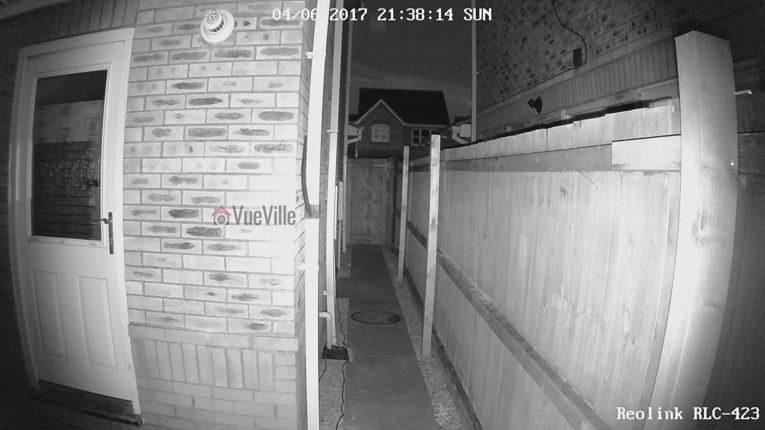
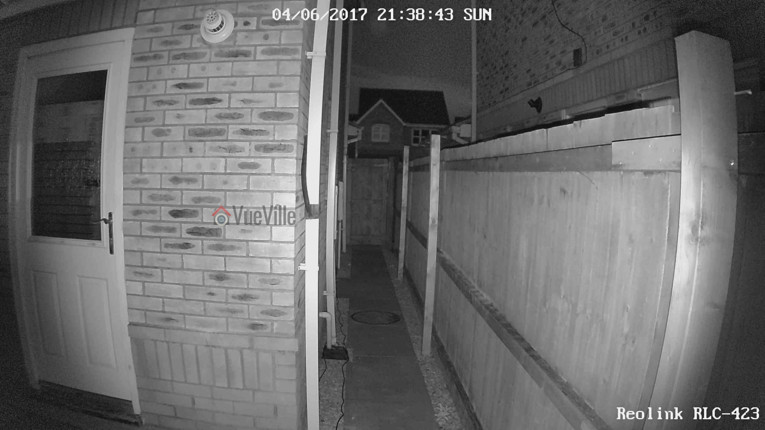
The real test of an IP camera is when the sun’s gone down and the lights are off. The Reolink has 6 high-power LEDs and a claimed InfraRed range of 60 metres.
Note that the RLC-423 doesn’t have true WDR, it employes digital WDR. So I was keen to look at the various backlight options:
backlight off
backlight on, and
Dynamic Range Control
So how did it perform? The video quality is excellent and I was very surprised to see the almost total lack of noise with the noise reduction setting on as default. Unlike most IP cameras, the noise reduction did not come at the expense of image quality. Check out the sample video below shot at default image settings (backlight off) and with Dynamic Range Control:
I am very excited that Reolink has launched such a high quality PTZ camera at such an affordable price point. This is the first affordable PTZ IP camera that I can recommend without any reservations. Yes the configuration options are a bit limited compared to the extensive configuration pages that Hikvision cameras boast, but you now what the Reolink RLC-423 does pretty well without it.
One weakness is the auto-focus which could be faster – but we need to put this in perspective. Its actually the impressive speed of the pan and tilt movements that highlights the relatively slower auto-focus. There are no alarm connections but that’s not a deal-breaker, especially given the price of the camera. What’s more important is the ONVIF and RTSP support that makes the camera very easy to integrate with the rest of your home security system.
Ultimately the PTZ functions superbly, video quality and resolution are stellar, and noise is very well contained with the help of the high power EXIR LEDs. The flexibility offered by the Pan-Tilt-Zoom features is immense and at this price level, the Reolink RLC-423 PTZ IP camera is a great buy.
[review]
Where to buy
[easyazon_link identifier=”B016UCNP08″ locale=”US” tag=”vueville.com-eaz-20″]Check your local Amazon site[/easyazon_link]
(* = affiliate link / image source: Amazon Associates Program)
Hikvision and Dahua are two of the most popular IP camera brands among DIY enthusiasts. Most of my cameras are from Hikvision, but that’s more due to my lack of experience when I first got into DIY CCTV.
Often when I saw recommendations being made online, it went like this: “Just go with Hikvision”. So you can understand when it came to pulling the trigger, I was leaning towards them.
Dahua was also mentioned but there were definitely fewer people using them compared to Hikvision. There didn’t seem to be any particular reason other than Hikvision being a bit cheaper.
But recently, both companies have been sanctioned by various governments due to their ownership by or links to the Chinese government. So after nearly 8 years of using these IP cameras, I am going to compare in this article the latest 2023 models and their retail availability in the US.
A quick note: This article may contain affiliate links. If you click on one of these links and then purchase something, we may receive a fee. This does not cost you anything extra. Also note that Hikvision and Dahua do not consider certain platforms including Amazon as an authorized seller platform. So if you need warranty support please purchase from authorized resellers of Hikvision and Dahua products in your country.
Hikvision vs. Dahua – the Stories behind the Brands
Hikvision
You’re probably no stranger to Hikvision if you have been dabbling with DIY security cameras for some time. Hikvision is a surveillance equipment manufacturer based in Hangzhou China. They primarily cater to professional installers and are not interested in retailing to the general public. But still they made a splash in the DIY space because of their affordable DIY IP cameras with powerful features. Like 3MP sensors which were unheard of in mainstream IP cameras in 2014 when I bought my first IP camera, the Hikvision DS-2CD2032-I.
A couple of years ago, they launched their retail brand EZVIZ. Confusingly, EZVIZ used to be the name of their cloud app as well. Anyway the EZVIZ models are dumbed down versions of the Hikvision cameras and are not worth spending any money on. That’s why I am focusing on the main Hikvision brand.
According to IHS, 53% of all security cameras shipped in 2015 were network (or IP) cameras. While Hikvision is the world leader in IP cameras with a global market share of 17% forecast in 2017, Dahua comes in second with a forecast of 5.5%.
The biggest concern I have with Hikvision is not so much about their cameras, but who owns Hikvision. The Chinese government owns at least a partial stake in Hikvision. This creates a few ethical and moral quandaries. The US government has also banned Hikvision and Dahua from all federal government bodies (along with Huawei and ZTE) through the National Defense Authorization Act (NDAA) passed into law in 2019. This also includes all the OEM/white label/private label brands – which makes up most of the security camera market. Recently, the US government went further and issued a ban on the FCC certification and authorization of these brands and their rebadged brands – which effectively kills the import of these cameras into the US.
From a technical standpoint, you should treat any security camera (Chinese or not, banned or not) the same way – with maximum suspicion that they may be ‘dialing home’ to their manufacturers servers. So lock them down using Virtual LANs (VLAN) and strict firewall rules like I have in my DIY home security camera system.
Dahua
Dahua is an OEM who are best known for their Starlight ultra low-light cameras. Of course, they have a full lineup of products just like Hikvision.
Dahua used to own Lorex until Novemeber 2022 when they sold it off. Dahua cameras are also re-branded by Amcrest, Honeywell, Panasonic, Bosch and many others. What these brands do is usually rebrand the Dahua camera by sticking on their logo and slightly changing the firmware to add/remove some features. For example see our recent Hikvision vs. Amcrest comparison where you will see that the Amcrest camera is a rebadge of a Dahua camera. Some brands even selfishly remove ONVIF support so that the camera works only with their own product range.
Just like Hikvision, Dahua are also partially owned by the Chinese government. So all the concerns I raised above with Hikvision apply to Dahua also. Their cameras and OEMs are also banned under the National Defense Authorization Act (NDAA) and recent FCC actions mentioned above.
Of course I don’t let that stop me from buying these or any other Chinese cameras – instead, I lock down all my security cameras tighter than Fort Knox using my DIY smart home network that uses the Ubiquiti Unifi line of networking products.
Dahua and Hikvision cameras have historically had very similar features, so this is going to be an interesting comparison.
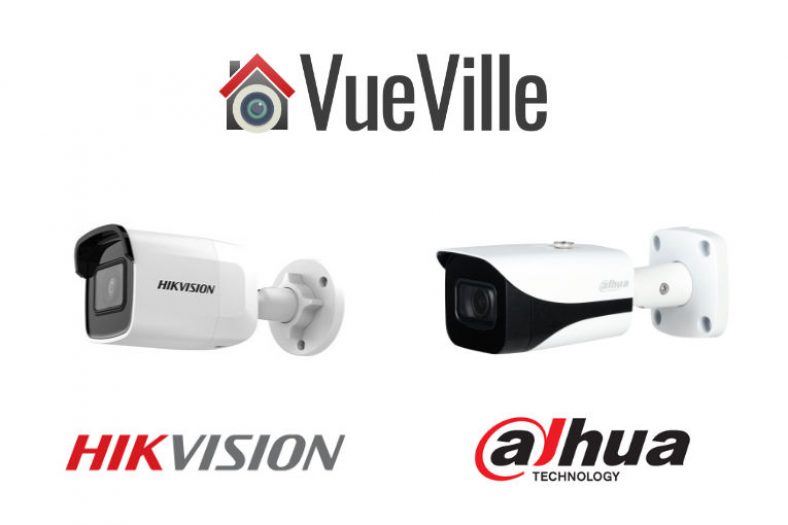
8MP IP Camera Duel – Hikvision DS-2CD2085G1-I vs. Dahua N85DF62
I will look at the 8MP IP cameras as these are quickly becoming affordable for DIY fans like us. From Hikvision, I picked the DS-2CD2085G1-I model from the Darkfighter series. For the Dahua, I picked the popular N85DF62 model.
From the consumer’s point of view, price is an important factor in deciding which competing models are actually comparable. So I have tried to balance the features and price of the cameras that I have picked for this comparison.
Still, the Dahua cameras are richer in features and hence are priced quite a way above Hikvision.
Hardware
The most common sensor in DIY IP cameras is a 1/3″ progressive scan CMOS sensor. However the Darkfighter series Hikvision has a much larger sensor at 1/2″. But the Dahua Starlight cameras are even better with a slightly larger sensor (1/1.8″).
The size of the sensor has a huge bearing on the low light ability of a camera, whether it be a camcorder or a security camera. The larger the sensor, the greater its ability to gather light and so do well in low light conditions. But as you cram in more and more pixels into the same size sensor, they get smaller and smaller, which adds noise. Noise is the bane of low light video and reduces the detail that you can get out of your video.
So while security camera manufacturers have pushed pixel count from 4MP to 8MP, they have not increased the sensor size. However both the Hikvision and Dahua 8MP models have true 120dB Wide Dynamic Range (WDR) to help improve video quality.
How about low light performance? You would expect the Dahua to be better thanks to the larger sensor. But the Hikvision can go down to an astounding 0.014Lux, while the Dahua can go down to 0.08Lux. That’s at an f-stop of f1.6 and 1/30s exposure (shutter speed). Even though both manuacturers like to advertise even better low light levels at 1/2s exposure, I wouldn’t go any lower to avoid blurry videos.
Both Hikvision and Dahua top out at 30m IR range at night time.
The Hikvision is available with lens at different focal lengths – 2.8 mm, 4 mm and 6 mm, but the Dahua comes only with a 2.8 mm lens.
Moving on to the enclosures, both cameras have metal bodies and are weather-rated for IP67. But Dahua has IK10 vandal protection as well, which is very unusual for bullet form factor cameras.
So on the hardware front, I think the Dahua gets the edge here.
Interfaces
The cameras both have an RJ-45 Ethernet port, and Power over Ethernet (PoE). But Dahua supports Enhance PoE (ePoe) which improves power and signal integrity over long Ethernet runs.
The Dahua takes larger microSD cards (256 GB) vs. the Hikvision’s maximum 128 GB. Neither have Wi-Fi.
Something that has gone out of fashion is proper old-school audio and alarm in/out ports. So I was pleasantly surprised to see that Dahua has both of these features and even throws in an onboard microphone!
Clearly Dahua wins here.
Software
Let’s get the basics out of the way, both cameras support ONVIF and RTSP, the two most important features you should look for in an IP camera so that you can integrate it into your DIY Smart Home Automation System.
ONVIF ensures that your camera will work with standards-compliant equipment from 3rd party manufacturers (like dedicated NVRs, NAS NVR software or PC NVR software like BlueIris).
RTSP allows even non-ONVIF equipment (such as software) to access the security camera’s video stream. Examples are video players like the popular VLC player.
When it comes to features, one striking difference is that the Hikvision DS-2CD2085G1-I has a max bitrate of 16Mbps vs. the 8 Mbps of the Dahua N85DF62. This shouldn’t be an issue though, I’m quite happy with the 6Mbps stream from my Hikvision and Reolink cameras.
This bit rate provides sufficient quality while extending the number of days I can store on the QNAP NAS that I use as my DIY NVR.
In previous generations, only the Dahua had the ability to provide video streams at three different resolution. Now the tables have turned. Hikvision has caught up and can push 6 different streams simultaneously.
Motion Detection
Both cameras support basic motion detection as well as the expected advanced motion detection techniques (intrusion detection and line crossing).
I can’t emphasize enough the importance of these advanced motion detection methods in reducing false motion alerts.
Additionally, for the longest time Hikvision had face detection, abandoned object, and missing object detection. Dahua didn’t have these and lagged behind heavily.
But in 2023, we find that Dahua has clearly surpassed Hikvision by supporting all of the above, smart detection methods such as person and vehicle detection, and a host of other additional interesting features:
People counting
Fast-moving object detection
Parking detection
Crowd gathering
Loitering detection
Clearly Dahua wins here as they join Reolink & Amcrest in offering person & vehicle detection. One notable absence in both Hikvision and Dahua cameras is pet detection. But the Dahua has a very clever feature to avoid false alerts from leaves, lights, animals, and other inconsequential objects.
Mobile apps
Both the Hikvision and Dahua mobile apps are outdated and frankly terrible to use. But for enthusiasts like us who are the target retail audience, this doesn’t matter because we use these cameras in our own DIY CCTV system which uses a single mobile app for viewing IP cameras.
Warranty
Both Hikvision and Dahua offer a 3-year warranty but only through their authorized US retailer, B&H Photo. Online marketplaces such as Amazon are not included in their warranty coverage.
Detailed Comparison Table
Here’s a summary in a nice and easy table:
[table id=62 responsive=”scroll” /]
Verdict
So as you can see the Hikvision and Dahua are both capable IP cameras but have enough differences between them to warrant a closer look. Dahua has caught up on both hardware and software features vs. Hikvision. So I would pick the Dahua over the Hikvision.
Its also interesting that both Hikvision and Dahua are still available for retail buyers like us from their authorized US retailer, B&H Photo who offer a 3 year warranty as well!
When I first started using a NAS as my DIY NVR, it was more of an experiment than anything else. I originally purchased the NAS for backing up all our devices and for media serving duties. But I soon realised it could also serve as an NVR. With QNAP now including 8 NVR channels for free in their new QVR Pro NVR app, I have been very happy with my QNAP NAS in my DIY NAS NVR setup.
If you are interested in a similar setup, here are my 2024 picks for a multi-purpose low-power all-in-one DIY NAS NVR.
Product prices and availability are accurate as of the date/time indicated and are subject to change. Any price and availability information displayed on https://www.amazon.com/ at the time of purchase will apply to the purchase of this product.
Product prices and availability are accurate as of the date/time indicated and are subject to change. Any price and availability information displayed on https://www.amazon.com/ at the time of purchase will apply to the purchase of this product.
Product prices and availability are accurate as of the date/time indicated and are subject to change. Any price and availability information displayed on https://www.amazon.com/ at the time of purchase will apply to the purchase of this product.
(* = affiliate link / image source: Amazon Associates Program)
A quick note: As an Amazon Associate I earn from qualifying purchases. This post contains affiliate link(s). An affiliate link means I may earn advertising or referral fees if you make a purchase through my link, at no extra cost to you.
Best NAS for Home Surveillance – 2024 Recommendations Summary & Comparison
[table id=69 responsive=scroll /]
(* = affiliate link / image source: Amazon Associates Program)
Why use a NAS NVR instead of a regular NVR?
If you have IP cameras from different brands in your home and they all support industry standards/protocols such as ONVIF or RTSP, finding an NVR to record all these cameras is a pain. Most NVRs are designed to support only their own brand cameras, such as Lorex or Reolink. Some companies such as Amcrest, Annke, Hikvision support 3rd party cameras but often this is very limited and won’t support AI person or vehicle detection features of the camera.
This is where a NAS NVR really shines – they tick all the boxes for a household that has multiple camera brands and need everything to just work seamlessly:
All major IP camera brands are supported, including AI and smart motion detection methods such as person or vehicle.
The NAS NVR can record to more than 1 disk drive so you always have a redundant copy of CCTV footage.
You can interface the NAS NVR directly to smart home automation software such as Home Assistant, HomeSeer, Hubitiat, Google Home, Alexa etc.
You can keep all your IP cameras and the NAS 100% local-only with no internet access and everything would still work. Only your home automation PC/device needs to have Internet access for notifications etc. Firewall rules using Unifi gear is the solution here.
Choosing the right NAS NVR
The modern household is a tech-heavy environment. Every family member probably has at least a smartphone, and a tablet or a laptop. Sharing media and documents across the home is a challenge without a central media server. This is where a NAS typically comes into the picture.
Providing redundant RAID storage, a NAS can serve up documents, stream music and movies to any device through the DLNA standard. But the humble NAS can do so much more.
A NAS is basically a computer that runs a custom Linux operating system created by the manufacturer (Synology, QNAP, Asus etc.). Most manufacturers offer various apps that can be installed on their devices to add or extend its abilities. These apps are usually called ‘stations’. Examples of such ‘stations’ apps include Photo stations, Video stations, and Backup stations.
Almost every NAS sold today has a surveillance camera feature, but only two companies have software that can really pull it off – QNAP and Synology. NAS manufacturers call each IP camera slot a licence in their software. So 1 licence = 1 channel = 1 IP camera slot.
QNAP currently has two apps for CCTV surveillance – QVR Pro and QVR Elite which are both very capable successors of the old QNAP Surveillance Station app. QVR Pro is aimed at the standard retail user whereas QVR Elite is a more corporate offering. So I will focus only on QVR Pro in this article. Synology has their Surveillance Station app which has been around for ages.
However there is 1 big issue with Synology’s offer that makes QNAP a significantly better deal most of the time:
QNAP QVR Pro by default comes with 8 free QVR Pro camera licences, but these have a small limitation. With these 8 ‘free’ licences, you can view only 14 days of recorded clips inside the app. Any clip older than that needs to be viewed through the File Station app, which is a minor inconvenience.
With Synology, you get only 2 licences (no other constraints though). But you need to pay another ~$350 for an 8-camera licence pack which substantially increases costs or buy into Synology’s own brand cameras (which kinda defeats the whole point of going for a NAS NVR platform).
So to summarize, this is what the NAS NVR landscape looks like:
The best QNAP NAS models are the ones with at least 4GB RAM to run QVR Pro and additionally have 8 fully-fledged QVR Pro camera licences included.
All other QNAP NAS models with at least 4GB RAM can run QVR Pro which by default has 8 free QVR Pro camera licences but with the 14 day viewing limit.
All Synology NAS models come with 2 fully-fledged IP camera licences included, but to add more you need to spend another ~$350 for 8 more channels.
I have considered this very important aspect in my recommendations – hence QNAP being at the top and Synology being more down the list taking value for money into consideration.
How many drive bays do you need in your NAS?
The simple answer is: as many as you can afford! Because you don’t need to fill all the bays for the NAS to work, so its good to have the option to expand later on if needed. You can even start out with 1 drive and add more later, although I strongly recommend going with a clear plan from the start. Most people will be fine with a 2-bay NAS in a RAID1 array (disk mirroring), but you probably have other media storage needs which necessitate a 4-bay NAS. With 4-bays or more, you can have a dedicated RAID-1 array which allows for NVR-focused hard drives but still having NAS-focused hard drives in another RAID array for all other needs.
Product prices and availability are accurate as of the date/time indicated and are subject to change. Any price and availability information displayed on https://www.amazon.com/ at the time of purchase will apply to the purchase of this product.
We used to have the QNAP TS-251+ as our personal favourite on this list for quite some time. But times have changed. Starting off with QNAP’s Home and Personal product line offerings, the TS-262 improves upon the now superseded TS-251+ model. If you want a powerful Intel chip in your NAS, the x62 series are the go-to QNAP models.
I would suggest using both drive bays to create a RAID-1 array for data redundnacy. If a drive fails (and they eventually will), just pop it out and pop a new one in. The NAS will then copy all the data automatically from the existing good drive to the new drive in a few hours. Since QNAP NAS’ all support hot-swapping, you dont even need to shut down the NAS to do all this.
The 4 GB RAM gives your NAS more headroom and performance when running intensive tasks like 4K UHD transcoding or using QVR Pro.
The TS-262 also supports virtualization, so you can run virtual machines. This is great for running different operating systems on your NAS, such as testing/development on Linux or Android.
There is only one 2.5 Gigabit Ethernet port, so link aggregation/failover for network connections is not possible out of the box. But there is a PCIe slot allows you to extend the NAS capabilities by adding 10GbE support, SSD caching, or even a wireless card.
You can run Plex Media Server on this NAS and it supports hardware-accelerated transcoding up to 1080p. But bear in mind that only the QNAP apps work over the HDMI port.
Moving on to the NVR features of this NAS, 8 IP camera licences are included for the QVR Pro NVR app. These are not the time-limited free channels that lesser NAS models have, but proper full-fat licences. An extra 8-camera license pack is also available for purchase if you want even more NVR channels.
QNAP has recently launched the QVR Elite app which offers 2 IP camera channels for free. However this product is subscription-based which I don’t recommend.
Now that QVR Pro supports the advanced motion detection of Hikvision, Dahua, Reolink and all the popular IP cameras, I don’t really need Blue Iris anymore for tying into my home automation system! There is also a Home Assistant integration for QVR Pro that provides smart home compatibility. Super low power consumption of just 15W under load makes this the ideal DIY NAS NVR.
You can live view your IP cameras over the HDMI 2.0 port, unfortunately this feature works only if you upgrade the NAS to 8 GB RAM.
Product prices and availability are accurate as of the date/time indicated and are subject to change. Any price and availability information displayed on https://www.amazon.com/ at the time of purchase will apply to the purchase of this product.
Stepping up to the small business and office product offerings, we find the QNAP TS-464 series. It builds upon the rich feature set of the TS-262, but offers 4 bays, a stronger CPU, and an extra Ethernet port.
The main advantage of 4 drive bays in a NAS NVR is that you can set up two RAID-1 arrays. The first RAID 1 array is for your regular data hoard (using 4 NAS specific drives like the WD RED Plus NAS drive*) and a separate RAID-1 for your NVR (using 2 NVR specific drives such as WD Purple Surveillance drive*). This way, you get the best disks suited for your needs, the NAS focused drives for regular data storage and the Surveillance drive for NVR usage. In this setup you can tolerate 1 disk failure for each array.
The dual Ethernet ports make a few things possible – link aggregation to double network speeds is one option. Another is failover that lets the NAS remain online in case one of the two network ports fail. But probably the use case that is most relevant to a NAS NVR is that your can dedicate 1 network interface to the NVR application. This means that interface can be in the same subnet as the IP cameras, thus maximising network security. See this guide on how I isolate my IP cameras from the Internet using Unifi firewall rules.
Product prices and availability are accurate as of the date/time indicated and are subject to change. Any price and availability information displayed on https://www.amazon.com/ at the time of purchase will apply to the purchase of this product.
The TS-462 is the 4-drive bay version of the TS-262 we saw earlier. It is identical to the TS-262 in all other respects and is a great choice for an affordable 4-bay NAS that can still do hardware accelerated transcoding.
Product prices and availability are accurate as of the date/time indicated and are subject to change. Any price and availability information displayed on https://www.amazon.com/ at the time of purchase will apply to the purchase of this product.
The TS-464 is the 4-drive bay version of the TS-264 we saw earlier. It is identical to the TS-262 in all respects but has only 4 GB RAM instead of 8 GB. Still it is a great choice for a powerful 4-bay NAS that can handle pretty much anything you can throw at it.
Product prices and availability are accurate as of the date/time indicated and are subject to change. Any price and availability information displayed on https://www.amazon.com/ at the time of purchase will apply to the purchase of this product.
The QNAP TS-664 is the 6-bay version of the TS-464 above.
The main advantage of 6 drive bays in a NAS NVR is that you can set up a RAID 10 array for your regular data hoard (using 4 NAS specific drives like the WD RED Plus NAS drive*) and a separate RAID-1 for your NVR (using 2 NVR specific drives such as WD Purple Surveillance drive*). RAID-10 for your regular data storage is preferable to RAID-1, 5 or 6 because of the performance boost offered by RAID-10. In this setup you can tolerate 1 disk failure for each array.
Another option is a RAID-50 array which offers the excellent performance of RAID-10 but with better data redundancy and more usable disk space. Up to 2 disks can fail and the array can still recover all its data.
It supports M.2 NVMe 2280 SSD slots that you can use for SSD cache acceleration. Basically the SSD acts as a cache to speed up data transfer from the NAS to your networked devices.
This NAS has an Intel Celeron CPU that allows for virtualization. Using the multiple 2.5 Gigabit Ethernet ports, you can assign different VMs to different ports for maximum bandwidth. But from a NAS NVR point of view, you could assign one network interface to NVR traffic only.
Product prices and availability are accurate as of the date/time indicated and are subject to change. Any price and availability information displayed on https://www.amazon.com/ at the time of purchase will apply to the purchase of this product.
Click image to view on Amazon
Features
Synology Surveillance Station with 2 channels included
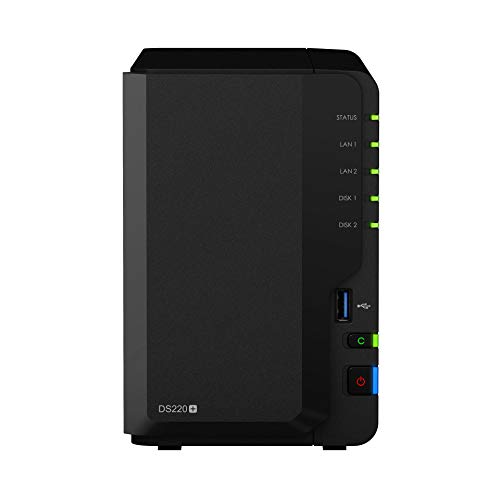
Synology is well-known for its high-quality hardware and very intuitive OS called DSM. The Synology DS220+ is a popular model that was launched in 2020 during the depths of the pandemic.
The DS220+ can serve as your file server, stream media across the home, automatically backup your devices, set up your own private cloud for file-sharing and monitor your IP cameras as well.
The quad-core Intel processor substantially improves performance over the DS220j which is the cheapest Synology product.
While 2 GB RAM is much lower than what QNAP offers in its products, bear in mind that these NAS boxes are basically extremely energy efficient Linux PCs. Linux doesn’t need as much RAM as Windows and so 2 GB RAM is good enough for recording up to 25 IP cameras.
Only 2 IP camera channels are included though, and extra channels cost around $50 each. So factor this into the total cost of ownership. This is also the reason you find this otherwise very good NAS so far down this list.
There is no ready-made Home Assistant integration for Surveillance Station, but manually setting up sensors to detect Synology events is not difficult.
Product prices and availability are accurate as of the date/time indicated and are subject to change. Any price and availability information displayed on https://www.amazon.com/ at the time of purchase will apply to the purchase of this product.
The TS-873A replaces the TVS-873 from last year. It uses a fast and powerful AMD processor with on-board Radeon graphics. This makes the NAS particularly suited to multimedia and surveillance duties.
Even though the NAS is aimed at small businesses, the multimedia features are what makes this NAS box shine. On offer are optional HDMI output, audio in and audio out which can be very useful for surveillance applications, and powerful hardware to keep everything chugging along nicely.
Product prices and availability are accurate as of the date/time indicated and are subject to change. Any price and availability information displayed on https://www.amazon.com/ at the time of purchase will apply to the purchase of this product.
Click image to view on Amazon
Features
Synology Surveillance Station with 2 channels included
If you are a fan of Synology’s DSM OS, need the Surveillance Station app and don’t mind paying up to $350 extra for more NVR channels, the DS923+ is a decent 4-bay option to consider.
Even though there is no integrated GPU, the CPU is powerful enough to handle Plex and some CPU transcoding as needed.
Conclusion
So there you have it, these are my recommendations to build the best DIY NAS NVR in 2024. Leave your thoughts below!
There was a time long long ago when a professionally installed home security camera system was the only option for mere mortals such as us. But today we live in the golden age of DIY. Why pay a ‘professional’ when you can select, buy and build your own custom DIY home security camera system for far less money like I did by picking the best components?
But not everybody has the time or inclination to assemble such a system themselves, and that’s where ready-made NVR and camera kits come in. So in my opinion, these are the best DIY home security camera kits without monthly fees:
Product prices and availability are accurate as of the date/time indicated and are subject to change. Any price and availability information displayed on https://www.amazon.com/ at the time of purchase will apply to the purchase of this product.
Product prices and availability are accurate as of the date/time indicated and are subject to change. Any price and availability information displayed on https://www.amazon.com/ at the time of purchase will apply to the purchase of this product.
Product prices and availability are accurate as of the date/time indicated and are subject to change. Any price and availability information displayed on https://www.amazon.com/ at the time of purchase will apply to the purchase of this product.
A quick note: As an Amazon Associate I earn from qualifying purchases. This post contains affiliate link(s). An affiliate link means I may earn advertising or referral fees if you make a purchase through my link, at no extra cost to you.
(* = affiliate link / image source: Amazon Associates Program)
Best DIY Home Security Camera System: 2024 Recommendations List
I spent many hours researching home security camera kits and documenting what I learnt in this article. But I know such long articles are tiresome to navigate, so here’s a handy table of all the recommendations in this post. Just click on each kit to jump to why I think you should buy it.
[table id=71 responsive=scroll /]
Why go DIY instead of a monitored CCTV service?
Going the DIY route means you get flexibility – you can choose the features you think you need to start off, then upgrade as you learn more. You also save money by not paying a monthly fee. Yes you will still get alerts on your phone and you can live-view the cameras any time from anywhere. If anything, the problem is choice. There are different types of technologies to choose from and then there are dozens of brands across the price spectrum.
The first decision you need to make is: do you want to spec each component in your system (I call this Pro-DIY) OR get a ready-to-use packaged kit that has all the equipment you need along with installation instructions (I call this Easy-DIY). This article explores the various ready-to-use kits that fall under the Easy-DIY category.
If you know you need an Easy-DIY kit, you will find a summary of my Easy-DIY recommendations above in a handy table. If you are unsure, I will help you decide, just keep reading!
Product prices and availability are accurate as of the date/time indicated and are subject to change. Any price and availability information displayed on https://www.amazon.com/ at the time of purchase will apply to the purchase of this product.
Click image to view on Amazon
NVR Features (RLN8-410):
8-channel recording @ 5MP supported
PoE-enabled
2TB hard drive included, max single 4TB HDD
Smart Motion detection (People, Vehicle)
Email alerts and push notification
Remote smartphone access
IP Camera Features (RLC-D500):
5MP CMOS image sensor (2560×1920)
80° viewing angle at 4mm focal length
30m IR range, true IR-cut filter
RJ45 PoE ports
Built-in mic
IP66 Weather-rated
For 2024, Reolink has upgraded this 5MP 8-channel NVR kit to support smart motion detection to reduce false alerts. Meaning it can detect persons or vehicles and send the right alert to the mobile app or your email. The RLC-D500 IP camera included is the 5MP model which can record at up to 8Mbps.
While I recommend 1080p (2MP) as a minimum resolution for security camera footage, 3MP is better for getting additional detail. This is especially useful if your cameras cover a large area like a yard. Every little bit of detail helps. That’s why 5MP is even better. While the cameras can do bitrates of up to 8Mbps, you can set it to around 4-6Mbps to get more days of storage from the included 2TB hard drive.
These cameras do not have on-board storage either and so cannot function as standalone cameras, but they can be used with any ONVIF compliant NVR or DIY NAS system.
The NVR is limited to playing back only 4 channels at 4MP resolution synchronized with each other. The NVR doesn’t officially support the ONVIF standard, but you can try the port change workaround mentioned earlier.
From a Pro-DIY point of view, the system has local storage and local processing but smart home connectivity is again missing. There are no alarm in/out ports (preferred option), nor is there support for Alexa, IFTTT, Google Assistant etc.
Product prices and availability are accurate as of the date/time indicated and are subject to change. Any price and availability information displayed on https://www.amazon.com/ at the time of purchase will apply to the purchase of this product.
Lorex has recently started opening up their IP cameras by supporting ONVIF. Yes, their NVRs still do not support 3rd-party IP cameras but they do offer an interesting mix of features at a great price point.
For example, the NVR in this kit can record 8MP on all channels simultaneously, albeit at 15fps. And while doing this, you can also live-view or play back 4 channels from the included 2TB hard drive.
In the new Fusion series of NVRs you gain smart motion detection events and smart speaker support but lose a whole host of features: alarm in/out connections, drive mirroring, and Lorex’s pentaplex operation (backup while also managing remote viewing). In my opinion this is a step backwards.
The Fusion NVR supports basic motion detection, customizable motion zones, push notifications to your smartphone and email alerts with snapshot attachment.
The four IP cameras included are 8MP PoE models and are surprisingly capable. Not only do they have HDR but true Wide Dynamic Range (WDR) also at 100dB. Unlike the Lorex NVRs, most Lorex IP cameras are now ONVIF compliant and support RTSP.
So the downsides of this Lorex kit are the NVR’s lack of ONVIF support, the missing advanced motion detection methods, loss of drive mirroring and alarm in/outs. No ONVIF support means you are locked into buying additional cameras from Lorex only. Lorex is now owned by Dahua, so I still hold out hope that they will add advanced motion detection to Lorex NVRs soon.
From a Pro-DIY point of view, smart home connectivity is not great. There are no alarm in/out ports (my preferred option), but there is support for Alexa, Google Assistant and Lorex’s proprietary smart home solution Lorex Fusion.
Product prices and availability are accurate as of the date/time indicated and are subject to change. Any price and availability information displayed on https://www.amazon.com/ at the time of purchase will apply to the purchase of this product.
Click image to view on Amazon
NVR Features (RLN16-410):
16-channel recording @ 5MP supported
PoE-enabled
3TB hard drive included, max. possible are 2x4TB hard drives
Motion detection with email alerts, push notifications
Remote smartphone access
IP Camera Features (B500):
5MP 1/2.7″ CMOS image sensor (2560×1920)
80° Viewing angle, 4mm lens
30m IR range, true IR-cut filter
RJ45 PoE ports
On-board mic
IP66 Weather-rated
Reolink is once again the budget option for 16 channel home security camera systems with their unbeatable price points. Support for 5MP cameras is impressive at this price level, but note that it cannot simultaneously play back more than 4 channels. The hardware is not powerful enough to simultaneously playback 16x 5MP streams.
It is still a great option if you are on a budget but I would encourage you to look at our best value recommendation below.
From a Pro-DIY point of view, smart home connectivity is missing. There are no alarm in/out ports (my preferred option), nor is there support for Alexa, IFTTT, Google Assistant etc.
Product prices and availability are accurate as of the date/time indicated and are subject to change. Any price and availability information displayed on https://www.amazon.com/ at the time of purchase will apply to the purchase of this product.
Just like the 8-ch kit featured earlier, this 16-channel NVR can also record all channels simultaneously at 8MP. The pentaplex operation capability is retained even at the higher workload of 16 channels.
The NVR supports basic motion detection, customizable motion zones, push notifications to your smartphone and email alerts with snapshot attachment. But with this kit, you also get smart cameras that can perform smart motion motion detection. Its smart in that the cameras can distinguish between a person, a vehicle and anything else like trees moving in the wind. This should help reduce false motion detection alerts massively.
Since the NVR sports 4 alarm in and 2 alarm out ports, you can easily switch from easyDIY to ProDIY. Just hook up the alarm out port to a Z-Wave binary sensor and you have instant integration with your Home Automation system. You can even get the NVR to record on demand based on PIR motion sensors this way.
The IP cameras included are 8MP PoE models and are surprisingly capable. Not only do they have HDR but true Wide Dynamic Range (WDR) also at 100dB. Unlike the Lorex NVRs, most Lorex IP cameras are now ONVIF compliant and support RTSP.
The only downsides of this Lorex kit are the lack of ONVIF support and the missing advanced motion detection methods. No ONVIF support means you are locked into buying additional cameras from Lorex only. Lorex is now owned by Dahua, so I still hold out hope that they will add advanced motion detection to Lorex NVRs soon.
From a Pro-DIY point of view, smart home connectivity is pretty good. There are alarm in/out ports (my preferred option), but no support for Alexa, IFTTT, Google Assistant etc.
(* = affiliate link / image source: Amazon Associates Program)
Which DIY route – Easy-DIY or Pro-DIY?
A home security camera system consists of the following essential parts:
The heart of the system, the Network Video Recorder (NVR)
Before the advent of network cameras, the equivalent of the NVR would have been called a DVR which works only with analogue security cameras. An NVR works only with network-based cameras. So remember a DVR works with analogue cameras. and an NVR works with network cameras only. In this article, I will be looking only at NVR based systems.
This is because DVR-based analogue systems are on their way out, they simply cannot compete with the quality and convenience of network cameras and NVRs.
Cameras – Network cameras (a.k.a IP cameras) are fully digital – the image is sent digitally to the NVR through a network cable instead of an analogue BNC cable as in a DVR-based system. This enables resolution higher than 1080p(2MP), and currently you can go up to even 12MP.
The hard drive that will store the recorded video and images – read my detailed guide to selecting the right hard drive.
The Ethernet cables needed to connect the cameras to the NVR
The power adaptors for the cameras (read on to see how you can avoid these)
If you don’t want to deal with different brands for home security and cameras, you should go with Easy-DIY and just get an all-in-one kit. Otherwise there are two ways of choosing the different parts above for your dream DIY home security camera kit – what I call going Pro-DIY.
Easy-DIY – A pre-packaged solution where cameras are bundled with the NVR system
You leave the tough work of building the CCTV kit to somebody else but you pay for the convenience. This is recommended for novices or even experts if you don’t have the time or inclination to do the research. Just pick a brand you are comfortable with, look for the options you want and push the button.
Any NVR kit from a decent manufacturer will use the Power over Ethernet standard. If you are looking for the best PoE security camera system, all the kits I recommend below are PoE-enabled. I wouldn’t have it any other way.
However, bear in mind that there are varying levels of smart home integration features. For example Reolink & Lorex NVRs are more for price-sensitive customers and so have little or no smart home integration at all. On the other hand, Lorex, Hikvision and Dahua have alarm in/out ports that you can hook up to a home automation hub.
Pro-DIY – A fully custom solution where you pick NVR and cameras separately
This is what I have done – I built my DIY NAS-based NVR system, the benefits being maximum flexibility, power and economy. The downside is having to read up on the essentials and ensuring compatibility between all the different bits (but that’s why I am writing this blog: to help you make sense of it all).
A huge advantage of going Pro-DIY is that you can also set up a home automation system that can fully integrate with your CCTV setup (like Home Assistant)!
How to choose your Easy-DIY home security camera system
So you have chosen to go the Easy-DIY Home CCTV route. That’s a great choice if you want to get started right away and don’t want the hassle of researching and understanding how to put a home CCTV system together.
First off, lets get the confusion about names out of the way. Home Security Camera System, Home Surveillance System, NVR Surveillance System, NVR Security System, NVR kit, IP Camera Surveillance Kit – these all typically mean the same, a complete kit that includes everything you need to get up and running.
Choosing your digital network-based home security system depends on the following:
How many cameras do you need? Security camera systems are commonly specified by the number of separate channels they support. This simply indicates how many separate camera video streams they can record. They start from single channel devices going all the way up to 32.
What level of video quality or resolution do you need? My usual recommendation of at least 1080p (2 Megapixels) applies. There are tons of substandard 720p (HD-Ready) systems you can get, but none of them will have the resolution needed to allow law enforcement positive identification of an intruder.
Do you want the ability to use wireless cameras as well? While I generally do not recommend using wireless for critical home systems such as security, there are some situations where a wireless camera makes sense. Now you don’t need a WiFi enabled NVR to use a Wi-Fi camera – this is a common misconception. A Wi-Fi camera can simply connect to your Wi-Fi router and thus be connected to the NVR.
Do you intend to upgrade by adding more cameras later on? If you think you need only 2 cameras now, get a 4-channel system. If you think you need just 4 cameras right now, go for the 8-channel. Once you start enjoying the security provided by your spanking new CCTV system, you will enjoy the option to add more cameras. But if you want that luxury, plan ahead.
Do you want automatic redundant storage? Most NVRs can record only to one hard disk. This means data storage is not redundant – a hard disk failure or theft of the NVR would mean that you lose all your recorded footage. USB backup is supported on most NVRs to mitigate against this risk but ideally the NVR should have at least 2 hard disk bays and automatically write a copy of the footage to the second hard drive. The other option to explore is whether the NVR can write the footage to a remote network location such as a NAS. To learn more about surveillance hard drives, check my latest guide.


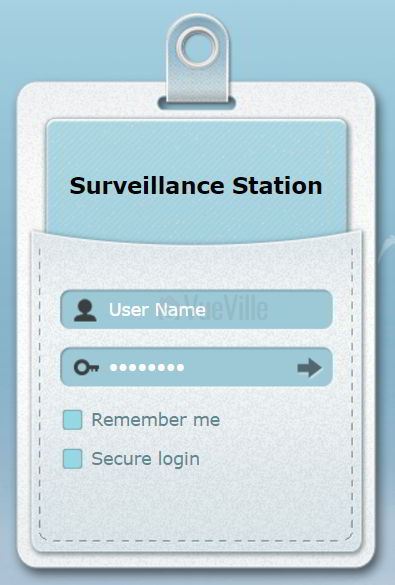

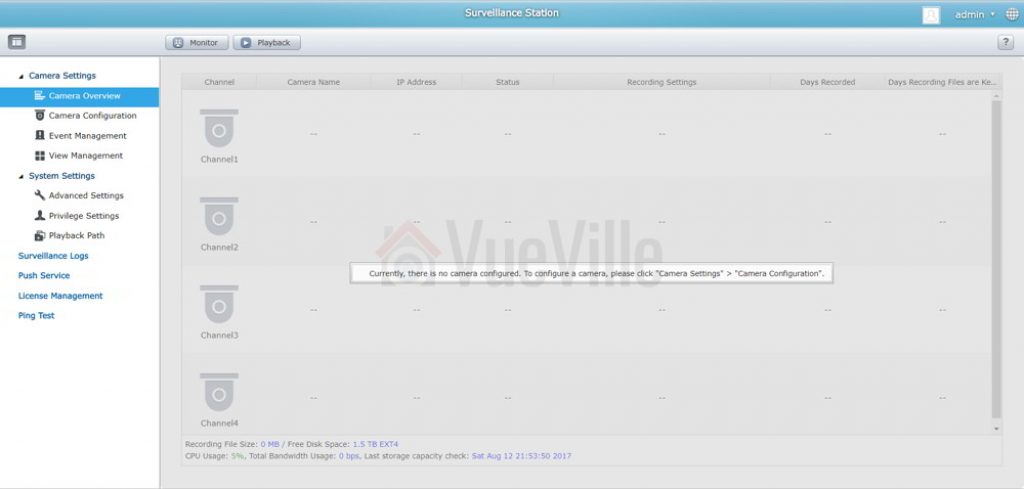
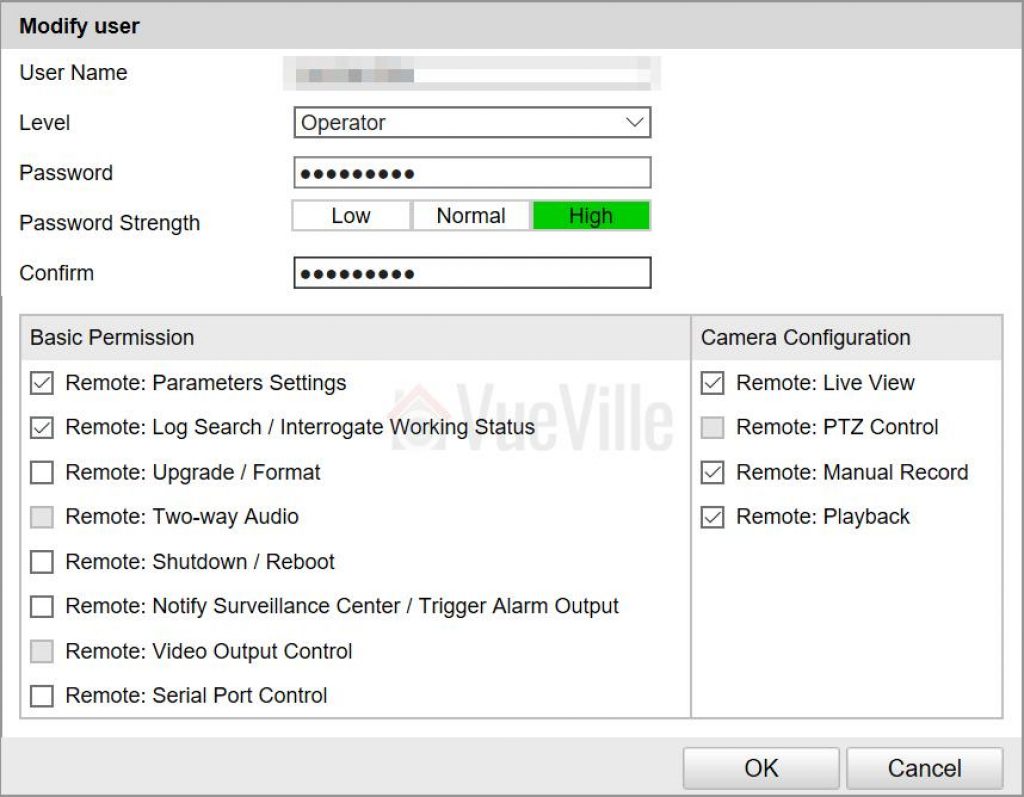


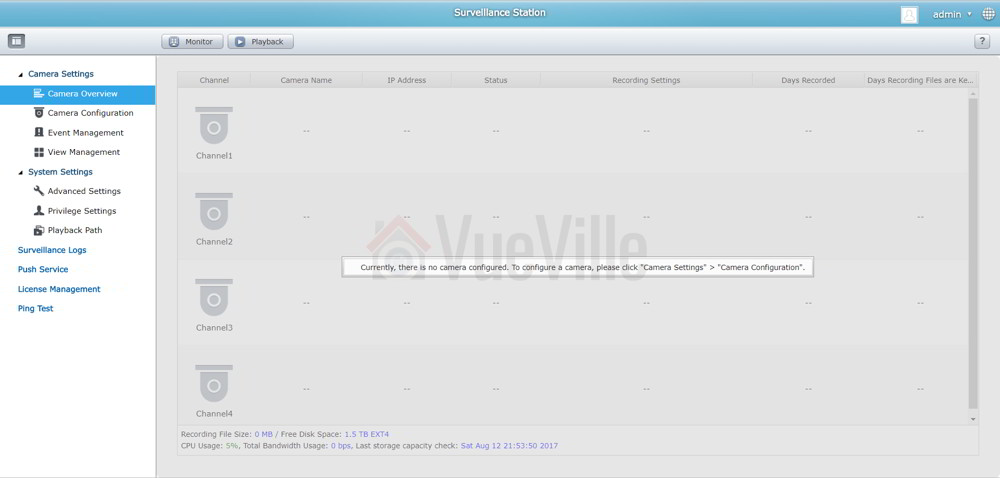

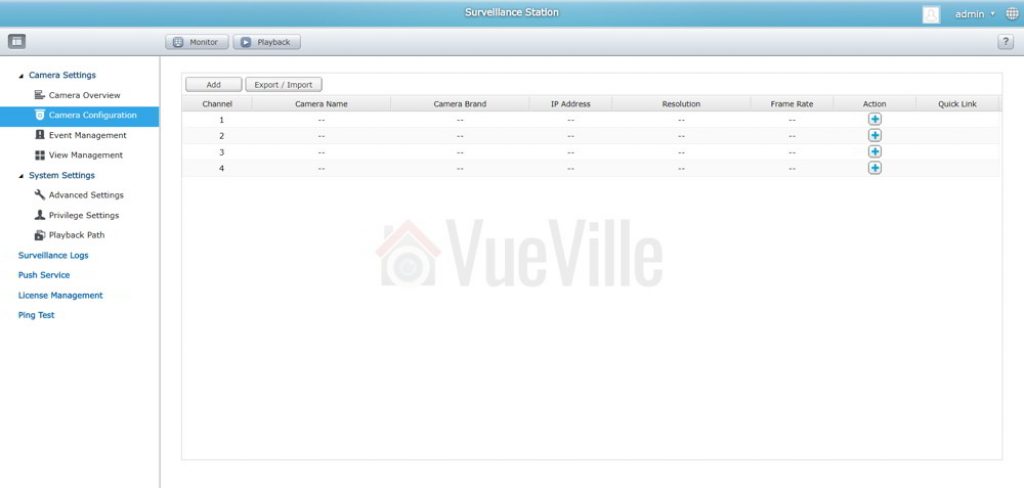

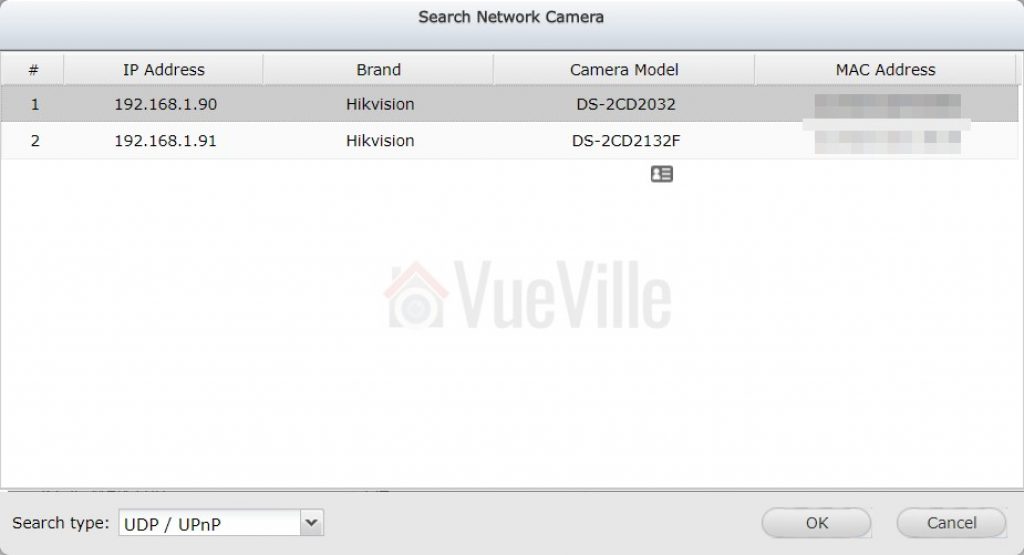

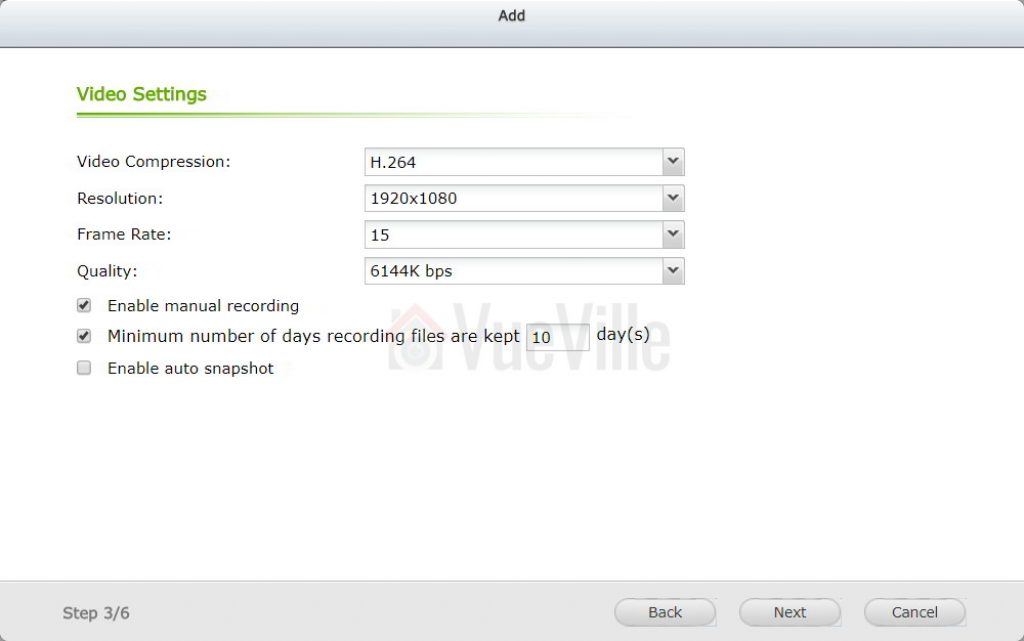
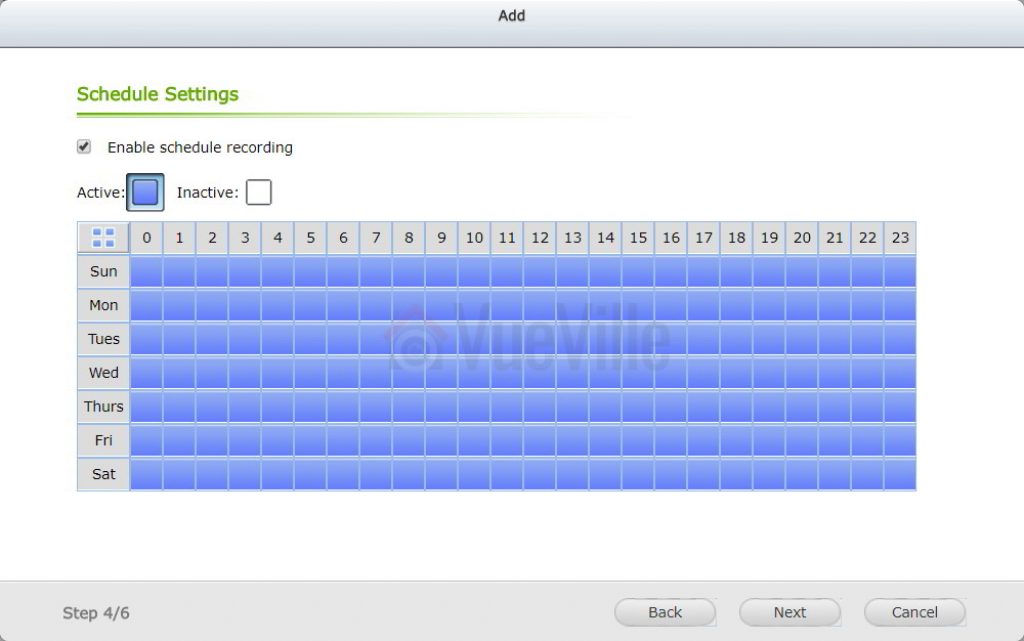


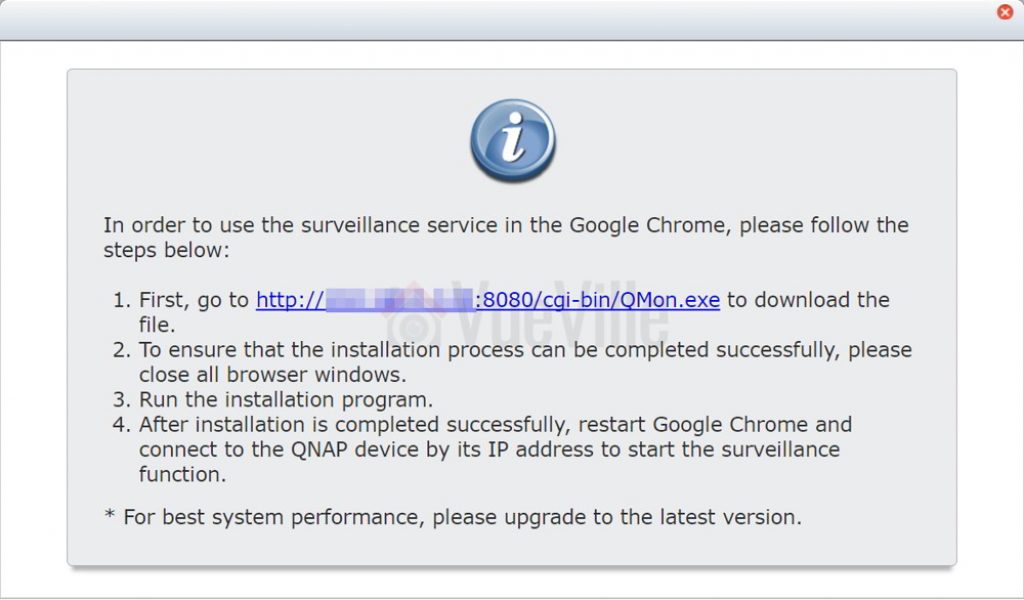
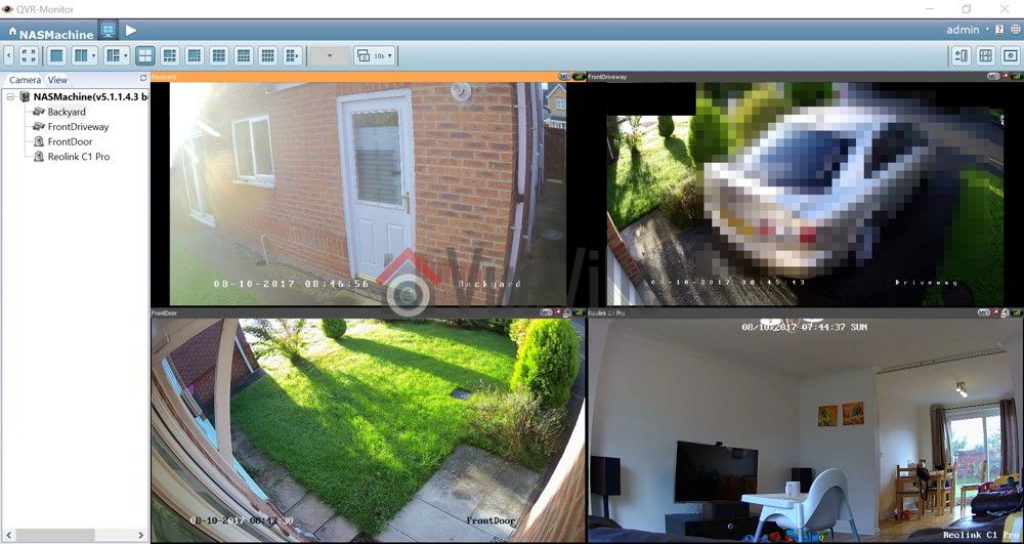


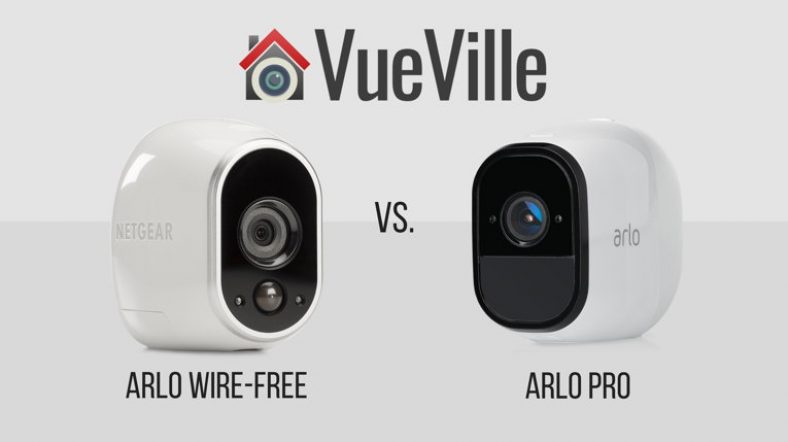


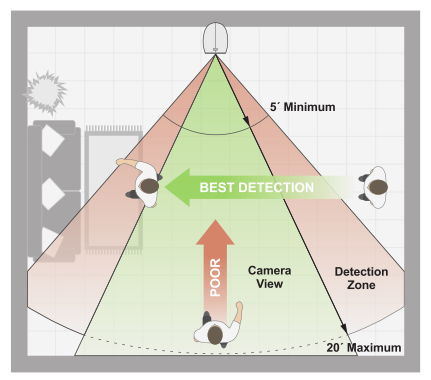
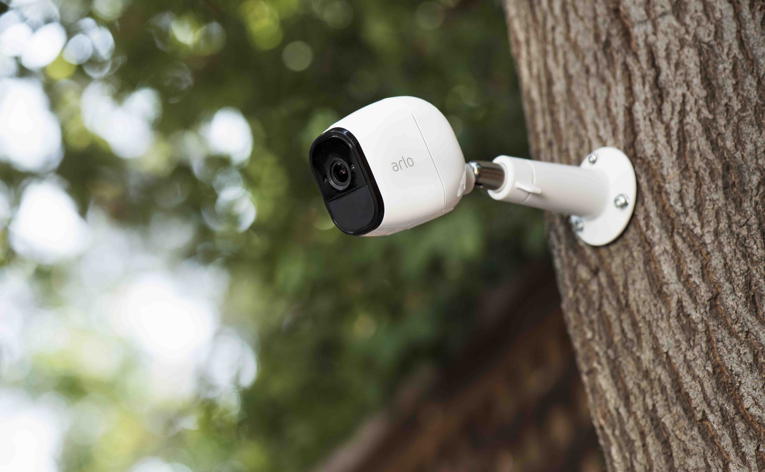
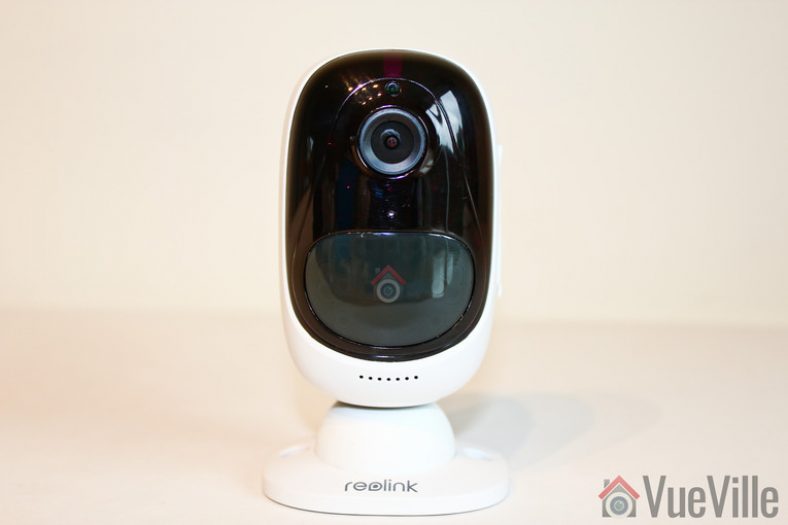


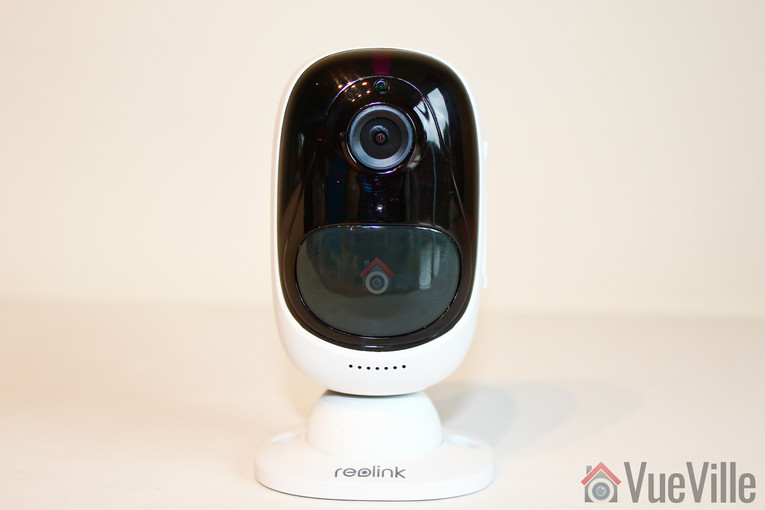


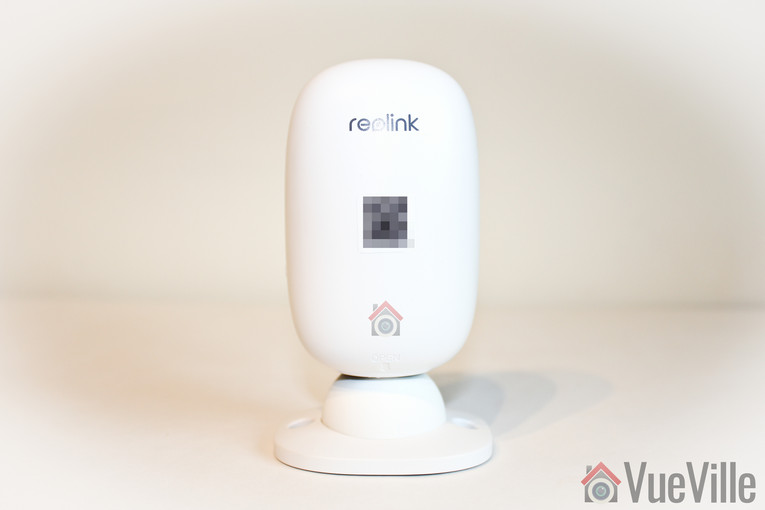
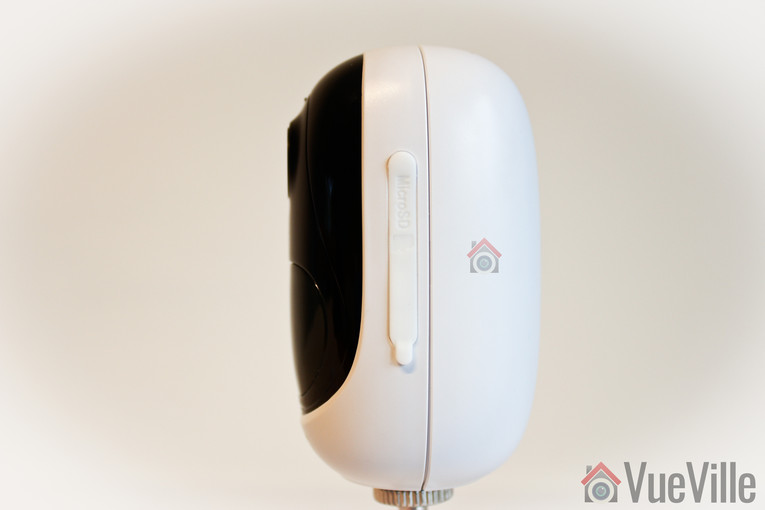

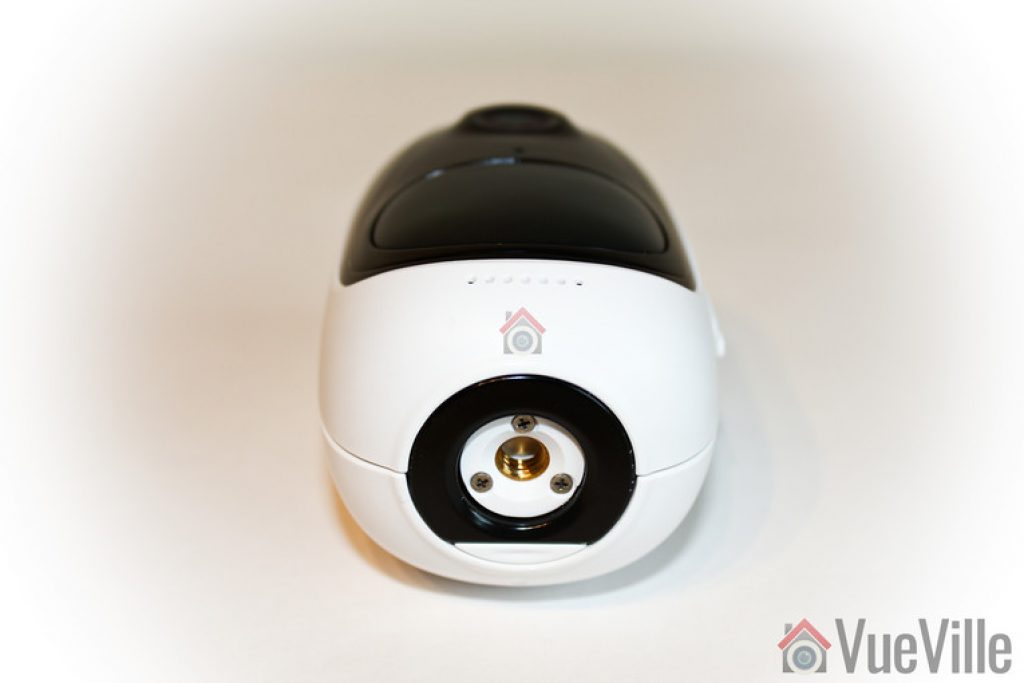


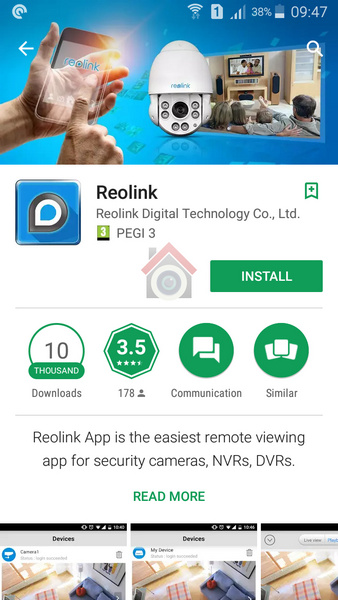


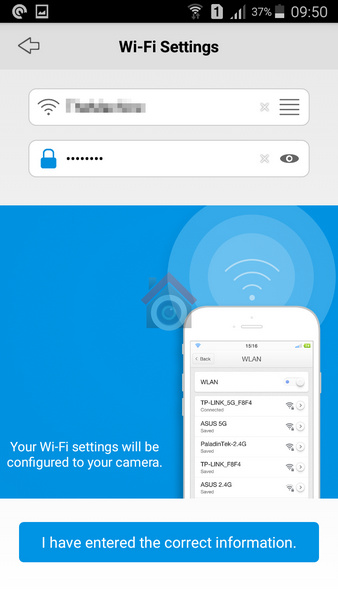

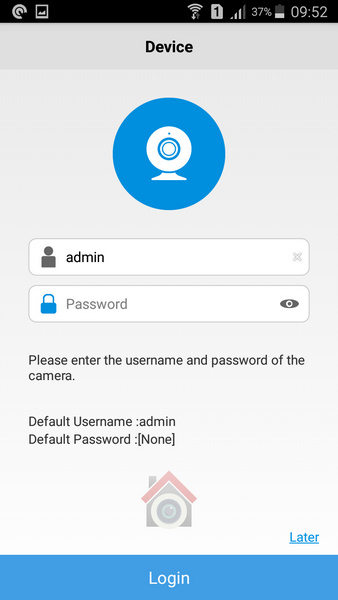
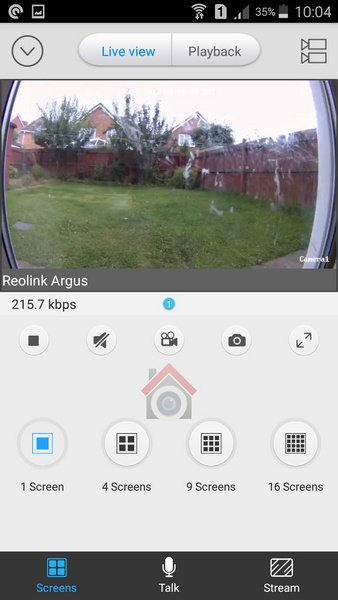
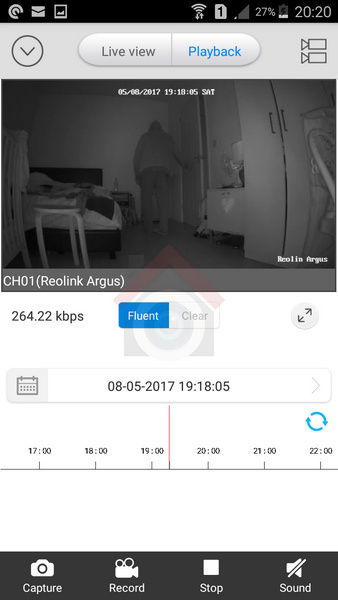

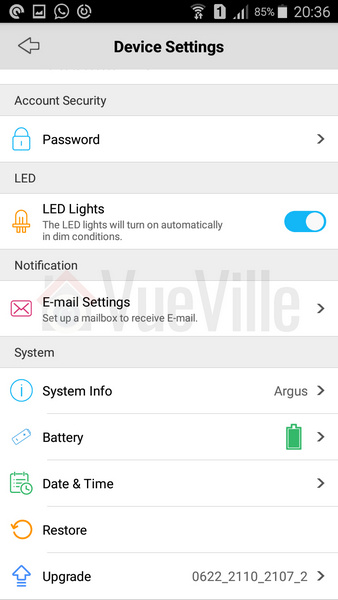
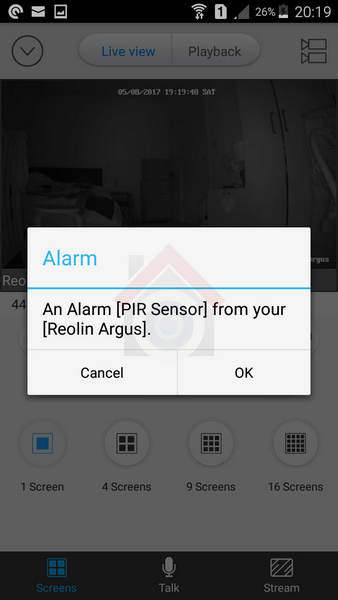
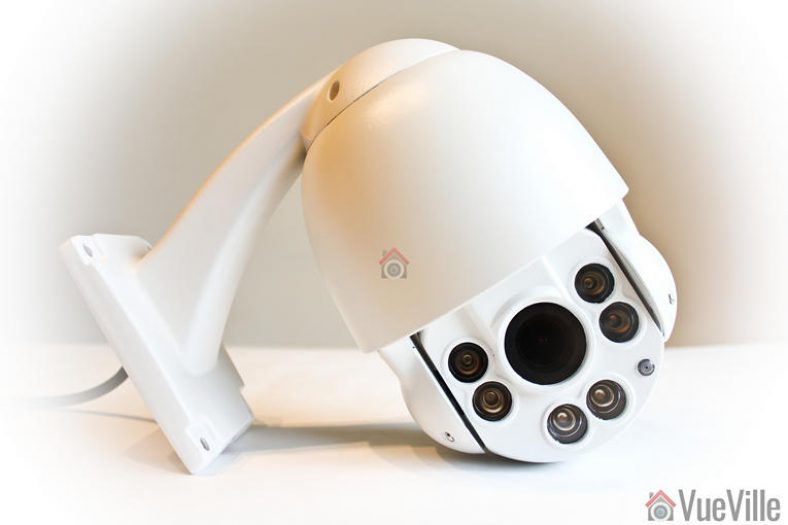
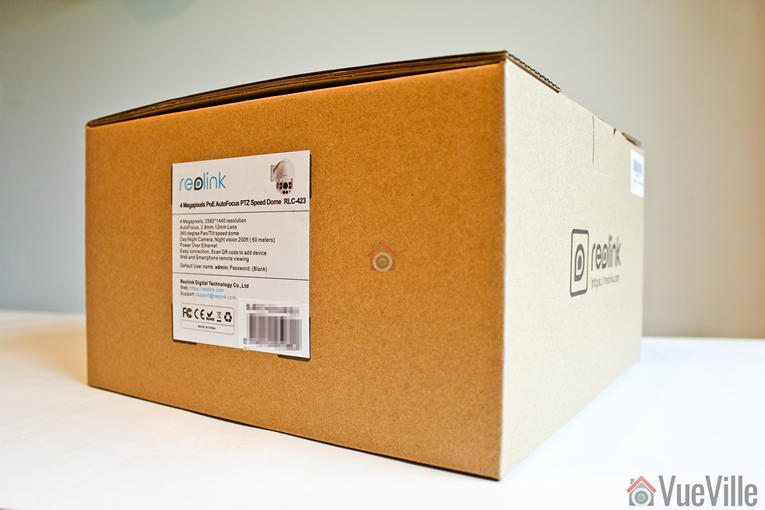
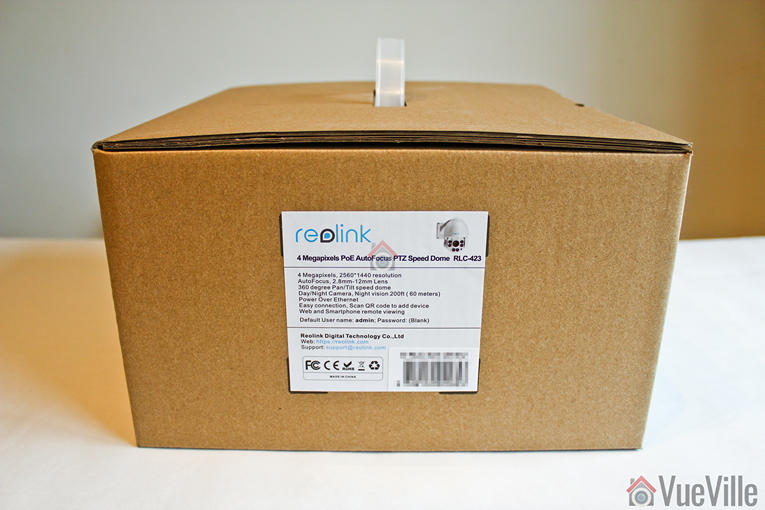
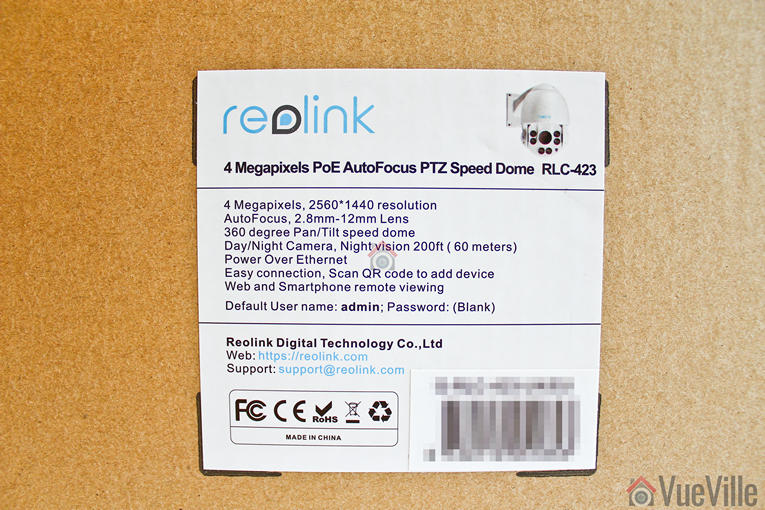

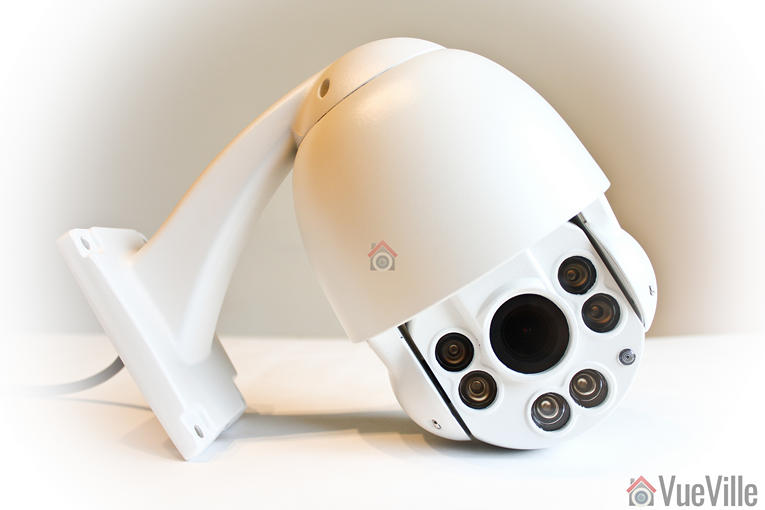
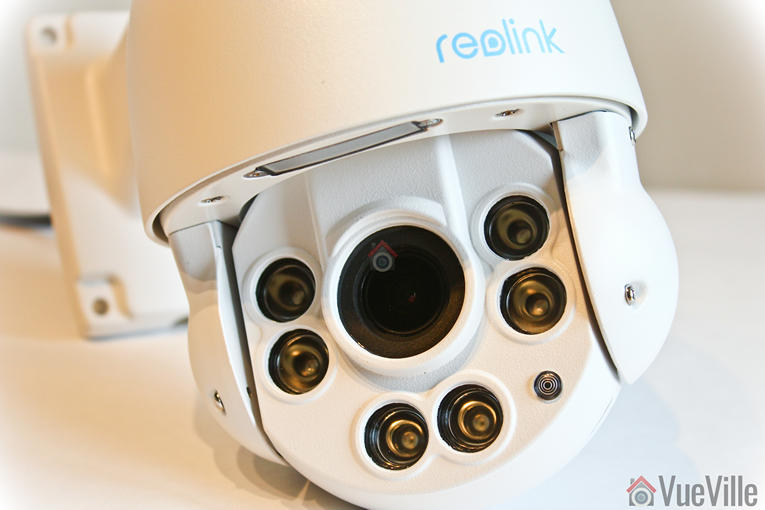

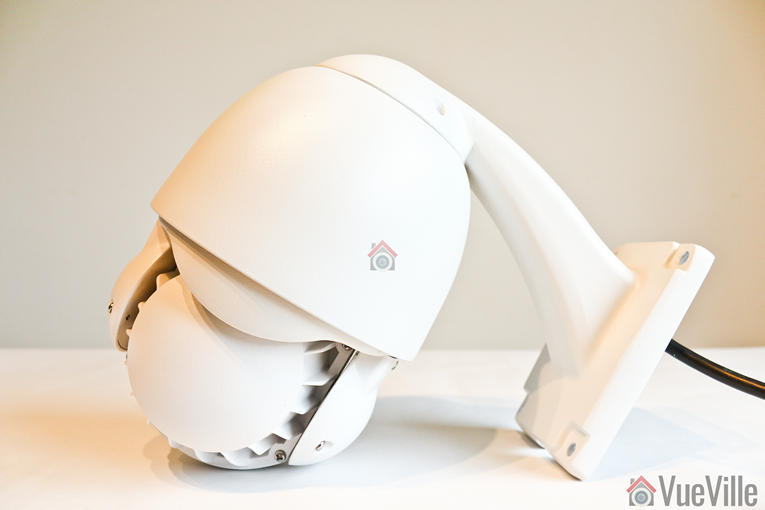


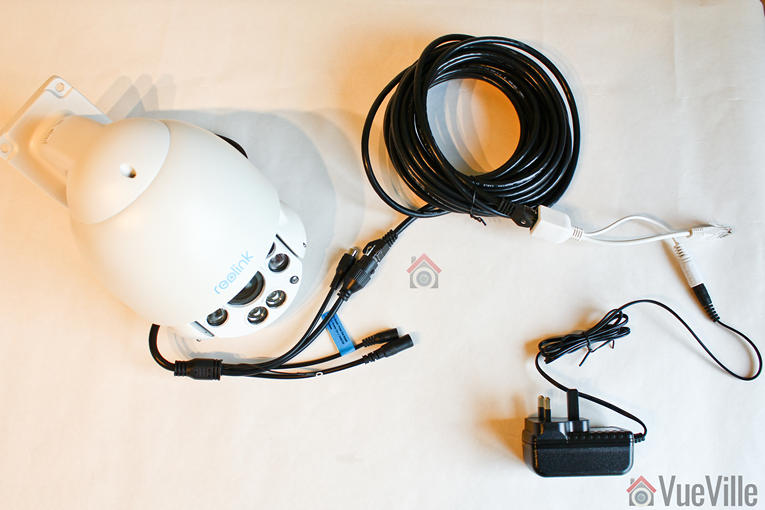

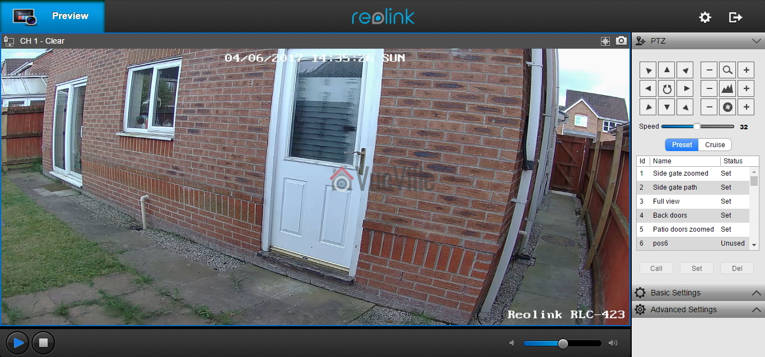


 [/wpsm_tab]
 [/wpsm_tab]
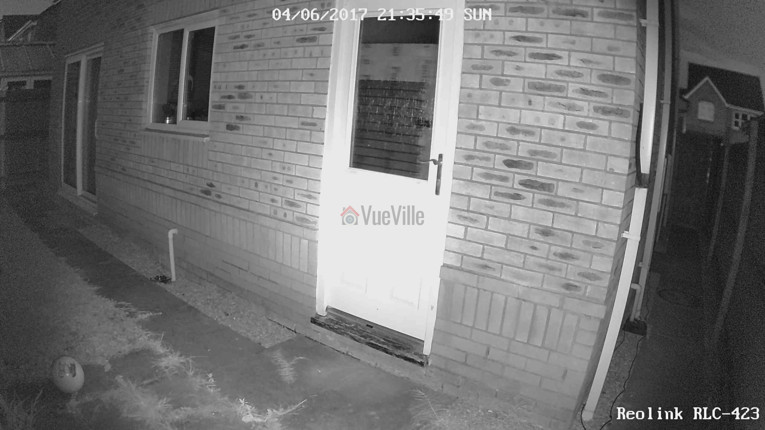 [/wpsm_tab]