Category: Home Automation

  • Hands-on Review: Aeotec Wallmote Quad Remote Control

    Hands-on Review: Aeotec Wallmote Quad Remote Control

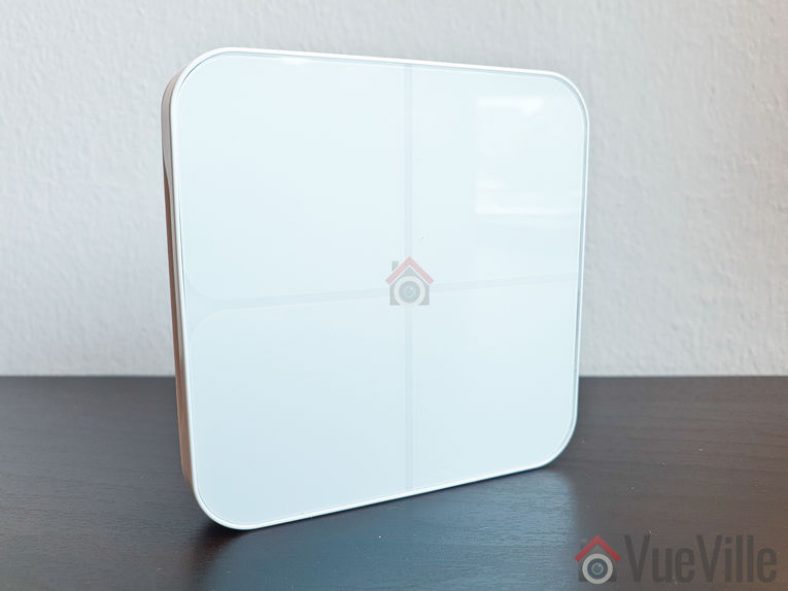
    Review - Aeotec Wallmote Quad - Front View - VueVille

    When you are new to the world of smart homes and home automation, controlling your smart home through your smartphone seems super cool.

    But once the novelty wears off, you might start missing the simplicity of physical switches. Or you may want to change home alarm modes or run scenes with just a single touch of a button, instead of pulling out your smartphone each time.

    After all, a smart home is all about convenience and improving your quality of life.

    That’s where the [easyazon_link identifier=”B01NCEJAOD” locale=”US” tag=”vueville.com-eaz-20″]Aeotec Wallmote Quad[/easyazon_link] comes in.

    [wpsm_titlebox title=”Contents” style=”main”][contents h2][/wpsm_titlebox]

    Aeotec – who are they?

    Aeotec used to belong to Aeon Labs, the company founded in 2006 and based out of Silicon Valley. But that’s no longer the case. Aeotec also have another brand that’s popular in the smart home market – Popp. They also are an OEM for Oomi.

    Un-boxing

    The Aeotec Wallmote Quad is comes in a blue and grey box. As always with Aeotec, the box is no larger than it needs to be and avoids needless plastics and packaging. The front of the box just hsows the Wallmote itself and the rear highlights Z-Wave Gen 5 compatibility and the Z-Wave Plus chipset used. The model number is also mentioned – I got the ZW130-C which is the 868.42 MHz version.

    Review - Aeotec Wallmote Quad - Box Contents - VueVille

    Opening the box yields the Wallmote Quad, a mounting plate for wall mounting , a concise quick start guide, warranty note and a USB cable.

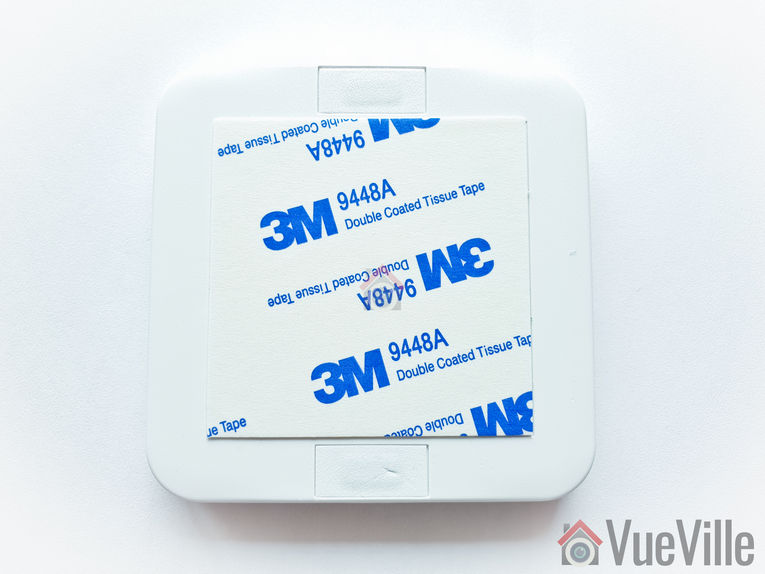
    Here’s what the mounting plate looks like:

    Review - Aeotec Wallmote Quad - Back View 2 - VueVille

    Specifications

    • 4 touch-sensitive button areas
    • Multi-colour RGB LED
    • Sound and haptic feedback (vibration)
    • Model number: ZW130
    • Power supply: Rechargeable lithium battery, 3.7 V, 640mAh
    • Battery charger input: Micro USB port, DC 5V±0.5V, max 1A
    • Operating temperature: 0°C to 40°C
    • Relative humidity: 8% to 80%
    • Operating distance: Up to 394 feet/120 metres outdoors

    Design and Hardware Features

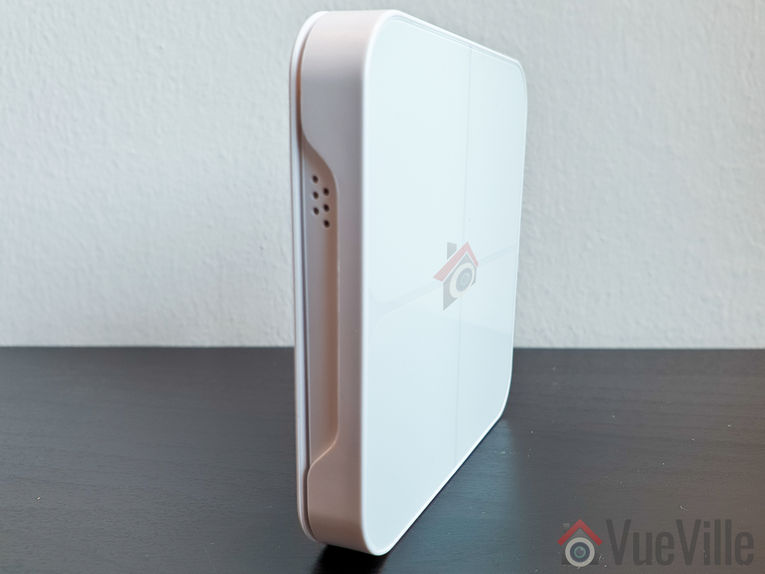
    The Wallmote Quad measures just 7.7cm wide and 1.9cm deep (3.0 x 0.4 inches). The front face of the Wallmote Quad is divided into 4 squares, each representing a button area. An RGB LED separates the four buttons and indicates a successful press along with haptic feedback and a beep sound.

    The four button areas are capacitive, they do not depress and do not need pressure to activate.

    Review - Aeotec Wallmote Quad - Front View 2 - VueVille

    The bottom of the Wallmote has a speaker grill.

    Review - Aeotec Wallmote Quad - Bottom View - VueVille

    The rear of the Wallmote has the Action button, and the micro-USB port for charging the built-in battery.

    Review - Aeotec Wallmote Quad - Back View - VueVille

    Software Features

    OTA Firmware Updates

    The WallMote Quad supports Over The Air (OTA) feature for firmware upgrades. You will need an [easyazon_link identifier=”B00X0AWA6E” locale=”US” tag=”vueville.com-eaz-20″]Aeotec Z-Stick USB controller[/easyazon_link] to use this feature.

    Read: Hands-on review of the Aeotec Z-Stick USB controller.

    Compatibility with HA Software

    My Z-Wave controller software, HomeSeer HS3 supports the Wallmote Quad. Samsung SmartThings doesn’t officially support this remote, but you can make it work by setting up a device handler in the SmartThings IDE.

    How to use the Wallmote Quad

    The Wallmote Quad can be used to control Z-Wave devices or activate scenes by touching, long pressing or sliding any of the four button areas.

    The buttons act as toggle switches when you do a single touch action. Touch once to turn the switch on and touch again to turn the switch off.

    When you activate any of the 4 buttons on the front face, the RGB LED will blink blue to indicate successful transmit and receipt of the command by your HA hub. If the command was not acknowledged by the hub, the LED will blink blue to indicate successful transmit but then blink red once because the command was not acknowledged by the hub.

    If the battery is low, it will just blink orange. Plug in Wallmote with the USB cable and it will glow solid orange indicating that the battery is being charged.

    You can either install the Wallmote in the wall and keep it permanently powered over USB or use it as a portable remote control. This is possible thanks to the 640mAh built-in rechargeable battery.

    Installation and Setup

    Installing the Wallmote Quad

    1. Select a place or wall to install the WallMote Quad.
    2. Clean the surface with a damp towel to remove any dirt or oils present. When the surface has completely dried, peel the tape backing on the mounting plate away and attach it to the surface.
    3. Now simply attach the Wallmote Quad to the backing plate using the built-in magnets. That’s it.

    Pairing the Wallmote Quad

    1. As per the quick start guide, I set HomeSeer HS3 into ‘Inclusion mode’. For this I navigated to Plugins > Z-Wave > Controller Management. Under Actions, I selected ‘Add/Include a Node’ and clicked the Start button.
    2. Then I pushed the ‘Action’ button on the back of the Wallmote Quad.
    3. At first it was solid green for a couple of seconds as per the manual.
    4. It then started flashing orange. HS3 took a minute to set up the Quad and then reported that it had successfully been added to the Z-Wave network.
    5. However the Quad kept flashing orange for some more time before eventually stopping. It did not turn solid green for 2 seconds as the manual said. Nevertheless all the buttons show up in HS3 and work as intended.

    In HomeSeer HS3, I now have four switch devices, four dimmer devices (multi-level switch type), a central scene device , a battery status device and a power management device. The central scene device detects press and hold/release actions.

    My experience over 2 months of daily use

    I tested the Wallmote Quad with an [easyazon_link identifier=”B00X0AWA6E” locale=”US” tag=”vueville.com-eaz-20″]Aeotec Z-Stick Gen5[/easyazon_link] to control my [easyazon_link identifier=”B00VQISQW4″ locale=”US” tag=”vueville.com-eaz-20″]Aeotec LED Bulb 6[/easyazon_link], and an [easyazon_link identifier=”B07PB2HN6D” locale=”US” tag=”vueville.com-eaz-20″]Aeotec Doorbell 6[/easyazon_link].

    Performance

    The Wallmote was quite responsive and never missed any button presses. By this I mean that whenever the Wallmote beeped and lit up and vibrated to indicate a succesfu button press, HS3 always received the command. The delay between a successful button press and a command being executed, such as turning on a light, was instantaneous.

    I used the single press and long press functions. I did not try the sliding gestures, as I don’t see myself using it that way. But if you want to use gestures to simulate a lamp dimmer or fan speed control, you can.

    If there’s one quibble I have with the Wallmote, it is this: if you are using it as a portable remote control device, its difficult to say which way is up just by looking at it. There is a slight recess on the lower side where the speaker grill is, so you either have to feel it out or look at the back to figure out which way is up. A solution exists though – use a marker to write on the buttons. I would rather not do this because the device is so pretty.

    Wireless Range

    My current home is of solid concrete construction and so Z-Wave signals do struggle in general. The mesh network design of Z-Wave networks is how my whole home is reachable with just one Aeotec Z-Stick. Every powered Z-Wave device acts as a repeater.

    So I was able to use the Aeotec Wallmote Quad throughout my home without any issues.

    Battery life

    I charge the wallmote once in 2 weeks on average. This is with light-medium usage (especially as my kids love turning certain scenes on and off).

    Verdict

    [review]

    Where to Buy

    Buy the Aeotec Wallmote Quad from [easyazon_link identifier=”B01NCEJAOD” locale=”US” tag=”vueville.com-eaz-20″]your local Amazon store[/easyazon_link].

  • Review: Aeotec Z-Stick Gen5 Z-Wave USB Controller (ZW090)

    Review: Aeotec Z-Stick Gen5 Z-Wave USB Controller (ZW090)

    If you are planning to build your own DIY Z-Wave gateway with a laptop or Raspberry Pi and home automation software such as HomeSeer HS3, openHAB, Home Assistant or Domoticz, you will need a USB Z-Wave stick/adapter/dongle.

    These USB Z-Wave sticks are not a solution in and of themselves. They are just a tool to enable your Home Automation software to send and receive Z-Wave signals to/from your Z-Wave devices.

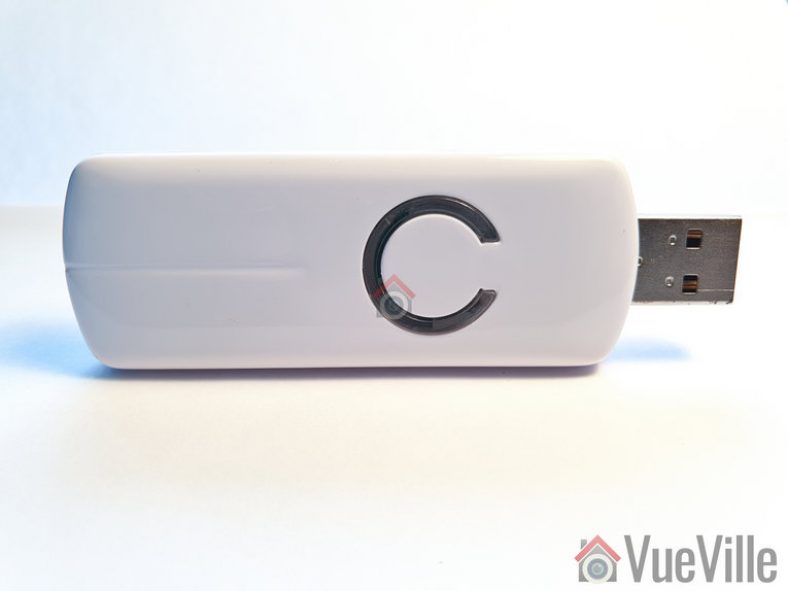
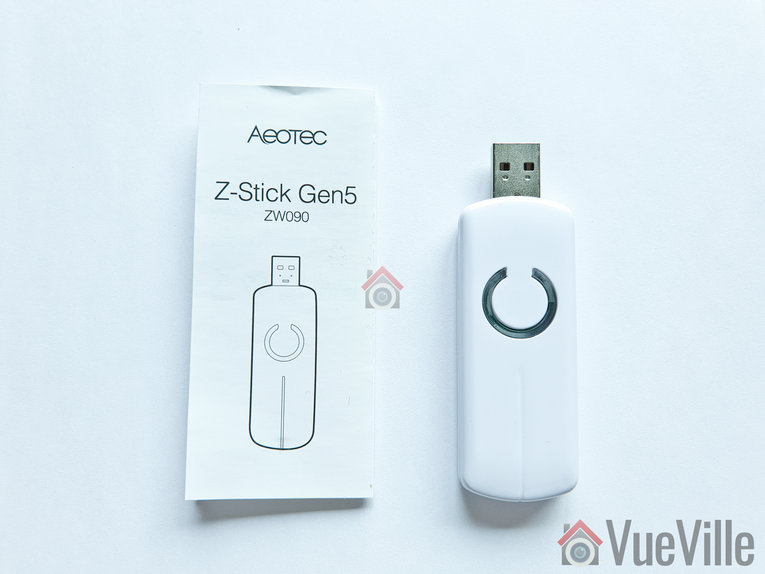
    Review - Aeotec Z-Stick USB Z-Wave Controller - Front View - VueVille

    When I moved from the Vera Plus to HomeSeer, I got an Everspring SA413 USB stick off eBay. The Everspring is actually a ‘Sigma Designs UZB’ and that’s how my HA software, HomeSeer HS3 identifies it too. It served me well all these years and has always been very reliable.

    So when Aeotec kindly sent me the latest model of their [easyazon_link identifier=”B00X0AWA6E” locale=”US” tag=”vueville.com-eaz-20″]Z-Stick Z-Wave Gen5 USB stick[/easyazon_link] which has several innovations such as a built-in rechargeable battery, I was keen to put it through its paces.

    [text-blocks id=”earning-disclaimer”]

    [wpsm_titlebox title=”Contents” style=”main”][contents h2][/wpsm_titlebox]

    Aeotec – who are they?

    Aeotec used to belong to Aeon Labs, the company founded in 2006 and based out of Silicon Valley. But Aeotec no longer belongs to Aeon Labs. They also have another brand that’s popular in the smart home market – Popp.

    Aeotec are also an OEM for other brands such as Oomi.

    Unboxing

    The Aeotec Z-Stick Gen5 comes in an attractive sleek package. It is no larger than it needs to be and avoids needless plastics and packaging.  The front of the box highlights the main features such as the built-in diagnostic tool and the multi-coloured signal strength LED.

    Review - Aeotec Z-Stick USB Z-Wave Controller - Unboxing - VueVille

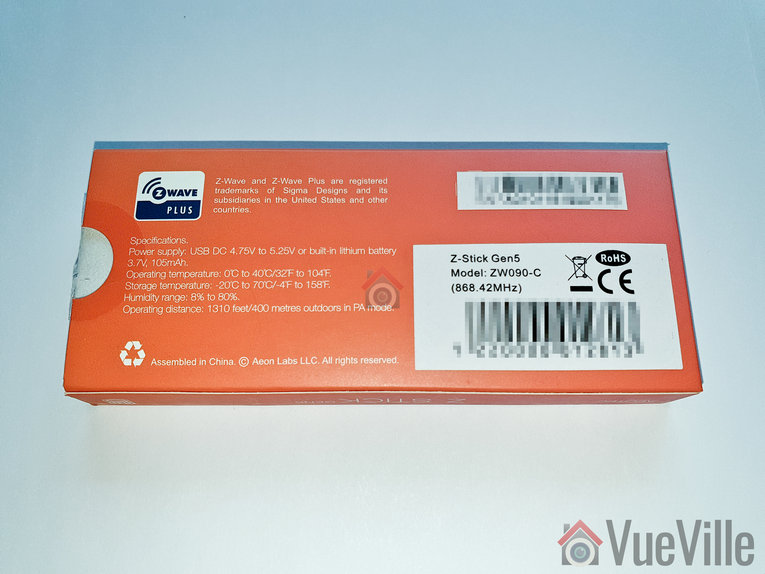
    The rear side lists the specifications and model number of the Z-Stick.

    Review - Aeotec Z-Stick USB Z-Wave Controller - Unboxing Rear - VueVille

    As you can see, the ZW090-C model above is for countries using the Z-Wave frequency 868.4 MHz. This includes Europe and some Asian countries. The ZW090-A model is designed for countries using the 908.42 MHz Z-Wave frequency such as the USA.

    Opening the box yields the Z-Stick and a concise quick start guide.

    Review - Aeotec Z-Stick USB Z-Wave Controller - Box Contents - VueVille

    Specifications

    • Z-Wave Gen5 chipset
    • Brand Name: Aeotec
    • Product Identifier: ZW090-C
    • Z-Wave hardware platform: ZM5101
    • Z-Wave Plus Version: 1
    • AES-128 bit encryption
    • Can control up to 232 Z-Wave devices
    • Over the air firmware updates for Z-Wave devices
    • Built-in Z-Wave network diagnostic tool
    • Z-Wave signal strength LED
    • Power Supply: USB DC 4.75V to 5.25V;
    • Built-in rechargeable lithium battery 3.7V, 105mAh, 15 days backup power
    • Max Standby Current: 30uA
    • Max Operating Current: 98mA in PA mode or 40mA in normal mode
    • Operating Temperature: 0 to 40°C
    • Storage Temperature: -20 to 70°C
    • Operating Distance: Up to 492 feet/150 metres outdoors in normal mode, 1310 feet/400 metres outdoors in PA mode.

    Design and Hardware Features

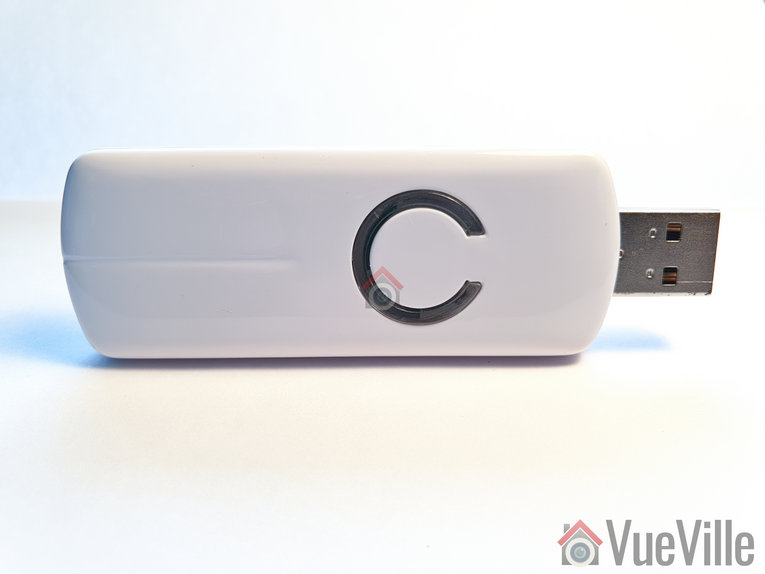
    The Z-Stick Gen 5 differentiates itself visually with the unique LED on its top face which surround the action button. According to the manual, the LED behaves differently depending on what you are doing:

    • When you press the Action button, the LED blinks blue slowly
    • When you are including a device to your Z-Wave network, it will blink blue fast during discovery and stay solid on successful inclusion
    • When you remove a device from your Z-Wave network, the LED will blink orange
    • Troubleshooting network issues

    Review - Aeotec Z-Stick USB Z-Wave Controller - Front View - VueVille
    In my experience with HomeSeer HS3, the LED has done only two things though: cycle through red, blue and amber all the time, and turn solid red if a Z-Wave command failed to reach a device.

    The bottom of the Z-Stick has a physical reset button.

    Review - Aeotec Z-Stick USB Z-Wave Controller - Back View - VueVille

    Software Features

    Z-Wave features

    The Aeotec Z-Stick is a self-powered Z-Wave USB adapter with remote network creation capabilities. This means it can function independent of external power and a host system such as a computer. This is all thanks to the 105mAh built-in rechargeable battery.

    Being able to remotely include or remove Z-Wave devices greatly simplifies Z-Wave network installation. For devices that are far away from your main controller, you can unplug the Z-Stick from USB and take it to the device that you want to include.

    Z-Wave network troubleshooting

    • In Serial API Mode and acting as a primary controller, it can measure the network health for each device in the network – the colour indicating the signal quality between the Z-Stick Controller and devices in the network.
    • When the Z-Stick acts an independent/secondary controller that has been unplugged from USB, it can measure the health of your Z-Wave network. The LED colour indicates the communication quality between the Central Controller and the current location of Z-Stick in the network. This is great for troubleshooting your device and is why it has a battery built-in.

    OTA Firmware Updates

    One of the reasons you may want to get the Z-Stick is to update the firmware of other devices such as the [easyazon_link identifier=”B0151Z8ZQY” locale=”US” tag=”vueville.com-eaz-20″]Aeotec Multisensor 6[/easyazon_link].

    Compatibility with HA Software

    HomeSeer HS3 natively supports Aeotec Z-Stick and has a specific selection for it in the Z-Wave interfaces list. Moreover Aeotec has tested and confirmed compatibility of the Z-Stick with HS3, InControl and Indigo7. The openHAB and Home Assistant community have developed plugins to allow the Z-Stick to work with their software too.

    Installation and Setup

    The Z-Stick works in 3 different modes:  Inclusion-Mode (standalone), Removal-Mode (standalone) and Serial API Mode (plugged into USB of your HA gateway).

    In the following setup process, I had the Z-Stick plugged into my HA laptop running HomeSeer HS3 all the time i.e. in Serial API mode.

    Setting up the Z-Stick with HomeSeer HS3

    As I have just moved home, I wanted to set up my home automation system again from scratch. This meant a fresh install of HomeSeer HS3 – what better time to test a new Z-Wave USB stick!

    So after installing HS3, I activated the official Z-Wave plugin. I then plugged in the Z-Stick into a USB3.0 Hub. Windows recognized the Z-Stick immediately and assigned the COM-3 port to it. The COM port number Windows assigns depends on the USB port you lug the Z-Stick into. So if you switch USB ports, that will be why your HA software can’t find the Z-Wave dongle any more.

    Now as we saw earlier, HS3 fully supports the Aeotec Z-Stick so setting it up was a breeze.

    I clicked ‘Add a Z-Wave Interface’, gave it a name, selected the Z-Stick from the drop-down menu and selected the only COM port shown – COM3.

    Review - Aeotec Z-Stick USB Z-Wave Controller - Setup 1 - VueVille

    On clicking the ‘Add’ button, HS3 started initializing the Z-Stick.

    Review - Aeotec Z-Stick USB Z-Wave Controller - Setup 2 - VueVille

    After a few seconds, HS3 displayed a success message. I clicked on the activate interface green tick box and setup was complete!

    Review - Aeotec Z-Stick USB Z-Wave Controller - Setup 3 - VueVille

    Now I expected the flashing red, blue and amber LEDs on the Z-Stick would then become a solid green or at least stop flashing. But they didn’t.

    I couldn’t find any reference to this in the user manual, so I asked Aeotec. They replied that this flashing behaviour of the LED indicates normal operation. Also, if the Z-Stick is under heavy load, the LED will flicker between 2 different LED colors rapidly. This is potentially useful if you have a large Z-Wave network with hundreds of devices that need polling.

    In my testing, the LED also became solid red momentarily if a Z-Wave command was sent to a Z-Wave device but it didn’t respond.

    But the good news is that you can switch off the LEDs quite easily using either an official Aeotec tool or using Domoticz.

    Pairing the Aeotec LED Bulb 6

    I tested the Z-Stick by adding an [easyazon_link identifier=”B00VQISQW4″ locale=”US” tag=”vueville.com-eaz-20″]Aeotec LED Bulb 6[/easyazon_link] to my Z-Wave network. These are the steps I took:

    1. As per the quick start guide, I inserted the LED Bulb 6 into a table lamp.
    2. I then had to set HS3 into ‘Inclusion mode’. For this I navigated to Plugins > Z-Wave > Controller Management. Under Actions, I selected ‘Add/Include a Node’ and clicked the Start button.
    3. I turned on the power to the LED Bulb 6. It turned solid yellow for a few seconds and then did a colour dance, flashing rapidly between white and green. At the same time I could see that HS3 had added the LED Bulb 6 as a new node. Then the bulb turned solid yellow again.
    4. As per the manual, the bulb had been successfully included in my Z-Wave network.

    Performance

    I tested the Z-Stick Gen5 extensively with the [easyazon_link identifier=”B00VQISQW4″ locale=”US” tag=”vueville.com-eaz-20″]Aeotec LED Bulb 6[/easyazon_link], an [easyazon_link identifier=”B01NCEJAOD” locale=”US” tag=”vueville.com-eaz-20″]Aeotec Wallmote Quad[/easyazon_link], and an [easyazon_link identifier=”B07PB2HN6D” locale=”US” tag=”vueville.com-eaz-20″]Aeotec Doorbell 6[/easyazon_link].

    Wireless Range

    The Z-Stick has very good range is and comparable to the Everspring SA-413 I was previously using. My current home is of solid concrete construction and the Z-Wave signal could penetrate 2 solid concrete walls successfully. The mesh network design of Z-Wave networks is how my whole home is reachable with just one Z-Wave controller. Every powered Z-Wave device acts as a repeater.

    Responsiveness and Reliability

    I observed no noticeable delays or issues during the course of testing.

    Compatibility

    All the Z-Wave devices I used were successfully included and there were no compatibility issues at all.

    Verdict

    [review]

    Where to Buy

    Buy the Aeotec Z-Stick Gen 5 from [easyazon_link identifier=”B00X0AWA6E” locale=”US” tag=”vueville.com-eaz-20″]your local Amazon store[/easyazon_link].

    Alternatives

    [easyazon_link identifier=”B00VKEH1BQ” locale=”US” tag=”vueville.com-eaz-20″]Z-Wave.me USB Stick[/easyazon_link]
    [easyazon_link identifier=”B01GJ826F8″ locale=”US” tag=”vueville.com-eaz-20″]GoControl Z-Wave/Zigbee USB Stick[/easyazon_link]
    [easyazon_link identifier=”B07QMP1Y6G” locale=”US” tag=”vueville.com-eaz-20″]HomeSeer SmartStick+[/easyazon_link]
    [easyazon_link identifier=”B07GNZ56BK” locale=”US” tag=”vueville.com-eaz-20″]Zooz USB Stick ZST10[/easyazon_link]

  • Hands-on Review: Ambi Climate 2 – AI Enhanced Smart AC Controller

    Hands-on Review: Ambi Climate 2 – AI Enhanced Smart AC Controller

    For the longest time, I have been struggling to find a way to automate my split AC units. My home doesn’t have central air conditioning and so has split AC units in each room.

    While I have been able to automate everything else, I just couldn’t find a way to do anything other than turn on and off my split units. So I was very excited to learn about the Ambi Climate unit when it was announced on Kickstarter.

    Ambi has kindly provided me the new and improved Ambi Climate 2 for review and I have been putting it through its paces. I tested it extensively with my [easyazon_link identifier=”B07DY92WXG” locale=”US” tag=”vueville.com-eaz-20″]Daikin split units[/easyazon_link] and read on to find out how it fared.

    [wpsm_titlebox title=”Contents” style=”main”][contents h2 h3][/wpsm_titlebox]

    A quick note: As an Amazon Associate I earn from qualifying purchases. This post contains affiliate link(s). An affiliate link means I may earn advertising or referral fees if you make a purchase through my link, at no extra cost to you.

    So what is the Ambi Climate?

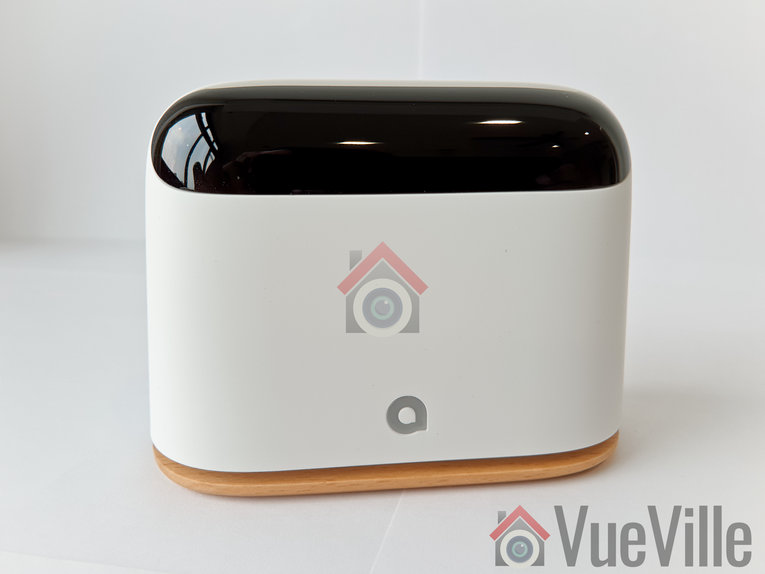
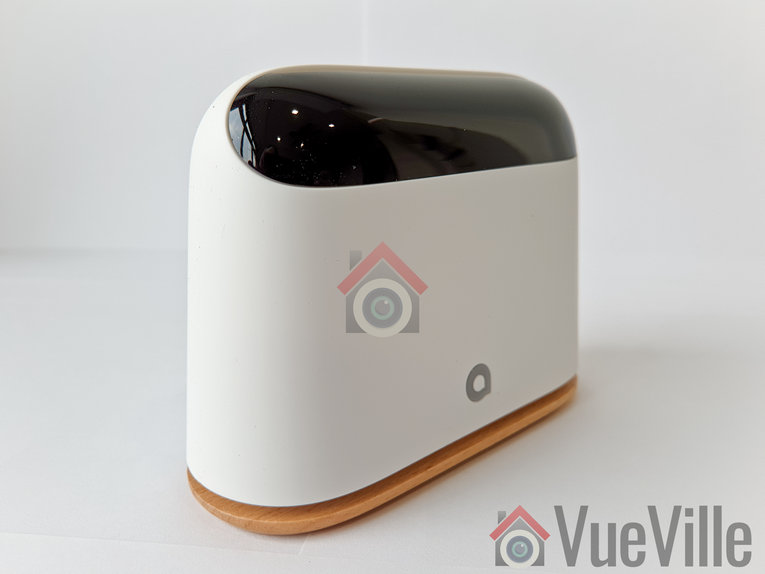
    Ambi Climate Review - Iso View - VueVille

    Think of the Ambi Climate device as an AI powered Infrared AC controller. If you don’t have a spanking new [easyazon_link identifier=”B076BW5SG3″ locale=”US” tag=”vueville.com-eaz-20″]smart AC unit with Wi-Fi[/easyazon_link], this is one of the few ways to integrate your existing ‘dumb’ AC units into your smart home system.

    The Ambi Climate 2 also works with Amazon Alexa, Google Assistant and Google Home. So you could just say:

    • “Alexa tell Ambi Climate I’m cold” or
    • “Alexa, ask Ambi the temperature in Kitchen” or
    • “Hey Google, tell Ambi Climate it’s cold in Study”.

    Unboxing

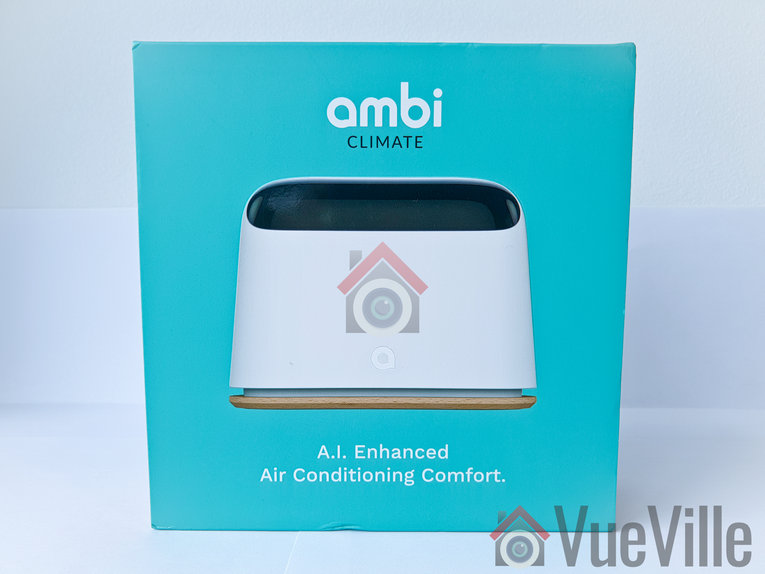
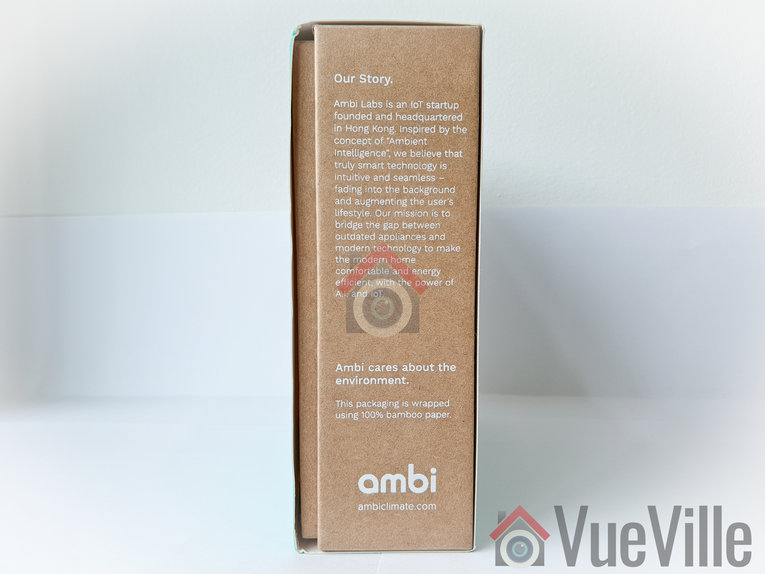
    The Ambi Climate comes in a very smart packaging that tells the story of how this clever little device came to be.

    Ambi Climate - Unboxing - VueVille

    Ambi Climate - Unboxing - VueVille

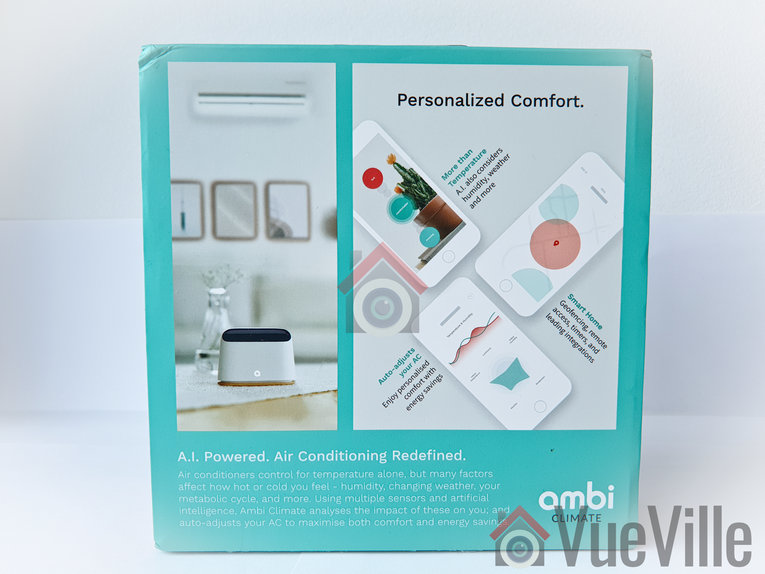
    The package highlights the AI-powered features.

    Ambi Climate - Unboxing - VueVille

    Ambi Climate - Unboxing - VueVille

    Opening up the box yields a well-protected Ambi Climate 2 inside. There is a quick step-by-step process printed just above the unit which is very thoughtful.

    Ambi Climate - Unboxing - VueVille

    The box contents are:

    • Ambi Climate 2 device
    • USB power adaptor
    • microUSB cable
    • Quick start guide
    Ambi Climate 2 - Box Contents - VueVille

    Specifications

    • Wi-Fi support: 802.11b, 802.11g, and 802.11n-24
    • Dimensions: 10.8cm x 4.2cm x 8.1cm
    • Weight: 110 grams
    • Power: 5V DC, 1.0A via micro USB power cable
    • Transmission: 7 infrared transmitters for AC connection
    • RGB status LED
    • Languages supported: English, Traditional Chinese, Simplified Chinese, Japanese, Arabic
    • Requirements: Broadband internet connection with Wi-Fi network, 2.4 GHz
    • App compatibility: iOS: Version 9 or later; Compatible with iPod touch, iPhone and iPad, Android: Version 4.1 or later
    • Supports most infrared remote-controlled ACs, including over 50 brands and 1,200 models
    • Alexa, Google Assistant, Google Home and Homebridge plugin for Apple Homekit
    • IFTTT & Open API for home automation

    Design & Features

    The Ambi Climate 2 has modern sleek looks. The base is made of wood which is a nice touch and a nod to its green credentials. The blacked out top part houses the 7 Infrared emitters that send controls to your AC.

    Ambi Climate Review - Front View - VueVille

    Ambi Climate Review - Iso View - VueVille

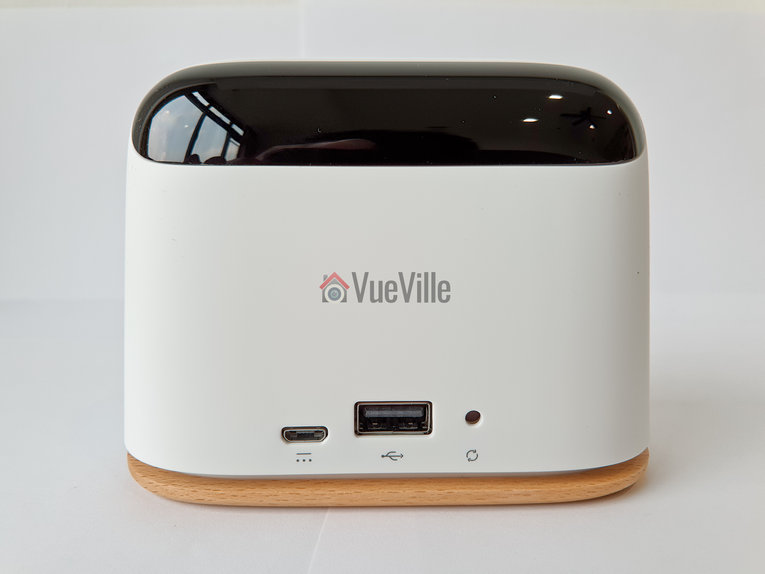
    One the read, you will find the microUSB input for power, a USB port for debugging and a reset button. Sadly there is no Ethernet port provided, so you will have to rely on Wi-Fi.

    Ambi Climate Review - Rear View - VueVille

    Ambi Climate Review - Bottom View - VueVille

    Here’s a video that explains how the AI of this unit works:
    https://www.youtube.com/watch?v=HnhSGdNM7UI

    The other interesting features of the Ambi are:

    • Geolocation – Ambi Climate’s geolocation features allows you to automatically switch on and off your air conditioner or heat pump based on the the location of your phone relative to location of your device.
    • Timers – You can set up to 20 timers that will turn on or off your AC at specified times of the day.


    Ambi Climate App Setup

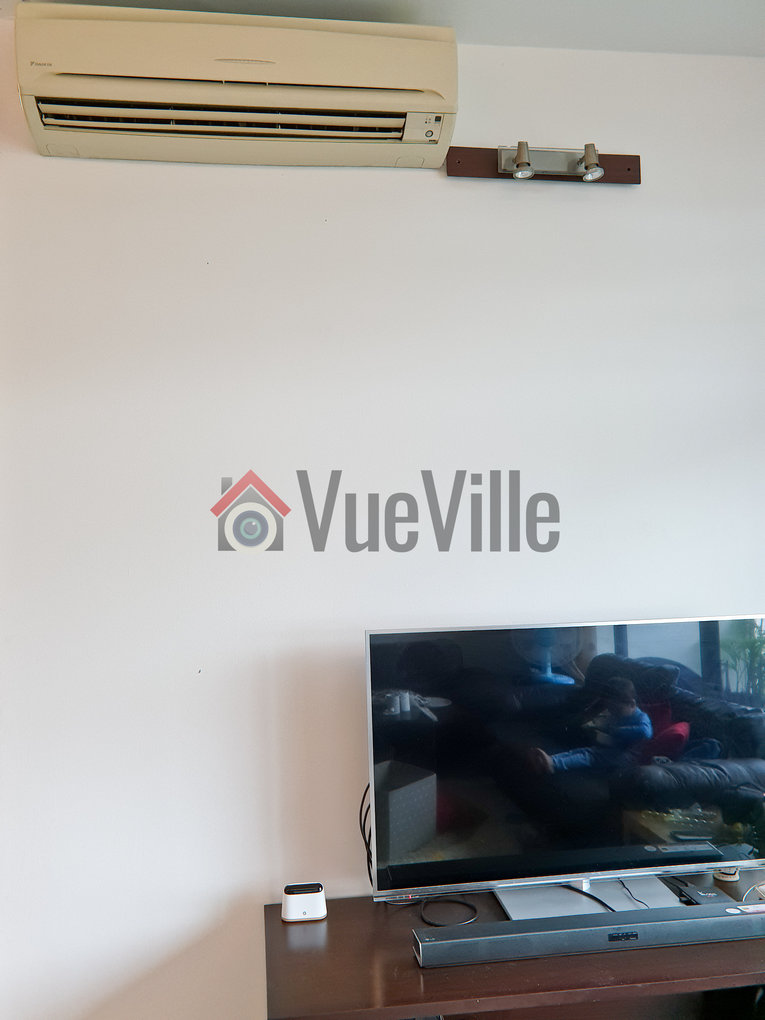
    I positioned the Ambi unit under my living room split AC unit.

    Ambi Climate Review - Setup - VueVille

    I plugged the Ambi unit into an AC socket and immediately heard a beep. The Ambi logo on the front started blinking orange. At the same time I noticed a new Wi-Fi network created by the Ambi device popped up in my laptop’s wireless network scan.

    Ambi Climate Review - Setup - VueVille

    As per the quick start guide, I then installed the Ambi Climate app from the Google Play Store on my [easyazon_link identifier=”B079H6RLKQ” locale=”US” tag=”vueville.com-eaz-20″]Samsung Galaxy S9[/easyazon_link].

    On opening the app, there were three options, Login, Sign up and Demo.

    Ambi Climate Review - App Setup - VueVille

    After signing up and verifying my email address, I was able to login.


    Ambi Climate Review - App Setup - VueVille

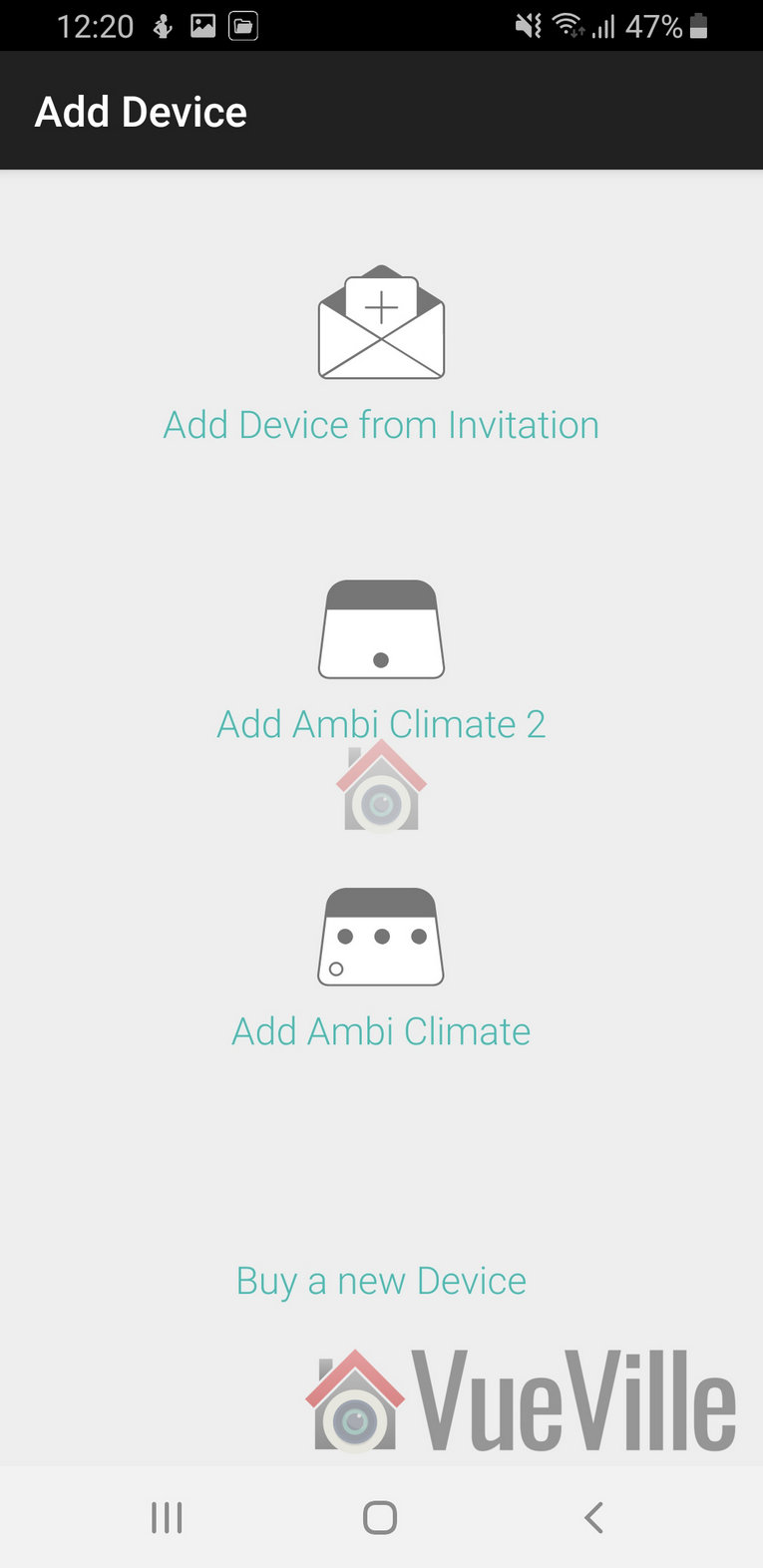
    It then gave me 4 options to add a device: Add device from invitation, Add Ambi Climate 2, Add Ambi Climate, and Buy a new device.

    Ambi Climate Review - App Setup - VueVille

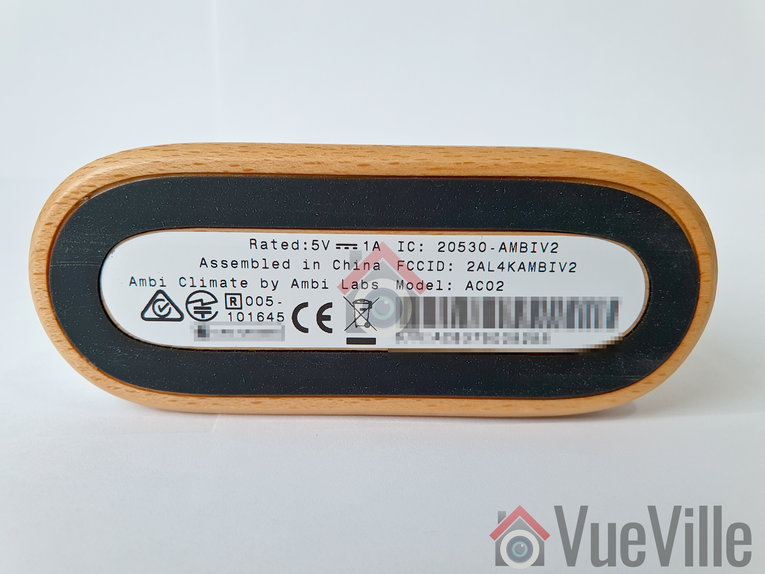
    From the icons, I selected the Ambi Climate 2 option. It doesn’t actually mention this anywhere on the packaging or the unit itself. The only hint is the AC02 model number on the underside of the device.

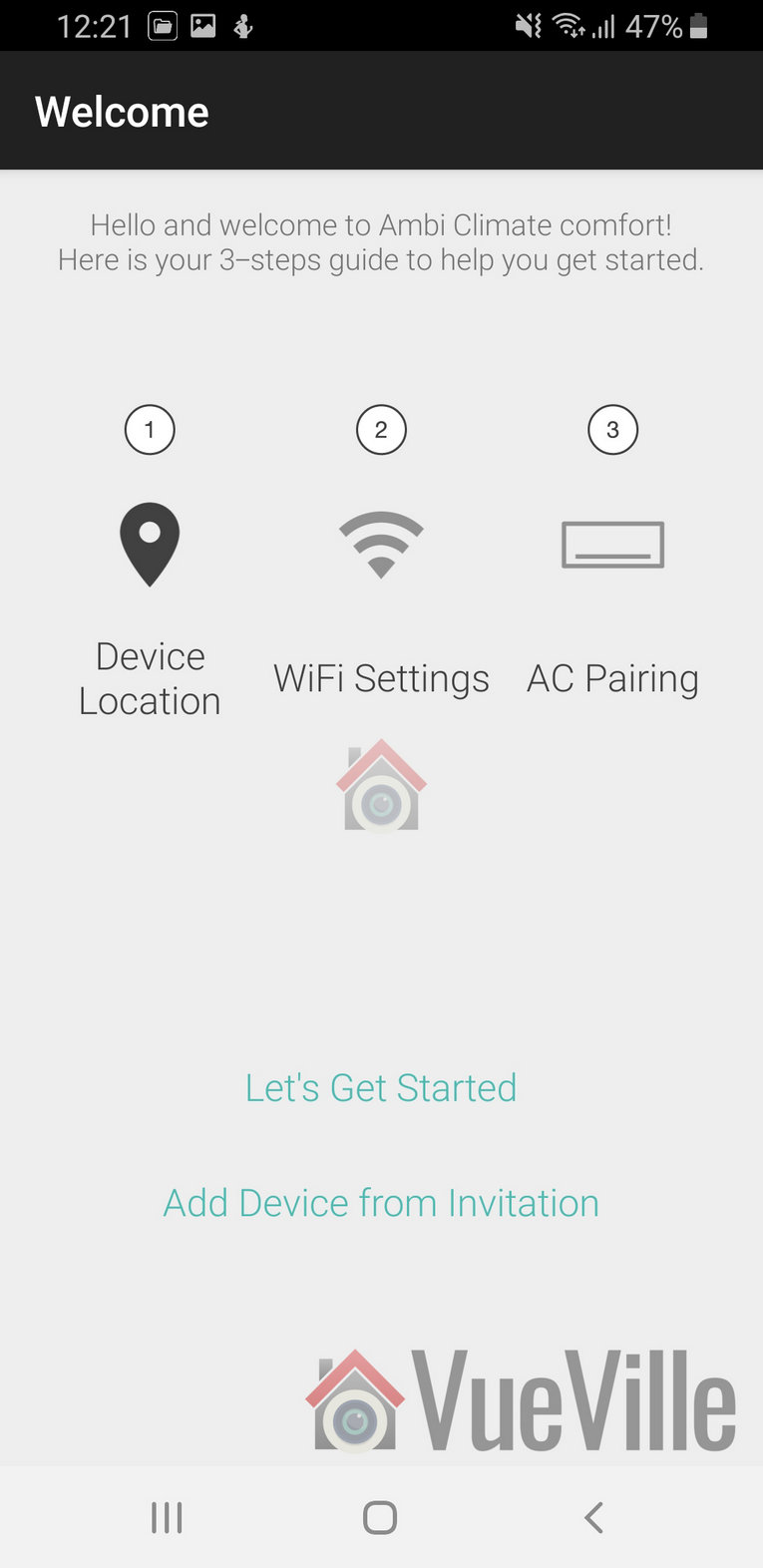
    This then started a 3 step wizard:

    Ambi Climate Review - App Setup - VueVille

    And I pressed ‘Lets get started’.

    Step 1: Location

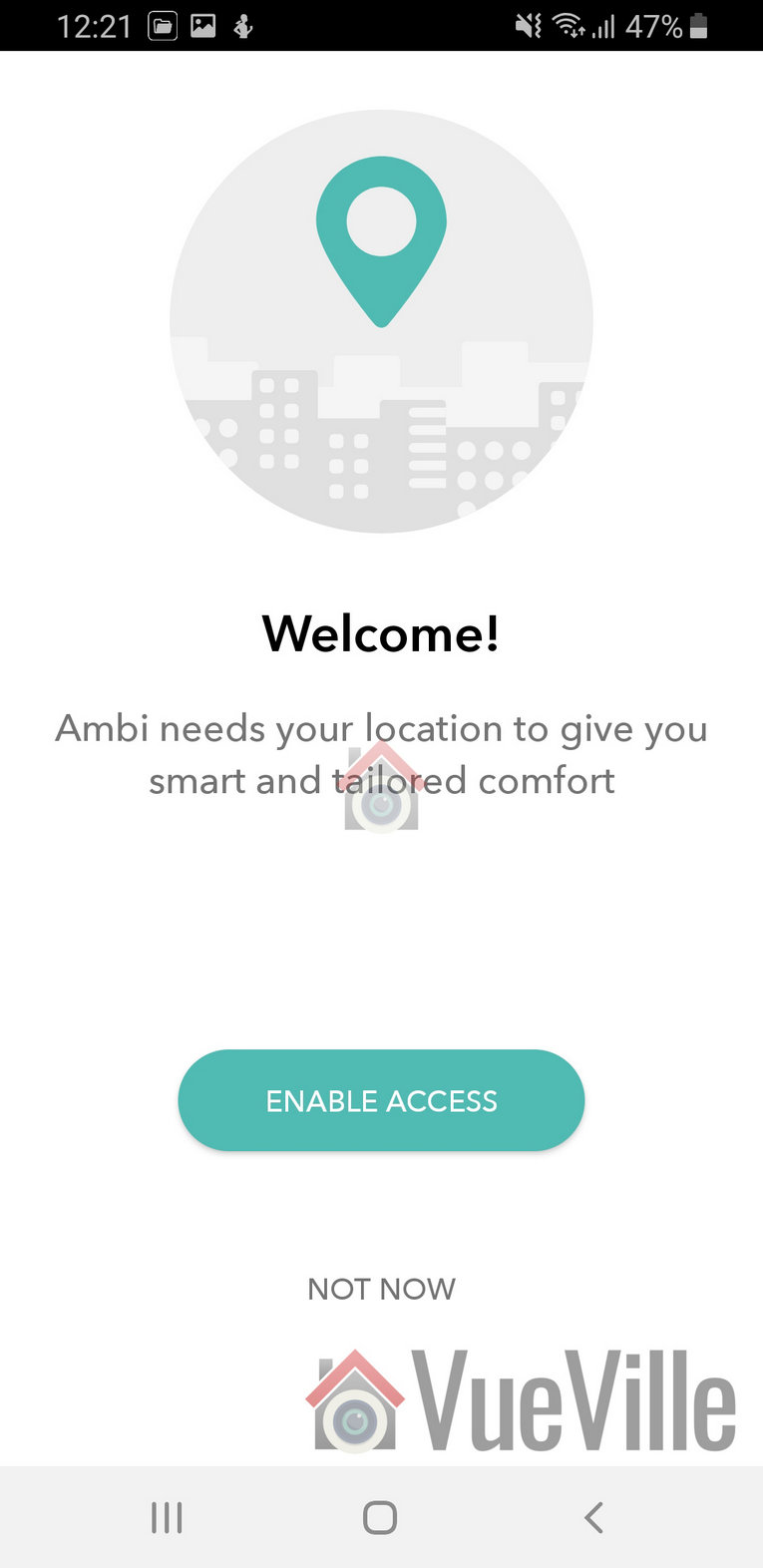
    • Ambi then said it needs my location to give me “smart and tailored comfort”. I wanted to review the standard workflow of the app, so I clicked enable access.
      Ambi Climate Review - App Setup - VueVille
    • The app then asked me to confirm my location on a map, which I was not happy to but did anyway for the sake of the review.
    • I then named the room where the Ambi Climate 2 is kept.

    Step 2: Wi-Fi

    • First it asked me to disconnect my phone from my home Wi-Fi and connect to the Ambi’s own Wi-Fi network
    • Then it asked me to enter my home Wi-Fi password
    • It then connected to the cloud and after 2 minutes confirmed the connection of the Ambi to my home Wi-Fi.

    Step 3 – AC Pairing

    Ambi Climate Review - AC Setup - VueVille

    I selected my remote model, confirmed the AC settings options and this step was complete.

    Ambi Climate Review - AC Setup - VueVille

    Ambi Climate App Review

    The app home screen lets you switch between rooms, see the temperature and humidity in each room and what the Ambi thinks the current climate is like (too warm / too cold / just right).

    Ambi Climate Review - App Review - VueVille

    The app home screen is functional but was not exactly what I expected. As you can see above, the font size was a bit too small for my liking.

    You can adjust the mode to change how the AI works:

    • Comfort mode
    • Temperature mode
    • Away mode
    • Manual mode
    • Off mode
    Ambi Climate Review - App Review - Comfort Mode - VueVille

    The comfort mode is the smart AI mode that will learn your preferences and automatically control the AC settings.

    Ambi Climate Review - App Review - Temp Mode - VueVille

    The temperature mode allow you to manually set the desired temperature and it will control the AC to achieve the target temperature.

    Ambi Climate Review - App Review - Away Mode - VueVille

    Going on holiday and want to prevent heat and humidity build-up and mold? The Away mode lets you do just that.

    You can switch of the AC by selecting Off from the lower right hand corner of the main interface of the app.

    Looking at the settings screen, there are two tabs: AC controls and AI controls. The AC controls section allows you to set what the AI mode can adjust by itself.

    Ambi Climate Review - App Review - AC Controls - VueVille

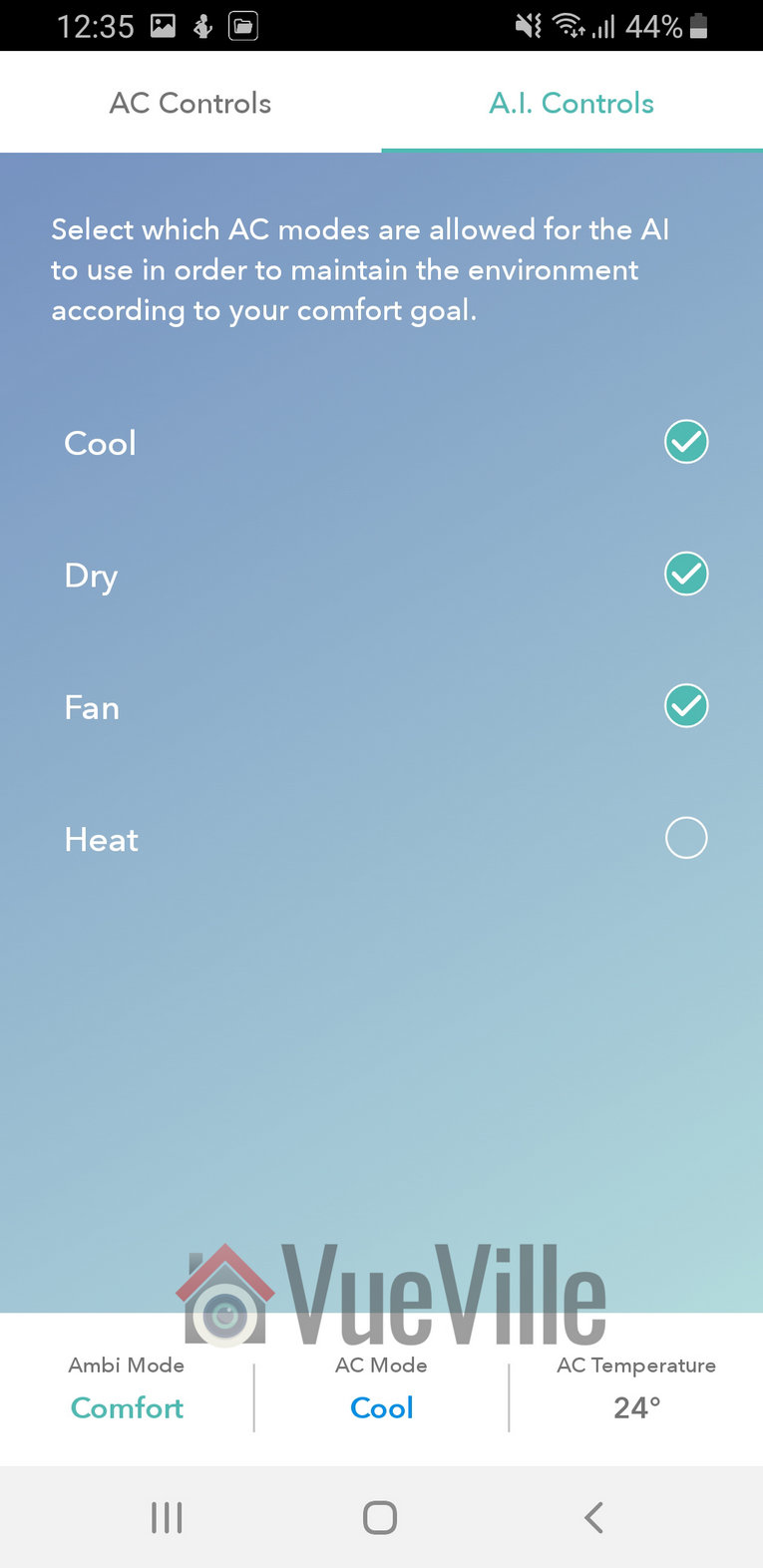
    The AI controls tab lets you define what AC modes the AI is allowed to use to maintain what it thinks is a climate you like in your home.

    Ambi Climate Review - App Review - AI Controls - VueVille

    Smart Home Integration

    Thankfully, the Ambi Climate 2 has an API available. This lets us DIY smart home enthusiasts integrate it into our existing home automation system.

    AC Control

    I had a strange issue where the Ambi Climate 2 would respond not just to my DaikinAC’re remote control but also to my Panasonic TV’s remote control. There are two solutions to this: move the unit to some place away from your TV or ask Ambi to disable the IR sensor on the device (through a support request).

    I chose to move the unit to a place it couldn’t detect my TV remote control. I am just too used to being able to control the AC with its remote control. I can’t imaging pulling up the app on my phone every time I want to adjust something.

    Verdict

    [review]

    I would have liked to see a few more features – air quality measurement (at least dust particles and CO2), an Ethernet port, and an option for full local control and data storage. I do not like putting my data on the cloud – I value my privacy too much for that.

    While its too early to tell how much power savings the Ambi Climate 2 actually delivers, I can see some encouraging signs:

    • It seems to more proactively adjust the temperature settings in response to changing room conditions.
    • It also know what the humidity level is and takes that into account.

    Whether it actually saves me money or not, there’s a super good reason to use the Ambi Climate 2. You can now control your AC split unit via your smartphone! So you can turn it on even when you are not at home, or switch it off if you left home and forgot to!

    Where to Buy

    [easyazon_link identifier=”B076BCPJP4″ locale=”US” tag=”vueville.com-eaz-20″]Check Price on your local Amazon site[/easyazon_link]

    (* = affiliate link / image source: Amazon Associates Program)

  • Hands-on Review: Neo Coolcam Z-Wave Motion Sensor

    Hands-on Review: Neo Coolcam Z-Wave Motion Sensor

    Z-Wave motion sensors are not exactly cheap, are they? While the sensors from Fibaro and Aeotec are great products which are very reliable, the costs do add up when you need more than a few of them. That’s where the Neo Coolcam Z-Wave Motion Sensor comes in.

    Neo Coolcam has recently started competing aggressively with the established players and their main selling point is the super-attractive price. But have corners been cut? Are they reliable? Is the battery life any good? Let’s find out in this hands-on review.

    [wpsm_titlebox title=”Contents” style=”main”][contents h2][/wpsm_titlebox]

    What gear do you need to use this motion sensor?

    This motion sensor is based on Z-Wave technology and intended to work with a Z-Wave based smart home hub.

    So you need a Z-Wave hub/controller such as a Vera Plus or HomeSeer HomeTroller Sel that acts as the smart hub to use this sensor. This is the right way of building a smart home that you can upgrade and enhance as you wish, instead of getting stuck with things that work only with the manufacturer’s other devices or an internet-reliant smart speaker like Alexa.

    Unboxing

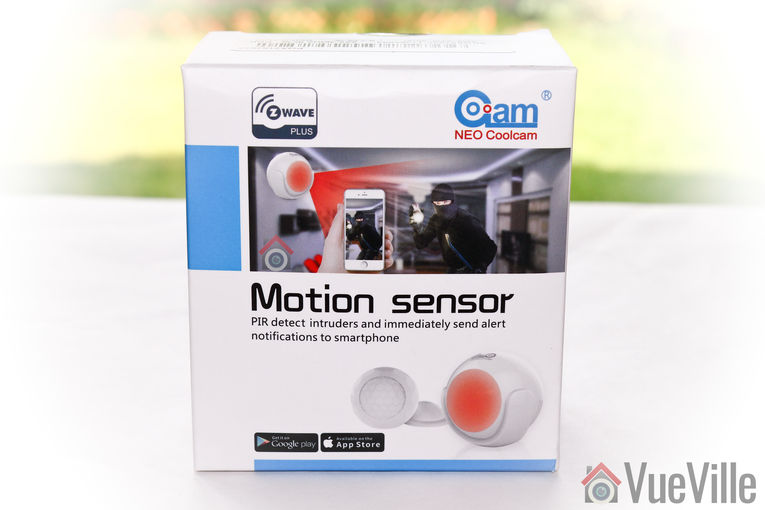
    Just like the Neo Coolcam Door/Window sensor we reviewed recently, the Neo Coolcam Motion Sensor also comes in a smart package with a modern design. The Z-Wave Plus logo is once again prominently featured at the top left.

    Neo Coolcam Motion Sensor - Box front - VueVille

    The back of the box lists the main specifications of the motion sensor.

    Neo Coolcam Motion Sensor - Box rear - VueVille

    Neo Coolcam Motion Sensor - Box contents - VueVille

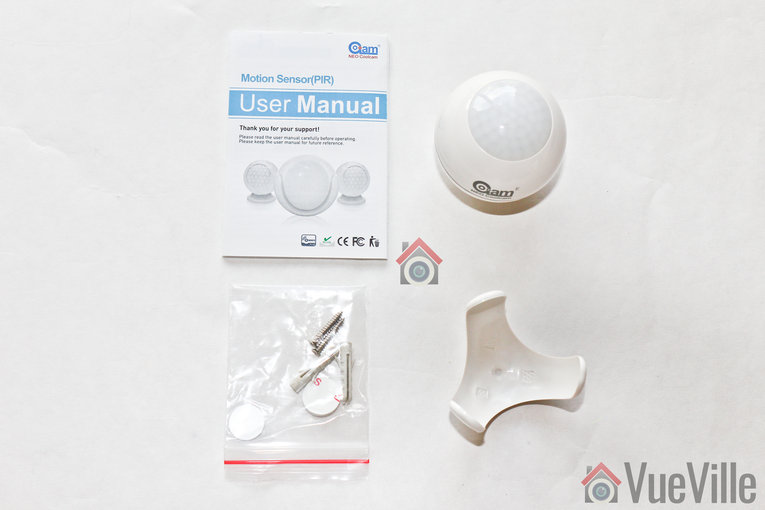
    Opening the box, we find the following:

    • Motion sensor with 1xCR2-3V battery pre-installed
    • Motion sensor holder
    • User manual
    • Screws and rawl plugs
    • 3M stickers

    Neo Coolcam Motion Sensor Manual

    The included user manual is high-quality and unusually for Chinese products, has good quality English. Here’s a link in case you want to check it out before buying.

    Specifications

    [table id=53 responsive=”scroll” /]

    Design & Features

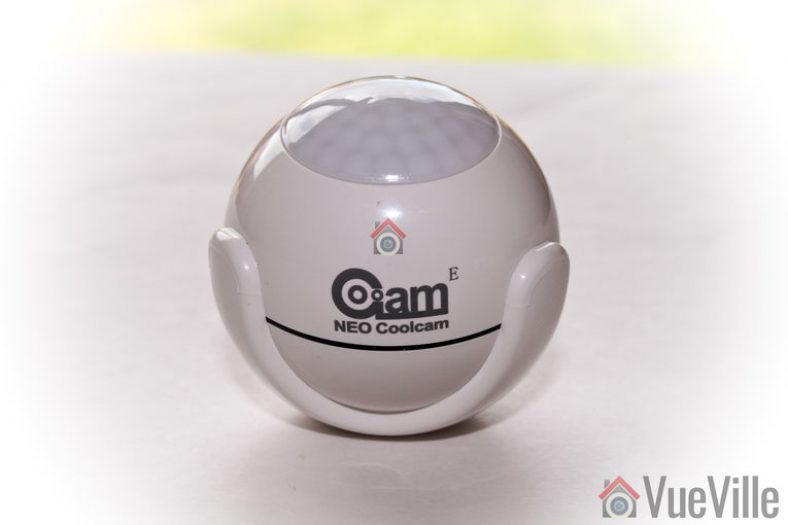
    Neo Coolcam Motion Sensor - Sensor - VueVille
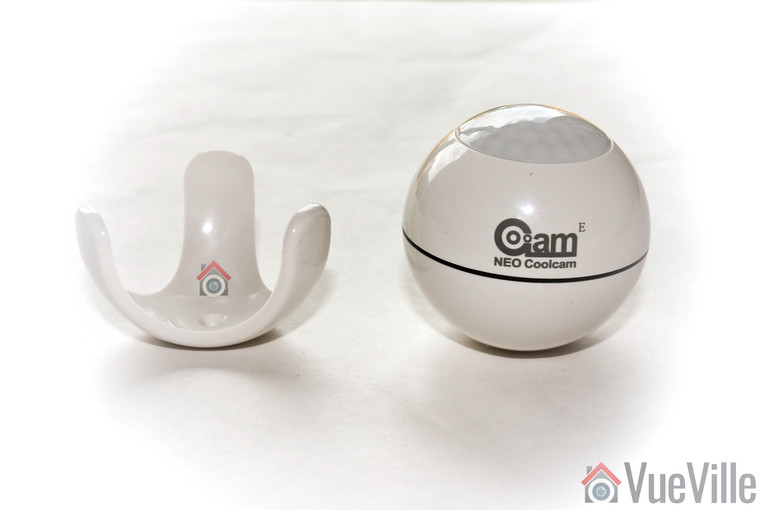
    The Neo Coolcam Motion sensor reminds me of the Fibaro motion sensor we reviewed recently. The design is very similar with a spherical main body and a holder that cradles the sensor smugly. It’s a very good design and one that lets you orient the sensor in any direction you want.

    Neo Coolcam Motion Sensor - Sensor 2 - VueVille

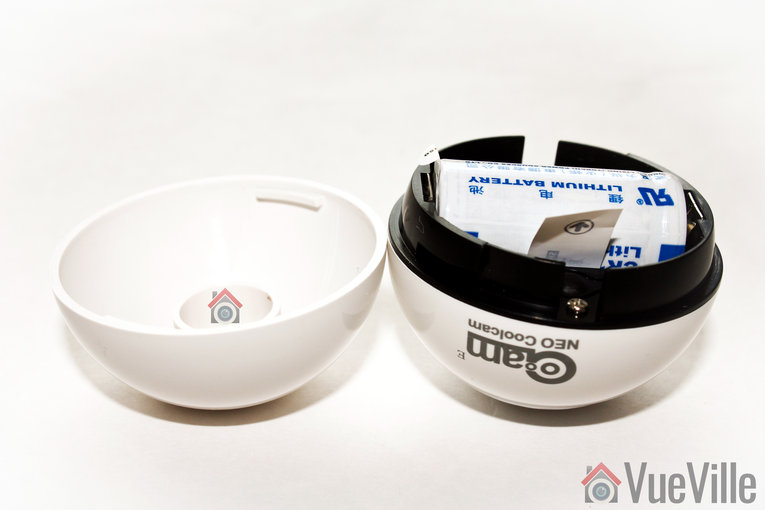
    Grip the bottom half of the sensor and turn it to open the sensor. A CR123A battery is pre-installed and pulling the plastic tab activates the sensor.

    Neo Coolcam Motion Sensor - Sensor 3 - VueVille

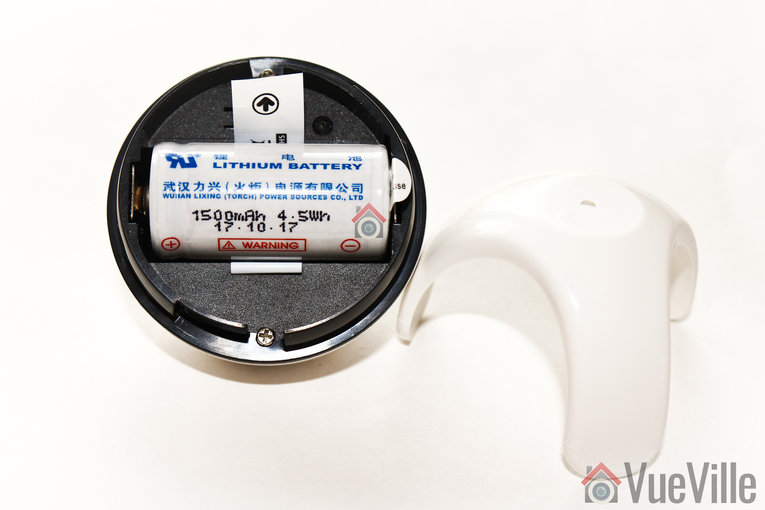
    The battery provided is an unbranded one, but has a good energy capacity of 1500mAh.

    Neo Coolcam Motion Sensor - Sensor 4 - VueVille

    The black ‘code’ button is also found here. This button has a few different functions: waking up the sensor so that you can configure it, putting the sensor in inclusion/exclusion mode and for restoring factory defaults.

    Installation

    As with the Neo Coolcam Door Sensor, I found the whole Z-Wave inclusion or pairing process easy and pretty straight-forward.

    Its always best to perform a factory default on a new Z-Wave device before including it in your Z-Wave network. I have found that this one step usually solves any problem I am having with including a new Z-Wave device.

    So these are the steps I took to set up the sensor with my HomeSeer Z-Wave hub:

    1. I removed the back cover of the sensor’s main body.
    2. I pulled the paper tab to turn on the device as the battery comes pre-installed.
    3. I put HomeSeer into inclusion mode.
    4. I pressed the code button on the Coolcam sensor thrice very quickly (it needs three presses within 1.5 seconds).
    5. The red LED flashed 5 times.
    6. After a few seconds, HomeSeer reported that the sensor had been successfully included and the child devices had been created.

    Performance

    There are 4 main criteria that define how good a motion sensor is:

    • Sensitivity of motion detection
    • Response time
    • Reliability
    • Z-Wave wireless range
    • Battery life

    I tested the Coolcam motion sensor extensively for over 3 months and these are my findings.

    Sensitivity of motion detection: Very good

    Response time: Excellent

    Reliability: Excellent

    Z-Wave wireless range: Very good

    Battery life: Excellent so far, testing underway

    Verdict

    The Neo Coolcam Z-Wave Plus Motion sensor is a budget-friendly sensor that is actually reliable. Once again, we were impressed by the performance and reliability of the Coolcam family of Z-Wave products.
    [review]

    Where to buy

    [easyazon_link identifier=”B079JTSR3V” locale=”US” tag=”vueville.com-eaz-20″]Check Price on your local Amazon site[/easyazon_link]

  • Best Z-Wave Recessed Door Sensors – 2024 Recommendations

    Best Z-Wave Recessed Door Sensors – 2024 Recommendations

    After creating the most comprehensive Z-Wave Door Sensor roundup on the net, we now turn our attention to Z-Wave recessed door sensors.

    [wpsm_titlebox title=”Contents” style=”main”][contents h2 h3][/wpsm_titlebox]

    A quick note: As an Amazon Associate I earn from qualifying purchases. This post contains affiliate link(s). An affiliate link means I may earn advertising or referral fees if you make a purchase through my link, at no extra cost to you.


    Why Z-Wave Recessed Door Sensors

    Sometimes you don’t want an unsightly bulky contact sensor cramping the style of your beautiful doors or windows. Yes there are slim sensors like the Aeotec Door Sensor 6 but they are most certainly not invisible!

    To make your door sensors truly invisible, you need recessed door sensors. These are also made of 2 halves just like any door sensor, but they are installed inside the door frame and doors or windows.

    For sure these are more difficult to install but the fact that it is totally hidden cannot be beaten. Do bear in mind though – recessed sensors tend to have weaker Z-Wave wireless range.


    Zwave Door Sensor Aeotec Recessed Door Sensor 7, Z-Wave Plus Enabled Smart Door Sensor Battery Powered, SmartStart S2, Zwave Hub Required SmartThings Fibaro Home Centre 3 Hubitat
    ×
    Product prices and availability are accurate as of the date/time indicated and are subject to change. Any price and availability information displayed on https://www.amazon.com/ at the time of purchase will apply to the purchase of this product.

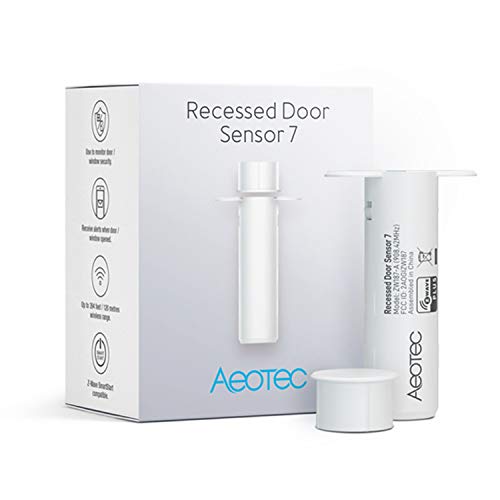
    The Aeotec Recessed Door Sensor 7 is the most popular indoor sensor model around. Not a surprise really as they are a great brand and have a humongous range of Z-Wave products. Just like their other sensors, this one is also of the Z-Wave Plus variety giving improved wireless speed, range, security, and battery life.

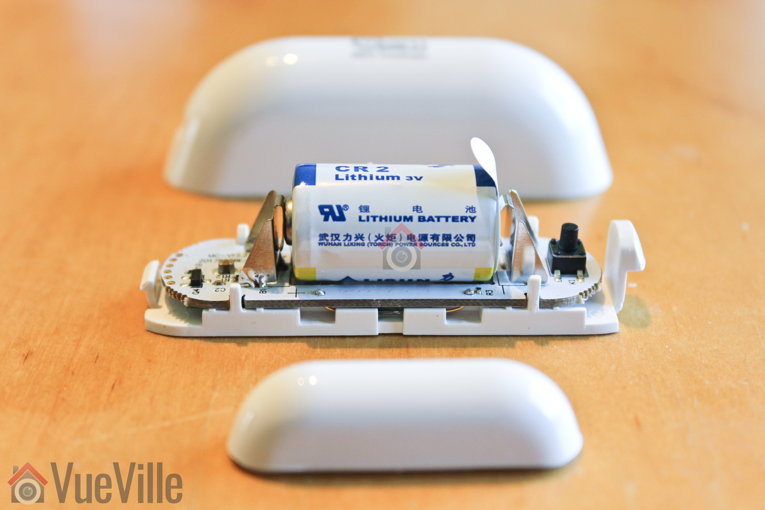
    This sensor looks just like any other recessed sensor – white in colour, but it is just 0.4″ in width. That means you can get away with drilling a small hole into your door. There are two halves – the larger main sensor and the smaller magnetic sensor. The main sensor houses the battery and the electronics. There is also a red LED. However there is no tamper detection.

    Surprisingly, Aeotec claims a range of up to 150 feet but this really depends on the door material, the thickness of your walls and the number of walls between the sensor and the Z-Wave hub. The included 3V CR2 lithium battery is rated at 800mAh capacity, and should last up to a year.

    On the software front, the sensor supports AES 128-bit communication encryption and Z-Wave S2 security.

    Aeotec-Z-Wave-Recessed-Door-Sensor-VueVille

    Full specs:

    • Transmits open/closed status & battery status
    • Z-Wave Plus certified
    • Size: 71 x 20 x 22 mm (main body), 40 x 11 x 11 mm (magnet)
    • 1x CR2 lithium battery
    • 12 months battery life
    • Weather rating: Indoor only, operating temperature: -10° to 60°C
    • Operating range of 150 metres (492 feet)
    • Works with Home Assistant, Hubitat, Samsung SmartThings and other Z-Wave hubs

    (* = affiliate link / image source: Amazon Associates Program)

    Source: Sensative.com

    If you require a door or window sensor that can be used outdoors, the stylish and unique Sensative Strips is the only option.

    Its marketed as being invisible because it is only 3 mm thick and in most cases can be mounted between the door/window and its frame. The custom non-removable non-rechargeable battery used by Sensative can last up to an incredible 10 years. The default wakeup interval is 24 hours, but it can be set to as little as 30 minutes but at the cost of battery life. Sensative provides an extended warranty of 3 years for the built-in battery.

    There are 3 separate pieces – the main sensor body, a rectangular magnet and a small button-like magnet. The strips have a tamper detection sensor and an LED that indicates magnetic contact. The maximum range of magnetic contact is 15 mm.

    By itself the strips have a wireless range of up to 40 metres, but the presence of a nearby AC powered Z-Wave device acting as a repeater can boost this to 150 metres.

    The Sensative Strip Guard is also available in a Zigbee version which also sports a temperature sensor.

    Full specs:

    • Transmits open/closed status & battery status
    • Z-Wave Plus certified
    • Size: 195 x 15 x 3 mm (main body), 30 x 11 x 1 mm (magnet 1), diameter 12 * 3 mm (magnet 2)
    • Built-in non-rechargeable battery
    • 10 years battery life
    • Weather rating: Outdoor, operating temperature: -10° to 60°C
    • Operating range of 150 metres (492 feet)
    • Works with Home Assistant, Hubitat, Samsung SmartThings and other Z-Wave hubs

    Conclusion

    As you can see, there are not many recessed Z-Wave door sensors on the market. But the two very diverse options above are both great choices.

  • Best Z-Wave Door Sensors – 2024 Recommendations

    Best Z-Wave Door Sensors – 2024 Recommendations

    One of the great things about using a Z-Wave based home automation system is the sheer choice of accessories available for everything from door sensors to motion detectors.

    The Z-Wave door/window sensors we will look at today are perfect for automating your smart home. Here are some of the things these door sensors can do through your a Z-Wave based smart home hub:

    • Turn down the thermostat automatically if external doors or windows are open for too long.
    • Give voice alerts or send push notifications to your smartphone if a window is open past a particular time of the day
    • If there’s a door that shouldn’t normally be opened, use one of these door sensors to keep an eye on it!
    • Make a mailbox sensor so that you can get voice and push alerts for new mail

    Remember you should not use Z-Wave door/window sensors as your primary means of securing your property. It is best practice to use dedicated alarm panels for home security which can also interface with your Z-Wave hub. Examples are the alarm panels and systems from DSC and Honeywell.

    [wpsm_titlebox title=”Contents” style=”main”][contents h2][/wpsm_titlebox]

    A quick note: As an Amazon Associate I earn from qualifying purchases. This post contains affiliate link(s). An affiliate link means I may earn advertising or referral fees if you make a purchase through my link, at no extra cost to you.

    How do Z-Wave door sensors work?

    You may have heard them being referred to as contact sensors, but door sensors don’t actually touch each other. All door sensors will also have two halves – a main sensor body containing the battery and electronics and a magnetic half. These can be separated by a small gap of not more than an inch or so. Whenever the gap between the two halves exceeds this limit, ‘magnetic contact’ is broken and they report an ‘open’ status change to your Z-Wave hub.

    What are the different types of Z-Wave door sensors?

    Depending on the form factor, we can group them into the following categories:

    • Door and Window Sensors
      • These come in two halves – the main sensor housing with the battery and the smaller magnet. One half goes on the door frame and the other half goes on the door.
    • Recessed Door Sensors
      • These also come in two halves, but the larger half contains the battery and is recessed into the door frame. The smaller magnet is recessed into the door.

    Regardless of which form they take, some models can measure not just open/close (or magnetic contact), but also temperature or humidity. An example is the [easyazon_link identifier=”B00K252JV6″ locale=”US” tag=”vueville.com-eaz-20″]Philio Door/Window Multisensor[/easyazon_link]. If you would like to learn more about multisensors, check out this post.

    How do I install a Z-Wave door sensor

    Like any Z-Wave device, you have to ‘include’ them in your Z-Wave network by following the manufacturer’s inclusion method.

    From years of experience working with Z-Wave, I have two tips I would like to mention:

    • Factory reset the device before you start the inclusion process. This step alone has saved me hours of frustration while setting up a Z-Wave device
    • Put the device as close as possible to the Z-Wave hub while performing the inclusion process. Definitely aim for <1 metre distance between the two. This should also help with the common issue where the device gets included but in non-secure mode.

    What should I look for in a door sensor?

    • Size: If you are after discreet sensors, your options may be limited but they do exist.
    • Z-Wave Plus: The newer Z-Wave Plus standard comes with improved wireless range, longer battery life and secured communications. Most Z-Wave sensors come with Z-Wave Plus certification these days but its good to check anyway.
    • Sensitivity: Because door and window sensors work on magnets, there is a limit to how far apart you can place the two halves of the sensor. For example, the [easyazon_link identifier=”B01E0OMQR6″ locale=”US” tag=”vueville.com-eaz-20″]Aeotec Door/Window Sensor 6[/easyazon_link] can work over a gap of up to 2.2 cm or 0.87 inches. Also be aware that if your door or window doesn’t close flush with the frame, the two halves end up ind different planes, sensitivity will be lower and as a result the maximum effective gap reduces.
    • Battery life: Typically 1 – 2 years, the smaller door sensors have smaller capacity batteries and thus lower battery life. Some have up to 3 years battery life. Rechargeable models are rare but do exist – see the Aeotec rechargeable door sensor.

    [text-blocks id=”5527″ slug=”earning-disclaimer”]

    Best Z-Wave Door/Window Sensors for 2024

    Aeotec Door/Window Sensor 7 (ZWA008)

    [easyazon_image align=”center” height=”500″ identifier=”B07PDDX3K6″ locale=”US” src=”https://m.media-amazon.com/images/I/41oiOWeenXL.jpg” tag=”vueville.com-eaz-20″ width=”500″]

    The Aeotec Door/Window Sensor 7 is a sleek and stylish sensor that has 3 sensors actually – the magnetic contact sensor, a tilt sensor and a dry contact sensor. Unlike its predecessor which came with a sealed rechargeable battery, this new iteration uses a single 1/2 AA battery.

    The sensor consists of 2 parts. The main body uses two magnetic reed switches placed along its edge and is triggered by the 20 mm wide magnet which can be placed up to 15mm away.

    The ZW-120 was another Aeotec model that did not use a rechargeable battery. But that has now been discontinued.

    Full specs:

    • Simple DIY installation with screws or double sided tape
    • Transmits open/closed status
    • Z-Wave Plus certified
    • Size of sensor: Height – 19mm/0.75inches, Width – 71mm/2.8inches, Depth – 18mm/0.7inches
    • Size of magnet: Height-8mm/0.13inches, Width-20mm/0.78inches, Depth-11mm/0.43inches
    • Weather rating: IP20
    • Tamper-proof
    • Operating range of 150 metres (492 feet) point to point
    • Over the Air (OTA) firmware upgrade
    • S2 Security
    • AES 128 bit security encryption
    • Paintable for invisible installation. Crafted from acrylonitrile butadiene styrene (ABS) plastic
    • Compatible with Samsung SmartThings, Vera, Zipabox, HomeSeer, Ring, Open Z-Wave, Nexia, Domoticz and other Z-Wave hubs

    [easyazon_link identifier=”B07PDDX3K6″ locale=”US” tag=”vueville.com-eaz-20″]View on Amazon[/easyazon_link]

    Fibaro Z-Wave Plus Door/Window Sensor with Temperature Measurement (FGK-101 ZW5)

    [easyazon_image align=”center” height=”483″ identifier=”B074FCG1PF” locale=”US” src=”https://m.media-amazon.com/images/I/415bIRSwT1L.jpg” tag=”vueville.com-eaz-20″ width=”500″]

    Fibaro is another favourite brand of mine. These guys have a wide range of high quality, well-built yet affordable Z-Wave products.

    This door/window sensor has a small footprint and comes in 7 different colours – white, grey, black, cream, and 3 shades of brown. But that’s not all, it has an ace up its sleeve – it can also measure temperature.

    A small blue LED lights whenever contact is made or broken, a nice visual indicator that the device is functional.

    Full specs:

    • Transmits open/closed status
    • Z-Wave Plus certified
    • Size: 76 x 17 x 19 mm
    • Tamper-proof
    • ER14250 ½ AA battery
    • 12-24 months battery life
    • Weather rating: Indoor, 0-40°C operating temperature
    • Operating range of 50 metres (164 feet)
    • AES 128 bit security encryption
    • Potential-free input allowing to connect a button or binary sensor
    • Compatible with the DS18B20 temperature sensor
    • Works with Samsung SmartThings, Vera Plus and other Z-Wave hubs

    [easyazon_link identifier=”B074FCG1PF” locale=”US” tag=”vueville.com-eaz-20″]View on Amazon[/easyazon_link]

    Ecolink Zwave Plus Door & Window Sensor (DWZWAVE2.5-ECO)

    [easyazon_image align=”center” height=”500″ identifier=”B01N5HB4U5″ locale=”US” src=”https://images-na.ssl-images-amazon.com/images/I/21gnASMGHSL.jpg” tag=”vueville.com-eaz-20″ width=”274″]

    Ecolink is a leading manufacturer of low power wireless systems and have been in the game for over 20 years. They claim that they use rare earth magnets in their door sensors to improve accuracy.

    This sensor has a glossy white coating that makes it stand out a bit from the rest of its ilk. Tool-free access enables you to quickly open it if required. An interesting feature is the input on the sensor to which a non-powered external contact can be connected. It will also report a tamper state whenever the cover is opened.

    The maximum gap possible between the two sensor halves is 5/8″, and Ecolink claims that this makes it ideal for commercial or double hung windows.

    To include the sensor in your network, first put your Z-Wave hub in inclusion mode. Pull out the plastic pull-tab from the back of the sensor, thus activating the device. The sensor should automatically start the inclusion process and when complete, the red LED will become solid red and then go out. Now test the sensor by bringing the two halves togther and then apart, the red LED should blink once. If it blinks 5 times instead, the inclusion process failed and needs to be repeated. I would suggest resetting the sensor and include it by keeping it not more than 1 metre from your Z-Wave hub.

    Full specs:

    • Transmits open/closed status, tamper notification, battery status and low battery alert
    • Z-Wave Plus certified
    • Attach with provided adhesive pads, screws or glue
    • Tamper-proof
    • 3 years battery life
    • 1x CR123A battery
    • Size: Sensor Body: 3 x 1.1 x .75 in, Magnet Piece: 3 x .5 x .75 inches
    • Weather rating: indoor only, Operating temperature: 0° to 49°C
    • Up to 30 m/100 ft maximum range outdoors
    • Works with Samsung SmartThings, Vera Plus and other Z-Wave hubs

    [easyazon_link identifier=”B0722H445L” locale=”US” tag=”vueville.com-eaz-20″]View on Amazon[/easyazon_link]

    Neo Coolcam Z-Wave Door/Window Sensor

    [easyazon_image align=”center” height=”500″ identifier=”B07QDS5DZ4″ locale=”US” src=”https://m.media-amazon.com/images/I/31MrRLqmkCL.jpg” tag=”vueville.com-eaz-20″ width=”500″]

    Neo Coolcam is a Chinese brand that has been launching affordable Z-Wave gear recently. We have tested and reviewed their motion sensor, siren alarm and their door sensor products.

    The Neo Coolcam door/window sensor is a glossy white affair with a concealed RED LED that activates whenever contact is made or broken. We have been using this sensor for 6 months and have been very impressed by its reliable performance and battery life. The only negative is that it doesn’t have tamper detection sensor.

    Read our hands-on review in details here:
    [wpsm_top postid=5930]

    Full specs:

    • Transmits open/closed status & battery status
    • Z-Wave Plus certified
    • Attach with glue or screws
    • Size: 71 x 20 x 22 mm (main body), 40 x 11 x 11 mm (magnet)
    • 1x CR2 battery
    • 12-24 months battery life
    • Weather rating: IP20 outdoor rated, operating temperature: 0° – 40°C
    • Operating range of 60 metres (200 feet)
    • Works with Samsung SmartThings, Vera Plus and other Z-Wave hubs

    [easyazon_link identifier=”B07QDS5DZ4″ locale=”US” tag=”vueville.com-eaz-20″]View on Amazon[/easyazon_link]

    Monoprice Z-Wave Plus Door and Window Sensor (24259)

    [easyazon_image align=”center” height=”375″ identifier=”B073WFL9SC” locale=”US” src=”https://images-na.ssl-images-amazon.com/images/I/31Aku3Q1VlL.jpg” tag=”vueville.com-eaz-20″ width=”500″]

    Monprice has a great line-up of Z-Wave products. I have been using a few of their cheap and cheerful 4-in-1 multisensors with great results, and now here we have their door window sensor.

    This is not a fancy sensor and its designed to get the job done at the lowest possible cost. So it looks very industrial, is not particularly small but surprisingly is not light on features.

    It does have the latest Z-Wave Plus chip though, and has a very good operating range of 300 feet. It does use 2x AAA batteries, and this could be the secret of its 1 year battery life. An LED is present which indicates opening or closing. You also get tamper detection.

    Full specs:

    • Transmits open/closed status & battery status
    • Z-Wave Plus certified
    • Attach with glue or screws
    • Size: 3.0″ x 1.1″ x 0.7″ (75 x 28 x 18 mm) sensor, and 3.0″ x 0.5″ x 0.7″ (75 x 12 x 18 mm) magnet
    • LED indicator
    • 2x AAA battery
    • 12-24 months battery life
    • Weather rating: Indoor only, operating temperature +32 ~ +104°F (0 ~ +40°C)
    • Operating range of 30 m indoors (98 feet), 100 m outdoors (328 feet)
    • Tamper detection
    • Works with Samsung SmartThings, Vera Plus and other Z-Wave hubs

    [easyazon_link identifier=”B073WFL9SC” locale=”US” tag=”vueville.com-eaz-20″]View on Amazon[/easyazon_link]

    Philio Z-Wave Multi-sensor (PSM01)

    [easyazon_image align=”center” height=”500″ identifier=”B00K252JV6″ locale=”US” src=”https://images-na.ssl-images-amazon.com/images/I/41lwJ%2BKlEZL.jpg” tag=”vueville.com-eaz-20″ width=”464″]

    Philio is a Taiwanese manufacturer that has been in business since 2012. They make a range of home automation and security products including cameras, sensors, controllers, smart plugs and even door locks.

    The PST02 series of sensors comes in three models indicated by the suffix A, B or C after the model name. A indicates the 4-in-1 model which has sensors for motion, illumination, temperature and the door/window open/close detection, B loses the open/close sensor, whereas C loses the PIR motion detector. All three models have the latest Z-Wave 500 series chip allowing concurrent multi-channel support to reduce interference, improved RF range, and up to 100kbps transmission speed.

    The Philio Tech multisensor comes pre-installed with a CR123A battery. The included user guide is very detailed, accurate and well-written. Adding the Philio sensor to your Z-Wave sensor is just like adding any other Z-Wave device – but the sensor makes it even easier and auto-starts the inclusion process when you pull off the insulation mylar. The device also supports the exclusion, reset and association modes as expected.

    There are also two tamper-proof switches at the back and the front which are great considering you will have it installed on doors or windows. Some other interesting features are the OTA (Over The Air) firmware upgrade and a DIP switch to put the device into Test mode. Test mode allows you to test the device functionality without actually installing it.

    Full specs:

    • Motion, Light, Temperature, Open/Close
    • Indoor only
    • 1x CR123A Battery (up to 2 years life)
    • Tamper-proof
    • Up to 40m range indoors
    • Works with Samsung SmartThings, Vera Plus and other Z-Wave hubs

    [easyazon_link identifier=”B00K252JV6″ locale=”US” tag=”vueville.com-eaz-20″]View on Amazon[/easyazon_link]

    HomeSeer HS-DS100+ Z-Wave Plus Door/Window Sensor

    [easyazon_image align=”center” height=”500″ identifier=”B0722H445L” locale=”US” src=”https://images-na.ssl-images-amazon.com/images/I/41svTTbJvWL.jpg” tag=”vueville.com-eaz-20″ width=”500″]

    I use the HomeSeer HS3 software to control my Z-Wave network and for home automation. HomeSeer also makes Z-Wave accessories such as this HS-DS100+ door/window sensor.

    Full specs:

    • Transmits open/closed status, tamper notification, battery status and low battery alert
    • Z-Wave Plus certified
    • Attach with provided adhesive pads, screws or glue
    • Tamper-proof
    • 12 months battery life
    • 2x AAA Battery (up to 2 years life)
    • Size: Sensor Body: 3 x 1.1 x .75 in, Magnet Piece: 3 x .5 x .75 inches
    • Weather rating: indoor only, Operating temperature: 0° to 40°C
    • Up to 300ft maximum range outdoors
    • Works with Samsung SmartThings, Vera Plus and other Z-Wave hubs

    [easyazon_link identifier=”B0722H445L” locale=”US” tag=”vueville.com-eaz-20″]View on Amazon[/easyazon_link]

    Haozee Z-Wave Door/Window Sensor

    [easyazon_image align=”center” height=”500″ identifier=”B07BK65MLH” locale=”US” src=”https://images-na.ssl-images-amazon.com/images/I/31y1LshBHZL.jpg” tag=”vueville.com-eaz-20″ width=”500″]

    The Haozee Z-Wave door sensor seems to be a rebranded Neo Coolcam Door/Window sensor. As such it has the same features as that sensor.

    Full specs:

    • Transmits open/closed status & battery status
    • Z-Wave Plus certified
    • Attach with glue or screws
    • Size: 71 x 20 x 22 mm (main body), 40 x 11 x 11 mm (magnet)
    • 1x CR2 battery
    • 12-24 months battery life
    • Weather rating: IP20 outdoor rated, operating temperature: 0° – 40°C
    • Operating range of 60 metres (200 feet)
    • Works with Samsung SmartThings, Vera Plus and other Z-Wave hubs

    [easyazon_link identifier=”B0722H445L” locale=”US” tag=”vueville.com-eaz-20″]View on Amazon[/easyazon_link]

    GoControl Z-Wave Door/Window Sensor (WADWAZ-1) (Also branded as Linear)

    [easyazon_image align=”center” height=”500″ identifier=”B00MNYSEF4″ locale=”US” src=”https://images-na.ssl-images-amazon.com/images/I/31UmxyKkaqL.jpg” tag=”vueville.com-eaz-20″ width=”500″]

    GoControl is a popular brand owned by California-based Nortek Security and Control. They produce a huge range of home automation products ranging from smart bulbs, switches, doorbells to Z-Wave sensors.

    The WADWAZ-1 Door sensor is a reed-switch type sensor and can operate at a maximum gap of 0.75″ between the sensor body and the magnet. Powered by a single CR-123A battery, it can operate for up to 1 year continuously.

    A red LED is included on the main sensor body to indicate open/close sensing. When you first insert the battery, this LED will start flashing slowly indicating that it is not part of a Z-Wave network yet. Put your hub into inclusion mode. Inclusion will start automatically and is complete when the red LED stops flashing. If automatic inclusion didn’t work, you can attempt manual inclusion by holding the program/tamper switch for 1 second and releasing. When inclusion is successful, the LED will stop blinking.

    This is the only sensor I have come across that can monitor an additional opening, such as an external normally closed switch contact which is connected to the sensor’s external input terminals.

    Full specs:

    • Transmits open/closed status, tamper notification, battery status and low battery alert
    • Can monitor an additional wired contact sensor
    • Z-Wave certified
    • Attach with provided adhesive pads, screws or glue
    • Tamper-proof
    • 1x CR123A battery
    • Up to 100ft maximum range outdoors
    • Works with Samsung SmartThings, Vera Plus and other Z-Wave hubs

    The GoControl door and window sensor is also marketed as the [easyazon_link identifier=”B00MOF2IPY” locale=”US” tag=”vueville.com-eaz-20″]Linear Z-Wave Door/Window Sensor[/easyazon_link].

    [easyazon_link identifier=”B00MNYSEF4″ locale=”US” tag=”vueville.com-eaz-20″]View on Amazon[/easyazon_link]

    BeSense ZWave Plus Door and Window Sensor (IM20)

    [easyazon_image align=”center” height=”310″ identifier=”B073RV9VYC” locale=”US” src=”https://images-na.ssl-images-amazon.com/images/I/216eFyQe0TL.jpg” tag=”vueville.com-eaz-20″ width=”500″]

    BeSense is a developer of low power wireless IoT systems. Their Z-Wave Plus door sensor has a unique design with a slit like red LED on the main sensor body. They have very clear instructions for both Samsung SmartThings and Vera Plus on their website and in the included user manual.

    Running off 2x AAA batteries, BeSense says the sensor will last for up to 3 years. There is an anti-tamper sensor which is great. The maximum distance between the two halves of the sensor is 5/8″.

    Full specs:

    • Transmits open/closed status, tamper notification, battery status and low battery alert
    • Z-Wave Plus certified
    • Attach with provided adhesive pads, screws or glue
    • Tamper-proof
    • 2x AAA Battery (up to 3 years life)
    • Size: 80 x 50 x 20 mm
    • Weather rating: indoor only, Operating temperature: -10° to 50°C
    • Up to 30 m (100 ft) maximum range outdoors
    • Works with Samsung SmartThings, Vera Plus and other Z-Wave hubs

    [easyazon_link identifier=”B073RV9VYC” locale=”US” tag=”vueville.com-eaz-20″]View on Amazon[/easyazon_link]

    Zipato Z-Wave Door/Window Sensor (VS-ZD2102.US)

    [easyazon_image align=”center” height=”500″ identifier=”B00Q68IXSQ” locale=”US” src=”https://images-na.ssl-images-amazon.com/images/I/41svTTbJvWL.jpg” tag=”vueville.com-eaz-20″ width=”500″]

    Zipato is an IoT plaform business started in 2010. They have a complete Z-Wave based home automation offering but it is Interet-reliant. However their accessories are compatible with any Z-Wave hub.

    My first thought was that the Zipato door and window sensor looks a lot like the Neo Coolcam sensor. In any case this is a Z-Wave Plus device that is missing quite a few features – there’s no tamper detection, no external sensor input, and no temperature sensor.

    Full specs:

    • Transmits open/closed status, battery status and low battery alert
    • Z-Wave Plus certified
    • Attach with provided adhesive pads, screws or glue
    • 1 year battery life
    • 1 year warranty
    • 1x 3V CR2 battery
    • Size: Sensor Body: 71 x 20 x 22 mm, Magnet Piece: 40 x 11 x 11 mm
    • Weather rating: Indoor only, Operating temperature: 0° to 40°C
    • Up to 60m maximum range outdoors
    • Works with Samsung SmartThings, Vera Plus and other Z-Wave hubs

    [easyazon_link identifier=”B00Q68IXSQ” locale=”US” tag=”vueville.com-eaz-20″]View on Amazon[/easyazon_link]

    Enerwave Z-Wave Door and Window Sensor (ZWN-BDS)

    [easyazon_image align=”center” height=”500″ identifier=”B00JWVNJ88″ locale=”US” src=”https://images-na.ssl-images-amazon.com/images/I/319H6pKCO8L.jpg” tag=”vueville.com-eaz-20″ width=”500″]

    The Enerwave ZWN-BDS is a Z-Wave Plus door sensor that can provide open/close status for monitoring doors and windows whenever the magnetic contact is broken. The maximum possible gap between the two halves of the sensor is 1/2″. I was surprised to see a 2 year warranty on offer, this is definitely a plus.

    This sensor supports Network Security but does not support S2 Security or AES-128 Security S0.

    Full specs:

    • Transmits open/closed status, tamper notification, battery status and low battery alert
    • Z-Wave Plus certified
    • Z-Wave Device Type / Role Type: Notification Sensor / Reporting Sleeping Slave
    • Attach with provided adhesive pads, screws or glue
    • 1x CR2 battery (1 year battery life)
    • Size: 2.02” x 1.71″ x 0.62″
    • Weather rating: indoor only, Operating temperature: 32°F – 104°F (0°C -40 °C)
    • Up to 30 m (100 ft) maximum range outdoors
    • Supports Z-Wave associations, can send commands up to 5 associated Z-Wave devices
    • Remotely monitor sensor status from a computer, tablet or smartphone
    • 2 years warranty
    • Works with Samsung SmartThings, Vera Plus and other Z-Wave hubs

    [easyazon_link identifier=”B00JWVNJ88″ locale=”US” tag=”vueville.com-eaz-20″]View on Amazon[/easyazon_link]

    Dome Z-Wave Door/Window Sensor (DMWD1)

    [easyazon_image align=”center” height=”500″ identifier=”B01JGMZNNG” locale=”US” src=”https://images-na.ssl-images-amazon.com/images/I/41cSQBv5ohL.jpg” tag=”vueville.com-eaz-20″ width=”500″]

    The Dome brand of home automation gear is one that you may not have heard of before, but they have a range of high quality products with comprehensive documentation. This DMWD1 door sensor is Z-Wave plus certified and has a remarkably long battery life of 3 years.

    But the similarity to the Neo Coolcam range is unmistakable. Doesn’t bother me too much though as long as they work reliably and are affordable!

    Full specs:

    • Transmits open/closed status, battery status and low battery alert
    • Z-Wave Plus certified
    • Attach with provided adhesive pads, screws or glue
    • 1x CR14250 3.6V battery (up to 3 years battery life)
    • Size: Sensor: 2.75” x 0.8” x 0.8” (70 x 20 x 20 mm), Magnet: 1.3” x 0.5” x 0.5” (40 x 11 x 11 mm)
    • Weather rating: indoor only, Operating temperature: 32 – 104 °F (0 – 40 °C)
    • Up to 150ft maximum range outdoors
    • Works with Samsung SmartThings, Vera Plus and other Z-Wave hubs

    [easyazon_link identifier=”B01JGMZNNG” locale=”US” tag=”vueville.com-eaz-20″]View on Amazon[/easyazon_link]

    Monoprice Z-Wave Plus Door and Window Sensor (10795)

    [easyazon_image align=”center” height=”375″ identifier=”B00IACIVKQ” locale=”US” src=”https://images-na.ssl-images-amazon.com/images/I/214hzsxwf7L.jpg” tag=”vueville.com-eaz-20″ width=”500″]

    Monoprice has another door sensor on offer – this one goes for the long narrow body approach instead of the wider shorter sensor we saw earlier. It also has a more prominent LED to indicate open/close detection.

    This door sensor uses the ZM3102N Z-Wave chip meaning its not a Z-Wave plus sensor. That’s not great for operating range or for battery life. It also means secure communications are not possible.

    The maximum possible gap between the sensor body and the magnet is 19mm (0.75″). An interesting feature is that you can connect a wired contact sensor to connection points on the internal board of this sensor.

    Full specs:

    • Transmits open/closed status & battery status
    • Z-Wave certified
    • Attach with provided adhesive pads, screws or glue
    • Size: 1.8 x 4.1 x 1.4 inches
    • 1x CR123A battery
    • 12 months battery life
    • Weather rating: indoor only, Operating temperature: -15° to 60°C
    • Operating range of 30 metres (100 feet)
    • Works with Samsung SmartThings, Vera Plus and other Z-Wave hubs

    [easyazon_link identifier=”B00IACIVKQ” locale=”US” tag=”vueville.com-eaz-20″]View on Amazon[/easyazon_link]

    Schlage Nexia Z-Wave Door and Window Sensor (RS-100)

    [easyazon_image align=”center” height=”250″ identifier=”B008Q5CTBE” locale=”US” src=”https://images-na.ssl-images-amazon.com/images/I/21vyePskE5L.jpg” tag=”vueville.com-eaz-20″ width=”350″]

    Schlage is owned by the Fortune 150 company Ingersoll Rand which acquired it in 1974. Within the home automation space, Schlage are better known for their impressive Z-Wave range of door locks. But they also sell other Z-Wave products under the Nexia brand which unfortunately follows the monthly subscription model.

    However this RS-100 door sensor does not require a Nexia hub to work and is compatible with any Z-Wave hub. The main sensor body has an LED to indicate sensor status. The maximum gap between the main sensor body and the magnet should not exceed 19mm (3/4″).

    Full specs:

    • Transmits open/closed status
    • Z-Wave certified
    • Attach with glue or screws
    • Size: 3.5” x 1.75” x 1”
    • 3V Lithium CR123A
    • 24 months battery life
    • Weather rating: Indoor only, operating temperature: 0° – 49°C, 32° – 120°F (ambient temperature)
    • Operating range of 30 metres (100 feet)
    • Reports tamper alarm if cover is opened
    • Works with Samsung SmartThings, Vera Plus and other Z-Wave hubs

    [easyazon_link identifier=”B008Q5CTBE” locale=”US” tag=”vueville.com-eaz-20″]View on Amazon[/easyazon_link]

    (* = affiliate link / image source: Amazon Associates Program)

    Conclusion

    We hope you found this comprehensive review of Z-Wave door sensors useful. Please leave a comment below – which door/window sensors do you use, what’s your experience been using these sensors, or have we missed your favourite sensor?
  • How to Connect QNAP NAS Surveillance Station to HomeSeer HS3

    How to Connect QNAP NAS Surveillance Station to HomeSeer HS3

    Are you wondering how to make your DIY home security camera system and your smart home hub talk to each other? Getting these two important parts of your smart home to communicate effectively is the secret to a truly smart home. So in this article, I am going to show you how I achieved this:

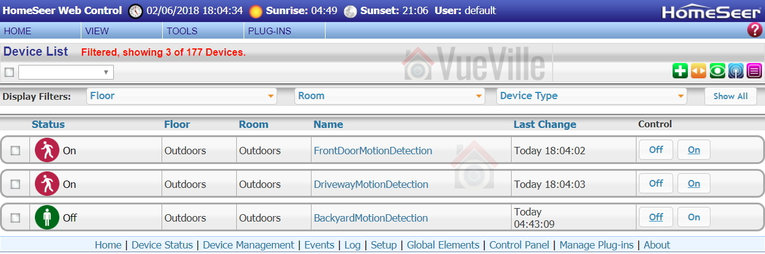
    HomeSeer - IP Camera Motion Detection - VueVille
    HomeSeer3 interface showing one virtual motion detector device per IP camera

    [text-blocks id=”earning-disclaimer”]

    [wpsm_titlebox title=”Contents” style=”main”][contents h2][/wpsm_titlebox]

    Hold on…why should they talk to each other?

    I first started off building my DIY home security camera system. Later on I added a smart home hub to create my DIY home automation system. But there was a problem – the two systems didn’t talk to each other and were oblivious of what the other half was up to. Not a very smart home, then!

    There are several things I can now do thanks to the left hand knowing what the right is up to:

    • Surveillance Station -> HomeSeer HS3
      • Whenever motion is detected, certain lights turn on at that camera location.
      • Whenever motion is detected, tablet devices activate and switch to the camera view until the motion stops.
      • Whenever motion is detected, my smart home hub sends me email snapshots of all the cameras (not just the one that detected motion).
    • HomeSeer HS3 -> Surveillance Station
      • Whenever motion is detected by external PIR sensors, my smart home hub can ask my NVR to start recording the camera in that area.
      • When the doorbell is pushed, Surveillance Station will start recording the front door camera.
      • When the Neo Coolcam Door/Window sensor attached to my mailbox detects new mail, Surveillance Station will start recording the front door camera.
      • I can sync the cameras to my house mode. So I can arm the cameras at night or when I am away so that I get notifications only when I am not at home. Throw in geo-fencing and you have a super-smart autonomous CCTV system!

    In this guide, I am going to focus on how to get Surveillance Station to talk to HS3. We will look at the reverse process in a later blog post.

    What’s the basic principle?

    My DIY home security camera system consits of Hikvision and Reolink cameras connected to a QNAP TS-253A NAS that acts as an NVR. This is possible due to the Surveillance Station app on the QNAP that includes 4 free IP camera license with no restrictions, or 8 camera licenses with 14 days recordings (QVR Pro).

    My home automation system is controlled by HomeSeer HS3 software running on a fanless low-power Acer notebook. HS3 can accept messages (http requests or more accurately json packets) which can be used to control any and all aspects of HS3. HS3 can also send these http requests to any network device (I use this feature for my smart mailbox and smart front door motion detection).

    Thankfully, QNAP Surveillance Pro is also able to send and receive http requests!

    So whenever Surveillance Station detects motion, it can send an http request to HS3 and change the status of a timed on/off virtual device. The change in status of this virtual device can then be used to trigger HomeSeer events. I love virtual devices for this very reason, they are so versatile!

    How does the QNAP Surveillance Station motion detection work?

    When you add a camera and turn on motion detection alerts, the NAS will login to your cameras and attempt to set up motion detection rules in the camera software. Then when the camera sends an alert according to the rules defined by the NAS, Surveillance Station will receive them and then respond accordingly (trigger the cirtual device on HomeSeer3, start recording, put an event marker on the timeline, send email snapshot, send an SMS alert etc.).

    So the key takeaway here is that the QNAP NAS actually doesn’t do any motion detection, it relies on the camera to do it. So you wont find any configuration options for those rules in your NAS – you will find it in your camera settings. This is a smart method because your camera will usually have more advanced motion detection methods such as line detection, intrusion detection, PIR motion sensors etc to which the NAS can theoretically respond. I say theoretically because there is a downside – the NAS’s ability to respond to those alerts depends on how well QNAP supports your specific camera make and model. For example with my Hikvision cameras, the NAS will not respond to any motion detection alert other than the basic motion detection one. So it ignores the line detection and intrusion detection alerts that I love because they cut down false alerts massively.

    The up side is that the NAS NVR doesn’t have to analyse the video streams to perform motion detection, as the camera does this for the NAS. This also keeps power consumption and heat levels down.

    Step-by-step process

    Here;s a summary of the 3 step process for connecting QNAP Surveillance Station to the HomeSeer HS3:

    1. Set up HomeSeer3 virtual devices and events
    2. Set up QNAP Surveillance Station
    3. Adjust motion detection settings in your camera

    STEP 1: Set up HomeSeer3 virtual devices and events

    A virtual device is a device you create in HomeSeer3 instead of it being created by a physical Z-Wave device like a sensor. Virtual devices can have multiple states or multiple values set, so you could create an on/off toggle switch, a multi-state switch (like low/medium/high), a dimmer, or even a slider.

    We will create one virtual device for each of your security cameras that you want to use as a motion detection trigger.

    First, login to your HomeSeer3 web page and click the ‘Add Device’ button on the right (green plus button).

    How to Connect QNAP NAS Surveillance Station to Homeseer - Step 1a - VueVille
    Click to enlarge

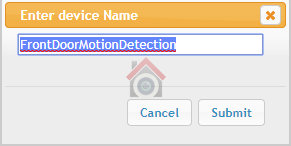
    Then enter a device name. I have chosen ‘FrontDoorMotionDetection’ which will be switched to ON by my QNAP NAS whenever the front door camera detects motion.

    How to Connect QNAP NAS Surveillance Station to Homeseer - Step 1b - VueVille

    In the Configuration tab, assign a floor and a room.

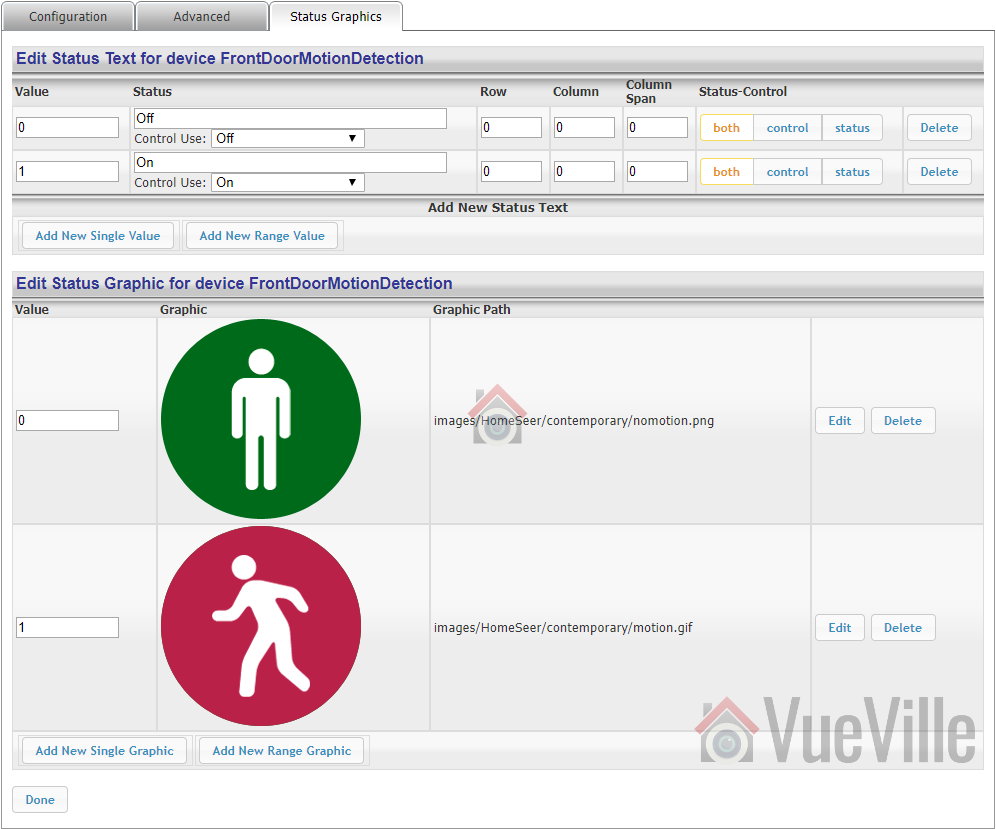
    Click on the Status Graphics tab, and edit the Status Text and Status Graphics to match the screenshot below.

    How to Connect QNAP NAS Surveillance Station to Homeseer - Step 1c - VueVille
    Click to enlarge

    Click Done to complete setting up the virtual device. Repeat the process for each of your IP cameras.

    Now in order to be of any use, the motion detection virtual switch should function like a toggle switch with a time delay. When it is triggered to the on position, it should return to the off position after say 1 minute. We can achieve this by creating an event to reset the virtual switch to off 1 minute after motion is detected:

    How to Connect QNAP NAS Surveillance Station to Homeseer - Step 1d - VueVille
    Click to enlarge

    STEP 2: Set up QNAP Surveillance Station

    Assuming you have set up the Surveillance Station app on your QNAP NAS, you can move on to setting up the necessary actions in it.

    Login to Surveillance Station.

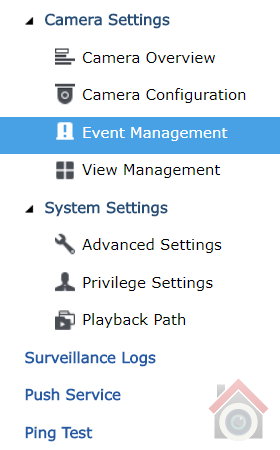
    On the left-hand-side navigation menu, go to Camera Settings > Event Management.

    How to Connect QNAP NAS Surveillance Station to Homeseer - Step 2a - VueVille

    The default mode for managing events is ‘Traditional Mode’. Switch to Advanced Mode. Advanced mode lets you create multiple actions whereas the ‘Traditional Mode’ lets you set up only a single action. You will want to create multiple events because whenever a camera detects motion, not only do you want to trigger the corresponding HS3 virtual device but presumably also start recording that camera.

    How to Connect QNAP NAS Surveillance Station to Homeseer - Step 2b - VueVille

    Before you proceed, click Apply and then restart your NAS. I know it sounds weird but without doing this, the changes won’t stick. I don’t know what the QNAP developers were smoking when they thought this was a great workflow.

    After restarting, Navigate back to Camera Settings > Event Management in Surveillance Station.

    The action we want to set up is the one that triggers the FrontDoorMotionDetection HS3 virtual device we created earlier.  Select the ‘Motion Detection’ menu item under your camera name. My front door camera is named ‘FrontDoor’ as can be seen in the screenshot below.

    How to Connect QNAP NAS Surveillance Station to Homeseer - Step 2c - VueVille

    Now click the ‘Add’ button to add a new action. Under Action Type, change the default selection of ‘Recording’ to ‘User-defined Action’.

    How to Connect QNAP NAS Surveillance Station to Homeseer - Step 2d - VueVille
    Click to enlarge

    Edit the fields to the values below:

    Action Name: You can call it whatever you want, I used ‘TriggerFrontDoorMDVS’, where MDVS is short for Motion Detection Virtual Switch.

    IP Address: This is the IP Address of your HS3 device.

    Port: The default is 80 and will work unless you have changed the HS3 web server port.

    HTTP URL: This is the bit where the magic happens. For HS3, the format of the URL required to change the state of the virtual switch we created earlier is

    [wpsm_codebox style=”2″]/JSON?request=controldevicebyvalue&ref=REFERENCE_ID&value=VALUE_TO_SET[/wpsm_codebox]

    You can find the Reference ID of your virtual switch under the ‘Advanced’ tab of the device page in HS3.

    How to Connect QNAP NAS Surveillance Station to Homeseer - Step 2e - VueVille
    Click to enlarge

    My virtual device’s code is 236, so to change the state of the virtual switch to ON is “/JSON?request=controldevicebyvalue&ref=236&value=1” without the quotes.

    User name: Type in blank

    Password: Type in blank

    This is what it looks like for my action:

    How to Connect QNAP NAS Surveillance Station to Homeseer - Step 2f - VueVille
    Click to enlarge

    Now click Apply and then the blue Apply button again at the bottom of the screen. When it has saved the action, exit Surveillance Station and restart your NAS.

    You may also want to set up a recording action and a ‘send email snapshot notification’ action. You can see I have done this in the screenshot below. Remember: do not switch between Traditional and Advanced mode and if you do you have to click Apply and restart your NAS for the change to take effect.

    How to Connect QNAP NAS Surveillance Station to Homeseer - Step 2g - VueVille
    Click to enlarge

    Now set off the motion detection of your camera and check the status of your virtual switch in HS3. If you have followed the steps above, you should see the virtual switch turning to the On position. Here’s what it looks like on my HS3 front-end:

    HomeSeer - IP Camera Motion Detection - VueVille

    STEP 3: Adjust motion detection settings in your camera

    QNAP Surveillance Station can detect only the basic motion detection events of most IP cameras, including my Hikvision cameras. So its vital that you adjust the motion detection settings to reduce the number of false alerts you get. Trust me, you are going to get false alerts, its only a question of minimizing them.

    Wrapping Up

    That wasn’t too hard, was it? And just like that, HS3 can now monitor your camera’s software-based motion detection. Couple this with outdoor PIR sensors like the Everspring Outdoor PIR motion sensor and that’s the most reliable low-cost motion detection system you are going to get. In a future post, I will show how you can achieve the reverse: make QNAP Surveillance Station record whenever HomeSeer HS3 detects motion!

    If this guide has helped you, please leave a comment below. I would love to know how are you using these sort of interfaces in your smart home.

  • Review: Neo Coolcam Z-Wave Door/Window Sensor

    Review: Neo Coolcam Z-Wave Door/Window Sensor

    As you pull into your drive after a long day at work, the porch lights turn on. You unlock the smart lock with a code and open the door. Immediately the lights turn on softly and your smart speaker starts playing your unwind playlist. Sounds good, right? This is what you can do with a modern smart home.

    Notice that key point where you open the door and your home comes to life? That right there is possible thanks to door/window sensors. The Neo Coolcam Z-Wave Plus Door/Window wireless sensor is one such device. We have been extensively testing this Z-Wave sensor for the past 6 months in our smart home and our hands-on review will tell you whether its worth your money.

    Review - Neo Coolcam Z-Wave Door-Window Sensor Installed - VueVille

    Of course you should not use these door/window sensors for the alarm system. That requires a dedicated alarm panel from the likes of DSC or GE for home security.

    [wpsm_titlebox title=”Contents” style=”main”][contents h2][/wpsm_titlebox]

    A quick note: As an Amazon Associate I earn from qualifying purchases. This post contains affiliate link(s). An affiliate link means I may earn advertising or referral fees if you make a purchase through my link, at no extra cost to you.

    What else do you need to use this door sensor?

    This is not a standalone device. It is intended to work as part of a Z-Wave based smart home.

    So you need a Z-Wave controller such as a Vera Plus or HomeSeer HomeTroller Sel that acts as the smart hub to use this sensor. This is the right way of building a smart home that you can upgrade and enhance as you wish, instead of getting stuck with things that work only with the manufacturer’s other devices or an internet-reliant smart speaker like Alexa.

    Unboxing

    The Neo Coolcam Door/Window sensor comes in a smart package with a modern design. The Z-Wave Plus logo is prominently featured at the top left.

    Review - Neo Coolcam Z-Wave Door-Window Sensor - Box Front - VueVille

    The back of the box lists the main specifications of the sensor.

    Review - Neo Coolcam Z-Wave Door-Window Sensor - Box Back - VueVille

    Strangely enough, while the box claims the battery life is a highly improbable 2 years, the manual inside claims its only 1 year. Which is it Neo?

    Also the standby current of 1uA listed in the manual is half that printed on the box. Doesn’t bother me too much though as long as it lasts at least a year.

    Notably absent is tamper detection which would have been a great addition to make this sensor unbeatable when it comes to features.

    Review - Neo Coolcam Z-Wave Door-Window Sensor - Box Contents - VueVille

    Opening the box, we find the following:

    • Door/window sensor main body with 1xCR2-3V battery pre-installed
    • Magnetic counterpart of the sensor
    • User manual
    • Screws and rawl plugs
    • 3M stickers

    Neo Coolcam Door Sensor Manual

    The included user manual is high-quality and unusually for Chinese products, has good quality English. Here’s a link in case you want to check it out before buying.

    Specifications

    [table id=46 responsive=scroll /]

    Design & Features

    The Neo Coolcam Door/Window sensor is an all plastic affair and is made of two halves – the main body and the magnetic half. As you can see in our photos below, the sensor has a glossy plastic finish that looks quite good.

    When the sensor is activated, a red LED will glow next to the Coolcam logo.

    Review - Neo Coolcam Z-Wave Door-Window Sensor Main Body - VueVille

    Here’s what the back of the main body looks like. The two holes are for screws to pass through in case you want to fix it permanently to a surface.

    Review - Neo Coolcam Z-Wave Door-Window Sensor Body back- VueVille

    Depressing the tab at the bottom releases the back cover of the main body. You will need to apply a significant amount of pressure to pop it open. An unbranded CR2 battery is pre-installed in the sensor which is a nice touch.

    The black ‘code’ button is also found here. This button has a few different functions: waking up the sensor so that you can configure it, putting the sensor in inclusion/exclusion mode and for restoring factory defaults.

    Review - Neo Coolcam Z-Wave Door-Window Sensor inside - VueVille

    Installation

    I found the whole Z-Wave inclusion or pairing process easy and pretty straight-forward.

    Its always best to perform a factory default on a new Z-Wave device before including it in your Z-Wave network. I have found that this one step usually solves any problem I am having with including a new Z-Wave device.

    So these are the steps I took to set up the sensor:

    1. I removed the back cover of the sensor’s main body.
    2. I pulled the paper tab to turn on the device as the battery comes pre-installed.
    3. I put HomeSeer into inclusion mode.
    4. I pressed the code button on the Coolcam sensor thrice very quickly (it needs three presses within 1.5 seconds).
    5. The red LED flashed 5 times.
    6. After a few seconds, HomeSeer reported that the sensor had been successfully included and the child devices had been created.

    This is what the HomeSeer interface looks like for the Neo Coolcam door window sensor. Note the main device and the 3 child devices:

    Neo Coolcam Z-Wave Door Window Sensor - HomeSeer - VueVille

    The first device is the parent device and the one where you configure settings such as the parameters we discussed earlier. The second device is the battery status. The third device called “Access Control Notification” is the main device that I use for monitoring the sensor and has two states – Closed or Open.

    You would think for a HomeSeer smart hub setup, the last device called “Sensor Binary Door_Window” is the main device to be used for scenes but I don’t think so. The reason is that this last device is a bit unreliable and sometimes ‘sticks’. But the “Access Control Notification” device is 100% reliable and so I use that in my smart mailbox events.

    Configuration Parameters

    There’s no need to change any Z-Wave parameters, but if you need to the following are configurable:

    [table id=48 responsive=scroll /]

    Performance

    There are 4 main criteria that define how good a wireless door/window sensor is:

    • Response time
    • Reliability
    • Z-Wave wireless range
    • Battery life

    So I tested the Coolcam sensor extensively for over a month now and as the photo above shows, it is now doing permanent duty as my mailbox open/close sensor.

    Response time: Excellent

    How quickly does the sensor send the ‘open’ or ‘close’ status change to the smart hub? You do not want a delay at all. I was very pleased to see that the Coolcam sensor’s response was instantaneous with no discernible delay in my Z-Wave smart hub interface whenever the sensor changed states.

    Reliability: Excellent

    Does the sensor miss open or close actions, especially when they happen very quickly? In my weeks of testing, it never skipped a beat. Every open and close action was faithfully captured and transmitted to the Z-Wave smart hub. No actions were missed.

    Z-Wave wireless range: Very good

    Since Z-Wave is a mesh network technology, the strength of your Z-Wave network at the point of installation depends on proximity to the smart hub or a repeater device.

    All AC powered Z-Wave devices act as repeaters and we have a generous number of Greenwave Powernodes scattered around the house.

    So it was no surprise to see that the Coolcam sensor was working perfectly even at the farthest ends of our house.

    Battery life: Excellent so far, testing underway

    The Coolcam sensor reports it battery status and after a month of extensive use, the battery status is still at a 100%. This is not unusual as Z-Wave devices often report a battery life change only at defined thresholds of 5%.

    Verdict

    The Neo Coolcam Z-Wave Plus Door/Window sensor is a very reasonably priced sensor that delivers. We are impressed to see such good performance and reliability from a relatively unknown brand.

    We are currently reviewing the rest of the Coolcam product range, so stay tuned for more hands-on reviews!