Category: NVR

Network Video Recorders

  • Review: HeimVision Wireless Security Camera System (HM241)

    Review: HeimVision Wireless Security Camera System (HM241)

    If some parts of your home are just not reachable via wired Ethernet, wireless IP cameras may be a good alternative. The [easyazon_link identifier=”B07RKJDK65″ locale=”US” tag=”vueville.com-eaz-20″]HeimVision HM241[/easyazon_link] is one such all-in-one surveillance kit which comes with 4 wireless IP cameras and a compatible wireless NVR.

    What’s quite interesting about this kit is that the cameras can be wired up through Ethernet where feasible. So you can pick Wi-Fi or Ethernet depending on the install location. This is why we thought we would take a closer look at this system that HeimVision kindly provided for review.

    Here’s a detailed hands-on video review or if you prefer to read the whole content is available below also.

    HeimVision – Who are they?

    Heimvision is a brand of Shenzhen VanTop Technology & Innovation Co. Ltd, a company set up in 2017 and headquartered in China. They have subsidiaries in US and HK, including Heimdarr Vision Tech Co., Ltd.

    The PC NVR software used is EseeCloud software. From the licensing terms and conditons, the manufacturer of the software appears to be Guangzhou YueGe intelligence Technology Co., LTD.(also called YueGe).

    [text-blocks id=”earning-disclaimer”]

    [wpsm_titlebox title=”Contents” style=”main”][contents h2][/wpsm_titlebox]

    Specifications

    [table id=65 responsive=”scroll” /]

    Unboxing

    Heimvision Wireless Security Camera System (HM-241) Review - Unboxing1 - VueVille

    Heimvision Wireless Security Camera System (HM-241) Review - Unboxing2 - VueVille

    Heimvision Wireless Security Camera System (HM-241) Review - Unboxing3 - VueVille

    Heimvision Wireless Security Camera System (HM-241) Review - Box Contents - VueVille

    Heimvision Wireless Security Camera System (HM-241) Review - Contents NVR - VueVille

    Heimvision Wireless Security Camera System (HM-241) Review - Contents Camera - VueVille

    Box Contents

    • 8-channel Wi-Fi NVR with screws for hard drive
    • 4x Wi-Fi IP Cameras with antennae (Model no. [easyazon_link identifier=”B07TD4GK65″ locale=”US” tag=”vueville.com-eaz-20″]CA01[/easyazon_link])
    • 1x DC 5V/2A wall adaptor for NVR
    • 4x DC 5V/1A wall adaptor for IP cameras
    • 4x Screws and rawl plugs for IP cameras
    • Waterproofing kit for Ethernet cable
    • 1x Ethernet cable
    • USB mouse
    • Quick Start guide
    • QA pass sticker

    Design & Features

    NVR

    Heimvision Wireless Security Camera System (HM-241) Review - NVR4 - VueVille
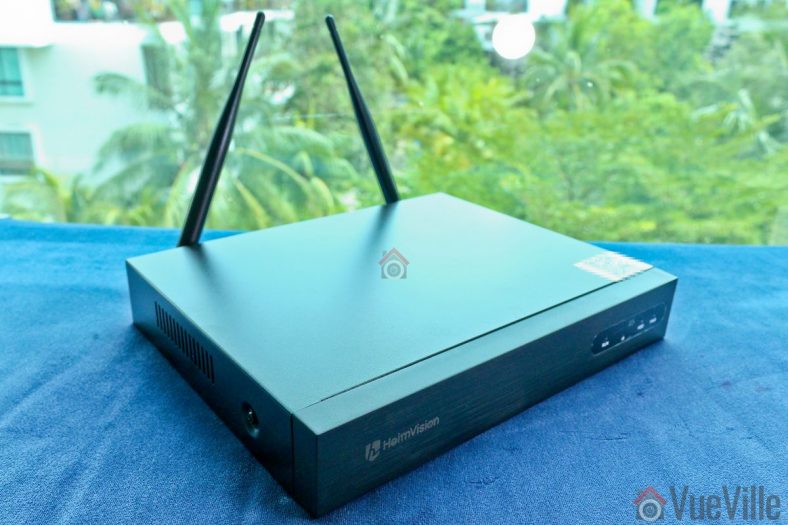
    The 8-channel NVR is quite compact and comes pre-installed with two 5dB antenna at the rear. The front face has no buttons, just the Heimvision logo and a set of indicator lamps.

    The top of the NVR also has the cloud ID and a QR code that can be scanned by the mobile app for easy setup.

    Heimvision Wireless Security Camera System (HM-241) Review - NVR2 - VueVille

    Under normal operation, the three LEDs RUN, HDD and PWR will blink in sequence. Although the NVR seems to support IR controllers, none were included in the box.

    Heimvision Wireless Security Camera System (HM-241) Review - NVR6 - VueVille

    The rear of the NVR houses the two antennae, an HDMI port, a VGA port, a USB port (for mouse/keyboard), an RJ-45 Ethernet port, and the 12V/2A power jack.

    Heimvision Wireless Security Camera System (HM-241) Review - NVR7 - VueVille

    The underside of the NVR has a sticker showing the model number, FCC ID and other details. Once the hard drive in installed, you will also see the heads of the screws securing it.

    Heimvision Wireless Security Camera System (HM-241) Review - NVR9 - VueVille

    Opening up the NVR shows that most of the space inside the NVR is actually unused and left empty for the hard drive. The NVR is powered by the popular Hi3536DV100 H.265/H.264 system-on-a-chip decoder and processor module. This system used an ARM Cortex A7 processor with one SATA hard drive interface.

    The NVR firmware identifies the NVR model as the K8204-W.

    Heimvision told us that neither this NVR nor the included wireless cameras support ONVIF.

    Here’s a list of the various NVR features:

    • 2.4GHz Wi-Fi for camera connections
    • 8 channels supported
    • Decoding: 4CH 1080P@20FPS or 8CH 720P@20FPS
    • Real time Playback (Max 8ch)
    • Mobile push alerts
    • Email alerts
    • P2P for remote access

    Camera

    Four Wi-Fi IP cameras are included with this NVR. The NVR supports 4 more channels, so you could theoretically add more cameras.

    You can also buy this camera (model no. CA01) separately from the Heimvision website or [easyazon_link identifier=”B07TD4GK65″ locale=”US” tag=”vueville.com-eaz-20″]Amazon[/easyazon_link], but note that they will work only with specific Heimvision NVRs. They do not officially have ONVIF compatibility.

    Heimvision Wireless Security Camera System (HM-241) Review - Wireless Camera5 - VueVille

    The IP camera has a metal body and is IP66 weather-rated. Each camera comes with a 5dB antenna, a 12V/1A power adaptor, and screws to wall-mount it. The design seems to be inspried by the compact bullet-camera style of the latest Hikvision and Dahua cameras. Overall, the camera has a solid high quality feel to it.
    Heimvision Wireless Security Camera System (HM-241) Review - Wireless Camera3 - VueVille

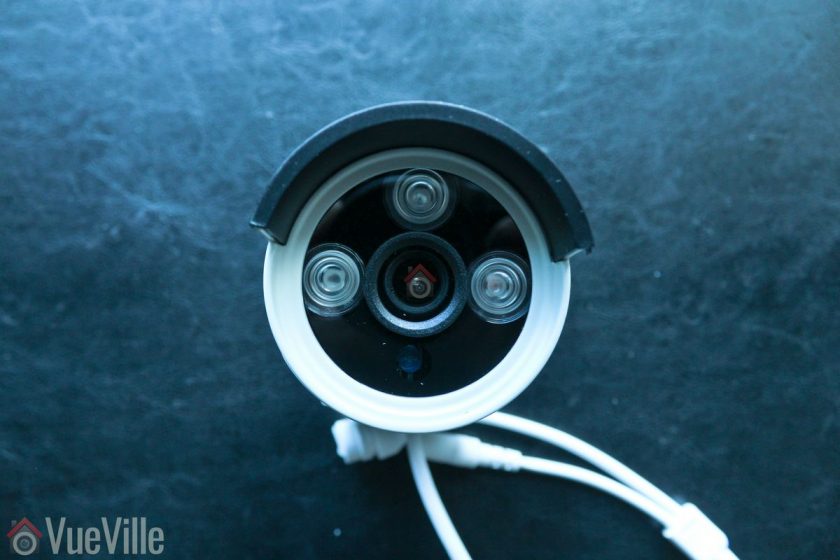
    The front of the camera has the 3.6mm fixed lens, and three 850nm EXIR LEDs. I am happy to see that Heimvision chose the more powerful EXIR LEDs instead of the usual ring-type LED arrangement. The daylight sensor is placed just below the lens.

    On the features side, the image sensor has a 1080p resolution. The 3.6mm lens has a wide viewing angle of 110°. You won’t find any advanced image processing features like WDR here. Simple motion detection is possible at the NVR end, but not by the camera.

    Heimvision Wireless Security Camera System (HM-241) Review - Wireless Camera7 - VueVille

    The camera mount is of the 3-axis type, so you can orient the camera in just about any position you want.

    Heimvision Wireless Security Camera System (HM-241) Review - Wireless Camera2 - VueVille

    While the camera doesn’t support Power-over-Ethernet, it does has an Ethernet port. The camera is wirelessly paired with the NVR at the factory and so is ready to use in Wi-Fi mode. But the Ethernet port allows you to use it as a wired camera if you have an Ethernet point available near the installation site.

    Heimvision Wireless Security Camera System (HM-241) Review - Wireless Camera9 - VueVille

    I recommend using wired Ethernet as much as possible and to use Wi-Fi only for those parts of your home that are not wired up for Ethernet.

    An interesting feature is that the cameras can create something of a mesh network to extend wireless range. Here’s how it works: a camera that is too far away from the NVR can till connect to the NVR through another in-range camera. So the intermediate camera which is in range of the NVR acts like a repeater. This is not automatic though, it has to be set up manually in the GUI.

    All in all, the wireless camera feels very solid and like it is built to last. The essential features are there and some innovative features help distinguish it from similar offerings in the market.

    Installation & Setup

    The included user manual is one of the best I have seen from a Chinese manufacturer.

    There are no grammatical errors, the language used is professional and natural, illustrations are clear and the booklet is printed in colour. Other Chinese manufacturers should take note!

    Setting up the IP Cameras

    Initial setup is super easy because the wireless cameras are paired to the NVR at the factory itself. By default they are set up to create a subnet in the IP range 172.20.14.30-33. I did not see any option to expose the cameras directly to my network beyond the NVR.

    1. Pick an installation location that’s not too far away from the NVR. Don’t install the camera right away though. With wireless cameras, you need to ensure you have a strong connection to the NVR before you permanently install the camera.
    2. Screw the included antenna on to each IP camera.
    3. Plug in the included 12V/1A power adaptor and turn on the power.

    Setting up the NVR

    If you just plug in the NVR and turn it on, you will see your camera streams on screen in a few minutes. But without installing a hard drive, you won’t be able to record or playback.

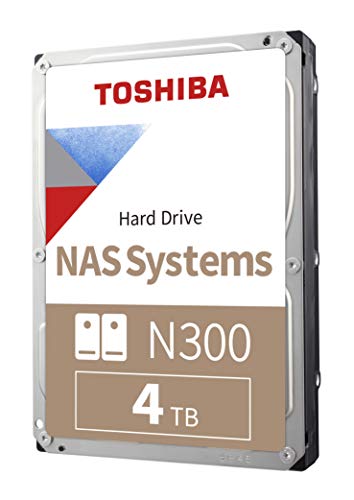
    So before turning it on, the first thing to do is install a hard drive in the NVR. Heimvision doesn’t provide one, so I used a [easyazon_link identifier=”B008JJLW4M” locale=”US” tag=”vueville.com-eaz-20″]WD RED 3TB[/easyazon_link] drive. I wanted to test the performance of the NVR and didn’t want the drive to be the bottleneck. See my recommendations for NVR hard drives.

      1. The manual has very clear installation steps which is very helpful if you are doing this for the first time. I added my photos below to show you exactly how I did it.
      2. Unscrew the 4 screws from the top and sides of the NVR and slide off the black NVR cover.Heimvision Wireless Security Camera System (HM-241) Review - NVR8 - VueVille
      3. The SATA data and power cables are already attached to the main board. Connect these to your hard drive.Heimvision Wireless Security Camera System (HM-241) Review - NVR13 - VueVille
      4. Screw the hard drive to the NVR – for this align the hard drive screw holes to the NVR base. Then from the other side, screw the provided screws into each hole one by one.Heimvision Wireless Security Camera System (HM-241) Review - NVR12 - VueVille
      5. For continuing the setup I strongly recommend hooking up the NVR using the HDMI or VGA port. Most of the settings are accessible only through the NVR’s built-in GUI.
      6. Connect a mouse to the USB port.
      7. Turn on the NVR with the hard drive installed, it will automatically connect to all the wireless IP cameras and start continuous recording of all channels at 1080p.
      8. Format the hard driveHeimvision Wireless Security Camera System (HM-241) Review - HDMI - VueVille
      9. After a few minutes, you should see the ‘Format successful’ message. Now your cameras are being recorded to the hard drive.
        Heimvision Wireless Security Camera System (HM-241) Review - HDMI2 - VueVille

    How I connected the NVR to my network

    The Heimvision NVR has a built-in virtual network switch and automatically places all the Heimvision wireless cameras in it’s own subnet. How did I know this? Because my Unifi Network Management interface can see the IP addresses of all the wireless cameras: 172.20.14.30 to 172.20.14.33.

    As detailed in my DIY Smart Home Security post, I have wired Gigabit Ethernet throughout my home using Unifi PoE Switches and the Unifi USG firewall. All my existing wired security cameras are already in a VLAN – VLAN number 3 in the network map below.
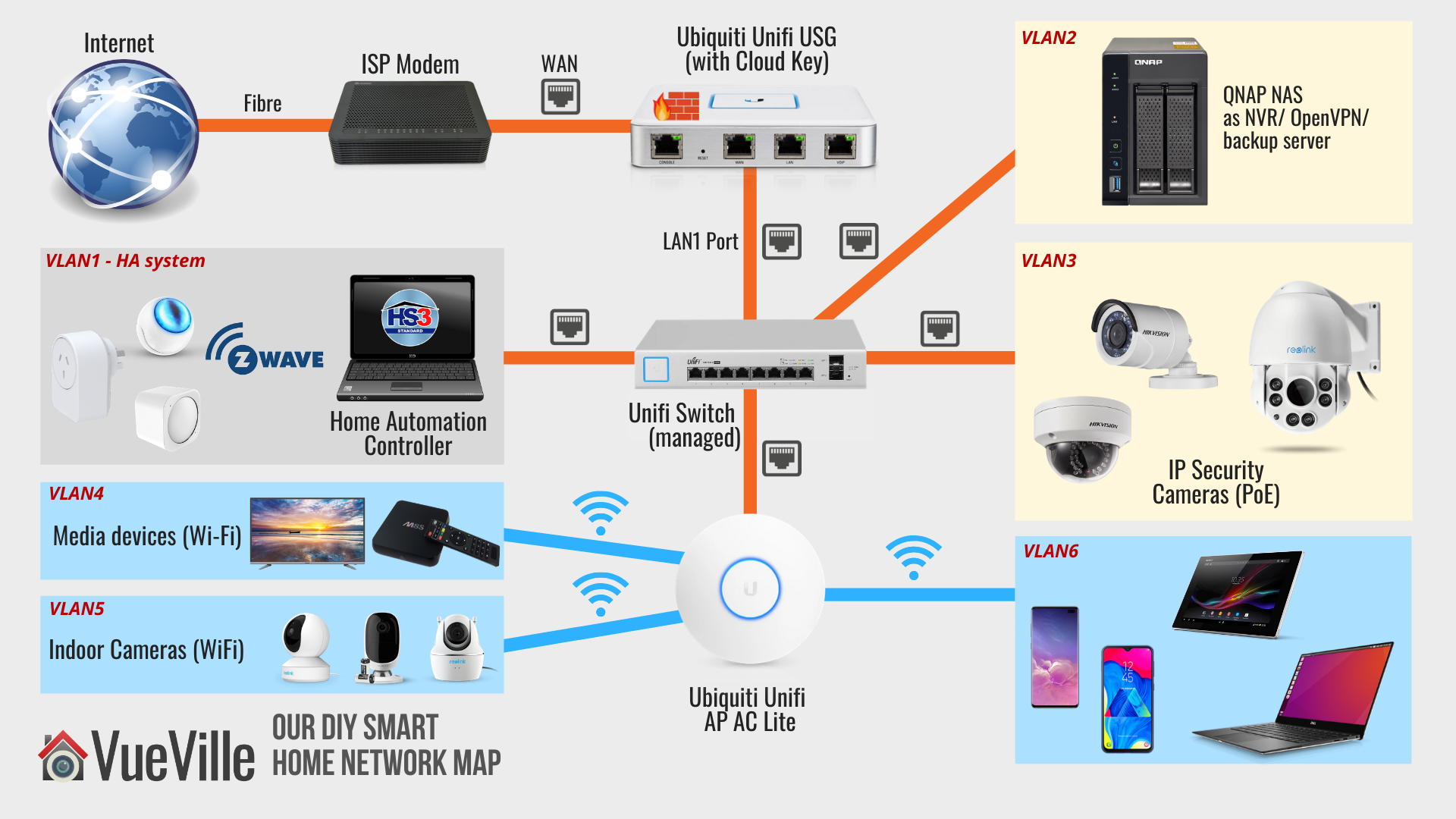
    How we built our DIY home security camera CCTV system - Network Map - VueVille
    Our DIY Smart Home Network Map

    A quick reminder of my network config: VLAN3 is set up to only accept connections from my LAN, not from the Internet. It is also set up to allow only RTSP streams to go out to the QNAP NAS (VLAN2) and personal devices (VLAN6). I am able to set up such precise rules because I use the Unifi US-8-60W managed switch and the Unifi USG firewall.

    So I added the NVR to VLAN3 using Ethernet. Now comes the fun part – accessing the NVR from the rest of my network.

    The only thing I wanted to pull from the Heimvision NVR are the RTSP video streams. But the NVR currently doesn’t support RTSP streams – Heimvision tells me this is coming soon. So my alternative for now is to use the EseeCloud PC software. This software requires a specific port to be open on the NVR to connect to it.

    By inspecting the packets between my laptop (VLAN6) and the NVR, I saw that EseeCloud uses port 10000 of the NVR. So I created an additional USG rule to allow outgoing (established) connections from the NVR only on port 10000, to VLAN6. Boom! EseeCloud was up and running securely.

    Strictly for the purposes of this review, I also allowed port 80 on the NVR to use the browser admin page of the NVR and for the HeimKits mobile app to work.

    For the cloud P2P option to work, I tested the NVR in a totally separate VLAN with full access to the Internet. This was the easiest way to allow P2P cloud connections between the NVR and Heimvision servers.

    Live viewing the cameras

    There are a few different ways of interacting with the NVR and video streams:

    1. Connect the NVR to a TV or monitor
    2. Use the PC NVR software
    3. Use the mobile app
    4. Access the built-in management web page of the NVR

    The user manual details each of the methods and how to set them up.

    Live viewing the cameras using HDMI/VGA

    HDMI is the easiest way to hook up the NVR to your TV. The NVR’s built-in interface is the most polished option and has the most features.

    You can configure the cameras, live-view them, set up motion detection and play back recorded footage.

    Heimvision Wireless Security Camera System (HM-241) Review - HDMI4 - VueVille

    Live viewing the cameras using the EseeCloud PC Software
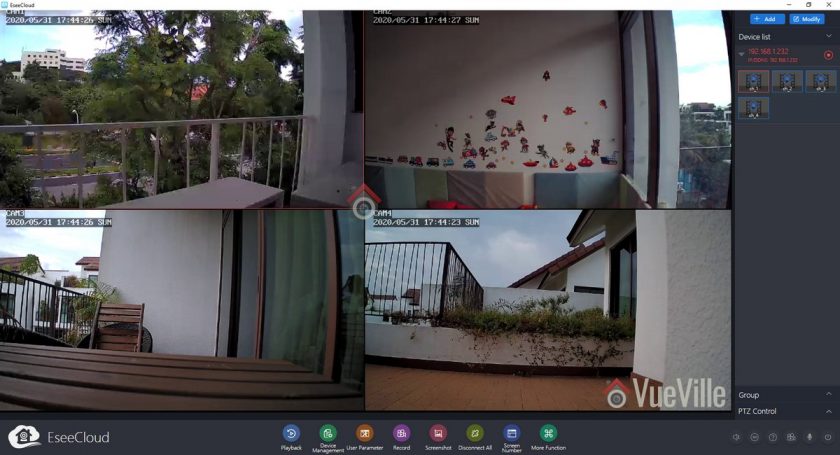
    Heimvision Wireless Security Camera System (HM-241) Review - EseeCloud Live View - VueVille

    Here are the steps I used to set it up.

    1. As per the manual, I downloaded and installed the EseeCloud software.
    2. On opening the software, I logged in with the default username (admin) and password (blank).
    3. Click Add at the top right
    4. I entered the IP address, and changed the number of channels to 4, all others were left at default
    5. You will see a message at the bottom right – “Added the device successfully”
    6. Also you should see your NVR listed at the top right. Click on each channel to activate it.
    7. Clicking the ‘Device Management’ option will prompt Windows to allow the software through the firewall.
    8. Clicking on ‘Playback’ will open the video review section

    Reviewing recorded footage

    There are three ways to view the recorded footage – on a TV/monitor through HDMI/VGA, the PC NVR software, and mobile app.

    I recommend the HDMI/VGA method because of two major reasons:

    1. This is the only way to fast forward (scrub) through footage quickly, at upto 32x speeds.
    2. Simultaneous playback of all 4 channels works well only in this method.
    3. You can select individual video files and back it up to a USB drive.

    Whichever method you choose, the timeline shows 24/7 recording (red), motion detection triggers (green) and alarm triggered recording (blue). This is extremely useful when you are looking for motion detection events to review.

    The PC software method (EseeCloud) is great for directly exporting videos and screenshots directly to your PC hard drive. But otherwise it doesn’t offer you any advantage over the HDMI/VGA method.

    Heimvision Wireless Security Camera System (HM-241) Review - EseeCloud Playback - VueVille
    EseeCloud PC Software

    You can start each channel’s playback manually and switch each channel’s main stream and sub stream by clicking the SD/HD button.

    Synchronous playback is possible by checking the button highlighted in the screenshot above.

    However playing more than 2 channels’ main streams (1080p) simultaneously slows down the playback of all the channels. The NVR is powerful enough to handle this while connected through HDMI/VGA. So I conclude that this is just the EseeCloud software not being up to scratch. I had to use the sub stream (SD option) on all channels if I wanted simultaneous playback.

    Another limitation is that you cannot increase the playback speed, in other words you cannot fast forward. This is a basic feature and it is disappointing to see it missing in this rather good-looking software.

    Performance

    Video Quality

    1080p is the bare minimum I recommend for home CCTV surveillance. The cameras produced sharp, crisp video during the daytime.

    At night, noise was well controlled and detail was high. The powerful EXIR LEDs helped illuminate the scene evenly and I was glad to not see the dreaded flashlight effect that the conventional ring-type LEDs produce.

    There are no settings to control the brightness of the LEDs and there are no advanced features to dynamically control the infrared light output.

    Motion detection

    The Heimvision HM241 is able to do both pre-recording and post-recording. This means the NVR is able to record not just what happens after motion was detected but a few seconds before the trigger as well. This is a great feature and something that I always look for in a security camera system.

    The post-record feature lets you decide how many seconds the camera should record after the last motion trigger. The default is 15 seconds.

    Wireless performance

    Being a wireless surveillance system, the cameras are limited to 1080p resolution. While 3MP or 4MP are great, 2.4GHz Wi-Fi is simply not fast enough to reliably carry that bandwidth over large distances.

    You could ask why not use 5GHz? Well the useful range of 5GHz Wi-Fi is very low and frankly useless for video surveillance. If you have solid concrete walls, 5GHz Wi-Fi again becomes pretty useless over  any reasonable distance.

    I placed the Wi-Fi cameras at varying distances from the NVR, with varying number of internal and external walls in between them.

    My objective was to stress test the cameras and see how far away I could place the cameras and still enjoy a stable wireless connection.

    Cam1: 30 feet, one external concrete wall, two solid brick walls

    Cam2: 10 feet and 1 solid brick wall

    Cam3: 20 feet and 2 solid brick walls

    Cam4: 10 feet, 1 floor above the NVR, through a solid concrete floor and one external concrete wall

    All the cameras were able to push full 1080p video at the default VBR setting. Even though CAM1 was at the limit of the camera’s Wi-Fi range, the NVR was able to maintain the full 2 Mbps bitrate. The ability of the signal to penetrate multiple solid brick and concrete walls is very impressive.

    I would imagine the wireless range can easily go to 50+ feet in a timber frame house, given the strong performance in my house which has very thick concrete and brick walls.

    Mobile App

    For testing the mobile app as most users would, I allowed the NVR full access to the Internet. This is also required for the P2P cloud features of the camera to work. A free HeimVision P2P cloud server account is required to receive real-time push notifications as well.

    You can use the app as anonymous user without creating an HeimVision cloud account, but then you won’t get push notifications.

    Live view and Playback

    So what should you be looking for when it comes to push notifications? The speed and reliability of the push notifications reaching you. You want the NVR to send you push notifications immediately after it detects motion.

    I installed the ‘HeimKits’ mobile app as per the instruction manual and took it for a whirl.

    • Download and install the app from your mobile phone’s app store.
    • Tap the + button to add your NVR
    • Select Kit and an automatic scan will start. This will find the kit and set t up for most people. In my case since I had put the NVR in a different subnet from my main LAN, the scan failed.
    • I tapped the ‘Add Manually’ button and again tapped the other ways to add button to get the local setup option. If you want to set up the NVR so that you can access it remotely and are hapy to use HeimVision’s P2P servers, use the cloud setup option. This is also the default.
    • I entered all the details and tapped complete.
    • I was then taken to the live view page. Success!

    The mobile app did ask for all sorts of permissions on Android, but the only one needed for the app to function is ‘Storage’. I denied access to the Camera, Microphone and everything else. Call me paranoid but that’s how we roll at VueVille!

    The interface is very modern and had a very polished look and feel. This felt like a properly thought-through app with a good design language and flow.

    You can live view cameras in groups of 1, 4, 6 or 8. Landscape mode is supported. You can also switch between the SD and HD streams. It is also possible to take a screenshot or a video clip of any channel straight to your mobile phone.

    On the playback screen, the view is limited to one camera at a time. No simultaneous playback here! But the timeline is super responsive and motion detection events are marked clearly on the timeline. One gripe is that I could not directly download the motion detection video clip I was viewing to my phone. However there is a (well-hidden) export feature on the top left menu where you can specify a channel and a time range to search. This will bring up all the clips and then you can download the one that contains the time period of interest.

    Push Notifications

    To get push notifications to the HeimKits mobile app, you need to do a few things:

    • Access the NVR settings using an HDMI/VGA cable and a TV:
      • Enable motion detection for each channel
      • Define the arming time schedule for each channel
      • Turn on ‘App alarms’ for each channel
    • Create a Heimvision cloud account and login with that to add your NVR. Anonymous mode is not enough.
    • Enable push notifications in the mobile app settings

    Once you have done all that, you are ready to go! In my testing, I got push notifications in the HeimKits app instantaneously. The success rate of receiving the push notifications over multiple motion triggers was also very good.
    Heimvision Wireless Security Camera System (HM-241) Review - HeimKits Push Notification - VueVille

    Touching the notification takes you to a list of all the alerts received in descending order of time. Touch the alert you want and then you are taken to a quick preview of the alert clip. If you want to see what happened just before the motion was detected, tap ‘Full Video’. Yes, the NVR supports pre-recording, not just post-recording. So you won’t miss the crucial few seconds before motion is detected.

    Security & Privacy

    For using push notifications, you need to activate the free HeimVision cloud P2P service. This does provide fuss-free remote access for live view, playback and live streaming.

    The two things we didn’t like are:

    • You cant get even local network push notifications without activating the cloud feature
    • The cloud features requires you to create an account (free of charge)

    If you are concerned about using the Cloud P2P service for privacy reasons, it is not enough to simply disable the cloud service. You have to place the NVR behind a firewall and configure firewall rules properly so that only connections you want are allowed.

    See how we built our DIY home CCTV system to be 100% safe and secure. Here are some more articles to explore:

    Verdict

    The HeimVision HM241 is a high quality starter NVR kit with strong wireless performance and a good feature-set for a great price. Setup is easy and fuss-free, and takes just minutes thanks to the wireless cameras being pre-configured with the NVR. We would still like to see a variant with an included hard drive to make the setup fully plug-and-play.

    Video quality is great at 1080p FullHD, and the powerful IR LEDs provide good illumination at night. The mobile app is a joy to use; you can live-view, receive instantaneous push notifications and review footage with ease from anywhere in the world using the free cloud P2P service.

    If you decide to go wired in the future, the system can grow with you – the wireless cameras have Ethernet ports as well.

    For the price point it targets, its fine to not have advanced motion detection or redundant storage. However we were not pleased to see that push notifications don’t work unless the cloud P2P service is used. This rules out receiving push notifications locally in your home network or via a VPN connection.

    Video quality is great at 1080p FullHD, and the powerful IR LEDs provide good illumination at night. The mobile app is really good; you can live-view, receive instantaneous push notifications and review footage with ease.

    In conclusion, the HeimVision HM241 is a very affordable wireless home surveillance kit and is fantastic value for money.

    [review]

    Where to buy

    [easyazon_link identifier=”B07RKJDK65″ locale=”US” tag=”vueville.com-eaz-20″]Check Price on your local Amazon site[/easyazon_link]

    Alternatives

    The nearest competitor is the [easyazon_link identifier=”B07VWHXF4C” locale=”US” tag=”vueville.com-eaz-20″]Reolink RLK4-211WB4-S[/easyazon_link] which has a similar price point and very similar features.

    The next step up would be the Amcrest [easyazon_link identifier=”B0785GZ88X” locale=”US” tag=”vueville.com-eaz-20″]NV2104-IP2M-852W4[/easyazon_link] which is significantly more expensive but supports ONVIF and has a 4K NVR.
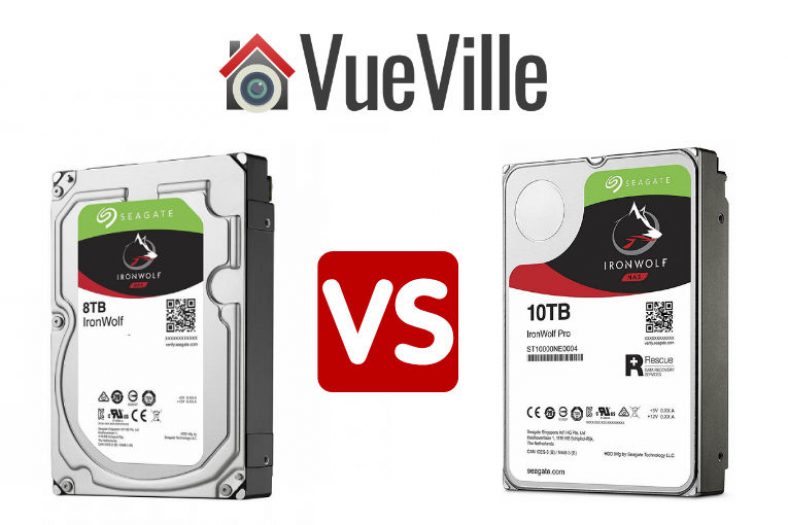
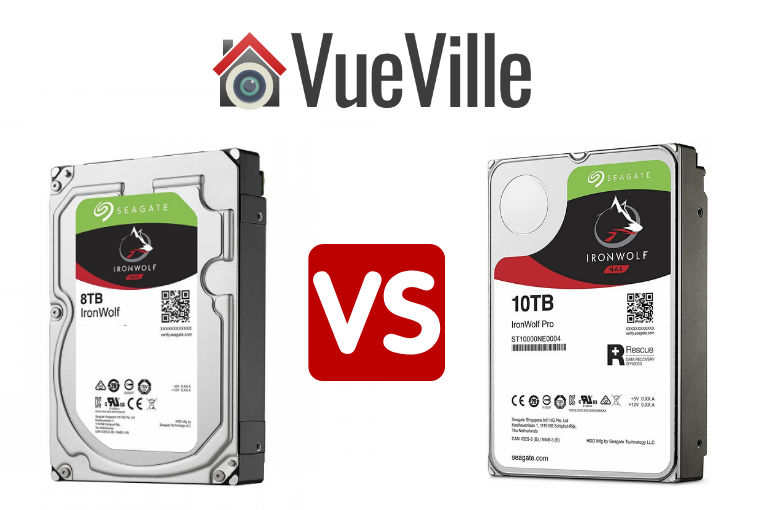
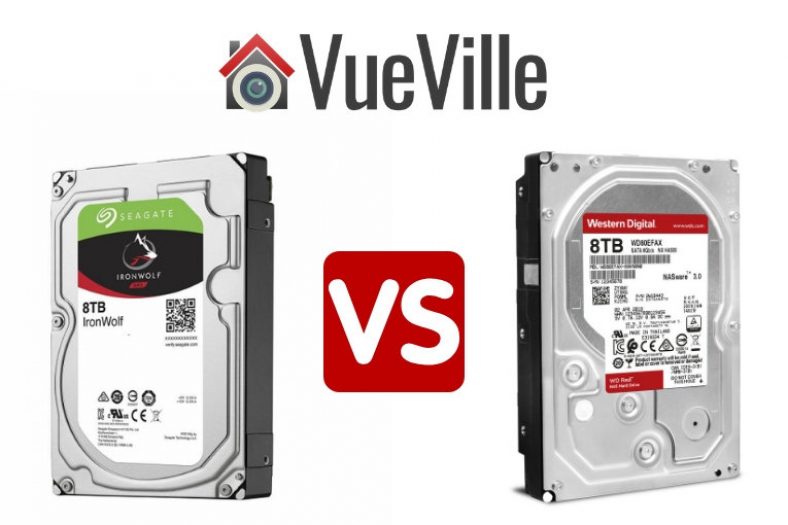
  • IronWolf vs. IronWolf Pro – NAS Hard Drives Compared

    IronWolf vs. IronWolf Pro – NAS Hard Drives Compared

    For a few years now I have been using WD RED NAS hard drives in my DIY NAS NVR. But these are running 24/7 and its only a matter of time before I need to start replacing them one by one.

    So I have been researching the various NAS hard drives from WD, Seagate and other top brands. I looked at WD RED vs. Seagate IronWolf drives recently. That’s when I came across the Ironwolf Pro range.

    Let’s take a closer look at how the IronWolf differs from the IronWolf Pro.

    Ironwolf vs IronWolf Pro - NAS Drives Compared - VueVille

    A quick note: As an Amazon Associate I earn from qualifying purchases. This post contains affiliate link(s). An affiliate link means I may earn advertising or referral fees if you make a purchase through my link, at no extra cost to you.

    IronWolf vs. IronWolf Pro – Comparison Table

    [table id=76 responsive=scroll /]

    (* = affiliate link / image source: Amazon Associates Program)

    IronWolf vs. IronWolf Pro – Features

    Seagate IronWolf 8Tb NAS Internal Hard Drive HDD – 3.5 Inch SATA 6GB/S 7200 RPM 256MB Cache for Raid Network Attached Storage (ST8000VN0022),Silver
    ×
    Product prices and availability are accurate as of the date/time indicated and are subject to change. Any price and availability information displayed on https://www.amazon.com/ at the time of purchase will apply to the purchase of this product.

    The biggest difference between the Ironwolf & Ironwolf Pro is the number of drive bays supported:

    • IronWolf is aimed at Home, SOHO and small business NAS drives with up to 8 drive bays.
    • IronWolf Pro, on the other hand is for businesses and digital artists who need extremely high performance from their NAS servers with up to 24 drive bays.
    Seagate IronWolf Pro 8TB NAS Internal Hard Drive HDD – 3.5 Inch SATA 6Gb/s 7200 RPM 256MB Cache for RAID Network Attached Storage, Data Recovery Service – Frustration Free Packaging (ST8000NEZ01)
    ×
    Product prices and availability are accurate as of the date/time indicated and are subject to change. Any price and availability information displayed on https://www.amazon.com/ at the time of purchase will apply to the purchase of this product.

    Another major difference is the rotational speed. As you can see in the comparison table above, the larger Ironwolf drives from 8 TB and upwards rotate at 7200 rpm but the smaller capacity models run at 5400 or 5900 rpm. But all the IronWolf Pro drives run at 7200 rpm.

    Performance

    The IronWolf Pro has a much higher rated transfer speed than the IronWolf, as can be seen in the comparison table above.

    However in real life, which drive is faster will depend on what type of enclosure or rack you are using.

    In a smaller enclosure, the IronWolf may pull ahead whereas in larger enclosures or storage racks, the Pro version will have better performance. This can be attributed to the vibration optimizations of the Pro version.

    All IronWolf and IronWolf Pro drives utilize write-back caching.

    Reliability

    Seagate has improved the the workload rating of the Ironwolf Pro drives from 300 TB/year to 550 TB/year. This is a welcome change. However, the standard Ironwolf’s rating remains at 180TB/year. But that doesn’t tell us the full story.

    While we may not have specific reliability data for the Seagate Ironwolf and WD RED drives, one cloud storage provider regularly publishes drive failure data for all the drives it uses – Backblaze.

    Please note that the Seagate hard drives they use are the Exos variety, not Ironwolf. Still, it gives us some sense of how reliable the Seagate brand is.

    Looking at the latest Backblaze data, in general at lower capacities, Seagate seems to have slightly lower reliability. Although do note the sample size is much larger in Seagate’s case for most drive sizes, generally the higher the sample size, the more accurate the data becomes.

    Noise

    The Ironwolf has a noise level rating of 20-30dB, which is low enough to place the NAS in your living room or in your study.

    Not all IronWolf Pro drives are as quiet because the professional audience that the Pro drives target do not really care much about sound levels. But they still stay under a pretty quiet 32 dB level.

    VueVille Verdict

    The IronWolf is our choice for most home users. If you are using a storage rack or an enclosure with more than 8 bays, go for the IronWolf Pro.

    Where to buy

    (* = affiliate link / image source: Amazon Associates Program)

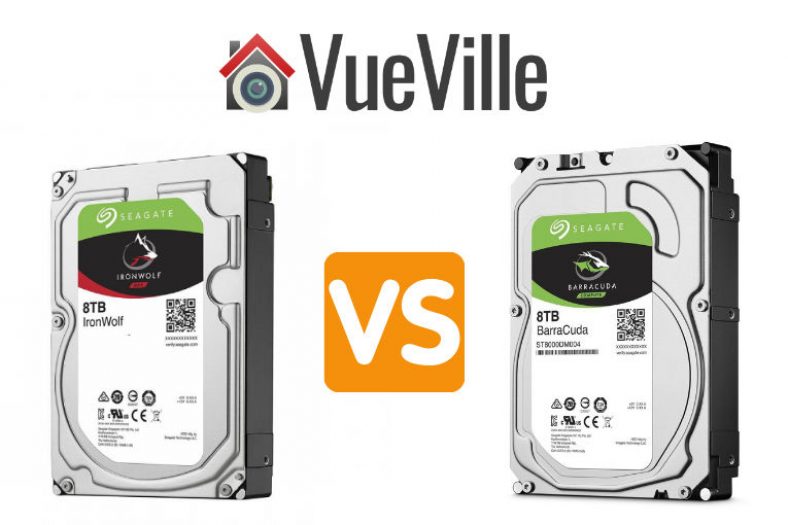
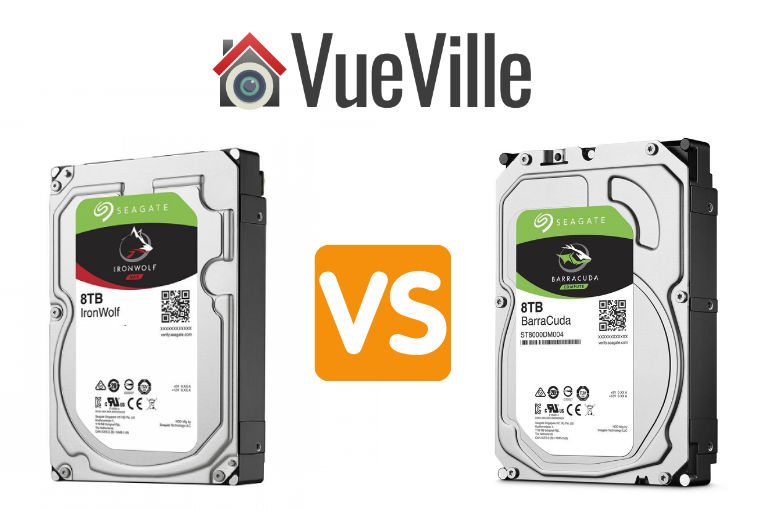
  • Seagate IronWolf vs. Barracuda – Hard Drives Compared

    Seagate IronWolf vs. Barracuda – Hard Drives Compared

    One of the common hard drive comparison requests I get from my readers is for the Seagate IronWolf vs. the Seagate Barracuda.

    This is quite interesting because the IronWolf is a NAS-focused drive and the Barracuda is an internal hard drive for PCs. Both are available in 2.5″ and 3.5″ sizes and a wide range of capacities.

    Let’s take a closer look at how the Seagate IronWolf differs from the Barracuda.

    Seagate Ironwolf vs Barracuda Hard Drives Compared - VueVille

    A quick note: As an Amazon Associate I earn from qualifying purchases. This post contains affiliate link(s). An affiliate link means I may earn advertising or referral fees if you make a purchase through my link, at no extra cost to you.

    Seagate IronWolf NAS drive vs. Barracuda Internal Hard Drive – Comparison Table

    [table id=79 responsive=scroll /]

    (* = affiliate link / image source: Amazon Associates Program)

    Biggest difference

    The Barracuda uses the inferior SMR drive recording technology, whereas the IronWolf uses the much better CMR technology.

    Performance

    While comparing these drives, we should be mindful that these are very different drives, created for very different applications, and have different price points for the same capacity.

    Comparing real-life benchmarks of the Ironwolf 4TB vs. Barracuda 4TB, overall the IronWolf is much faster with an effective speed advantage of 30%.

    Reliability

    While we may not have specific reliability data for the Barracuda drives, one cloud storage provider regularly publishes drive failure data for all the drives it uses including the Ironwolf – Backblaze.

    Looking at the latest Backblaze data, we can see that Seagate’s reliability in general is a mixed bag. At lower capacities, they seem to be more reliable than other brands but at higher capacities they have higher failure rates.

    Source: BackBlaze

    Looking at the specs, the IronWolf has a much higher 27/7 operation workload of 180 TB/year vs the Barracuda’s 55 TB/year. Even if your data requirements are within the Barracuda’s rating, I wouldn’t recommend using it as a NAS drive. It uses SMR and that’s going to give you headaches when it comes to RAID rebuilding time.

    The Barracuda doesn’t have rotational vibration sensors, which the IronWolf does have. Also worth noting is the similar non-recoverable Read Errors Rate of both drives.

    Noise Levels

    Seagate doesn’t say how loud the Barracuda’s get but as they are desktop hard drives you would expect them to be louder than the IronWolf drives.

    VueVille Verdict

    If you are looking for hard drives to use in a NAS, my advice is to stick with the NAS-specific models such as IronWolf. These have a much higher workload cycle and have features such as rotational vibration sensors to prolong the drive’s life. They also have a higher quality warranty if things do go wrong.

    However if all you need is a desktop hard drive, the Seagate Barracuda will probably suffice. Just bear in mind that these drives are SMR. SMR technology renders these drives poor choices for heavy write applications. So if your application requires sustained write performance, go for CMR-based drives such as the IronWolf, IronWolf Pro, WD Red Plus or WD Red Pro.

    Where to Buy

    [easyazon_image align=”center” height=”160″ identifier=”B01LOOJBQY” locale=”US” src=”https://m.media-amazon.com/images/I/41rpJjBRX4L._SL160_.jpg” tag=”vueville.com-eaz-fbox-20″ width=”124″]
    Seagate IronWolf NAS Drive
    [easyazon_link identifier=”B01LOOJBQY” locale=”US” tag=”vueville.com-eaz-fbox-20″]Check Amazon Price*[/easyazon_link]
    [easyazon_image align=”center” height=”160″ identifier=”B0713R3Y6F” locale=”US” src=”https://m.media-amazon.com/images/I/41uV9lS1bKL._SL160_.jpg” tag=”vueville.com-eaz-fbox-20″ width=”128″]
    Seagate BarraCuda HDD
    [easyazon_link identifier=”B0713R3Y6F” locale=”US” tag=”vueville.com-eaz-fbox-20″]Check Amazon Price*[/easyazon_link]

    (* = affiliate link / image source: Amazon Associates Program)

  • Best Outdoor Wireless Security Camera System with DVR

    Best Outdoor Wireless Security Camera System with DVR

    Best Outdoor Wireless Security Camera System with DVR - VueVille

    Does the thought of laying hundreds of feet of Ethernet cable up and down your attic, around the house and under the eaves fill you with dread?

    Outdoor security cameras paired with a video recorder are a great idea but is there a way to do it without the hassle of wires? In 2019 that’s a resounding yes, you can get a fully wireless security camera system without breaking the bank.

    But putting together a full wireless system may prove to be a daunting task for most folks. That’s why we have done the research to present you the best pre-configured outdoor wireless security camera systems with DVRs (or NVRs).

    Best Outdoor Wireless Security Camera System with DVR/NVR

    [wpsm_toplist]

    Best 4-channel Wireless Security Camera System with NVR

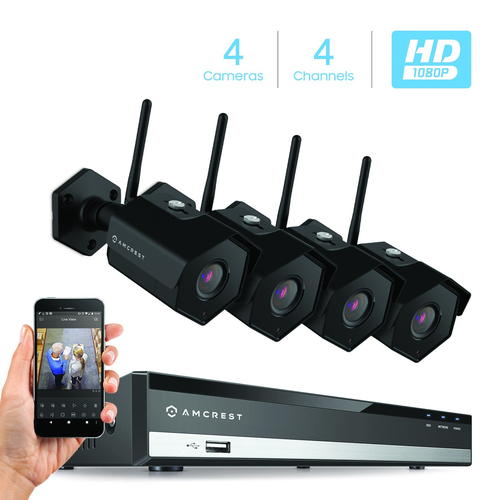
    Budget 4-ch Wireless NVR Kit: Amcrest 1080p 4-channel NVR Kit with 4 1080p Wi-Fi cameras (Amcrest NV2104-IP2M-852B4)

    [wpsm_divider top=”20px” bottom=”20px” style=”clear”]

    [wpsm_column size=”one-half”]
    Amcrest NV2104-IP2M-852B4 - Best Outdoor Wireless Security Camera System with DVR - VueVille[/wpsm_column][wpsm_column size=”one-half” position=”last”]
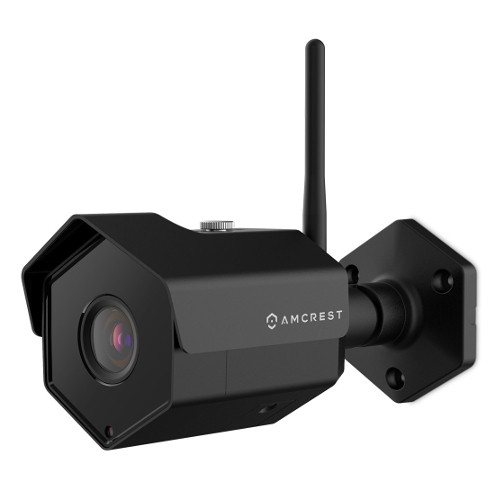
    Amcrest IP2M-852B4 Wi-Fi Security Camera - VueVille[/wpsm_column]

    [wpsm_divider top=”20px” bottom=”20px” style=”clear”]

    [wpsm_column size=”one-half”]
    [wpsm_titlebox title=”NVR Features (NV2104-HS)” style=”3″]

    • 4-channel recording @ 1080p supported
    • H.265 encoding & PoE-enabled
    • Max. 6TB hard drive supported
    • 80 Mbps total bandwidth
    • Motion detection with email alerts and push notification
    • Remote smartphone access
    • ONVIF & RTSP support allows you to connect 3rd party cameras

    [/wpsm_titlebox]
    [/wpsm_column]

    [wpsm_column size=”one-half” position=”last”]
    [wpsm_titlebox title=”Wireless IP Camera Features (IP2M-852B4)” style=”3″]

    • 3-axis black colour camera
    • 2MP CMOS image sensor (1080p)
    • Night vision with 30m IR range, true IR-cut filter
    • RJ45 PoE ports
    • IP 67 Weather-rated

    [/wpsm_titlebox]

    [easyazon_link identifier=”B077XPNBW3″ locale=”US” tag=”vueville.com-eaz-20″]Read Amazon user reviews[/easyazon_link]

    [/wpsm_column]
    Amcrest is a frequent guest on our recommended outdoor and indoor IP camera lists. This wireless NVR security camera kit is an entry-level model at a super budget-friendly price. Amcrest bundles their NVRs and cameras in a dizzying array of combinations, so you are sure to find a kit that matches your exact needs.

    The NV2104-HS NVR in this kit is a 4-channel model which can record all the channels simultaneously at up to 1080p. Motion detection is possible on all the channels and it can send motion triggered email alerts. An unfortunate trend in the industry recently is to try and lock down products to trap you in a manufacturer’s ecosystem. Happily, Amcrest is not one of those guys. Since the NVR supports the ONVIF standard, you can add any 3rd party camera from manufacturers like Hikvision, Dahua, Sony, Vivotek, and even Foscam (Amcrest’s nemesis whom they had a falling out with and the reason for the Amcrest brand being created). I hope Amcrest remains open to inter-operability which is a key feature for us DIY enthusiasts.

    The camera included in this kit is the IP2M-852B4 model, which can also be purchased separately. These are 1080p (2MP) IP cameras that can do night vision and have a very good IP67 weather rating. The 128° field of view is very good and one of the advantages of a 2 MP sensor. They are also ONVIF compliant, so can work with 3rd-party ONVIF compliant NVRs or a DIY NAS NVR system. Using the Amcrest smartphone app, you can login in to the NVR from anywhere at any time to see a live feed of all the cameras as well as recorded CCTV footage.

    [wpsm_column size=”one-half”]
    [wpsm_pros title=”PROS:”]

    • Good image quality with 1080p cameras
    • Wide 3rd party camera support through ONVIF standard
    • IR LEDs provide night vision capability
    • USB Backup feature for peace of mind
    • Very good value for money
    • 2-way audio (voice chat) possible

    [/wpsm_pros][/wpsm_column]

    [wpsm_column size=”one-half” position=”last”]
    [wpsm_cons title=”CONS:”]

    • No advanced motion detection methods such as line crossing, intrusion or dwell/linger/abandoned object detection
    • Free smartphone app could be better – it lacks basic features such as push notifications, paid version needed for this
    • No redundant storage due to single SATA interface, cannot write to network devices
    • No scheduled USB backup option
    • No alarm in/out connections
    • NVR doesn’t have built-in WiFi option

    [/wpsm_cons][/wpsm_column]

    Smart Home Checklist

    • Local storage available: Yes
    • Cloud reliant: No
    • Battery backup: No
    • Smart home compatibility: ONVIF, RTSP
    • Subscription fees: None

    [easyazon_link identifier=”B077XPNBW3″ locale=”US” tag=”vueville.com-eaz-20″]Check Price on Amazon[/easyazon_link]

    If you need only 4 wireless IP cameras but want the freedom to add more later, go with [easyazon_link identifier=”B076FKGPHD” locale=”US” tag=”vueville.com-eaz-20″]this Amcrest model[/easyazon_link] which supports 8 channels.

    Great Value 4-ch Wireless NVR Kit: EZVIZ (A Hikvision brand) 1080p 4-channel NVR Kit with 4x 1080p Wi-Fi cameras

    [wpsm_divider top=”20px” bottom=”20px” style=”clear”]

    [wpsm_column size=”one-half”]
    [easyazon_image align=”center” height=”500″ identifier=”B07FDTR1LM” locale=”US” src=”https://images-na.ssl-images-amazon.com/images/I/411X-U4nonL.jpg” tag=”vueville.com-eaz-20″ width=”500″][/wpsm_column][wpsm_column size=”one-half” position=”last”]
    [easyazon_image align=”center” height=”500″ identifier=”B07FDTR1LM” locale=”US” src=”https://images-na.ssl-images-amazon.com/images/I/41QgNTk0OhL.jpg” tag=”vueville.com-eaz-20″ width=”500″][/wpsm_column]

    [wpsm_divider top=”20px” bottom=”20px” style=”clear”]

    [wpsm_column size=”one-half”]
    [wpsm_titlebox title=”NVR Features (X5C)” style=”3″]

    • 4-channel recording @ 1080p supported
    • Built-in 2.4GHz Wi-Fi
    • Max. 6TB hard drive supported
    • One 10/100M adaptable Ethernet port
    • HDMI, VGA & USB ports
    • 30/50 Mbps wireless/wired bandwidth
    • Motion detection with email alerts and push notification
    • Remote smartphone access
    • ONVIF & RTSP support allows you to connect 3rd party cameras

    [/wpsm_titlebox]
    [/wpsm_column]

    [wpsm_column size=”one-half” position=”last”]
    [wpsm_titlebox title=”Wireless IP Camera Features (CTQ3W)” style=”3″]

    • 3-axis white colour Wi-Fi camera
    • 2MP CMOS image sensor (1080p)
    • Night vision with 30m IR range, true IR-cut filter
    • Built-in stroke light and alarm siren for deterrence
    • 2-way talk supported
    • IP 66 Weather-rated

    [/wpsm_titlebox]

    [easyazon_link identifier=”B07FDTR1LM” locale=”US” tag=”vueville.com-eaz-20″]Read Amazon user reviews[/easyazon_link]

    [/wpsm_column]
    Hikvision is a brand that most DIY fans are aware of. However they have never been keen on supporting retail customers. But it was still possible to buy their gear from the few authorised resellers Hikvision allowed (like B&H Photo). Recently, Hikvision launched their retail brand called EZVIZ. Old-timers may remember that once upon a time, Hikvision’s cloud P2P and DNS service was called EZVIZ.

    The X5C ezNVR in this particular 4 camera kit is a 4-channel model which can record and playback all the channels simultaneously at up to 1080p. Motion detection is possible on all the channels and it can also send motion triggered email alerts. Hikvision has retained ONVIF support in EZVIZ products and so you can add any ONVIF compliant wired or wireless IP camera to this NVR.

    One of the highlights of this kit is that the NVR has built-in 2.4GHz Wi-Fi. So the NVR can automatically connect and pair with the wireless cameras – no painful setup process for you to do! The claimed wireless range is up to 300 feet or 100 metres, but if you have solid concrete/steel in your walls, that range is going to be drastically reduced. Still, its great that the NVR has its own Wi-Fi network – your wireless cameras are on their own wireless network separate from that of your other wireless devices.

    The 4 cameras included in this kit are the C3W ezGuard models, which can are also available for purchase separately. These support IEEE802.11 b/g/n 2.4GHz Wi-Fi. They support 1080p (2MP) resolution using a 1/2.7″ CMOS sensor. The focal length of the lens is 2.8mm, and the resulting 103° field of view is good but falls short of the Amcrest 2MP IP cameras. It still qualifies as wide-angle though. The camera does not support H.265, only H.264 encoding is present. Night vision of up to 30 metres range is standard.

    Interestingly, you can add an SD card of up to 128GB. So even if the wireless connection to the NVR fails, the camera can still take motion detection images and clips. The other unique feature is the presence of a strobe light and siren which can be effective in scaring away intruders.

    Since you cannot use PoE for these cameras, the only way to power them is using the included 12V power adaptors. But note the cord length of just 10 feet (3 metres). The cameras are IP66 rated for weather protection.

    One of the common questions I get from readers is cloud backup – EZVIZ has a fature called ‘Cloud Play’ which is available in the US and UK. So you don’t have to worry about burglars stealing your NVR.

    The smartphone app unsurprisingly called EZVIZ lets you connect to the NVR remotely and view recorded CCTV footage.

    Since EZVIZ is a Hikvision brand, there is high quality documentation and user guides available on their web site.

    [wpsm_column size=”one-half”]
    [wpsm_pros title=”PROS:”]

    • Good image quality with 1080p cameras
    • Wide 3rd party camera support through ONVIF standard
    • IR LEDs provide night vision capability
    • USB Backup feature for peace of mind
    • Very good value for money
    • 2-way audio (voice chat) possible
    • NVR has built-in WiFi option
    • Cameras have strobe and siren features

    [/wpsm_pros][/wpsm_column]

    [wpsm_column size=”one-half” position=”last”]
    [wpsm_cons title=”CONS:”]

    • No advanced motion detection methods such as line crossing, intrusion or dwell/linger/abandoned object detection
    • No redundant storage due to single SATA interface, cannot write to network devices
    • No scheduled USB backup option
    • No alarm in/out connections

    [/wpsm_cons][/wpsm_column]

    Smart Home Checklist

    • Local storage available: Yes
    • Cloud reliant: No
    • Battery backup: No
    • Smart home compatibility: ONVIF, RTSP
    • Subscription fees: None

    [easyazon_link identifier=”B07FDTR1LM” locale=”US” tag=”vueville.com-eaz-20″]Check Price on Amazon[/easyazon_link]

    High-end 4-ch Wireless NVR Kit: Dahua 4-channel 5MP NVR Kit with 4x 3MP Wi-Fi cameras

    [wpsm_divider top=”20px” bottom=”20px” style=”clear”]

    [wpsm_column size=”one-half”]
    Dahua 5MP NVR 1U Wi-Fi - Best Outdoor Wireless Security Camera System with DVR - VueVille[/wpsm_column][wpsm_column size=”one-half” position=”last”]
    Dahua N41BD12-W - Best Outdoor Wireless Security Camera System with DVR - VueVille[/wpsm_column]

    [wpsm_divider top=”20px” bottom=”20px” style=”clear”]

    [wpsm_column size=”one-half”]
    [wpsm_titlebox title=”NVR Features (X5C)” style=”3″]

    • 4-channel recording @ 5MP supported
    • Total 80 Mbps bandwidth
    • Max. birate of 20 Mbps per channel
    • Built-in 2.4GHz and 5 GHz Wi-Fi
    • WD 1TB Purple 3.5″ Surveillance Hard Drive (WD10PURX)
    • Max. 6TB hard drive supported
    • One 10/100M adaptable Ethernet port
    • HDMI, VGA & USB ports
    • 30/50 Mbps wireless/wired bandwidth
    • Motion detection with email alerts and push notification
    • Remote smartphone access
    • ONVIF 2.4 & RTSP support allows you to connect 3rd party cameras

    [/wpsm_titlebox]
    [/wpsm_column]

    [wpsm_column size=”one-half” position=”last”]
    [wpsm_titlebox title=”Wireless IP Camera Features (CTQ3W)” style=”3″]

    • 3-axis white colour Wi-Fi camera
    • 1/3″ 4MP CMOS image sensor (2688 x 1520)
    • 2.8 mm fixed lens with 106° field of view
    • H.264/H.265/H.265+ encoding
    • Night vision with 30m IR range, true IR-cut filter
    • 2-way talk supported
    • 2.4 GHz, IEEE 802.11a/b/g/n/ac
    • IP 67 Weather-rated

    [/wpsm_titlebox]
    [/wpsm_column]
    Dahua is one of our favourite pro-DIY brands. This is mainly because they have ost of the features that Hikvision has, but typically at a lower price. This Wi-Fi kit is a proper starter kit and so misses out on some advanced features but has enough to keep us interested.

    The Dahua NVR has a standout feature that should really be standard on all Wi-Fi NVR kits – Automatic Network Replenishment Technology (ANR). I have already mentioned in detail the biggest issue I have with Wi-Fi IP cameras – what happens when the Wi-Fi inevitably drops out? With cheaper kits, you will lose the video that the camera tried to send but which never reached the NVR. But with Automatic Network Replenishment Technology, the cameras store the video on the on-board SD card and when connection to the NVR is re-established the NVR will copy over the missed video to the hard disk. Brilliant, if you ask me!

    [wpsm_column size=”one-half”]
    [wpsm_pros title=”PROS:”]

    • Great image quality with 4MP IP cameras
    • Wide 3rd party camera support through ONVIF standard
    • IR LEDs provide night vision capability
    • USB Backup feature for peace of mind
    • NVR has built-in WiFi option
    • Cameras support ONVIF and 802.11ac Wi-Fi
    • Automatic Network Replenishment Technology (ANR)
    • Very good value for money

    [/wpsm_pros][/wpsm_column]

    [wpsm_column size=”one-half” position=”last”]
    [wpsm_cons title=”CONS:”]

    • No redundant storage due to single SATA interface, cannot write to network devices
    • No scheduled USB backup option
    • No alarm in/out connections
    • No advanced motion detection methods such as line crossing, intrusion or dwell/linger/abandoned object detection

    [/wpsm_cons][/wpsm_column]

    Smart Home Checklist

    • Local storage available: Yes
    • Cloud reliant: No
    • Battery backup: No
    • Smart home compatibility: ONVIF, RTSP
    • Subscription fees: None

    View on BH Photo

    Best 8-channel Wireless Security Camera System with NVR

    8-ch Wireless NVR Kit: Amcrest 8MP 8-channel NVR Kit with 8x 4MP Wi-Fi cameras (Amcrest NV4108-HS-IP4M-1026B8)

    [wpsm_divider top=”20px” bottom=”20px” style=”clear”]

    [wpsm_column size=”one-half”]
    NV4108-HS-IP4M-1026B8 - Best Outdoor Wireless Security Camera System with DVR - VueVille
    [/wpsm_column]
    [wpsm_column size=”one-half” position=”last”]
    Amcrest IP4M-1026B Wi-Fi Security Camera - VueVille[/wpsm_column]

    [wpsm_divider top=”20px” bottom=”20px” style=”clear”]

    [wpsm_column size=”one-half”]
    [wpsm_titlebox title=”NVR (NV4108-HS) Features” style=”3″]

    • 8-channel recording @ 8MP supported
    • 4K, H.265 encoding & PoE-enabled
    • Max. 6TB hard drive supported
    • 80 Mbps total bandwidth
    • Motion detection with email alerts and push notification
    • Remote smartphone access
    • ONVIF & RTSP support allows you to connect 3rd party cameras

    [/wpsm_titlebox]
    [/wpsm_column]

    [wpsm_column size=”one-half” position=”last”]
    [wpsm_titlebox title=”Wireless Camera (IP4M-1026B)” style=”3″]

    • 3-axis black colour camera
    • 4MP CMOS image sensor
    • Night vision with 30m IR range, true IR-cut filter
    • RJ45 PoE ports
    • IP 67 Weather-rated

    [/wpsm_titlebox]

    [easyazon_link identifier=”B077XPNBW3″ locale=”US” tag=”vueville.com-eaz-20″]Read Amazon user reviews[/easyazon_link]

    [/wpsm_column]
    If you would like 8 channels and the option to upgrade your cameras to 4K 8MP resolution (3840×2160) later on, this wireless NVR security camera kit is the best option.

    The NV4108-HS NVR in this kit is an 8-channel model which can record all the channels simultaneously at up to 8MP (4K resolution). So if you don’t need 8MP today but 4MP is fine, you still have the freedom to upgrade your cameras later. Since Amcrest supports any ONVIF-compliant IP camera, you are not locked into Amcrest’s eco-system. Its important to note that no NVR sold in any wireless camera actually has Wi-Fi built-in. So your wireless IP camera will be connecting to your existing Wi-Fi router. My suggestion is to create a separate Wi-Fi network as I mentioned earlier.

    The IP4M-1026B cameras included are 4MP IP cameras. Just like the other Amcrest Wi-Fi cameras, these have a very good IP67 weather rating and night vision. The bump from 2MP to 4MP means that the field of view drops but is still superb at 118°. Yes, the cameras are also ONVIF compliant, so can work with any 3rd-party ONVIF compliant NVRs or a DIY NAS NVR system. Using the Amcrest smartphone app, you can login in to the NVR from anywhere at any time to see a live feed of all the cameras as well as recorded CCTV footage.

    [wpsm_column size=”one-half”]
    [wpsm_pros title=”PROS:”]

    • Great image quality with 4MP cameras
    • Wide 3rd party camera support through ONVIF standard
    • IR LEDs provide night vision capability
    • USB Backup feature for peace of mind
    • Very good value for money
    • 2-way audio (voice chat) possible

    [/wpsm_pros][/wpsm_column]

    [wpsm_column size=”one-half” position=”last”]
    [wpsm_cons title=”CONS:”]

    • No advanced motion detection methods such as line crossing, intrusion or dwell/linger/abandoned object detection
    • Free smartphone app could be better – it lacks basic features such as push notifications, paid version needed for this
    • No redundant storage due to single SATA interface, cannot write to network devices
    • No scheduled USB backup option
    • No alarm in/out connections
    • NVR doesn’t have built-in WiFi option

    [/wpsm_cons][/wpsm_column]

    Smart Home Checklist

    • Local storage available: Yes
    • Cloud reliant: No
    • Battery backup: No
    • Smart home compatibility: ONVIF, RTSP
    • Subscription fees: None

    [easyazon_link identifier=”B077XPNBW3″ locale=”US” tag=”vueville.com-eaz-20″]Check Price on Amazon[/easyazon_link]

    What is a Security Camera System

    A security camera system consists of several security cameras connected to a central recording device such as a Digital Video Recorder (DVR) or Network Video Recorder (NVR). In the 90s, analog cameras were common but these days digital IP cameras are the way to go.

    A security camera system is the easiest way to get started for most people – everything you need to set up your own DIY security cameras comes in one ready-to-use package.

    DVR vs. NVR – What’s the difference?

    Every NVR is a DVR, but not every DVR is an NVR! Confused? Let’s break this down a bit – there are a few different types of DVRs and NVRs around:

    • Digital Video Recorders for analog CCTV cameras
      Before digital IP cameras came on the scene, if you wanted digital CCTV recordings you could get them even though there were no 100% digital CCTV cameras around. This was because a digital video recorder could digitise the analog signals from the analog camera, encode it into a digital file and save it to hard disks. Hence the term ‘digital video recorder’ or DVR. These DVRs had one analog video input (usually coaxial or BNC) per channel. So an 8 channel DVR would have 8 separate video inputs. Remember these cameras need power too. That’s a lot of cables to wire up!
    • DVRs with Network Connectivity

      DVR Back Panel - Best Outdoor Wireless Security Camera System with DVR - VueVille
      A 16 channel DVR-NVR hybrid – note the 16 analog video inputs on the left. But there’s an Ethernet port too which allows this NVR to connect to wired or wireless IP cameras on the same network.

      So a bright engineer somewhere started thinking – what if we give a DVR network connectivity? Great idea actually – because this gives you all the benefits of accessing your CCTV footage remotely from a computer or mobile app. Some hybrid DVR-NVR systems like the first one above do support a limited number of wired or wireless IP cameras but they are aimed at those who want mainly analog cameras and a couple of wireless or wired IP cameras.

    • Network Video Recorders
      And then one fine day, along came digital network cameras (or IP cameras). All of a sudden there was no need for the DVR to digitise signals from an analog camera anymore. Everything’s digital already! Moreover IP cameras are network devices and so the DVR simply needs to become part of your home network to access the IP cameras.

      Or in other words, the IP cameras don’t even need to be physically connected to your DVR which now becomes a Network Video Recorder (NVR) that simply plugs into your home network. This is also why it is possible to have wireless IP cameras connecting to the NVR. By the way, IP cameras also have support way higher resolutions than analog cameras – I am talking 3 Megapixel plus.

      NVR Back Panel - Best Outdoor Wireless Security Camera System with DVR - VueVille
      A 16 channel pure NVR – note the absence of analog video inputs and the presence of a single network port. So this recorder supports only wired and wireless IP cameras!

      Some NVRs come with Power over Ethernet ports built into them – this is why some NVR back panels have many Ethernet ports – each one runs to a separate IP camera and can not just pull data from it but power it too.

    So in summary, if you go for a DVR-based system, you are going to (mostly) get analog wired cameras. If you opt for an NVR-based system, you will be using only IP cameras and you can go for wireless IP cameras.

    DVR based systems are still available to purchase and are slightly cheaper than NVR based systems, but I suggest you give them a miss anyway. The price difference between a DVR-based system and NVR-based system is not much, and going with an NVR-based system means you are future-proofing your investment.

    Wireless vs. Wired Security Camera Systems

    Firstly, its important to realise that most NVRs sold in wireless kits do not have built-in Wi-Fi. They expect you to connect each wireless camera to your own Wi-Fi network. The NVR then connects to your router and thus can access the wireless cameras.

    Now there are a few brands that do sell NVRs with built-in Wi-Fi. These NVRs create their own Wi-Fi network, to whcih the wireless cameras connect. So your CCTV system will be on its own wireless network. There is one chief advantage in this setup – the cameras can communicate with the NVR without sharing the bandwidth with the rest of your home network. However you will then be severely limited in the placement of your NVR. From a wireless point of view, the best place to install your NVR is where it can reach all your Wi-Fi cameras. Remember wireless signals are not great at passing through more than 1-2 walls before the speed and connection quality degrades. But the best wireless location for your NVR may not be where you want to hide your NVR, because remember you have to make your NVR hard to find for a burglar.

    That said, I have a strong opinion on wireless security cameras – they are not the best solution for most people. Wi-Fi is by its very nature inferior to a wired connection. Wi-Fi is prone to drops in connectivity and speed. Consumer Wi-Fi was simply not designed for carrying real-time video signals from multiple IP cameras without missing a single frame. For any critical security application such as CCTV, I strongly recommend wired PoE connections.

    However I acknowledge there may be situations where the only option is a fully wireless security system – if you are renting for example and are not allowed to run PoE Ethernet cables. For such use cases, as long as you have a reliable Wi-Fi network and keep the wireless IP cameras within range, you should be okay. Still, its not an ideal solution.For more information on wired systems, check out our comprehensive buying guide for Power over Ethernet (PoE) home security camera systems.

    How do I set up a reliable high-performance Wi-Fi network for my wireless security cameras

    Here are some tips on making your wireless security system work as reliably as it can:

    • Go for systems that can use your Wi-Fi network instead of just the NVR’s built-in network. Then use a mesh system like [easyazon_link identifier=”B01MAW2294″ locale=”US” tag=”vueville.com-eaz-20″]Google Wi-Fi[/easyazon_link].
    • If your cameras support edge recording, pop a good microSD card like the [easyazon_link identifier=”B073JYVKNX” locale=”US” tag=”vueville.com-eaz-20″]Sandisk Ultra[/easyazon_link] for those inevitable cases where the Wi-Fi drops out.

    Which are the best security camera system brands?

    Officially ONVIF-compliant brands:

    • Amcrest
    • EZVIZ
    • LaView
    • Hikvision
    • Dahua
    • Samsung Wisenet (Wi-Fi models now discontinued)

    Brands that officially do not support ONVIF:

    • Reolink
    • Lorex
    • Swann

    Conclusion

    I hope this buyer’s guide to wireless NVR kits has been of help. Let us know in the comments below which system you picked and how you find it!

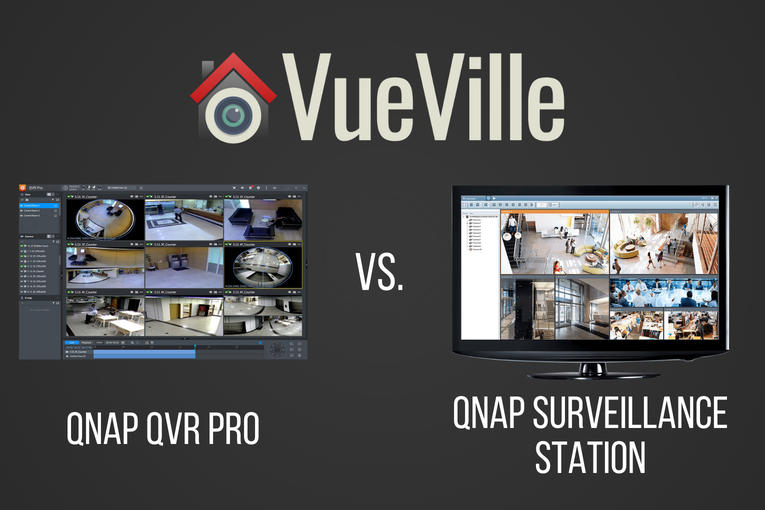
  • QNAP QVR Pro vs QNAP Surveillance Station – NAS NVR Software Comparison

    QNAP QVR Pro vs QNAP Surveillance Station – NAS NVR Software Comparison

    QNAP recently released QVR Pro, a new surveillance app for their beefier NAS models. So if your NAS makes the cut, you now have a choice between the default Surveillance Station app and the new QVR Pro app.

    But is it worth switching? Let’s find out in this head-to-head between the time-tested and functional Surveillance Station vs. the polished all grown-up QVR Pro.

    [wpsm_titlebox title=”Contents” style=”main”][contents h2][/wpsm_titlebox]

    QNAP QVR Pro vs Surveillance Station - VueVille

    QNAP QVR Pro vs. QNAP Surveillance Station – Comparison Table

    [table id=51 responsive=scroll /]

    QNAP QVR Pro vs QNAP Surveillance Station – Features

    What will probably draw most people into trying QVR Pro is the generous 8 IP camera licences that come with the software. Yes, you get 8 channels irrespective of how many Surveillance Station IP camera licences your NAS originally came with.

    QNAP has beefed up the motion detection feature in QVR Pro. With Surveillance Station, the NAS depended on the IP cameras to send a motion detection trigger. It did not have any motion detection ability of its own. But with QVR Pro, the NAS can perform motion detection on up to 2 channels and at a max resolution of 1080p. This is great if you have older IP cameras with poor motion detection features.

    The other major reason to try QVR Pro is the improved mobile app, QVR Pro Client. The Surveillance Station mobile app Vmobile is quite functional but nothing to write home about.

    I always felt that the maximum playback speed in Surveillance Station could be faster. My wish has come true – QVR Pro can playback videos in synchronized mode up to 10 times faster than Surveillance Station.

    There are some other interesting features such as fail-over recording, the ability to record events and continuous recording to different disks, and NAS pooling. If you have more than one NAS device capable of running QVR Pro, NAS pooling may be of interest. You can essentially run up to 8 IP cameras on each NAS and then view all these cameras in one single app, the QVR Pro Client on desktop, or mobile.

    QNAP QVR Pro vs QNAP Surveillance Station – Performance

    QNAP has designed QVR Pro to use the on-board GPU of Intel processors to perform hardware video decoding. QNAP claims that this will result in 10x faster playback and 5x faster video exporting.

    Can all QNAP NAS models run QVR Pro?

    All QNAP NAS models with at least 4GB of RAM will be able to run QVR Pro. Both Intel x86 and ARM-based processors are supported.

    Is QVR Pro free to use?

    Yes but with the limitation of 8 IP camera channels, and a maximum of 14 days video backup.

    What is QVR Pro Gold?

    If you want to use more than 8 IP camera channels, QVR Gold is the premium paid version of QVR Pro. You also get the following features:

    • unlimited recording playback via QVR Pro Client
    • camera channel scalability
    • enhanced QVR Center central management over QVR Pro servers
    • domain privilege management for Windows Active Directory and LDAP

    QVR Pro Gold also adds 8 extra camera channels, and the ability to activate additional QVR Pro Camera Channel Extension Licenses (1/4/8 channels).

    Can my existing Surveillance Station IP camera licences be used in QVR Pro?

    No. QVR Pro has its own IP camera licences which are different from the Surveillance Station ones that come bundled with QNAP NAS servers.

    What are the downsides of QVR Pro?

    QVR Pro is free to use but lets you play back only the last 14 days of recorded video.

    How do I install QNAP QVR Pro?

    Navigate to the QTS App Center on your QNAP NAS and you will find QVR Pro among the list of apps available for download.

    Which QNAP NAS models are best for QVR Pro?

    Any QNAP NAS model with more than 4GB RAM from our recommended NAS models will run QVR Pro like a champ.

  • Seagate IronWolf vs. WD RED – NAS Hard Drives Compared

    Seagate IronWolf vs. WD RED – NAS Hard Drives Compared

    When I was choosing the hard drives for my DIY NAS NVR system, I did a ton of research. I wanted to record all my IP cameras 24/7, so reliability and performance were very important to me.

    In this article, I will share all my findings so that you have all the information you need to make the right choice.

    Seagate Ironwolf vs WD RED - VueVille

    A quick note: As an Amazon Associate I earn from qualifying purchases. This post contains affiliate link(s). An affiliate link means I may earn advertising or referral fees if you make a purchase through my link, at no extra cost to you.

    Seagate IronWolf vs. WD RED Plus – Comparison Table

    [table id=78 responsive=scroll /]

    Seagate IronWolf vs. WD RED Plus

    Since the inferior SMR-based WD Red drives have been officially discontinued and replaced by the newer CMR-based WD Red Plus drives, we will compare the Ironwolf vs the WD Red Plus drives.

    Performance

    Comparing real-life benchmarks & independent testing by other publications such as Toms Hardware have shown that the WD Red Plus drives are much faster than both the Ironwolf & older WD Red drives.

    Reliability

    While we may not have specific reliability data for the IronWolf and RED drives, one cloud storage provider regularly publishes drive failure data for all the drives it uses – Backblaze.

    Please note that the Seagate hard drives they use are the Exos variety, not Ironwolf. Still, it gives us some sense of how reliable the Seagate brand is.

    Looking at the latest Backblaze data, in general the WD drives appear to have less reliability than Seagate. But at lower capacities, Seagate seems to be much worse. So a real mixed bag. Although do note the sample size is much larger in Seagate’s case for most drive sizes, generally the higher the sample size, the more accurate the data becomes.

    WD Red Plus drives’ lack of a vibration sensor is surprising given that the IronWolf has it on all its drive models. Also worth noting is that the WD RED’s Nonrecoverable Read Errors Rate of 1 in 10^14 is worse than that of the IronWolf’s 1 in 10^15.

    So let’s call it a tie when it comes to reliability.

    Noise levels

    The IronWolf runs at higher RPMs compared to the WD RED, so its no surprise that the IronWolf is also louder on average than the WD RED drives.

    I have been using the original CMR-based WD Red drives in my QNAP TS-253A and can confirm that these drives are super quiet. I have my NAS in my living room, inside the TV unit and can barely hear the drives when they are active.

    Why you should not buy the discontinued WD Red drives – the CMR vs. SMR controversy

    The biggest issue with the now discontinued WD Red drives is their SMR recording technology. CMR is widely recognised as the superior technology whereas SMR is a newer slightly inferior tech that especially suffers from poor random write speed.

    Let’s start with Western Digital. A few years ago all WD drives used to be CMR. This was also how WD described their drives in their marketing material. These are the drives that are still spinning in my QNAP NAS.

    But in early 2020, several users started complaining about unusually lengthy RAID building times or outright failures on adding their brand new WD RED drives to an existing RAID array (also called re-silvering).

    When pressed, WD admitted that they had switched some of their drive models from CMR to SMR without notice. WD even settled a class action suit related to this matter and promised better communication. As part of the settlement, WD admitted that the SMR based RED drives are not suitable for NAS and RAID usage.

    What about Seagate and even Toshiba? Well they too have admitted selling SMR drives without disclosing it.

    The whole controversy had one positive effect – WD is required to disclose the recording technology used in their drives for 4 years whereas Seagate is doing so in their marketing material and datasheets.

    So where does that leave us today? Unfortunately, the WD Red drives are now all SMR. But thankfully, they have been discontinued, but some stores are still selling off old inventory, so buyer beware!

    If you want CMR, you need to step up to the [easyazon_link identifier=”B08VH8C3WZ” locale=”US” tag=”vueville.com-eaz-hdd-20″]WD Red Plus model range[/easyazon_link]. While some users may be able to make do with the SMR-based WD RED drives, I suggest you give them a miss.

    The VueVille Verdict

    Drive technology – Tie because both Seagate IronWolf & the WD Red Plus drives use CMR recording technology instead of the inferior SMR.
    Performance – WD Red Plus has the edge.
    Reliability – Tie.
    Noise – WD Red wins.

    Overall, the WD Red wins.

    So which one did I choose?

    I wanted to run a RAID 1 setup so that all my data would be backed up on 2 disk drives – for this reason I was not after absolute speed and the WD RED drives were available at a better price point. Also note that this was before WD started selling SMR drives without disclosing the change from CMR. So I am very happy with my old CMR-based WD REDs.

    Soon it will be time to replace my NAS drives, and I will go with either the WD Red Plus or the WD Red Pro drives.

    Where to buy

    [easyazon_image align=”center” height=”160″ identifier=”B01LZDFMWQ” locale=”US” src=”https://m.media-amazon.com/images/I/414vhkpn13L._SL160_.jpg” tag=”vueville.com-eaz-20″ width=”160″]
    Seagate IronWolf NAS Drive
    [easyazon_link identifier=”B01LZDFMWQ” locale=”US” tag=”vueville.com-eaz-fbox-20″]Check Amazon Price[/easyazon_link]
    [easyazon_image align=”center” height=”160″ identifier=”B07MYL7KVK” locale=”US” src=”https://m.media-amazon.com/images/I/41TVvXeHAIL._SL160_.jpg” tag=”vueville.com-eaz-20″ width=”132″]
    WD Red NAS Drive
    [easyazon_link identifier=”B07MYL7KVK” locale=”US” tag=”vueville.com-eaz-fbox-20″]Check Amazon Price[/easyazon_link]
  • Best 32-Channel PoE NVR – 2024 Recommendations

    Best 32-Channel PoE NVR – 2024 Recommendations

    If you have a lot of IP cameras in your home, how can you view their video streams all in one place? This is the job of the humble Network Video Recorder, or NVR. An NVR is a central device that can manage all your cameras, and even take a backup automatically in real-time. This is truly invaluable and a critical component of a well-planned smart home strategy.

    So how do you choose the right NVR when you have a large number of security cameras, especially if they are from different brands? 32-channel NVRs hit the sweet spot between 8 and 64-channel NVRs. But they often have an incredibly wide range of prices and its not easy to figure out what the real differences are between them. There’s no industry standard way of comparing them and that’s why in typical VueVille fashion, we have done the in-depth objective research leading to recommendations you can trust.

    If you are wondering what an NVR is, check out my in-depth NVR buying guide, which will also explain the basic difference between a DVR and an NVR.

    I recommend selecting the cameras you want from a single manufacturer like Dahua or Lorex, and then finding a suitable NVR to go with it. This is because you should be picking the cameras you need for the intended installation location.

    You may notice that the high-end NVRs in this article do not have PoE. What, Daniel you are cheating you say? 🙂 Well for more advanced installations, you don’t usually power the cameras from the NVR, instead a dedicated PoE switch is better. The advantage is that you avoid the NVR becoming a single point of failure for your cameras.

    Best 32-Channel PoE NVR – Summary table

    [table id=47 scroll=”responsive” /]

    A quick note: This article may contain affiliate links. If you click on one of these links and then purchase something, we may receive a fee. This does not cost you anything extra. Also note that Hikvision and Dahua do not consider certain platforms including Amazon as an authorized seller platform. So if you need warranty support please purchase from authorized resellers of Hikvision and Dahua products in your country.

    What to look for in a 32-channel NVR?

    Whenever I evaluate an NVR, I look for the following:

    • Maximum resolution supported when recording 32 cameras: Some NVRs have a headline megapixel capability, but the fine print may reveal that it can achieve this resolution only with 8 cameras, not all 32! So watch out for this one.
    • Encoding: H.264 is the most common standard, but the more efficient H.265 standard can help reduce the file size of video recordings.
    • Number of PoE channels: Some NVRs may have on-board PoE ports which is very convenient. But no 32-channel NVR is going to have 32 PoE ports. If you need that many PoE ports, you may have to get a PoE switch and plug that into the NVR.
    • Advanced motion detection: The best NVRs support not just basic motion detection but advanced methods such as line-crossing or tripwire, intrusion detection and even face detection. You will have to ensure the NVR and camera brand are the same if you need the advanced motion detection methods. For example, Hikvision NVRs cannot access the advanced motion detection abilities of Dahua cameras even though you can plug in a Dahua camera into a Hikvision NVR as they both support the ONVIF standard.
      If there are no PoE ports, no worries, just get a PoE switch.
    • Pre-record: All NVRs can start recording after a motion detection event occurs. But what you really need is a pre-record feature where the NVR will also record the precious few seconds before motion was detected.
    • Storage capacity and disk mirroring (RAID support): Look for the ability to automatically record to mirror the data that is recorded to one hard drive to a second one. This is called redundant storage or RAID. The reason for doing this is so that you will have a copy of the data should one of the hard disks fail. Of course you should take a weekly USB backup to a separate drive that is ideally stored off-site.
    • 3rd party camera support: Not all NVRs allow you to hook up 3rd party cameras. Look for ONVIF support and explicit 3rd party camera support on the specification list of any NVR you are considering.
    • Alarm in/out: This is essential to connect the NVR to the rest of your smart home, burglar alarm or office security system. You can connect it to the NVR so that it can start recording if the PIR motion sensors detect motion or if a door/window sensor is set off.
    • Audio in/out: You can use the audio out if you are using the VGA output of the NVR to live-view on a monitor. The audio in port is good for a microphone if you want to record audio other than from a camera source.

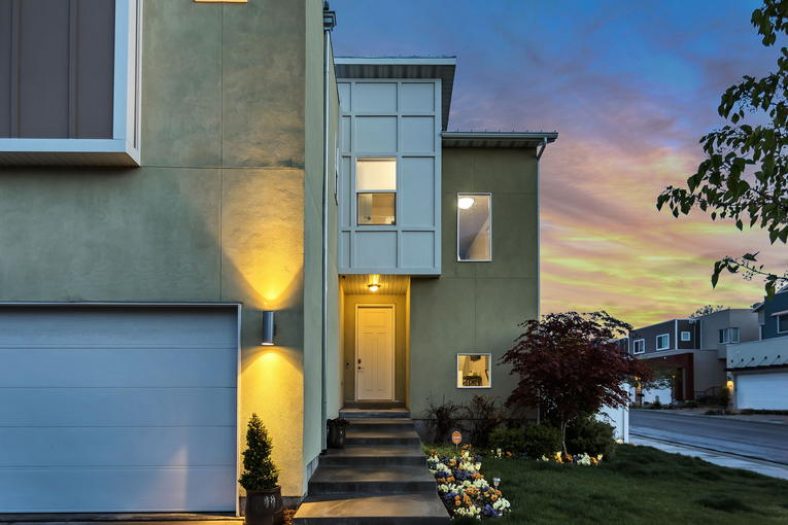
    Best 32-Channel PoE NVR - VueVille

    32 IP cameras would look great on this house.

    How do I use all 32 channels of these NVRs?

    No 32-channel NVR is going to have 32 PoE ports, so you have to use a PoE network switch. First plug all your cameras into the PoE ports available on your NVR except one – we will need this for the PoE switch. Plug your remaining cameras into the PoE switch and then the switch into the NVR port you saved for the switch.

    If your PoE switch is too far away from the NVR, just connect the switch to your network at any point. This is the beauty of IP camera systems, your NVR will be able to find and add the cameras as long as they are somehow connected on your network. They need not be physically attached to the NVR itself.

    Best 32-Channel PoE NVR – 2024 Recommendations

    Best Budget 32-channel NVR: Amcrest NV4432E-HS

    [wpsm_divider top=”20px” bottom=”20px” style=”clear”]
    [wpsm_column size=”one-half”]
    [easyazon_image align=”center” height=”500″ identifier=”B075FZ1X1N” locale=”US” src=”https://images-na.ssl-images-amazon.com/images/I/31osAzECXTL.jpg” tag=”vueville.com-eaz-20″ width=”500″]
    [easyazon_image align=”center” height=”271″ identifier=”B075FZ1X1N” locale=”US” src=”https://images-na.ssl-images-amazon.com/images/I/41dT–7mneL.jpg” tag=”vueville.com-eaz-20″ width=”500″]
    [/wpsm_column][wpsm_column size=”one-half” position=”last”]
    [wpsm_titlebox title=”Features” style=”3″]

    • 8MP x 32 channels audio/video, H.264
    • 16 PoE ports
    • Basic motion detection
    • Pre & post-record
    • 4x6TB hard drives max
    • 3rd party ONVIF cameras supported
    • 16/4 alarm in/out

    [/wpsm_titlebox]

    [easyazon_link identifier=”B075FZ1X1N” locale=”US” tag=”vueville.com-eaz-20″]Check price on Amazon[/easyazon_link]

    [/wpsm_column][wpsm_column size=”one-half”]
    [wpsm_pros title=”PROS:”]

    • Supports 8MP IP cameras
    • Has pre-recording feature
    • Can live-view all 32 channels at once
    • ONVIF support
    • Smart home/office compatible

    [/wpsm_pros][/wpsm_column][wpsm_column size=”one-half” position=”last”]
    [wpsm_cons title=”CONS:”]

    • No advanced motion detection support
    • No RAID support

    [/wpsm_cons][/wpsm_column]
    Amcrest security cameras and NVR kits are attractively priced good quality products and have become quite popular as a result. They also sell NVRs without any bundled cameras and the NV4432E-HS model is my pick for the best budget 32-channel PoE NVR.

    This NVR can record Amcrest’s own security cameras and any ONVIF compatible IP camera from other brands. The maximum resolution supported is 8MP and it can record all 32 channels at this resolution along with audio. You can install up to 4 hard drives with a maximum capacity of 6TB, making a total storage capacity of 24TB. Now you may think this means the NVR supports redundant recording on these internal disks, but that’s not the case. You can assign different cameras to record to different disks, thus spreading the load over multiple hard drives.

    You will also find 16 PoE ports on the back of the NVR. Other interfaces available include a serial port (RS-232), an eSATA port, VGA and HDMI out.

    The standard recording modes of manual, scheduled and motion detection are available. Its worth noting that the motion detection is of the basic variety. You won’t find those fancy advanced methods such as line-crossing or face detection here. But then at this NVR’s price point, one shouldn’t be surprised. You can draw motion detection zones for each camera. There are a few different actions the NVR can take if it detects motion:

    • Trigger the 4 alarm channels
    • Send an email alert, or upload a snapshot to an FTP location
    • Send a push notification
    • Set a PTZ camera to a specific preset, or perform a PTZ tour action

    Thanks to the 16 alarm in ports, you can also hook up motion detectors or other triggers from various zones too.

    This NVR can display all 32 channels simultaneously when live-viewing and playing back recorded footage. Mobile apps are available for both iOS and Android.

    Backups have not been forgotten with a backup manager that helps you to take periodic backups to a USB drive. Taking regular backups to a USB drive stored off-site is critical to ensuring your data remains safe and accessible at all times.

    Here’s a link to the product datasheet (opens in a new tab).

    [easyazon_link identifier=”B075FZ1X1N” locale=”US” tag=”vueville.com-eaz-20″]View this NVR on Amazon[/easyazon_link]

    Full-featured 32-channel NVR: Lorex NR9326

    [wpsm_divider top=”20px” bottom=”20px” style=”clear”]
    [wpsm_column size=”one-half”]
    [easyazon_image align=”center” height=”500″ identifier=”B0189NGV7K” locale=”US” src=”https://images-na.ssl-images-amazon.com/images/I/31flqCQDx%2BL.jpg” tag=”vueville.com-eaz-20″ width=”500″]
    [/wpsm_column][wpsm_column size=”one-half” position=”last”]
    [wpsm_titlebox title=”Features” style=”3″]

    • 8MP (4K) x 32 channels audio/video, H.264
    • 16 PoE ports
    • Basic motion detection
    • Pre & post-record
    • 4x6TB hard drives max, RAID, USB mirroring
    • 3rd party cameras not supported
    • 16/4 alarm in/out

    [/wpsm_titlebox]

    [easyazon_link identifier=”B0189NGV7K” locale=”US” tag=”vueville.com-eaz-20″]Check Price on Amazon[/easyazon_link]

    [/wpsm_column][wpsm_column size=”one-half”]
    [wpsm_pros title=”PROS:”]

    • Supports drive mirroring (RAID)
    • Has pre-recording feature
    • Smart home/office compatible

    [/wpsm_pros][/wpsm_column][wpsm_column size=”one-half” position=”last”]
    [wpsm_cons title=”CONS:”]

    • No advanced motion detection support
    • No 3rd party ONVIF camera support
    • Live-view limited to 16 channels at a time

    [/wpsm_cons][/wpsm_column]
    If you do not need advanced motion detection methods, but need drive mirroring (RAID), the Lorex is worthy of consideration. Lorex cameras and NVRs are mostly rebranded Hikvision and Dahua products. So quality generally tends to be on the higher side. However they do have an annoying policy of restricting their NVRs to work only with their own cameras. Even Lorex cameras that are just rebranded Dahuas often do not work with Lorex NVRs. So be aware of this before you invest.

    The NR8326 model sits within the ‘Extreme Security’ product line and is a step up from their basic models. This model can record all 32 channels at 4MP resolution along with audio without breaking a sweat. Up to 4 internal drives are supported plus an external drive suing the eSATA port. The standout feature of this NVR is its ability to mirror hard drives. Lorex doesn’t call it RAID but practically that’s what it is. Another party trick is the ‘Real-time Backup’ feature which can record the live-view screen to an external USB drive.

    There are 16 PoE ports at the rear, pretty standard for a 32-channel NVR. You will find a wealth of interfaces such as HDMI, VGA, audio in/out, serial port, and an additional USB port that can be used to add a mouse.

    Let’s look at the software side of things now. The user interface is basic but functional. There is a quick menu which gives you access to the most frequently used actions and settings such as views, PTZ controls, and sequence mode. In live-view mode, you can display up to 16 channels at a time.

    The different recording modes available are: continuous, motion, schedule and manual. When the hard drive(s) is full, the NVR will automatically start overwriting the oldest video recordings. However you can also set it to stop recording instead when the disks are full.

    Just like the Amcrest above, motion detection is limited to simple motion detection which uses a software algorithm to determine motion in the defined areas of the scene. You can select motion detection zones for each camera. These are the actions the NVR can take when it detects motion in the defined zones:

    • Trigger the 4 alarm channels
    • Send an email alert, or upload a snapshot to an FTP location
    • Send a push notification
    • A custom display sequence can be activated
    • Set a PTZ camera to a specific preset, or perform a PTZ tour action

    When you want to play back recorded video, you can either pick a point on the timeline or use the smart search feature. The smart search feature lets you define an area of the frame in the recorded clip to analyse for motion. This is a great time-saver if you record in continuous mode and want to check whether there was motion in a specific part of a camera’s scene.

    Like any good NVR, the Lorex also supports backup on demand to a USB drive.

    Sine FLIR Technology owns Lorex, the FLIR cloud app is used to connect to the NVR remotely. Some additional features are:

    • Live-view and playback
    • Event list
    • Push notifications
    • A custom display sequence can be activated
    • PTZ control and e-mapping
    • Access multiple Lorex and FLIR systems from one single app

    Here’s a link to the product datasheet (opens in a new tab).

    [easyazon_link identifier=”B0189NGV7K” locale=”US” tag=”vueville.com-eaz-20″]View this NVR on Amazon[/easyazon_link]

    Best high-end 32-channel NVR: Hikvision DS-9632NI-I8

    [wpsm_divider top=”20px” bottom=”20px” style=”clear”]
    [wpsm_column size=”one-half”]
    [easyazon_image align=”center” height=”500″ identifier=”B01E9GL4WS” locale=”US” src=”https://images-na.ssl-images-amazon.com/images/I/31l8OCoiH8L.jpg” tag=”vueville.com-eaz-20″ width=”500″]
    [/wpsm_column][wpsm_column size=”one-half” position=”last”]
    [wpsm_titlebox title=”Features” style=”3″]

    • 12MP x 32 channels audio/video, H.265
    • Advanced motion detection
    • Pre & post-recording
    • 8x 6TB hard drives max, RAID
    • 3rd party ONVIF cameras supported
    • 16/4 alarm in/out

    [/wpsm_titlebox]

    [easyazon_link identifier=”B01E9GL4WS” locale=”US” tag=”vueville.com-eaz-20″]Check Price on Amazon[/easyazon_link]

    [/wpsm_column][wpsm_column size=”one-half”]
    [wpsm_pros title=”PROS:”]

    • Supports drive mirroring (RAID)
    • Has pre-recording feature
    • Smart home/office compatible
    • 4K HDMI out and extra HDMI port
    • Two gigabit Ethernet ports

    [/wpsm_pros][/wpsm_column][wpsm_column size=”one-half” position=”last”]
    [wpsm_cons title=”CONS:”]

    • Live-view limited to 16 channels at a time
    • No PoE ports

    [/wpsm_cons][/wpsm_column]
    So now we move up to the high-end options where you can get not just RAID but advanced motion detection like line crossing and intrusion detection. I have been using Hikvision stuff for many years now and my oldest Hikvision has been running non-stop for 3 years now.

    The DS-9632NI-I8 model is a powerhouse of an NVR and is able to record all 32 channels at up to 12 Megapixels. However it can only display or playback 16 channels at a time, at 1080p each. Surprising especially as it has two HDMI outputs. Still being able to drive a 4K display is pretty sweet. You can set the exact order of channels in a multi-channel view.

    Hikvision fully supports the ONVIF standard, so you can be sure that your non-Hikvision brand cameras will work with this NVR as long as they are ONVIF compliant. Some examples of supported third party brands are Acti, Arecont, Axis, Bosch, Brickcom, Canon, Panasonic, Pelco, Samsung, Sanyo, SONY, Vivotek and Zavio.

    What about storage? Here once again this NVR’s premium nature shines through with up to 8 internal hot-swappable RAID drives and a hot spare option (n+1 mode) to provide fail-over for extreme reliability. RAID0, RAID1, RAID5, RAID6, and RAID10 modes are supported.

    The various recording modes supported are: continuous, manual, alarm, motion detection, and scheduled. Hikvision calls the advanced motion detection methods VCA. You can also set 8 different time periods with different recording modes active for each of those 8 time periods. So you could have continuous recording during the night and motion detection recording during the day. Face detection, face recognition, vehicle detection, behaviour analysis (entering, exiting, loitering), people counting, parking detection, missing object, unwanted object and heat map are the fancy events that you just can’t find elsewhere.

    Custom motion detection zones can be set for each camera, along with privacy masking to comply with local laws and regulations. The following actions are available whenever motion is detected:

    • Trigger the 4 alarm channels
    • Send an email alert, or upload a snapshot to an FTP location
    • Send a push notification
    • A custom display sequence can be activated
    • Set a PTZ camera to a specific preset, or perform a PTZ tour action

    When its time to playback video, in addition to the timeline markers you can use the advanced search tools to help you find what you are looking for. These include face search, behaviour search, object search, people counting and heat map. The heat map function is used to analyse presence of people in the scene and how long they linger in a particular area.

    Backing up data is handled exactly as you would imagine with USB and eSATA interfaces available.

    Hikvision has a confusing range of mobile apps these days, but the one recommended for the DS-9632NI-I8 is the one that has been around the longest, iVMS-4500.

    Here’s a link to the product datasheet (opens in a new tab).

    [easyazon_link identifier=”B01E9GL4WS” locale=”US” tag=”vueville.com-eaz-20″]View this NVR on Amazon[/easyazon_link]

    Also consider: Dahua DH-NVR4232-16P-4KS2

    [wpsm_divider top=”20px” bottom=”20px” style=”clear”]
    [wpsm_column size=”one-half”]
    [easyazon_image align=”center” height=”500″ identifier=”B072TY253Z” locale=”US” src=”https://images-na.ssl-images-amazon.com/images/I/31UKHqlw8tL.jpg” tag=”vueville.com-eaz-20″ width=”500″]
    [/wpsm_column][wpsm_column size=”one-half” position=”last”]
    [wpsm_titlebox title=”Features” style=”3″]

    • 8MP (4k) x 32 channels, H.265
    • 16 PoE ports
    • Advanced motion detection
    • Pre & post event recording
    • 2x 6TB, No
    • Supports ONVIF cameras
    • 4/2 alarm in/out ports

    [/wpsm_titlebox]

    [easyazon_link identifier=”B072TY253Z” locale=”US” tag=”vueville.com-eaz-20″]Check Price on Amazon[/easyazon_link]

    [/wpsm_column][wpsm_column size=”one-half”]
    [wpsm_pros title=”PROS:”]

    • Supports drive mirroring with up to 8 drives (RAID-5)
    • IEEE802.3at/af PoE ports
    • Has pre-recording feature
    • HDMI/VGA simultaneous output
    • Two gigabit Ethernet ports
    • H.265 support
    • Supports advanced motion detection events from supported cameras
    • Smart home/office compatible

    [/wpsm_pros][/wpsm_column][wpsm_column size=”one-half” position=”last”]
    [wpsm_cons title=”CONS:”]

    • Live-view & playback only 16 channels at once
    • No eSATA

    [/wpsm_cons][/wpsm_column]

    Also consider: Samsung Wisenet XRN-2011

    [wpsm_divider top=”20px” bottom=”20px” style=”clear”]
    [wpsm_column size=”one-half”]
    [easyazon_image align=”center” height=”212″ identifier=”B0778KXV7G” locale=”US” src=”https://images-na.ssl-images-amazon.com/images/I/31PwF%2BYwzOL.jpg” tag=”vueville.com-eaz-20″ width=”500″]
    [/wpsm_column][wpsm_column size=”one-half” position=”last”]
    [wpsm_titlebox title=”Features” style=”3″]

    • 12MP x 32 channels, H.265
    • No PoE ports
    • Basic motion detection
    • Pre & post event recording
    • 6x 8TB, RAID
    • Supports ONVIF cameras
    • 8/4 alarm in/out ports

    [/wpsm_titlebox]

    [easyazon_link identifier=”B0778KXV7G” locale=”US” tag=”vueville.com-eaz-20″]Check Price on Amazon[/easyazon_link]

    [/wpsm_column][wpsm_column size=”one-half”]
    [wpsm_pros title=”PROS:”]

    • Supports drive mirroring with up to 8 drives (RAID-5)
    • Has pre-recording feature
    • 4K HDMI port
    • Two gigabit Ethernet ports
    • live-view up to 30 channels at once
    • H.265 support
    • Supports advanced motion detection events from supported cameras
    • Smart home/office compatible

    [/wpsm_pros][/wpsm_column][wpsm_column size=”one-half” position=”last”]
    [wpsm_cons title=”CONS:”]

    • Live-view limited to 16 channels at a time
    • No PoE ports

    [/wpsm_cons][/wpsm_column]

    Samsung? Samsung makes NVRs? Yes they do. Well actually they acquired a company called Hanwha Techwin that makes NVRs. And pretty good ones too. So this is a brand to consider if you are venturing into the premium end of the pool.

    The XRN-2011 has a very professional looking user interface which is what you would expect from a premium brand like Samsung.

    Wrapping up

    We hope the round-up above has made what is really a tough decision a bit easier to make. 32-channel NVRs are a significant investment, so if you have any questions please do leave a comment below or contact us on social media and we will try our best to assist you.

  • Best Surveillance Hard Drives for NAS NVR and Dedicated NVR – 2024 Recommendations

    Best Surveillance Hard Drives for NAS NVR and Dedicated NVR – 2024 Recommendations

    Hard drives are not really the first thing that comes to our minds when we are thinking about our CCTV setup. That honour goes to the camera right? Whether you plan to record just motion detection clips or 24/7 round the clock, the safety of your recordings comes down to one thing: the hard drives you choose for your NVR (Network Video Recorder) or DIY NAS NVR (Network Attached Storage NVR).

    In fact, I would say that the hard drive is the weakest link in your CCTV setup. Why? Because it is the only mechanical device in the whole system. Since hard drives do not last forever and will fail at some point, it is very important to choose the best hard drive for your NVR or NAS.

    BEST NAS NVR DRIVE
    Seagate IronWolf & IronWolf Pro
    Seagate IronWolf 8Tb NAS Internal Hard Drive HDD – 3.5 Inch SATA 6GB/S 7200 RPM 256MB Cache for Raid Network Attached Storage (ST8000VN0022),Silver
    ×
    Product prices and availability are accurate as of the date/time indicated and are subject to change. Any price and availability information displayed on https://www.amazon.com/ at the time of purchase will apply to the purchase of this product.
    5400-7200 rpm
    Uses only CMR tech
    180-550 TB/year rating
    RUNNER-UP NAS NVR DRIVE
    WD Red Plus & Pro NAS Hard Drive
    Western Digital 4TB WD Red Plus NAS Internal Hard Drive HDD - 5400 RPM, SATA 6 Gb/s, CMR, 256 MB Cache, 3.5" -WD40EFPX
    ×
    Product prices and availability are accurate as of the date/time indicated and are subject to change. Any price and availability information displayed on https://www.amazon.com/ at the time of purchase will apply to the purchase of this product.
    5400-7200 rpm
    Uses only CMR tech
    180-300 TB/year rating
    BEST DEDICATED NVR DRIVE
    WD Purple and Purple Pro
    Western Digital 8TB WD Purple Surveillance Internal Hard Drive HDD - SATA 6 Gb/s, 256 MB Cache, 3.5" - WD82PURZ
    ×
    Product prices and availability are accurate as of the date/time indicated and are subject to change. Any price and availability information displayed on https://www.amazon.com/ at the time of purchase will apply to the purchase of this product.
    5400-7200 rpm
    Uses only CMR tech
    180-550 TB/year rating

    A quick note: As an Amazon Associate I earn from qualifying purchases. This post contains affiliate link(s). An affiliate link means I may earn advertising or referral fees if you make a purchase through my link, at no extra cost to you.

    (* = affiliate link / image source: Amazon Associates Program)


    [wpsm_titlebox title=”Contents” style=”main”][contents h2 h3][/wpsm_titlebox]

    Best Hard Drives for Surveillance NVR – 2024 Recommendations: Summary

    [table id=72 responsive=scroll /]

    (* = affiliate link / image source: Amazon Associates Program)

    I use my QNAP TS-253A NAS as my NVR, you can see my full setup here. The TS-253A is a few years old now, so do look at my latest NAS choices.

    If you already have a NAS and don’t need more than a couple of IP cameras, you may not even need a dedicated NVR. Your NAS can probably do double duty as your NVR. There are several benefits in doing this, namely that you automatically get the benefits of a redundant backup thanks to the RAID-1 option.

    RAID-1 means that as the NAS records the IP camera stream, it automatically copies it to the second hard drive in the NAS. This setup of hard drives is called RAID (Redundant Array of Independent Disks) and is also the key reason I recommend using a NAS as your NVR, with frequent (weekly for me) USB backups to an external drive. Some NVRs can do RAID but they tend to be a lot more expensive, but for a NAS this is its main feature – redundant storage.

    I will be considering only the traditional mechanical spinning drives because large capacity SSDs are still too expensive for home users and are less durable. I have split this round-up into two main sections: hard drives for NAS NVR usage and for dedicated surveillance systems.

    Players in the HDD market

    Western Digital, Seagate and Toshiba are the market leaders. It’s worth noting that Western Digital now owns HGST (Hitachi). Also interesting is the fact that WD and Toshiba are partners.

    CMR vs. SMR controversy

    As drive capacities increased, disk manufacturers have found creative ways to cram more data into the same physical platters. Traditionally hard drives used a technology called Conventional Magnetic Recording (CMR) for arranging data tracks in the disk platter. One of these newer technologies is called Shingled Magnetic Recording (SMR).

    SMR drives are cheaper to manufacture but are slower to write to and read from. So these drives use free space in the drive as a cache and may even have additional cache memory to offset the slower performance. However, with heavy read/write operations the cache will fill up and the read/write speed drops a lot.

    This may be fine for a backup drive, but not for NAS environments where raid rebuilding will result in unacceptable delays.

    Traditionally, all NAS drives from WD used CMR disks. But controversy erupted when WD was recently caught shipping NAS drives that use SMR, without disclosing it.

    See this test that shows a CMR based NAS rebuild (resilver) takes 17 hours but the same drive based on SMR takes 9 days!

    Since SMR drives are clearly inferior for NAS environments, the least that WD could do was disclose this change and mention it in their datasheets. But they didn’t which for me is a huge error in judgment from WD’s side.

    Thankfully all the WD drives I recommended in my post were the older CMR based drives with model numbers ending in ‘EFRX’. For example: WD40EFRX. So if you purchased the ones that were listed here, you are fine.

    In the end, they fessed up but clearly I have lost trust in them and have taken this into account in my recommendations by making Seagate my first choice for smaller drives and WD only for larger drives >8TB where only CMR is used.

    Seagate maintains that they have never used and currently do not use SMR in their IronWolf and IronWolf Pro NAS drives.

    Toshiba has admitted they use SMR in their drives, and have also not been disclosing this.

    Hitachi has also been found to be using SMR in their drives.


    Best Hard Drives for NAS NVR – My 2024 Recommendations

    Let’s take a detailed look at the various NAS hard drives available. For the sake of comparison, I will assume you are looking at a 4TB hard drive. This is the most common HDD size sold so should be a good fit for most people. So all the specs mentioned in the features box is for a 4TB model from the product family being discussed.

    Best Overall NAS NVR Drive: Seagate IronWolf & IronWolf Pro

    Seagate IronWolf 8Tb NAS Internal Hard Drive HDD – 3.5 Inch SATA 6GB/S 7200 RPM 256MB Cache for Raid Network Attached Storage (ST8000VN0022),Silver
    ×
    Product prices and availability are accurate as of the date/time indicated and are subject to change. Any price and availability information displayed on https://www.amazon.com/ at the time of purchase will apply to the purchase of this product.

    Click image to view on Amazon

    • 5900 rpm
    • 256 MB cache
    • CMR technology only
    • Drive Design – Air
    • 600,000 load/unload cycles
    • 1 million hours MTBF
    • 8760 hours power on time
    • 180 TB/year workload rating
    • 4.8W power usage
    • Rotational vibration sensors >= 4TB
    • 3 years limited warranty

    (* = affiliate link / image source: Amazon Associates Program)

    I remember my first computer hard drive – a 1GB Seagate ATA drive. It was a pretty nippy drive too! Seagate is also the one big hard drive brand that does not belong to or has not partnered with Western Digital, in fact it is WD’s only real competitor. Another popular brand from yesteryear is Matrox, which Seagate acquired in 2006. Seagate’s Barracuda drives are one of the most popular hard drives over the last decade.

    A casual perusal of Seagate’s product lineup with its bold and colourful marketing reveals the Guardian series of hard drives. This is where Seagate’s NAS offering lives. It comes in two flavours like Western Digital’s, the Ironwolf to be used in NAS enclosures up to 8 bays, and the Ironwolf Pro for up to 16 bays.

    The Ironwolf drive runs at a constant 5900 rpm. But interestingly the 6TB and higher models rotate at 7200 rpm (faster then WD Red) and have 256MB cache (matched by the WD Red only at 10TB). All other specs are similar such as the MTBF, workload and load-unload cycle ratings.

    The great thing about Ironwolf and Ironwolf drives are that they all use the superior CMR recording technology , unlike WD that uses both CMR and SMR across its NAS range.

    Compared to the Ironwolf, the Ironwolf Pro models add even more cache memory, have RV sensors across the board, have a higher 300 TB/year workload, up the warranty to 5 years and offer their 2-year ‘Rescue’ data recovery service as standard.

    Seagate NAS firmware optimisations called AgileArray work together with Rotational Vibration (RV) sensors (4TB drives and above), something that WD drives curiously don’t have. The firmware performs error recovery control as expected in a NAS drive. IronWolf Health Management is available on compatible NAS systems such as Synology and Asustor to provide better drive health data.

    A few years ago, Seagate faced some criticism over the reliability of its drives from hard drive statistics data released by Backblaze, a cloud storage provider. But as the recent numbers show, Seagate has taken this feedback seriously and seem to have over-engineered the Ironwolf range to improve its public perception.

    Runner-up NAS NVR Drive: WD Red Plus & Red Pro NAS Hard Drive

    Western Digital 4TB WD Red Plus NAS Internal Hard Drive HDD - 5400 RPM, SATA 6 Gb/s, CMR, 256 MB Cache, 3.5" -WD40EFPX
    ×
    Product prices and availability are accurate as of the date/time indicated and are subject to change. Any price and availability information displayed on https://www.amazon.com/ at the time of purchase will apply to the purchase of this product.

    Click image to view on Amazon

    • 5400-7200 rpm (Intellipower)
    • 128MB cache
    • CMR technology used in WD Red Plus and Red Pro
    • WD Red uses SMR – avoid!
    • 600,000 load/unload cycles
    • 1 million hours MTBF
    • 180 TB/year rating
    • 4.5W power usage
    • Only Pro has Rotational Vibration sensors
    • 3 years limited warranty

    (* = affiliate link / image source: Amazon Associates Program)

    Western Digital is the most recognisable name in the hard rive market and has been in the storage industry since the 1980s. But did you know that they acquired HGST (Hitachi’s storage division) in 2011 and Sandisk in 2016? These acquisitions have made WD top dog in the HDD market. Also interesting is the fact that WD and Toshiba are partners. Yet WD, HGST and Toshiba have stated that they all compete with each other.

    The current product line is simple and easy to understand – named after various colours:

    • Blue for standard desktop & laptop drives
    • Black for high performance desktop & laptop drives
    • Red, Red Plus and Red Pro for NAS drives
    • Purple for surveillance drives
    • Gold for enterprise drives

    The original WD Red drives have been the most popular NAS drives in the market. But then the SMR controversy hit when WD quietly changed some Red drive models to SMR recording technology from the superior CMR tech. To address the criticism of the poor transparency of its marketing material, WD has now changed the WS red lineup totally.

    Inexplicably WD still sells the SMR drives but only under the WD Red moniker. The CMR drives from the old Red line have been moved to the newly created WD Red Plus line. While Red Pro remains unchanged and continues to have only CMR models in it.

    So to summarize:

    • WD Red: SMR
    • WD Red Plus: CMR
    • WD Pro: CMR

    So avoid the WD Red line and only consider Red Plus and Red Pro lines. I don’t understand why WD still pushes the inferior SMR drives as NAS drives, when they are clearly not good enough due to the atrocious NAS re-build (re-silvering) times and widely reported RAID errors.

    The Red and Red Plus drives are aimed at NAS enclosures of up to 8 bays, and the Red Pro for more than 10-16 bays.

    I have been using WD Red drives in my QNAP NAS for the past 5 years and have been very happy with the performance, reliability and quietness of these drives. Of course back then they were selling only CMR models. Personally I have found the WD RED drives to be extremely quiet in operation, which is an important feature as the NAS sits in once corner of my living room.

    The NAS optimisations on the software front are packaged into the special firmware WD calls NASware 3.0.

    An interesting feature that’s unique to WD is the Intellipower system which optimises the rotational speed, transfer speed and cache usage to optimise performance and power consumption. In practice, this means the rpm ranges between 5400 and 7200 rpm and results in a best-in-class power consumption of just 4.5W in operation (for the 4TB drive). In most cases, the performance of the Intellipower drive should be comparable to that of a conventional 7200rpm drive such as the Hitachi HGST Deskstar.

    The Red Plus & Red Pro drives also boast a high load/unload cycle rating of 600,000 similar to the Seagate Ironwolf & Ironwolf Pro. However the smaller WD Red Plus drives have only 128 MB cache whereas the Ironwolf has 256 MB for the same sizes. Other ratings are inline with the industry at 1 million hours MTBF, 180 TB/year workload rating, and 3 years limited warranty.

    The Red Pro drives are a step above with higher internal transfer rates, 512MB cache, 300 TB/year workload and 5 years warranty. This is broadly similar to Seagate’s Ironwolf strategy. I don’t see the need for home NAS NVRs to get the WD Red Pro drives unless you need the higher workload capacity.

    How about some practical numbers from my own NAS? I have been running my 2-bay QNAP NAS 24/7 with 3TB drives in RAID-1 for 5 years now. The original pair of drives I bought are both dead now – the first drive after 1.5 years of service and the second after nearly 5 years of 24/7 service.

    Alternative NAS NVR Drive: Toshiba N300 & N300 Pro

    Toshiba N300 4TB NAS 3.5-Inch Internal Hard Drive - CMR SATA 6 GB/s 7200 RPM 256 MB Cache - HDWG440XZSTA
    ×
    Product prices and availability are accurate as of the date/time indicated and are subject to change. Any price and availability information displayed on https://www.amazon.com/ at the time of purchase will apply to the purchase of this product.

    Click image to view on Amazon

    • 7200 rpm
    • 128 MB cache
    • Only CMR used
    • 300,000 load/unload cycles
    • 1 million hours MTBF
    • 180 TB/year workload rating
    • 9.6W power usage
    • Only N300 Pro has Rotational vibration sensors
    • 3 years limited warranty

    (* = affiliate link / image source: Amazon Associates Program)

    Toshiba NAS drives are not hugely popular but are a good budget option. The N300 is the NAS oriented model and has a very good 7200 rpm rotational speed. Power consumption figures are on the higher side as a result. The 128 GB cache memory is the same as the WD Red Plus but lags behind the 256 MB of the Seagate Ironwolf.

    The N300 is suitable for 1-8 bay NAS enclosures and have integrated RV sensors to protect itself from vibration. This drive also has a few other tricks to increase reliability – it automatically adjusts the seek speed to reduce heat output during intensive operations.

    While Toshiba uses SMR drives in desktop drives, the N300 is confirmed to use only CMR.

    Recently they also launched the N300 Pro, taking a leaf out of WD’s and Seagate’s approach. The Pro adds rotational vibration sensors, 256/512MB cache, a higher workload of 300 TB/year, the best MTBF I have seen of 1.2 million hours and 5 years warranty.


    Best Hard Drives for Dedicated NVR – My 2024 Recommendations

    What if you have a dedicated NVR, and not a NAS? You may be thinking the best option is to get a NAS-rated drive, but actually you could get a purpose-made surveillance drive. These drives are optimised for recording multiple video streams from CCTV cameras and have special optimisations to avoid errors & maintain integrity of the recordings.

    Best Overall Dedicated NVR Drive: WD Purple & Purple Pro Surveillance Drive

    Western Digital 8TB WD Purple Surveillance Internal Hard Drive HDD - SATA 6 Gb/s, 256 MB Cache, 3.5" - WD82PURZ
    ×
    Product prices and availability are accurate as of the date/time indicated and are subject to change. Any price and availability information displayed on https://www.amazon.com/ at the time of purchase will apply to the purchase of this product.

    Click image to view on Amazon

    • 5400-7200 rpm (Intellipower)
    • Up to 16 bays
    • All drives use CMR
    • 256 MB cache
    • 300,000 load/unload cycles
    • 180 TB/year
    • 4.6W power usage
    • 3 years limited warranty

    (* = affiliate link / image source: Amazon Associates Program)

    The WD Purple drives is now in its 5th generation and has over 15 million drives shipped so far. These drives are optimised for recording multiple IP camera streams 24/7 under harsh conditions without consuming a lot of power. The features that let it do this are the AllFrame 4K technology and Intelliseek. Allframe 4K is WD’s implementation of ATA streaming. When used in systems that support the ATA command set, the Purple drive can skip error correction if it encounters a write error. Why is this important? In a NAS the drive’s priority is to ensure file integrity, and so it will try to correct the error slowing down write operations. In a surveillance system, if the drive slows down writing for the sake of error correction, the write buffer will quickly fill up with new video frames leading to dropped frames. So the surveillance drive prioritises writing as many frames as possible to the disk instead of getting every last bit correct.

    If your NVR supports RAID, you can use up to 16 WD Purple drives in your NVR but note that these drives do not have any vibration protection unlike the Seagate Skyhawk drive below. The larger drives use the Helioseal technology to boost hard drive densities.

    Just as with the Red range, WD now launched a Purple Pro line. These have a much higher workload rating of 550 TB/year, 7200 rpm speeds, 600,000 load/unload cycles and a 5 year warranty. No sign of rotational vibration sensors though!

    For home NVRs I think the WD Purple is more than enough, the Purple Pro is probably overkill.

    Runner-up Dedicated NVR Drive: Seagate Skyhawk Surveillance

    SEAGATE ST4000VX007 Skyhawk 4TB Surveillance Hard SATA 6Gb/s 64MB Cache 3.5-Inch Internal Drive-Frustration Free Packaging (ST4000VXZ07) Mechanical Hard Disk
    ×
    Product prices and availability are accurate as of the date/time indicated and are subject to change. Any price and availability information displayed on https://www.amazon.com/ at the time of purchase will apply to the purchase of this product.

    Click image to view on Amazon

    • 5900 rpm
    • 64/256 MB cache
    • SMR/CMR used
    • 300,000/600,000 load/unload cycles
    • 1 million hours MTBF
    • 8760 power-on hours
    • 180 TB/year rating
    • 5.5W power usage
    • Rotational Vibration sensors
    • 3 years limited warranty

    (* = affiliate link / image source: Amazon Associates Program)

    The Skyhawk and Skyhawk AI Surveillance drives are Seagate’s answer to the popular WD Purple and Purple Pro drives. The Skyhawk is designed for multi-bay NVRs with a workload of up to 180 TB/year, and sport RV sensors for vibration protection whereas the Skyhawk AI versions can do up to 550 TB/year. Both drive models use Seagate’s ImagePerfect technology which is similar to WD’s AllFrame 4K for improved video stream writing capabilities.

    While the Skyhawk line has both CMR and SMR drives, the Skyhawk AI uses only CMR recording technology. For this reason, the Skyhawk is not our first choice of dedicated surveillance drives.


    Discontinued Drives

    NAS NVR Drive: Hitachi HGST Deskstar

    • 7200 rpm
    • 600,000 load/unload cycles
    • 1 million hours MTBF
    • 3 years limited warranty

    HGST is a highly respected brand that is often overlooked by most home users. Over the years they have quietly gone about building incredibly reliable hard drives and were recently acquired by Western Digital. Their NAS line is named Deskstar NAS and feature 7200 rpm drives and at least 128MB cache across the whole disk size range of 4TB-10TB. HGST is also the only manufacturer to claim a sub-12ms seek time.

    Like the Seagate Ironwolf drives, the Deskstar NAS drives also feature rotational vibration sensors to improve reliability.


    What to look for in a hard drive

    Hard drives are measured on a range of performance and reliability factors that can help narrow in on the right hard drive for you.

    • RPM: The speed at which the disks spin – ranges from the slower 5400 rpm to the fastest 7200 rpm. Enterprise drives may go up to 10,000 rpm. Faster RPM = lower seek times and higher data transfer rates.
    • Mean Time Between Failures (MTBF): A standard measure of reliability for any device, higher numbers are better. But do not put much faith in the 1 million hours MTBF often quoted by hard drive companies – you won’t use your hard drive for 114 years. The load/unload (LUL) cycles, workload (TB/year) and power-on hours ratings are far more useful numbers.
    • Load/unload cycles: This is the number of times the drive can spin up its discs in preparation for a read/write activity by the heads, and then spin down. If the drive is recording footage 24/7 this figure becomes less important.
    • Data write/read capacity – measured in TB/year rating
    • Power-on hours – how many hours the drive is designed to remain powered on
    • Vibration tolerance: The more bays you have in your NAS, the higher the vibration is going to be. Hard drives hate vibration and NAS hard drives are designed to counter the vibrations induced by multiple spinning discs. Some brands such as Seagate’s Ironwolf even have sensors to detect and precisely adjust for these vibrations.
    • Power-efficiency: Most NAS and dedicated NVRs are designed to be economical devices as they run 24/7. The power usage of a ahrd drive might seem trivial at face value, but consider that my TS-253A NAS with no drives consumes just 14.4W in operation. So two WD Red drives at 4.5W each in operation will consume 9W which is 62.5% of the NAS’ power consumption. Over a year, 24/7 operation can run up significant energy costs if the drives are not efficient. Also consider that generally more energy consumed = more heat output.
    • Transfer speed: Most hard drives in this roundup approach the typical maximum of 1Gbps transfer speed a home network can handle. (1 Gbps or 1000 Megabits per second = 125 Megabytes per second). If you are accessing your NAS primarily over Wi-Fi, you are never going to max out the hard drive’s transfer rate.
    • Advanced Format (AF): In order to increase hard disk densities ever higher, the AF technology has been developed by the leading hard drive manufacturers. This is a whole new way of organising data on the drive, but is backwards compatible with older hardware and software. If you are buying a larger hard drive (>6 TB), make sure it supports AF for future-proofing.

    What’s the difference between Desktop/NAS/Surveillance hard drives?

    So you have three options in total: a standard desktop hard drive, a NAS optimised hard drive or a Surveillance-grade hard drive.

    A standard computer hard drive is designed to be used a few hours every day over a number of years. This is perfect if you are using it in a laptop or desktop PC that spends more time switched off than on. But in a NAS or NVR that is running 24/7, your hard drive is constantly working with no rest apart from the odd reboot or firmware upgrade and throwing out heat. A standard hard drive is not going to last long in that kind of environment, its simply not designed for it.

    There are other important differences too – NAS hard drives have error recovery control built into the disk controller, they have firmware optimisations that fine-tune the disk for typical NAS operations, and last but not least they have vibration tolerance which is critical in multi-disk NAS enclosures. Another often overlooked benefit is that NAS drives are tested by hard drive manufacturers for compatibility with different RAID configurations and NAS enclosures. 

    If you are using your NAS as the NVR

    NAS QNAP TS251Plus - VueVille.com

    NAS hard drives are designed for 24/7 frequent random reads and writes from multiple users or sources. From a surveillance point of view, this is ideal for recording either motion detection clips. Surveillance-grade hard drives on the other hand are optimised for sequential read and write operations, or in other words 24/7 continuous recording of IP camera footage. Note that these drives are less concerned about write errors because a write error in a surveillance drive will only result in a few dropped frames which is not a big deal.

    Here’s a comparison of various types of HDDs using WD as the example:
    [table id=73 responsive-scroll /]

    So if you are looking at using your NAS as an NVR in addition to the usual home server functionality, I would still go for the NAS hard drives like the WD Red. This is because NAS drives are great multi-functional drives and are good enough for 24/7 recording of footage.

    Even if you are going to use a NAS exclusively as your NVR, I still think the NAS hard drives are a better choice because the surveillance drives are not suited to NAS enclosures because a) they have weak or no vibration tolerance, and b) they are not designed for RAID arrays.

    If you are using a dedicated NVR

    Amcrest AMNV20M4-4B-B Budget 4-ch NVR Kit - NVR - VueVille.com

    If you are looking for a hard drive for your dedicated NVR such as a Hikvision, Dahua, Amcrest or Reolink NVR, definitely go with the surveillance drives which will excel because they are going to do nothing but record multiple IP camera streams 24/7.


    Conclusion

    I hope this post gives you an overview of the various options available for your NAS NVRs and dedicated NVRs. Remember try to go for a RAID setup in any case, and take frequent backups to an external drive such as the WD My Book.