Category: Home Security

  • Review: Hikvision DS-2CD2132F-IWS IP Security Camera

    Review: Hikvision DS-2CD2132F-IWS IP Security Camera

    [wpsm_column size=”two-third”]

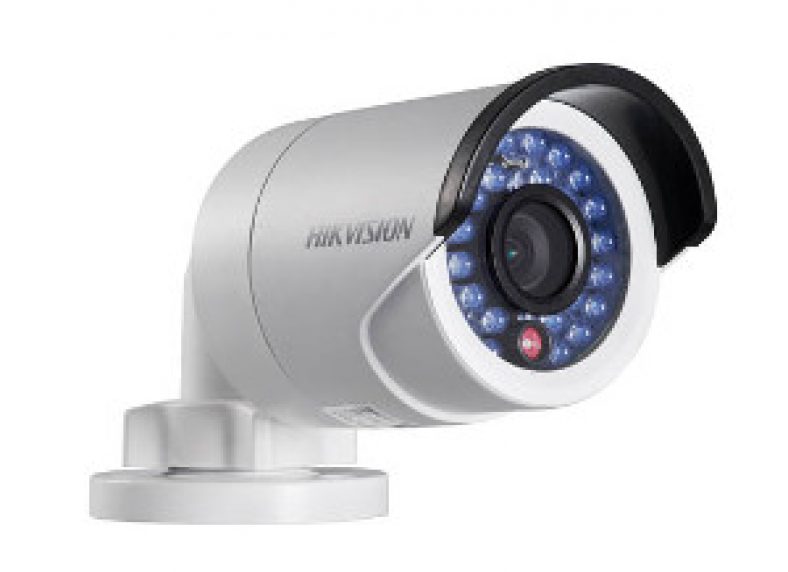
    The 3 Megapixel Hikvision DS-2CD2132F-IWS Network Security Camera under review today is a popular choice among our readers looking for a cheap yet reliable outdoor security camera. It is the dome equivalent of its widely acclaimed cousin, the [easyazon_link identifier=”B00ZZQS1ZU” locale=”US” tag=”vueville.com-ref-20″]Hikvision DS-2CD2032F-IW[/easyazon_link] (Amazon link).

    [/wpsm_column]

    [wpsm_column size=”one-third” position=”last”]
    [easyazon_image align=”center” identifier=”B00W43UQ7I” locale=”US” src=”https://www.vueville.com/wp-content/uploads/2015/11/Hikvision-DS-2CD2132F-IS-300p.jpg” tag=”vueville.com-ref-20″]
    [/wpsm_column]

    The key feature that makes this network camera a fully standalone solution is the built-in micro SD card slot supporting cards up to 128GB. As you will find from our exhaustive Hikvision Network Camera guide, this is represented by the additional ‘F’ in the model number. This local storage feature enables the camera to record motion detection clips or images without the need of any other device.

    Hook up the camera via Power-over-Ethernet (PoE) or via the separate power and network cables, and it will do all of the following without the need of any other device:

      • record 24/7 or motion detection clips and images to the SD card,
      • send email alerts with attached snapshots,
      • upload snapshots via FTP,
      • automatically switch between day and night modes using the IR cut filter and built-in IR LEDs, and much more.

    Optionally you can also connect the camera to a Network Video Recorder (NVR), a Network Attached Storage (NAS) device or directly to the cloud. But as with any IP camera, there are certain points you need to be aware of before purchasing this camera. Read on to learn what we found in our hands-on review.

    [wpsm_toplist]

    [text-blocks id=”4426″ slug=”earnings-disclaimer-incl-hivision-dahua”]

    What is the DS-2CD2132F-IWS suitable for?

    The DS-2CD2132F-IWS is ideal for both indoor and outdoor surveillance applications. It is fully weatherproof and so should fare well in all weather conditions. It also acts as an effective deterrent due to vandal-proof design. It is also compact at Φ111 mm× 82mm (4.4” × 3.2”).

    Main specifications

    As always with Hikvision, there is a camera to suit every use case and every application. There are two variants of the same dome camera which you can view on Amazon: the [easyazon_link identifier=”B0183JPH8E” locale=”US” tag=”vueville.com-ref-20″]DS-2CD2132F-IS[/easyazon_link] model (without the WiFi function) and the [easyazon_link identifier=”B00W43UQ7I” locale=”US” tag=”vueville.com-ref-20″]DS-2CD2132F-IWS[/easyazon_link] which adds Wi-Fi connectivity. In all other respects, these cameras are exactly the same.

    We reviewed the non-WiFi DS-2CD2132F-IS model.

    [table id=18 responsive=scroll /]

    Design

    Its impossible to not compare the DS-2CD2132F-IWS to its very succesful predecessor, the DS-2CD2132F-I. Let’s take a look at them side-by-side and see what had changed:

    DS-2CD2132F-IWS vs. DS-2CD2132F-I - Comparison - VueVille.com

    The older DS-2CD2132F-I (right) had an issue where some of the IR LEDs were obscured by the base of the camera. This has been rectified in the new DS-2CD2132F-IWS. The lens is also 3-axis vs. the older model’s 2-axis.

    Camera Installation

    DS-2CD2132F-IWS - VueVille.com

    Dome cameras are not as easy to install as bullets (unless you are using an installation bracket). This is because of the very nature of the camera and the way they are attached to the installation surface (eaves, walls). There are 4 steps for installing this camera:

    1. Unscrew the dome – there are three screws that secure the dome to the camera base. Hikvision has smartly used built-in screws that remain attached to the dome at all times – very convenient when you are trying to hold the camera to the installation surface and putting in the first screw!
    2. Connect the DS-2CD2132F-IWS to your network and hold it in the desired installation position. Check the live view to frame the image. This camera has a 3 axis design (pan/tilt/rotate) so getting the image framed just right is so easy. Also you can mount it on a slanted eave and still get a levelled image.
    3. Secure the camera to the installation surface using the provided rawl plugs and screws.
    4. Put the dome on and screw tight the 3 built-in screws. Again Hikvision has provided a ribbon band that connects the dome to the camera base to make installation easier.

    I was able to easily install the camera myself – its a one-man job!

    Camera Network Setup

    Hikvision cameras come set up with a default IP of 192.0.0.64, which may not be the same as your network’s subnet. If so, you have to use the included Search Active Devices Protocol (SADP) tool to change the IP address and subnet of your camera. Why use the SADP tool? Because if the camera is on a subnet different from your network, it will not be accessible from your laptop or computer.

    Hikvision SADP - VueVille.com

    When you install and launch the SADP tool, it automatically searches for Hikvision cameras connected to your network. You can also click the Refresh button to search manually. When your camera appears on the list, select it and set a new password. Then change the IP address to one in your network’s subnet. We recommend not using DHCP, but rather use a fixed IP address. The default username is ‘admin’ and the password is 12345. This is not secure so you should choose a stronger password.

    Once you have done the above, you no longer need the SADP tool to access the camera. You can enter the IP address of the camera in your browser to access the administration portal where you can access the live view and configuration pages.

    The web administration portal is easy to use and very functional. However as with most current IP cameras, the interface uses an NPAPI plugin which does not work on the Chrome browser but this is not Hikvision’s fault. Google has stopped supporting this plugin in Chrome as part of its efforts to push developers away from this plugin. We expect Hikvision will soon redesign the web interface in HTML5 to overcome such browser limitations.

    Camera Features

    Hardware

    The DS-2CD2132F-IWS has a 1/3″ progressive scan CMOS sensor with a resolution of 3 megapixels. This lets you record at up to 2048×1536 resolution (20 frames per seconds) or 1920×1080 (30 fps). The increased resolution is very useful for capturing extra detail, hey it may just be the difference between a just-too-blurry video and a crisp close-up that the cops can actually use!

    You can order the camera with a choice of lens, from 2.8mm to 6mm. According to Hikvision, the angles of view will be around 98.5°(2.8mm), 79°(4mm) , and 49°(6mm). The camera’s pan (0-355°), rotation (0-355°), and tilt (0-75°) functions allow you to point the camera at the area or object of interest.

    The on-board IR has a claimed range of 10-30 metres which is quite standard for this class of IP camera. These are not the EXIR LEDs found in the 2332-I turret model but are bright enough. A true IR-cut filter is present which will give true colour images during the daytime and true night vision images in the dark. This avoids problems such as false colour that cameras without a true IR-cut filter can suffer from.

    The camera is capable of recording up to a bitrate of 12Mbps. Our general recommendation is a minimum of 4Mbps to ensure sharp and clear images and videos. Unusually, the DS-2CD2132F-IWS supports Wi-Fi upto 802.11n speeds of 150 Mbps.

    Of course there is also the SD card slot, which is so useful for storing motion detection images or video clips. Even if you intned to use this camera with an NVR, the SD card storage is a sensible secondary storage option.

    Web Administration Portal

    When you go to the IP address you set using SADP for the camera, you are greeted by the login screen.

    Login screen - Review - Hikvision DS-2CD2132F-IWS - VueVille.com

    The default login details are: username = admin and password = 12345. But you should have changed it already using the SADP tool. If not, that’s the first thing to do after logging in.

    You will be prompted to install the WebComponents plugin so that the camera video can be displayed. This will automatically be downloaded from Hikvision and installed.

    Now you may get a warning in your browser about the plugin like this:

    Plugin warning - Review - Hikvision DS-2CD2132F-IWS - VueVille.com

    It is perfectly safe to allow the Web Components plugin.

    The home screen has 4 main tabs – Live View, Playback, Log and Configuration.

    Home Screen - Review - Hikvision DS-2CD2132F-IWS - VueVille.com

    You can control the volume if you have connected a microphone on the camera. You can also push the Mic button to send audio to an attached speaker. You can also take snapshots and videos from the Live View screen. We found the live view screen to be smooth, responsive and stable.

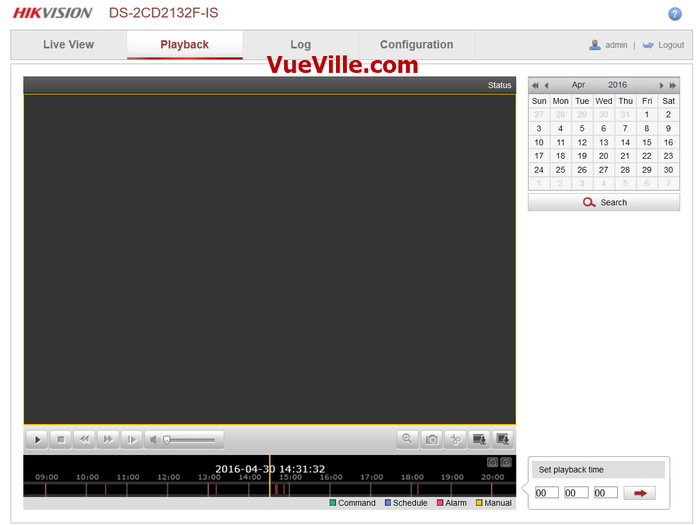
    Recorded clips can be viewed by clicking on the Playback tab. You can either search for clips to view by using the calendar or by clicking and dragging the timeline slider. If you are using only event based recording (such as motion detection), the player will automatically advance to the next clip and keep playing till all the clips have been played.

    Playback tab - Review - Hikvision DS-2CD2132F-IWS - VueVille.com

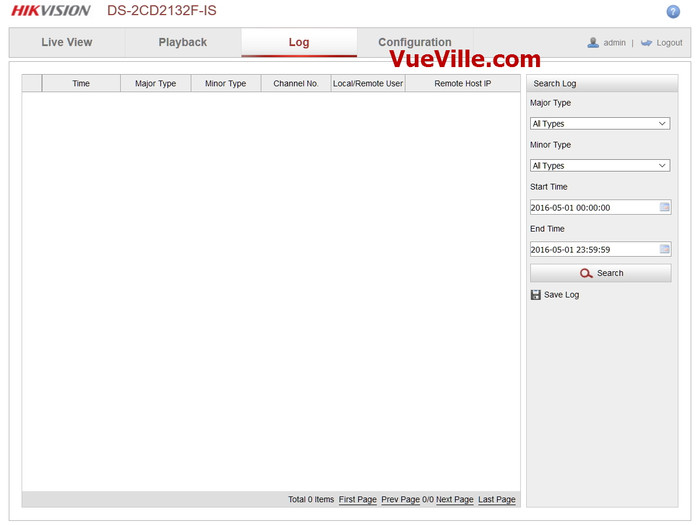
    The next tab is the log screen:

    Log tab - Review - Hikvision DS-2CD2132F-IWS - VueVille.com

    The final tab is the Configuration tab, which has subsections that can be opened using the tree menu on the left:

    • Local configuration – defines the location for saving snapshots and videos from the playback tab.
    • Basic Configuration – Simple configuration options.
    • Advanced Configuration – Advanced configuration including events such as in-camera motion detection or line detection.

    We recommend doing the local configuration, then the basic and finally the advanced configuration to get the most out of your Hikvision IP camera.

    Basic Configuration

    Under Basic Configuration, the System tab shows you the camera’s physical connections, firmware version, time settings and reboot options.

    Basic Configuration - Review - Hikvision DS-2CD2132F-IWS - VueVille.com


    The Network screen lets you select the ports you want to use – this is identical to the Network page under the Advanced Configuration section, so we will check it out later.

    The Video/Audio page lets you define the video bitrate, resolution and other details.

    Basic Config - Video - Review - Hikvision DS-2CD2132F-IWS - VueVille.com

    The Image sub-section lets you adjust image exposure properties such as brightness, contrast etc.

    Basic Config - Picture - Review - Hikvision DS-2CD2132F-IWS - VueVille.com

    Finally the Security sub-section lets you create additional users, for purposes such as a mobile phone monitoring software.

    Basic Config - Security - Review - Hikvision DS-2CD2132F-IWS - VueVille.com

    Advanced Configuration

    Some of the settings pages in this mode are exactly the same as those under Basic Configuration, so we will skip those that are common.

    Let’s start with the Network sub-section. Here you will find a whole host of settings such as IP settings, DDNS, Email, and FTP settings.

    Advanced Config - Network - Review - Hikvision DS-2CD2132F-IWS - VueVille.com

    The video settings are exactly the same as under Basic Configuration, so let’s look at the Audio settings:

    Advanced Config - Audio - Review - Hikvision DS-2CD2132F-IWS - VueVille.com

    Of course, these are valid only if you have connected a microphone and/or speaker to the physical connections of the camera.

    The Image tab is again similar to the Basic Configuration page, but there are some new settings such as the On-Screen Display that can be used to display text on the video feed:

    Advanced Config - OSD - Review - Hikvision DS-2CD2132F-IWS - VueVille.com

    The Security tab is identical to the one under Basic Configuration, so we will skip it.

    Onto the Event sub-sections starting with the Basic Event page. As we always say, motion detection alerts is one of the most enjoyable features of an IP security camera. When the DS-2CD2132F-IWS detects motion as per the defined triggers, it can send an email alert with snapshots and ideally send push notifications also. The Hikvision can do all of this and has all the standard motion events that we have come to expect from good quality cameras. It supports email alerts and can attach snapshots with each motion detection email alert.

    Advanced Config - Basic Event - Review - Hikvision DS-2CD2132F-IWS - VueVille.com

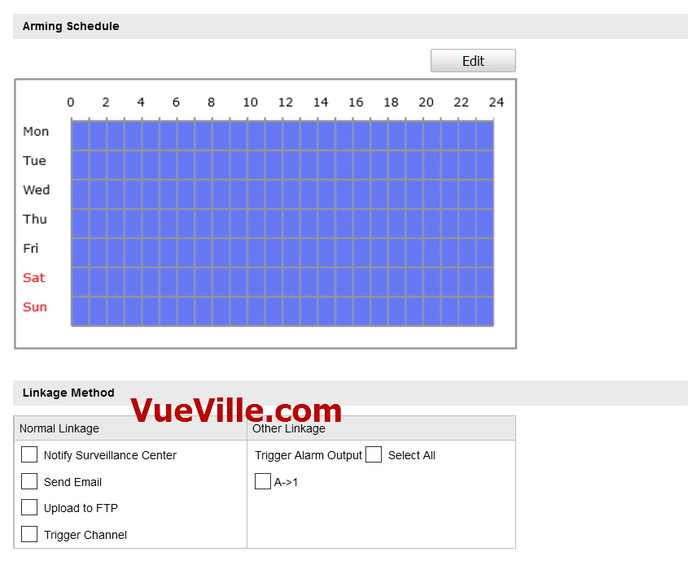
    This includes simple Motion detection, Video Tampering, external alarm inputs and some miscellaneous alarms that can be run on a schedule to trigger one of the following actions:

    Remember you can enable more than one type of event at the same time.

    Advanced Config - Event trigger - Review - Hikvision DS-2CD2132F-IWS - VueVille.com

    Let’s take a closer look at each one of the motion detection events available:

    Simple Motion Detection – This motion detection method simply looks for changes in the scene according to the area defined, the sensitivity and the threshold.

    Video Tamper – This method triggers an alert when the camera is blanked out.

    Alarm Input – This is where the alarm input connection comes into use. If you have a PIR sensor connected to the camera, you can set up this event to detect motion using the PIR. Since the PIR sensor works on changes in heat and not image based detection, you can cut down the number of false alerts that is the bane of regular image based motion detection.

    Network abnormality – This event can be set to trigger if the camera is unable to record to the network storage location (NAS or NVR) – either because of an error or because somebody has tampered with the equipment.

    Illegal Access – This event can be set to trigger if the camera detects unauthorised logins such as an invalid username, password or a hacking attempt.

    It is however the Smart events that really show off the caliber of this camera:

    Advanced Config - Smart Events - Review - Hikvision DS-2CD2132F-IWS - VueVille.com

    Line detection and area intrusion detection let you cut down on false alerts that can be generated by the basic events. Intelligent use of these two can vastly reduce the number of false alerts you get.

    The final Storage subsection lets you define network based storage settings, such as a NAS.

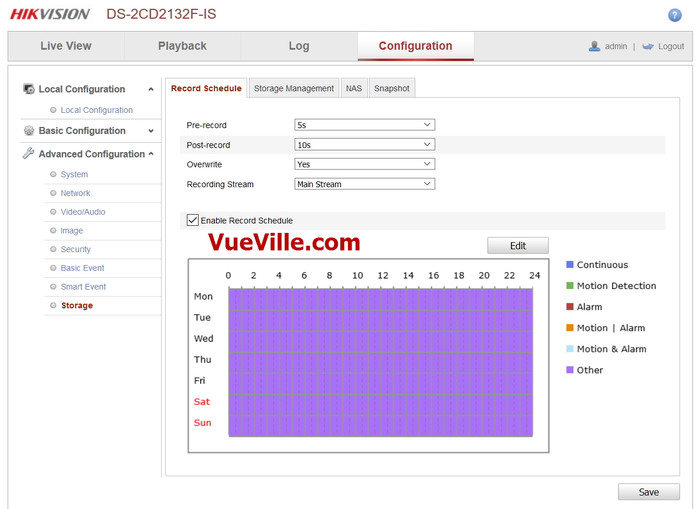
    The first page is the Record Schedule where you can tell the camera whether to record based on event triggers or continuously on a schedule.

    Advanced Config - Storage - Review - Hikvision DS-2CD2132F-IWS - VueVille.com

    The Storage Management page lets you add network based storage locations.

    Advanced Config - Storage Mgmt - Review - Hikvision DS-2CD2132F-IWS - VueVille.com

    The NAS page defines the settings for NAS devices, such as folder path.

    Advanced Config - NAS - Review - Hikvision DS-2CD2132F-IWS - VueVille.com

    The final page in this section lets you define snapshot timing intervals.

    Advanced Config - Snapshot - Review - Hikvision DS-2CD2132F-IWS - VueVille.com

    Advanced Config - Snapshot settings - Review - Hikvision DS-2CD2132F-IWS - VueVille.com

    Recording modes

    The DS-2CD2132F-IWS camera can be configured to record event triggered clips or schedule-based clips to an SD card, a network storage location or to the Cloud using services such as Hikvision’s own EzVIZ, or third party services such as sensr.net and Camcloud. The HiDDNS service is different and we do not recommend using it as EZVIZ is better.

    1. SD Card: We recommend using the SD card only for motion detection or alert snapshot and video recording. 24/7 recording to an SD card is not recommended simply because you will wear out the SD card. The SD card is best seen as redundant storage in case your main storage location fails.
    2. Our recommended way of using an IP camera is always like this: use it to record 24/7 footage or motion activated video to a network storage location. This could be a NAS, an NVR (see NVR buying guide), or a computer running surveillance software such as BlueIris. This means any damage to your camera or theft doesn’t destroy the evidence!
    3. Cloud storage: In this mode, your camera will upload motion detection clips, snapshots, or 24/7 recording clips to Hikvision’s EZVIZ service or third party services.

    Smartphone apps

    Hikvision provides a free Android and iOS app, the iVMS 4500 HD which lets you see your camera’s live video stream, use the 2-way audio feature, and view recorded clips. It also lets you access cameras connected through the EZVIZ system. The stand-out feature is Push Notifications which works quite well. Read our step by step guide to setting up push notifications.

    Compatibility with NVR systems

    The DS-2CD2132F-IWS supports the ONVIF protocol. ONVIF is an industry standard that enables surveillance equipment from different manufacturers to work together. This means that you can connect the camera to any Network Video Recorder (NVR) or a computer running surveillance software, and the camera should work seamlessly.

    Performance

    We have been running this camera continuously for a year now and it has not faltered once. It has been 100% reliable and has been even more reliable than our DS-2CD2032-I which needs a reboot every 6 months.

    Video Quality

    We tested the camera at both 3 Megapixel and 2 Megapixel resolutions. Our test settings were a bitrate of 6 Mbps and 10 fps.

    Daytime quality

    Daytime quality is excellent with sharp focused video that shows every detail in the scene. Here is a sample video we made:

    Night quality

    To test the night quality, we used only the built-in IR. No external IR illumination was used. There was a little stray light from an LED street lamp but this was very dim light. At the noise reduction and WDR image settings seen in the screenshots above, the image was slightly grainy but had decent sharpness and clarity. We did not observe any IR bleed issues that some users of the predecessor model experienced. Here is a test video we made:

    Verdict

    The Hikvision DS-2CD2132F-IWS is one of the best-selling dome-style wireless security cameras. It has definitely improved upon its predecessor, the [easyazon_link identifier=”B00VFBW61O” locale=”US” tag=”vueville.com-ref-20″]DS-2CD2132F-IS[/easyazon_link] (Amazon link). No more IR LEDs being blocked by the base or complaints of IR bleed! This camera represents great value for money with all the features that you will ever need from an IP security camera.

    [review]

    Where to Buy

    [easyazon_link identifier=”B00W43UQ7I” locale=”US” tag=”vueville.com-eaz-20″]View on your local Amazon Website[/easyazon_link]

    Also Consider

    From our Best IP Camera Recommendations 2016 list, view these on Amazon:

    • [easyazon_link identifier=”B00RL2FZF0″ locale=”US” tag=”vueville.com-ref-20″]Hikvision DS-2CD2332-I mini-dome/turret-style IP camera[/easyazon_link]
    • [easyazon_link identifier=”B01IOOISHU” locale=”US” tag=”vueville.com-ref-20″]Dahua IPC-HDBW4421E dome-style IP camera[/easyazon_link]
    • [easyazon_link identifier=”B00QR6RQGM” locale=”US” tag=”vueville.com-eaz-20″]Vivotek FD8167 dome-style IP camera[/easyazon_link]
  • The Ultimate IP Camera Buying Guide – 2025 Edition

    The Ultimate IP Camera Buying Guide – 2025 Edition

    The Ultimate IP Camera Buying Guide - VueVille.com

    We love IP cameras and home security – we built our own DIY home security camera system after countless hours of in-depth research. All of this hard work has given us a very deep understanding of the IP camera market, the selection process and any other questions you may face on your journey.


    [wpsm_titlebox title=”Contents” style=”main”][contents h2 h3][/wpsm_titlebox]

    A quick note: As an Amazon Associate I earn from qualifying purchases. This post contains affiliate link(s). An affiliate link means I may earn advertising or referral fees if you make a purchase through my link, at no extra cost to you.


    Whom is this guide for?

    Are you looking for an IP camera for your home? This guide is for anybody that is stepping into the world of modern home security cameras. Maybe you own a legacy analogue CCTV system that you want to replace with an IP camera system that is accessible over the Internet. More experienced enthusiasts may also benefit from the DIY framework that we have built for approaching Home Security and Home Automation.

    This guide will help you answer the most common questions we get on this topic:

    • What is an IP Camera and why do I need one?
    • Why should I choose an IP camera system instead of a traditional DVR system?
    • What are the different types of IP Cameras?
    • Which are the major IP camera brands?
    • How do I choose an IP Camera?
    • Which are the best IP cameras for home security?
    • Do I need a Network Video Recorder (NVR)?
    • Where to buy IP Cameras from

    What is an IP Camera?

    An IP camera is a digital camera that operates on the principles of Internet Protocol (IP) networks instead of analogue electric signals. The Internet is an example of an IP network and uses the IPv4 protocol. IP cameras are also called network cameras for this reason.

    The industry standard protocols for IP cameras are the Open Network Video Interface Forum (ONVIF) specification and the Real Time Streaming Protocol (RTSP).

    [easyazon_image align=”center” height=”500″ identifier=”B08F568BH1″ locale=”US” src=”https://m.media-amazon.com/images/I/31GlYl4pkaL._SL500_.jpg” tag=”vueville.com-eaz-20″ width=”500″]

    Analogue surveillance cameras are always centralised – they require a central controlling and data recording device – what you and I know as a DVR (Digital Video Recorder). The DVR is called so because it records the analogue video feeds from the cameras to a hard drive and is thus digital; not because the cameras themselves are ‘digital’.

    With IP cameras, a revolution was unleashed on the world of CCTV. IP cameras by nature are capable of operating independently – in fact most IP cameras have a built-in mini-computer. They can operate either in centralised or decentralised modes, or both (if the camera is powerful enough).

    • In centralised mode, IP cameras are connected to and controlled by a Network Video Recorder (NVR). Since the cameras operate on networking protocols, they can only communicate with other networking devices. This is why an NVR is needed and not just a DVR. The IP cameras are connected to the NVR either directly or indirectly through Ethernet network cables or wirelessly through Wi-Fi.
    • In decentralised mode, IP cameras are not connected to an NVR that controls them. Each IP camera is like an independent networking device. They have their own IP address and can be accessed by any other device on your Local Area Network (LAN).
    • Most decent IP cameras can operate simultaneously in both modes. They can be part of an NVR system and at the same time be directly accessible by any other networking device on your LAN.

    Why should I choose an IP camera system instead of a traditional DVR system?

    An IP camera based security system has numerous advantages over the traditional analogue CCTV:

    1. Lets you receive alerts (email and push notifications) on mobile devices anywhere in the world.
    2. IP cameras have very advanced motion analysis algorithms that help cut down on false alerts(line detection, intrusion detection, etc.).
    3. Digital video with intelligent markers for alerts makes it much easier to review footage.
    4. Becomes part of your home automation network as it works with home automation sub-systems such as lighting and doorbells.
    5. More flexibility in installation locations as they are able to work over Wi-Fi or Powerline.

    What are the different types of IP Cameras?

    Our favourite way of categorising IP cameras is based on the form factor. Another way is by focal length flexibility – the camera’s ability to change its lens’ focal length. Yet another way is by lens aperture type. We will explore all 3 methods below.

    IP cameras by form factor

    Bullet Cameras

    [easyazon_image align=”center” height=”500″ identifier=”B08F568BH1″ locale=”US” src=”https://m.media-amazon.com/images/I/31GlYl4pkaL._SL500_.jpg” tag=”vueville.com-eaz-20″ width=”500″]

    This is the most recognisable CCTV camera shape. They are called bullets because of their cylindrical shape. Typically the cheapest type of IP cameras you can find. Not very vandal-resistant but offer tons of flexibility in installation positions and adjustment afterwards.

    Dome Cameras

    [easyazon_image align=”center” height=”500″ identifier=”B077Y52782″ locale=”US” src=”https://m.media-amazon.com/images/I/41GcBO8PYFL.jpg” tag=”vueville.com-eaz-boipc18-20″ width=”500″]

    Preferred in commercial settings, these are highly vandal-resistant and more weather-proof than bullets by virtue of their installation position. Installation is trickier and adjustment afterwards can be quite limited as well unless you choose one with three-axis adjustment.

    Turret-style cameras

    [easyazon_image align=”center” height=”500″ identifier=”B08135WDZW” locale=”US” src=”https://m.media-amazon.com/images/I/31Ea0pBsW7L._SL500_.jpg” tag=”vueville.com-eaz-boipc18-20″ width=”500″]

    More discreet than the domes, these are even more vandal-resistant. More and more companies are launching mini-dome or turret style cameras these days.

    Indoor cube cameras

    [easyazon_image align=”center” height=”364″ identifier=”B07QL9QL2R” locale=”US” src=”https://m.media-amazon.com/images/I/31lIbueTJaL._SL500_.jpg” tag=”vueville.com-eaz-20″ width=”500″]

    These are designed to be installed in a corner of the ceiling or placed on a flat surface. Usually comes with built-in microphones and speakers, so can also be used as baby monitors, or as door-phones.

    IP cameras by focal length flexibility

    Another way of categorising IP cameras is based on their focal length flexibility. The amount of zoom available depends on the various focal lengths a camera sports. Also the focal length decides the Field of View (FoV) of the camera. For long alleys, a camera with a narrow FoV is fine, for eg. a lens of 6mm focal length. For a backyard, you would need a wide FoV, such as that offered by a lens of 2.8mm focal length. Of course, the disadvantage with a wide-angle lens is that there will be distortion of the image near the edges.

    Look at the difference between the images from a 2.8mm camera lens and a 4mm camera lens.

    DS-2CD3332-I - 2.8mm - VueVille.com
    Image with a 2.8mm lens
    DS-2CD3332-I - 4mm - VueVille.com
    Image with a 4mm lens

    So the various types of IP cameras by focal length flexibility are:

    Fixed focus cameras

    These use a lens set to a single focal length and hence the field of view is fixed. This keeps the cost down but makes the camera selection (or in some cases, the lens to be installed) even more critical.

    Manual variable focus cameras

    These cameras have a range of focal lens, such as 2.8mm to 12mm. You can change these at any time by adjusting the lens in the camera. Of course the flexibility means you pay more.

    Motorized cameras, Pan-Tilt-Zoom (PTZ)

    These cameras are motorized in all the axes of motion. You may also find Pan-Tilt (PT) cameras which have a fixed focus. Typically, these are the most expensive cameras that the DIY security enthusiast can purchase.

    IP cameras by lens aperture type

    Yet another way of looking at cameras is based on the type of lens used. Aperture is the size of the lens opening that lets light onto the camera CCD or CMOS sensor. The aperture of the lens defines how much light is allowed onto the light sensor. Wider the opening or aperture, higher is the light that is let in. Narrower the aperture, lesser is the light let in.

    So the different types of cameras according to aperture type are:

    1. Fixed aperture
    2. Motorized variable aperture
      • Auto-Iris
      • Precise-Iris (P-Iris)

    For applications where zooming in rapidly is needed, such as number plate recognition at day and night, automatic motorized aperture control is hugely beneficial.

    Which are the major IP camera brands?

    We have limited our reviews to brands that are available to consumers like us, and not those that are marketed mainly to system integrators and installers.

    Reolink

    Reolink has become a strong contender for affordable yet powerful IP cameras that can be added to any DIY CCTV system.

    Amcrest

    Amcrest is a relative new-comer to the IP camera industry. However, what matters is that it was started by the same guys who founded Foscam. While Foscam was never in the same league as Hikvision, they were the popular choice of the uninformed masses. Amcrest seems to have learnt the hard lessons from Foscam’s experience as their products are of much higher quality.

    Axis

    Axis invented the IP camera when they launched the Neteye200 , the world’s first network camera. Started in 1984, Axis is now owned by Canon.

    Samsung

    Samsung has been in the network camera business for a long time and has recently launched their consumer oriented series called the SmartCam series. This fits in nicely with their acquisition of the SmartThings home automation brand.

    Vivotek

    A Taiwanese company established in 2001, Vivotek is a highly respected network camera manufacturer. Catering to the enthusiast and high-end sections of the market, superior hardware and impeccable software quality comes at a higher price.

    D-Link

    D-Link was established in 1986 in Taiwan. Its stronghold has traditionally been networking products, so no surprise then that they are quite big in network camera solutions too. They make a huge range of cameras for everything from large corporations down to the single consumer.

    Hikvision

    Headquartered in Hangzhou, China Hikvision was established in 2001. It has since shot up to the no.1 position globally for Network Cameras sales with a market share of 18.9%.

    Although Hikvision used to be a good choice for DIY-ers, the issue if its close relationship to the Chinese government and the recent US bans have led us to stop recommending this brand.

    Dahua

    Just like Hikvision, Dahua was also founded in 2001 in Hangzhou, China.

    We do not recommend Dahua either for the same reasons listed for Hikvision above.

    How do I choose an IP camera?

    The most important point we would like to stress is that you need to know exactly what you want before you spend your hard earned cash. This means you need to have a plan for how you are going to use your surveillance system. Let’s break it down one by one:

    STEP 1: Plan where the cameras will be installed

    You should have a good think about where you are going to install your cameras. The type of cameras you need depends on where you are installing them:

    Indoor IP cameras:

    Any outdoor camera can be easily used inside too. However with indoor cameras you have the choice of installing covert or hidden spy cameras which are perfect for recording a break-in without the criminals noticing.

    Check out our top recommendations for indoor IP cameras and spy cameras.

    Outdoor IP cameras:

    Having installed bullet style cameras and then having to adjust them constantly, these are best for their unmatched flexibility. Being the classic CCTV shape, they are also popular choices as deterrents. These are however quite vulnerable to being knocked off target and hence not best for exposed areas. Discreet installation under eaves is what we recommend for bullet style cameras.

    Dome style cameras are more difficult to install, and even more difficult to adjust once installed. However they are highly resistant to vandalism and the weather.

    PTZ cameras are of course highly desirable but more expensive than other types of IP cameras.

    Check out our top recommendations for outdoor IP cameras.

    Features to look for

    IP protocols support – Make sure the camera supports the ONVIF and RTSP protocols. This will ensure compatibility with NVRs and other home automation equipment in the future.

    Power-over-Ethernet
    Instead of running a separate power cable and ethernet cable to each camera, the Power-over-Ethernet feature allows you to transmit power over the data cable itself. This is hugely convenient as you can use ethernet cable runs of up to 100 feet. You can use a PoE enabled switch, check out the [easyazon_link identifier=”B00BP0SSAS” locale=”US” tag=”vueville.com-eaz-20″]TP-Link TL-SG1008P[/easyazon_link] on Amazon.

    Make sure it supports the 802.3af Power-over-Ethernet standard and the 802.3at standard for PTZ cameras. The 802.3at standard supports higher power ratings that are needed for motorized cameras.

    Weatherproofing
    Make sure outdoor cameras are at least IP66 compatible. It may also be worth adding an extra layer of sealant around the camera to provide extra protection.

    Resolution
    With analogues cameras, you would judge resolution by the ‘number of TV lines’ (TVL) or ‘lines of resolution’. With digital IP cameras, resolution is specified by the number of pixels. Currently we recommend a minimum of 2 MegaPixels. 3MP is the standard but 4MP cameras are quickly becoming mainstream.

    Infrared
    Most IP cameras have built-in Infra Red(IR) illumination. The most common ring type LEDs tend to fade after a year or so and are found in entry level models. EXIR LEDs are stronger and more long-lasting. In any case you will need [easyazon_link identifier=”B075F7NV56″ locale=”US” tag=”vueville.com-eaz-20″]external IR illumination[/easyazon_link] because the IR produced by cameras generally tend to be have a flashlight effect and are effective only in enclosed spaces. Another issue with built-in IR is that flies and spiders are attracted to the IR hence blocking the camera’s view or frequently setting off motion detection alerts.

    On-board storage
    Most IP cameras these days have SD card slots that support capacities of up to 128 GB. This is an excellent alternative to an NVR of you are looking at just 1 or 2 cameras.

    Wireless
    We do not recommend using WiFi for IP cameras simply because you cannot get the same reliability as with a wired connection. But for just 1 or 2 cameras in a network, wireless is an acceptable solution. Consider powerline networking as it is far more reliable and supports higher network speeds.

    Which brand of IP camera do I choose?

    Look at our latest recommendations for outdoor and indoor IP cameras.

    Which are the best IP cameras for home security?

    Read our in-depth round-up reviews of the best indoor and outdoor IP cameras.

    Do I need a Network Video Recorder (NVR)?

    As we learnt earlier, most IP cameras are capable of working without an NVR. Some have onboard SD card storage that can be used for motion detection snapshots and video clips.

    Yet, there are many advantages to having an NVR record the video streams from your IP Cameras:

    • 24/7 continuous recording of multiple cameras is possible for say 1 month.
    • You have a backup of video footage in case your camera is damaged/destroyed/stolen.
    • You can live-view your cameras from a single interface. Trust us, when you have 4 cameras you do not want to log into each camera one-by-one.
    • You can simultaneously play back video streams from multiple cameras – quicker manual reviews!

    So if you are just starting out with 1 or 2 IP cameras, and they have onboard storage, you do not need an NVR. However with more IP cameras, we recommend getting a compatible NVR.

    If you want a set-and-forget system, go for cameras and an NVR from the same manufacturer. This will make installation and setup a breeze as the systems were designed to work with each other. A bonus is that NVRs from the major brands will support any IP camera that supports the ONVIF protocol.

    Read: Best all-in-one DIY NVR & IP Camera Kits

    How do I build my own DIY CCTV system?

    Now that you know the basics, have a look at this detailed description of our DIY CCTV system and our home network. It should give you a good idea of how to set up everything.

    Where can I buy IP cameras from?

    Just as with almost everything else we buy online, we recommend Amazon. This is because of the wide range of products, competitive pricing and the ease of returns if needed. The Amazon product links on this website are automatically customized to the right Amazon store for your geographic location. Just remember to check for warranty information before purchasing, as some sellers offer grey market imports without warranty.

  • Buyer’s Guide: Network Camera Comparison Chart

    Buyer’s Guide: Network Camera Comparison Chart

    Are you wondering how you should go about choosing the right network camera for your home? Network cameras (or IP cameras) are the most important components of a CCTV security system, and you need to make sure you select cameras that are suited to the areas you want to monitor in and around your home.

    There are so many network cameras out there, all with a dizzying array of features, not to mention applications. This is why we decided to build the ultimate comparison table for IP cameras. The table below lets you compare the features of the most popular IP cameras from manufacturers such as Hikvision, Dahua, etc. You can filter using the feature dropdown boxes, search for a specific feature such as built-in IR, or sort these cameras by any column. So you can quickly narrow the list down to the IP cameras that have the features you are looking for. We have also explained the comparison criteria in detail just below the table.

    We think the most important features that you should look for in an IP cameras are in the comparison table below. Just below the table, you will also find detailed explanations of each of the columns of this table. Let us know if we can improve this tool in any way!

    IP Camera Comparison table/matrix:

    Start by filtering the table by using the dropdown boxes or the search box. Simply click on the required column header to sort by that criteria. To reset the table, just reload this page by clicking your browser’s refresh button or pressing F5 on your keyboard.

    [table id=14 responsive=scroll /]

    IP Cameras – Explanation of technical terms:

    Category: We have grouped the IP Cameras into categories so that you can easily drilldown to the exact type of camera you are after.

    Price: To provide you with up-to-date prices, we have linked the cameras to Amazon. Please note that this is an affiliate link which will provide us a commission if you decide to buy from Amazon.

    Company:This is the camera manufacturer – we have listed cameras from Hikvision, Dahua and Reolink at the moment.

    Product line:Manufacturers often use distinctive titles for their product families – this can be a useful way to filter out cameras that do not appeal to you.

    Status:Tells you whether the camera is a current model or has been phased out.

    Model:Each manufacturer has their own system of nomenclature. Here is a guide to the naming system used by Hikvision.

    MP:The number of megapixels the camera’s sensor has.

    IR:IR stands for infrared, most of the cheaper cameras use ring style LEDs but the EXIR LEDs are brighter and have a higher range.

    Focus:This column refers to the amount of flight the camera lens has, this maybe either a fixed iris, a manual iris which can be changed, an auto iris which is motorized and responds to the light levels in the scene, or the most desirable P-iris(precise-iris) which uses a motorized lens with additional software to improve the video quality.

    PTZ:Indicates whether the camera has a Pan Tilt Zoom feature.

    PoE:Indicates whether the camera supports Power-over-Ethernet.

    Snapshots:Indicates whether the camera supports taking image snapshots.

    IR-cut filter:Good quality cameras have an automatic IR cut filter, which lets the camera produce true colour video during the daytime and high quality night time videos. A camera without this filter can only ever have one of the two, not both.

    WDR:Stands for Wide Dynamic Range. WDR is desirable as it enhances the darker parts of the scene without blowing out the brighter parts of the scene.

    Hikvision IP Camera Model Naming Convention

    Please refer to the Hikvision product guide to understand the model naming convention.

    [text-blocks id=”earnings-disclaimer-incl-hivision-dahua”]

  • Hands-on Review: Amcrest ProHD 1080p Wireless Indoor IP PTZ Camera (IP2M-841)

    Hands-on Review: Amcrest ProHD 1080p Wireless Indoor IP PTZ Camera (IP2M-841)

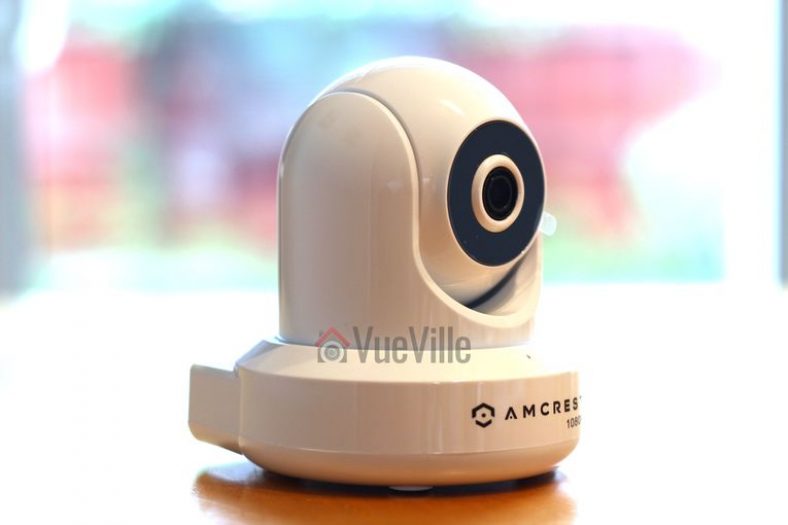
    Are you looking for a reliable wireless security camera that can act as a baby monitor, a nanny camera, or just to talk to your dog while you are away? The Amcrest ProHD IP2M-841 Wireless Indoor IP Security Camera is what you need: a feature-rich network camera which has great video quality, excellent night vision and crystal clear two-way audio capability. I have been using it for over a year now and here is a hands-on review based on my experience of using it day in and day out.

    [wpsm_column size=”two-third”]
    This indoor IP camera has all the features I recommend in an indoor security camera like live streaming, 24/7 recording, and playback features that you can access either locally or remotely via the camera’s web interface or the Amcrest smartphone apps. The stand-out feature is of course Pan-Tilt which lets you look around for a 360 degree view. It can record video, sound and images to an SD card in the camera, to a Network Attached Storage (NAS) or to the cloud. FTP support for alert snapshot images is also present.
    [/wpsm_column]

    [wpsm_column size=”one-third” position=”last”]
    Amcrest ProHD IP2M-841B Wireless Indoor Pan-Tilt IP Security Camera - Front View - VueVille.com

    [easyazon_link identifier=”B0145OQTPG” locale=”US” tag=”vueville.com-eaz-20″]Check Price on Amazon[/easyazon_link]

    [/wpsm_column]

    [wpsm_toplist]
    [text-blocks id=”5527″ slug=”earning-disclaimer”]

    Making sense of the Amcrest naming convention

    If like me, you have been struggling to figure out which Amcrest camera you really need or what the letters and digits in the model number mean, simply refer to our easy-to-use guide to Amcrest cameras. It has a comprehensive list of all the Amcrest security cameras, neatly categorized by indoor/outdoor use and features such as WiFi, PoE.

    Briefly this camera has two models based on the colour. Check out the [easyazon_link identifier=”B0145OQTPG” locale=”US” tag=”vueville.com-eaz-20″]IP2M-841B[/easyazon_link] on Amazon for the black colour model and [easyazon_link identifier=”B0145OQXCK” locale=”US” tag=”vueville.com-eaz-20″]IP2M-841W[/easyazon_link] on Amazon for the white colour model.

    What is the Amcrest ProHD IP2M-841 suitable for?

    [easyazon_image align=”center” height=”510″ identifier=”B0145OQTPG” tag=”vueville.com-eaz-20″ locale=”US” src=”https://www.vueville.com/wp-content/uploads/2016/12/Amcrest-ProHD-IP2M-841B-Wireless-Indoor-Pan-Tilt-IP-Security-Camera-Front-View-VueVille.com_.jpg” width=”765″]
    The Amcrest ProHD IP2M-841 is a versatile surveillance device and its applications are only limited by your imagination! The most common residential indoor security camera applications are:

    • As a baby monitor in a nursery (it supports 2-way audio), this is what I use it for
    • As a nanny monitor for peace of mind (it is discreet and small enough to be hidden),
    • General home security – monitor and secure rooms, hallways, corridors, access and exit points, guesthouses, garages and outhouses (the pan-tilt function gives you installation flexibility).

    The common business uses for this sort of IP camera are:

    • Monitor and secure office areas, stores, warehouses etc.,
    • Observe employees and customers,
    • As a visible deterrent against criminal activities.

    What’s in the box – Unboxing

    [easyazon_image align=”center” height=”510″ identifier=”B0145OQTPG” tag=”vueville.com-eaz-20″ locale=”US” src=”https://www.vueville.com/wp-content/uploads/2016/12/Amcrest-ProHD-IP2M-841B-Wireless-Indoor-Pan-Tilt-IP-Security-Camera-Box-Angled-View-VueVille.com_.jpg” width=”765″]

    [easyazon_image align=”center” height=”510″ identifier=”B0145OQTPG” tag=”vueville.com-eaz-20″ locale=”US” src=”https://www.vueville.com/wp-content/uploads/2016/12/Amcrest-ProHD-IP2M-841B-Wireless-Indoor-Pan-Tilt-IP-Security-Camera-Box-Contents-VueVille.com_.jpg” width=”765″]

    Main specifications

    [table id=12 responsive=scroll /]

    Camera Design

    [easyazon_image align=”center” height=”510″ identifier=”B0145OQTPG” tag=”vueville.com-eaz-20″ locale=”US” src=”https://www.vueville.com/wp-content/uploads/2016/12/Amcrest-ProHD-IP2M-841B-Wireless-Indoor-Pan-Tilt-IP-Security-Camera-Front-Angled-View-VueVille.com_.jpg” width=”765″]

    [easyazon_image align=”center” height=”510″ identifier=”B0145OQTPG” tag=”vueville.com-eaz-20″ locale=”US” src=”https://www.vueville.com/wp-content/uploads/2016/12/Amcrest-ProHD-IP2M-841B-Wireless-Indoor-Pan-Tilt-IP-Security-Camera-Side-View-VueVille.com_.jpg” width=”765″]

    [easyazon_image align=”center” height=”510″ identifier=”B0145OQTPG” tag=”vueville.com-eaz-20″ locale=”US” src=”https://www.vueville.com/wp-content/uploads/2016/12/Amcrest-ProHD-IP2M-841B-Wireless-Indoor-Pan-Tilt-IP-Security-Camera-Back-View-VueVille.com_.jpg” width=”765″]

    Installation

    Amcrest claims that this camera is a doddle to set up and we agree. The camera has a standard camera tripod screw hole (1/4-20 UNC thread) for mounting. The mounting bracket should be able to take at least 3 times the weight of the camera.

    Also note that this camera has alarm in and out connections. This means you can use a PIR sensor with this camera instead of relying on software based image detection. Using a PIR will drastically reduce the number of false alerts you may get with just image based motion detection.

    Using the Alarm Out connection, you can then make the camera trigger another device to take action such as start recording, send email or push alerts, or execute home automation tasks such as turn on outdoor and indoor lights.

    Software Setup

    For initial setup, you have to hook up the camera to a power source and connect it to your router via an ethernet cable. The username and password are both ‘admin’. The camera will prompt you to change these, which is an excellent security measure and we commend Amcrest for taking this step. Too many IP cameras connected to the internet still have the default login details and this is an open invitation for hackers, especially if simple port forwarding is in place.

    The web administration portal is elegant and thoughtfully laid out with all the options you expect in the right places. However the interface uses an NPAPI plugin like almost all inexpensive security cameras which work only with Internet Explorer and Firefox. It does not work on the Chrome browser but this is not strictly the camera’s fault. Google has decided not to support this plugin in Chrome. Just as other security camera manufacturers will soon have to, we expect Amcrest will redesign the web interface from the ground up in HTML5 to overcome such browser limitations.

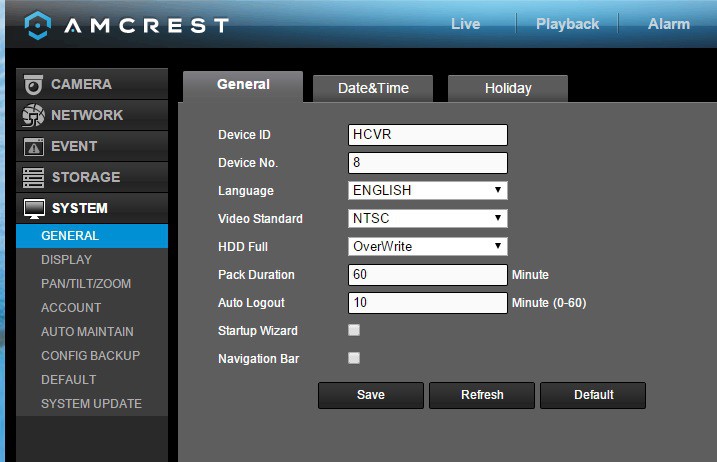
    Amcrest ProHD IP2M-841 Wireless Indoor Pan-Tilt IP Security Camera Admin Page
    The Web Administration page is thoughtfully designed and easy to use

    The rest of the setup process is where some users seem to get tripped up. So we have provided our own little overview of how to set up the Amcrest ProHD 1080p camera. Depending on how you want to use the camera, there are different routes to completing the setup process:

    Local viewing only (unless you port forward):

    1. Ethernet cable using IP Config tool, then WiFi, then apps:
      1. Ethernet cable, IP config tool, change camera’s IP address to your sub-net so that you can access the web setup page.
      2. Login to web admin page and add WiFi details.
      3. Install apps on phone, add camera in phone apps:
    2. Without ethernet cable or IP config tool, using only WiFi:
      1. Install smartphone apps.
      2. Scan the QR code and add camera to the app.

    Local and Remote viewing, without using Port forwarding:

    1. P2P setup:
      1. Connect the camera to your router via ethernet or WiFi(Method 2 above has to be performed first if connecting through WiFi).
      2. Add camera either via Serial No. or the QR code.
    2. Amcrest Cloud setup for recording video clips and snapshots to the cloud
      1. Connect the camera to your router via ethernet or WiFi(Method 2 above has to be performed first if connecting through WiFi)
      2. Visit www.Amcrest.com/Cloud to add the camera to your cloud account
    3. Web Access setup (essentially the same as Method 1 but using Amcrest’s servers instead):
      1. Connect the camera to your router via ethernet or WiFi(Method 2 above has to be performed first if connecting through WiFi)
      2. Visit www.AmcrestView.com to add the camera to your cloud account

    Once the initial setup is complete, you can switch to using the camera’s built-in WiFi.
    Here’s a video that walks you through one way of setting up the camera:
    [wpsm_video]http://www.youtube.com/embed/OA_UPFfoE_U[/wpsm_video]

    Camera Features

    Hardware

    The Amcrest ProHD IP2M-841 has a 2 Megapixel sensor which lets you record at 1920×1080 resolution and 30 frames per second(fps). This is perfect for home surveillance because you get that much more clarity and sharpness in the recorded videos and images.

    The on-board IR has a good range of 10 metres which is standard for this class of IP camera. The lens fitted to the camera has a focal length of 4mm which provides a very good 90 degree field of view. The camera’s pan and tilt functions allow you to point the camera at the area or object of interest.

    The camera is capable of recording up to a bitrate of 8Mbps. We recommend a minimum of 4Mbps for ensuring you get a good level of detail. The IP2M-841 supports Wi-Fi upto 802.11g speeds of 54 Mbps. This is more than enough for the camera’s video stream to be sent wirelessly so faster protocols such as 802.11n or ac are not necessary.

    What we really like about this camera is that it has an SD card slot, so you have the option of using this camera in a standalone manner. It doesn’t have to be connected to a network device for recording alert videos or images.

    Two-way audio is present and is perfect for using the camera as a baby monitor or a wireless doorphone. Watermarking and text overlays are also supported.

    Recording modes

    The camera can be configured to record 24/7 to the built-in SD card, a network storage location or to the Cloud.

    1. SD Card: We recommend using the SD card only for motion detection or alert snapshot and video recording, and not 24/7 recording. This is because you will wear out the SD card quicker if you record to it 24/7. Think of the SD card as redundant storage in case your main storage location fails or is stolen.
    2. The recommended way of using an IP camera is this: use it to record 24/7 footage or motion activated video to a network storage location. This could be a NAS, an NVR (see NVR buying guide), or a computer running surveillance software such as BlueIris.
    3. Cloud storage: In this mode, your camera will upload motion detection clips, snapshots, or 24/7 recording clips to the Amcrest Cloud.
      Amcrest ProHD IP2M-841 Wireless Indoor Pan-Tilt IP Security Camera - Amcrest Cloud

      4 hours of cloud storage are included with the camera, and this should be sufficient for most people intending to use only motion detection recording.

    Motion Detection and other event alerts

    Motion detection alerts is one of the most enjoyable features of an IP security camera. When an IP camera detects motion as per your pre-defined rules, it should be able to send an email alert with snapshots and ideally send push notifications also. The Amcrest can do all of this and has all the standard motion events that we have come to expect from good quality cameras. It supports email alerts and can attach snapshots with each motion detection email alert. You can also set up each event to be active based on a schedule. An interesting feature of the Amcrest ProHD is that you can also set it up to do a Pan-Tilt tour when it detects motion. Remember you can enable more than one type of event at the same time. Let’s take a closer look at each one of the motion detection events available.

    Simple Motion Detection

    Amcrest calls it ‘Motion Detect’, this motion detection method simply looks for changes in the scene according to the area defined, the sensitivity and the threshold.

    Video Tamper

    This method triggers an alert when the camera is blanked out.

    Audio Detection

    A useful event mode that as the name suggests will trigger an alert and alert actions based on sounds detected by the onboard mic or the audio input.

    Alarm

    This is where the alarm input connection comes into use. If you have a PIR sensor connected to the camera, you can set up this event to detect motion using the PIR. Since the PIR sensor works on changes in heat and not image based detection, you can cut down the number of false alerts that is the bane of regular image based motion detection.

    SD Card abnormality

    This event can be set to trigger if the camera is unable to record to the SD card – either because of an error or because somebody has removed the SD card illegally.

    Network abnormality

    This event can be set to trigger if the camera is unable to record to the network storage location (NAS or NVR) – either because of an error or because somebody has tampered with the equipment.

    Illegal Access

    This event can be set to trigger if the camera detects unauthorised logins such as an invalid username, password or a hacking attempt.

    Smartphone apps

    Amcrest provides a free Android and iOS app, the Amcrest View Lite which lets you see your camera’s live video stream, pan and tilt the camera lens, and use the 2-way audio feature. However the free Lite version is missing some important features such as alarm push notifications. The paid Pro version adds alarm push notifications, image and video file sharing, exporting MP4 video, and exporting images to your phone storage. This surprised us because most other manufacturers offer all the Pro version’s features in their free apps. Some users have found the apps to be a bit glitchy though.

    Compatibility with NVR systems

    The Amcrest ProHD IP2M-841 supports the ONVIF protocol. ONVIF is an industry standard that enables surveillance equipment from different manufacturers to work together. This means that you can connect the Amcrest to any Network Video Recorder(NVR) or a computer running surveillance software, and the camera should work seamlessly.

    The camera also supports the RTSP protocol so you can also access the video stream using a video player like VLC on your computer. This is the URL to use: rtsp://login:pass@xxx.xxx.xxx.xxx:PORT/cam/realmonitor?channel=1&subtype=1
    The x’s are your camera’s IP address.

    Performance

    The camera has very good daytime quality thanks to the 1080p image sensor. Videos in low light and at night are also of high quality thanks to the built-in IR LEDs.

    I am using my Amcrest as a baby monitor and I’m constantly amazed by how clearly I can see my baby – I can even see his chest moving as he breathes in and out. If you are a parent of an infant, you know how reassuring that can be!

    The microphone is super-sensitive and picks up sounds not only in the same room but also from all over the house. So its also a great camera if you want to check in on your house while on vacation.

    The builtin speaker is surprisingly loud and I can clearly speak to baby as I make my way to his nursery.

    Verdict

    The Amcrest ProHD IP2M-841 is one of the best-selling wireless security cameras at the moment. The considerable array of feature such as 1080p FullHD resolution, pan-tilt feature, SD card slot, two-way audio, alarm connections, support for FTP, and configurable event modes in a high quality package represents real value for money.

    Note that the only feature this camera is missing in my opinion is PoE. But Amcrest has thought about this already – there is a PoE model, check out the [easyazon_link identifier=”B01H2JFE5W” locale=”US” tag=”vueville.com-eaz-20″]Amcrest ProHD IP2M-841EB[/easyazon_link] on Amazon. The E at the end of the model number indicates that the camera has the PoE feature, the B is just the colour. However it then loses the WiFi ability. Amcrest doesn’t currently make IP cameras with both WiFi and PoE, which is a shame.

    [review]

    Where can I buy one?

    We recommend Amazon as they are an authorized retailer of Amcrest security products.

    [easyazon_link identifier=”B07PXGT8K3″ locale=”US” tag=”vueville.com-eaz-20″]Check Price on your local Amazon Site[/easyazon_link]

    Also Consider

    • Canary All-in-One Home Security Device
      [easyazon_image align=”center” height=”500″ identifier=”B00NW31YSE” locale=”US” src=”https://www.vueville.com/wp-content/uploads/2016/11/31kmdDdME9L.jpg” tag=”vueville.com-eaz-20″ width=”500″]
    • Belkin NetCam HD+ Wi-Fi Surveillance Camera (added advantage of working with WeMo)
      [easyazon_image align=”center” height=”500″ identifier=”B00KNM763E” locale=”US” src=”https://www.vueville.com/wp-content/uploads/2016/11/31MjyPvdJqL.jpg” tag=”vueville.com-eaz-20″ width=”500″]
    • D-Link DCS-942L Wireless Day/Night Network Surveillance Camera with mydlink-Enabled
      [easyazon_image align=”center” height=”500″ identifier=”B0061MU0A6″ locale=”US” src=”https://www.vueville.com/wp-content/uploads/2016/11/41ks9X0iD2BL.jpg” tag=”vueville.com-eaz-20″ width=”500″]
  • Set up Alarm Push Notifications for your Hikvision IP Camera or NVR

    Set up Alarm Push Notifications for your Hikvision IP Camera or NVR

    How to set up Alarm Push Notifications for your Hikvision IP Camera or NVR - Vueville.com

    Imagine getting a pop-up alert on your smartphone whenever your IP camera or Network Video Recorder (NVR) detects motion. Wherever you are, iOS or Android device, on WiFi, 3G or 4G, it doesn’t matter. It could be an indoor IP camera that you are using as a baby monitor, an outdoor security camera monitoring your backyard, garage or your office or an NVR monitoring multiple cameras. Welcome to the world of Push Notifications and we will show you how to activate them on your security system.

    [wpsm_titlebox title=”Contents” style=”main”][contents h2][/wpsm_titlebox]

    Alarm Push Notifications

    A push notification occurs when an app running in the background on your smartphone alerts you in the form of a pop-up alert or a badge in the notification bar. Your phone does not have to check in periodically with the camera or NVR to receive this notification (this is called a pull request); rather the alert is pushed to your phone from the camera or NVR – hence the term push notification.

    Motion detection alarm push notifications are a very useful feature as you get an instantaneous alert on your mobile device much faster than an email alert can usually reach you (especially if you have turned on snapshot attachments).

    A push notification occurs when a background app on your phone alerts you through a pop-up alert or a badge.

    If you use Gmail, Yahoo or a modern email client on your smartphone, you can set up push alarm email alerts whenever your IP cameras detect motion.

    You can set up both alarm email alerts and alarm push notifications simultaneously on each of your IP cameras if you do not use an NVR. So when you receive a push notification, you can either check your email alert or log into the camera to view a live video steam.

    For this how-to, we will assume that you want to set up push notifications for a few IP cameras without an NVR. The following steps apply if you are using an NVR also, wherever a camera is mentioned you would apply the same step to your NVR instead.

    Port Forwarding or DDNS?

    When your phone is connected to your WiFi network at home, it knows how to reach the IP camera which is in the same network because the app is configured with your camera’s local IP address (such as 192.168.1.50). But when you leave your home and use a different method to connect to the Internet, such as your office WiFi or a café’s public WiFi, your phone can no longer reach the camera back home. This is where you need to do 1 of 2 things to let your smartphone connect to the IP camera back home:

    • Your router has an external public IP address assigned by your Internet Service Provider. Forward your camera’s ports to an external port on your router and these external ports are accessible from the Internet and thus from your smartphone. Now unless you have purchased a static IP from your ISP, your router’s public IP address will change ever few days or so.
      This means you will have to update the app on your phone accordingly each time – this is a hassle. Thankfully there is a way around this prickly problem, you can use a Dynamic DNS (DDNS) service to give your home network a friendly network name such as abcde.ddns.net which can be used to access your home network. We recommend the excellent free No-IP service.

    OR

    • Use EZVIZ/Hik-Connect Cloud P2P which does away with port forwarding by using P2P technology.

    We will explore the second option today: Using the P2P method.

    What you will need

    • iVMS-4500 HD app (Android, iOS)
    • A smartphone that supports the above app
    • At least one Hikvision camera such as the popular new LTS/Hikvision DS-2CD2042WD-I. Also see my list of recommended IP Cameras, if you are undecided on which camera to get.

    Step-by-step Process

    We assume that you have performed the initial setup of the camera and that you are able to access it through your web browser or video surveillance software.

    1. In each camera:

    1. Log into the web admin page.
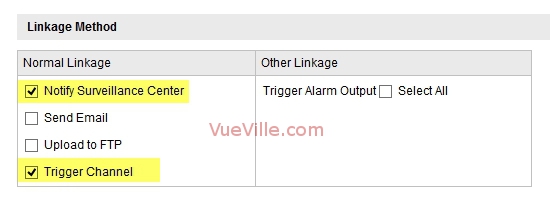
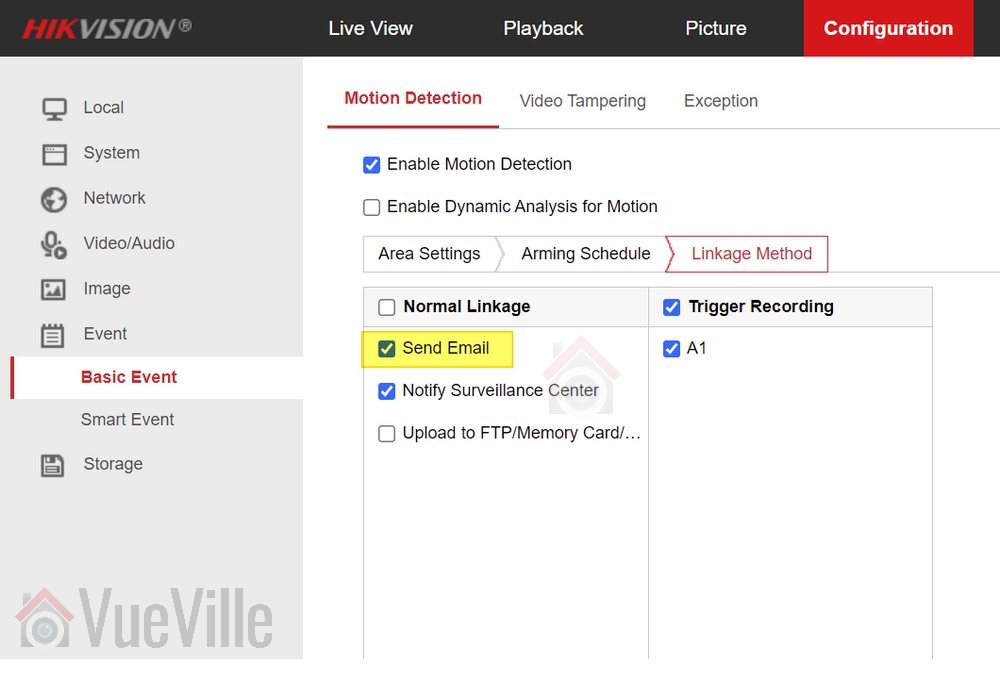
    2. In each of your cameras’ motion alert settings pages, make sure ‘Notify Surveillance Centre’ is checked.
      For example, Basic Event > Motion Detection
      Set up alarm push notifications for your Hikvision IP camera - Image 1 - VueVille.com
    3. Network > uPNP should also be enabled.
      Set up alarm push notifications for your Hikvision IP camera - Image 2 - VueVille.com
    4. Also go to Network > NAT and make sure: ‘Enable Port mapping’ is checked.
      Set up alarm push notifications for your Hikvision IP camera - Image 3 - VueVille.com
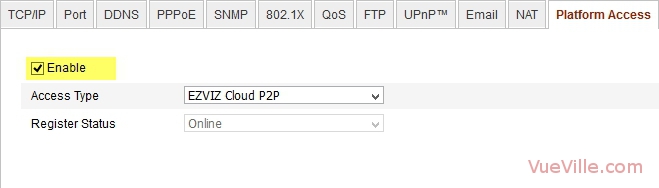
    5. Network > Platform access should be checked.
      Set up alarm push notifications for your Hikvision IP camera - Image 4 - VueVille.com

      NOTE: You do not need DDNS enabled.

    3. On your smartphone:

    1. Download and install the iVMS-4500 HD app from the Android Google Play Store or iOS App Store.
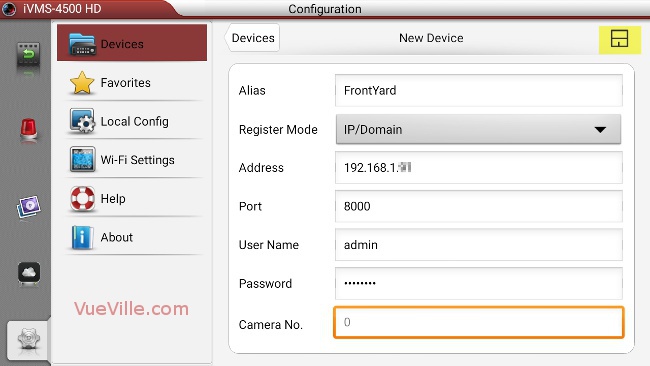
    2. Adding your cameras to the app.Click on the settings tab and select ‘Devices’.
      Set up alarm push notifications for your Hikvision IP camera - Image 5 - VueVille.com
      Click the + button at the top right to start adding your camera.Fill in all the fields. Use the IP address and server ports that you have configured for your camera. The default server port is 8000, so unless you have changed it yourself, you should use 8000. Save your setting by touching the save button at the top right.
      Set up alarm push notifications for your Hikvision IP camera - Image 6 - VueVille.com
      When you have added the first camera, the screen should look like this:
      Set up alarm push notifications for your Hikvision IP camera - Image 7 - VueVille.com

      Add all your cameras one by one.


      Set up alarm push notifications for your Hikvision IP camera - Image 8 - VueVille.com

    3. Go to the Push Notifications tab. You will see the cameras that you have added here with a toggle next to each one.
      Set up alarm push notifications for your Hikvision IP camera - Image 9 - VueVille.com
      Move each toggle to the right to activate alarm push notifications for each camera.
      Set up alarm push notifications for your Hikvision IP camera - Image 10 - VueVille.com

    4. Test by setting off the motion detection.

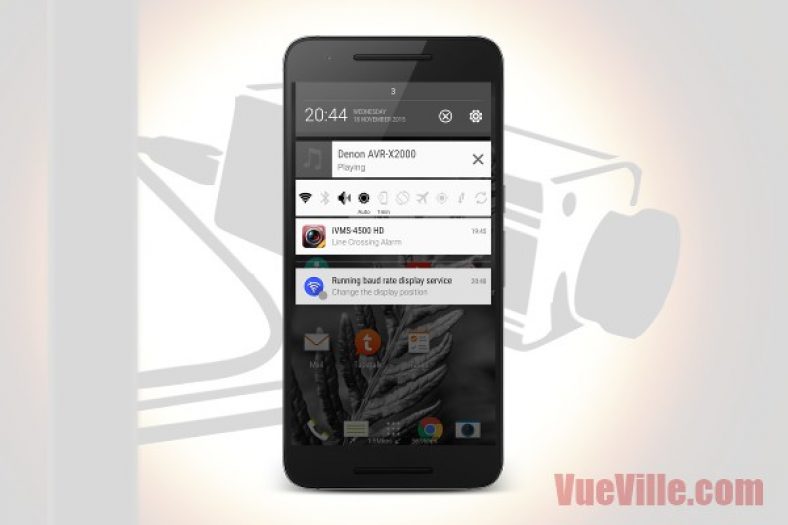
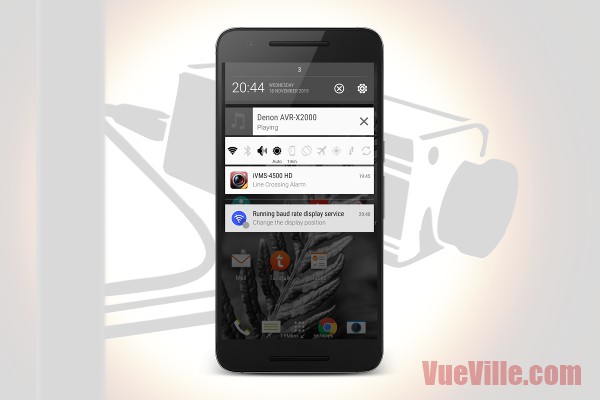
    5. You should see a notification like this within 1-5 seconds.

    Set up alarm push notifications for your Hikvision IP camera - Image 11 - VueVille.com
    Set up alarm push notifications for your Hikvision IP camera - Image 12 - VueVille.com


    Congratulations, you have now set up alarm push notifications on your smartphone. Also, if you have set up the port forwarding rules correctly on your router, you should receive push notifications outside your local network as well, i.e on the Wide Area Network (WAN).

    Troubleshooting

    If you do not get push notifications when the motion alarm is set off, try the following:

    • Make sure the account you are using to set up the camera in iVMS-4500 HD is an administrator account.
    • Uninstall the iVMS-4500 HD app, re-install the app and then try the setup steps above.

    If you face any problems or difficulties, please tell us through the comment field below. We love hearing from you!

    [text-blocks id=”earnings-disclaimer-incl-hivision-dahua”]

  • Buyer’s Guide 2018 – Network Video Recorders (NVR)

    Buyer’s Guide 2018 – Network Video Recorders (NVR)

    A Digital Video Recorder (DVR) has always been an essential component of a good CCTV security solution. With the advent of network cameras (IP Cameras) however, the humble DVR has given way to the Network Video Recorder (NVR). Whether you are upgrading from a DVR or dipping your toes into home CCTV, we will guide you all the way.

    2018 NVR Comparison - VueVille.com

    [wpsm_toplist]

    DVR vs. NVR – What’s the difference?

    How do you distinguish between a DVR and an NVR? A DVR is usually specified by the lines of resolution and the number of cameras that can be connected to it. This is because it is not a network based device and has analog video inputs for each camera it records. An NVR is a network device specified by the bandwidth it can handle and thus the number of video channels it can record. NVRs can do so much more than a DVR that it can be difficult to identify and research the model that best meets your needs. The problem with all the other home security related websites is that they offer no quick and easy way to find an NVR that meets your needs.

    This is why we decided to build the ultimate comparison table for NVRs. The table below lets you compare the features of the most popular NVRs from manufacturers such as Hikvision, Dahua, Samsung etc. You can filter using the feature dropdown boxes, search for a specific feature such as 4K, or sort these NVRs by any column. So you can quickly narrow the list to NVRs that have the features you are looking for. We have also explained the comparison criteria in detail just below the table.

    We think the most important features that you should look for in an NVR are in the comparison table. Let us know if we can improve this tool in any way. We will soon be adding NVR models from other manufacturers also.

    NVR vs. NVR kit

    Based on my DIY Smart Home framework, you can go EasyDIY and get a single kit that includes an NVR (read my recommendations), IP cameras and everything else you need to set it up. But if you want to go ProDIY and choose an NVR and the cameras yourself, the table below should be helpful.

    NVR Comparison table/matrix

    Start by filtering the table by using the dropdown boxes or the search box. Simply click on the required column header to sort by that criteria. To reset the table, just reload this page by clicking your browser’s refresh button or pressing F5 on your keyboard.

    I have included NVRs from Hikvision, Dahua, Amcrest, Reolink and LaView below.

    [table id=11 datatables_columnfilterwidgets=true responsive=scroll /]
    [text-blocks id=”4426″]

    NVRs – Explanation of technical terms:

    Category: We have grouped the NVRs into categories so that you can easily drilldown to the exact type of NVR you are after.

    Model: This is the exact model number of the NVR as described by the manufacturer.

    Price: To provide you with up-to-date prices, we have linked the NVRs to Amazon. Please note that this is an affiliate link which will provide us a commission if you decide to buy from Amazon.

    Number of channels: This is the maximum number of separate channels the NVR supports.

    Camera Megapixels: This is the maximum number of megapixels of the camera that the NVR supports.

    4K HDMI: Some of the newer NVR models have 4K support so that you can enjoy your NVR output in 4K resolution if your TV supports it.

    POE ports: Some NVRs have Power-over-Ethernet (POE) network ports.

    Hikvision NVR Model Naming Convention

    Hikvision has 6 different series of NVRs aimed at different sectors of the market and different types of users – the 9600, 8600, 7600, 9500, 7700, and the 7100 series. The 7600 series is the most affordable one and also the one that is most interesting to DIY home security enthusiasts like us.

    The full Hikvision NVR naming convention is:
    ‘DS-XXXX-NI’ – ‘(I OR E)X’ / ‘X’P where X denotes the numbers 0-9.

    Let’s break this down with an example, shall we? Let’s take the DS-7608NI-E2/8P:

    • A fixed prefix:
      • ‘DS-’, then
    • 4 digits:
      • The first 2 digits are the first 2 digits of the series number, eg. 76 for the 7600 series.
      • The next 2 digits indicate the number of channels supported by the NVR, eg. 08 for 8 channels.
    • A fixed suffix:
      • ‘-NI-’, where the N stands for NVR and I for International markets
    • The next alphabet of I or E is just an auxilliary letter.
    • The next digit indicates the number of SATA interfaces supported:
      • This shows you how many hard drives can be installed in the NVR. In our example, the 2 in E2 shows that 2 hard drives are supported.
    • If the NVR is PoE enabled, then we have another suffix, starting with a slash ‘/’
    • The next digit indicates:
      • The number of PoE ports. In or example, the 8 in 8P shows that this model has 8 PoE ports.
    • The next alphabet of P, H or N indicate the presence or absence of certain features:
      • P indicates PoE support.
      • H indicates Extended HDMI.
      • N indicates that PoE is not supported, i.e. just a switch interface is present.

    Dahua NVR Model Naming Convention

    The full Dahua NVR naming convention is:
    ‘DH-NVR’ – ‘XXYYH’ – ‘P or W or R’ where X denotes numbers 0-9 and YY is the no. of camera channels.

    • DH – The first two alphabets are always DH for Dahua
    • NVR – The next three will say NVR for NVRs.
    • X – The next digit describes the type of chipset solution used in the system:
      • 1=His3520D
      • 2=His3520A
      • 3=ST7108
      • 4=His3535/ST312
      • 5=Ti8167
      • 6=X86 i3/i5
      • 7=ST416
    • X – The next digit is the maximum number of hard drives that can be installed.
      • 1=1HDD
      • 2=2HDD
      • 4=4HDD
      • 8=8HDD
      • 0=16HDD
    • YY – The number of channels supported
      • 04=4ch
      • 08=8ch
      • 16=16ch
      • 32=32ch
      • 64=64ch
      • 00=128ch
    • H if present always means the case is of the type Mini 1U
    • The last alphabet defines the function:
      • P=PoE
      • W=WiFi
      • R=RAID

    Let’s break this down with an example, shall we? Let’s take the DH-NVR1108H-P:

    • DH = Dahua
    • NVR = Network Video Recorder
    • 1 = This NVR is based on the His3520D chipset solution
    • 1 = It supports 1 hard disk drive (HDD)
    • 08 = It supports 8 camera channels
    • H = It has a Mini 1U type case
    • P = This NVR has POE support
  • Best IP Camera 2016 Recommendations

    Best IP Camera 2016 Recommendations

    [wpsm_box type=”yellow” float=”none” text_align=”left”]

    The latest version of this guide is now available separately for outdoor and indoor IP cameras!
    [/wpsm_box]

    Yes I admit it, I am crazy about DIY home security. When I started researching home security and IP cameras, my goal was to find the best solutions to keep my family and home safe and secure. What started out as market research has turned into my passion and this blog!

    From my experience of trying to make sense of it all, choosing the right security camera can seem very difficult. But it is something that we just can’t afford to get wrong, is it? So I strongly recommend taking the time to research and understand the various options you have before spending your hard earned money. I have taken all my notes and condensed it into this single buying guide which I hope you will find helpful.

    My top 3 recommendations for outdoor security cameras are:

    • View [easyazon_link identifier=”B01BN1FEQE” locale=”US” tag=”vueville.com-eaz-afold-bipc16-20″]Amcrest IP2M-842EB[/easyazon_link] on Amazon
    • View [easyazon_link identifier=”B00PBXZVBE” locale=”US” tag=”vueville.com-ref-20″]Hikvision DS-2CD2132F-IWS[/easyazon_link] on Amazon, and
    • View [easyazon_link identifier=”B00RL2FZF0″ locale=”US” tag=”vueville.com-ref-20″]Hikvision DS-2CD2332-I[/easyazon_link] on Amazon.

    View my top recommendation for an indoor security camera on Amazon: [easyazon_link identifier=”B0145OQTPG” locale=”US” tag=”vueville.com-eaz-afold-bipc16-20″]Amcrest IP2M-841B[/easyazon_link].

    [wpsm_titlebox title=”Contents” style=”3″][contents h2][/wpsm_titlebox]

    Best Outdoor IP Camera 2016 Recommendations: Summary

    [table id=33 responsive=scroll/]

    As part of a well-planned security system, outdoor security cameras are an effective deterrent against would-be intruders and, if God forbid the worst happens, immensely helpful in assisting the police tracking down troublemakers. Surveillance cameras are not just for companies and large organisations anymore. You can get yourself a good High Definition IP camera (also called a network camera) for not much money. Indeed, its never been better for those who are interested in home security without paying a monthly fee.

    Many of these IP cameras work perfectly fine on their own without an NVR (Network Video Recorder) as they have built-in recording capabilities. They can also be easily integrated into either dedicated NVRs or PCs running surveillance software such as BlueIris.

    How this list is structured

    There are so many ways of categorising IP cameras – we have chosen form factor as we believe this is one of the first decisions to make while choosing an IP camera. Bullet style, dome style or mini-dome, this will depend primarily on the location of installation and how visible you want the camera to be.

    Bullet style camera

    The typical CCTV camera look which is not discreet and serves as a visible deterrent. Very flexible as it can be aimed after installation. However, it is not resistant to vandalism.

    Best value: Amcrest IP2M-842E

    [wpsm_column size=”one-half”]
    [easyazon_image align=”center” height=”300″ identifier=”B01BN1FEQE” locale=”US” src=”https://www.vueville.com/wp-content/uploads/2016/12/41eRFhB2BCyL.jpg” tag=”vueville.com-eaz-bipc16-20″ width=”300″]
    [/wpsm_column]

    [wpsm_column size=”one-half” position=”last”]
    [wpsm_titlebox title=”Features” style=”3″]

    • 2MP (1080p) CMOS image sensor
    • 72° Viewing Angle
    • 30m (98 feet) IR range
    • Ethernet port with Power over Ethernet (PoE)
    • ONVIF and RTSP protocols supported
    • IP67 weatherproof rating

    [/wpsm_titlebox]

    [/wpsm_column]

    [wpsm_column size=”one-half”][wpsm_pros title=”PROS:”]

    • Very good video quality with 1080p Full HD resolution
    • SD card slot, PoE, WiFi optional
    • Simply superb value

    [/wpsm_pros][/wpsm_column][wpsm_column size=”one-half” position=”last”][wpsm_cons title=”CONS:”]

    • No audio/alarm connections

    [/wpsm_cons][/wpsm_column]

    [easyazon_link identifier=”B01BN1FEQE” locale=”US” tag=”vueville.com-eaz-bipc16-20″]View on Amazon[/easyazon_link]

    This excellent little IP camera from Amcrest is hands-down the best value IP camera we could find. Don’t waste your time, money, and sanity buying cheap knock-offs for a few dollars less than this camera. On the hardware front, this Amcrest camera seems to be a rebranded Dahua which is great because Dahua is one of the top security camera manufacturers in the world. It supports PoE and this is our recommended way of powering the camera and data communication (use a PoE switch like this one). Amcrest software is very professional, and simply works. The other strong reason to go with Amcrest is their extensive US and European support networks. Check out our Amcrest Camera Guide to learn more about who Amcrest are and why we love their cameras.

    If you prefer having the Wifi option as well, the Amcrest IP2M-842B is also available.

    Great value: Hikvision DS-2CD2032F-IW (Also re-branded as Swann)

    [wpsm_column size=”one-half”][easyazon_image align=”center” height=”300″ identifier=”B017C53TI0″ tag=”vueville.com-ref-20″ locale=”US” src=”https://www.vueville.com/wp-content/uploads/2015/11/Hikvision-DS-2CD2032-I-300p.jpg” width=”300″][/wpsm_column]

    [wpsm_column size=”one-half” position=”last”]
    [wpsm_titlebox title=”Features” style=”3″]

    • 3MP CMOS image sensor
    • Up to 79° Viewing Angle
    • 30m (98 feet) IR range
    • Ethernet port with Power over Ethernet (PoE), Wi-Fi
    • On-board storage (SD card)
    • ONVIF and RTSP protocols supported
    • IP66 weatherproof rating

    [/wpsm_titlebox]

    [/wpsm_column]

    [wpsm_column size=”one-half”][wpsm_pros title=”PROS:”]

    • 3MP, excellent image quality
    • SD card slot & WiFi
    • Superb value

    [/wpsm_pros][/wpsm_column][wpsm_column size=”one-half” position=”last”][wpsm_cons title=”CONS:”]

    • No audio/alarm connections

    [/wpsm_cons][/wpsm_column]

    [easyazon_link identifier=”B017C53TI0″ locale=”US” tag=”vueville.com-ref-20″]View on Amazon[/easyazon_link]

    Hikvision is a manufacturer that many of us venturing into home security may not have heard of. However, rest assured this company has produced some brilliant cameras and this little bullet camera has been one of their best-selling ever. Have a look at our Hikvision product guide to learn more about their product range.

    As our first IP camera purchase, we were surprised at how much camera you get for the money with the DS-2CD2032F-IW. With a 3MP Sony sensor, it has very good image quality, both during the day and at night. The full metal body is of solid construction and comes with a choice of lens sizes. The Sony image sensor contributes to stellar low light performance. Adding just a network storage location lets you use the built-in NVR feature if you are aiming at a single-camera setup initially. While it has POE and an SD card slot, it does not have audio or alarm features. Also available is the DS-2CD2032-I which is slightly cheaper at as it doesn’t have an SD card slot or WiFi. If you need higher resolution, there is a 4MP model available. See how you can set up motion detection alerts for any Hikvision camera.

    Great value: Dahua IPC-HFW4300S (Also re-branded as Lorex)

    [wpsm_column size=”one-half”][easyazon_image align=”center” height=”300″ identifier=”B00MUMRJMI” locale=”US” tag=”vueville.com-ref-20″ src=”https://www.vueville.com/wp-content/uploads/2015/11/Dahua-IPC-HFW4300S-300p.jpg” width=”300″][/wpsm_column]

    [wpsm_column size=”one-half” position=”last”]
    [wpsm_titlebox title=”Features” style=”3″]

    • 3MP CMOS image sensor
    • Up to 97.6° Viewing Angle
    • 30m (98 feet) IR range
    • Ethernet port with Power over Ethernet (PoE)
    • ONVIF and RTSP protocols supported
    • IP66 weatherproof rating

    [/wpsm_titlebox]

    [/wpsm_column]

    [wpsm_column size=”one-half”][wpsm_pros title=”PROS:”]

    • 3MP, good image quality
    • Good value

    [/wpsm_pros][/wpsm_column][wpsm_column size=”one-half” position=”last”][wpsm_cons title=”CONS:”]

    • No audio/alarm connections
    • No SD card slot

    [/wpsm_cons][/wpsm_column]

    [easyazon_link identifier=”B00MUMRJMI” locale=”US” tag=”vueville.com-ref-20″]View on Amazon[/easyazon_link]

    Dahua is another respected manufacturer of high quality surveillance equipment. The 3MP Dahua IPC-HFW4300S is similar to the Hikvision DS-2CD2032-I above in technical specifications with POE and no audio or alarm connections, but is considerably longer in size. Even though it uses a different ‘Aptina’ sensor, image quality is very close too, with the Hikvision said to have the edge. The Dahua however has been reported to have slightly better low light performance. The eco-sensor lets the camera operate with just 5.5W of power vs. 7.5W of the Hikvision bullet. Both cameras have been reviewed highly favourably by users on the popular internet forums, so the buying decision can really be boiled down to the rest of your CCTV landscape and price. Also consider the IPC-HFW5300C which adds a 2.7-12mm varifocal lens, audio/alarm connections and an SD card slot.

    Full-featured: Hikvision DS-2CD2632F-IS

    [wpsm_column][easyazon_image align=”center” height=”300″ identifier=”B00GFFPFEU” locale=”US” src=”https://www.vueville.com/wp-content/uploads/2015/11/Hikvision-DS-2CD2632F-IS-300p.jpg” width=”300″ tag=”vueville.com-ref-20″][/wpsm_column]

    [wpsm_column size=”one-half” position=”last”]
    [wpsm_titlebox title=”Features” style=”3″]

    • 3MP CMOS image sensor
    • 2.8-12mm varifocal zoom lens
    • 105.2°-31.9° Viewing Angle
    • 30m (98 feet) IR range
    • Ethernet port with Power over Ethernet (PoE)
    • On-board storage (SD card)
    • ONVIF and RTSP protocols supported
    • IP66 weatherproof rating

    [/wpsm_titlebox]

    [/wpsm_column]

    [wpsm_column size=”one-half”][wpsm_pros title=”PROS:”]

    • 3MP, excellent image quality
    • Varifocal lens
    • Audio and alarm connections
    • SD card slot

    [/wpsm_pros][/wpsm_column][wpsm_column size=”one-half” position=”last”][wpsm_cons title=”CONS:”]

    • None

    [/wpsm_cons][/wpsm_column]

    [easyazon_link identifier=”B00GFFPFEU” locale=”US” tag=”vueville.com-ref-20″]View on Amazon[/easyazon_link]

    This 3MP Hikvision model has a unique feature – it has variable focal lengths from 2.8mm to 12mm. While this gives you immense flexibility in camera placement and testing, it does however push the price up but the camera remains great value at current prices. POE, audio and alarm inputs and onboard storage are standard.

    High-end: Vivotek IB8168

    [wpsm_column][easyazon_image align=”center” height=”300″ identifier=”B00LC7OLIW” locale=”US” src=”https://www.vueville.com/wp-content/uploads/2015/11/Vivotek-IB8168-300p.jpg” width=”300″ tag=”vueville.com-eaz-bipc16-20″][/wpsm_column]

    [wpsm_column size=”one-half” position=”last”]
    [wpsm_titlebox title=”Features” style=”3″]

    • 2MP CMOS image sensor
    • 97° Viewing Angle
    • Ethernet port with Power over Ethernet (PoE)
    • On-board storage (SD card)
    • ONVIF and RTSP protocols supported
    • IP66 weatherproof rating

    [/wpsm_titlebox]

    [/wpsm_column]

    [wpsm_column size=”one-half”][wpsm_pros title=”PROS:”]

    • Superior image quality
    • SD card slot

    [/wpsm_pros][/wpsm_column][wpsm_column size=”one-half” position=”last”][wpsm_cons title=”CONS:”]

    • No audio or alarm connections
    • No InfraRed night vision

    [/wpsm_cons][/wpsm_column]

    [easyazon_link identifier=”B00LC7OLIW” locale=”US” tag=”vueville.com-eaz-bipc16-20″]View on Amazon[/easyazon_link]

    Vivotek is a Taiwanese brand and as such their cameras are priced higher than the Chinese manufacturers such as Hikvision or Dahua. There is a large range of cameras available from this high quality manufacturer. The Vivotek IB8168 is a 2MP model with POE and a built-in SD card slot. A 3MP version is also available, the Vivotek IP8371E model which boasts 30fps at 3MP resolution which is uncommon.

    Also consider: Amcrest Qcam 3MP Bullet

    [easyazon_image align=”center” height=”300″ identifier=”B014E995K8″ locale=”US” src=”https://www.vueville.com/wp-content/uploads/2015/11/Amcrest-Qcam-3MP-Bullet-300p.jpg” width=”300″ tag=”vueville.com-eaz-bipc16-20″]

    [wpsm_column size=”one-half”][wpsm_pros title=”PROS:”]

    • Good reviews from users
    • Amcrest is on the Blueiris compatibility list

    [/wpsm_pros][/wpsm_column][wpsm_column size=”one-half” position=”last”][wpsm_cons title=”CONS:”]

    • No audio or alarm connections
    • No SD card slot

    [/wpsm_cons][/wpsm_column]

    [easyazon_link identifier=”B014E995K8″ locale=”US” tag=”vueville.com-eaz-bipc16-20″]View on Amazon[/easyazon_link]

    Amcrest is an American company from the same team that founded the popular Foscam brand. So these guys are not exactly new to the CCTV game and are already creating a name for themselves with excellent customer service and support. The Amcrest Qcam 3MP bullet has very positive reviews on Amazon.

    Dome style cameras

    These cameras are designed to be vandal-proof and are also a good deterrent.

    Best value: Hikvision DS-2CD2132F-I(W)(S)

    [easyazon_image align=”center” height=”300″ identifier=”B00QTMBIHM” locale=”US” src=”https://www.vueville.com/wp-content/uploads/2015/11/Hikvision-DS-2CD2132F-IS-300p.jpg” width=”300″ tag=”vueville.com-ref-20″]
    [wpsm_column size=”one-half”][wpsm_pros title=”PROS:”]

    • 3MP, good image quality
    • Audio & alarm connections
    • Onboard storage

    [/wpsm_pros][/wpsm_column][wpsm_column size=”one-half” position=”last”][wpsm_cons title=”CONS:”]

    • Image quality not as good as the Hikvision bullet
    • IR bleed experienced by some users

    [/wpsm_cons][/wpsm_column]

    [easyazon_link identifier=”B00QTMBIHM” locale=”US” tag=”vueville.com-ref-20″]View on Amazon[/easyazon_link]

    A dome camera is ideal for areas that may be vulnerable to vandals/damage. The DS-2CD2132F-IS dome comes in two flavours, with and without WiFi. However, we do not recommend using the optional WiFi as it is less reliable than a wired ethernet connection and prone to dropped frames. This camera has POE, onboard SD storage, audio and alarm inputs/outputs. Image quality is nearly as good as the Hikvision DS-2CD2032-I bullet above, but there is a noticeable difference. Some users had reported IR bleed in this model’s predecessor but our extensive testing reveals that this is no longer an issue. See how you can set up motion detection alerts for any Hikvision.

    Great value: Dahua IPC-HDBW4300E

    [easyazon_image align=”center” identifier=”B00KMDIEXK” locale=”US” src=”https://www.vueville.com/wp-content/uploads/2015/11/Dahua-IPC-HDBW4300E-300p.jpg” tag=”vueville.com-ref-20″]
    [wpsm_column size=”one-half”][wpsm_pros title=”PROS:”]

    • 3MP, good image quality
    • Audio & alarm connections
    • Onboard storage
    • Energy-efficient

    [/wpsm_pros][/wpsm_column][wpsm_column size=”one-half” position=”last”][wpsm_cons title=”CONS:”]

    • Image quality reportedly not as good as the Hikvision dome

    [/wpsm_cons][/wpsm_column]

    [easyazon_link identifier=”B00KMDIEXK” locale=”US” tag=”vueville.com-ref-20″]View on Amazon[/easyazon_link]

    This 3MP Dahua has good image quality and supports POE and audio/alarm connections. It also has a local storage option in the form of an SD card slot. It is also very efficient and consumes just 4W in operation vs. the 7.5W of the Hikvision dome. Also consider the Dahua IPC-HDBW5300 which has a 2.7-12mm varifocal lens.

    Full-featured: Vivotek FD8167 SNV

    [easyazon_image align=”center” height=”300″ identifier=”B00QR6RQGM” locale=”US” src=”https://www.vueville.com/wp-content/uploads/2015/11/Vivotek-FD8167-300p.jpg” width=”300″ tag=”vueville.com-eaz-bipc16-20″]

    [wpsm_column size=”one-half”][wpsm_pros title=”PROS:”]

    • Superior image quality
    • PIR motion sensor
    • Varifocal lens
    • Audio & alarm connections
    • 30m IR range
    • Onboard storage

    [/wpsm_pros][/wpsm_column][wpsm_column size=”one-half” position=”last”][wpsm_cons title=”CONS:”]

    • None

    [/wpsm_cons][/wpsm_column]

    [easyazon_link identifier=”B00QR6RQGM” locale=”US” tag=”vueville.com-eaz-bipc16-20″]View on Amazon[/easyazon_link]

    The 2MP Vivotek FD8167 has two very interesting features – firstly, it is an outdoor camera that has a built-in PIR sensor. This means you can avoid one of the biggest hassles with automatic motion detection – false positives. Using the PIR sensor should greatly reduce false notifications and thus make it likelier that you will pay attention to motion detection alerts. Of course you can modify any camera with an alarm input to achieve the same result but its just easier if it has this function out of the box. Secondly, it is varifocal (2.8mm – 12mm), greatly increasing the flexibility of installation location and it supports POE and audio/alarm connections as standard. The SNV models such as this one, have increased IR range of up to 30 metres.

    High-end: Axis M3005-V

    [easyazon_image align=”center” height=”300″ identifier=”B00BFCSDKG” locale=”US” src=”https://www.vueville.com/wp-content/uploads/2015/11/Axis-M3005-V-300p.jpg” width=”300″ tag=”vueville.com-eaz-bipc16-20″]

    [wpsm_column size=”one-half”][wpsm_pros title=”PROS:”]

    • Superior image quality
    • Audio alarm connections
    • Onboard storage, supports edge recording

    [/wpsm_pros][/wpsm_column][wpsm_column size=”one-half” position=”last”][wpsm_cons title=”CONS:”]

    • None

    [/wpsm_cons][/wpsm_column]

    [easyazon_link identifier=”B00BFCSDKG” locale=”US” tag=”vueville.com-eaz-bipc16-20″]View on Amazon[/easyazon_link]

    Axis is the Swedish company that invented the network camera in 1996. As it is a European company, you can expect prices to be higher but what sets Axis apart from the Asian manufacturers is the quality of their products and their global support network. The Axis M3005-V is a 2MP camera with a tiny footprint, POE and a built-in SD card for storage.

    Turret/Mini-dome style cameras

    The best of both worlds – easy to aim and set up, and somewhat resistant to vandalism.

    Best value: Hikvision DS-2CD2332-I

    [easyazon_image align=”center” height=”300″ identifier=”B00RL2FZF0″ locale=”US” src=”https://www.vueville.com/wp-content/uploads/2015/11/Hikvision-DS-2CD2332-I-300p.jpg” width=”300″ tag=”vueville.com-ref-20″]

    [wpsm_column size=”one-half”][wpsm_pros title=”PROS:”]

    • Great image quality
    • Bright EXIR LEDs

    [/wpsm_pros][/wpsm_column][wpsm_column size=”one-half” position=”last”][wpsm_cons title=”CONS:”]

    • No audio/alarm features
    • No onboard storage

    [/wpsm_cons][/wpsm_column]

    [easyazon_link identifier=”B00RL2FZF0″ locale=”US” tag=”vueville.com-ref-20″]View on Amazon[/easyazon_link]

    Turret or mini-dome style cameras have the advantage of being able to use EXIR LEDs instead of the classic ring style LEDs. EXIR LEDs last longer and are brighter thus contributing to the higher IR ranges on these models. This 3MP turret is a big favourite for its great value and small size. It supports POE but does not have audio, alarm connections or any on-board storage.

    Great value: Dahua IPC-HDW4300C

    [easyazon_image align=”center” height=”300″ identifier=”B00HG10XHQ” locale=”US” src=”https://www.vueville.com/wp-content/uploads/2015/11/Dahua-IPC-HDW4300C-300p.jpg” width=”300″ tag=”vueville.com-ref-20″]

    [wpsm_column size=”one-half”][wpsm_pros title=”PROS:”]

    • Good image quality
    • Bright EXIR LEDs
    • Built-in microphone
    • Low power consumption

    [/wpsm_pros][/wpsm_column][wpsm_column size=”one-half” position=”last”][wpsm_cons title=”CONS:”]

    • No alarm features
    • No onboard storage
    • Max. bitrate only 8Mbps

    [/wpsm_cons][/wpsm_column]

    [easyazon_link identifier=”B00HG10XHQ” locale=”US” tag=”vueville.com-ref-20″]View on Amazon[/easyazon_link]

    This 3MP Dahua is similar to the Hikvision DS-2CD2332-I turret above but has a built-in mic as well which is great if you need the audio feature. It also claims to use just 4.5W of power vs. the Hikvision’s 7.5W. However, it supports only a rather average maximum bitrate of 8Mbps vs. the 16Mbps of the Hikvision.

    Full-featured: Hikvision DS-2CD2532F-I(W)(S)

    [easyazon_image align=”center” height=”300″ identifier=”B00XBJBRKE” locale=”US” src=”https://www.vueville.com/wp-content/uploads/2015/11/Hikvision-DS-2CD2532F-IS-300p.jpg” width=”300″ tag=”vueville.com-ref-20″]

    [wpsm_column size=”one-half”][wpsm_pros title=”PROS:”]

    • Extremely compact and discreet
    • Very good low-light performance
    • SD card slot

    [/wpsm_pros][/wpsm_column][wpsm_column size=”one-half” position=”last”][wpsm_cons title=”CONS:”]

    • Weak IR LED illumination

    [/wpsm_cons][/wpsm_column]

    [easyazon_link identifier=”B00XBJBRKE” locale=”US” tag=”vueville.com-ref-20″]View on Amazon[/easyazon_link]

    This 3MP camera has a very discreet look and very good low light performance. It is perfect for those locations where you don’t want your camera to stick out like a sore thumb. It supports POE and also has an SD card slot for internal storage.

    High-end: Vivotek FD8166

    [easyazon_image align=”center” height=”300″ identifier=”B00E1SWMKS” locale=”US” src=”https://www.vueville.com/wp-content/uploads/2015/11/Vivotek-FD8166-300p.jpg” width=”300″ tag=”vueville.com-eaz-bipc16-20″]

    [wpsm_column size=”one-half”][wpsm_pros title=”PROS:”]

    • Extremely small footprint
    • Very good low-light performance
    • Built-in microphone
    • SD card slot

    [/wpsm_pros][/wpsm_column][wpsm_column size=”one-half” position=”last”][wpsm_cons title=”CONS:”]

    • No alarm features
    • No on-board IR LEDs

    [/wpsm_cons][/wpsm_column]

    [easyazon_link identifier=”B00E1SWMKS” locale=”US” tag=”vueville.com-eaz-bipc16-20″]View on Amazon[/easyazon_link]

    This Vivotek camera comes with a 2MP sensor and is highly rated for its low light performance. It is also difficult to spot due to its tiny footprint of just 90 millimetres. It supports POE, has an SD card slot for internal storage and even manages a built-in microphone!

    Indoor security camera

    These are designed to be used in indoor locations and may not be waterproof or weather-resistant. They also tend to have 2 way audio and PIR based motion detection.

    Best Value: Amcrest ProHD 1080p Pan-Tilt Indoor Security Camera

    [easyazon_image align=”center” height=”300″ identifier=”B0145OQTPG” locale=”US” src=”https://www.vueville.com/wp-content/uploads/2015/12/Amcrest-ProHD-IP2M-841-Wireless-Indoor-Pan-Tilt-IP-Security-Camera.jpg” width=”600″ tag=”vueville.com-eaz-bipc16-20″]

    [wpsm_column size=”one-half”]
    [wpsm_pros title=”PROS:”]

    • Good image quality and 1080p resolution
    • Very clear and loud two-way audio with mic and speaker built-in
    • WiFi and RJ-45 Ethernet port
    • IR Leds provide night vision capability
    • 360 degree Pan-Tilt feature
    • Support for SD card, NAS, NVR, FTP and Cloud storage locations
    • Very good value for money

    [/wpsm_pros][/wpsm_column]

    [wpsm_column size=”one-half” position=”last”]
    [wpsm_cons title=”CONS:”]

    • Doesn’t have Power over Ethernet feature
    • Smartphone apps could be better – free Amcrest apps lack basic features such as push notifications

    [/wpsm_cons][/wpsm_column]

    [easyazon_link identifier=”B0145OQTPG” locale=”US” tag=”vueville.com-eaz-bipc16-20″]Check Price on Amazon[/easyazon_link]

    The Amcrest IP2M-841B did very well in our hands-on review and I like it so much that it is now serving as our full-time baby monitor. It has a network port, WiFi, built-in InfraRed LEDs for very good night vision, loud and clear 2-way audio with mic and speaker, built-in SD card local storage, and very good low-light performance. A non-WiFi PoE-enabled IP2M-841EB version is also available.

    Read our full review of this wonderful IP camera below:
    [wpsm_top postid=1461]

    Great Value: Hikvision DS-2CD2432F-I(W)

    [easyazon_image align=”center” height=”300″ identifier=”B00JWCV9CU” locale=”US” src=”https://www.vueville.com/wp-content/uploads/2015/11/Hikvision-DS-2CD2432F-IW-300p.jpg” width=”300″ tag=”vueville.com-ref-20″]

    [wpsm_column size=”one-half”][wpsm_pros title=”PROS:”]

    • Great image quality
    • Good low-light performance
    • Bright EXIR LED
    • Built-in microphone and speaker
    • SD card slot
    • PIR sensor
    • Alarm In/Out connections
    • True 2-way audio (full-duplex)

    [/wpsm_pros][/wpsm_column][wpsm_column size=”one-half” position=”last”][wpsm_cons title=”CONS:”]

    • No Pan-Tilt-Zoom

    [/wpsm_cons][/wpsm_column]

    [easyazon_link identifier=”B00JWCV9CU” locale=”US” tag=”vueville.com-ref-20″]View on Amazon[/easyazon_link]

    This 3MP Hikvision cube is the best balance of image quality, features and price for an indoor IP camera. It has POE, WiFi, built-in EXIR LEDs for IR illumination, true 2-way audio with speaker, built-in SD storage, a PIR sensor for accurate motion detection, good low-light performance and looks good too. A non-WiFi enabled DS-2CD2432F-I version is also available in the US, but is only marginally cheaper.

    Full-featured: Hikvision DS-2CD2432F-I(W)

    The Hikvision DS-2CD2432F-I(W) above has all the features you will ever need for an indoor camera and so gets this title as well.

    Also consider: Samsung SmartCam HD Pro / SNH-P6410BN

    [easyazon_image align=”center” height=”300″ identifier=”B00J38NVHE” locale=”US” src=”https://www.vueville.com/wp-content/uploads/2015/11/Samsung-SNH-P6410BN-300p.jpg” width=”300″ tag=”vueville.com-eaz-bipc16-20″]

    [wpsm_column size=”one-half”][wpsm_pros title=”PROS:”]

    • Good image quality
    • Built-in microphone and speaker
    • SD card slot
    • 128 degree wide-angle lens
    • Push notifications on mobile app

    [/wpsm_pros][/wpsm_column][wpsm_column size=”one-half” position=”last”][wpsm_cons title=”CONS:”]

    • Default remote monitoring cloud based
    • No PIR sensor
    • Not POE enabled
    • No alarm connections
    • Audio is only one-way at a time (half-duplex)
    • 11W power consumption is high

    [/wpsm_cons][/wpsm_column]

    [easyazon_link identifier=”B00J38NVHE” locale=”US” tag=”vueville.com-eaz-bipc16-20″]View on Amazon[/easyazon_link]

    This 2MP Samsung camera is the consumer electronics giant’s first foray into home security and in our opinion is one of the better mainstream options. It should have good daytime image quality based on the Sony 2MP sensor, and supports 2-way audio with a built-in mic and speaker just like the Hikvision. It has an SD card slot for local storage and built-in IR illumination, so night visibility should not be compromised. POE would have been a nice to have but is not critical considering it is an indoor camera. There is also no PIR sensor which the Hikvision has. It should be noted that the default remote monitoring website is set up on Samsung’s servers so is not great from a security and privacy standpoint. However, integration with 3rd party NVRs is possible and this camera is listed on BlueIris Software’s compatibility list.

    High-end: Axis M1025

    [easyazon_image align=”center” height=”300″ identifier=”B00K8UIHW0″ locale=”US” src=”https://www.vueville.com/wp-content/uploads/2015/11/Axis-M1025-300p.jpg” width=”300″ tag=”vueville.com-eaz-bipc16-20″]

    [wpsm_column size=”one-half”][wpsm_pros title=”PROS:”]

    • Excellent image quality
    • Great low-light performance
    • Built-in HDMI port
    • SD card slot
    • True 2-way audio (full-duplex)

    [/wpsm_pros][/wpsm_column][wpsm_column size=”one-half” position=”last”][wpsm_cons title=”CONS:”]

    • No PIR sensor
    • No alarm connections
    • No on-board IR LEDs

    [/wpsm_cons][/wpsm_column]

    [easyazon_link identifier=”B00K8UIHW0″ locale=”US” tag=”vueville.com-eaz-bipc16-20″]View on Amazon[/easyazon_link]

    The Axis M1025 cube camera sports a 2MP sensor giving upto 1080p Full HD resolution and has an SD card slot as well. An interesting feature is the on-board mini HDMI port that lets you hook up the camera directly to your HDTV.

    What about Dropcam/Nest etc.?

    Dropcam, Arlo (a Netgear brand), Nest, Oco etc. are not our first choice because they are mostly designed to tie you into their monthly cloud recording/home monitoring plans. So while they may seem cheaper initially, the operating costs add up quickly. These devices may be simpler to set up and maintain as most of them run off the cloud, so may be the best solution for those who want a plug and play option. But if you are prepared for a slightly more hands-on experience, we think more robust, standalone, local-recording solutions that are in your full control and ensure total privacy are the way to go (anything you put on the cloud is open to hacking and potential misuse – remember the iCloud hack or the ransomware attacks?)

    If you must however go for one of these mainstream solutions, make sure you go for one that offers the local storage option instead of a pure cloud storage approach. We echo the advice in the articles above.

    Here is a quick overview of the most popular cloud based security cameras:

    [wpsm_box type=”dashed_border” float=”none” text_align=”left”]
    [wpsm_column size=”two-third”]
    Dropcam (now acquired by Nest):

    Local storage: No, cloud storage only (Paid subscription required for video archives of any length)

    Highest resolution: 1080p

    Subscription: Paid subscription required per camera for video archives

    [/wpsm_column]
    [wpsm_column size=”one-third” position=”last”]
    [easyazon_image align=”center” height=”150″ identifier=”B00WBJGUA2″ locale=”US” src=”https://www.vueville.com/wp-content/uploads/2015/11/DropCam-PRO-150p.jpg” width=”150″ tag=”vueville.com-eaz-bipc16-20″]View on Amazon[/wpsm_column]
    [/wpsm_box]

    [wpsm_box type=”dashed_border” float=”none” text_align=”left”]
    [wpsm_column size=”two-third”]
    Oco:

    Local storage: No, cloud storage only (Paid subscription required for video archives of any length)

    Highest resolution: 720p

    Subscription: Paid subscription required for video archives.

    [/wpsm_column]
    [wpsm_column size=”one-third” position=”last”]
    [easyazon_image align=”center” height=”150″ identifier=”B0108N1Y2Q” locale=”US” src=”https://www.vueville.com/wp-content/uploads/2015/11/Oco-Camera-150p.jpg” width=”150″ tag=”vueville.com-eaz-bipc16-20″]
    View on Amazon
    [/wpsm_column]

    [/wpsm_box]

    [wpsm_box type=”dashed_border” float=”none” text_align=”left”]
    [wpsm_column size=”two-third”]
    Arlo (battery powered cameras from Netgear):

    Local storage: No, cloud storage only (Paid subscription required for video archives)

    Highest resolution: 720p

    Subscription: Paid subscription required per camera for video archives.

    [/wpsm_column]
    [wpsm_column size=”one-third” position=”last”]
    [easyazon_image align=”center” height=”150″ identifier=”B00QH0Q8IA” locale=”US” src=”https://www.vueville.com/wp-content/uploads/2015/11/Arlo-camera-150p.jpg” width=”150″ tag=”vueville.com-eaz-bipc16-20″]
    View on Amazon
    [/wpsm_column]

    [/wpsm_box]

    [wpsm_box type=”dashed_border” float=”none” text_align=”left”]
    [wpsm_column size=”two-third”]
    Belkin Netcam:

    Local storage: No, cloud storage only (Paid subscription required for video archives)

    Highest resolution: 720p

    Subscription:Paid subscription required per camera for video archives.

    [/wpsm_column]
    [wpsm_column size=”one-third” position=”last”]
    [easyazon_image align=”center” height=”150″ identifier=”B009AR2MQO” locale=”US” src=”https://www.vueville.com/wp-content/uploads/2015/11/Belkin-Netcam-150p.jpg” width=”150″ tag=”vueville.com-eaz-bipc16-20″]
    View on Amazon
    [/wpsm_column]

    [/wpsm_box]

    Choosing the best IP camera for your needs

    The myriad of IP camera brands, models and jargon can trip up even the most determined shopper, but we are here to help. Your choice of a camera depends on the area you want to observe, the location of installation, and specific features required such as onboard storage, motion detection method, audio etc.

    In any case the camera should produce video footage that is good enough to positively identify a suspect – the threshold for a positive identification required by the police and courts is much higher than what you might assume it to be.

    There are a few minimum requirements for an IP camera if you want a good quality system that can easily identify a suspect:

    Why these particular IP Cameras?

    Best IP Camera 2016 Recommendations - VueVille.com

    We have deliberately avoided the hundreds of dodgy brands that make up the ‘most popular’ lists of Amazon and the like, for one simple reason – when you are spending your hard earned money on something to protect your family and your home, you want it to be rock solid when it comes to reliability and performance.

    What you do not want is having to spend countless hours setting it up, or troubleshooting to get it up and running only to then experience unreliable performance. An IP camera should mostly be a set and forget item in your network. It needs to give you the confidence that it’s running in the background and will pay for itself, if God forbid, you need to provide video evidence to the police.

    If you are currently using a generic IP camera, you have probably not yet experienced the incredible power and advanced features that quality IP cameras bring. Many of us have gone down that route, trying something cheap and cheerful only to find that for some things in life you get what you pay for.

    So we recommend only reliable manufacturers with a track record of quality products. We have used some of these IP cameras, and our recommendations are backed up by the real life experience of thousands of users on the popular Internet forums.

    Technical terms or IP Camera Jargon

    Here’s a quick overview of the technical terms you will find in this article:

    IP camera: Internet Protocol or network camera as opposed to an analog camera.

    Megapixels (MP) : A measure of resolution, we recommend going for at least 2MP (1080p), and 3MP is quickly becoming very popular as prices are steadily falling. Even 4MP cameras are now available at affordable prices but we suggest 3MP as the optimum balance of detail and storage requirements.

    Frames Per Second (FPS): The higher the FPS, smoother the motion will be. Most cameras offer 20fps at 3MP and 30fps at 2MP resolution. We recommend you set your cameras to record at a minimum of 10 fps to capture adequate detail.

    POE-enabled: Power over Ethernet, the recommended way to provide power and data connection to the camera over a regular ethernet cable. The easiest way to achieve this is by using a POE enabled switch such as the highly recommended TP-Link TL-SG1008P 8-port gigabit switch we reviewed this year. This saves you having to run a separate power cable and thus improves reliability and troubleshooting.

    Lens focal length (mm): The focal length of the lens which is expressed in millimetres (mm) affects the angle of the coverage area. For example the standard lens is 4mm, 2.8mm is great for wide-angle and 6mm onwards is great for a zoomed-in view. Of course some cameras have variable focal lengths (varifocal) and hence give the greatest flexibility but at added cost.

    PIR sensor: Passive Infrared sensor (PIR) – a method of detecting changes in heat in a scene and thus detecting motion. The advantage is that it is far more accurate than image based motion detection, and thus cuts down the number of false alerts.

    Network Video Recorder: A device that records IP camera streams usually to its build-in hard drive(s). The main advantage of using an NVR is that it enables you to record your cameras as well as bring all your cameras together in a single multi-channel live-view screen that you can access locally within your network or remotely.

    Is there an alternative to cloud connected cameras that can still be accessed over the Internet?

    Definitely and that’s precisely what we have at our home. We have a few Hikvision IP cameras hooked up to a TP-Link TL-SG1008P 8-port gigabit POE switch. These cameras are individually set up to send email alerts on motion detection. We also have a QNAP TS-231+ Network Attached Storage system running Surveillance Station that records these IP cameras 24/7 365 days a year.

    For enhanced security, we remotely access our home network only over a VPN connection – the QNAP NAS acts as a VPN server. You can also set up a VPN server on your router (such as the Asus RT-AC68U) if it supports this function. When we are away from home, our Android phones, tablets and Windows laptops can connect to the QNAP over VPN and so access the entire home network including the Hikvisions. This lets me access a multi-channel live view of all our cameras (either via the QNAP’s Android app or any other Android IP camera app such as our personal choice tinyCamMonitor Pro). This system is secure and reliable. We can optionally back up the recordings to the cloud.

    The NAS and VPN are optional, you could simply port forward your IP cameras to your router and achieve the same multi-channel view on your phone or computer. However anybody on the Internet could easily attempt a brute force hack attempt on your IP cameras. Our own IP cameras were attacked in this manner and that’s why we got the QNAP NAS with a view to securely remote access our home network and IP cameras. Read more about our DIY home security setup here.

    We hope this IP camera roundup has helped you to choose the best IP security camera for your needs. If you have any questions at all, please leave a comment below. We would love to hear from you!

    A quick note: Notice the lack of ads on our blog? This article contains links to Amazon instead. Reason is I don’t like ads and I’m sure you don’t either but we still have to pay the bills. Moreover linking to Amazon ensures a distraction-free experience for you, my dear reader. So if you click on one of these links and then purchase something from Amazon, I will receive a fee for referring you to Amazon. This goes towards the costs of hosting and running this website and does not affect you in any way, promise! Thanks for your understanding and I hope I have been of some help to you today!
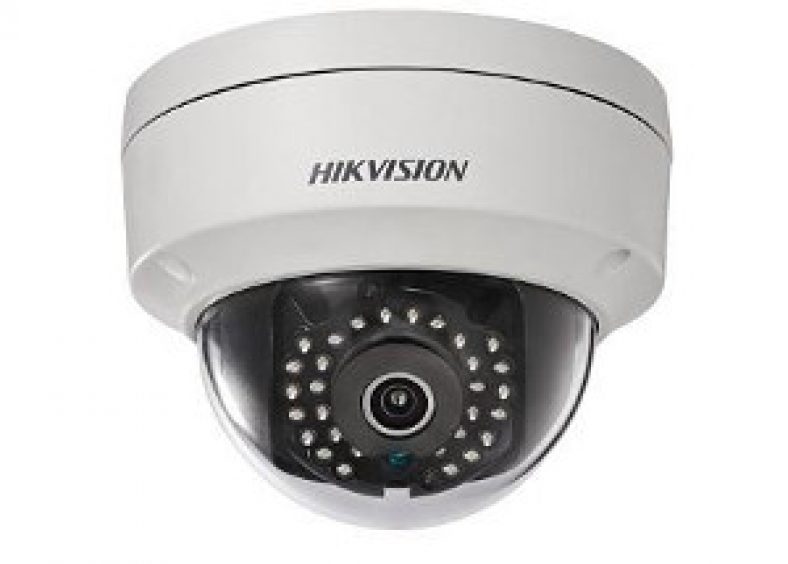
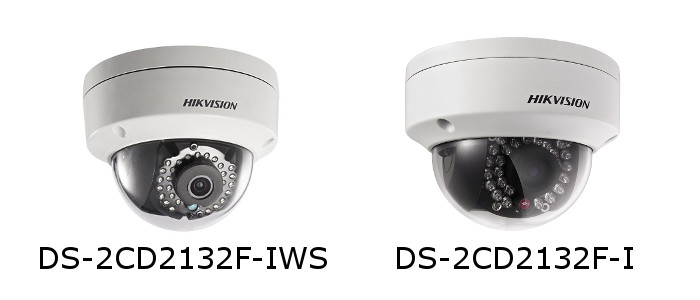
  • Set up motion detection email alerts on your Hikvision camera

    Set up motion detection email alerts on your Hikvision camera

    June 2022 Update: The Gmail method for sending email notifications has stopped working, so I have fully updated & revised this article to use the free Outlook.com web mail service instead.

    This tutorial will show you how to set up motion detection email alerts for your Hikvision cameras. You can use these settings even if you use the camera with a Hikvision NVR.

    [wpsm_titlebox title=”Contents” style=”main”][contents h2][/wpsm_titlebox]

    [text-blocks id=”earning-disclaimer”]

    Ensure your camera’s internet connection is setup correctly

    Your camera needs some information so that it can connect to the internet and send the email alert out. If your camera is already set up on your network as per the Hikvision user manual, and you are able to live-view it from the mobile app, you can skip this section.

    If you have DHCP ticked (see screenshot below), the camera will have already figured out all the required details. If so leave everything at the default values.

    If you do not know your network’s IPv4 details, click here to learn how to obtain these details. I have highlighted the important bits in the screenshot below.

    Hikvision Motion Detection Email Alerts Gmail - Network TCPIP Settings - VueVille
    Click to enlarge

    Ensure motion detection is turned on

    With your favourite web browser (I recommend Chrome as it works well with Hikvision without installing any plug-ins), login to your camera using its IP address as the URL. Follow this how-to guide to set up your desired motion detection pages in your camera’s web interface.

    Turn on email alerts

    Step 1: Make sure email alerts are turned on in each of your motion detection settings pages (Motion Detection, Video Tampering, Face Detection, Line Crossing Detection or Intrusion Detection) as shown below:

    Hikvision Motion Detection Email Alerts Gmail - Basic Event Linkage - VueVille
    Click to enlarge

    Configure your email account from which the camera will send email notifications

    We will use Microsoft’s free and unlimited Outlook.com as our mail server for the camera to use while sending email notifications.

    After signing up for a new free account, follow the steps below to obtain the email server settings that we will need for the next section.

    Step 2: Log in to your outlook account and click on the Settings icon (gear wheel) at the top right of the screen

    Step 3: In the pane that slides out from the right, click on “View all Outlook settings”

    Click to enlarge

    Step 4: Then navigate to Mail >Sync Email and note the SMTP settings highlighted in the screenshot below

    Click to enlarge

    Configure your email settings in the camera

    Next we need to configure the camera as the email ‘sender’- it will use the email account you configured above to send the email alert to a ‘receiver’ account. So the ‘sender’ is the camera and the receiver is the email address(es) that you want to receive the alerts on. Follow the steps below to configure your camera:

    Step 5: Click on the configuration tab on the top menu bar.

    Step 6: Then navigate to Network and click on ‘Advanced Settings‘ (older cameras have a slightly different menu structure but should have the same settings)

    Step 7: Choose the email tab

    Step 8: Refer to the screenshot above to fill out this section. Enter the login details of your Outlook account – this is the sender account. Enter the ‘receiver’ account details – this is where the email alerts will be received. I am using my personal Yahoo email address in the screenshot above. Tick ‘Attached Image’ if you would like snapshots of the motion detected as well.

    Test your settings

    Step 9: Click the Test button. You should see the “Testing Succeeded” message and receive a test email at the ‘receiver’ address(es).

    If not, you need to ensure that all settings such as TCP/IP and email settings are entered correctly as in the screenshots above.

    Save your settings

    Step 10: Finally save your settings by clicking the Save button.

    Now test your email alerts by intentionally setting off the motion detection of your camera. You should get an email alert within 60 seconds.

    Troubleshooting

    You may occasionally find that you no longer receive alerts. This could be because of two reasons:

    • Most email providers like Gmail/Yahoo may automatically mark the alerts as spam and move these emails to the Junk folder – it will treat the sender address as a suspicious sender due to repeated motion detection email alerts being sent day in and day out. Simply choose the option to treat the ‘sender’ address as a trusted email address and this behaviour should stop.
    • A misconfiguration in your motion detection settings could trigger a large burst of notification emails in a very short span of time. While I have not experienced it personally, free email service providers may not like a barrage or incessant stream of notifications, and may temporarily stop accepting email relay requests from your camera. A premium service like Sendinblue that will not throttle or limit email delivery in this manner.