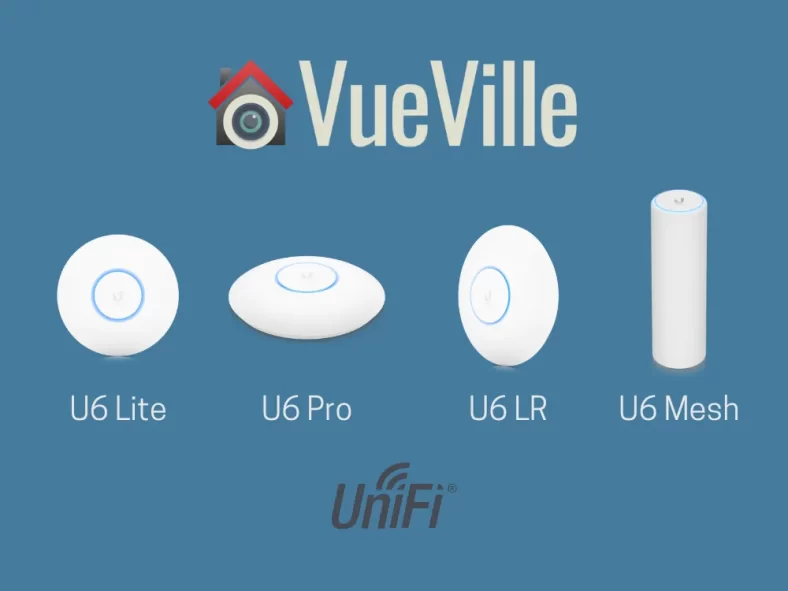
Growing up in the early 2000s, I remember the Wi-Fi in our home being slow, unreliable but most of all extremely spotty. There were some areas of the house that were just dead zones. But after 2 decades, technology has advanced to the point where you can get speedy Wi-Fi that can stream multiple 4K streams simultaneously along with all the other traffic in a typical digital household
Now how reliable that Wi-Fi is across the whole home and whether there are dead spots is another matter altogether. If your home is large or spread across multiple floors, a single Wi-Fi router is just not going to cut it. But your ISP-provided router comes with just 1 Wi-Fi radio.
The answer to this conundrum is a Mesh Wi-Fi network. Ubiquiti have been offering their UniFi line of Wi-Fi access points long before the term mesh wifi became fashionable. All UniFi access points (AP) are mesh devices, because mesh simply means that it supports wireless up-link. Each UniFi AP can wirelessly link to each other, they just need power. Its still recommended to wire each AP to your router wherever possible, because wireless up-link is basically using a wireless back-haul channel which reduces the available data throughput of the AP.
While the likes of TP-Link, Google and Netgear have decent mesh Wi-Fi offerings these days, UniFi WAPs are at a whole different level when used as a part of a UniFi OS/console managed home network. And that’s exactly what we have in the VueVille DIY Smart Home network.
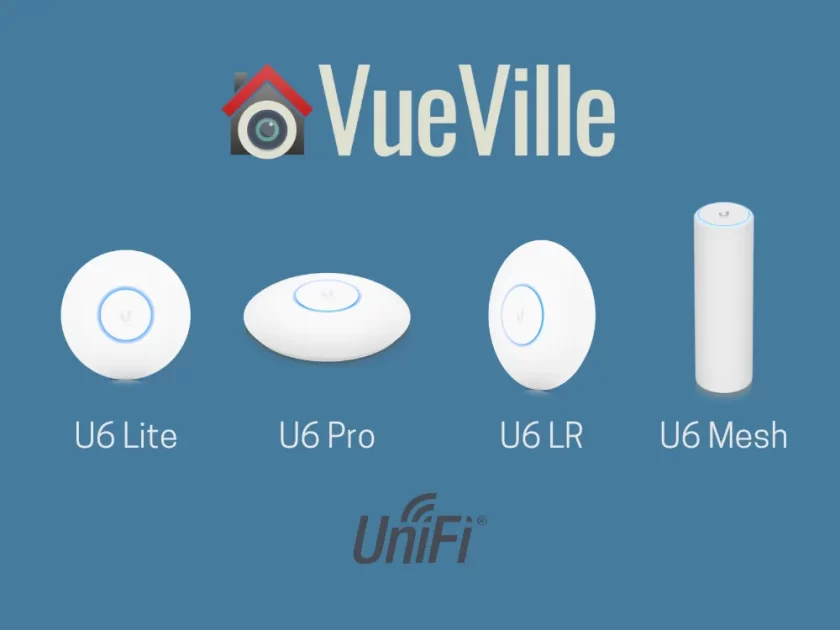
The UniFi line is great but can be a bit confusing for beginners to understand. So I have put together this comparison of their latest Wi-Fi6 compatible access points – the U6 Lite vs. U6 Pro vs. U6 LR (LR = Long Range).
A quick note: As an Amazon Associate I earn from qualifying purchases. This post contains affiliate link(s). An affiliate link means I may earn advertising or referral fees if you make a purchase through my link, at no extra cost to you.
Ubiquiti is a publicly listed American company based in California and was founded in 2003. Ubiquiti had revenues of over $490 million in the last quarter of 2022. Ubiquiti has several different brands such as UniFi, AmpliFi, EdgeMax, UISP, airMAX, airFiber, GigaBeam, and UFiber, aimed at different audiences.
The UniFi brand is the one that interests enthusiasts like me. It is considered a prosumer product line in that it supports features that are found more commonly at the enterprise-level but at a more affordable price.
A prime example of these enterprise-level features is the ability to use a single software interface called the UniFi Controller to manage every single device in your home network – managed switches, unmanaged switches, PoE switches, Wi-Fi access points etc. But let me make it more real for you – imagine you have 3 Wi-Fi access points across 3 levels of your town home and you want to add a new Wi-Fi network (SSID) for your IoT devices. With UniFi, you login to the controller interface and create the SSID. Click save and all 3 WAPs get provisioned immediately and your new SSID is live.
Some other enterprise-level features that the UniFi WAPs provide are multiple SSIDs, VLANs, guest networks, and very high number of concurrent users (300+).
Differences between U6 Lite vs Pro vs LR vs Mesh
The UniFi Access Point (UAP) U6 family consists of 5 models: the U6 Lite, the U6 Pro, U6 Long-Range (LR for short), U6 Enterprise, and the U6 Mesh.
Hold on, what is the U6 Mesh? Are the other U6 models not mesh devices? Of course all UniFi WAPs are mesh devices, as I explained earlier. I think UniFi chose a terrible name for the U6 Mesh and I can only imagine this for marketing purposes. This model is obviously aimed at the Google/Netgear/TP-Link plug-and-play mesh Wi-Fi market who are not very tech-savvy but represent a growing market. Those products typically only support wireless up-link because they do not have Ethernet ports. But the U6 Mesh has an Ethernet port, so it is just as wire-able as the other U6 models. The U6 Mesh should really have been called the U6 Pro Outdoor or something, because it is technically very similar to the U6 Pro, but with an IPX5 waterproof rating.
For our comparison, I have excluded the U6 Enterprise because home users don’t really need the advanced features such as 2.5 GbE, 6 GHz support, 600 simultaneous user support, or the much higher price point. But if you are still interested in it, I will have a U6 Professional vs. U6 Enterprise comparison soon.
Feature Comparison
The biggest differences between the UAP U6 Lite vs Pro vs LR vs Mesh are:
The U6 Mesh can be used outdoors but the others cannot.
The U6 Mesh can be placed on a table, wall-mounted or ceiling-mounted, but the others are designed to be wall or ceiling mounted only. You can of course place the others on a table but coverage may suffer.
The U6 Mesh has a horizontal antenna pattern to maximise coverage on the same level/floor, the others have a forward beam-pattern that is better suited to ceiling-mounting.
The U6 Lite is only dual-band (2.4 GHz and 80 Mhz channel-width), but the others also support the 160 MHz channel-width.
The U6 Lite supports only WiFi4 (802.11ac) on the 2.4 GHz band, but the others support WiFi6 (802.11ax) on the 2.4 GHz band.
The U6 Pro and U6 LR have more powerful processors and more RAM than the others.
The U6 LR is the only one that has4×4 MIMO in the 2.4GHz band.
The U6 Lite is the only one that does not have 4×4 MIMO in the 5 GHz band.
The U6 Lite has a 1.3 Gbps aggregate throughput, the U6 LR has 3.0 Gbps, the U6 Pro and U6 Mesh both have 5.3 Gbps.
Performance Comparison
I have been using the UniFi U6 Lite in my home for many months now and have been impressed by how much it improved Wi-Fi in my home. Range is very good and so are transfer speeds. But how does it compare to the other U6 models?
I studied all the major reviews of the U6 model range and combines with my personal experience, have come to the following conclusions:
The U6 Lite and U6 Mesh have comparable 2.4 GHz performance at various distances, but at 5 GHz the U6 Mesh is faster.
The U6 LR unsurprisingly has the best performance (speed and range) across both 2.4 GHz and 5 GHz bands, thanks to the highest signal strength and 4×4 MIMO on all bands.
Instead of a single U6 LR, you may be better off having two U6 Lite APs to ensure a stronger, consistently fast signal for almost the same cost.
Frequently Asked Questions (FAQ)
Is Mesh faster than Wi-Fi?
Mesh networking simply means that the Wireless Access Points (WAP) can talk to each other instead of a central base station. This allows you to extend your Wi-Fi range considerably because each WAP can simply connect to the nearest WAP. This is called wireless up-link and is the term that UniFi also uses. So mesh networking does not make your Wi-FI faster, it is just a different way of connecting wireless access points together.
Does the UniFi-6 support Mesh?
Yes, all the UniFi 6 Access Points support mesh networking.
Can I use the U6 Pro or U6 LR outdoors?
While these are not rated water-proof, they are IP54 rated. The 5 means that they are dust-resistant, and the 4 means that they can withstand splashes of water. So exposure to some moisture should be OK, but you should really consider the U6 Mesh which is IPX5 rated for withstanding even jets of water.
Full Comparison Table
U6 Lite
U6 Pro
U6 Long Range (LR)
U6 Mesh
Bands
Dual-band
Tri-band
Class
AX1500
AX5400
AX3000
AX5400
Application
Indoor
Indoor/Outdoor
Weatherproofing
None
IP54
IPX5
Software
Operation mode
Standalone with mobile app, or can be managed by Unifi console
WiFi Standards
802.11a/b/g/n/ac/ax
Wi-Fi technology (5 GHz band)
WiFi 6 (802.11ax)
Wi-Fi Technology (2.4 GHz band)
WiFi 4 (802.11n)
WiFi 6 (802.11ax)
Wireless security
WPA-PSK, WPA-Enterprise (WPA/WPA2/WPA3)
Maximum SSIDs supported
8 per radio
VLAN
Yes, 802.1Q
Guest traffic isolation
Yes
Concurrent clients
~300
Certifications
CE, FCC, IC
CE, FCC, IC, MIC
CE, FCC, IC
QoS
Per-user limiting
Hardware
Processor
880 MHz MIPS 1004 KEc
Dual-core 1GHz Qualcomm IPQ5018
Dual-core 1.35GHz Mediatek ARM MT7622AV
880 MHz MIPS 1004 KEc
Memory (RAM)
256 MB
1 GB
512 MB
2 GB
Management interface
Ethernet, Bluetooth
Networking interface
1x GbE RJ45 port
MIMO
2.4 GHz: 2 x 2
5 GHz: 2 x 2
2.4 GHz: 2 x 2 (UL MU-MIMO)
5 GHz: 4 x 4 (DL/UL MU-MIMO)
2.4 GHz: 4 x 4
5 GHz: 4 x 4
2.4 GHz: 2 x 2 (UL MU-MIMO)
5 GHz: 4 x 4 (DL/UL MU-MIMO)
Product prices and availability are accurate as of the date/time indicated and are subject to change. Any price and availability information displayed on https://www.amazon.com/ at the time of purchase will apply to the purchase of this product.
Product prices and availability are accurate as of the date/time indicated and are subject to change. Any price and availability information displayed on https://www.amazon.com/ at the time of purchase will apply to the purchase of this product.
Product prices and availability are accurate as of the date/time indicated and are subject to change. Any price and availability information displayed on https://www.amazon.com/ at the time of purchase will apply to the purchase of this product.
Product prices and availability are accurate as of the date/time indicated and are subject to change. Any price and availability information displayed on https://www.amazon.com/ at the time of purchase will apply to the purchase of this product.
(* = affiliate link / image source: Amazon Associates Program)
Conclusion
The U6 Pro is the recommended model for most people if you want the fastest possible WiFi6 experience (in most scenarios) on both the 2.4 GHz and 5 GHz bands.
If you are on a budget, the U6 Lite will be more than enough for most people.
If you are looking for an outdoor option that is waterproof, go for the U6 Mesh.
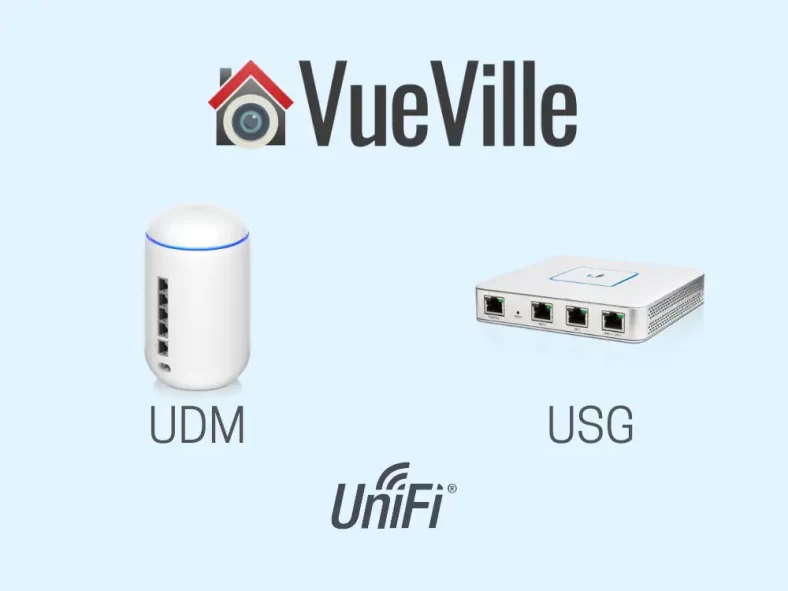
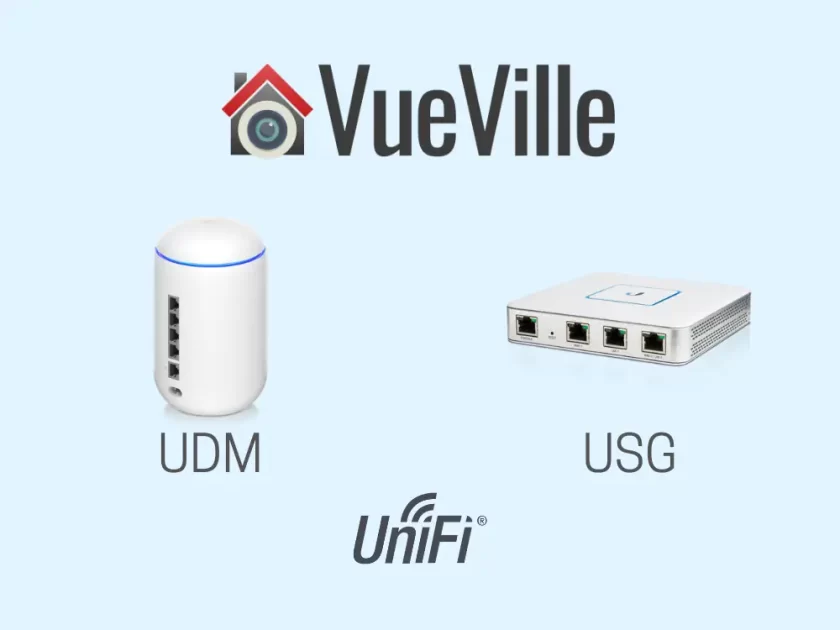
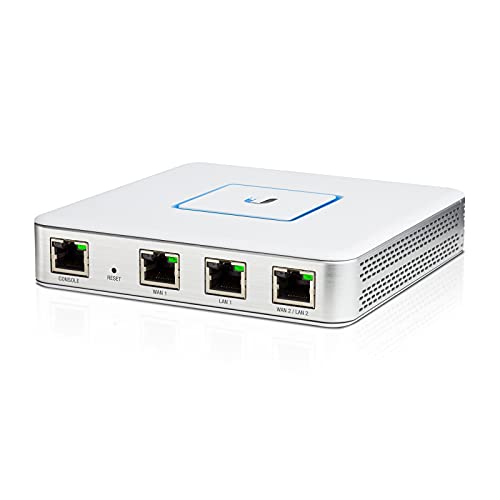
The Unifi Security Gateway (USG) from Ubiquiti has been faithfully serving my family’s home networking needs for over 4 years now. Back when I started building my DIY Home CCTV system and DIY Smart Home network, the USG was the best choice for enthusiasts who wanted to get a high performance router with a good built-in hardware firewall.
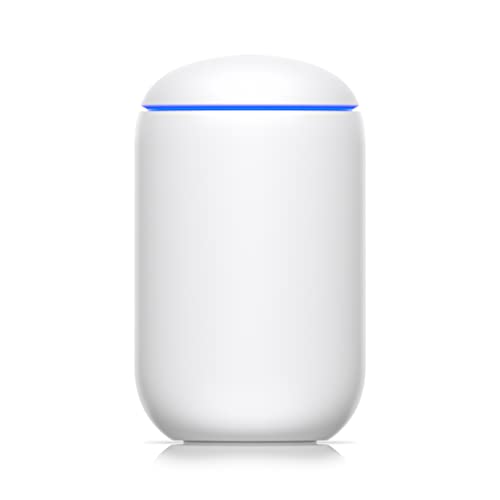
Ubiquiti has since launched the Unifi Dream Machine (UDM) range which integrate several different functions into a single device. The UDM is the baby of the range and is basically a straight replacement of a standard WiFi router like the one you get from your ISP, but with way more features that a fast and secure home network needs.
If you are considering upgrading from the USG to the UDM, this article will cover everything you need to know.
A quick note: As an Amazon Associate I earn from qualifying purchases. This post contains affiliate link(s). An affiliate link means I may earn advertising or referral fees if you make a purchase through my link, at no extra cost to you.
The USG was a router meant to be used together with the Unifi Controller Software and the rest of Unifi’s ecosystem to create a complete home or office network. It had features like dual WAN with failover, integrated firewall with advanced threat detection and a maximum 3 Gbps line rate.
What else would you have needed to complete your home network built around the USG? A PC or Unifi Cloud Key to run the Unifi network controller software, a Unifi managed switch, and a Wi-Fi access point. That’s how I built my home network for example.
I refer to the USG in the past tense because its no longer on sale and you could say its been superseded by the Unifi Dream Router (UDR) and the Unifi Dream Machine (UDM).
What is the Unifi Dream Machine
The Unifi Dream Machine is an all-in-one device that combines a Unifi Security Gateway (USG), a Cloud Key that hosts the Unifi Controller software, a 4-port managed Unifi switch and a Unifi Wi-Fi access point that supports Wi-Fi 5 speeds.
Differences between UDM and USG
The biggest difference between the UDM and the USG is that they are from entirely different generations and are based on entirely different philosophies to building a home network.
The UDM is an all-in-one WiFi-router-firewall-combo but the USG is just one component of a functional network.
The UDM is much newer and unofficially replaces the USG-based eco-system (which is efectively discontinued as they are rarely in stock even on the Unifi website).
The UDM has much more powerful hardware than the USG: faster dual-core CPU, 4 times more RAM, and 8 times more storage on-board.
The UDM has 10 times more data throughput with threat detection and prevention on vs. the USG (850 Mbps vs. just 85 Mbps for the USG).
The UDM has a built-in managed 4-port switch, whereas the USG has 2 Ethernet ports that can be used as LAN.
The UDM has a built-in WiFi Access Point (basically a NanoHD), whereas the USG doesn’t.
The UDM has only 1 WAN port, but the USG has 2 and this theoretically enables WAN failover (but is broken in the Unifi GUI and probably will never be fixed as the USG is outdated and obsolete – see this Reddit thread for a workaround).
The UDM supports newer VPN protocols (OpenVPN), whereas the USG does not.
Full Comparison Table – UDM vs. USG
UDM
USG
Hardware Firewall
Yes
Managed Switch
Yes, non-PoE
No
Router
Yes
Wi-Fi Access Point
Yes
No
Software
Built-in Controller
Embedded Unifi Network Controller
No, separate device needed
Intrusion Prevention System (IPS)
Yes
Deep Packet Inspection (DPI)
Yes
Intrusion Detection System (IDS)
Yes
Honeypot
No
DNS Filtering
Yes
No
GeoIP Filtering
Yes
VLAN support
Yes
Automatic QoS
Yes
VPN
Teleport, VPN Server (L2TP over IPsec), Site-to-Site tunnel, VPN Client (L2TP over IPsec)
NVR feature for CCTV
No
Hardware
Processor
Quad-Core ARM Cortex-A57 at 1.7 GHz
Dual-Core 1 GHz, MIPS64
Memory (RAM)
2 GB DDR RAM
512 MB DDR2 RAM
On-board Flash Storage / SSD
16 GB eMMC
2 GB
HDD bay
No
Power Supply
AC/DC power adapter, internal, 24V
Max Power Consumption
26W
7W
ESD/EMP protection
No
LCM display
No
LEDs
White/blue status
Networking Interfaces
Dual WAN
No
Yes
WAN
1x 1 Gbps RJ45 port
Of the total 3x 10/100/1000 Ethernet Ports, 2 can be configured as WAN
LAN
4x 1 GbE RJ45 ports
Of the total 3x 10/100/1000 Ethernet Ports, 2 can be configured as LAN
PoE
No
Wi-Fi built-in
802.11 a/b/g/n/ac/ac‑wave2
No
Desk-mountable
Yes
Rack-mountable
No
Management Interface
Ethernet
Yes
Bluetooth
No
External Device Support
Power Supply Redundancy and Failover
No
LTE Failover Redundancy
No
Performance
Throughput
Line Rate N/A
DPI with IDS/IPS: 850 mbps maximum throughput
3 Gbps (Line Rate)
DPI with IDS/IPS: 85 mbps maximum throughput
Product Support
Warranty
2 years when purchased from UBIQUITI’S Webstores
1 year when purchased from an authorized UBIQUITI distributor or reseller
Frequently Asked Questions (FAQ)
Do I need a Cloud Key to configure and manage the USG?
No, you do not need a Cloud Key. The Unifi Controller software is free and you can install it on any PC to setup the USG or any other Unifi gear. The Unifi Controller software does not need to run 24/7. It is required only for initial setup, for adjusting settings, and for maintenance updates. But you do need the software running 24/7 if you need statistics logging.
Will the USG be enough for a gigabit fibre internet connection?
As long as you don’t need the threat and intrusion detection features, the USG can easily handle a 1 gigabit internet connection. I personally have my USG handling 1 gigabit fibre Internet, a ton of VLANS and numerous firewall rules without breaking a sweat.
If you do need IDS/IPS, the USG will limit your internet connection to just 85 mbps which would be unacceptable. In that case, I recommend the UDM instead which can handle up to 850 mbps with all the security features turned on. If you have a 2 gigabit internet connection, you will need to step up to the UDM-SE or UDM-Pro.
Is the USG discontinued?
Officially it is not discontinued yet, but it is perpetually out of stock, and doesn’t seem to be getting any of the new features that the UDM series is getting. This is not suprising because the USG is outdated and obsolete. So I expect the USG to be officially discontinued in the near future.
Product prices and availability are accurate as of the date/time indicated and are subject to change. Any price and availability information displayed on https://www.amazon.com/ at the time of purchase will apply to the purchase of this product.
Product prices and availability are accurate as of the date/time indicated and are subject to change. Any price and availability information displayed on https://www.amazon.com/ at the time of purchase will apply to the purchase of this product.
(* = affiliate link / image source: Amazon Associates Program)
Conclusion
If you are looking for an all-in-once device, the UDM is the clear choice.
However if the UDM is not powerful enough, or you need the ability to hand-pick the various components of your network, the UDM-SE or UDM-Pro is a better choice.
Let me know what you think and please feel free to ask any questions or doubts you have!
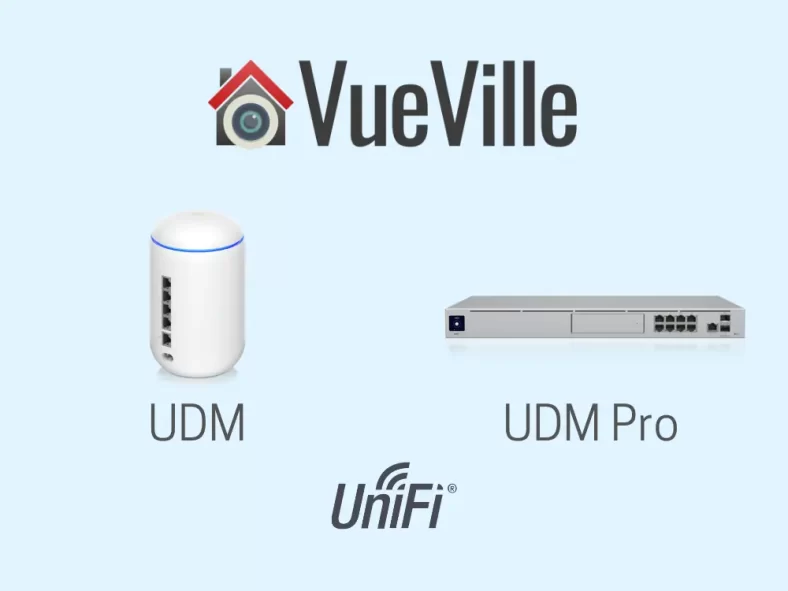
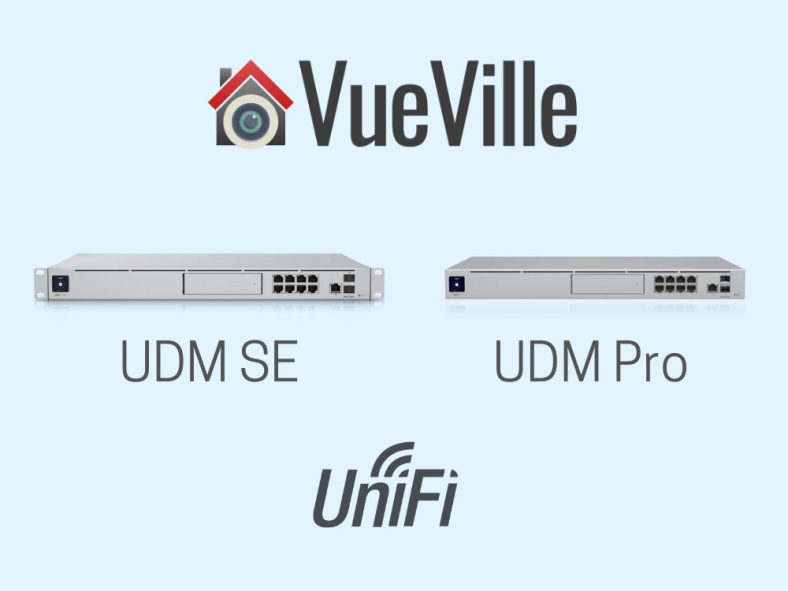
The Unifi Dream Machine SE and Pro versions are great network gateways for most smart home enthusiasts. But what if you want most of this funtionality in a more compact and decor-friendly format? Something that can replace your current all-in-one WIFi router combo but adding far more power and features?
That’s where the Unifi Dream Machine (UDM) comes in as the baby of the trio from Ubiquiti’s UDM product range.
As we saw in our recent UDM-SE vs. UDM-Pro comparison, they are oriented more towards the home server in a rack audience. But the UDM is a simpler affair that will not look out of place in your living room.
So let’s take a deeper look at the Ubiquiti UDM vs. UDM-Pro.
A quick note: As an Amazon Associate I earn from qualifying purchases. This post contains affiliate link(s). An affiliate link means I may earn advertising or referral fees if you make a purchase through my link, at no extra cost to you.
The Unifi Dream Machine essentially combines a Unifi Security Gateway (USG), a Cloud Key, a managed Unifi switch and a Unifi Wi-Fi access point all into one compact and elegant device.
Differences between UDM and UDM-Pro
The main selling point of the UDM series is a network gateway that packages a hardware firewall, a managed switch and a very versatile management software interface. This software ‘controller’ makes it a breeze to add and centrally manage switches and wireless access points across your home or office.
On the hardware front, these are the main differences between the UDM and UDM-Pro:
UDM has a single WAN port, but the UDM-Pro has dual-WAN.
UDM WAN is gigabit ethernet, whereas UDM-Pro WAN has a 10 gigabit SFP port and a 2.5 GbE ethernet port.
UDM has 4 gigabit ports, but the UDM-Pro has 8 such ports.
UDM doesn’t have SFP+ port, UDM-Pro has a 10 gigabit SFP port.
UDM has a built-in Wi-Fi access point, but the UDM-Pro doesn’t.
UDM has 2 GB RAM, but the UDM-Pro has 4 GB RAM.
UDM doesn’t have a hard drive or SSD slot, the UDM-Pro comes with a 128 GB SSD drive.
UDM is not rack-moutable, but the UDM-Pro is.
UDM doesn’t have redundant power supply support, but the UDM-Pro does (Unifi Smart Power).
UDM doesn’t have WAN or LTE fail-over, but the UDM-Pro does.
UDM doesn’t have an LCD display, but the UDM-Pro has a touchscreen LCD display.
On the software features side, this is how the UDM and UDM-Pro differ:
UDM does not have the Unifi Security Console interface, but the UDM-Pro does.
UDM has only 850 mbps throughput when DPI is on with IDS/IPS enabled, but the UDM-Pro can do 3.5 Gbps.
UDM doesn’t have any NVR support, but the UDM-Pro supports Unifi Protect.
UDM doesn’t have honeypot feature, but the UDM-Pro does.
Teleport, VPN Server (L2TP over IPsec), Site-to-Site tunnel, VPN Client (L2TP over IPsec)
NVR feature for CCTV
No
Unifi Protect
Hardware
Processor
Quad-Core ARM Cortex-A57 at 1.7 GHz
Memory (RAM)
2 GB DDR RAM
4 GB DDR4 RAM
On-board Flash Storage / SSD
16 GB eMMC
16 GB eMMC
Integrated 128 GB SSD (M.2 half-size)
HDD bay
No
2.5″ / 3.5″
Power Supply
AC/DC power adapter, internal, 24V
AC/DC, Internal, 240W
Max Power Consumption
26W
50W
ESD/EMP protection
No
Air: ± 15 kV, contact: ± 8 kV
LCM display
No
1.3″ touchscreen
LEDs
White/blue status
Ethernet
SFP+
HDD
RPS
Networking Interfaces
Dual WAN
No
1x 10G SFP+ and 1x 2.5 GbE RJ45
WAN
1x 1 Gbps RJ45 port
1x 2.5 GbE RJ45 port
1x 10G SFP+ port
LAN
4x 1 GbE RJ45 ports
8x 1 GbE RJ45 ports
1x 10G SFP+ port
PoE
No
2x PoE+ IEEE 802.3at
6x PoE IEEE 802.3af
Wi-Fi built-in
802.11 a/b/g/n/ac/ac‑wave2
None
Desk-mountable
Yes
Rack-mountable
No
Yes 1U
Management Interface
Ethernet
Yes
Bluetooth
No
Yes
External Device Support
Power Supply Redundancy and Failover
No
Unifi SmartPower RPS (USP-RPS)
LTE Failover Redundancy
No
UniFi LTE
Performance
Throughput
DPI with IDS/IPS: 850 mbps throughput
DPI with IDS/IPS: 3.5 Gbps
DPI w/o IDS/IPS: 8 Gbps
Product Support
Warranty
2 years when purchased from UBIQUITI’S Webstores
1 year when purchased from an authorized UBIQUITI distributor or reseller
2 years when purchased from UBIQUITI’S Webstores
1 year when purchased from an authorized UBIQUITI distributor or reseller
UDM vs. UDM-SE
Here’s a quick summary of what the UDM-SE adds over the UDM-Pro:
UDM-SE has a managed PoE switch whereas the Pro only has a managed switch.
UDM-SE has a 2.5GbE WAN port whereas the Pro only has a 1Gbps WAN port.
UDM-SE has an integrated 128 GB M.2 SSD whereas the Pro doesn’t.
UDM-SE has an RPS indicator light for the Redundant Power Supply (RPS) but Pro doesn’t.
UDM-SE has a physical lock to secure the power cord whereas the Pro doesn’t.
UDM-SE is more expensive than the Pro – check the latest prices below.
So clearly if you want any of the above features, go for the UDM-SE instead of the UDM.
Conclusion
The UDM is a powerful and feature-packed all-in-one Wi-Fi router & security gateway that has advanced features like port isolation, VLANs, and central management of additional Unifi Wi-Fi access points in your home or office. So think of it as a straight replacement for a trafitional Wi-Fi router from your ISP or Asus/Linksys/Netgear etc.
If you dont need the extra hardware and software features of the UDM-Pro or UDM-SE, the standard UDM should be fine.
But do think about the downside of an all-in-one device: the UDM suffers from the risk of the entire unit being useless if one of its sub-components fail.
So wherever possible, I recommend building your system from discrete parts such as the UDM-SE + Unifi 6 Access Points rather than one single device like the UDM that becomes totally useless if one of its key components fail.
Let me know what you think and please feel free to ask any questions or doubts you have!
Product prices and availability are accurate as of the date/time indicated and are subject to change. Any price and availability information displayed on https://www.amazon.com/ at the time of purchase will apply to the purchase of this product.
Product prices and availability are accurate as of the date/time indicated and are subject to change. Any price and availability information displayed on https://www.amazon.com/ at the time of purchase will apply to the purchase of this product.
The Unifi Dream Machine (UDM for short) is a great choice for the heart of your home network. If you are building a DIY Smart Home or DIY CCTV system like me, you are probably interested in this flagship networking device from Unifi.
So what is the Unifi Dream Machine? It is an enterprise-level security gateway lineup from Ubiquiti. It is a very versatile network appliance that can replace your ISP-provided router.
But there are three different versions available – the desk-mounted Unifi Dream Machine (UDM), the rack-mountable Unifi Dream Machine Pro (UDM-Pro) and the latest rack-mountable Unifi Dream Machine Special Edition (UDM-SE).
This article will compare and contrast the two more advanced models UDM-SE and the UDM-Pro, and help you decide which is best for your needs.
A quick note: As an Amazon Associate I earn from qualifying purchases. This post contains affiliate link(s). An affiliate link means I may earn advertising or referral fees if you make a purchase through my link, at no extra cost to you.
Product prices and availability are accurate as of the date/time indicated and are subject to change. Any price and availability information displayed on https://www.amazon.com/ at the time of purchase will apply to the purchase of this product.
Product prices and availability are accurate as of the date/time indicated and are subject to change. Any price and availability information displayed on https://www.amazon.com/ at the time of purchase will apply to the purchase of this product.
(* = affiliate link / image source: Amazon Associates Program)
Unifi UDM-SE
The UDM-SE was launched early 2022 and improved upon the UDM-Pro. The SE increased the bandwidth of the RJ-45 WAN port and added PoE support to the integrated switch.
Product prices and availability are accurate as of the date/time indicated and are subject to change. Any price and availability information displayed on https://www.amazon.com/ at the time of purchase will apply to the purchase of this product.
(* = affiliate link / image source: Amazon Associates Program)
Which UDM is right for you?
If you are looking to power your security cameras or other network devices using Power over Ethernet (PoE), the UDM-SE has you covered. Its built-in managed switch has six 802.3at and two 802.3af PoE ports.
If you don’t need PoE-enabled Ethernet ports at all, the UDM-Pro will probably be fine. But do note that its WAN Ethernet port is limited to 1 Gigabit Ethernet.
Another reason to get the UDM-Pro is if you would rather use a separate PoE switch with more 802.3af ports or a higher wattage.
Both UDM-SE and UDM-Pro support Wireguard VPN now (earlier only the UDM-SE did).
You may choose the UDM Pro because you need more PoE ports than the 8 available on the UDM SE. In this case, consider a managed PoE switch such as the US-8-150W.
Do I need the UDM if I already have the USG?
If you have been with Unifi for a long time, you probably have the USG + Unifi Managed Switch + Cloud Key combo like I do in my smart home network. The UDM-Pro or UDM-SE essentially replace all 3 of those devices. So sure if you need any of the additional features of these newer devices, go ahead. But if you are happy with your current setup, there’s no need to upgrade.
Conclusion
Both the UDM-Pro and UDM-SE are great choices as the heart of your home/office network. By not integrating a Wi-Fi Access Point (WAP), you are free to mix and match any number of WAPs as needed.
Let me know what you think and please feel free to ask any questions or doubts you have!
IP cameras for DIY home security these days are pretty impressive devices. Like the [easyazon_link identifier=”B099ZPF3B2″ locale=”US” tag=”vueville.com-eaz-20″]Reolink RLC-824A[/easyazon_link] that I am reviewing today: it has 8 Megapixel (4K) resolution, smart motion detection for persons, vehicles and pets, colour night vision using LED spotlights & 2-way audio. I have been looking forward to review the new breed of Reolink 8MP cameras and this is a great model to start off with.
Current Reolink spotlight cameras like this RLC-824A do not have Infrared LEDs, so this camera is ideally suited for well-lit areas with sufficient ambient light or you will have to leave the LEDs turned on all night (this is the default setting).
Reolink kindly provided us with a retail sample RLC-824A for this hands-on review. As always, we are going to look at the features, setting up the camera, motion detection performance, video quality and how well it works with the VueVille DIY Home CCTV system and our DIY Smart Home Automation System!
Here’s a quick video review, and the detailed written review continues below:
How to use this camera
Most of our readers who are interested in this camera will either want to add it to an existing DIY IP Camera system like ours, or add it to a Reolink NVR with spare channels. The RLC-824A supports the industry-standard ONVIF and RTSP protocols, so it should work with any system that supports these standards.
What’s in the box
The RLC-824A is a turret style camera and so doesn’t need a massive box package. The retail box looks very upscale and sets itself apart from first sight. The camera’s main features are highlighted, as are the mobile app and the 2-year limited warranty.
The RLC-824A comes very well-protected in its packaging with the right amount of padding to protect it during shipping.
Box contents:
RLC-824A Zoom IP camera
Screws, rawl plugs
Waterproof sleeve/lid for Ethernet cable
1 metre network cable
Installation guide with photos
Mounting hole template
Surveillance sign
UK and EU regulatory compliance certificates
Specifications
Reolink RLC-824A
Image Sensor
1/2.49″ 8 Megapixel (4K) Progressive Scan CMOS
Lens type
Fixed lens F=2.0
Focal length
4mm
Angle of view
Horizontal: 85°, Vertical: 44°
IR LED
None
Spotlight LED
4pcs / 3.5 W / 6500 K / 400 Lumens
PIR sensor
None
Day/night
Auto-switching
Minimum illumination
0 lux (with Spotlight on)
Bit rate
H.265/M-JPEG, Main Stream: 4096Kbps – 8192Kbps (default: 6144Kbps), Sub Stream: 64Kbps – 512Kbps (default: 256Kbps)
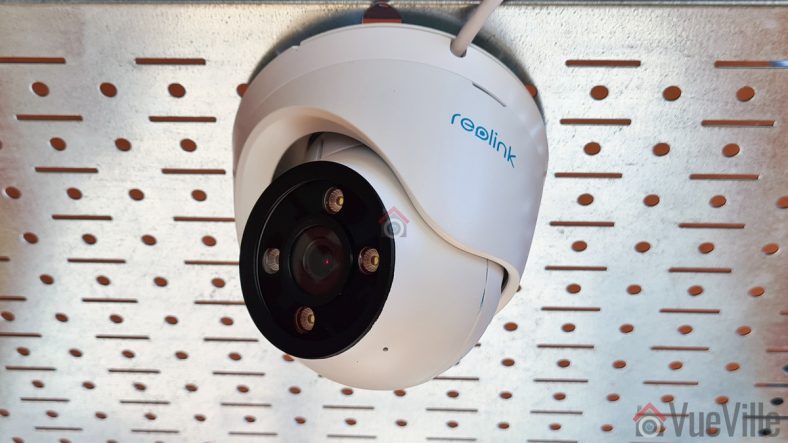
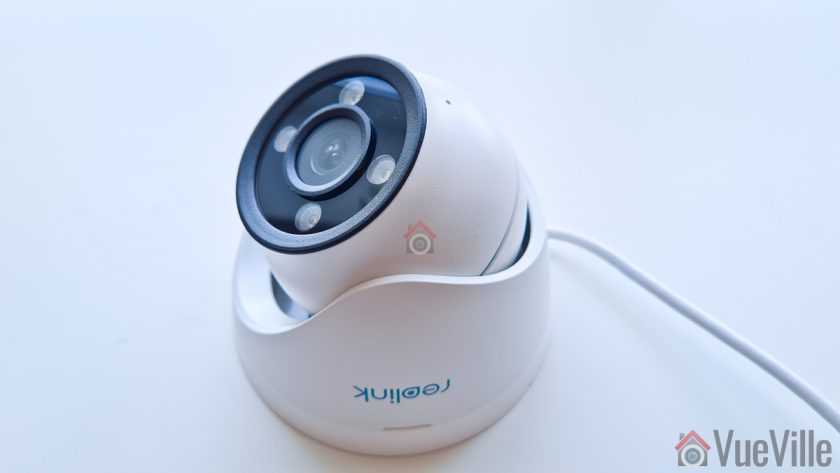
The RLC-824A is a turret-style camera with a metal body construction. It feels like a camera that is far more expensive than it is, as I have noted before this is a common trait of Reolink cameras.
The base of the camera that attached to the mounting plant is called the mount in the manual. This mount is connected to the camera body but is free to rotate at all times. So you can adjust the horizontal positioning of the camera even after the camera is installed on the mounting plate. Nice touch.
The lens ‘eye-ball’ is housed in the metal body and can be moved in any direction to point it exactly where you want. There’s a decent freedom of movement available. The back of the lens eye-ball houses the microSD card slot, secured by two screws. The slot can be accessed at any time before or after camera installation. I inserted a 16GB Sandisk Ultra microSD card, you can use up to a 256GB card.
SD card slot with card inserted and slot protective cover removed
The speaker is also placed on one side of the eye-ball, but in such a way that it faces the inside of the mount. This is perfect as its then protected from the elements. We also find the microphone placed just below the lens.
2-way audio with onboard speaker and microphone
The fixed lens on the RLC-824A has a fixed focal length of 4 mm, and does not have any physical zoom capability. The 1/2.5″ 8 Megapixel Progressive Scan CMOS sensor can produce a 4K resolution of 3840 x 2160 pixels.
There are no IR LEDs on-board, rather this camera has 4 spotlight LEDs that turn on at night to give you colour night vision. I would have preferred both infrared and spotlight LEDs, so that I have the best of both worlds – IR LEDs for clear black and white footage and the spotlight only for when, say motion is detected. That way I wouldn’t need to have ambient lights or the camera’s own spotlight turned on all night to get useable footage in the dark. I hope Reolink looks into this mode of operation for their spotlight cameras in the future.
The day/night sensor for the auto switch between day and night mode is placed right below the lens.
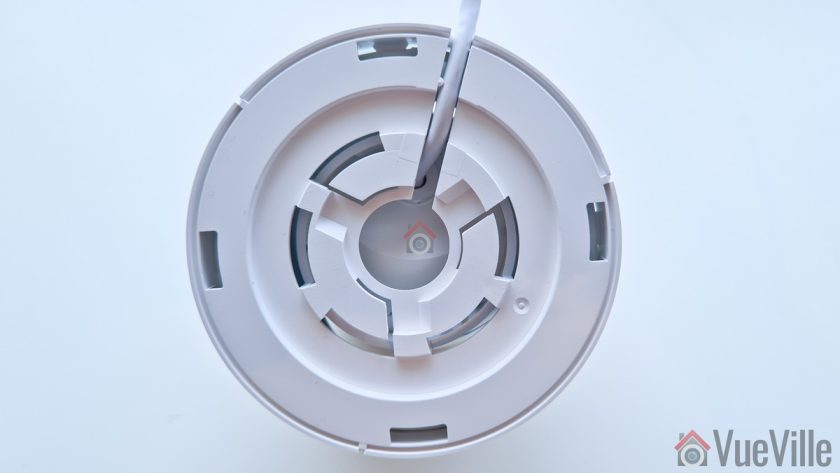
All the cabling comes out of the base and can go conveniently into a junction box or through the wall. As usual with Reolink cameras, the cabling consists of a pigtail with the following connectors:
RJ-45 ethernet port
12V 1A power input jack
A reset push button
As usual, the reset button of the RLC-824A is not on the main body of the camera. Apart from eliminating an ingress point, this means nobody can reset the camera unless they get to the hidden reset button which is probably inside the wall or your roof soffit! This is much better than many other cameras such as Hikvision’s which have the reset button externally on the camera body itself.
A sticker with the QR code for the mobile app setup and login details is pasted on the camera housing. I recommend removing these stickers before installing the camera outdoors for security purposes. Otherwise anyone will be able to load up the camera web admin page, and if you haven’t changed the default admin and password shown next to it, you are in big trouble!
Installation & Setup
Turret cameras can be a trifle more difficult to install than bullet cameras, but Reolink makes the installation process very easy.
First I removed the mounting plate from the top of the camera by turning it anticlockwise. I then used the included mounting plate hole template to mark off the holes for 4 screws.
I then used the included screws to fix the RLC-824A to my usual test location. Then came the important bit – I used the marked points to align the camera with the mounting plate and turned it clockwise to lock in place.
The last thing to do was to fine-tune the camera’s surveillance angle. I adjusted the lens eye-ball & unlike many other turret cameras I could the camera body rotation also. This is a great feature and not a very obvious one.
Hardware setup
The RLC-824A supports Power over Ethernet (PoE) which is always my recommended method to power IP cameras. Using just a single Ethernet cable, you can send both data and power to the camera. You just need a PoE switch or a PoE injector [easyazon_link identifier=”B001PS9E5I” locale=”US” tag=”vueville.com-eaz-20″]like this TP-link model[/easyazon_link].
The camera is 802.3af PoE certified, so both my [easyazon_link identifier=”B00BP0SSAS” locale=”US” tag=”vueville.com-eaz-20″]TP-Link PoE switch[/easyazon_link] and [easyazon_link identifier=”B01DKXT4CI” locale=”US” tag=”vueville.com-eaz-20″]Unifi Switch 8[/easyazon_link] are up to the task of powering the camera over PoE.
If you want to use the included waterproofing connector, you will have to remove the RJ-45 plug on the Ethernet cable and re-crimp it once it has been passed through the waterproofing connector. My install location is sheltered from the elements, so I didn’t bother with this.
Software setup
Most manufacturers ship their cameras with static IPs by default – for example Hikvision and Dahua. In most cases the camera will not have the same network settings (like sub-domain) as your network.
This means that you cannot access the camera unless you change the camera network settings to that of your network. You are expected to do this using the manufacturer’s camera finder tool, like SADP in the case of Hikvision.
While this static IP method has a lot of security benefits, most home users would find it much easier if the camera manufacturer used DHCP as default. This way, the camera would automatically be configured to use your network settings and be ready to use.
As with all the Reolink cameras I have tested, this is exactly the case with the RLC-824A: Reolink has DHCP enabled by default. So adding this camera to your network setup should be a breeze.
One of the most important things I look for in a camera is the ability to work in a fully local mode, without requiring Internet access at all. Of course, this extends to initial setup as well. Ideally, the camera should not require an Internet connection to get it up and running.
In my home network, the VLAN that I place cameras in is blocked off from the Internet and even the rest of the network. I do not want to temporarily allow internet access to the camera evn for setup, because that might be just enough time for a camera to phone home to its servers in China or wherever and leak my data. Of course, a reputed company like Reolink would never do anything like that, but for security sake I apply the same firewall rules to all cameras in my home.
As I will be detailing below, all Reolink cameras I have tested so far are capable of 100% local operation and the RLC-824A is no exception. It didn’t complain about no Internet or that it could not create new outgoing connections from the VLAN to then rest of the network or the Internet. Awesome!
There are quite a few ways to setup the RLC-824A:
Use the Reolink mobile app
Use the Reolink desktop client software
Use the built-in web-based admin page
The Reolink setup guide for this camera suggests the first two methods – Access the camera by smartphone OR access the camera by computer.
The smartphone method is great for simple network setups but will use the P2P mode of setup. However I would like to add the camera to my dedicated VLAN for CCTV which is fully local – it is isolated from the rest of the network and from the Internet. So I will detail the 2nd method of using the Reolink desktop client software.
Step 2: Installed the Reolink Desktop Client and ran it. Windows Defender identified it as a new app and asked me if I want to allow it Internet and LAN access. I allowed it to proceed.
Step 3: I connected the RLC-824A to my VLAN network through the TP-Link PoE switch. Quick reminder that the TP-Link PoE switch is connected to a port on my Unifi managed switch that is isolated to just the CCTV VLAN.
Step 4: The Reolink app cannot detect cameras on subnets other than the one it is in. So I found the IP address of the camera manually from my Unifi router. As I mentioned earlier, the camera has DHCP enabled by default but I like to assign my cameras static IP addresses. The main reason is that its easier to set up and access the camera form other devices without having to check each time what the IP address is.
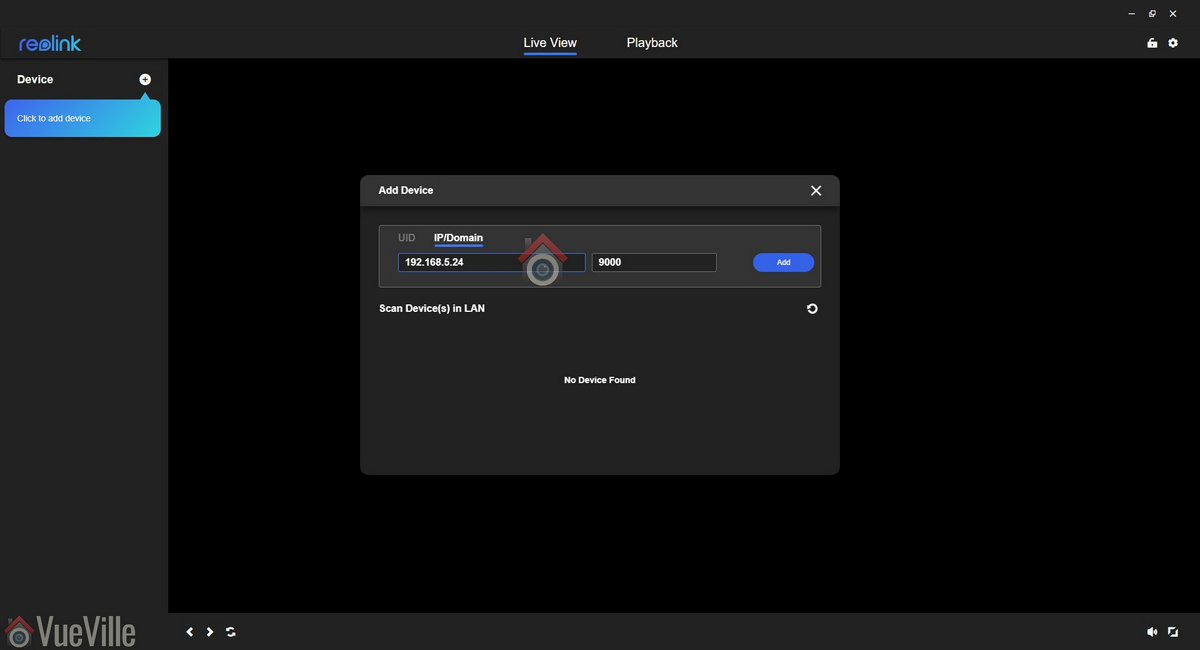
Step 5: Armed with the IP address, I went back to the Reolink app and clicked on ‘Add device’. I entered the IP address, kept the default 9000 port and hit ‘Add’.
I was asked to enter a new password for the default admin account, a name for the camera (shown on the OSD, can be hidden), and immediately the camera live view stream appeared on screen.
Step 6: Clicking the gear icon next to the camera name brings up the camera settings. Of course, you can simply pop the IP address into any browser to directly access the web-based admin page and adjust camera settings as well.
You should change the password of the camera as soon as you can, especially worth noting as the camera doesn’t require you to nor remind you to do it.
Live-viewing is also possible via the Reolink desktop app or the built-in web-based admin page of the camera. Let’s explore the web admin page of the camera, as this is a very convenient way to both live-view and tweak camera settings. In case you are wondering, the camera settings section of both interfaces are identical.
So entering the camera’s IP address into any modern browser will take you to the nice HTML5 interface that Reolink now uses instead of the older Flash based interface.
At the login screen, you can choose the video stream quality you want to see, ‘Channel 1’ is called Clear and is actually the 8 Megapixel stream (unless you have changed the default camera encoding settings). The other options are Balanced (medium quality) and Fluent (sub-stream).
Reolink calls the landing page the Preview page, but I like to call it the Live View page. On the left hand side you have the live view stream, and at the bottom clicking the play button lets you select between the video quality by switching between the Clear, Balanced and Fluent streams.
Quick camera configuration
On the right hand side of the live-view screen, there are 2 panels – Basic settings and Advanced settings. The basic and advanced settings sections are like a quick access area that duplicates the settings on the actual configuration page (accessed by clicking on the gear button at the top right).
The Basic Settings section includes OSD settings, video stream encoding and image settings. Remember you can also change all of these settings in the configuration pages. So The OSD page is pretty standard and lets you choose whether and where to show the OSD information such as day, date and time.
The Image section lets you adjust the usual image settings such as brightness, contrast, saturation, sharpness and also mirroring and image rotation.
I didn’t see an option to change the i-frame interval. This is a bit strange as it is a setting that I would have expected to find. Why is it important? The i-frame setting specifies how often the entire frame is captured and not just what has changed from the previous i-frame. So being able to control it is important for getting the right balance between network bandwidth utilisation and a high quality non-blurry video.
Detailed camera configuration
The full camera settings configuration page is accessed by clicking the gear icon at the top right of the Live View page. This lets you access video resolution, network, motion detection, email and push notifications, user control, and system maintenance settings.
Under the camera section, there are a few tabs of interest – stream, detection alarm, and audio-light.
Click to enlarge
The stream section is dedicated to resolution settings. The default for the main stream is 3840*2160 and for the sub-stream it is 640*360. The default bitrate is 6144 Kbps and 256 Kbps respectively. These are more than fine for home security purposes. You can go up to 8Mbps for the main stream if you prefer.
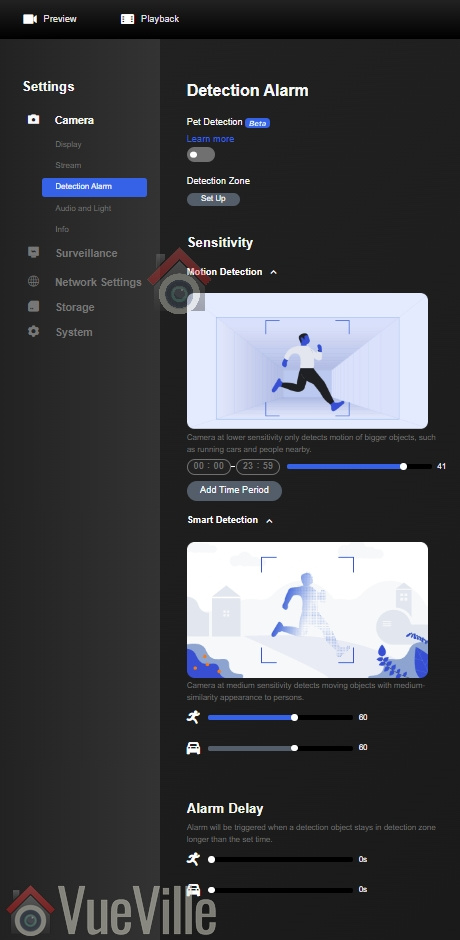
Moving on to motion detection, we find the new smart motion detection settings under the section “Detection alarm”. These include person, vehicle and even a pet feature which is in beta currently. Simple detection and smart detection of Person and vehicle detection are always ON – you cannot disable the detection of these events. What you can control is the sensitivity of detection, and the camera actions when these events are detected. So you can control the camera recording (SD card, FTP, or NAS), and the alerts that are fired (such as email or push).
Click to enlarge
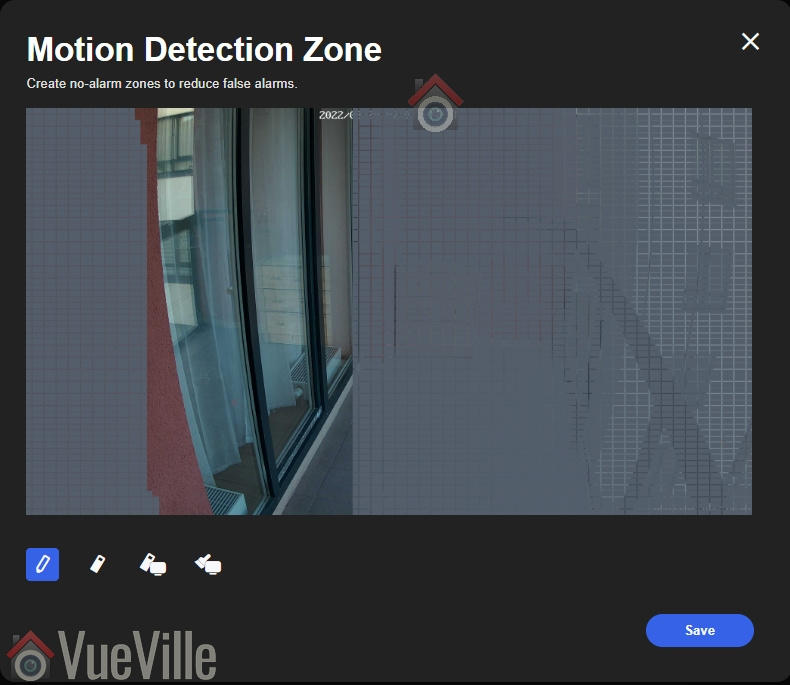
The screen also lets you set up the motion detection zone and sensitivity of person, vehicle and pet detection separately.
Another new feature I really like is the ‘Alarm delay’ – which is really more like the ‘intrusion detection’ of Hikivision or ‘Dwell period’ of other brands. You can set the number of seconds an object has to be present in the motion detection zone to trigger the alarm. This can help eliminate false alerts from things like insects flying across your screen at night.
You can adjust the motion sensitivity for the time of the day. For example, you can have a higher sensitivity during the daytime and a lower sensitivity at night to avoid false alerts.
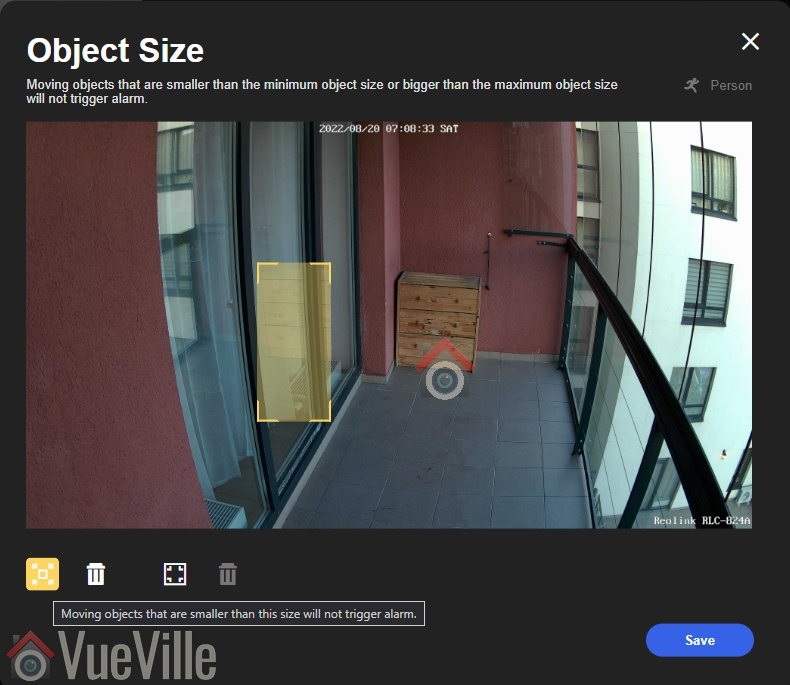
Finally you can specify the minimum size of an object or vehicle that an object needs to meet to be classified as one of these.
If you are using the mobile app, you also get this helpful tip on setting the minimum and maximum object sizes:
Click to enlarge
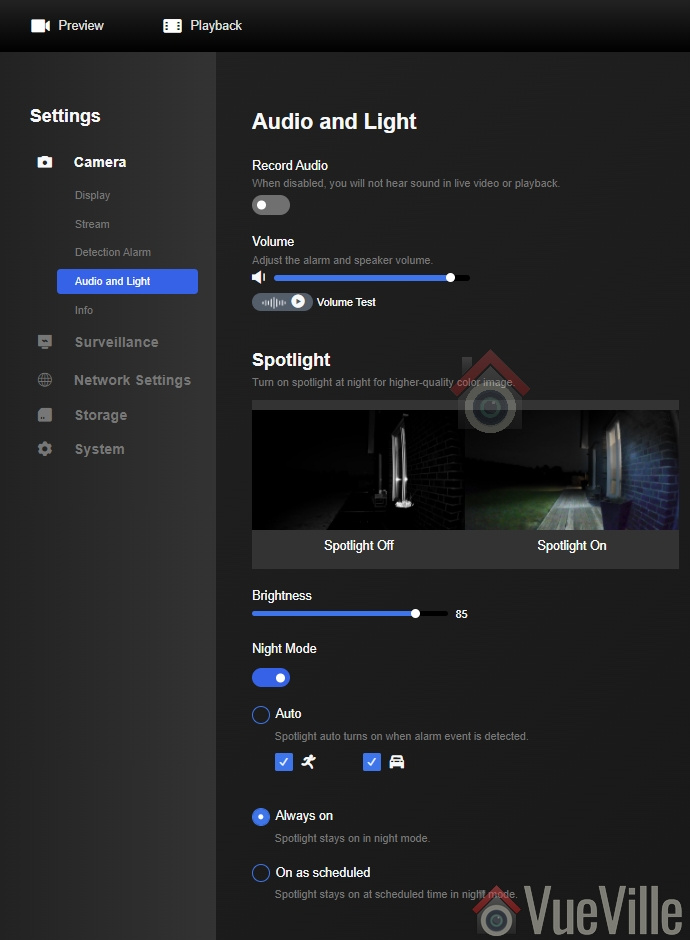
Moving on to the Audio-light section, you can control the behaviour of the spotlight. The default mode of operation is for the spotlight LEDs to stay on all night. This is because the camera doesn’t have IR LEDs for getting clear videos in total darkness. But I believe such cameras are best used in areas where there is already plenty of ambient light.
Click to enlarge
So I recommend using the Auto setting instead, where the spotlight only turns on when the smart detection feature detects a person or vehicle.
So that’s the camera tab. The Surveillance tab contains the settings for recording motion detection clips, setting the recording schedule, FTP, email, and push notification settings. You can also set the siren to sound when motion is detected.
Click to enlargeClick to enlarge
For the push notification feature to work, you need to separately turn it on in the Reolink mobile app. Also note that you will need to provide the camera access to the Internet for push notifications to work.
The network tab is worth checking out as some security related settings are found here. I was very happy to see uPNP off by default, but UID was on. I’d recommend keeping this off too.
Network settings – Click to enlarge
While you are here, click on Port settings to enable the RTSP and ONVIF ports. For some reason, RTSP and ONVIF are disabled by default. It took me a few minutes to figure this out when my tinyCAM Monitor Pro app couldn’t find the RTSP port of the RLC-824A!
Enable RTSP port – Click to enlarge
Also if you want to use this camera with your NAS or any 3rd party NVR, enable HTTP at port 80. But please ensure your camera is properly firewalled from the Internet if you do this!
Playback tab
Clicking on the ‘Playback’ link at the top left of any page takes you to the built-in NVR feature. So the camera can record motion detection clips to the on-board SD card, and even 24/7 a network/NAS drive.
However you cannot view clips on the web-based admin page at full 8MP resolution, so I recommend using the Reolink Desktop Client instead.
Video Quality and Motion detection
The camera was installed in a balcony with minimal ambient light at night. I tested the RLC-824A at its default settings of 8MP resolution, 25fps and 6144Kbps bitrate.
Technical settings: Primary Stream: 8MP (3840*2160), 6144 Kbps bitrate @ 25 fps. Secondary stream: 640×360, 256 Kbps bitrate @ 6 fps. LED spotlight: Turn on for Person detection only Record action: Person detection only, write to SD card, pre-record and post-record activated Siren: Off Push notifications: Send for Person detection only
As described earlier, I had already marked the motion zone for person detection around the doorway of the test scene.
Reolink mobile app
The Reolink mobile app is one of the best apps I have seen from any IP camera maker. Its miles ahead of Hikvision’s extremely poor efforts and runs circles around other brands’ apps.
I was able to easily add the RLC-824A to the Reolink app on my phone using its IP address, activate the LED spotlights & siren, 2-way talk, and use the built-in NVR feature to access the recorded clips on the on-board SD card. The only thing I didn’t like about the app is that push notificaitons use the Reolink P2P server and so I had to allow the camera to access the Internet. This is not a scenario I find myslef in personally because I use Home Assistant and its unofficial Reolink integration to get 100% local push notifications.
Click to enlargeClick to enlarge
The RLC-824A works great with my favourite mobile CCTV app, tinyCAM monitor Pro. I set the model to RLC-410 camera as most of the newer models are not present in the dropdown list.
More on push notifications below in my day & night testing.
Video quality & Motion detection
The RLC-824A CMOS sensor at 1/2.5″ is larger than the usual 1/3″ sensors I have seen in previous Reolink models. This makes sense as the camera does not have IR LEDs for night vision, and has to rely on ambient light or the spotlight LEDs for illumination.
Check out the video review below for actual 4K full resolution test footage at day and night:
In my daytime testing I found the daytime video to be similar to my 8MP Hikvision. Crisp and sharp video with very good detail and no noise at all.
In my testing, the camera fired off a ‘person detected’ push notification as soon as the test subject entered this defined motion zone. The pre-record and post-record feature made sure that the critical moments before and after motion detection was captured.
Click to enlarge
As dusk fell, the only ambient light available was from the indoor lights of the home. I wanted to test the limits of the camera, so I set the the LED spotlight to turn on only when motion from a person was detected. This is the most challenging scenario for a camera with no IR LEDs or IR cut filter onboard. So how did it fare? There was a lot of noise as expected and detail was low in the darker areas. But there was enough ambient light at the motion detection zone. So the camera was able to quickly detect the test subject, turn on the LED spotlight, send push notification to the Reolink mobile app, and record the clip to the SD card.
In conclusion, you really do need a well-lit area for this camera to work well, or you will have to turn on the spotlight LEDs at night. This camera cannot work in total darkness.
Reviewing recorded clips
While you can use the mobile app or the web admin panel for reviewing recorded clips, the Reolink Desktop app is in my opinion the best place to view your recorded clips.
Click to enlarge
It works very well, can be used to live-view, adjust camera settings, playback recorded clips and export them. The typical feature of different colour timeline markers for different events is very useful. But there are also some handy features such as searching the timeline for specific smart detection alerts such as person, vehicle or pets.
Selecting recorded clips to export – Click to enlargeDownloading clip to PC – Click to enlarge
Compatibility with QNAP QVR Pro
I also tested the RLC-824A with the QNAP QVR Pro NVR software. Adding the camera to QVR Pro was super smooth because QNAP officially supports all the latest Reolink camera models.
Click to enlarge
I created a motion detection trigger and event to test the reliability of the trigger and the pre-record and post-record features. The event trigger for QVR Pro is the same as the ones the camera generates internally for its own alarm events.
Click to enlarge
Motion detection recording by QVR Pro was reliable – the NAS NVR received the triggers correctly and promptly form the RLC-824A. You can also set up event recording of the main stream at the same time as 24/7 continuous recording of either the main or sub stream. This is great for getting those pretty pink markers on the timeline that you can jump to quickly.
Compatibility with Home Assistant
I am in the process of moving my home automation system to Home Assistant, and there is a great community integration for Reolink cameras. So you can set up custom actions for person detection or vehicle detection triggers received from the camera.
Verdict
For an 8MP 4K camera with bright LED spotlights, the RLC-824A is excellent value for money. Image quality is great as expected. The standout feature is smart detection of persons, vehicles and pets along with colour night vision. The smart detection methods are a great addition and help in creating actionable alerts in Home Assistant. You can define motion detection zones with variable sensitivity. This goes a long way in eliminating false motion alerts. As you saw earlier in the night time testing, the LEDs can turn on automatically when a person is detected.
The built-in speaker and mic give you 2-way audio and a built-in siren. If you prefer standalone operation, the microSD card slot enables the built-in NVR mode. For those who need a 24/7 recording turret camera, the ONVIF and RTSP support makes the camera very easy to integrate with compatible NVRs or a DIY NAS NVR. BlueIris users note the lack of fixed frame rate or an iframe setting – this makes it tricky to get the camera to work as desired in BlueIris. This does not affect the clips recorded to the onboard SD card. Still I expect Reolink will address this in a future firmware revision just as they have for many other 800 series cameras in their product lineup.
The camera does not require the Internet to function and is perfect for a 100% local-only self-hosted smart home like our VueVille home. To round it off, a great mobile app with quick & reliable push notifications.
On the other hand, you don’t get Infrared LEDs for true night vision. You can only use the camera in a well-lit area with enough ambient light OR have the spotlight LEDs turn automatically at night & switch off at dawn. The spotlight LEDs are very bright even at the default 85% brightness so this is acceptable. However, I would have really liked the option of using IR LEDs in total darkness areas and have the spotlight LEDs & turn on only when motion is detected. This is available in Hikvision ColorVu cameras but at a much higher price. A minor quibble is the lack of audio and alarm connections for home automation integration, but these are becoming increasingly hard to find these days. Push notifications require the Internet but Home Assistant or Blue Iris can be used to overcome this limitation.
So in summary the RLC-824A is a fine choice for an 8MP IP camera with LED spotlights with 2-way audio and siren. It continues in the tradition of high-quality well-made DIY security cameras that can be used in a 100% local self-hosted smart home.
[review]
Where to buy
[easyazon_link identifier=”B099ZPF3B2″ locale=”US” tag=”vueville.com-eaz-20″]Check Price on your local Amazon site[/easyazon_link]
What do you need in a trail camera? Strong low-light performance, reliable motion detection, lots of storage, and long-lasting battery power.
How about all that and remote 4G wireless connectivity, pan-tilt control, person and animal detection app notifications, solar panel, 2-way audio speaker and mic, remote live-view and clip viewing? Surely you can’t get all of this in a single camera?
Well, Reolink has done it – their new Keen Ranger Pan-Tilt Wire-free trail camera features all of the above and then some. This camera is the first offering in the new line-up called Keen camera. The Keen camera line is aimed at nature-enthusiasts who need a reliable yet powerful camera for observing wildlife, protecting herds or for hunting purposes.
The Keen Ranger PT has a maximum resolution of 2K (2560 x 1440) at 15fps. The wide fixed lens has a focal length of 2.8mm which enables a solid 95° field of view horizontally. The 12PCs of 940nm no-glow IR LEDS has a range of 30 metres, helps the camera to be discreet and not draw attention to itself.
To set up the camera, you can use the provided 6000mAh rechargeable batteries which is good for 1-4 weeks of normal usage. You can charge the batteries through a 5V 2A USB charger or use the optional solar panel as a fully self-sufficient power source. Using the mobile app, connect the camera to a 3G or 4G network and you are in business!
So once you have set up the Keen Ranger, what can you do through the mobile app?
Remote realtime live-view and on demand recording of clips to the on-board SD card or optional Reolink cloud
PIR motion detection to automatically record clips based on standard/person/human detection
Receive mobile notifications with indication of whether it was a person or human
Set up time-lapse mode
Listen in on the camera and talk in realtime to anyone near the camera using the 2-way audio feature
Its been a few years since I reviewed the Aeotec Multisensor 6. Since then I have bought more of those for different rooms around the house. They have been very reliable and have served me well over the years, especially for automations such as auto room humidity control, lighting automations and presence detection.
So I was curious to see how the newest Z-Wave sensor in their lineup, the Aeotec TriSensor 3-in-1 compares. The Trinsensor has 3 sensors as its name suggests: Motion, temperature and light. Compared to the Multisensor 6, it loses the humidity, vibration and ultraviolet sensors.
Battery power only (1×CR123A batteries, 3V, 1500mAh)
Min voltage = 2.6VDC
Max voltage = 3.2VDC
Certifications
CE
FCC
RCM
ROHS
Sensor Dimensions
45 x 45 x 35 mm
Unboxing the Aeotec TriSensor 3-in-1 Z-Wave Sensor
As with every Aeotec product I have seen, the TriSensor comes in a sleek package with the following box contents:
Battery cover
Back-mount arm
Double sided tape
2x screws
User manual
Warranty card
Design
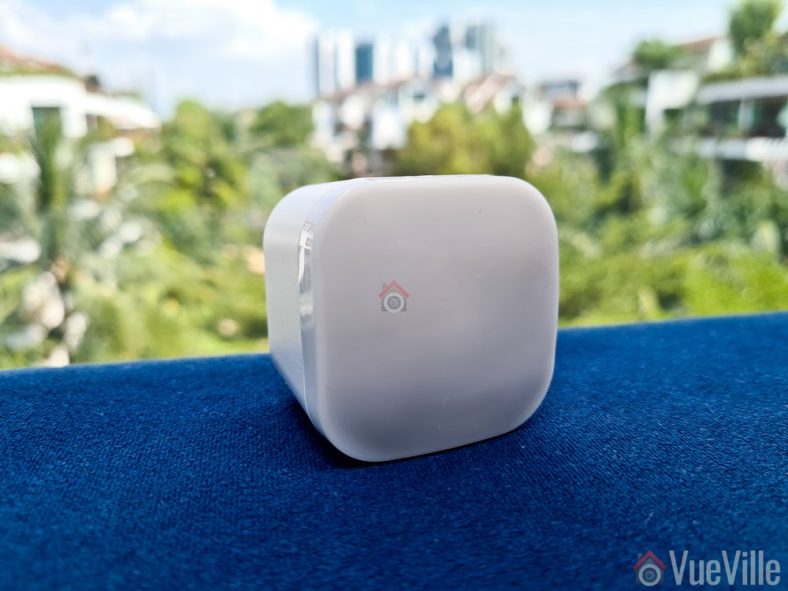
The TriSensor is similar in appearance to the Multisensor 6, and is almost exactly the same size too. The cube shape makes it easy to place on flat surfaces.
The TriSensor is also very compact and just a bit larger than a CR123A battery as can be seen below.
On the front face, there is the standard PIR sensor cover and just two other components – the lux sensor and a very bright LED which flashes green whenever motion is detected.
On the back side, the battery cover holds the cover lock slider, the back-arm mount hole, and some technical information about the multisensor.
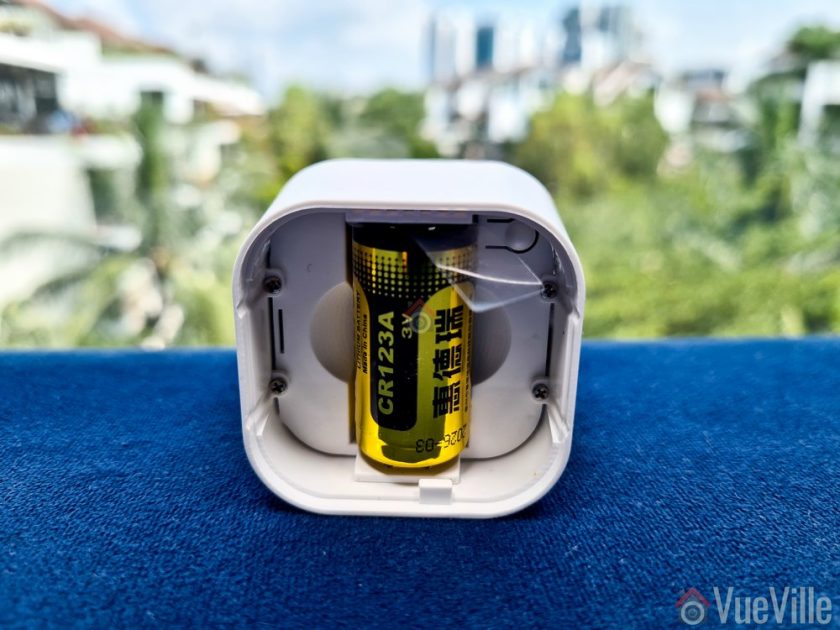
Taking the battery over off reveals the battery compartment that takes a single CR123A battery (supplied), and the Z-Wave Action button. While the Aeotec Multisensor 6 can use either batteries or a USB cable for external power, this TriSensor is only battery-powered.
The advantage of USB external power is that you can get real-time sensor data instead of once every few minutes with the batteries. So this is something I would have liked to see in the TriSensor.
Just like the Aeotec Multisensor 6, the TriSensor is also a ZWave Plus Gen5 device. While Z-Wave Gen7 devices are becoming more common, it has not been implemented in the TriSensor yet.
However the TriSensor additionally supports S2 security and ‘Smart Start’ technology.
I first put the HomeSeer Z-Wave hub into ‘add device’ mode. Then I put the TriSensor into inclusion mode by pressing the action button once. Immediately, HomeSeer detected the TriSensor and added the various sensors devices (motion, light, temperature).
Features & Performance
Let’s now look at the various sensors the Trisnesor sports and how they performed. I used the TriSensor for a 6 month period as part of my home network, and so can give a real-world usage report.
Motion Detection
The max motion detection range of the TriSensor is 7 metres (23 feet). In my testing, it reliably detected motion from across my 5 metre wide hall. I found it very sensitive, it reacts instantaneously to motion and throughout the 6 month test period never missed a motion event.
You can adjust the sensitivity of the motion detection if you wish. The Z-Wave parameter that controls this setting is Parameter 3 [size 1 byte]. The value range is from 0 – 11. By default, the sensitivity setting is set to the maximum sensitivity value of 11.
You can also control the time gap between sensor activations by adjusting the ‘Motion re-trigger time’ which is Z-Wave Parameter 1 [2 byte]. For example if you set the value to 10, the PIR sensor timeout will become 10 seconds – so for 10 seconds after detecting motion it will ignore all further motion. After that, it will then again be ready to detect motion. The default is set to 30 seconds.
These two settings can be used to control and reduce false motion alerts.
Compared to the Mutisensor 6 on USB power, I felt that the TriSensor has better sensitivity even though its on battery power.
Temperature sensor
The temperatures reported by the TriSensor were accurate and very close to those of the Multisensor 6.
Light level sensor
The light level sensor also work very well. According to Aeotec, the TriSensor comes with a digital light sensor that’s capable of sensing lighting between 0 lux to 22595 lux in real-time.
I created an automation that automaticlly turned on a lamp plugged into an [easyazon_link identifier=”B08PKLBKW4″ locale=”US” tag=”vueville.com-eaz-20″]Aeotec Smart Switch 7[/easyazon_link] in the room whenever the sun started setting.
Battery life
While the Multisensor 6 can make use of up to two CR123A batteries, the TriSensor makes use of just 1. After 6 months of use, the sensor reports a battery level of 100% to HomeSeer, which I doubt is accurate. But the sensor is still working well.
Wireless range
The TriSensor has very strong wireless range and was able to stay in touch with the Z-Wave network wherever I took it in my house.
Verdict
I love the Aeotec TriSensor and highly recommend it. It has the 3 key sensors you need for most home automations and performs very well. Improved motion detection sensitivity over the Multisensor 6 and excellent battery life make for a very competent multisensor.
[review]
Where to buy
[easyazon_link identifier=”B07GP3ZCYD” locale=”US” tag=”vueville.com-eaz-20″]Check Price on your local Amazon site[/easyazon_link]
The biggest issue I’ve had with my IP cameras are false motion detection alerts. Of course, I have devised ways to minimise this problem using advanced motion detection methods like line-crossing and intrusion detection.
While this works very well, I have been tempted by the smart detection features of the Nest and Ring cameras that can identify people and vehicles automatically. That level of intelligence is impossible to replicate without buying expensive high-end Hikvision or Dahua cameras. The affordable ones like Nest and Ring all rely on the Internet or cloud servers to do this and that’s unacceptable in my book.
Here at VueVille, we focus on local-processing and local-data storage. That’s why I was very happy to learn that Reolink has released 4K 8MP cameras and NVRs that can do smart detection without an Internet connection! This is a day I have long been waiting for!
Four new models have been released:
RLC-510A – 5MP IP camera
RLC-810A – 8MP IP camera
RLK8-510B4-A – 5MP NVR Kit with 4x 5MP IP cameras
RLK8-810B4-A – 4K 8MP NVR Kit with 4x 8MP IP cameras
Let’s take a closer look at these new cameras and NVR kits.
RLC-510A and RLC-810A
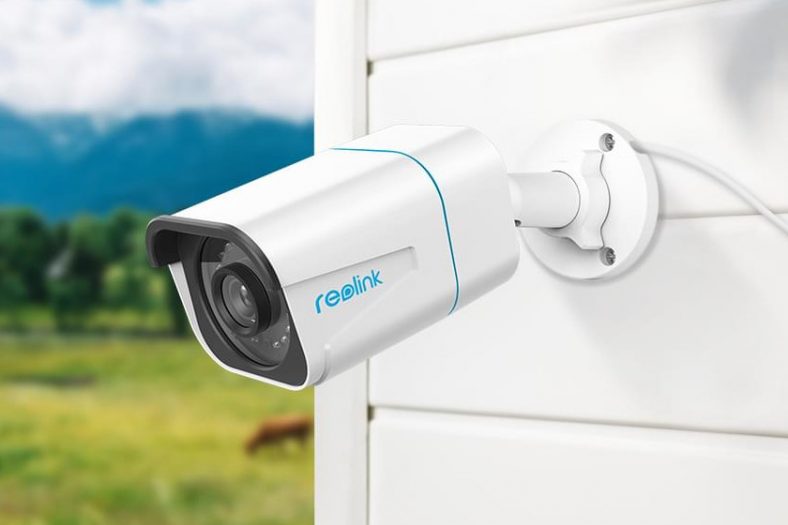
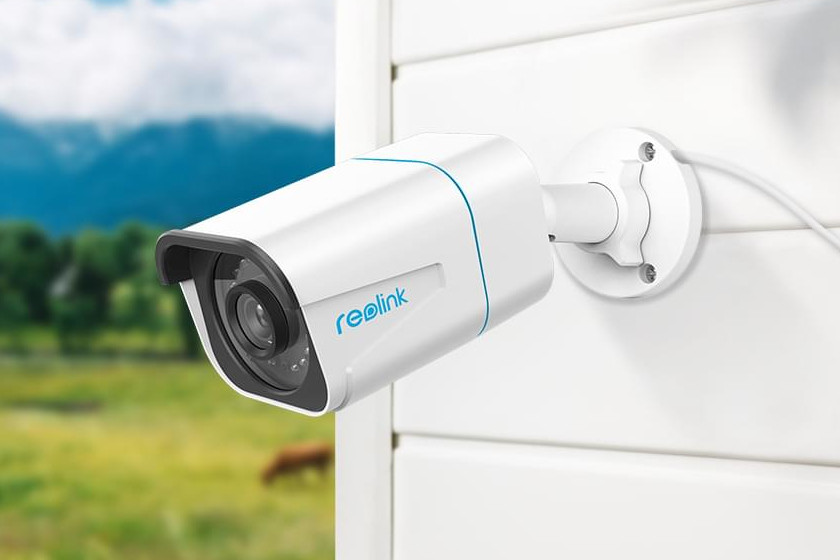
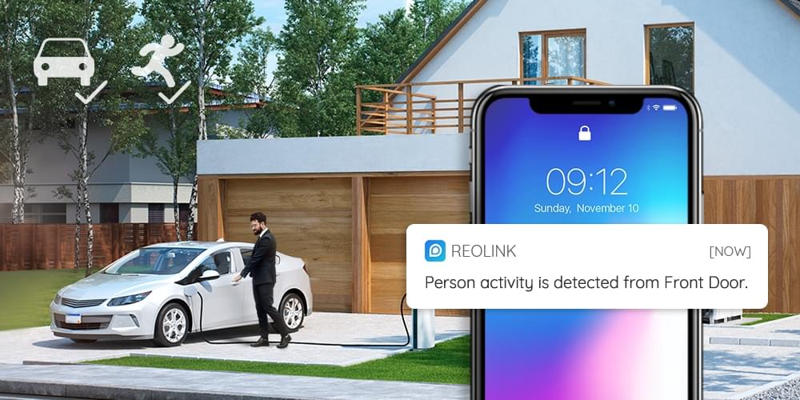
The standout feature of these cameras is the smart detection ability without an Internet connection. These cameras support both RTSP and ONVIF, so you can integrate them with your smart home system.
The smart detection algorithm can identify persons or vehicles and send a corresponding alert to the Reolink app. Moreover there is no subscription required to use this feature.
The 8MP 4K resolution of the RLC-810A is great – this is the first standalone IP camera from Reolink that supports 8MP resolution. The 5MP RLC-510A has the same feature set but a lower maximum 5MP resolution.
New NVR Kits RLK8-810B4-A and RLK8-510B4-A
If you prefer having an NVR to go along with the new smart detection abilities, you can pick up one of these new NVR kits. Both come with 4 cameras and a 2TB hard drive pre-installed.
Where to buy
The new models are not available on Amazon yet, so the best place to pick them up is over at the Reolink web site.
Also the early Black Friday sale is on, so its a good time to snag some holiday bargains!