'''''' Home Automation Archives - VueVille

Category: Home Automation

  • Zigbee 3.0 USB Dongle Review – Aeotec Zi-Stick

    Zigbee 3.0 USB Dongle Review – Aeotec Zi-Stick

    If you are thinking of setting up a Zigbee network for your Home Assistant installation, the USB dongle (co-ordinator in Zigbee-speak) you choose will have a significant impact on how reliable your network ends up being. Which in turn impacts how much time you spend trying to troubleshoot your smart home!

    That’s why I recommend choosing your co-ordinator software first – Zigbee Home Automation (ZHA) or Zigbee2MQTT. Then pick a Zigbee dongle that is supported properly by your choice of co-ordinator software. Not all Zigbee USB dongles are supported by both.

    If you are going with ZHA which is the default integration in Home Assistant, the Aeotec Zi-Stick is a new option from a smart home company that has been around for a long time. My Z-Wave network has always been powered by Aeotec – initially by the Z-Stick Gen 5 for many years, and now by the excellent Z-Stick Gen 7. The Zi-Stick is Thread-ready and so also supports Matter through a potential future firmware update.

    So let’s take a closer look at how the Aeotec Zi-Stick performs and how it compares to my current Zigbee USB dongle – the Sonoff Dongle-P.

    Zigbee USB Dongle Review - Aeotec Zi-Stick - VueVille
    [wpsm_titlebox title=”Contents” style=”main”][contents h2 h3][/wpsm_titlebox]

    A quick note: As an Amazon Associate I earn from qualifying purchases. This post contains affiliate link(s). An affiliate link means I may earn advertising or referral fees if you make a purchase through my link, at no extra cost to you.

    Aeotec – who are they?

    The Aeotec brand used to belong to Aeon Labs, a company that was founded in 2006 and based out of Silicon Valley. Aeotec is now headquartered in Hamburg, Germany. In 2018, they acquired the German automation brand Popp.

    Zigbee Basics

    If you’re new to the world of Zigbee like I am, here’s a primer on what you need to know.

    Just like Z-Wave, Zigbee is also a mesh wireless protocol. This is one of the best things about Z-Wave that allowed me to create a strong reliable mesh network among all my Z-Wave devices. This is not possible with Wi-Fi or Ethernet where each device requires a direct connection to the router (although multiple WAPs can somewhat alleviate this).

    So what does this mean in practice? Suppose your Zigbee coordinator sits in the garage with the rest of your tech gear, like mine is. And at the other end of your home, you want to place a temperature and humidity sensor like the Sonoff SNZB-02.

    With Wi-Fi, you would need to be within range of your Wi-Fi router or have a WAP nearby. With Zigbee again the ideal scenario is if the sensor can connect directly to the Zigbee coordinator. But if its not, the mesh network comes into play. Most mains powered Zigbee devices such as smart bulbs or smart relays are able to act as ‘routers’ by relaying signals between the coordinator and other Zigbee devices. Do note that being mains powered does not automatically make a Zigbee device a router!

    So our battery powered sensor can connect to the nearest Zigbee router and thus communicate with the coordinator. Thus our sensor here is an ‘end device’. Such battery powered Zigbee devices are usually not able to act as routers.

    Now the biggest downside of Zigbee is that it uses the same frequency as 2.4 GHz Wi-Fi. This creates the potential for interference between your 2.4GHz band Wi-Fi network and your Zigbee network. I have learnt after much research (Metageek is an awesome resource) and quite a bit of fiddling that the best way to ensure your Zigbee and WiFi networks can coexist is by ensuring the specific frequencies (i.e. channels) they use do not overlap.

    One thing to watch out is that the ‘channel’ numbering that WiFi and Zigbee use are similar and so you may think the frequencies won’t overlap. But they do! For example it may seem that Zigbee channel 11 uses the same frequency as Wi-Fi channel 11, but they don’t! In fact, Zigbee channel 11 overlaps Wi-Fi channel 1. The Metageek resource linked above explains it very well.

    So my suggestion is:

    • Put your WiFi access points on channel 1 (if you have more than one WAP, use 6 for the one that’s furthest from the Zigbee coordinator and 1 for the WAP that’s closest to the Zigbee coordinator).
    • Put your Zigbee coordinator on channel 25 (or 20 if you are in the US).

    This configuration ensures minimal overlap between your Wi-Fi network and the Zigbee network.

    What’s in the Box

    The Aeotec Zi-Stick box consists of the Zi-Stick USB dongle itself and a user manual.

    Zigbee USB Dongle Review - Aeotec Zi-Stick - Box Contents - VueVille

    Specifications

    [table id=92 responsive=scroll /]

    Taking a closer look at the Aeotec Zi-Stick

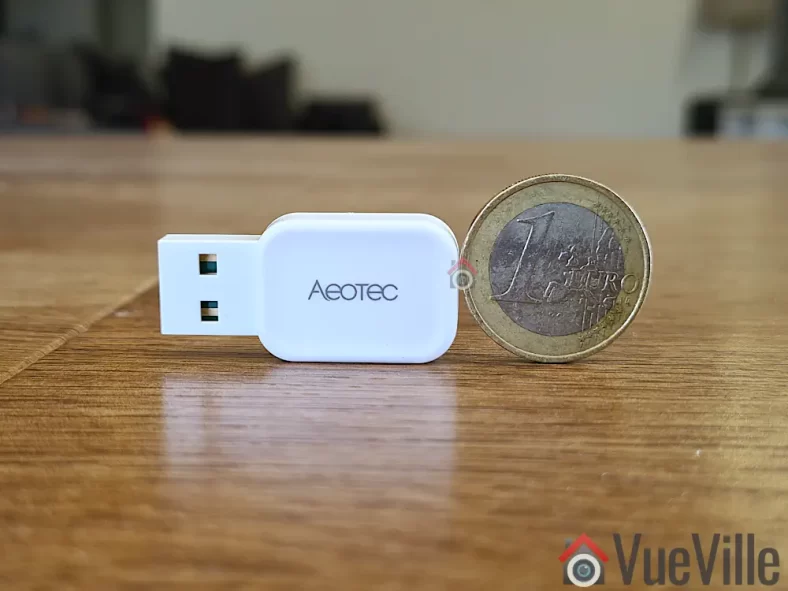
    Just like the Gen7 Z-Wave Aeotec Z-Stick, the Zi-Stick is tiny. Compared to the Sonoff ZBDongle-P, it is less than half the size at at just 37 mm long and 17 mm wide.

    The body is an all-plastic affair but feels sufficiently strong and seems built to last. After all, it is going to remain plugged into your smart home controller for the whole of its working life.

    Zigbee USB Dongle Review - Aeotec Zi-Stick - VueVille

    The front side simply sports the Aeotec logo whereas the rear side shows details such as the model number and applicable certifications.

    Zigbee USB Dongle Review - Aeotec Zi-Stick - Rear view - VueVille

    The USB-A port should be plugged only into a shielded extension cable on a USB 2.0 port. USB 3.0 ports can cause interference with Zigbee networks, and is probably the root cause of many complaints about poor reliability when using Zigbee USB dongles.

    Aeotec says this on their website: “Zi-Stick hardware is Thread ready and will be upgradeable via firmware update. With this future update, Zi-Stick will be able to control Thread Matter-based devices.”

    Setting up the Aeotec Zi-Stick

    Home Assistant offers 2 different integrations for Zigbee: the official Zigbee Home Automation (ZHA) built into HA, and the community integration called Zigbee2MQTT. I generally recommend Zigbee2MQTT because it has slightly wider device support and is generally quicker to add support for new devices as well. Unfortunately the Zi-Stick is officially supported only in ZHA, so that’s what we will be using for this review.

    To briefly recap my HA setup, I have my primary HA server in the garage and a remote Raspberry Pi4 at the center of my single-floor home. The remote RPi4 runs ZWaveJS and Zigbee2MQTT as Docker containers, with an Aeotec Z-Stick for Z-Wave and Sonoff ZBDongle-P for Zigbee.

    Since ZHA is part of HA, I decided to use the Aeotec Zi-Stick with the HA server in the garage. I plugged it into an extension cable off a free USB 2.0 port of the HA server (a NUC11i5 Mini-PC).

    I followed the official Aeotec guide for setting up the Zi-Stick in ZHA but here are my notes:

    1. Plug in the device into your Home Assistant. Make sure you use a USB 2.0 port and a good quality extension cable. USB 3.0 ports cause interference and an extension cable minimises interference as well.
    2. Navigate to Settings > Devices & Services > Add Integration
    3. Type in “Zigbee Home Automation” and select ZHA from the list
    4. Next you will see the “Select a serial Port” screen. I selected /dev/ttyUSB0 – USB serial. If you have other USB dongles plugged in it might say USB1 instead of 0. Just select that instead.
    5. Next is “Network Formation”. I chose “Erase Network Settings and create a new network”. Wait for around 3 seconds and you should see a success message.
    6. Click Finish, and you should now see the ZHA integration in the list. If you click on the ZHA device list, you can then see the Zi-Stick’ and its HA’s device page.

    To ensure a solid and reliable Zigbee network, it is advisable to change the Zigbee channel to one that doesn’t interfere with Wi-Fi in your home. I have learnt after much research (Metageek is an awesome resource) and quite a bit of fiddling that the best way to ensure your Zigbee and WiFi networks can coexist is by ensuring the specific frequencies (i.e. channels) they use do not overlap.

    One thing to watch out is that the ‘channel’ numbering that WiFi and Zigbee use are similar and so you may think the frequencies won’t overlap. But they do! For example it may seem that Zigbee channel 11 uses the same frequency as Wi-Fi channel 11, but they don’t! In fact, Zigbee channel 11 overlaps Wi-Fi channel 1. The Metageek resource linked above explains it very well.

    So my suggestion if your using only the Zi-Stick in your home:

    • Put your WiFi access points on channel 1 (if you have more than one WAP, use 6 for the one that’s furthest from the Zigbee coordinator and 1 for the WAP that’s closest to the Zigbee coordinator).
    • Put your Zigbee coordinator on channel 25 (or 20 if you are in the US).

    This configuration ensures minimal overlap between your Wi-Fi network and the Zigbee network.

    What if like me you already have another Zigbee network in the home? Then I recommend you put the Zi-Stick on Zigbee channel 20 instead of 25.

    Zigbee Pairing using ZHA & Wireless Range

    To test the Zi-Stick, I decided to pair it with their latest Pico Switches that I have also reviewed separately in detail. Head over to that review to read more about the pairing process.

    Here’s a network map produced by ZHA that shows the link quality and the routes between each device:

    Zigbee Relay Review - Aeotec Pico Switch & Pico Duo Switch - ZHA Network Visualisation - VueVille
    ZHA Network Visualisation for the Aeotec Pico and Pico Duo Switches

    One Pico switch was installed in a concrete wall right next to the Zi-Stick. So that would naturally be the router through which the second Pico switch finds a connection to the co-ordinator. So everything is as expected in the network map above.

    The second Pico Switch is 3 concrete walls away from the co-ordinator, but it still managed to establish a direct connection (strength 74/32 up and down) which is quite impressive.

    Verdict

    Where to Buy

    Aeotec Zi-Stick - Zigbee USB to Create Your Own Zigbee Hub to Control Zigbee Smart Home Devices
    ×
    Product prices and availability are accurate as of the date/time indicated and are subject to change. Any price and availability information displayed on https://www.amazon.com/ at the time of purchase will apply to the purchase of this product.

    Aeotec Zi-Stick

    Check Amazon Price*

    (* = affiliate link / image source: Amazon Associates Program)
  • Zigbee Relay Review – Aeotec Pico Switch & Pico Duo Switch

    Zigbee Relay Review – Aeotec Pico Switch & Pico Duo Switch

    I have been on a smart lighting and smart relay installation spree in my new home. So far I have got the Wi-Fi Shelly 1PM, Shelly 2.5, and the Z-Wave based Shelly Qubino Wave 1PM set up in Home Assistant. So what’s missing? Zigbee relays!

    I have been using Zigbee devices such as Sonoff sensors & Ikea Tradfri bulbs in my home. So I was happy to receive retail samples of the brand new Aeotec Pico and Pico Duo Zigbee relays from Aeotec for this review.

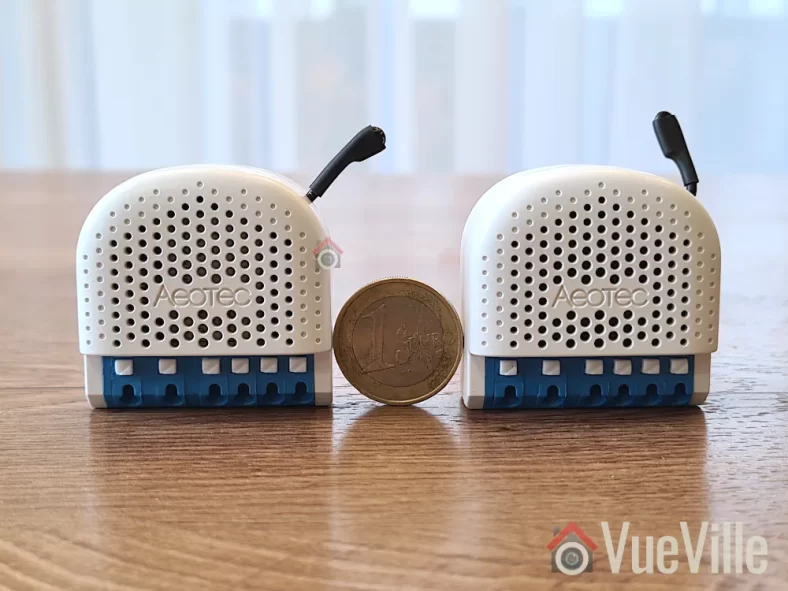
    Zigbee Relay Review - Aeotec Pico & Pico Duo - Size Comparison
    [wpsm_titlebox title=”Contents” style=”main”][contents h2 h3][/wpsm_titlebox]

    A quick note: As an Amazon Associate I earn from qualifying purchases. This post contains affiliate link(s). An affiliate link means I may earn advertising or referral fees if you make a purchase through my link, at no extra cost to you.

    How to use this Smart Relay

    Since my home already has dumb switches and (mostly) dumb ceiling lights that I do not want to replace, it made sense for me to retrofit my existing dumb switches to make them smart.

    Installing a smart relay behind an existing switch or power socket in the wall is a good choice for when you want to keep your existing physical switch or socket but want to remotely control or measure an electrical load (light/fan etc.) connected to that switch.

    This way you can control the connected load through the physical switch as well as remotely through the smart relay using Home Assistant or any other Zigbee compatible smart home platform.

    Since the Aeotec Pico and Pico Duo switches work as Zigbee repeaters, I will be using it to strategically extend the wireless range of my Zigbee network as well. Just like Z-Wave, only mains powered Zigbee devices are capable of being repeaters, so an in-wall relay is a great fit for this purpose.

    As usual, I will be using these smart relays together with Sonoff Zigbee motion sensor for motion-activated lighting. The idea is that Home Assistant will turn on the lights through the relay whenever motion is detected and after some time switch them off. Of course if anyone wants to turn on the lights physically, the existing physical switch will continue to function exactly as it always has. But I also then have the added bonus of Home Assistant being aware fo the status of the switch and turn off the relay if someone forgets to turn the lights off! I can also use it as part of my night mode routine to ensure all lights are off at bedtime.

    What’s in the box

    The Pico Switch and Pico Duo Switch have similar packaging.

    Zigbee Relay Review - Aeotec Pico & Pico Duo - Box Front
    Zigbee Relay Review - Aeotec Pico & Pico Duo - Box Side

    The box contents are similar as well:

    • Pico Switch
    • 2x WAGO clamps
    • 1x DIN Rail Mount
    • User manual & Safety information
    Zigbee Relay Review - Aeotec Pico & Pico Duo - Box Contents

    Specifications of the Aeotec Pico Switch

    [table id=91 responsive=scroll /]

    Physical Design

    Zigbee Relay Review - Aeotec Pico & Pico Duo - Front View

    Visually both the Pico and Pico Duo Switch look identical from the front. Its only on the rear that you see the differences such as the model numbers. They both measure 44 x 40 x 21.5mm, which is slightly larger than the Z-Wave based Shelly Qubino Wave 1PM I reviewed recently. If your wall box is very small, this is something to keep in mind.

    Zigbee Relay Review - Aeotec Pico & Pico Duo - Back View

    The Action button is a multi-purpose button, and apart from Zigbee pairing it even acts as an ON/OFF button for the relay. The ventilation holes are prominent on both the front and the back of the switches.

    As this is a brand new product, it is not supported in my preferred Zigbee integration for Home Assitabt – Zigbee2MQTT (Z2MQTT). However, it is fully supported in Home Assistant’s official Zigbee software called Zigbee Home Automation or ZHA.

    Installation & Wiring

    The user manuals accompanying the Pico switches shows the wiring diagram for using the relay in a typical 1-way scenario.

    With the help of a professional electrician, I installed the Pico Switch in a 2-way scenario in my laundry room. This is right next to the foyer where I have a Shelly Qubino Relay installed, so it will be fun to compare the responsiveness of these different relays later on.

    The Pico Duo Switch was added to the existing switches for my living room LED lights – these are non-dimmable LEDs built into the ceiling. A Shelly 2.5 would be wasted here since the LEDs are dumb lights, so a relay without detached switch feature such as the Pico Duo is perfect here.

    I recommend the Shelly 2.5 as the retrofit option if you have a smart bulb connected to a dumb switch that you want to retain. Using the detached switch feature of the Shelly 2.5 lets you keep the smart bulb powered on, and the physical switch becomes a virtual switch that you can then automate in Home Assistant.

    In both instances, the external connected switches are double-pole toggle switches which is also the default setting in the Pico relays. You can always force the Pico relays to automatically detect the type of connected switch if you use something else (such as a momentary switch).

    The terminal blocks of the Pico Switches are of the clamp type which makes wiring a doddle. There are also extra terminals for live and neutral connections. That makes it much easier to fit the relay into tight spaces without having to add extra Wago connectors.

    Zigbee Relay Review - Aeotec Pico Switch - Installation
    Aeotec Pico Switch Installation

    Zigbee Relay Review - Aeotec Pico Duo Switch - Installation
    Aeotec Pico Duo Switch Installation

    Adding the Pico Switch and Pico Duo Switch to my Home Assistant Zigbee network

    The best time to add the Pico relays to a Zigbee network is after wiring and before you put the relay into the wall. This is because there is a very helpful LED indicator on the relay that shows whether the relay is in pairing mode or not.

    There are 4 ways to put the relay into pairing / inclusion mode:

    1. Using the Touchlink feature which lasts only for 3 seconds after relay power-up
    2. Pairing the relay within 180 sec of powering on the relay as it will be in pairing mode
    3. Using the Action button (only possible before the relay is closed up behind the switch)
    4. Using the external switch connected to the relay

    I chose the action button method and these are the steps I followed for both the single and dual Pico relays:

    1. Wire the Pico relay as per the wiring diagram. Wiring took more than 3 minutes after initial power on and during these 3 minutes the LED flashed quickly, after that the relay exited pairing mode by itself and the LED went into slow breathing mode.
    2. Enable add/pairing/inclusion mode on your gateway (Zigbee Home Automation or ZHA).
    3. Press the action button once, the relay is now in Zigbee pairing mode an the indicator LED will start flashing quickly.
    4. Wait for a bit and when pairing is successful the LED indicator will enter regular light mode (constant blue light or off based on the state of the Pico Switch). If the LED is off, just click the action button to turn on the relay.

    Here’s the success message I received in ZHA:

    Zigbee Relay Review - Aeotec Pico Switch - ZHA Pairing Successful

    If pairing fails, Light Indicator will return to a slow breathe animation. There are a few things you should check before pairing again:

    • Ensure you have a strong Zigbee mesh network – placing a wired Zigbee repeater device nearby will help.
    • Do a factory reset by pressing and holding the action button for 17 seconds

    Features

    Looking at the device page in ZHA, we can see the various controls and sensors exposed by the Pico Switch and Pico Duo Switch:

    Zigbee Relay Review - Pico Switch - ZHA Device Page - VueVille
    Pico Switch – Device Page in ZHA
    Zigbee Relay Review - Pico Duo Switch - ZHA Device Page - VueVille
    Pico Duo Switch – Device Page in ZHA

    The Pico relays support power consumption measurement and energy measurement. In ZHA, you also get some useful power-related sensors such as voltage, current, and AC frequency. These sensors enable the ‘Surge protection’ feature which will shut off the relay in case of a sudden mains power surge.

    These relays also support overheat protection by using a built-in temperature sensor. You may have noticed that the device temperature value reported in ZHA in the screenshots above look wrong at 0.3 deg C, and they are! There is a bug in the ZHA device handler so it shows the temperature divided by 100. For now, the workaround is to create a virtual sensor with the value multiplied by 100.

    When it comes to configuration options, the ZHA interface allows us to define the startup behaviour of the switch, say after a power failure. The default is previous state, and thats where I would leave it.

    Performance

    I like to look at the following areas when I judge a smart relay:

    • Local operation,
    • Responsiveness (both over the Zigbee network and the physical switch),
    • Reliability,
    • Power Measurement & Energy Monitoring,
    • Signal strength & Repeater feature,
    • Safety, and
    • Cost

    I used a NUC running the Home Assistant ZHA integration together with an Aeotec Zi-Stick placed in the garage. The Pico Switch is one concrete wall away from the co-ordinator and the Pico Duo is another concrete wall from the Pico. There are no other devices on this Zigbee mesh network.

    Local operation

    Zigbee allows for fully local operation without any need for Internet access or cloud reliance. So that’s an easy one, full points here just like a Z-Wave relay!

    Responsiveness

    This is probably one of the most important criteria to judge a smart relay on. Whether you are controlling the relay over Zigbee or via the connected switch, you want the relay to respond instantaneously.

    I tested the Pico Switch relays extensively and found them to be very responsive with zero lag/delay when controlled over Zigbee.

    Okay, how about using the connected physical switch? Let’s take a step back and define the context here. Any relay that supports connected switch actions other than a single ON/OFF command, such as double press, triple press, press and hold etc. will have a delay programmed into it so that it can decide whether a switch press is really a single press or will be followed by more quick press to turn into a double or triple press.

    The Shelly Wi-Fi relays on the other hand have virtually zero lag/delay because by default it doesn’t wait to see if a press turns into an extended action.

    Most smart relays however do support extended actions. For example, the Shelly Qubino Wave 1PM I reviewed recently is a Z-Wave smart relay which supports extended actions. But it has a rather annoying half a second delay when using the physical switch connected to it. Moreover, the delay is not adjustable.

    So how do the Pico relays compare? Both the Pico and the Pico Duo relays do have a slight lag when controlling a connected load using the physical switch connected to the relay. Since this is not mentioned in the specifications, I asked Aeotec and they said the relays are programmed with a ‘maximum capture interval’ of 300 ms. This means the relay will wait for up to 300ms before turning on the connected load so that it can detect a double-tap action in the meantime. This is much better than the 0.5 sec delay I saw on the Shelly Qubino Wave 1PM but again it cannot be customised.

    In practice I found that this slight delay in the Pico switches is tolerable and was not too confusing for little children or guests who were not used to a delay between turning on a switch and the light turning on.

    Reliability

    After using the Pico and Pico Duo Switches for over 1 month, reliability has been excellent. The smart relays have never gone offline, become unavailable, or failed to respond to commands from Home Assistant.

    Power Measurement & Energy Monitoring

    One of the biggest advantages of the Pico relays is the power and energy measurement feature. The power sensor starts reporting immediately after the relay is turned on. There’s hardly any delay and this is very useful for triggering other automations for the device you are monitoring.

    Signal strength & Repeater feature

    Zigbee Relay Review - Aeotec Pico Switch & Pico Duo Switch - ZHA Network Visualisation - VueVille
    ZHA Network Visualisation for the Aeotec Pico and Pico Duo Switches

    Opening the built-in visualisation feature of ZHA lets us check the signal strength and which devices are acting as routers.

    As expected, the Pico Switch which is closer to the co-ordinator has connected directly to it, and the Pico Duo Switch which is further away has connected through the Pico which is acting as a router. Of course the Duo itself is also recognised as a router device. Sweet.

    Signal strength with the Zi-Stick as the Zigbee co-ordinator looks solid across the board with the link quality hitting the maximum possible 255. Something I have never seen with my other Zigbee network running off a Sonoff Dongle-P.

    Safety

    The Pico & Pico Duo Switch relays meet all the safety requirements for such devices in the EU.

    The relays have both overload protection as well as overheating protection.

    Cost

    I have found that while Aeotec products can sometimes be more expensive than competing products, they have high quality levels and that’s what you are paying for. Please check the latest prices using the Buy Now links at the end of this article.

    The In-Wall Relay Competition

    Sonoff has several Zigbee based relays, however I do have quality concerns when it comes to Sonoff devices that would go into my AC power wiring. The other popular option is Aqara which I have not tested personally but can be found a bit cheaper than the Aeotec Pico Switch.

    Some Z-Wave alternatives are Aeotec’s own Nano Switch relay, the Shelly Qubino Wave 1PM, the , and the Fibaro Z-Wave relay.

    The VueVille Verdict

    If you need a Zigbee relay that can switch up to 16A, act as a router, has power measurement and don’t mind a 0.3 second delay when using the physical switch, the Aeotec Pico and Pico Duo Switch relays re solid choices. Of course, there is zero delay when controlling the connected switch over Zigbee.

    Where to Buy

    Zigbee Relay Review - Aeotec Pico & Pico Duo - Box Front

    Aeotec Pico Switch

    View on Aeotec.com

    Aeotec Pico Duo Switch

    View on Aeotec.com

  • Z-Wave Relay Review – Shelly Qubino Wave 1PM

    Z-Wave Relay Review – Shelly Qubino Wave 1PM

    Since I moved into our new home this year, I have been making upgrades to turn it into the ultimate smart home. At the top of my to-do list is smart lighting, because it easily has the single biggest impact on comfort and how we experience our home.

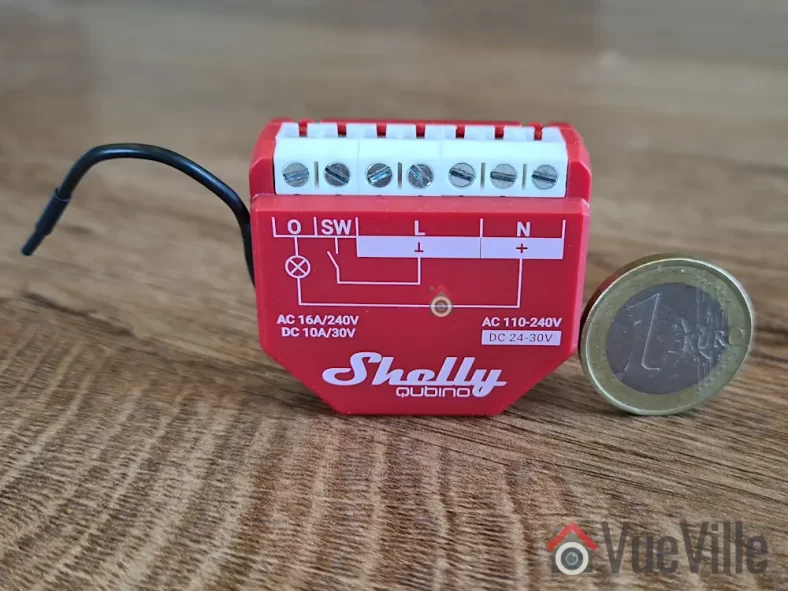
    Soon after setting up my Z-Wave and Zigbee networks, I got to work on smart lighting. And that’s where the newly launched Shelly Qubino Wave 1PM comes in. You can use these to turn your dumb switches into smart switches! Yes, this in-wall Z-Wave relay requires a neutral wire at the installation location. A no-neutral version is not available at the moment. The relay also supports power measurement and energy monitoring which is a great feature.

    Because I already have physical dumb switches and many light fixtures that I like and have invested in, I do not want to replace them with smart bulbs. Instead I bought a variety of Shelly in-wall relays to install around my home. This includes three Wave 1PM relays – one for my foyer lights, and one in each bathroom. The Wave 1PM is the one that has virtually no reviews on the Internet, so let’s dive right in to see how well it has been working in my smart home!

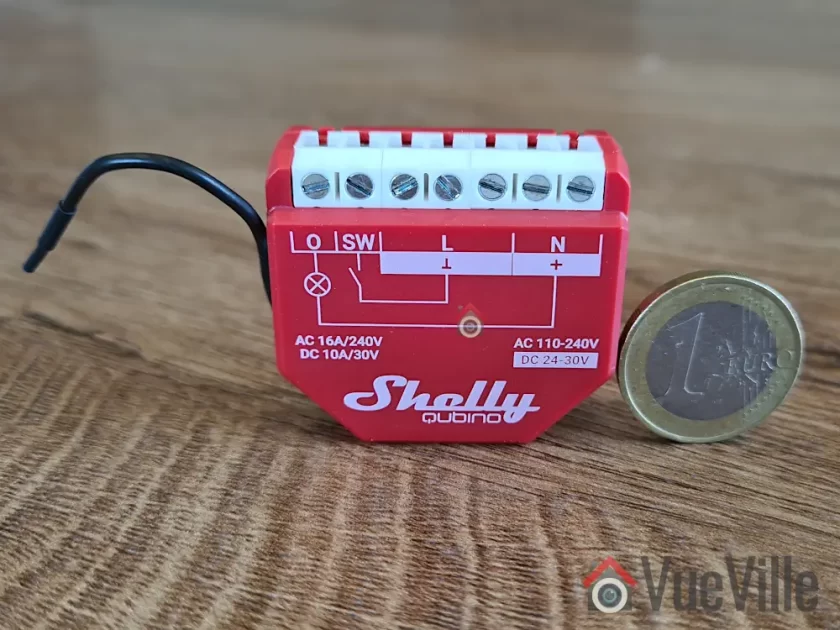
    Z-Wave Smart Relay Review - Shelly Qubino Wave 1PM - Front View - VueVille
    Shelly Qubino Wave 1PM – Size comparison
    [wpsm_titlebox title=”Contents” style=”main”][contents h2][/wpsm_titlebox]

    A quick note: As an Amazon Associate I earn from qualifying purchases. This post contains affiliate link(s). An affiliate link means I may earn advertising or referral fees if you make a purchase through my link, at no extra cost to you.

    How to use this Smart Relay

    If I were starting all over again, I may consider going with smart switches but I have already invested in dumb switches and dumb ceiling lights that I do not want to replace. So it makes sense for me to retrofit my existing dumb switches to make them smart.

    Installing a smart relay behind an existing switch or power socket in the wall is a good choice for when you want to keep your existing physical switch or socket but want to remotely control or measure an electrical load (light/fan etc.) connected to that switch.

    This way you can control the connected load through the physical switch as well as remotely through the smart relay using Home Assistant or any other Z-Wave compatible smart home platform.

    Since the Shelly Qubino Wave 1PM works as a Z-Wave repeater, I will be using it to strategically extend the wireless range of my Z-Wave network as well. Only mains powered Z-Wave devices are capable of being repeaters, so an in-wall relay is a great fit for this purpose.

    For areas already having a strong Z-Wave signal, I prefer to use the much cheaper Shelly Wi-fi relays.

    As the PM in the name suggests, this relay also supports power measurement. This is possible because it is not a dry contact relay – the relay is connected inline through the electrical load, so it is able to measure power consumption also.

    If you want a dry contact type to control a traditional garage door for instance, go for the Shelly Qubino Wave 1 which does not have energy monitoring.

    There is also a dual relay version called the Shelly Qubino Wave 2PM, which would be the Z-Wave equivalent of the Shelly 2.5. However this is quite difficult to find in stock at the moment.

    Now here’s what I am going to use this smart relay for: I am going to install it in the wall behind the foyer light switch, and use it in an automation together with a Sonoff Zigbee motion sensor. The idea is that Home Assistant will turn on the lights through the relay whenever motion is detected and after some time switch them off. Of course if anyone wants to turn on the lights physically, the existing physical switch will continue to function exactly as it always has. But I also then have the added bonus of Home Assistant being aware fo the status of the switch and turn off the relay if someone forgets to turn the lights off! I can also use it as part of my night mode routine to ensure all lights are off at bedtime. The possibilities are endless!

    Who’s Qubino?

    Shelly has been making Wi-fi relays exclusively and they are the go-to option for most people. But Z-Wave and Zigbee devices have been sorely lacking in their product range. Now if you have been into home automation for quite some time, the name Qubino may ring a bell.

    Qubino is a popular name in Europe where they are well known for Z-Wave devices such as dimmers & smart meters for a long time. So it makes sense that Shelly recently acquired Qubino instead of creating their own Z-Wave devices from scratch. In fact if you look closely, there are a lot of similarities between the new Shelly Qubino Wave 1PM / 2PM devices and the / 2 Relay.

    I have to admit I have never looked at these Qubino offerings because they were pretty expensive. However the Shelly Wave 1PM/2PM devices are selling at just half the price.

    What’s in the box

    The Shelly Wave 1PM comes in a compact box as Shellys usually do. The box cover mentions the Z-Wave frequency (868.4 MHz) and Z-Wave Plus certification on the front.

    The rest of the box states the specifications such as the Z-Wave 800 series chip and the EU declaration of conformity.

    Inside the box, we find the Z-Wave relay, the DSK pin, and a user manual with a wiring diagram.

    Specifications of the Shelly Qubino Wave 1PM

    [table id=90 responsive=scroll /]

    Design & Features – Taking a closer look

    The Shelly Qubino Wave 1PM resembles previous Shelly relays and measures 37x42x16 mm (1.46×1.65×0.63 in). It should comfortably fit in most European standard wall boxes but do make sure before buying. I am disappointed that it is not as compact as the also new Shelly Plus 1PM Mini which is only 29x35x16mm / 1.11×1.35×0.63in.

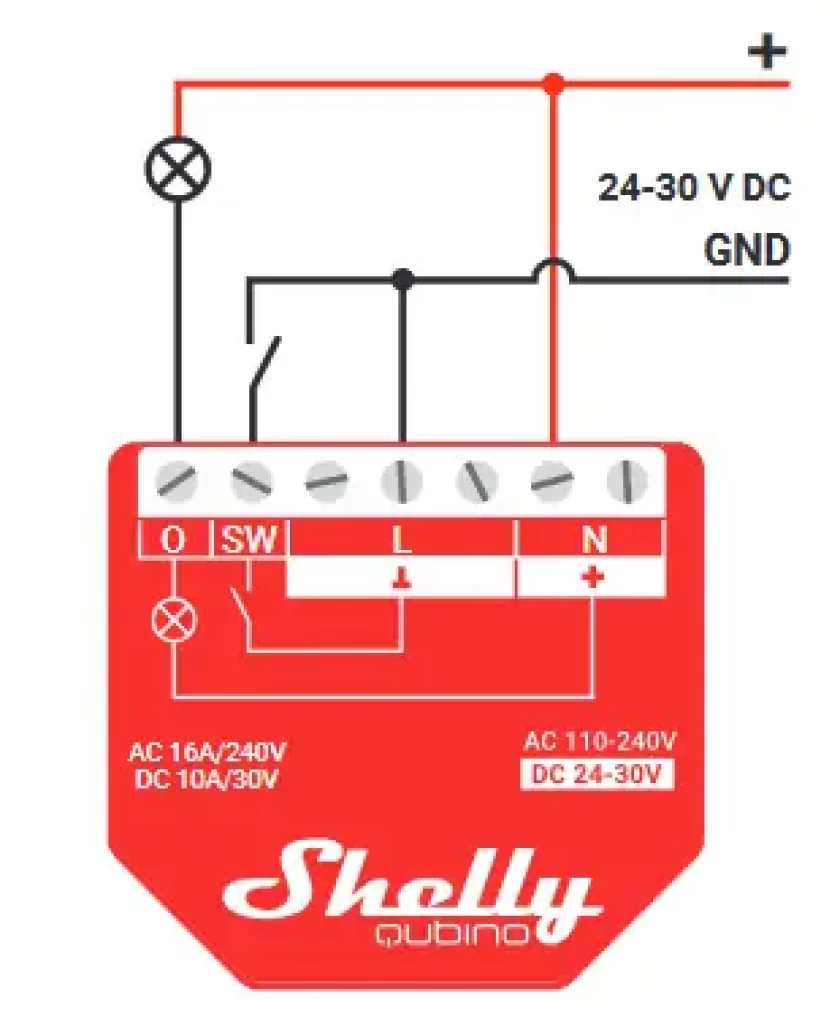
    The front of the cover shows the internal wiring logic between the terminals. There are also 2 tiny LEDs on the front of the relay – a blue LED and a green LED. These will blink in different ‘modes’ or patterns to indicate the status of the relay during inclusion, exclusion and the factory reset process.

    The rear of the relay contains the Z-Wave action button that Shelly calls the S button. We also find a cutout in the case that gives access to the circuit board if needed. Of course unique to this Shelly relay is the external Z-Wave antenna to maximise wireless range.

    Overall the relay seems to be well-built and of good quality.

    So what are the features of this relay? On the Z-Wave side, the Wave 1PM supports the latest Z-Wave Series 800 standard. It also supports SmartStart although I haven’t tried that myself. I find the standard inclusion process simple enough. At the moment, the Wave 1PM is available only in the 868.42MHz frequency that is allowed only in regions such as EU/UK/Singapore. The relay supports S2 security, but I personally don’t see the need to use security for devices such as light switches. I do recommend it for external door locks though!

    The relay supports both AC and DC wiring applications though I suspect the overwhelming majority of users will be using it in domestic AC wiring. It can handle up to 16A of AC switching current which is very good. The user manual mentions a maximum connected load of 3500 W, although I would be wary of running any relay at close to its maximum rating. What is important though is that you have that extra headroom which is a good margin of safety if you are switching something like 10A through this relay.

    The Wave 1PM offers 3 modes of operation – as a toggle switch that changes on toggle (default), toggle switch that follows the physical switch, or as a momentary switch (push-button).

    What is missing here is the ‘detached mode’ that lets you unlink the connected physical switch from the relay and use the switch as a virtual switch in Home Assistant. This means you can use smart LED bulbs (such as Ikea Tradfri) and stop people from cutting power to the bulbs through the physical switch. What would you do with the physical switch then? Of course use it to control the smart bulbs!

    Installation & Wiring

    The Wave 1PM user manual is quite detailed and shows the wiring diagram for using the relay in a 1-way switch scenario. This matched my use case, so installation was straight forward.

    The terminal block of the Wave 1PM contains extra terminals for live and neutral connections. That makes it much easier to fit the relay into tight spaces without having to add extra Wago connectors.

    I recommend getting a professional to do the wiring if you are not confident or are not allowed to by local regulations. I engaged a certified electrician to install the relay, this is the photo I took during the wiring:

    2-way switch wiring before shortening ends, pushing fully into the terminals and tightening

    You can see how the existing physical switch is connected to the SW and Live terminals.

    Adding the Wave 1PM to my Home Assistant Z-Wave network

    The best time to add the relay to a Z-Wave network is after wiring and before you put the relay into the wall. This is because there is a very helpful LED indicator on the relay that shows whether the relay is in pairing mode or not.

    There are 3 ways to put the relay into pairing / inclusion mode:

    • Using the SmartStart feature
    • Using the S-button (only possible before the relay is closed up behind the switch)
    • Using the switch connected to the relay

    I chose the S-button method because the electrician had not put the relay in and put the switch back yet.

    As always, I recommend factory resetting the any Z-Wave device before including it in your Z-Wave network. In fact, this advice is given by most manufacturers as well (but not Shelly!)

    So these are the steps I followed:

    1. Wire the smart relay as per the wiring diagram
    2. Make sure the blue LED is blinking in mode 1 (0.5 seconds ON, 2 seconds OFF)
    3. Enable add/pairing/inclusion mode on your gateway (Z-Wave JS in my case)
    4. Press and hold the S-button until the LED turns solid blue
    5. Quickly release and then press and hold for more than 2 seconds the S-button until it starts rapidly blinking in Mode 3 (0.1 seconds ON, 0.1 seconds OFF)
    6. Now the blue LED will be blinking a bit slower in mode 2 (0.5 seconds ON, 0.5 seconds OFF)
    7. Wait for a bit and when pairing is successful, the connected load (a light in my case) will blink twice (1 sec ON > 1 sec OFF > 1 sec ON > 1 sec OFF)
    8. The green LED will now blink in mode 1 (0.5 seconds ON, 2 seconds OFF)

    Here’s the success message I received in Z-Wave JS:

    I renamed the device from the Home Assistant devices page to ‘Foyer Lights’ because that’s what the relay controls.

    Looking at the device page in Z-Wave JS, we can see the various sensors and controls exposed by the Wave 1PM:

    The over-heat and over-current sensors were enabled by default but the Heat alarm sensor was disabled. So I went to the entities page in Home Assistant settings and enabled this.

    These are the various configuration parameters available in Z-Wave JS for this device:

    Performance

    Now we get to the juicy part! So how does the Shelly Qubino Wave 1PM fare as a Z-Wave smart relay?

    I like to look at the following areas when I judge a smart relay:

    • Local operation,
    • Responsiveness (both over the Z-Wave network and the physical switch),
    • Reliability,
    • Z-Wave range extension,
    • Safety and
    • Cost.

    I use an RPi4 running ZwaveJS container with an Aeotec Z-Stick7 placed at the center of the house, and a NUC mini-pc in the garage running Home Assistant.

    Local operation

    The Shelly range of devices are well known for allowing fully local operation without any need for Internet access or cloud reliance. So that’s an easy one, full points here!

    Responsiveness

    So then let’s look at actually using the Wave 1PM. And right off the bat I ran into what is probably the biggest complaint I have about the Wave 1PM. There is a noticeable lag between the lights turning ON or OFF when the physical switch is used. Yes, the physical switch! I would put it at around 0.5 seconds. Not a deal-breaker, but disappointing. None of the other Shelly models I have around my home such as the Shelly 1PM or 2.5 have this lag.

    Its almost as if the physical switch is in ‘detached mode’ (like the Wi-fi models can be put in) and there is some extra processing going on – but I have not set it up this way, in fact the Wave 1PM model doesn’t even support detached mode! That’s a downside by the way – you cannot wire up the switch, but detach the relay control from the physical switch via software and then use the physical switch as purely a virtual switch in Home Assistant.

    All 3 relays I have of the same model exhibit the same behaviour. I even tried adding 1 relay in each Z_wave mode: no encryption, S0 encryption, and S2 encryption – nope it still lagged. I tried re-pairing, factory resetting, re-interviewing, everything. All the relays still lag when controlled by the physical switch.

    Thankfully, there is virtually no lag when using Home Assistant to turn the relay ON or OFF. So my intended use case of motion detected foyer lights works well.

    Reliability

    How about reliability? I have been using the Wave 1PM in my foyer and 2 additional locations on a daily basis for over a month now. The relays have never gone offline, become unavailable, or failed to respond to commands from Home Assistant.

    Wireless range is good, there are at least 2 solid concrete walls between my Aeotec Z-Stick 7 controller and the Shellys.

    Power Measurement & Energy Monitoring

    I was keen on using the power measurement feature and was satisfied with how it reports the power consumption as soon as the relay is turned on. There’s no delay at all unlike some smart power plugs I have used in the past.

    The relay also supports energy monitoring, it creates a kWh sensor so that you can keep track of historical energy usage.

    Repeater feature

    Looking at my Z-Wave network map in Z-Wave JS, I could see that the various Wave 1PMs I installed were all connecting directly to the controller and exposed themselves as Z-Wave repeaters. So now I can add various battery powered Z-Wave devices in those areas without any range concerns.

    Safety

    The Wave 1PM meets all the safety requirements for such devices in the EU, however it is not UL certified for the USA.

    Cost

    When it comes to cost, the Wave 1PM costs twice as much as the regular Shelly 1PM in my EU country. Given that the regular Shelly 1PM has no lag in the lights turning on when using the physical switch, I would go for that model in the future.

    The In-Wall Relay Competition

    Some Z-Wave alternatives to the Shelly Qubino Wave 1PM are the Fibaro Z-Wave relay, the Aeotec Nano Switch relay, and of course the are still being sold, but all of these are more expensive than the Shelly.

    Sonoff has Zigbee based relays that are cheaper than the Shelly Qubino Wave 1PM, so this may be an option if you are open to Zigbee. However I do have quality concerns when it comes to Sonoff devices that would go into my AC power wiring.

    Aeotec has recently launched their Pico series of Zigbee relays that I have been trying out at home, this may be a great option when it comes to super-compact in-wall relays.

    The VueVille Verdict

    If you need a Z-Wave relay that can switch up to 16A, act as a router, has power measurement and don’t mind a 0.5 second delay when using the physical switch, the Shelly Qubino Wave 1PM is a good choice. The saving grace here is that there is no delay or lag when the relay is controlled over Z-Wave.

    Where to Buy

    Shelly Qubino Wave 1PM

    Shelly 1 Mini Gen3, WiFi & Matter Smart Relay Switch with Dry Contacts, 1-Channel 8A, Compatible with Alexa, Home Assistant, SmartThings & Google Home, DYI, Garage Door Opener, No Hub Required
    ×
    Product prices and availability are accurate as of the date/time indicated and are subject to change. Any price and availability information displayed on https://www.amazon.com/ at the time of purchase will apply to the purchase of this product.

    Shelly One Wi-fi

    Check Amazon Price*

    Shelly Plus 1PM UL | WiFi Smart Relay Switch with Power Metering Function | Bluetooth Gateway | Home Automation | Compatible with Alexa & Google Home | No Hub | Wireless Lighting Control
    ×
    Product prices and availability are accurate as of the date/time indicated and are subject to change. Any price and availability information displayed on https://www.amazon.com/ at the time of purchase will apply to the purchase of this product.

    Shelly One PM Wi-fi

    Check Amazon Price*

    (* = affiliate link / image source: Amazon Associates Program)

  • 2025 Z-Wave Sensor Review: Aeotec MultiSensor 7

    2025 Z-Wave Sensor Review: Aeotec MultiSensor 7

    I recently installed Shelly smart relays in most of my light switches. So now I can control them from my phone through Home Assistant. But even better, I can now integrate my home lighting into my automations – such as linking lights in a room to occupancy.

    But to detect motion, you need a motion sensor. That’s where this small but very capable multisensor from Aeotec comes in. It’s called the Aeotec MultiSensor 7 and many thanks to Aeotec for providing this retail sample for our comprehensive review. As always, all opinions are our own.

    [wpsm_titlebox title=”Contents” style=”main”][contents h2][/wpsm_titlebox]

    A quick note: As an Amazon Associate I earn from qualifying purchases. This post contains affiliate link(s). An affiliate link means I may earn advertising or referral fees if you make a purchase through my link, at no extra cost to you.

    Video Review

    If you prefer a video instead, here’s a comprehensive video version of this review:

    What’s in the box

    The MultiSensor 7 comes with a short user guide, a USB cable, wall mounting kit and two CR123A batteries. In short, everything that you need to get you up and going.

    Specifications of the MultiSensor 7

    [table id=88 responsive=scroll /]

    Design & Features – Taking a closer look

    The MultiSensor 7 is a Z-Wave Series 700 device that supports the latest S2 security specification. It is the successor of the popular Z-Wave MultiSensor 6 that we reviewed a few years ago. That sensor was one of the very few that could act as a Z-Wave repeater when using USB power. I have one of those in a bedroom plugged into a USB charger for over 5 years now and it still works great.

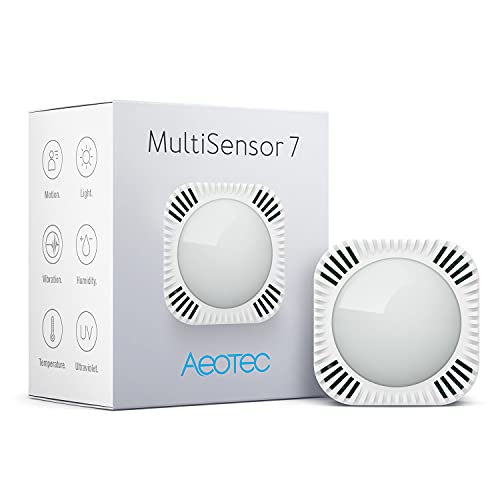
    In spite of the 7 in its name, the MultiSensor 7 has 6 sensors just like its predecessor: Motion, Tamper/Vibration, Temperature, Humidity, Light (Lux), & Ultraviolet Index. Where the MultiSensor 7 improves upon the 6 is in the 700 series Z-Wave support and better sensor sensitivity. For example the motion sensor now has a stated range of 10 metres (32 feet) vs. 5 metres (16 feet) earlier. The temperature and humidity measurement accuracy has also been improved.

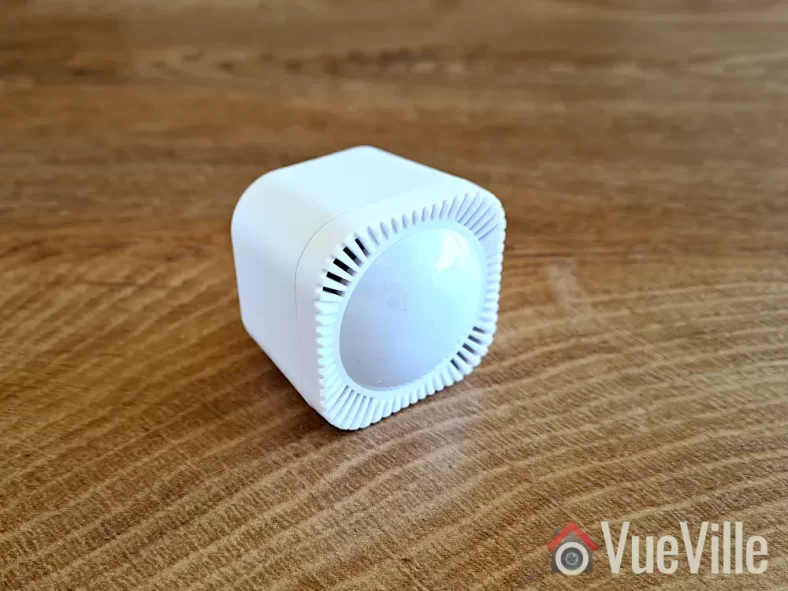
    Physically the MultiSensor 7 is similar to the 6. There is a bright multi-colour LED embedded on the front behind the translucent sensor cover. You can control the behaviour of the LED or switch it off entirely using the Z-Wave configuration page in Home Assitant (or using Z-Wave parameters in any other Z-Wave controller).

    Popping the front cover off reveals the PCB with the motion sensor and other sensor instruments mounted on it.

    The back of the sensor is exact the same as the Aeotec TriSensor which we have also reviewed. Just like the TriSensor, the Z-Wave action button is accessible only from the inside now (the MutiSensor 6 allowed you to press it from outside).

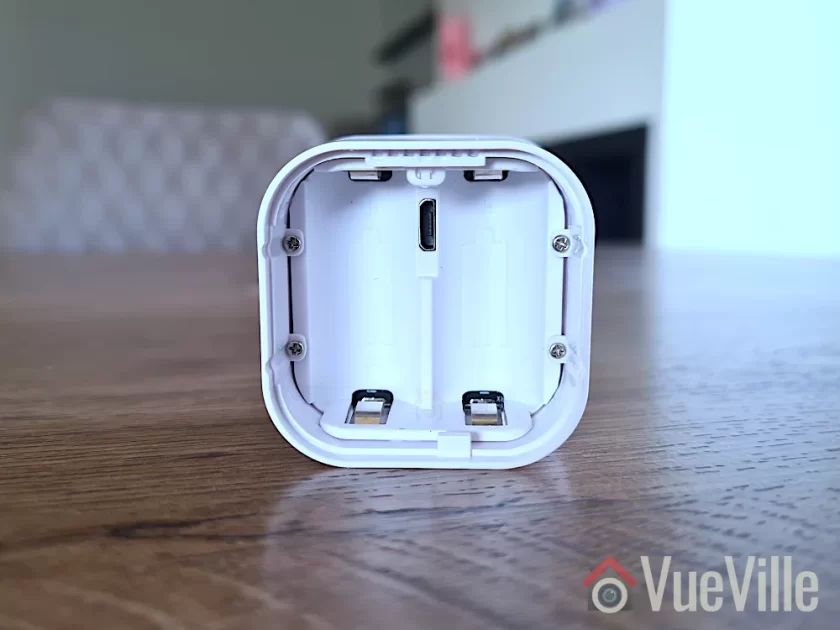
    Slide open the locking mechanism and you get access to the batteries, the USB power port, and the reset button above it. The sensor is powered by two CR123A batteries that should last for 3 years according to Aeotec.

    The MultiSensor 7 has IP20 certification but as the 0 in the IP20 suggests, it is an indoor sensor and does not have any protection against liquids. The 2 in IP20 means that it has protection against solid objects down to 12 mm (keeps fingers out). I wouldn’t recommend using it outdoors unless you plan to put it in a covered porch where it will not get wet or splashed.

    Adding the MultiSensor 7 to the Z-Wave network

    Now let’s look at adding the MultiSensor 7 to a Z-Wave network. I recommend doing this in the same room as your final installation location, but before permanently mounting it in case you want to fine-tune its position later. Why? Because if you pair it near the controller but then move it to the other end of your house, your sensor may not be able to reach the controller any more and it won’t know about any neighbouring routing devices! So the advantage of pairing it in the final location instead, is that your sensor will find the best possible route to the Z-Wave controller through neighbouring routing devices & remember this ensuring reliable operation.

    You now need to choose whether you will use the batteries or the USB power route. Most people will probably use the battery option, but I tested the sensor in both battery and USB power mode. If you do change your mind after pairing the sensor in a particular power mode and want to switch to the other power mode, you should factory reset and re-pair it with your Z-Wave controller.

    Jump to the Z-Wave setup chapter in our video review or continue reading after the video below:

    Let’s put the batteries in. When you first power up the sensor, the LED will fade in and out with a blue colour. But it’s easy to miss this while inserting the batteries! Because technically the sensor can work with just 1 battery, so the moment you insert the first battery, the LED will fade in and out with a blue colour. Insert the second battery as well.

    Finally, it’s time to pair the sensor with your Z-Wave controller. I use the Z-Wave JS add-on running on Home Assistant with an Aeotec Z-Stick 7. Put your Z-Wave hub into inclusion mode – this is how I do it in Z-Wave JS. I recommend including it with no security (so you don’t need to enter the DSK pin). Tap the action button on the MultiSensor. Just a short tap. It will light up a solid yellow as it enters pairing mode. It will then flash white/green for 2 seconds to indicate successful inclusion. Like so. But if it fails, it will be white/red instead and you should reset the sensor to factory conditions before trying again.

    Wall mounting the MultiSensor 7

    You could use the included 3M double-sided sticky tape to mount the sensor, but I prefer the more permanent screw method. Make sure you follow the advice in the user manual regarding location, height and motion sensor detection range.

    To get the best results, avoid pointing the sensor at windows and take the time to think through all the possible ways people may enter and leave your intended detection area. This is crucial when using the motion sensor for presence detection and occupancy.

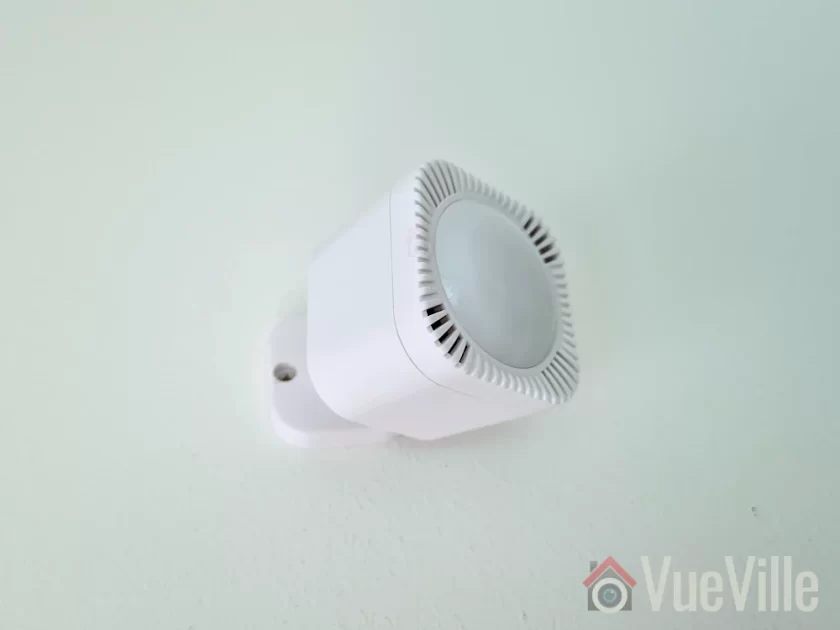
    I chose this particular location for the sensor because then it can monitor the widest possible area including the entry from the corridor and the kitchen. The sensor has a 120 degree field of view which helps a lot as well.

    Using the MultiSensor 7 in Home Assistant

    Even though Z-Wave JS said the sensor was paired and added successfully to the Z-Wave network, I couldn’t find any of the sensor entities under my entities list. No worries though, this happens sometimes when adding battery-powered sensors. I simply used the Re-interview node command with the reset security classes box ticked to force Z-Wave JS to identify the MultiSensor’s capabilities.

    This worked and I could then view readings for all of the MultiSensor’s 6 sensors. All the configuration parameters also showed up. However, unlike the MultiSensor 6 there was no obvious vibration sensor entity. The vibration sensors are linked to the entities alarmLevel and alarmType which were disabled by default, so I had to enable in the Home Assistant entities list.

    Its important to understand that the vibration sensor in this multi-sensor also serves the function of tamper detection. Unfortunately the sensor uses a notification event rather than a binary sensor for vibration detection. You can see this in the logbook section in the screenshot above, as well as in the Z-Wave JS debug log as seen below. There was no option to change the reporting type in the Z-Wave configuration parameters (some devices do allow you to do that, but this sensor doesn’t).

    But we can work with that. First I created an input boolean helper to act as the vibration sensor:

    Then I created the automation below to detect the Z-Wave CC notification event and then use that to toggle my helper on and after a minute off. This simulates a vibration sensor perfectly. You can adjust the duration to simulate a cool-down period.

    Here’s the yaml code for the automation:

    alias: Multisensor 7 Tamper Detection
    description: ""
    trigger:
      - platform: device
        device_id: ecd5fa9466eae0cb533076582c84b1ca
        domain: zwave_js
        type: event.notification.notification
        command_class: 113
        type.: "7"
        label: Home Security
        event: "9"
    condition: []
    action:
      - service: input_boolean.turn_on
        data: {}
        target:
          entity_id: input_boolean.multisensor_7_tamper_detection
      - delay:
          hours: 0
          minutes: 1
          seconds: 0
          milliseconds: 0
      - service: input_boolean.turn_off
        data: {}
        target:
          entity_id: input_boolean.multisensor_7_tamper_detection
    mode: single

    Performance testing

    Test system: Raspberry Pi4 (8GB RAM) running DietPi and Home Assistant Supervised in a Docker container, Aeotec Z-stick Gen 7 USB dongle for Z-Wave, Z-Wave JS as controller software (HA add-on).

    Battery-power mode

    I was keen to put the claimed 10 metres (33 feet) range of the MultiSensor to the test. The longest room in my house is the living room and I was able to position the sensor such that its maximum possible detection distance to the corridor wall came to 10 metres. Perfect! So that’s where I did this test. To make it even more of a challenge the entry point would not be head-on but off to the side of the sensor. This is as close to real-life as a test can get!

    And the results are impressive! I measured the distance between the sensor and the point at which it detected motion (green flash) at just under 10 metres which is also the claimed figure for the motion sensor. It takes around a seconf from the sensor detecting motion (green LED flash) to the Shelly 2.5 relay turning the lights on. So overall a very good result.

    Moving to the temperature and humidity sensors, the readings are similar to those of the Mi Air purifier in the same room. Any discrepancy can be put down to them being at opposite ends of the room, and the 3 metres of height difference with the air purifier on the ground and the sensor being nearer to the ceiling.

    While motion sensor reports are of course instantaneous, the default reporting interval for the other sensors is 240 seconds. You can reduce this to 60 seconds on battery power or down to 1 second on USB power.

    You may be wondering about the wireless range of this sensor. Looking at the Z-Wave JS network map, I can see that the MultiSensor 7 found a route to the controller through the Aeotec Doorbell in the foyer around 10 metres and 2 concrete walls away. Makes sense and that’s what I would expect it to do. If you power it up over USB before pairing, the MultiSensor will be a routing device. If you have AC/USB power at your installation point, I’d recommend that.

    I used the sensor for over a month and the battery remains at 100%. The previous MultiSensor 6 had excellent battery life with the batteries lasting well over 2 years and I expect this new model to be similar. But time will tell whether it will last the 3 years that Aeotec states on the engineering datasheet.

    Compared to the MultiSensor 6, the MultiSensor 7 truly has twice the motion detection range (10 metres vs. 5 metres), improved wireless range and the option of S2 security should you need it.

    USB Power Mode

    I repeated the tests above with the MultiSensor 7 on USB power mode and the results were similar. If anything, the responsiveness of the sensor seemed to get even better with virtually zero lag or delay between motion detection and automations firing. Not that it was bad on battery-power, it went from <0.5 seconds to almost instantaneous. I also set the auto-report interval to 60 seconds for more periodic reporting from the various sensors, this is very useful for lux level based lighting automations.

    MultiSensor 7 vs. MultiSensor 6

    So to summarise, the major differences I came across with the 7 vs. 6 are:

    • Z-Wave 700 support on the 7 vs. 500 on the 6
    • S2 security (although I dont recommend using Z-Wave security for sensors, its more relevant for door locks)
    • 10 metres motion detection range on the 7 vs. 5 metres on the 6
    • Better temperature and humidity measurement accuracy on the 7
    • Improved wireless range (although I couldn’t test that as I have a solid mesh with many Z-Wave router devices nearby)

    The VueVille Verdict

    So what’s great about the MultiSensor 7? You get 6 of the most useful sensors for just about any home automation scenario in one compact package. The most important sensors such as motion, temperature and humidity work very well. The motion sensor especially is very sensitive and can truly detect people at a distance of 10 metres, which is stunningly good. Temperature, humidity, light level, and UV reporting intervals can be changed from the default 240 seconds, and can go down to 60 seconds on battery power and 1 second on USB power. And it can act as a routing device on USB power. You get the USB cable and a wall mount, no need to buy that separately! So overall this MultiSensor is very good value if you need all these different sensors.

    While I didn’t find any issues with this MultiSensor itself, the Z-Wave technology itself does seem to be going the way of Betamax with Zigbee being VHS in this analogy. Yes Z-Wave devices are more reliable and do not suffer from interference with Wi-Fi networks like Zigbee does. But the gap is closing – I have set up a very stable Zigbee network at home without much effort using the tried and tested Sonoff Zigbee Dongle (ZBDongle-P). The biggest reason for Zigbee devices popularity IMO is that they are much cheaper because of the less strict certification process for device manufacturers.

    This also means there’s far more choice in the market for consumers with familiar names such as Ikea joining the action. I expect a Zigbee equivalent to the MultiSensor 7 to emerge in the near future.
    But for now, the unique combination of 6 useful sensors and the USB power option make the Aeotec MultiSensor 7 a compelling choice.

    So what do you think about the MultiSensor 7? Leave your comments or any questions you may have below!

    Where to Buy

    Aeotec MultiSensor 7, 6-in-1 Zwave Sensors Contains Monitor Motion, Temperature, Light, Humidity, UV, and Vibration, Z-Wave Plus, Gen7, S2, SmartStart Enabled, Compatible with Zwave Hub Smartthings
    ×
    Product prices and availability are accurate as of the date/time indicated and are subject to change. Any price and availability information displayed on https://www.amazon.com/ at the time of purchase will apply to the purchase of this product.

    Aeotec MultiSensor 7

    Check Amazon Price*

    (* = affiliate link / image source: Amazon Associates Program)

  • Hands-on Review: SONOFF ZigBee 3.0 USB Dongle Plus

    Hands-on Review: SONOFF ZigBee 3.0 USB Dongle Plus

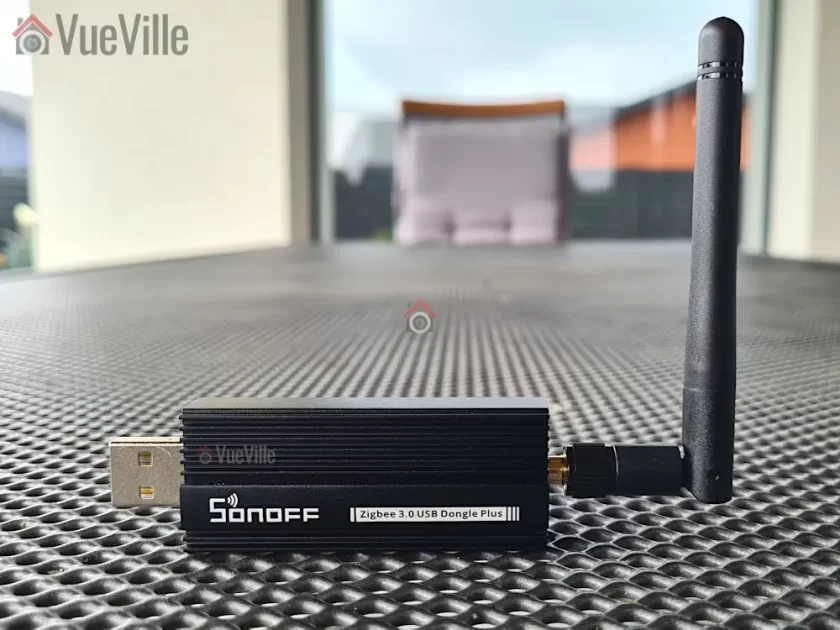
    Review - SONOFF ZigBee 3.0 USB Dongle Plus - VueVille

    Ever since I started setting up the VueVille DIY Smart Home, I have been focused on Z-Wave. Back in 2017 when I was starting out, Z-Wave was the only reliable DIY option for smart home enthusiasts who didn’t want to rely solely on Wi-Fi.

    Zigbee was beginning to make a mark but lax compliance with the standard meant that you couldn’t count on Zigbee devices to work well together. But things are very different now and that’s what made me revisit my decision now. Zigbee has come a long way and after just 1 month of exploring the Zigbee ecosystem, I can confidently say that its worth considering for us Z-Wave holdouts. Not as a Z-Wave replacement, but rather to complement it. More on that later.

    The first bit of kit that I purchased is the product I am reviewing today: a Zigbee USB stick called the SONOFF ZigBee 3.0 USB Dongle Plus (model ZBDongle-P). Its essentially similar to a controller in the Z-Wave world, but in the Zigbee world a controller is called a coordinator. This particular model comes pre-flashed with the Zigbee coordinator software so is plug and play with Home Assistant ZHA and Z2MQTT.

    Please note that there is another model called the ZBDongle-E, but this uses a newer less supported chip and currently is not recommended for use with my preferred Zigbee integration in Home Assistant: Zigbee2MQTT.

    So let’s get into it!

    [wpsm_titlebox title=”Contents” style=”main”][contents h2 h3][/wpsm_titlebox]

    A quick note: As an Amazon Associate I earn from qualifying purchases. This post contains affiliate link(s). An affiliate link means I may earn advertising or referral fees if you make a purchase through my link, at no extra cost to you.

    Zigbee Basics

    If you’re new to the world of Zigbee like I am, here’s a primer on what you need to know.

    Just like Z-Wave, Zigbee is also a mesh wireless protocol. This is one of the best things about Z-Wave that allowed me to create a strong reliable mesh network among all my Z-Wave devices. This is not possible with Wi-Fi or Ethernet where each device requires a direct connection to the router (although multiple WAPs can somewhat alleviate this).

    So what does this mean in practice? Suppose your Zigbee coordinator sits in the garage with the rest of your tech gear, like mine is. And at the other end of your home, you want to place a temperature and humidity sensor like the Sonoff SNZB-02.

    With Wi-Fi, you would need to be within range of your Wi-Fi router or have a WAP nearby. With Zigbee again the ideal scenario is if the sensor can connect directly to the Zigbee coordinator. But if its not, the mesh network comes into play. Most mains powered Zigbee devices such as smart bulbs or smart relays are able to act as ‘routers’ by relaying signals between the coordinator and other Zigbee devices. Do note that being mains powered does not automatically make a Zigbee device a router!

    So our battery powered sensor can connect to the nearest Zigbee router and thus communicate with the coordinator. Thus our sensor here is an ‘end device’. Such battery powered Zigbee devices are usually not able to act as routers.

    Now the biggest downside of Zigbee is that it uses the same frequency as 2.4 GHz Wi-Fi. This creates the potential for interference between your 2.4GHz band Wi-Fi network and your Zigbee network. I have learnt after much research (Metageek is an awesome resource) and quite a bit of fiddling that the best way to ensure your Zigbee and WiFi networks can coexist is by ensuring the specific frequencies (i.e. channels) they use do not overlap.

    One thing to watch out is that the ‘channel’ numbering that WiFi and Zigbee use are similar and so you may think the frequencies won’t overlap. But they do! For example it may seem that Zigbee channel 11 uses the same frequency as Wi-Fi channel 11, but they don’t! In fact, Zigbee channel 11 overlaps Wi-Fi channel 1. The Metageek resource linked above explains it very well.

    So my suggestion is:

    • Put your WiFi access points on channel 1 (if you have more than one WAP, use 6 for the one that’s furthest from the Zigbee coordinator and 1 for the WAP that’s closest to the Zigbee coordinator).
    • Put your Zigbee coordinator on channel 25 (or 20 if you are in the US).

    This configuration ensures minimal overlap between your Wi-Fi network and the Zigbee network.

    What’s in the box

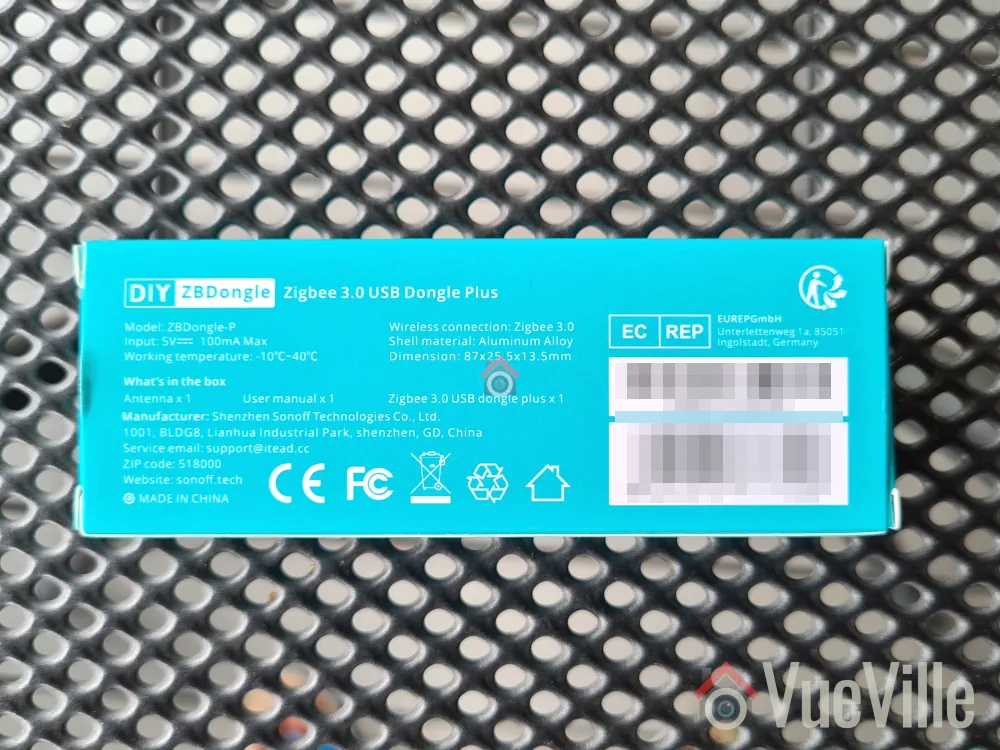
    The Sonoff Zigbee USB stick’s retail package is very compact and has an unusual blue color. Unusual for Sonoff with their trademark orange branding you’d find for Zigbee gear.

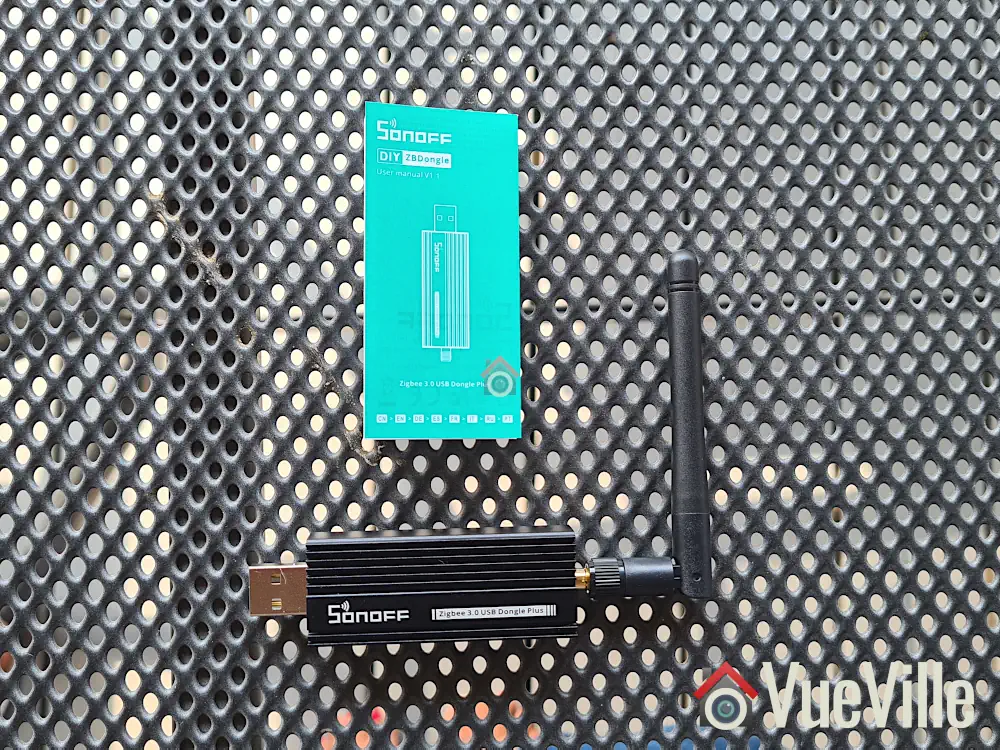
    Box Contents - Review SONOFF ZigBee 3.0 USB Dongle Plus - VueVille

    Inside the box we find the following:

    1. ZBDongle-P USB coordinator
    2. Antenna that you can screw on
    3. User manual

    Specifications

    [table id=87 responsive=scroll /]

    Taking a closer look at the Sonoff Zigbee Dongle

    Size Comparison - Review - SONOFF ZigBee 3.0 USB Dongle Plus - VueVille

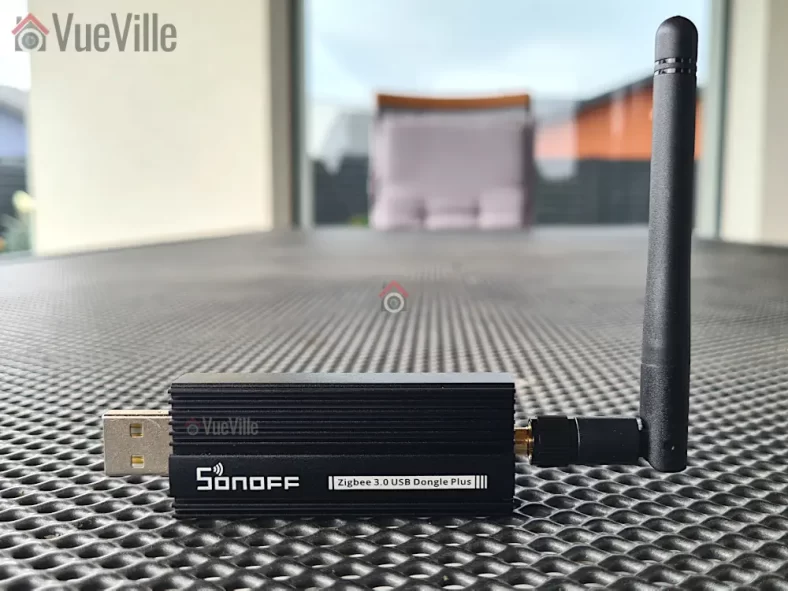
    The Sonoff ZBDongle-P has a metallic body and feels reassuringly solid in the hand. The front design looks a bit like a heat sink, which is a smart thing to do with a metal enclosure. You just need to screw on the included antenna and the dongle is ready for use.

    The ZBDongle-P uses a CC2652P based System on a Chip (SoC) design. The P in the CC2652P model number refers to the power amplifier this chip has onboard. It allows up to a 20dB signal output power but the outdated default firmware Sonoff has pre-flashed this dongle with seems to support only 5dBm. This can be rectified by flashing a newer firmware (which I detail below) and can be easily adjusted in Zigbee2MQTT.

    The USB-serial interface is handled by the CP2102(N) chip.

    Back View - Review - SONOFF ZigBee 3.0 USB Dongle Plus - VueVille

    The backside sports the model name, safety and regulatory information.

    The USB-A port should be plugged only into a shielded extension cable on a USB 2.0 port. USB 3.0 ports can cause interference with Zigbee networks, and is probably the root cause of many complaints about poor reliability when using Zigbee USB dongles.

    Setting up the Sonoff Zigbee Dongle

    With Home Assistant, there are 2 integrations you can choose to build your Zigbee network around: the official ZHA integration and the community effort called Zigbee2MQTT. I recommend Zigbee2MQTT because it has slightly wider device support and is generally quicker to add support for new devices as well.

    I run Home Assistant on a Raspberry Pi4 (running DietPi Linux distro) with an SSD connected via USB 3.0. I also have the Aeotec Z-Stick 7 plugged into a USB 2.0 port. Everything works well without the need of a USB powered hub. That left me with 2 free ports on the Pi – 1 USB 2.0 and 1 USB 3.0.

    So I happily proceeded to plug the Sonoff dongle into an extension cable off the free USB 2.0 port. My troubles began here because I foolishly assumed that just because Linux could see the device plugged into a USB port would mean that Home Assistant would also be fine with it. Big mistake. I spent a couple of hours checking everything until I realised the Sonoff dongle is probably not getting enough power from the Pi’s USB bus. So I moved the Sonoff to an externally powered USB hub and BOOM, Home Assistant immediately recognised the Sonoff!

    So here is a summary of the steps I followed to set up the Sonoff dongle:

    1. Plug in the device into your Home Assistant. Make sure you use a USB 2.0 port and a good quality extension cable. USB 3.0 ports cause interference and an extension cable minimises interference as well.
    2. Home Assistant’s built-in Zigbee integration called ZHA will recognise the Sonoff and offer to set up the integration – click Ignore to cancel the ZHA setup.
    3. Install the ‘MQTT Broker’ addon
    4. Install the ‘Zigbee2MQTT’ addon
    5. Create a Home Assistant user for Z2M to use to connect to the MQTT broker
    6. Configure Z2M with:
      5.1 the user and password details you created above
      5.2 Find the USB port ID using this command in a terminal window dmesg | grey tty
    7. Go to Addons -> click Enable watchdog for MQTTbroker and start it
    8. Go to Devices & Services -> Click configure on MQTT, click Submit and again click Submit & finally click Finish.
    9. Go to Addons – > click Enable watchdog for MQTTbroker and start it
    10. Click Zigbee2MQTT on the sidebar, and change the Zigbee channel to 25 in settings (20 if you are in the US as channel 25 has a lower maximum power limit by law).
      • IMPORTANT: Do this before pairing devices! If you try to change the Zigbee channel later, you will have to repair all your devices!
    11. Add your first device: In Zigbee2MQTT, click permit join at the top and follow the device instructions to join a Zigbee network

    I found that my Sonoff dongle came flashed with the ZStack firmware version 20210708. I first tested the dongle with this default firmware and then tried the latest 20230507 version as well. More on that later.

    Zigbee Pairing with Zigbee2MQTT & Wireless Range

    I purchased a variety of Zigbee devices and was able to pair all of them without any issues whatsoever:

    • Sonoff Power Plug
    • IKEA Vindstyrka
    • Sonoff Motion Sensor,
    • Sonoff Temperature and Humidity Sensor, and
    • Sonoff Door/Window Contact Sensor

    The best practice when starting a new Zigbee network is to pair the wired mains-powered devices first. This will create a strong mesh network that the battery powered devices can then be added to.

    So I first paired the Sonoff power plug and then the IKEA Vindstyrka. Both devices were paired easily and without any fuss. They were both detected as router devices, thus creating and extending the Zigbee mesh network. All the sensors were detected automatically and Home Assistant created the device entities correctly.

    On to the battery powered devices now. Here, there were two things I wanted to test.

    1. Adding battery-powered Sonoff devices directly to the coordinator – I did this for sensors that were at most 10 metres away with 1 or 2 concrete walls in between.
    2. Adding battery-powered Sonoff devices through the router devices – I chose this option for those devices that were at the other end of the home and had 3-4 concrete walls in between.

    I added over 6 Sonoff sensors in all, in their final installation locations and every time it was smooth sailing. No pairing errors, and I;ve not experienced any sensor dropping off the Zigbee network.

    Here’s a network map produced by Zigbee2MQTT that shows the link quality and the routes between each device:

    Zigbee Network Map - Review- SONOFF ZigBee 3.0 USB Dongle Plus Home Assistant-VueVille
    My Zigbee Network Map in Zigbee2MQTT – click to enlarge

    A few things struck me as very odd when I first saw this network map and the link quality information. The Sonoff Smart Plug (powering the garage door opener) is located in the garage along with the Sonoff Zigbee co-ordinator, whereas the Ikea Vindstryka is at the other end of the house with 3 concrete walls in between. But the Ikea link quality is way better at 96 compared to the 72 of the Sonoff Smart Plug.

    The other thing worth noting is that the Garage-Laundry door sensor is a Sonoff Door/Window sensor also placed in the same garage right next to the Zigbee dongle. But with the ‘permit join all’ option in Zigbee2MQTT, it chose to connect through the Sonoff Smart Plug instead of directly to the Zigbee co-ordinator. I wonder why that is. Also, the link quality is only 29 from the Sonoff Smart Plug to the Sonoff Door sensor even though they are in the same room! Interestingly, a similar door sensor from Sonoff placed in the same room as the Ikea Vindstryka has a far better link quality of 159. My conclusion here is that the Ikea Vindstryka is a superior router device. So I won’t be buying any more Sonoff smart plugs with the intention of using them as a router – they are clearly not very good at this.

    Updating the firmware

    I was wondering whether the 2+ year old Z-Stack 20210708 firmware version on the device was the culprit. This fimrware had a +5dB limit on the antenna gain instead of the +20dB the hardware is capable of.

    Firmware version - Review- SONOFF ZigBee 3.0 USB Dongle Plus - Zigbee2MQTT - Home Assistant - VueVille

    So I flashed the latest 20230507 firmware using the excellent instructions on post #2 of this HA community forum thread. This firmware has a default antenna gain of +9dB and further allows it to be raised all the way to +20dB if needed. I didn’t have to repair my devices which was great, and here’s the new network map:

    Zigbee Network Map on firmware 20230507- Review - SONOFF ZigBee 3.0 USB Dongle Plus Home Assistant-VueVille
    Zigbee Network Map on firmware 20230507

    The most striking difference is that the co-ordinator now had much higher link quality to both the router devices. For example the linkquality for the co-ordinator and Ikea pair went from 96/29 to 132/46. If you are not familiar with this figure, linkqualiy for a router is always expressed two figures separated by a slash. The first figure is the strength of the link as seen by the co-ordinator and the other is that as seen by the router device.

    Some other devices saw improvements as well, whereas a Sonoff door sensor got worse. The link quality reporting overall still seems a bit off to me.

    Overall I was quite happy with the firmware upgrade. I have a feeling as the Zigbee mesh adjusts to the new firmware, the link quality may improve further.

    What I didn’t like about the ZBDongle-P

    While all my devices worked as expected and I didn’t experience any devices dropping off the Zigbee network, I couldn’t help but wonder about the link quality reporting of the dongle. The dongle seems to be reporting much lower values than even the Ikea which is just a router device.

    Now it could all simply be down to the way the dongle calculates link quality is not a 100% correct. Indeed, this Home Assistant community forum thread seems to be suggesting so.

    Still, this does make me wary of relying on the reported link quality numbers to design my Zigbee network.

    Verdict

    [review]

    The ZBDongle-P is a tried and tested Zigbee co-ordinator and is on the list of recommended USB dongles for Zigbee2MQTT. It also works well with Home Assistant’s built-in Zigbee integration called ZHA.

    If you are keen on Zigbee2MQTT, the ZBDongle-P is the better choice as the ZBDongle-E is not yet fully supported in that integration. However if you prefer ZHA, both are good options.

    I found the ZBDongle-P to be an easy to setup and easy to use USB adaptor with good wireless range. The only major hiccup I had was my Pi4 not supplying enough power to the dongle but this was resolved by using a powered USB 2.0 hub. After that, I was able to pair all the devices I tried without any fuss and I have a solid Zigbee network in my home as a result. Upgrading the firmware brought a welcome improvement in mesh quality and I highly recommend this step if your device comes with an outdated version as mine did.

    Where to Buy

    SONOFF Zigbee 3.0 USB Dongle Plus Gateway, Universal Zigbee USB Gateway with Antenna for Home Assistant, IoBroker, Wireless Zigbee 3.0 USB Adapter(1 Pack)
    ×
    Product prices and availability are accurate as of the date/time indicated and are subject to change. Any price and availability information displayed on https://www.amazon.com/ at the time of purchase will apply to the purchase of this product.

    ZBDongle-P

    Check Amazon Price*

    (* = affiliate link / image source: Amazon Associates Program)

  • Hands-on Review: Aeotec TriSensor 3-in-1 Z-Wave Sensor

    Hands-on Review: Aeotec TriSensor 3-in-1 Z-Wave Sensor

    Its been a few years since I reviewed the Aeotec Multisensor 6. Since then I have bought more of those for different rooms around the house. They have been very reliable and have served me well over the years, especially for automations such as auto room humidity control, lighting automations and presence detection.

    So I was curious to see how the newest Z-Wave sensor in their lineup, the Aeotec TriSensor 3-in-1 compares. The Trinsensor has 3 sensors as its name suggests: Motion, temperature and light. Compared to the Multisensor 6, it loses the humidity, vibration and ultraviolet sensors.

    Hands-on Review Aeotec TriSensor 3-in-1 Z-Wave Multisensor - Front - VueVille

    [text-blocks id=”earning-disclaimer”]

    [wpsm_titlebox title=”Contents” style=”main”][contents h2][/wpsm_titlebox]

    Aeotec TriSensor – Specifications

    The Aeotec TriSensor has 3 different sensors:

    1. Motion sensor
    2. Temperature sensor
    3. Light (lux) sensor

    Detailed Specs

    [table id=75 /]

    Unboxing the Aeotec TriSensor 3-in-1 Z-Wave Sensor

    Hands-on Review Aeotec TriSensor 3-in-1 Z-Wave Multisensor - Box Contents - VueVille
    As with every Aeotec product I have seen, the TriSensor comes in a sleek package with the following box contents:

    • Battery cover
    • Back-mount arm
    • Double sided tape
    • 2x screws
    • User manual
    • Warranty card

    Design

    The TriSensor is similar in appearance to the Multisensor 6, and is almost exactly the same size too. The cube shape makes it easy to place on flat surfaces.

    The TriSensor is also very compact and just a bit larger than a CR123A battery as can be seen below.

    On the front face, there is the standard PIR sensor cover and just two other components – the lux sensor and a very bright LED which flashes green whenever motion is detected.

    Hands-on Review Aeotec TriSensor 3-in-1 Z-Wave Multisensor - Back - VueVille

    On the back side, the battery cover holds the cover lock slider, the back-arm mount hole, and some technical information about the multisensor.

    Hands-on Review Aeotec TriSensor 3-in-1 Z-Wave Multisensor - Opened - VueVille

    Taking the battery over off reveals the battery compartment that takes a single CR123A battery (supplied), and the Z-Wave Action button. While the Aeotec Multisensor 6 can use either batteries or a USB cable for external power, this TriSensor is only battery-powered.

    The advantage of USB external power is that you can get real-time sensor data instead of once every few minutes with the batteries. So this is something I would have liked to see in the TriSensor.

    Just like the Aeotec Multisensor 6, the TriSensor is also a ZWave Plus Gen5 device. While Z-Wave Gen7 devices are becoming more common, it has not been implemented in the TriSensor yet.

    However the TriSensor additionally supports S2 security and ‘Smart Start’ technology.

    Installing and configuring the TriSensor

    Setting up the TriSensor with my HomeSeer-based home automation system was a breeze.

    I first put the HomeSeer Z-Wave hub into ‘add device’ mode. Then I put the TriSensor into inclusion mode by pressing the action button once. Immediately, HomeSeer detected the TriSensor and added the various sensors devices (motion, light, temperature).

    Hands-on Review Aeotec TriSensor 3-in-1 Z-Wave Multisensor - HomeSeer - VueVille

    Features & Performance

    Let’s now look at the various sensors the Trisnesor sports and how they performed. I used the TriSensor for a 6 month period as part of my home network, and so can give a real-world usage report.

    Motion Detection

    The max motion detection range of the TriSensor is 7 metres (23 feet). In my testing, it reliably detected motion from across my 5 metre wide hall. I found it very sensitive, it reacts instantaneously to motion and throughout the 6 month test period never missed a motion event.

    You can adjust the sensitivity of the motion detection if you wish. The Z-Wave parameter that controls this setting is Parameter 3 [size 1 byte]. The value range is from 0 – 11. By default, the sensitivity setting is set to the maximum sensitivity value of 11.

    You can also control the time gap between sensor activations by adjusting the ‘Motion re-trigger time’ which is Z-Wave Parameter 1 [2 byte]. For example if you set the value to 10, the PIR sensor timeout will become 10 seconds – so for 10 seconds after detecting motion it will ignore all further motion. After that, it will then again be ready to detect motion. The default is set to 30 seconds.

    These two settings can be used to control and reduce false motion alerts.

    Compared to the Mutisensor 6 on USB power, I felt that the TriSensor has better sensitivity even though its on battery power.

    Temperature sensor

    The temperatures reported by the TriSensor were accurate and very close to those of the Multisensor 6.

    Light level sensor

    The light level sensor also work very well. According to Aeotec, the TriSensor comes with a digital light sensor that’s capable of sensing lighting between 0 lux to 22595 lux in real-time.

    I created an automation that automaticlly turned on a lamp plugged into an [easyazon_link identifier=”B08PKLBKW4″ locale=”US” tag=”vueville.com-eaz-20″]Aeotec Smart Switch 7[/easyazon_link] in the room whenever the sun started setting.

    Battery life

    While the Multisensor 6 can make use of up to two CR123A batteries, the TriSensor makes use of just 1. After 6 months of use, the sensor reports a battery level of 100% to HomeSeer, which I doubt is accurate. But the sensor is still working well.

    Wireless range

    The TriSensor has very strong wireless range and was able to stay in touch with the Z-Wave network wherever I took it in my house.

    Verdict

    I love the Aeotec TriSensor and highly recommend it. It has the 3 key sensors you need for most home automations and performs very well. Improved motion detection sensitivity over the Multisensor 6 and excellent battery life make for a very competent multisensor.
    [review]

    Where to buy

    [easyazon_link identifier=”B07GP3ZCYD” locale=”US” tag=”vueville.com-eaz-20″]Check Price on your local Amazon site[/easyazon_link]

    [text-blocks id=”5527″ slug=”earning-disclaimer”]

  • Review: Neo Coolcam Z-Wave Smart Power Plug

    Review: Neo Coolcam Z-Wave Smart Power Plug

    Review - Neo Coolcam Z-Wave Smart Power Plug - FrontSmart power plugs are perfect for turning dumb devices in your smart home into truly useful smart devices.
    The best kind of smart power plugs are the ones that not just act as a relay and can turn attached devices on/off, but can also measure power consumption.

    Apart from knowing how much power is being used, this lets you do some amazing things such as detect when dumb devices turn on or off by themselves, like an automatic pump or a compressor.

    I am a fan of the Neo Coolcam line of Z-Wave products and I have reviewed their motion sensor, door/window sensor and smart siren. I just bought their smart plug and have been using it for some time now. So here’s a hands-on review of this cheap and cheerful smart plug.

    [wpsm_titlebox title=”Contents” style=”main”][contents h2][/wpsm_titlebox]

    What else do you need to use this smart power plug?

    The Neo Coolcam Z-Wave Smart Plug is not a standalone device. It is intended to work as part of a Z-Wave based smart home.

    So you need a Z-Wave controller such as a Hubitat Elevation, Vera Plus, or HomeSeer HomeTroller Sel that acts as the smart hub to use this sensor. This is the right way of building a smart home that you can upgrade and enhance as you wish, instead of getting stuck with things that work only with the manufacturer’s other devices or an internet-reliant smart speaker like Alexa.

    Unboxing

    Review - Neo Coolcam Z-Wave Smart Power Plug - Box Front

    The Neo Coolcam Z-Wave Smart Power Plug comes in a blue and white modern looking box package. The Z-Wave Plus logo you see on the box is not printed but is a sticker. Seeing as they also sell Wi-Fi & Zigbee smart plugs which share the same box package, this is a smart bit of cost savings.

    Review - Neo Coolcam Z-Wave Smart Power Plug - Box BackThe back of the box lists the main specifications of the sensor.
    Review - Neo Coolcam Z-Wave Smart Power Plug - Box ContentsOpening the box, we find the following:
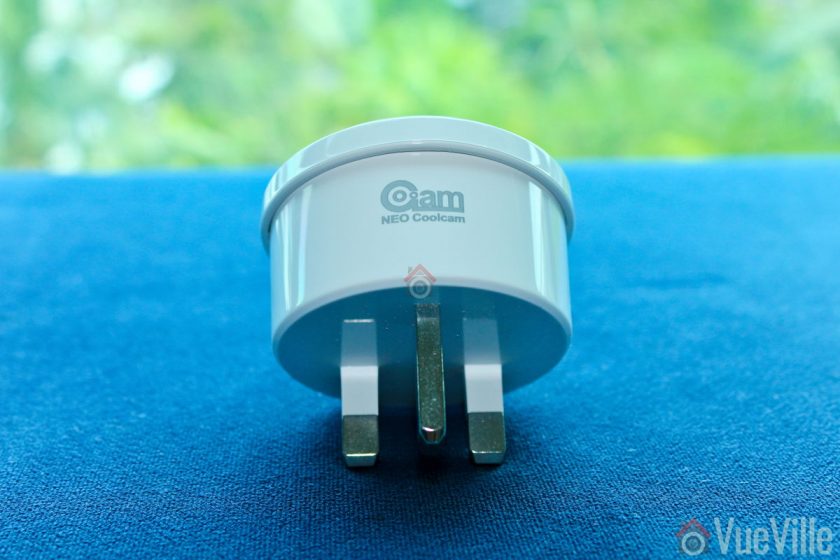
    • Z-Wave Smart Power Plug with power metering
    • User manual

    Neo Coolcam Smart Power Plug Manual

    The included user manual is high-quality and unusually for Chinese products, has good quality English. Here’s a link in case you want to check it out before buying.

    Specifications

    [table id=66 responsive=”scroll” /]

    Design & Features

    Review - Neo Coolcam Z-Wave Smart Power Plug - Front

    The Neo Coolcam Smart Power Plug like other Coolcam devices has a glossy plastic finish. It doesn’t scream premium but is well-made and doesn’t look cheap.

    There is an LED next to just below the right plug socket. It is primarily used to indicate Z-Wave inclusion/exclusion mode and other statuses.

    Review - Neo Coolcam Z-Wave Smart Power Plug - Top

    The Neo Coolcam logo is at the top of the plug.

    Review - Neo Coolcam Z-Wave Smart Power Plug - Bottom

    The ‘code’ button is placed under the plug. This button has a few different functions: waking up the sensor so that you can configure it, putting the sensor in inclusion/exclusion mode and for restoring factory defaults.

    Installation

    Its always best to perform a factory default on a new Z-Wave device before including it in your Z-Wave network. I have found that this one step usually solves any problem I am having with including a new Z-Wave device.

    My first attempt at including the plug in secure mode failed. So this is one device that you may need to add in non-secure mode to your Z-Wave network. Shouldn’t be an issue though because a smart plug is not a security device like a smart plug which must be added in secure mode.

    So these are the steps I took to set up the sensor:

    1. I put HomeSeer into inclusion mode.
    2. The red LED flashed 4 times.
    3. I pressed the code button on the Coolcam sensor thrice very quickly (it needs three presses within 1.5 seconds).
    4. After a few seconds, HomeSeer reported that the sensor had been successfully included and the child devices had been created.

    This is what the HomeSeer HS4 interface looks like for the Neo Coolcam Smart Plug:

    Review - Neo Coolcam Z-Wave Smart Power Plug - Homeseer HS4The first device is the parent device and the one where you configure settings such as Z-Wave parameters and polling intervals. Then we have the kW Hours device which stores cumulative energy usage. Then there are the usual Watts, Volts and Amperes devices which are used to calculate energy usage. The  Power Management Notification device is next and this is where current overload warnings are shown. The switch has a maximum load current of 16A and of the load current exceeds this limit, the switch will automatically cut off, send a warning to this HS4 device and flash the red LED every 1 second. Finally you have the actual on/off switch control.
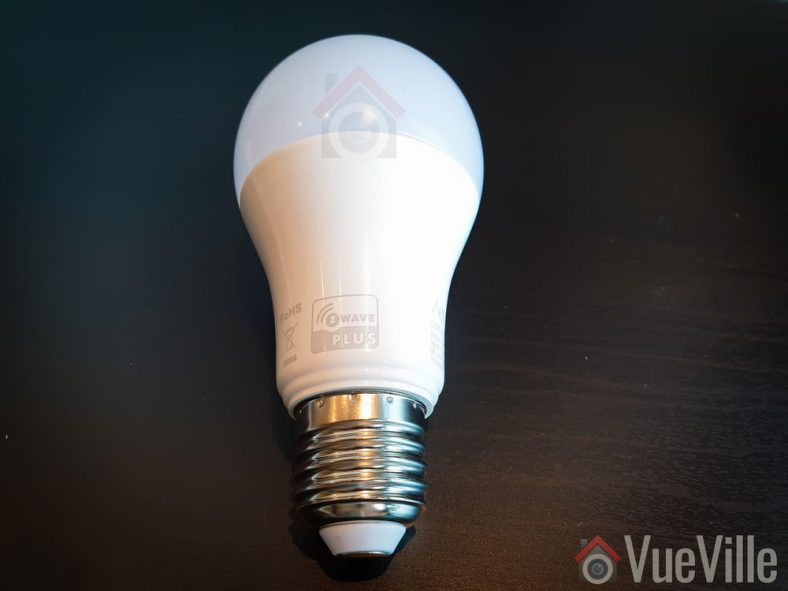
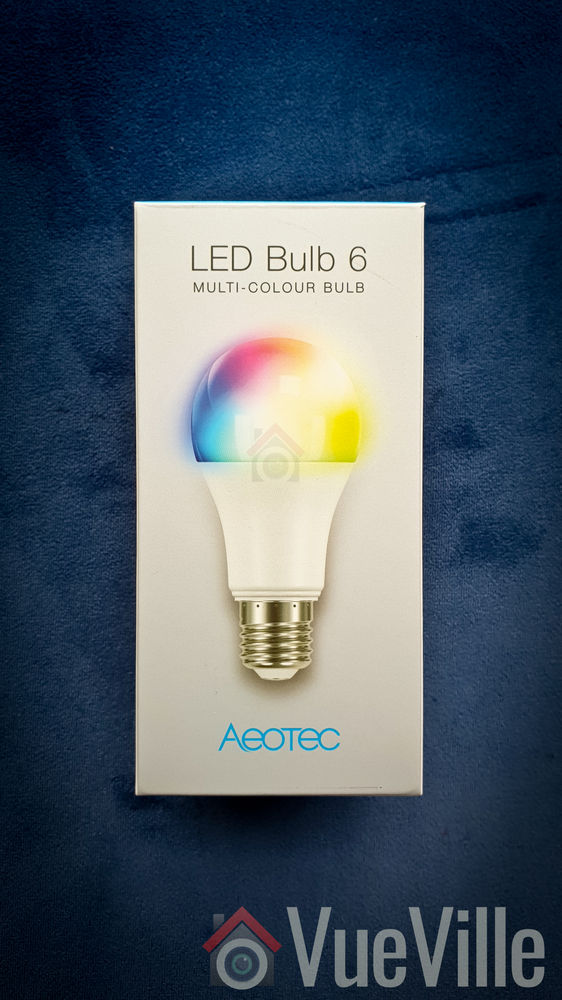
    Configuration Parameters

    There’s a wealth of Z-Wave parameters that you can adjust, but the one that I was keen on checking out is the Watts reporting interval – Parameter 7.

    [table id=67 responsive=”scroll” /]

    The default for Parameter 7 is 300 seconds and the minimum is 30 seconds. But I wanted a more frequent interval, like 5 seconds. So instead of changing this parameter, I simply changed the Z-Wave polling interval to 5 seconds in HS4.

    Performance

    There are 3 main criteria that define how good a smart power plug is:

    • Response time
    • Reliability
    • Z-Wave wireless range

    I tested the Neo Coolcam smart power plug over 2 months at the time of publishing.

    Response time: Excellent

    How quickly does the sensor respond to ON or OFF commands from the Z-Wave controller? You do not want a delay at all. I was very pleased to see that the Coolcam Smart Plug’s response was instantaneous with no discernible delay in my Z-Wave smart hub interface whenever I turned it on or off.

    Reliability: Excellent

    Does the smart plug miss ON or OFF commands, especially when they happen in quick succession? In my months of testing, it never skipped a beat. Every ON/OFF command was received and actioned by the smart plug.

    By default the smart plug updated the energy consumption and other metrics every 300 seconds without fail. After I changed the HomeSeer4 polling to 5 seconds, I got updates every 5 seconds.

    Z-Wave wireless range: Very good

    Since Z-Wave is a mesh network technology, the strength of your Z-Wave network at the point of installation depends on proximity to the smart hub or a repeater device.

    All AC powered Z-Wave devices act as repeaters and we have a generous number of Greenwave Powernodes scattered around the house.

    So it was no surprise to see that the Coolcam Smart Power Plug was working perfectly thoughout our home.

    Where to Buy

    [easyazon_link identifier=”B07HRCZY38″ locale=”UK” tag=”vueville.com-eaz-21″]Check Price on your local Amazon site[/easyazon_link]

    Verdict

    The Neo Coolcam Z-Wave Smart Power Plug is a fairly priced Z-Wave smart power plug that works very well. Even though the Coolcam brand is seen as a Chinese brand, I have found their gear to be solid performers without an inflated price tag.

    [review]

  • Hands-on Review: Aeotec LED Bulb 6 Multi-Colour

    Hands-on Review: Aeotec LED Bulb 6 Multi-Colour

    If you are building a new home or renovating, it makes sense to go for Z-Wave wall switches from the start. But if you want to add smart lighting to your home without changing wall switches, smart bulbs are a great option.

    Multi-colour (RGB) LED smart bulbs have been around for some time now. But to get true warm white shades, you need to go for an RGBW LED bulb. The W stands for White. The [easyazon_link identifier=”B07DC569FL” locale=”US” tag=”vueville.com-eaz-20″]Aeotec LED Bulb 6[/easyazon_link] is one such RGBW that supports Z-Wave.

    Aeotec kindly provided a review sample and together with my 3 year old, we put The LED Bulb 6 through its paces. Watch the video review:

    [text-blocks id=”earning-disclaimer”]

    [wpsm_titlebox title=”Contents” style=”main”][contents h2][/wpsm_titlebox]

    Aeotec – who are they?

    Aeotec used to belong to Aeon Labs, the company founded in 2006 and based out of Silicon Valley. But that’s no longer the case. Aeotec also have another brand that’s popular in the smart home market – Popp.

    They also are an OEM for Oomi.

    Un-boxing

    Hands-on Review - Aeotec LED Bulb 6 Z-Wave - Box Front - VueVille

    Hands-on Review - Aeotec LED Bulb 6 Z-Wave - Box Back - VueVille
    Hands-on Review - Aeotec LED Bulb 6 Z-Wave - Box Side - VueVille

    Hands-on Review - Aeotec LED Bulb 6 Z-Wave - Box Top - VueVille

    Specifications

    • Model number: ZWA002
    • Repeater: Yes
    • Beaming: Yes
    • Z-Wave Plus: Yes
    • S0 Security Support: Yes
    • Product dimensions: 120 x 60 / 118 x 60 mm
    • Voltage Range: 110 – 240 VAC @ 50/60Hz
    • Maximum power: 9.5W
    • Standby power: Average: 0.2W, Max: 0.4W.
    • CCT(K): 2700 – 6500K
    • CRI: 80
    • Beam Angle: 240 degrees
    • Operational temperature: 0 – 50 C
    • LED Color: Multi-Color (RGB, Warm or Cold White)
    • Action button type: External switch connected to bulb.
    • Communication range: Up to 100m outdoors in an open field, or up to 80m indoors (varying range depending on building structure and environment).
    • Communication certification: Z-Wave Plus

    Design and Hardware Features

    The Aeotec LED Bulb range has 3 models:

    • LED Bulb 6 Multi-White – Tuneable white LEDs can make warm and cold white colours only
    • LED Bulb 6 Multi-Colour – RGBW LEDs to produce 16 million colours including warm white
    • LED Bulb Gen5 Multi-Colour – RGB LEDs to produce 16 million colours including warm white

    The LED Bulb 6 Multi-Colour with RGBW LEDs is the pick of the crop, because you can generate true warm white shades, not ones that look yellowish.

    The bulb is also very bright with 806 lumens of light output, at a power consumption of only max 9.5W.

    At the same time you also get a very wide beam angle of 240 degrees. You have to be very careful about this when buying LED bulbs, to avoid the dreaded spotlight effect.

    Software Features

    On the software side, the LED bulb works on the Z-Wave platform. It supports S0 security for the smart hubs that require it.

    The bulb can produce over 16 million different colours. You can dim the output all the way down to 5%.

    Installation and Setup

    The main draw of a smart LED bulb is that you can just screw it into an existing lamp fitting. No need to pull out the toolkit and change wall switches or do any wiring work.

    My smart home automation system is built on Z-Wave using the excellent HomeSeer HS3 software. I use an Aeotec Z-Stick USB device as the Z-Wave radio plugged into a Dell Inspiron Laptop.

    Pairing the Aeotec LED Bulb 6 with my Z-Wave controller

    Watch my Youtube video below to see how I set up the Aeotec LED Bulb 6.

    1. As per the quick start guide, I inserted the LED Bulb 6 into a table lamp.
    2. I then had to set HomeSeer HS3 into ‘Inclusion mode’. For this I navigated to Plugins > Z-Wave > Controller Management. Under Actions, I selected ‘Add/Include a Node’ and clicked the Start button.Hands-on Review - Aeotec LED Bulb 6 - Z-Wave Inclusion 1 - VueVille
    3. I turned on the power to the LED Bulb 6. It turned solid yellow for a few seconds and then did a colour dance, flashing rapidly between white and green. At the same time I could see that HS3 had added the LED Bulb 6 as a new node. Then the bulb turned solid yellow again.Hands-on Review - Aeotec LED Bulb 6 - Z-Wave Inclusion 2 - VueVille
    4. As per the manual, the bulb had been successfully included in my Z-Wave network.
    5. I could then see all the different devices the Bulb created in my HS3 devices list.Hands-on Review - Aeotec LED Bulb 6 - Z-Wave Devices - VueVille

    Performance

    Wireless Range

    The LED Bulb 6 has very good Z-Wave range. My current home is of solid concrete construction and the Z-Wave signal could penetrate 2 solid concrete walls easily. The mesh network design of Z-Wave networks allows the LED bulb to act as a repeater . So the bulb actually extended the reach of my Z-Wave network.

    Responsiveness and Reliability

    I observed no noticeable delays or issues during the course of testing. The ramping up and down of the bulb in response to commands started as soon as HS3 sent a command.

    Compatibility

    The Aeotec LED Bulb is compatible with HomeSeer HS3, Samsung SmartThings, and HomeAssistant . At present, it is not compatible with Homey.

    Verdict

    I have been using the Aeotec Z-Wave LED Bulb 6 for over 4 months now and love it. I have integrated it into my smart home, in fact it serves as my morning light alarm (I use this to wake up instead of a traditional sound alarm).

    [review]

    Where to Buy

    Buy the Aeotec LED Bulb 6 from [easyazon_link identifier=”B07DC569FL” locale=”US” tag=”vueville.com-eaz-20″]your local Amazon store[/easyazon_link].