
Hikvision has recently been in the news thanks to revelations about its links to the Chinese government and the Communist Party of China. Naturally fears about whether they are compromised ‘by design’ have been raging on the Internet ever since. While there is no doubt that Hikvision is part-owned by the Chinese government, there has been no evidence yet of any backdoor or that Hikvision cameras are ‘dialing back home’ to their maker.
Okay but what could go wrong? Could a backdoor already exist in your Hikvision camera or NVR? Maybe. But so could your WiFi router or even your mobile phone. You are not about to stop using cell phones because the UK government (GHCQ) and the US government (NSA) are known to be able to hack into them, are you? So while its important to be aware that Hikvision is part-owned by the Chinese government, your best course of action is to take sensible precautions and not get too paranoid. Yep be reasonably paranoid but not tin foil hat paranoid!
So if you have Hikvision cameras, what should you do to protect them from hackers, spies or nosy governments? The following steps apply to any security camera, not just Hikvisions by the way:
A quick note: As an Amazon Associate I earn from qualifying purchases. This post contains affiliate link(s). An affiliate link means I may earn advertising or referral fees if you make a purchase through my link, at no extra cost to you.
Isolate all network cameras using Virtual LANs (VLANs)
The best way to achieve network security is by isolating your network cameras by creating Virtual LANs or VLANs.
A VLAN is a virtual group of network devices that physically may or may not be connected to a single network switch, but can be managed as if they are. Think of them as a way to segment your network into logical groups. The idea is to put your insecure network cameras in a virtual network which allows you to connect to the cameras but stops them from sending data out of that VLAN.
Your existing home router may already support VLAN creation. If not, the best way to implement VLANs is using a hardware device running a software firewall.
This could either be a DIY solution like a spare computer running pfSense, or a commercial ready-to-use product such as the [easyazon_link identifier=”B07MTMPXKG” locale=”US” tag=”vueville.com-eaz-20″]Netgate SG-1100[/easyazon_link], or the versatile and powerful [easyazon_link identifier=”B086967C9X” locale=”US” tag=”vueville.com-eaz-20″]Ubiquiti Unifi Dream Machine Pro (UDM Pro)[/easyazon_link].
[easyazon_image align=”center” height=”500″ identifier=”B07MTMPXKG” locale=”US” src=”https://m.media-amazon.com/images/I/31uvbm32DkS._SL500_.jpg” tag=”vueville.com-eaz-20″ width=”500″]
[easyazon_image align=”center” height=”202″ identifier=”B086967C9X” locale=”US” src=”https://m.media-amazon.com/images/I/21HP9ey5gfL._SL500_.jpg” tag=”vueville.com-eaz-20″ width=”466″]
Here’s my step by step guide for wired cameras and wireless cameras that shows how you can create VLANs with the Unifi gear.
Disable uPNP
uPNP or Universal Plug n Play was created to make life easier for us by letting various devices discover each other on a network and work with each other. Today as we edge into 2018, plug n’ play sounds like no big deal, hey when you plug in anything into a USB port, it just work right? Plug n’ Play. Simples.
Well there was a time, not so long ago, that 11 year old me tried to install a Plug n Play 56 kbps modem and trust me it was anything but Plug n’ Play. Things have come a long way since then and the stuff the uPNP can do is amazing, such as letting your computer automatically configure new printers. The same uPNP can also let security cameras auto-configure your WiFi router for remote access or cloud storage by setting up port forwarding without your help or even without your knowledge.
Hold on, so this very useful uPNP software can let my security cameras make outgoing connections without my explicit permission? uPNP was originally intended to let devices on a local network talk to each other, and that’s why the protocol doesn’t even have an authentication method by default. If all the devices involved were on your local network, this wouldn’t have been an issue. But as uPNP was extended to devices exposed to the Internet and used to automate port forwarding, various security implementations were created. Unfortunately many networking devices such as WiFi routers have flawed security implementations of uPNP and that’s why the US government recommends disabling uPNP altogether.
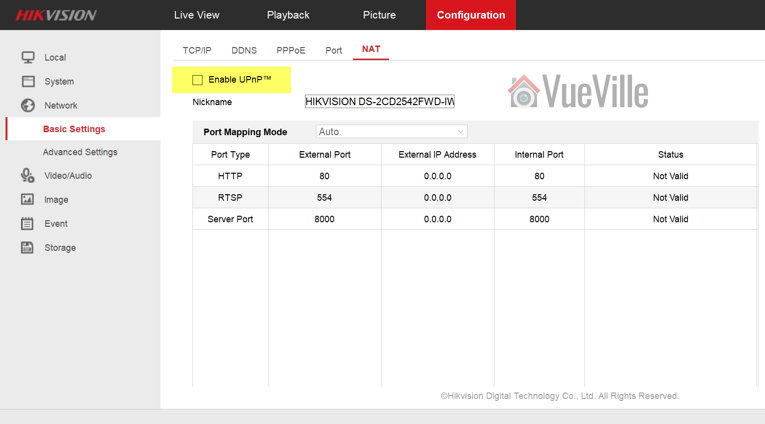
Here’s how you disable uPNP on Hikvision cameras and NVRs:
Log in to your Hikvision’s web admin page and navigate to Configuration > Network > Basic Settings > NAT. Make sure Enable uPnP is not ticked and click Save.
Disable P2P
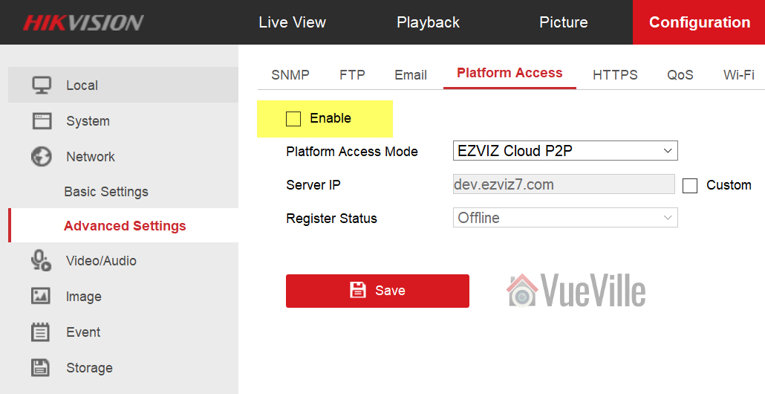
The next one to disable is P2P. Hikvision calls it Platform Access. You will find this in Configuration > Network > Advanced Settings > Platform Access. Make sure the check box for Enable is not ticked and click Save.
Also read:
Disable Anonymous Visit
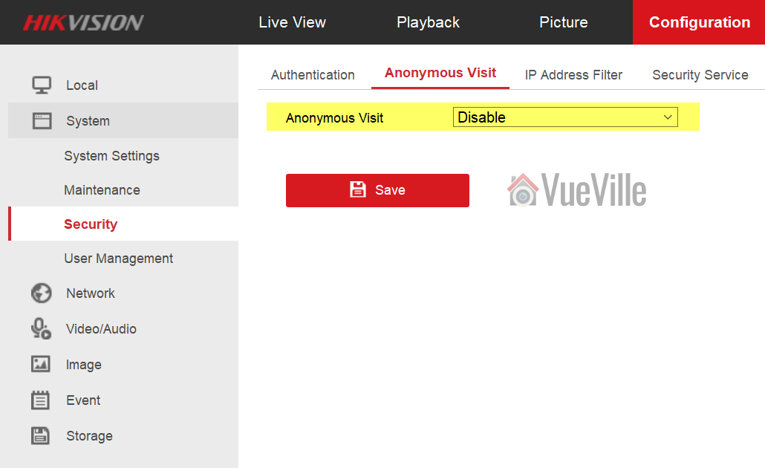
You are going to find it under Configuration > System > Security > Anonymous Visit. Disable Anonymous Visit and click Save.
Disable SSH
You are going to find it under Configuration > System > Security > Security Service. Now uncheck “Enable SSH” and click Save.


Leave a Reply