Category: Plugs

  • Review: Neo Coolcam Z-Wave Smart Power Plug

    Review: Neo Coolcam Z-Wave Smart Power Plug

    Review - Neo Coolcam Z-Wave Smart Power Plug - FrontSmart power plugs are perfect for turning dumb devices in your smart home into truly useful smart devices.

    The best kind of smart power plugs are the ones that not just act as a relay and can turn attached devices on/off, but can also measure power consumption.

    Apart from knowing how much power is being used, this lets you do some amazing things such as detect when dumb devices turn on or off by themselves, like an automatic pump or a compressor.

    I am a fan of the Neo Coolcam line of Z-Wave products and I have reviewed their motion sensor, door/window sensor and smart siren. I just bought their smart plug and have been using it for some time now. So here’s a hands-on review of this cheap and cheerful smart plug.

    [wpsm_titlebox title=”Contents” style=”main”][contents h2][/wpsm_titlebox]

    What else do you need to use this smart power plug?

    The Neo Coolcam Z-Wave Smart Plug is not a standalone device. It is intended to work as part of a Z-Wave based smart home.

    So you need a Z-Wave controller such as a Hubitat Elevation, Vera Plus, or HomeSeer HomeTroller Sel that acts as the smart hub to use this sensor. This is the right way of building a smart home that you can upgrade and enhance as you wish, instead of getting stuck with things that work only with the manufacturer’s other devices or an internet-reliant smart speaker like Alexa.

    Unboxing
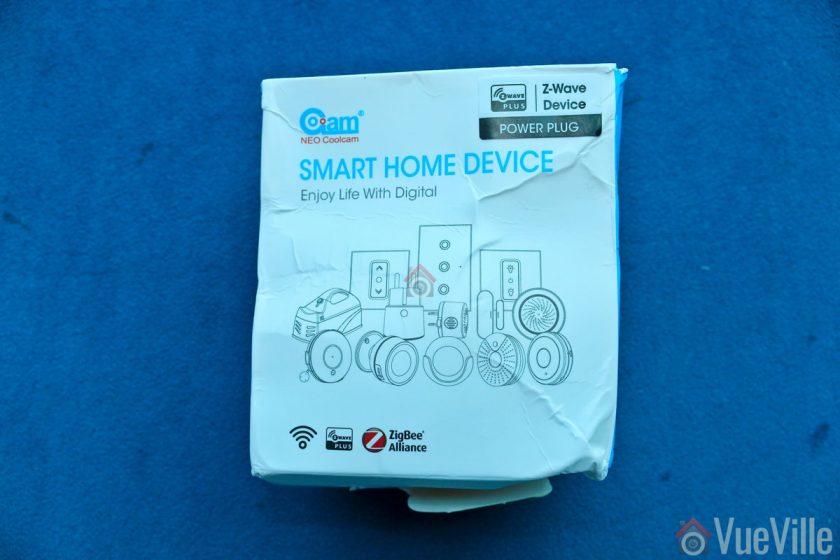
    Review - Neo Coolcam Z-Wave Smart Power Plug - Box Front

    The Neo Coolcam Z-Wave Smart Power Plug comes in a blue and white modern looking box package. The Z-Wave Plus logo you see on the box is not printed but is a sticker. Seeing as they also sell Wi-Fi & Zigbee smart plugs which share the same box package, this is a smart bit of cost savings.

    Review - Neo Coolcam Z-Wave Smart Power Plug - Box BackThe back of the box lists the main specifications of the sensor.
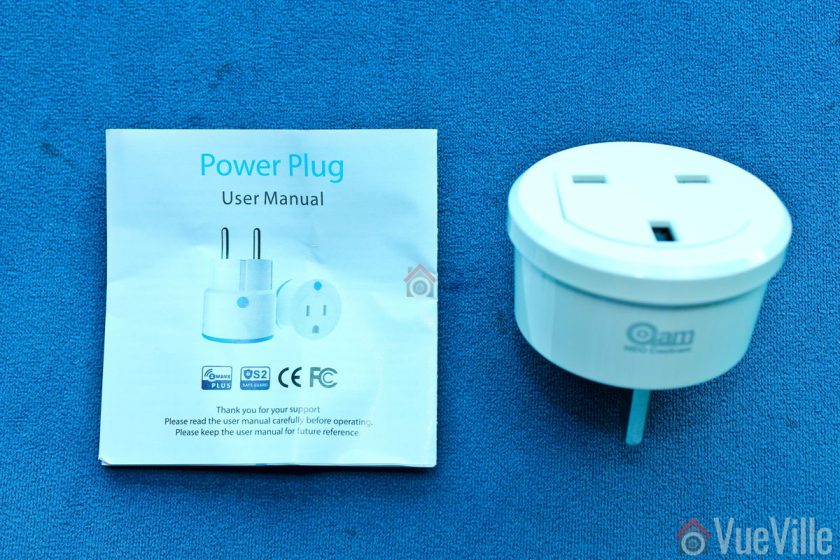
    Review - Neo Coolcam Z-Wave Smart Power Plug - Box ContentsOpening the box, we find the following:

    • Z-Wave Smart Power Plug with power metering
    • User manual

    Neo Coolcam Smart Power Plug Manual

    The included user manual is high-quality and unusually for Chinese products, has good quality English. Here’s a link in case you want to check it out before buying.

    Specifications

    [table id=66 responsive=”scroll” /]

    Design & Features
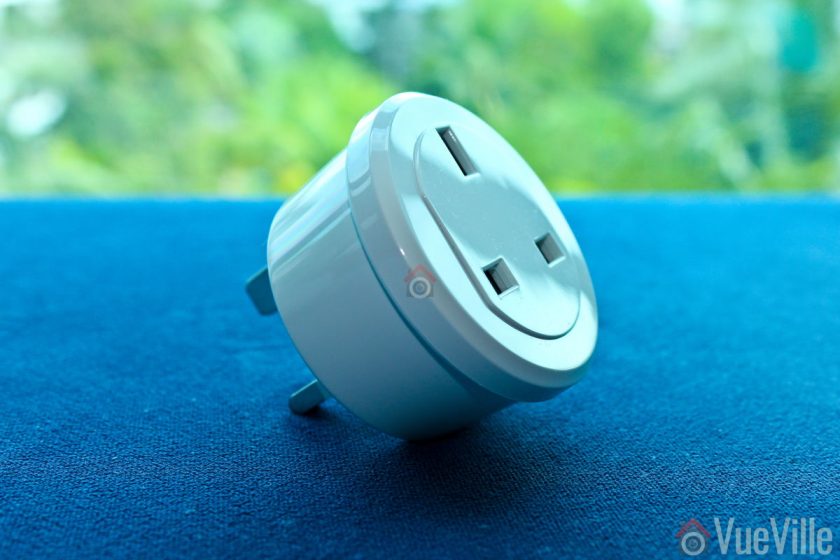
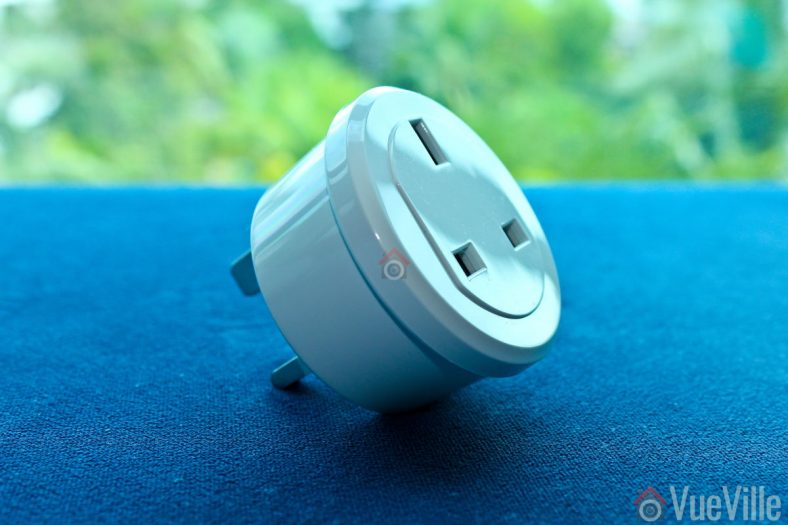
    Review - Neo Coolcam Z-Wave Smart Power Plug - Front

    The Neo Coolcam Smart Power Plug like other Coolcam devices has a glossy plastic finish. It doesn’t scream premium but is well-made and doesn’t look cheap.

    There is an LED next to just below the right plug socket. It is primarily used to indicate Z-Wave inclusion/exclusion mode and other statuses.
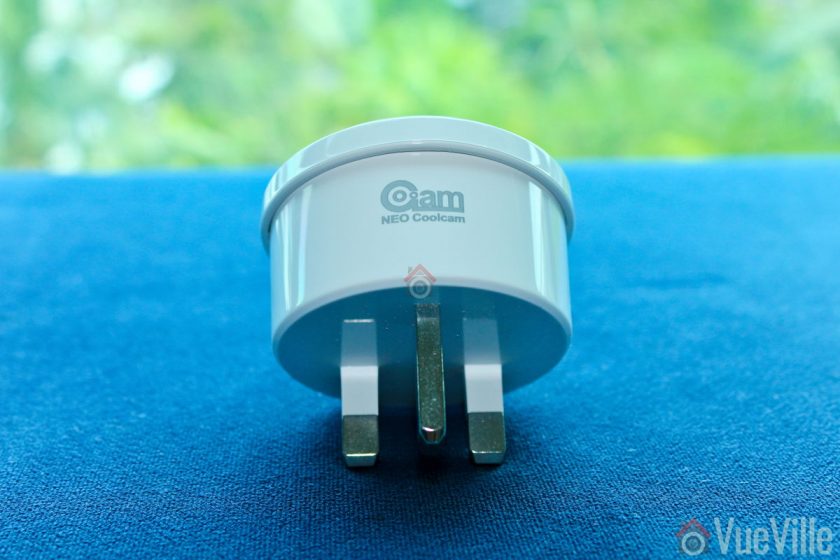
    Review - Neo Coolcam Z-Wave Smart Power Plug - Top

    The Neo Coolcam logo is at the top of the plug.

    Review - Neo Coolcam Z-Wave Smart Power Plug - Bottom

    The ‘code’ button is placed under the plug. This button has a few different functions: waking up the sensor so that you can configure it, putting the sensor in inclusion/exclusion mode and for restoring factory defaults.

    Installation

    Its always best to perform a factory default on a new Z-Wave device before including it in your Z-Wave network. I have found that this one step usually solves any problem I am having with including a new Z-Wave device.

    My first attempt at including the plug in secure mode failed. So this is one device that you may need to add in non-secure mode to your Z-Wave network. Shouldn’t be an issue though because a smart plug is not a security device like a smart plug which must be added in secure mode.

    So these are the steps I took to set up the sensor:

    1. I put HomeSeer into inclusion mode.
    2. The red LED flashed 4 times.
    3. I pressed the code button on the Coolcam sensor thrice very quickly (it needs three presses within 1.5 seconds).
    4. After a few seconds, HomeSeer reported that the sensor had been successfully included and the child devices had been created.

    This is what the HomeSeer HS4 interface looks like for the Neo Coolcam Smart Plug:
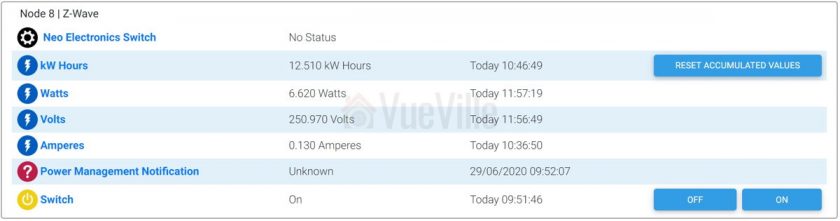
    Review - Neo Coolcam Z-Wave Smart Power Plug - Homeseer HS4The first device is the parent device and the one where you configure settings such as Z-Wave parameters and polling intervals. Then we have the kW Hours device which stores cumulative energy usage. Then there are the usual Watts, Volts and Amperes devices which are used to calculate energy usage. The  Power Management Notification device is next and this is where current overload warnings are shown. The switch has a maximum load current of 16A and of the load current exceeds this limit, the switch will automatically cut off, send a warning to this HS4 device and flash the red LED every 1 second. Finally you have the actual on/off switch control.

    Configuration Parameters

    There’s a wealth of Z-Wave parameters that you can adjust, but the one that I was keen on checking out is the Watts reporting interval – Parameter 7.

    [table id=67 responsive=”scroll” /]

    The default for Parameter 7 is 300 seconds and the minimum is 30 seconds. But I wanted a more frequent interval, like 5 seconds. So instead of changing this parameter, I simply changed the Z-Wave polling interval to 5 seconds in HS4.

    Performance

    There are 3 main criteria that define how good a smart power plug is:

    • Response time
    • Reliability
    • Z-Wave wireless range

    I tested the Neo Coolcam smart power plug over 2 months at the time of publishing.

    Response time: Excellent

    How quickly does the sensor respond to ON or OFF commands from the Z-Wave controller? You do not want a delay at all. I was very pleased to see that the Coolcam Smart Plug’s response was instantaneous with no discernible delay in my Z-Wave smart hub interface whenever I turned it on or off.

    Reliability: Excellent

    Does the smart plug miss ON or OFF commands, especially when they happen in quick succession? In my months of testing, it never skipped a beat. Every ON/OFF command was received and actioned by the smart plug.

    By default the smart plug updated the energy consumption and other metrics every 300 seconds without fail. After I changed the HomeSeer4 polling to 5 seconds, I got updates every 5 seconds.

    Z-Wave wireless range: Very good

    Since Z-Wave is a mesh network technology, the strength of your Z-Wave network at the point of installation depends on proximity to the smart hub or a repeater device.

    All AC powered Z-Wave devices act as repeaters and we have a generous number of Greenwave Powernodes scattered around the house.

    So it was no surprise to see that the Coolcam Smart Power Plug was working perfectly thoughout our home.

    Where to Buy

    [easyazon_link identifier=”B07HRCZY38″ locale=”UK” tag=”vueville.com-eaz-21″]Check Price on your local Amazon site[/easyazon_link]

    Verdict

    The Neo Coolcam Z-Wave Smart Power Plug is a fairly priced Z-Wave smart power plug that works very well. Even though the Coolcam brand is seen as a Chinese brand, I have found their gear to be solid performers without an inflated price tag.

    [review]
  • Review: Greenwave PowerNode 1-port Z-Wave Smart Plug with Power Monitoring

    Review: Greenwave PowerNode 1-port Z-Wave Smart Plug with Power Monitoring

    It’s all well and good being able to monitor motion and temperatures changes around your house, but your home truly becomes a smart home only when it can then respond to those changes. This can be done by controlling lights, home appliances and other security gadgets in your home.

    After I got my Fibaro and Aeotec motion sensors up and running, I started researching how I could get my existing dumb appliances to work with my smart home network. Let’s take the example of a humidifier. My son occasionally suffers from dry skin, so its very important that I am able to maintain a good humidity level in his nursery. I already have a [easyazon_link identifier=”B01C5UCWH6″ locale=”US” tag=”vueville.com-eaz-20″]non-smart humidifier[/easyazon_link] which is an ultrasonic cool mist humidifier. My Aeotec Multisensor 6 tells me what the humidity is but since the humidifier is not a smart device, I then need to manually switch it on or off. This is not very convenient in the middle of the night – I like my beauty sleep!

    The expensive way of automating the humidification is by getting an expensive smart humidifier like the [easyazon_link identifier=”B01K3KTR9Q” locale=”US” tag=”vueville.com-eaz-20″]Motorola Smart Nursery Humidifier[/easyazon_link]. But there’s an easier and far more cost-effective way of making your existing dumb appliances smart – by using smart power plugs like the Greenwave Powernode 1.

    Greenwave 1-port Powernode - VueVille

    For my first smart plug, I chose the Greenwave Powernode 1 because it is a very reasonably priced Z-Wave wall plug that has power usage monitoring and yet has great reviews.

    [wpsm_titlebox title=”Contents” style=”main”][contents h2][/wpsm_titlebox]

    Greenwave Systems – Who are they?

    Greenwave Systems was formerly known as Greenwave Reality Pte Ltd, a company started in 2008 in Singapore. Greenwave Reality became Greenwave Systems in May 2014. The company caters to both the consumer market through its smart home devices and industry through its disruptive Greenwave360 and AXON solutions.

    Greenwave Powernode Series

    Greenwave- Powernode Series - VueVille
    The Greenwave Powernode Family

    The Greenwave Powernode series consists of everything you need to control electrical appliances and monitor their power usage. Their most popular products are the 1-port wall plug and the power strip.

    Greenwave 1-port Powernode Specifications

    [table id=35 /]

    Design

    The Greenwave 1-port PowerNode is a well-built device with a premium feel to it. The rounded contours and matte plastic exude high-quality which you wouldn’t expect for such an affordable smart plug.

    Greenwave 1-port Powernode -Side View - VueVille

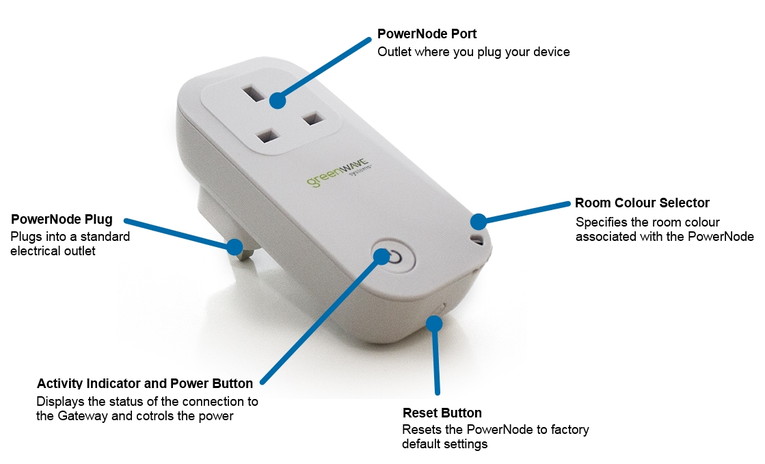
    On the front, there is a manual over-ride switch which also doubles up as a slightly confusing indicator LED array. I say slightly confusing because, it is not a single LED but a ring of LEDs arranged in a circle around and behind the button. The LEDs are used in a dizzying number of patterns to convey different states and operation modes – keep the manual handy.

    Greenwave 1-port Powernode - Pins View - VueVille


    Greenwave 1-port Powernode - Back View - VueVille

    Features

    Greenwave 1-port Powernode - VueVille
    Note that the reset button is also a SYNC button. Image courtesy – Vesternet

    The PowerNode is a first generation Z-Wave device, which means it is not based on the latest 500 series chipset. However I don’t think it matters because for switching and power measurement purposes the increased bandwidth of Z-Wave 500 is not needed. I also found the range of the device very good, so don’t let the 1st gen nature of the device discourage you.

    The PowerNode has both the basic relay function and a power usage monitoring feature. It supports a healthy switching capacity of 2,400W and up to 10A.

    The other main feature if the smart plug is that it can monitor and report the power usage of plugged in devices. I tested it with an LED lamp, a humidifier, a traditional CFL lamp and every time it gave a reading that was in line with the device’s stated power consumption.

    There is a room colour selection wheel at the bottom right, however this feature works only if you use Greenwave’s own Gateway controller. If this is the case, you can assign a colour using the wheel and it will reflect this assignment on the Gateway’s control panel. Frankly it sounds more like a gimmick than anything useful and anyway since I have a Vera Plus I can’t use this feature.

    There is a Reset button on the bottom of the plug, but what the manual doesn’t state clearly is that it is primarily a Sync button. Even the physical symbol on the button is that of SYNC. So its just a multi-purpose button that does different things based on how many times you press it. You will need to know this, otherwise you will spend ages wondering where on earth the sync button is like I did. Greenwave, you need to really sort out your user manual!

    Installation

    I found installation mostly straight forward except for finding the sync button because the manual insists its a reset button.

    The rather confusing user manual is written mainly with the assumption that you will be using the PowerNode with Greenwave’s own Gateway. But I suspect most people will want to use it with their own Z-Wave gateway, so here are the steps for adding it to your Z-Wave network (I used a Vera Plus, but the steps are the same):

    1. Click on the Add Device button
      Greenwave PowerNode 1-port Review - Step 1 - VueVille
    2. Now you need to select the type of device – choose ‘Generic Z-Wave Device’
      Greenwave PowerNode 1-port Review - Step 2 - VueVille
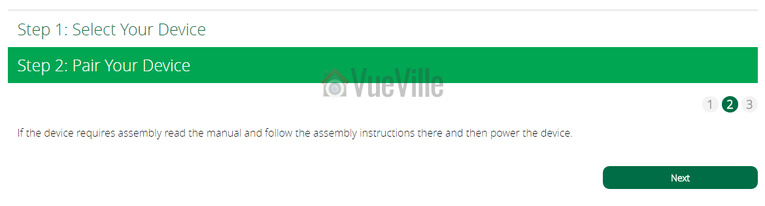
    3. Then you will see this screen, simply click ‘Next’
      Greenwave PowerNode 1-port Review - Step 3 - VueVille
    4. Now plug the PowerNode into an electrical outlet that is close to your Z-Wave controller.
    5. Locate the sync button on the PowerNode. It is a small round button on the side of the device, marked with the sync symbol.
    6. Press and hold the sync button for one second until the PowerNode activity indicator begins to display a clockwise-rotating pattern, which shows that the PowerNode is attempting ‘inclusion’ into your Z-Wave network.
    7. Now press Next on your Vera Plus wizard
      Greenwave PowerNode 1-port Review - Step 4 - VueVille
      You will then see the following screen as the Vera Plus starts looking for any new Z-Wave device in range:
      Greenwave PowerNode 1-port Review - Step 5 - VueVille
    8. After a few seconds, the rotating pattern on the PowerNode LED indicator should stop and all bars turn green for five seconds to indicate successful inclusion. The PowerNode is now part of your Z-Wave network. If the rotating pattern has stopped but the bars rapidly flash green for five seconds, then the PowerNode inclusion process has failed, and you must start over.
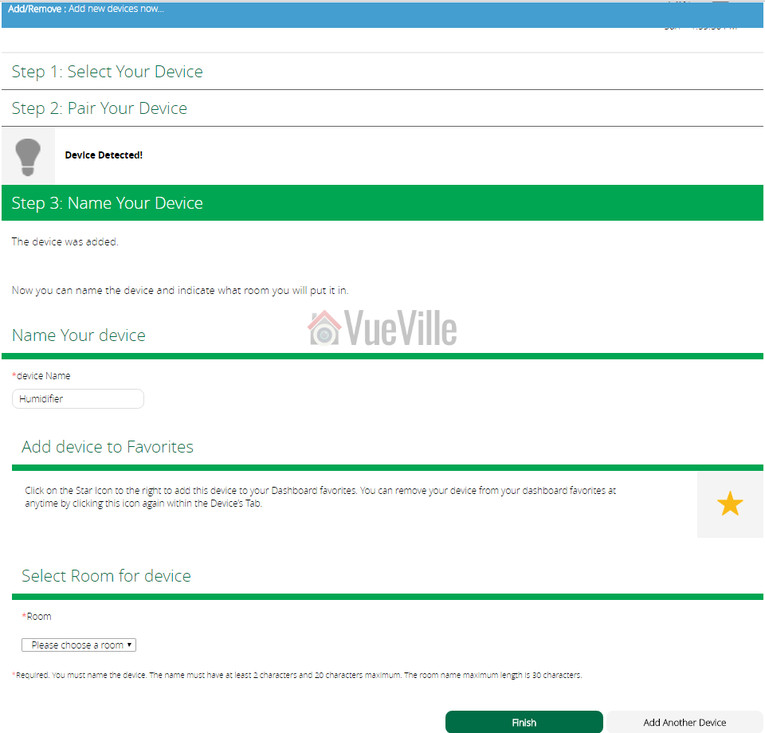
    9. Give the device a name and click Finish.
      Greenwave PowerNode 1-port Review - Step 6 - VueVille
    10. You will then see a “Please Wait” message at the top.
    11. When it disappears, your new device will show up in the device list.
      Greenwave PowerNode 1-port Review - Step 7 - VueVille

    Performance

    So when it comes to using it daily, how did it fare? Very well – I have 5 of these smart plugs in service for the last 6 months and they have been simply excellent. It has turned on and off every time as commanded by the Vera Plus. No issues at all with wireless range and they function as signal repeaters, so are great for extending the reach of the network too.

    Power usage monitoring works well and while I am not doing anything with the info presently, its nice to know I can keep an eye on the connected appliance’s power usage.

    There is no noticeable delay between me turning on my living room lamp from Imperihome and the LED lamp actually turning on.

    Greenwave 1-port Powernode Review - Imperihome - VueVille

    If there is one quibble I have, its the PowerNode being quite needy when it comes to receiving a pulse from the Vera Plus. If it does not hear from the Z-Wave controller every couple of minutes, it starts angrily flashing its very bright LEDs. Yes they are enough to make you lose your sleep. The culprit is the default poll time which you can increase to sort out the problem, or you can instruct your controller to send the PowerNode a pulse every minute and keep it happy.

    Verdict

    [review]